User roles: ✔ Application Administrator ✔ Benefit Administrator
Most projects are justified by the value they promise: lower costs, more revenue, happier customers. Months later, few organisations can say which of those promises were kept. The forecast was changed along the way, nobody can find what was agreed, and results were reported in spreadsheets that do not add up across projects.
The benefits framework gives every project one consistent way to say what value it will deliver, to have that value signed off, and to show whether it arrived. Benefits are tied to your strategy, measured with KPIs, frozen into an approved baseline when they are agreed, and reported on the same dashboards across every portfolio.
This article is the starting point for administrators setting the framework up. If you are new to benefits, or only use them on a project, start with Benefits Framework: Overview, which explains the key terms and where to start reading for your role. In this article you will learn how the framework fits together, which features and roles to switch on, where it is configured, and the order to set it up in.
Before You Start
You need the Application Administrator role to switch on Show Benefits, and the Benefit Administrator role for everything on the Benefits Administration page.
Decide whether benefits must be approved before they count. Approval is optional: with Show Benefit Approval off, project managers set every status themselves, and a benefit's Approved Baseline is taken when it is first saved at Approved. If you use approval, agree with finance and the PMO who approves, and in which parts of the organisation. You will need a Governance Approval person on each portfolio, or a benefit approval board. See Setting Up Benefit Baselines and Approval.
What the Framework Does
Each part of the framework answers one question:
Question | Answered by |
Why are we doing this? | Strategic pillars and strategic objectives: the strategy a benefit contributes to. |
What kind of value is it? | Quantitative (money) or qualitative (no money), then a benefit type and, optionally, a class. |
How will we know it happened? | KPIs, each measured in a unit of measure, with a target for every period. |
What did we sign up to? | The Approved Baseline: the benefit's forecast as it stood when it was approved. |
Is it happening? | Realized values, KPI results and confidence reviews, chased by reminders and read on the benefits dashboards. |
Turn On the Features
The framework is switched on in two places:
Show Benefits is on the Features page of the Administration Console, in the Benefits & Ongoing Costs group. An Application Administrator turns it on. See Fluid Feature Guide.
Every other benefits feature is also on the Features panel at the top of Benefits Administration, so a Benefit Administrator can switch them without the Features page.
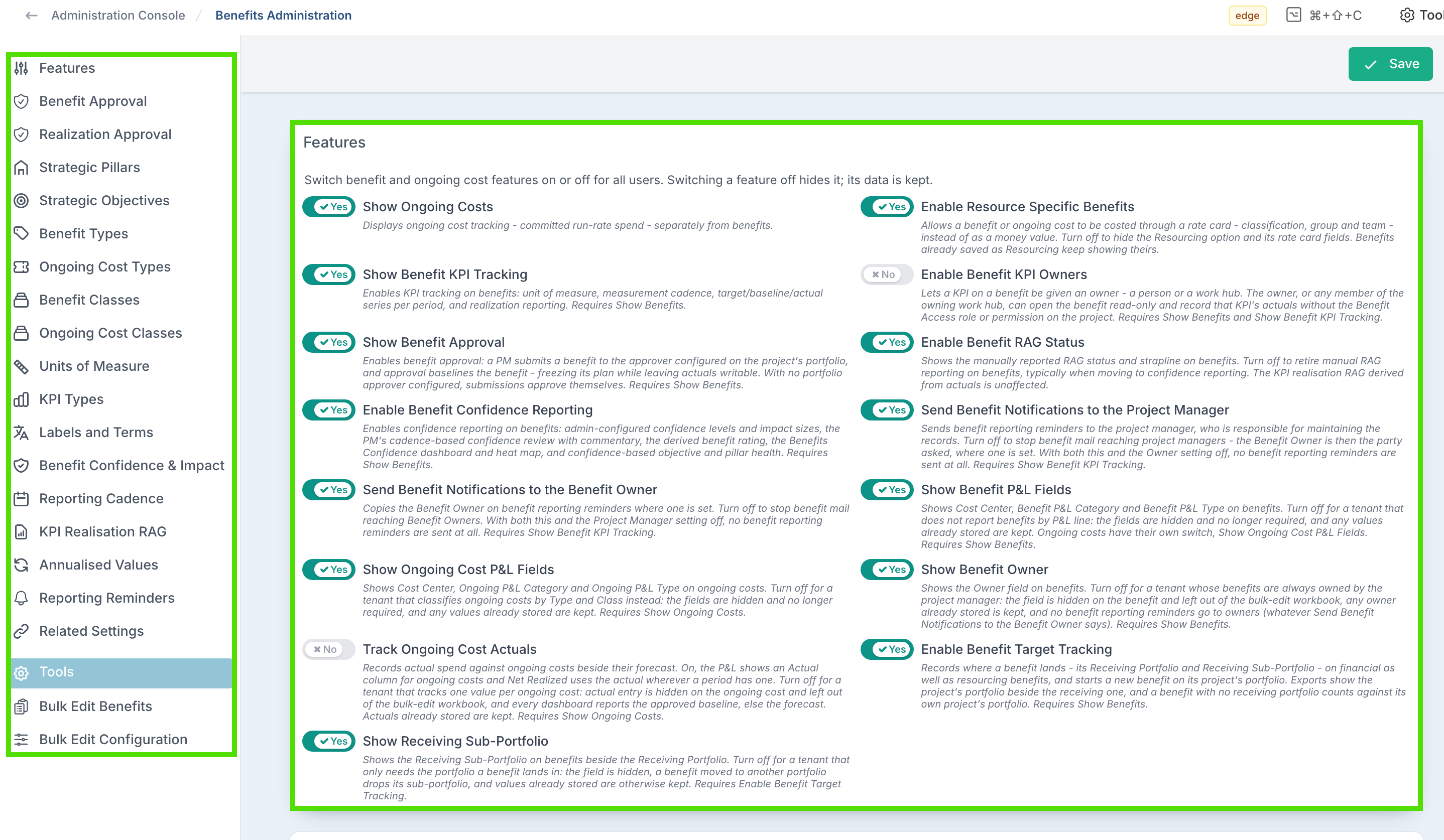
Feature | What it gives you | Turn it on when |
Show Benefits | The benefits register on every project and the Benefits section of the project workspace. Features page only. | Always. Everything below depends on it. |
Show Ongoing Costs | A separate register for committed running costs. It does not need Show Benefits. | You track the running costs a project leaves behind. |
Enable Resource Specific Benefits | Benefits valued through a rate card (Resourcing) as well as in money (Financial). | Some benefits are measured as staff time released. |
Show Benefit KPI Tracking | KPIs on benefits, targets and results per period, KPI realisation, reporting reminders, the Benefits KPI Performance dashboard and the KPI panels on the other dashboards. | You want to measure benefits, not only list them. |
Enable Benefit KPI Owners | An owner (a person or a work hub) on each KPI, who can record that KPI's results without the Benefit access role or project permission. Needs Show Benefit KPI Tracking. | Results come from people outside the project team. |
Show Benefit Approval | Submit and approve. Approval takes the Approved Baseline. It also makes Realization Approval and re-baselining available. | Benefits must be signed off before they count. |
Enable Benefit RAG Status | A manually reported RAG and strapline on each benefit. | You report a RAG on benefits by hand. Many organisations turn it off once confidence reporting is on. |
Enable Benefit Confidence Reporting | Confidence levels and business impact sizes, a regular confidence review, the benefit rating and the Benefits Confidence dashboard. | You want project managers to say how likely each benefit is. |
Send Benefit Notifications to the Project Manager | Reporting reminders go to the project manager. Needs Show Benefit KPI Tracking. | Project managers maintain the benefit records. |
Send Benefit Notifications to the Benefit Owner | Reporting reminders also go to each benefit's owner. Needs Show Benefit KPI Tracking. | Benefit owners should be chased too. With both notification features off, no reminders are sent. |
Show Benefit P&L Fields | Cost Center, Benefit P&L Category and Benefit P&L Type on each benefit, required when shown. | Benefits are reported against budget lines. |
Show Ongoing Cost P&L Fields | The same three fields on ongoing costs. | Ongoing costs are reported against budget lines rather than by type and class. |
Show Benefit Owner | The Owner field on benefits. Turned off, no reminders go to owners. | Benefits have an owner other than the project manager. |
Track Ongoing Cost Actuals | Actual spend recorded against ongoing costs beside their forecast. | You compare running costs with what was planned. |
Enable Benefit Target Tracking | Records where a benefit lands, its Receiving Portfolio, separately from the project that delivers it, and adds the Benefit Flows dashboard. | Benefits delivered by one part of the organisation are realised in another. |
Show Receiving Sub-Portfolio | A Receiving Sub-Portfolio beside the Receiving Portfolio. Needs Enable Benefit Target Tracking. | You need to know the sub-portfolio a benefit lands in. |
The Excel bulk edit tools also need Allow Bulk Edit, in the Bulk Edit group of the Features page.
Turning a feature off hides it. Nothing already recorded is deleted, and it all reappears when the feature is turned back on, so you can switch the framework on in stages.
Give People the Right Roles
Role | What it allows |
Benefit access | Seeing benefits at all, and the benefits dashboards. Everyone who works with benefits needs it, including benefit owners who should receive reminders and each portfolio's Governance Approval person, who otherwise is assigned decisions but not emailed about them. |
Benefit Administrator | The Benefits Administration page, Benefit P&L Type Management, benefits on every project, the bulk edit tools across all projects, and unlocking or recalling approved realized values. Give it together with Benefit access. |
Benefit Viewer | Read-only access to every benefit and benefits dashboard, without being added to each project. Give it together with Benefit access. |
Creating and editing benefits on a project needs Manage permission on that project as well as Benefit access. The Governance Approval person for each portfolio is set by a Project Administrator. See User Security Roles.
Find Your Way Around Benefits Administration
Go to Administration Console → Benefits → Benefits Administration. The menu on the left jumps to each section:
Section | What you set up there | See |
Features | The benefits features described above. | This article |
Benefit Approval and Realization Approval | How benefits, and the values they deliver, are approved by default. | Setting Up Benefit Baselines and Approval, Approving Realized Values |
Strategic Pillars, Strategic Objectives, Benefit Types, Benefit Classes | The taxonomy every benefit is classified by. | |
Ongoing Cost Types, Ongoing Cost Classes | The same classification for ongoing costs. Shown with Show Ongoing Costs. | |
Units of Measure, KPI Types | The building blocks for KPIs. | |
Labels and Terms | Your organisation's words for benefits, costs and the measures on the dashboards. | Below |
Benefit Confidence & Impact | The confidence, impact and rating scales, the review cadence, the waterline, and Benefits locked through. | |
Reporting Cadence, KPI Realisation RAG | Which cadences people can choose, and when a KPI turns green, amber or red. | |
Annualised Values | A yearly run-rate figure on each benefit, alongside its period values. | This article |
Reporting Reminders | When reminders to report are sent, and at what time. | |
Related Settings | Links to Benefit Conversion Windows and the P&L type lists, the financial year and currencies, and each portfolio's benefit approver. | This article |
Tools | Bulk Edit Benefits and Bulk Edit Configuration, the Excel workbooks. Shown with Allow Bulk Edit. |
Pillars, objectives, types, classes, units and KPI types are added and changed in their own dialogs and save straight away. The settings panels are saved together: click Save at the top of the page. Unsaved changes appears beside it as soon as you change something.
You can build every list before switching KPI tracking or confidence reporting on. The panels that depend on them say so, and everything you configured appears once the feature is on.
Use Your Organisation's Words
The Labels and Terms panel renames what people see, without changing any data or report. Leave a label blank to keep the standard word.
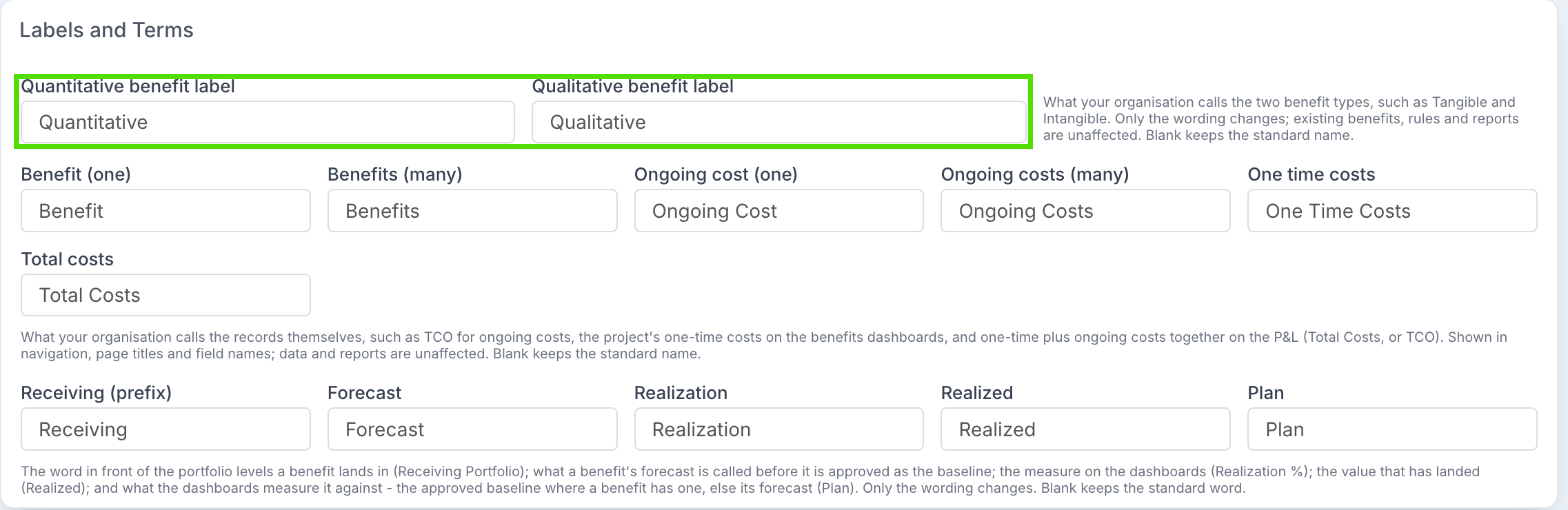
Label | Where it shows | Example |
Quantitative benefit label, Qualitative benefit label | The two kinds of benefit. | Tangible and Intangible |
Benefit (one), Benefits (many), Ongoing cost (one), Ongoing costs (many) | Navigation, page titles and field names. | Running Cost, which gives Add Running Cost and Running Cost P&L Type |
One time costs, Total costs | The project's one-time costs on the benefits dashboards, and one-time plus ongoing costs on the P&L. | TCO |
Receiving (prefix) | The word in front of the portfolio a benefit lands in. | - |
Forecast, Realized, Realization | A benefit's forecast before it is approved, the value that has landed, and the measure on the dashboards. | - |
Plan | What the dashboards and benefits lists measure realized values against: the Approved Baseline where a benefit has one, otherwise its forecast. | - |
The names of the three confidence scales (Confidence field name, Impact field name and Rating field name) are on the Benefit Confidence & Impact panel.
Set It Up in This Order
Features and roles, as described above.
Your taxonomy: pillars, objectives, benefit types, the types each objective allows, and classes. See Setting Up Your Benefits Taxonomy.
KPIs: units of measure, KPI types, reporting cadences and the RAG thresholds, then the KPIs on each benefit. See Setting Up KPIs to Measure Benefits.
Approval and baselines: the Governance Approval person on each portfolio or a benefit approval board, the approval defaults, and what a baseline fixes. See Setting Up Benefit Baselines and Approval. To have what a benefit actually delivered approved as well, see Approving Realized Values.
Reporting: the confidence scales, the review cadence, reminders and the dashboards. See Reporting on Benefits and KPIs.
Good to Know
I cannot see Benefits Administration.
It needs the Benefit Administrator role (or Application Administrator), and the Benefits panel of the Administration Console only appears when Show Benefits is on.
Do we need Show Benefits to track ongoing costs?
The ongoing costs register itself does not, but most of what goes with it does: its setup (types, classes and P&L types) on Benefits Administration, the Resourcing cost type, approval, the Benefits P&L, Payback & ROI and Benefit Flows dashboards, and the Project Ongoing Costs export. People need Benefit access to see ongoing costs. See Project Ongoing Costs.
Can we turn approval on later?
Yes. From the moment Show Benefit Approval is on, a benefit reaches Approved by being submitted and approved.
Can a benefit be deleted?
Only an Idea or Validated benefit that has never been submitted for approval and has no realized values. Otherwise archive it: an archived benefit keeps its history and is left out of every total and dashboard until it is unarchived. See Archiving and Unarchiving Benefits.
Will renaming Benefits or a benefit type break our reports?
No. Only the wording on screen changes. Stored data, rules and reports are unaffected.