User roles: ✔ Board Administrator ✔ All Users
In this article you will learn about the two FluidAI checks available on process board request forms — one that finds requests similar to the one being raised, and one that judges whether the request belongs on this board at all — how to set them up on a board, and what the person raising a request sees.
The setup sections are for board administrators. What the Submitter Sees describes the experience for everyone who raises a request.
Before You Start
The checks are only available when your organisation has switched them on. An Application Administrator controls this on the FluidAI Features page in the Administration Console — see Setting Up FluidAI.
Enable FluidAI Similar Work Request Check makes both checks available to process boards. It adds the Enable AI Similarity Check and Enable AI Applicability Check settings to each board’s Work Requests settings, both switched off.
Enable FluidAI for Fluid Jobs must also be on, or the checks will not run.
Switching on the FluidAI setting does not turn the checks on for any board. This is different from the impact and status report guidance checks, which start working as soon as their setting is on. Here the setting only makes the checks available; each board administrator then decides, board by board, whether to use the AI Similarity Check, the AI Applicability Check, both or neither. Until a board switches one on, nothing changes for people raising requests on it. See Setting Up a Board.
The checks are only offered on boards that accept requests from people beyond their own members. There is no job to run: the checks happen while a request is being written. They apply to everyone who raises a request, and are not affected by Restrict FluidAI to Project Admins.
The Problem at Intake
Two things go wrong at the point a work request is raised, and both are expensive because they are only discovered later by someone doing triage.
Duplicates. Somebody raises a request for work that is already in the pipeline. They are not being careless — they have no practical way to search a board of open requests written in other people’s words. It surfaces weeks later, usually after both have been assessed.
Wrong board. A request that should have gone to HR arrives on the IT board. Someone triages it, works out where it belongs, and either moves it or sends it back. The submitter finds out days later that they queued in the wrong place.
FluidAI addresses these with two separate checks. They can be used independently or together, and which you need depends on which problem you actually have.
The Two Checks
The AI Similarity Check compares the request being written against the open cards already on that board and returns any that look like the same piece of work. It reads the title, status and the opening of the description of each existing card, so it matches on meaning rather than on shared keywords — “laptop will not connect to the VPN” and “remote access failing on my new machine” are recognisably the same problem even though they share no words.
Every open card on the board is compared — not only those that arrived as requests — except sprint cards, which are left out. Closed cards are excluded deliberately: a request that was completed last year is not a duplicate, and including them would bury the matches that matter.
The AI Applicability Check judges whether the request belongs on this board, using guidance you write describing what the board is for. When it decides a request does not belong, it says so and explains why — usually naming the board it should go to instead, because your guidance told it.
The two are independent. A busy shared board may want both. A single-team board with no risk of misdirection may only want similarity. A board that receives everything and needs sorting may only want applicability.
Setting Up a Board
1. Open the board’s Work Requests settings
On the board, select Edit, then Work Requests in the side navigation.
2. Check who can submit requests
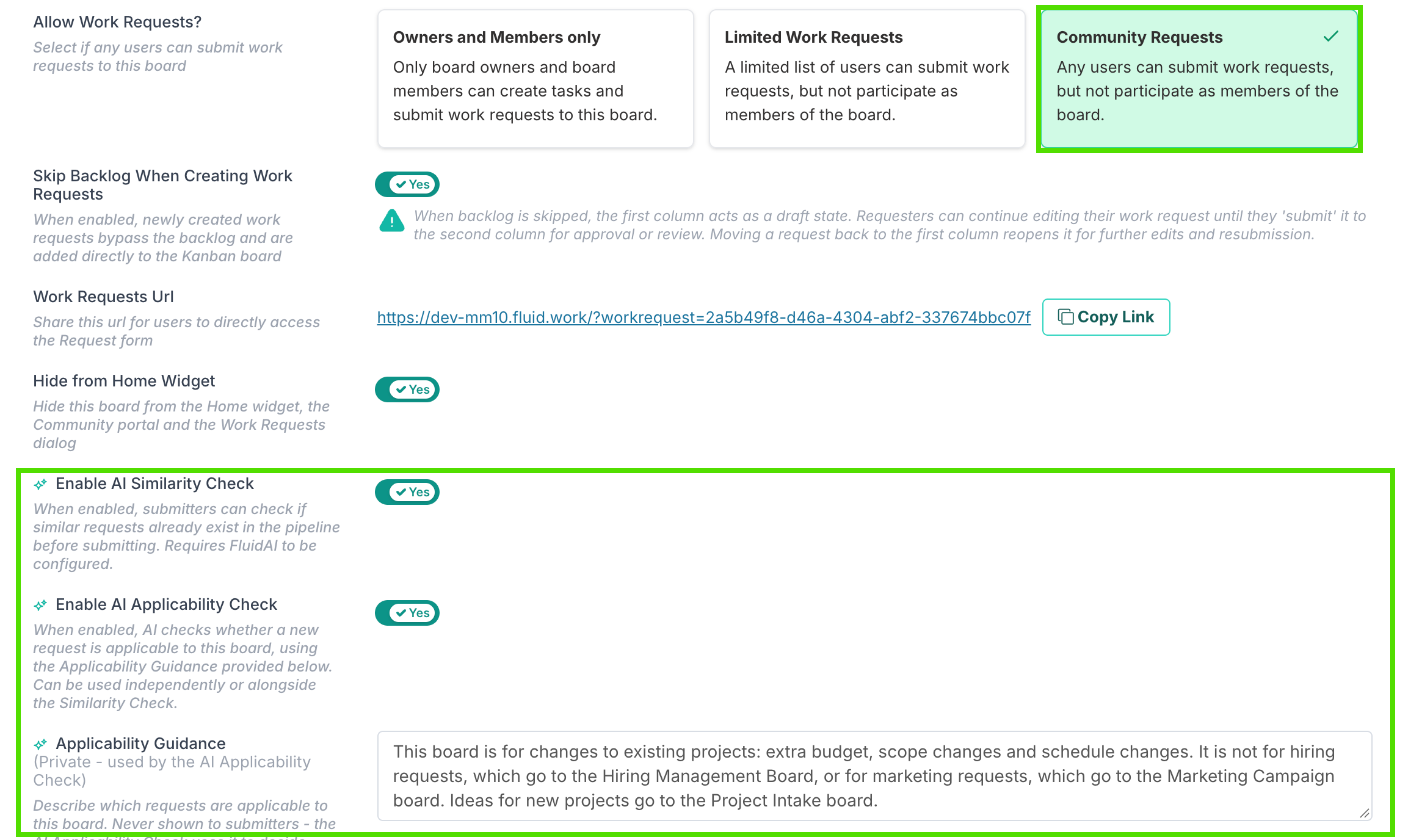
Allow Work Requests? must be Limited Work Requests or Community Requests. On an Owners and Members only board the AI settings are not shown — both checks exist to help people who are not close to the board, and on a members-only board everyone already is.
3. Switch on the checks you want for this board
Both are off until you switch them on, and each works on its own:
Enable AI Similarity Check compares a new request with the open cards already on the board, so submitters can see whether the same work is already in the pipeline before they submit. It needs nothing else from you: it works from what is on the board.
Enable AI Applicability Check judges whether a new request belongs on this board. To do that, FluidAI needs to know what the board is for — so switching it on reveals the Applicability Guidance field, where you describe it. The field is hidden while the Applicability Check is off, because nothing else uses it.
4. Write the applicability guidance, then select Save Board
Applicability Guidance is private — never shown to submitters. Describe what the board is for, and just as importantly, where the things it is not for should go instead. For example, on a board for changes to existing projects:
This board is for changes to existing projects: extra budget, scope changes and schedule changes. It is not for hiring requests, which go to the Hiring Management Board, or for marketing requests, which go to the Marketing Campaign board. Ideas for new projects go to the Project Intake board.
Naming the other boards is what makes this useful rather than merely obstructive. Guidance that only says what the board is for produces a rejection; guidance that names the alternative produces redirection, and the submitter can act on it immediately.
What the Submitter Sees
Both checks run on the form for raising a new request on the board, before the request is submitted. They run on their own: about a second and a half after the submitter finishes the title or the description and moves on, the checks run in the background — up to three times per form, so they keep up as the request takes shape. If no result has come back by the time the submitter submits, the checks run then. While a check is running, the form shows Checking for similar requests with a count of seconds.
If similar requests are found, they are listed under We found similar requests already in the pipeline, with each request’s title and status.
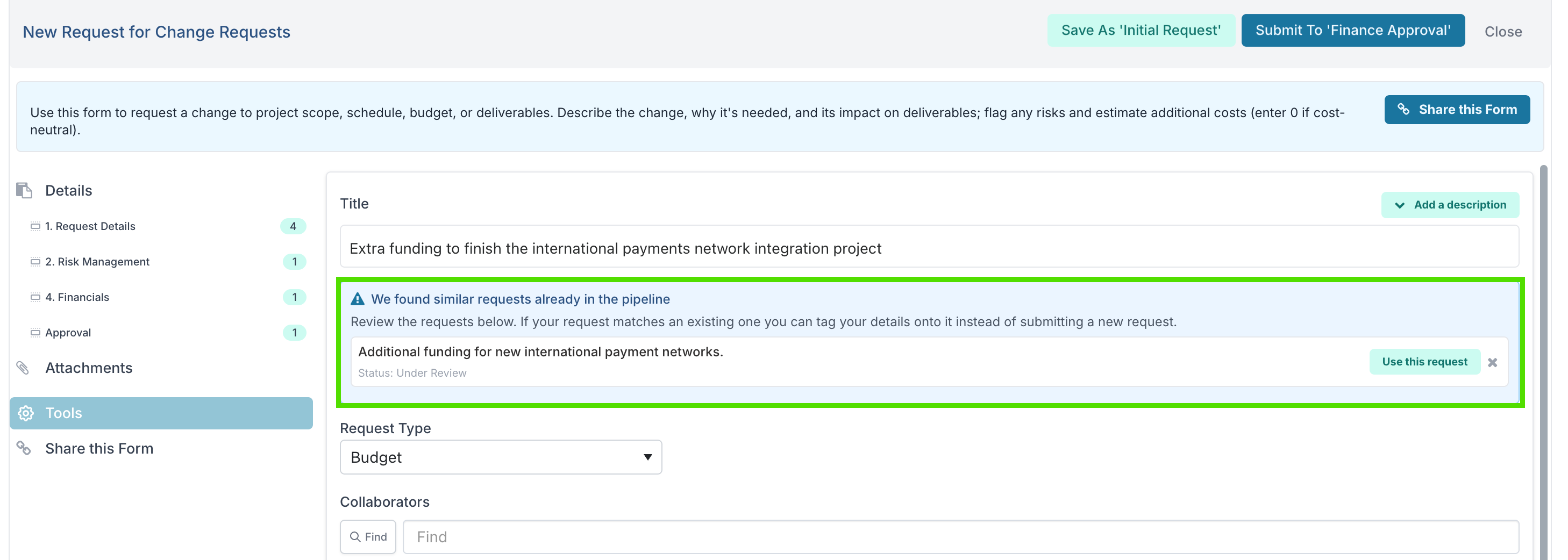
Each match has a Use this request button, for when the submitter’s need is the same as that existing request. Choosing it opens Tag onto Existing Request, where the submitter can add an optional comment for the team that owns the existing request.
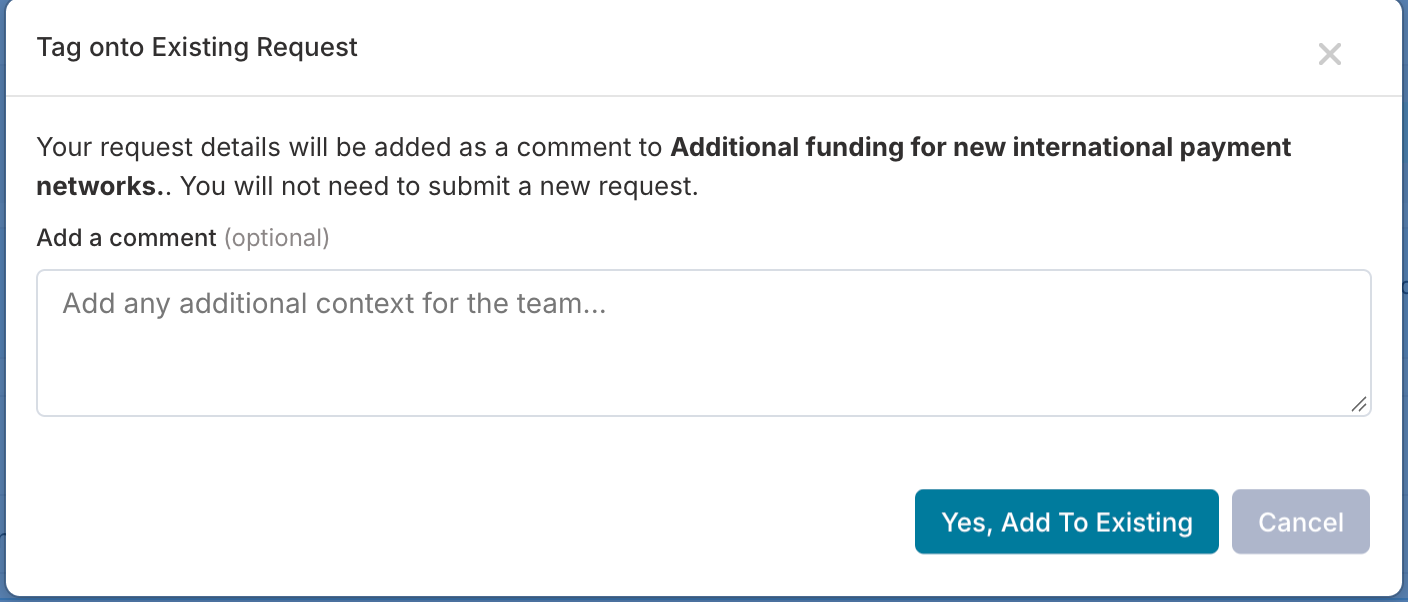
When the submitter selects Yes, Add To Existing:
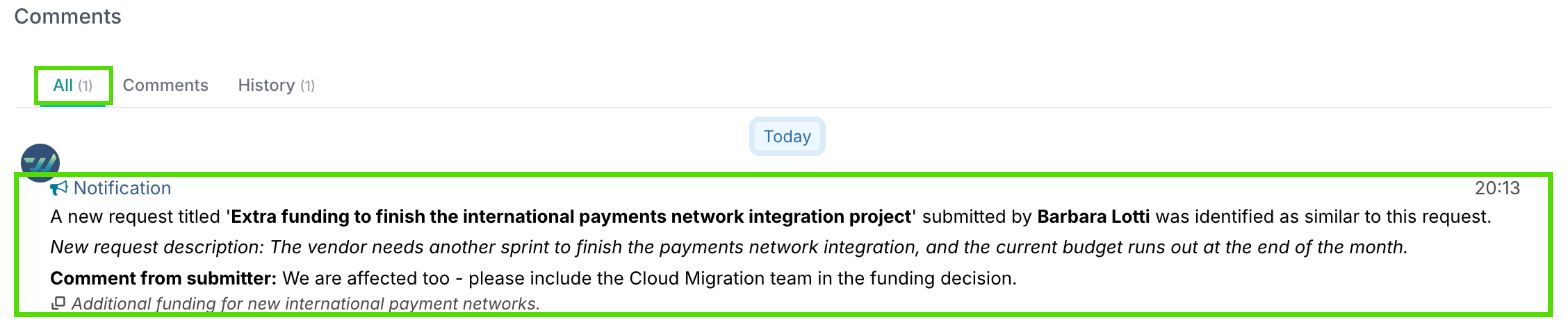
Fluid posts an automatic Notification on the existing request. It contains the new request’s title, the submitter’s name, the first 200 characters of the description if one was entered in Add a description, and the comment from the dialog.
Nothing else from the form is kept. Answers to the form’s own fields, the request type and any attachments are discarded when the form closes, so if the detail matters, the submitter should put it in the description or the comment.
The form closes with the message Your request has been added to the existing request. No new request is raised.
The submitter is not added to the existing request and does not receive updates about it. They can use it even if they cannot open the board, and the matched request’s title is not a link.
On the existing request, the notification appears under Comments in the All and History tabs. It does not appear in the Comments tab itself, which only shows comments people have written.
If the request does not appear to belong on this board, an orange warning appears reading It looks like this may not be suitable for the recipients of request, please review the instructions and consider amending the request. FluidAI’s explanation sits beneath it, including where to go instead when the board’s guidance says. The warning can be dismissed with its cross.
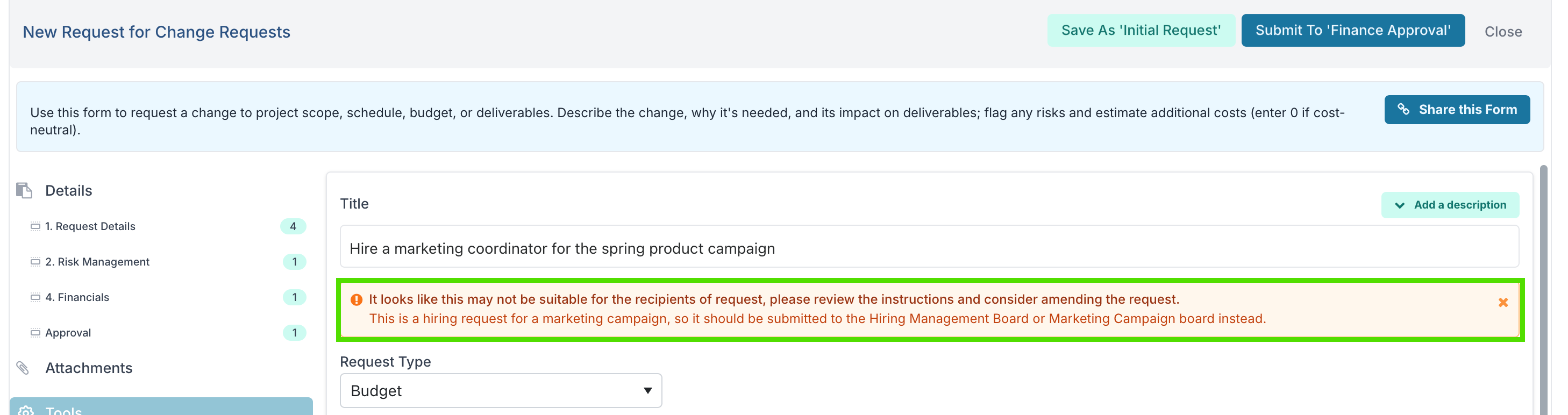
Submitting anyway. If the submitter submits — or saves a draft — with matches still listed, or with an applicability warning showing, they are asked once to confirm: Proceed with submission?, with Yes, proceed anyway and Cancel. The confirmation repeats the applicability warning when there is one. They are never prevented from submitting.
This is deliberately advisory: a confirmation, never a refusal. At intake the submitter usually knows less about the board than the board owner does, but not always — and a hard stop at the front door of a process is a reliable way to make people stop using the process.
Accuracy and Limits
Suggested matches are verified against real requests. Anything FluidAI returns is checked against the board’s actual open requests before being shown, so a submitter is never presented with a “similar request” that does not exist.
A false match costs more than a missed one. Telling someone their genuinely new request duplicates unrelated work sends them away or creates work for whoever triages it. The check is tuned to prefer silence over a doubtful match, so expect it to miss the occasional loose similarity.
It only sees the title, status and the opening of the description. Only the first few hundred characters of each existing description are compared, and themes, custom properties, attachments and comments are not compared at all. If your board’s real distinguishing information lives in a custom field, similarity matching will be weaker than you expect.
Very large boards are compared in part. There is a limit to how much existing request text can be read in one check, so on a board with hundreds of open cards some will not be compared. Closing finished work is what keeps the whole board in scope.
Quality depends on how the existing requests were written. A board where requests have two-word titles and empty descriptions gives the check very little to match on. This is one place where the similarity check quietly rewards a board that already has good intake discipline.
Nothing runs when there is nothing to do. On a board with no open requests and no applicability guidance, no check is performed at all.
Getting the Most From It
Start with applicability on your busiest shared board. It is the one with the clearest payback and the easiest guidance to write, because the board owner already knows exactly which requests keep arriving in the wrong place.
Name the alternative destinations in your guidance. Redirection is more useful than rejection, and it is the difference between a submitter solving their problem and a submitter giving up.
Revisit the guidance when your board tree changes. Applicability guidance naming a board that has been renamed or retired will send people somewhere that no longer exists. Nothing detects this for you.
Close finished requests. Only open cards are compared, so a board where completed work is never closed will slowly degrade both the accuracy and the usefulness of the similarity check.
Watch what triage sees. The measure that matters is duplicates and misdirected requests reaching the people who triage — not how often submitters run the check.