User roles: ✔ Application Administrator
In this article you will learn where FluidAI is switched on and off, what each setting controls, and the order to enable things in when you are rolling FluidAI out for the first time.
Note that you need to be an Application Administrator to change these settings. FluidAI capabilities are visible to other users, but only an Application Administrator can turn them on.
Where FluidAI Is Configured
Every FluidAI capability is switched on and off from one page.
1. Open the Administration Console
Select Administration Console from the dropdown menu under your avatar.
2. Open FluidAI Features
In the Governance section, select FluidAI Features.
3. Set the capabilities you want, then Save
Each capability has a short name and a fuller description of what it does. Use the search box at the top right to filter the list. Changes are not applied until you select Save.
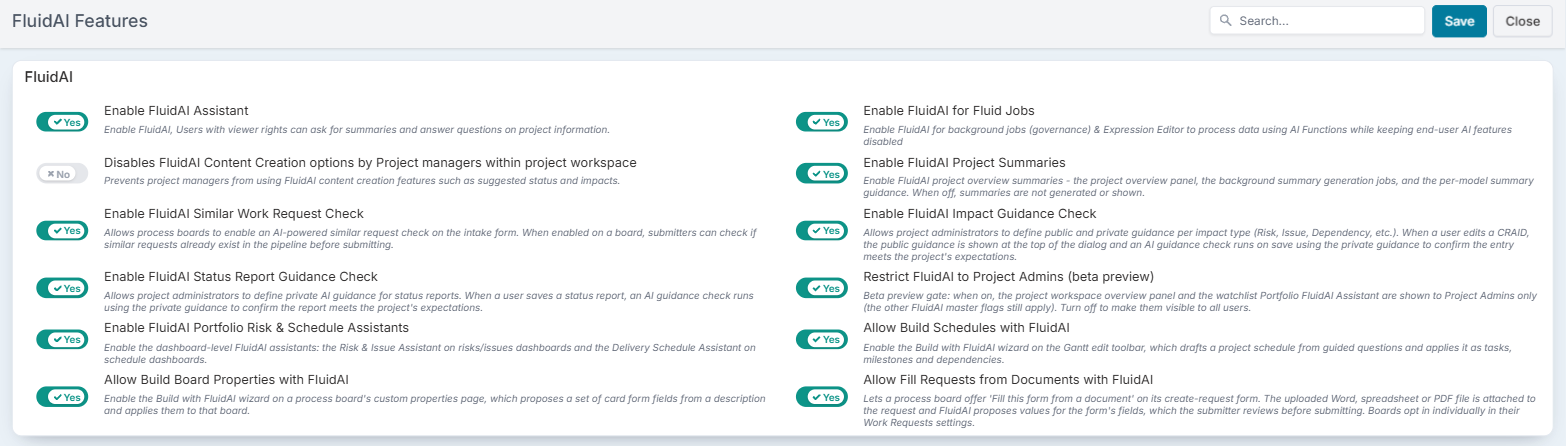
This page is deliberately reachable even when FluidAI is switched off — it is the page you use to switch it back on.
The Master Switch
Enable FluidAI Assistant is the master switch. With it off, no FluidAI capability is in effect anywhere in the product, whatever the other settings say.
Two things about it are worth knowing before you use it:
Turning it off does not erase your other settings. Every capability below keeps the value you gave it. They simply stop taking effect until the master switch goes back on, at which point your configuration returns exactly as you left it. The page shows a notice at the top when this is the case, so nobody mistakes a dormant setting for a lost one.
It is a genuine kill switch. If you ever need to stop all AI activity in Fluid immediately — during a review, or a change freeze — this is the one setting to change. You do not need to unpick the others.
There is one deliberate exception. Enable FluidAI for Fluid Jobs allows background processing — governance assessments and the expression editor — to keep using AI while all end-user AI features stay off. That combination exists for organisations that want the automation without putting an assistant in front of their users, and for phased rollouts where the back office goes first.
What Each Setting Controls
Enable FluidAI Assistant
The master switch, described above. Also enables the assistants themselves — users with viewer rights can ask for summaries and ask questions about project information. See The FluidAI Assistant on Project Dashboards.Enable FluidAI for Fluid Jobs
Lets FluidAI do its work in the background: producing and refreshing project overviews, evaluating AI criteria in governance assessments, and running the guidance checks and process board checks. It also adds FluidAI to the Expression Editor. Leave it on whenever you use any of these.Enable FluidAI Project Summaries
Turns on the AI project overview: the overview panel at the top of each project workspace, and the regular updates that keep each overview current. With this off, overviews are neither produced nor shown. See The FluidAI Project Overview.Disables FluidAI Content Creation options by Project managers within project workspace
Note the reversed sense — switching this on takes a capability away. It prevents project managers from using FluidAI to draft content such as suggested status reports and suggested impacts. Use it when you want FluidAI to review and summarise but never to draft.Enable FluidAI Impact Guidance Check
Lets project administrators define public and private guidance per impact type (Risk, Issue, Dependency and so on). Public guidance is shown at the top of the impact dialog; private guidance drives an AI check that runs on save to confirm the entry meets the project’s expectations. See The Impact Guidance Check.Enable FluidAI Status Report Guidance Check
The equivalent for status reports. Project administrators define private AI guidance, and a check runs when a status report is saved. See The Status Report Guidance Check.Restrict FluidAI to Project Admins
While it is on, the project workspace overview panel and the FluidAI Assistant on project dashboards are shown to Project Admins only. The other FluidAI settings still apply on top of it. Switch it off to make those features visible to all users. See The FluidAI Project Overview and The FluidAI Assistant on Project Dashboards.Enable FluidAI Portfolio Risk & Schedule Assistants
Adds two tabs to the FluidAI Assistant on project dashboards: Risks & Issues, which answers questions about the risks and issues across the projects in view, and Schedule, which does the same for their milestones, deliverables and tasks. With this off, the assistant offers the Portfolio tab only. See The FluidAI Assistant on Project Dashboards.Allow Build Schedules with FluidAI
Adds the FluidAI Schedule Builder button to the Gantt toolbar. It drafts a project schedule from a short guided conversation, and applies it as tasks, milestones and dependencies once you have reviewed it. The button is shown to users who can manage the project’s schedule. It is not shown while Disables FluidAI Content Creation options by Project managers within project workspace is on, and while Restrict FluidAI to Project Admins is on it is shown to Project Admins only.Enable FluidAI Similar Work Request Check
Allows process boards to offer the two FluidAI intake checks: the AI Similarity Check, which lets a submitter see whether a similar request already exists in the pipeline before they submit, and the AI Applicability Check, which judges whether a request belongs on the board. Each board switches them on in its Work Requests settings once this setting is on. See FluidAI Checks on Process Boards.Allow Build Board Properties with FluidAI
Adds the FluidAI Form Builder button to a process board’s custom properties page. Describe what the board’s cards need to capture, or start from an existing form, and FluidAI proposes a set of card form fields for you to review before they are applied.Allow Fill Requests from Documents with FluidAI
Lets a process board offer FluidAI Fill in this Form on its create-request form. The submitter chooses a document — Word, spreadsheet, PDF or presentation, including OpenDocument formats — and FluidAI fills in the form’s fields from it. The submitter reviews and changes the values before submitting, and can undo the fill. The file is attached to the request. Two further settings are needed: Allow Document Upload must be on for your organisation, and each board has to switch on Enable Fill from Document in its Work Requests settings. Unlike the intake checks, this is available on members-only boards too.
A Suggested Rollout Order
You can switch everything on at once. We would not recommend it — not because anything is unsafe, but because turning on a dozen capabilities in one afternoon leaves you with no way to tell which one your users are reacting to.
Deploying FluidAI in a PMO or Change Function sets out a phased rollout in detail. In short:
Start with summaries for a limited audience — project summaries on, with Restrict FluidAI to Project Admins left on.
Write your guidance before you enable the checks. See Writing Good AI Guidance.
Enable the checks with a small group you can talk to directly, and refine the guidance from what you see.
Open the assistants up to everyone.
Add content creation and the builders last, if you want them at all.
If Nothing Appears After You Enable It
Check the master switch. Enable FluidAI Assistant has to be on for anything else to take effect. If it is off, the page tells you so at the top.
Check whether Restrict FluidAI to Project Admins is on. With Restrict FluidAI to Project Admins enabled, the overview panel and the FluidAI Assistant on dashboards are invisible to ordinary users by design. This is the most common reason a correctly-configured feature appears to be missing.
Check that guidance exists. The guidance checks are driven by the guidance an administrator has written. Risk, Issue and status reports arrive with a default standard; any other impact type with no private guidance will not be checked — there is nothing for it to measure against.
Check Enable FluidAI for Fluid Jobs. The guidance checks and the process board checks do not run without it, even when their own setting is on.
Give summaries time. Project overviews are produced in the background, not the instant you enable the setting: after a project’s governance assessment runs, and in a weekly run early on Sunday morning for active projects that changed in the previous seven days. The panel stays hidden until a project has its first overview, so a brand-new project, or one enabled minutes ago, will not show one yet. See The FluidAI Project Overview.
Confirm FluidAI is provisioned for your tenant. The AI service itself is configured by Fluid rather than in the Administration Console. If every setting above looks correct and no AI feature responds at all, contact Fluid support.