User roles: ✔ Project Administrator ✔ All Users
In this article you will learn how to publish guidance describing what a good risk, issue or dependency looks like, how the FluidAI check uses it when someone saves an entry, and what happens when an entry is saved anyway.
The guidance sections are for the project administrators who write it. What Project Managers See describes the experience for everyone who enters impacts.
Before You Start
The Impact Guidance Check is only available when your organisation has switched it on. An Application Administrator controls this on the FluidAI Features page in the Administration Console — see Setting Up FluidAI.
Enable FluidAI Impact Guidance Check turns the check on, and adds the guidance fields to Impact Settings.
Enable FluidAI for Fluid Jobs must also be on. Without it, entries save without being checked.
Which impact types are checked then depends on the guidance:
Risk and Issue come with Fluid’s default private guidance, so they are checked as soon as the setting is on.
Every other type — Dependency, Decision, Change, Assumption, Lessons Learned and any others — is checked only once a project administrator writes private guidance for it.
There is no job to run: the check happens when an entry is saved. It is available to everyone who can create or edit impacts, and is not affected by Restrict FluidAI to Project Admins.
What the Impact Guidance Check Does
Most organisations have a view on what a well-written risk looks like. That view usually lives in a standards document nobody opens, or in the head of whoever reviews the risk register. The result is a register where entries range from excellent to a two-word title.
The Impact Guidance Check moves that standard to where the writing happens. You describe what good looks like for each impact type, and FluidAI checks entries against it at the moment they are saved — coaching the author while they still have the context in their head, rather than in a review meeting three weeks later.
In this article, the check means that review. When someone saves an impact, FluidAI reads the entry together with the private guidance for its type and decides whether the entry meets it. If it does, the entry saves as normal. If it does not, the author is told what is missing and chooses whether to change the entry or save it anyway.
It applies to every impact type you have enabled: Risk, Issue, Dependency, Decision, Change, Assumption, Lessons Learned and any others in your configuration.
The Two Guidance Fields
Each impact type has two guidance fields, and understanding the difference is the most important thing in this article.
Public guidance is coaching for people. It appears as a banner at the top of the impact dialog as soon as someone picks that impact type. Keep it short and actionable — what the entry must contain, the tone you expect, the mistake people usually make.
Private AI guidance is a brief for the check. Only FluidAI reads it, so it can be as long and as specific as you like: worked examples, internal terminology, the exact structure you want, what to reject and why. End users never see this text.
The two fields drive two independent things:
The banner appears when public guidance is set.
The AI check runs when private guidance is set.
Setting one does not enable the other. This surprises people, so it is worth stating plainly: if you write only public guidance, no check will ever run. Risk and Issue ship with private guidance and no public guidance, which means they are checked without ever showing a banner. That is intended.
A useful way to think about the split: public guidance is what a colleague would tell you over your shoulder; private guidance is what the standards manual says.
Writing the Guidance
1. Open Impact Settings
From the Administration Console, in the Project Settings section, open Impact Settings. (If your organisation has renamed impacts, the link uses your name for them.)
2. Find your impact type
Scroll to Enabled Impact Types, the list of impact types with a tick box each. Only ticked types can have guidance. Risk and Issue are always on and cannot be unticked.
At the right of each ticked type’s row are two badges and a Guidance button:
Public and AI check show which guidance is written: green when the field has text, grey when it is empty. A green AI check means entries of that type are checked.
Select › Guidance to open the type’s Public guidance and Private AI guidance fields underneath its row.
Expand all guidance, under Enabled Impact Types on the left, opens every type at once.
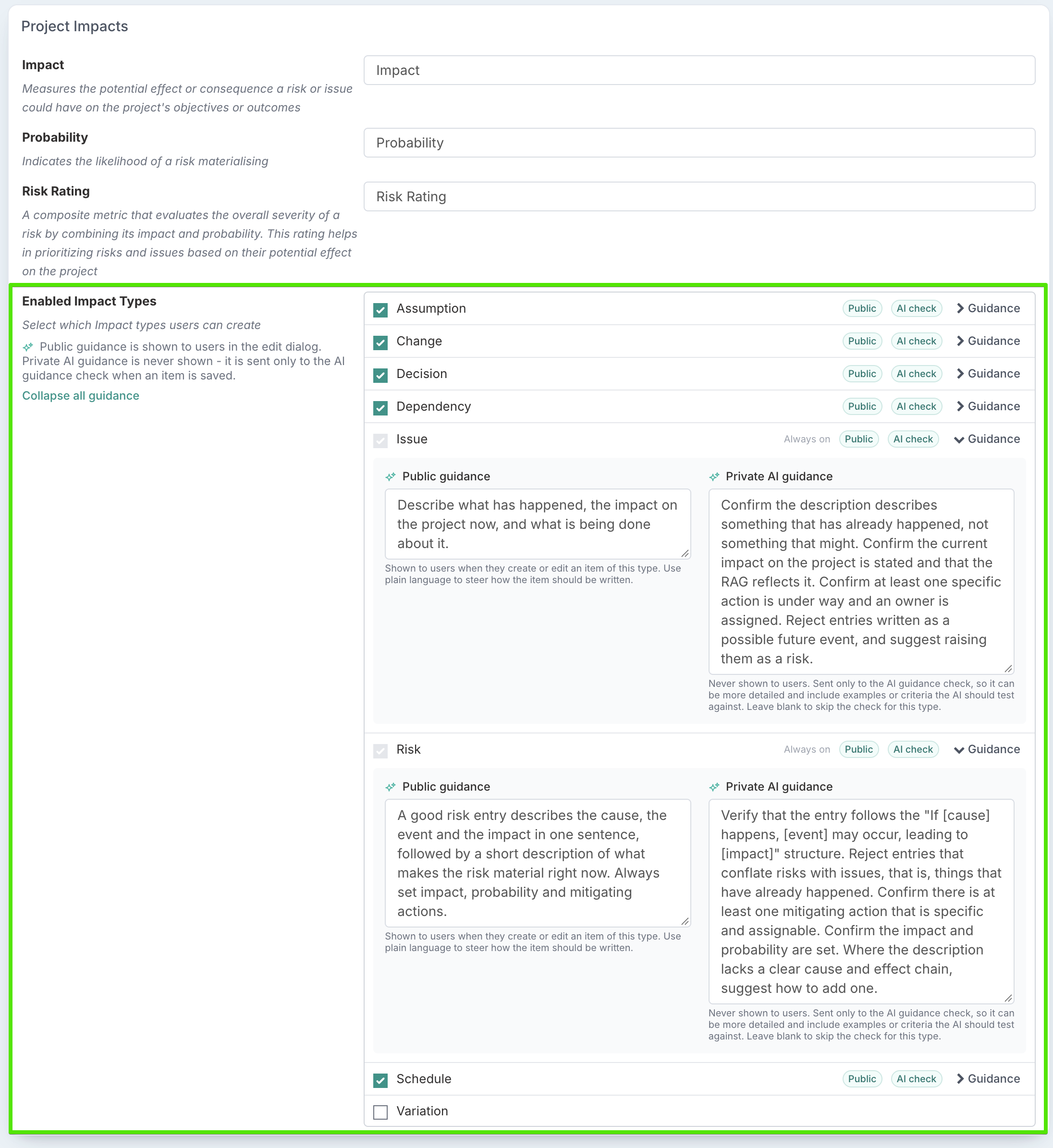
3. Write both fields, then select Save
Save is at the top right of the page. The example for Risk shown above:
Public guidance
A good risk entry describes the cause, the event and the impact in one sentence, followed by a short description of what makes the risk material right now. Always set impact, probability and mitigating actions.
Private AI guidance
Verify that the entry follows the “If [cause] happens, [event] may occur, leading to [impact]” structure. Reject entries that conflate risks with issues, that is, things that have already happened. Confirm there is at least one mitigating action that is specific and assignable. Confirm the impact and probability are set. Where the description lacks a clear cause and effect chain, suggest how to add one.
Notice that the private version says what to reject and what to confirm. Guidance written as a slogan — “risks should be clear and actionable” — produces vague judgements that your users will quickly learn to dismiss. See Writing Good AI Guidance for how to write guidance that holds up.
Check Your Own Guidance First
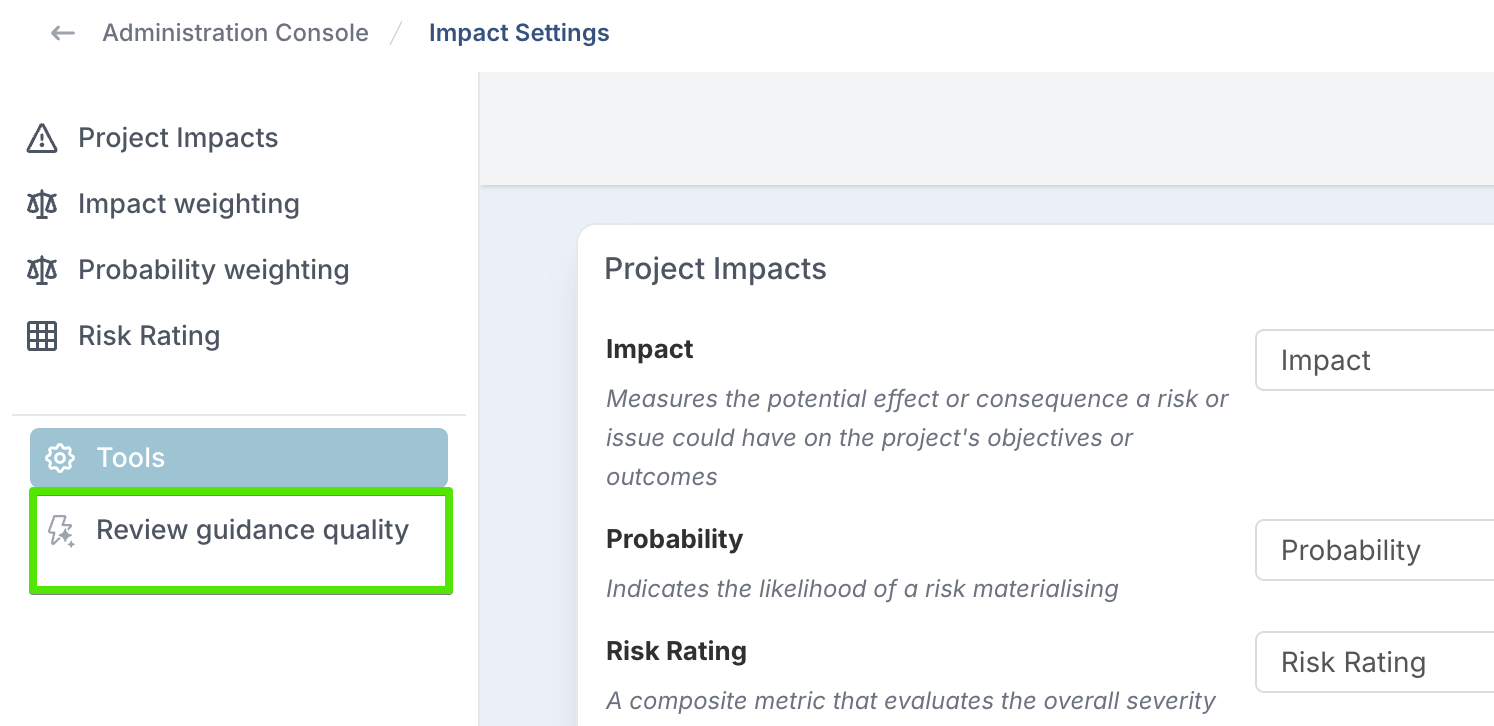
From the Tools section of the Impact Settings side navigation, Review guidance quality runs an AI review of the guidance you have written. Save your guidance first: the review reads what is saved, not what is on screen.
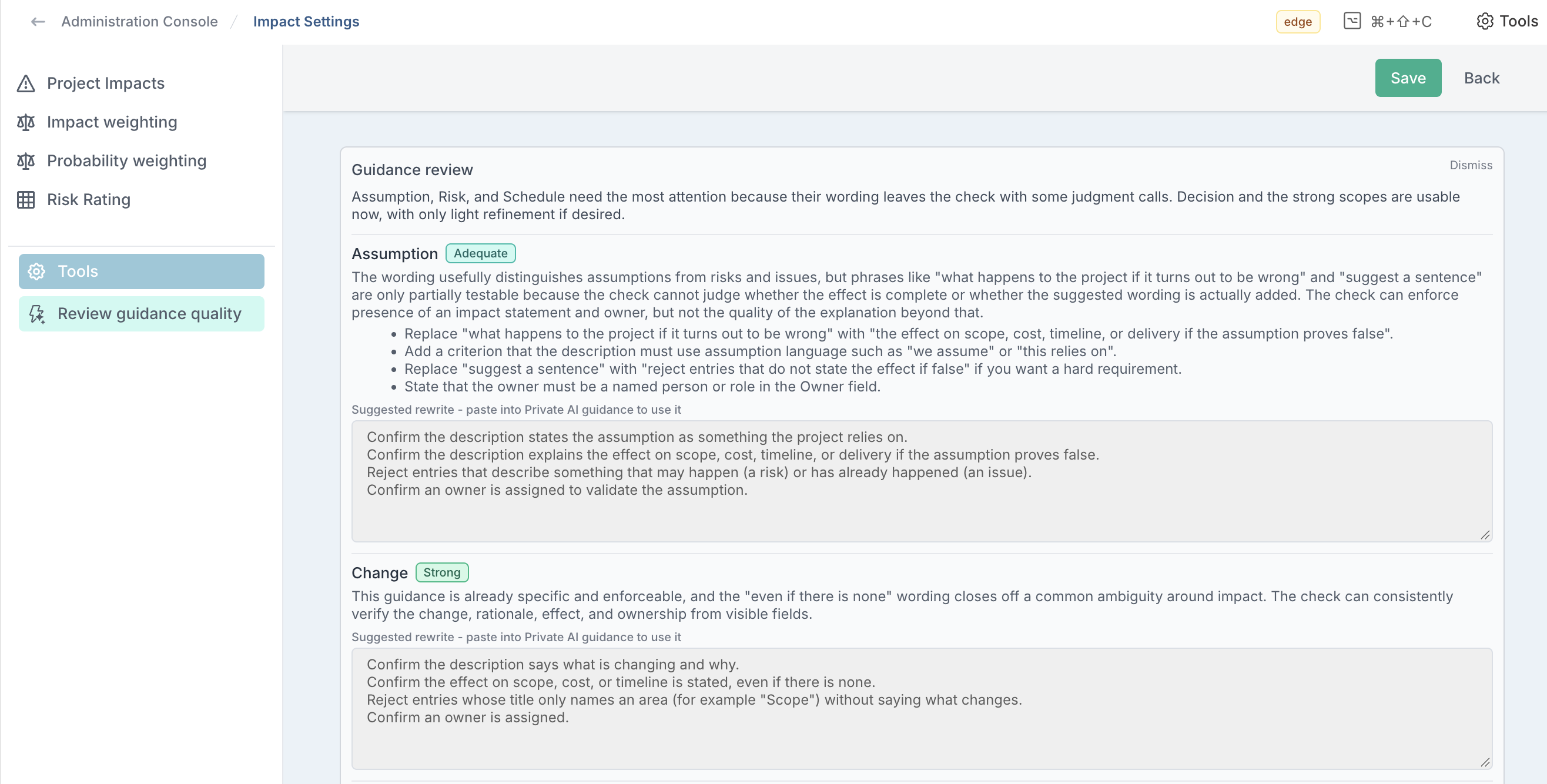
The results appear at the top of the page under Guidance review. A short summary says which types need the most attention. Then, for each impact type that has private guidance:
a rating of Strong, Adequate or Weak;
an explanation of what holds the guidance back, and a few suggestions;
a Suggested rewrite you can copy into the type’s Private AI guidance. Nothing changes until you paste it in and select Save.
Types with no private guidance are left out. Select Dismiss to close the review.
This is worth doing before you enable the check on a live project. A one-line slogan and a precise standard look almost identical on the settings screen, and behave completely differently the moment someone hits Save.
What FluidAI Can See When It Checks an Entry
When it checks an entry, FluidAI is given the project name and the entry’s type and sub-type, title, strapline, description, status, RAG, probability, impact, risk rating, mitigating actions, treatment type, treatment description and owner. Fields left empty are simply not sent. Dates, root cause, contingency, resolution, custom properties and connections are not given to the check.
That list is the boundary of what your guidance can ask for. Guidance that requires something outside it — a linked document, a value from a custom property, a target date on a related action — can never be enforced, because the check cannot see it. It will not fail loudly; it will simply produce judgements that do not make sense. The Review guidance quality tool flags exactly this kind of guidance.
Whenever the check runs, it also verifies that the wording matches the type, whatever your guidance says. An entry filed as a Risk but written as something that has already happened is flagged as a mis-typed Issue, and the reverse as well; Assumptions and Dependencies are checked the same way. This is the single most common data quality problem in a risk register. Note that it is part of the check, not separate from it: for an impact type with no private guidance the check does not run, so the wording is not checked either.
The check runs when an entry is created or saved in the impact dialog. Entries created or updated by Excel import, through Fluid’s AI connectors (MCP), or by accepting FluidAI’s suggested risks are not checked.
What Project Managers See
The check lives in the impact dialog. The same dialog opens wherever a risk, issue or other impact is created or edited — from the Impacts section of the project workspace, from an impacts dashboard, or from a link to the item — so the check applies in all of them. It is the same for anyone who enters impacts, not only project managers.
For the person entering a risk, the experience is deliberately quiet.
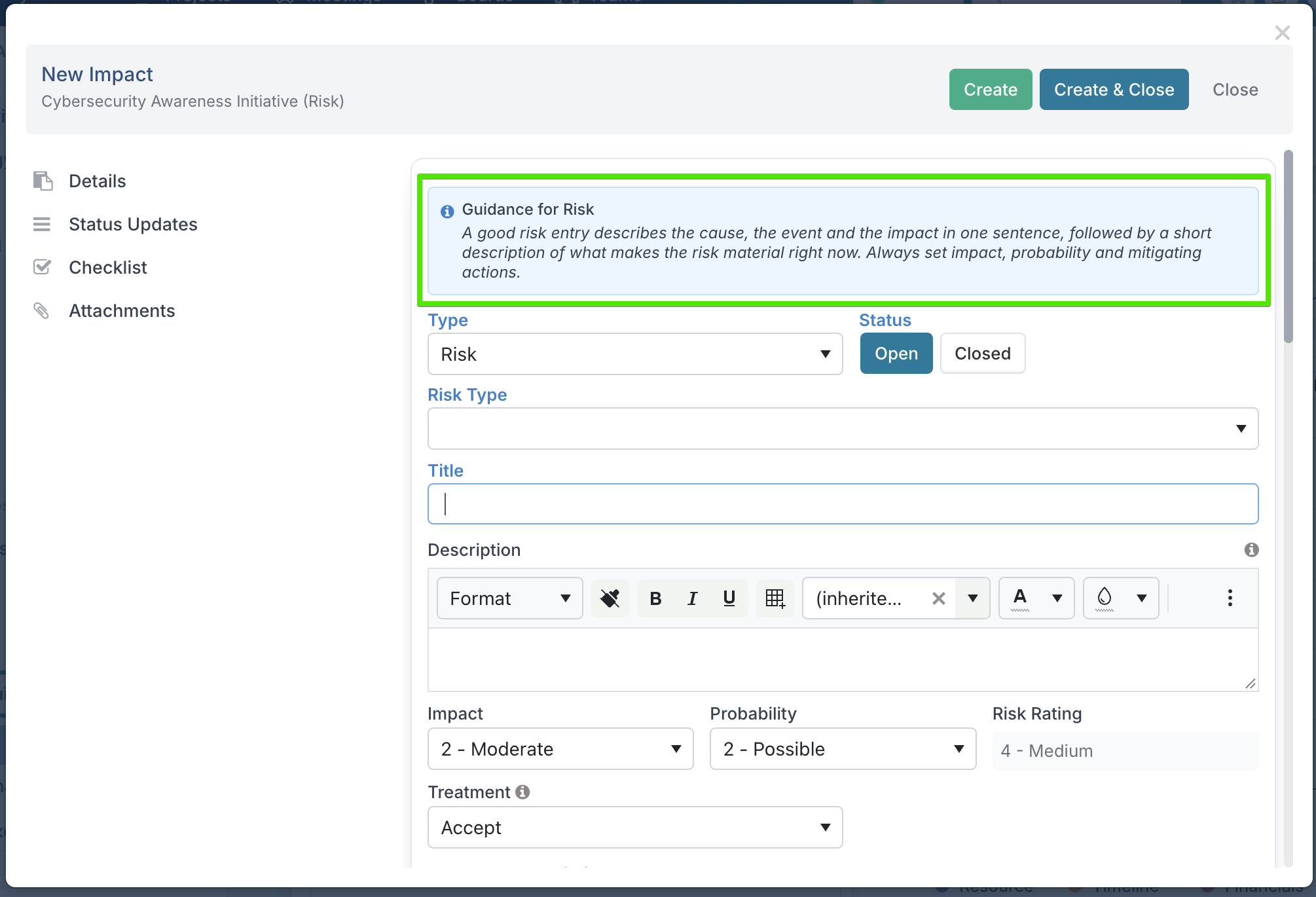
Opening the dialog. They pick an impact type. If public guidance exists for it, a blue Guidance for Risk banner (or whichever type they picked) appears at the top of the Details tab. Changing the type updates the banner immediately.
Selecting Create or Save. The guidance check runs first, before the form’s own required-field rules. Saving takes a little longer than usual while this happens: the button shows Checking with a running count of seconds, and a panel at the top of the Details tab says what is happening — Checking this against the project guidance, then Reviewing the detail you have written — with a note that the save takes a few seconds longer because FluidAI is reviewing the entry against the guidance your project administrator set.
If the entry meets the guidance, it saves. Nothing else happens, and this is the common case — a check that interrupts good work is a check people route around.
If it falls short, the dialog stays open and shows a yellow warning headed This entry may not meet the project’s guidance for Risk items (or whichever type it is), containing a short explanation of what is missing, a few specific suggestions, and two options:
Review Again closes the warning so the author can edit. The next Save runs the check again on the revised entry. Changing the impact type also clears the warning, and the check runs again against the new type.
Save Anyway saves it as written. The author is not blocked.
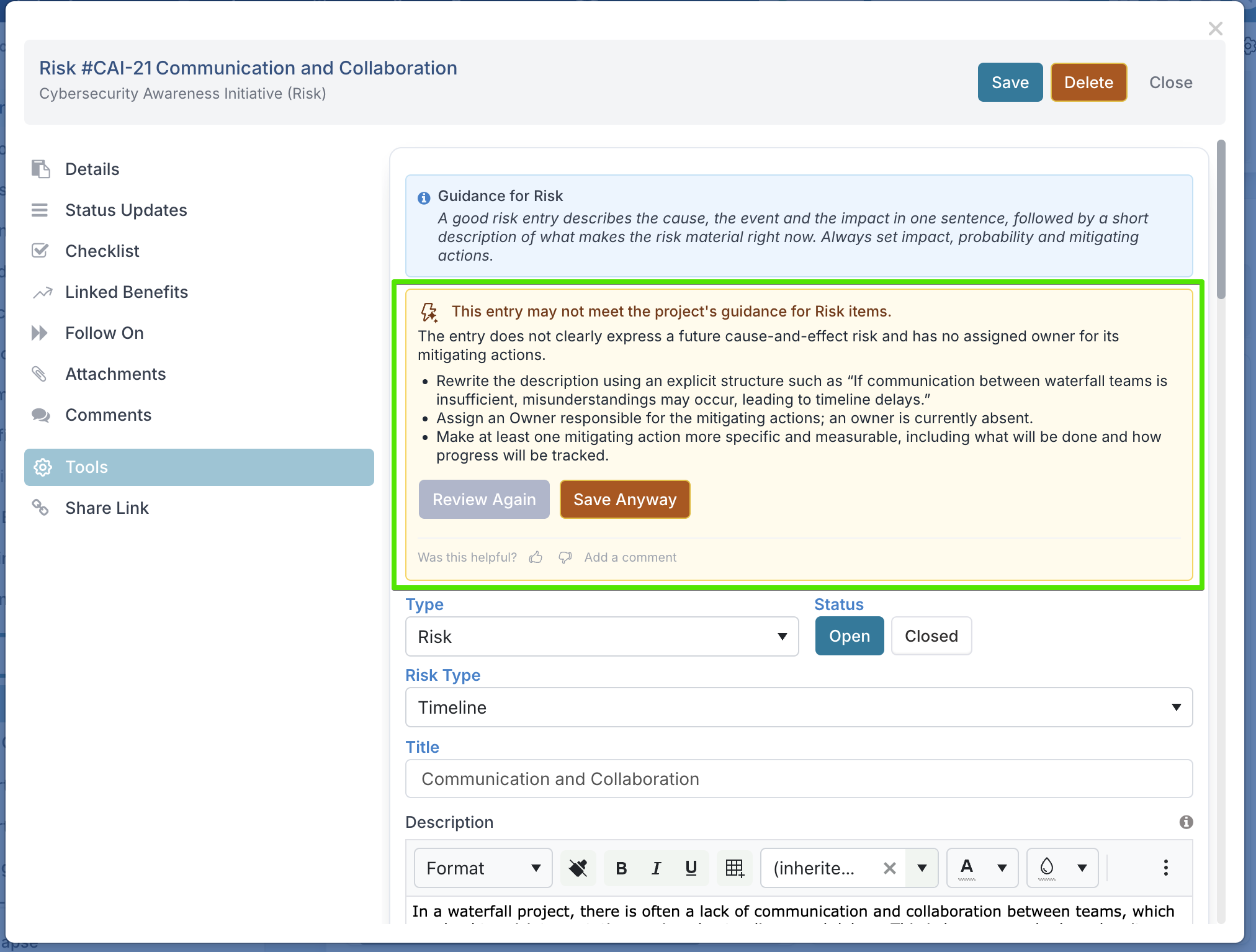
That second button is deliberate. FluidAI is advising against guidance an administrator wrote; the person entering the risk knows things the guidance does not, and is sometimes right. A check that blocks teaches people to write for the tool instead of for their colleagues. What the product does instead is record the override.
The warning also carries Was this helpful? with a thumbs up and thumbs down. Encourage people to use it — a run of thumbs-down on one impact type is the clearest signal you will get that the guidance is too strict.
When Someone Selects Save Anyway
What you can see is how people rate the check. Every Was this helpful? thumbs up, thumbs down and comment is collected on the FluidAI Feedback page in the Administration Console. A run of thumbs-down on one impact type is the clearest sign that its guidance is too strict, or does not fit the work that team does.
Read the feedback carefully. A thumbs-down tells you the author disagreed with the check. It does not tell you who was right.
Behaviour Summary
Situation | Banner shown? | Check runs on Save? |
FluidAI Impact Guidance Check is off | No | No |
Public guidance only | Yes | No |
Private guidance only | No | Yes |
Both set | Yes | Yes |
Before You Switch It On
Review the private guidance first. Risk and Issue arrive with a default standard of ours, which you will want to replace with your own. Every other type does nothing until you write one.
Run Review guidance quality and act on what it says.
Start with one impact type, usually Risk, on a small number of projects.
Tell people what to expect, including that they can save anyway and that you would rather they told you when the check was wrong than quietly worked around it.
Read the first fortnight of results before widening. You are calibrating your own guidance, not the AI.