
General Settings
In this article, we cover off how to set the general settings for your instance - like the default time zone and required branding for automated emails and meeting minutes.
You need to be an Application Administrator to be able to access the System Settings. For more on account permissions, click here.
Navigating to the General Settings page
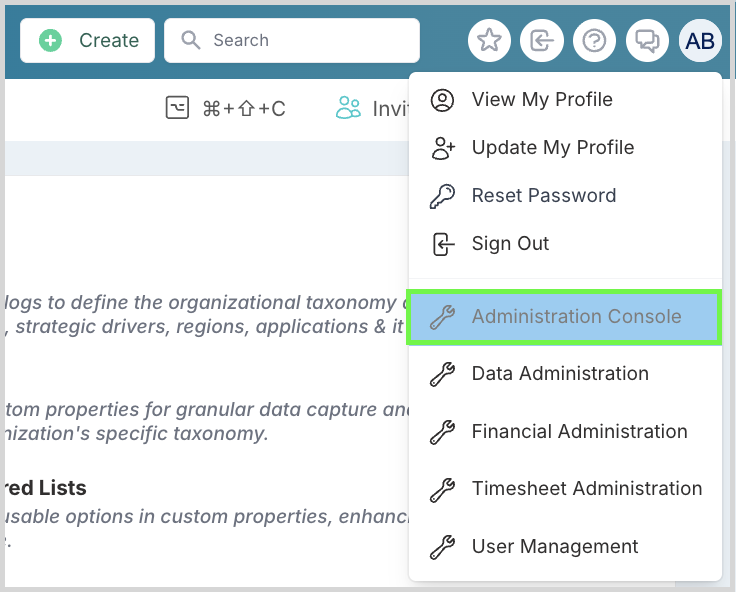
From the drop down menu under your avatar select Administration Console.
Navigate to the System Settings section of the page and select General Settings.
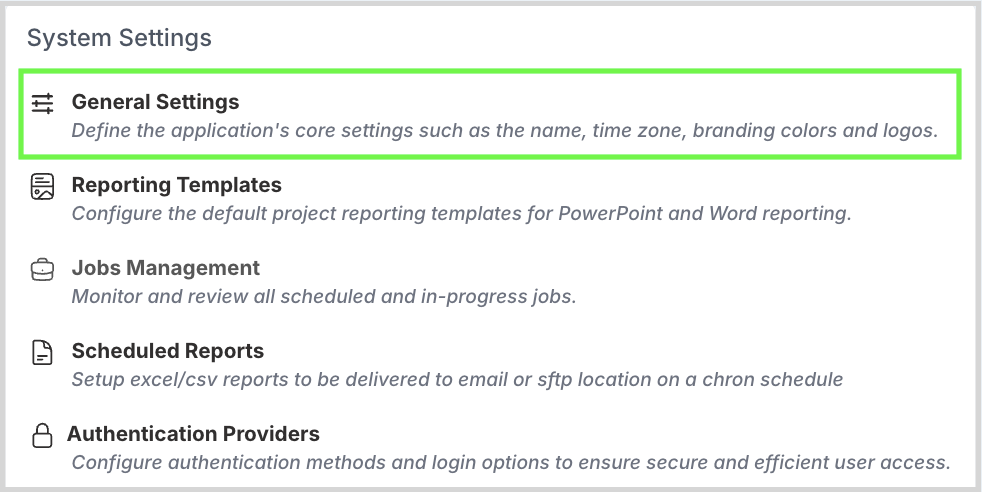
General Settings
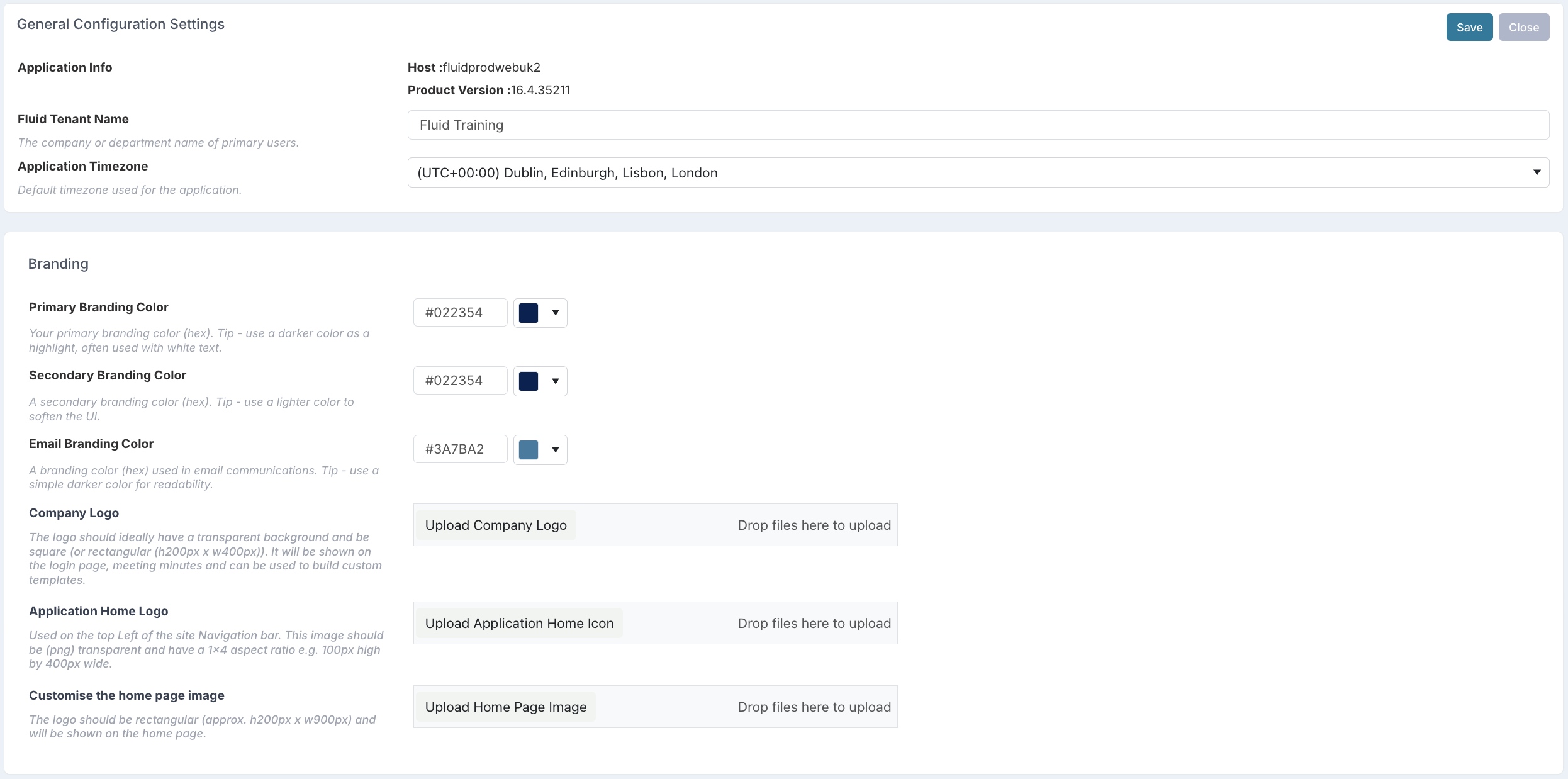
General Configuration Settings
Fluid Tenant Name
The name of the instance to appear on the login screen and all automated emails.Application Timezone
The DEFAULT timezone for the instance. Time zones for individuals can be set on their individual account profiles so that they will see Meetings and receive meeting
Branding
Branding Primary Color
Your primary branding color (hex). We suggest selecting a darker color as a highlight, often used with white text.You will see this reflected in the:
Left side navigation bar at the top of each Fluid page, forming a gradient, blended with your secondary branding color.
Used for Section Headers throughout Fluid as an accent.
Secondary Branding Color
A secondary branding color (hex). We suggest using a lighter color to soften the UI.You will see this reflected in the:
Right side navigation bar at the top of each Fluid page, forming a gradient, blended with your secondary branding color.
In the background of your Fluid pages, but as a softer, less saturated backdrop.
Email Branding Colour
Your corporate colour to be included on automated emails and pdf minutes.Company Logo
Your company's logo. This will be displayed on the login page, meeting minutes and can be used to build custom templates.Application Home Logo
This will be displayed on the top left of the site navigation bar. This image should be in a .png file format, with a transparent background and have a 1x4 aspect ratio e.g. 100px high by 400px wide.Customise the home page image
This should be rectangular (approx. h200px x w900px) and will be shown on the home page.You can extract information out of Fluid into Word and Powerpoint templates. The instance comes configured with some default templates - although you can create and upload your own under Export Templates (outlined below).