Scheduled Reports
Need to download a Fluid report daily, weekly or at specific time? Application administrators can schedule reports to be downloaded at regular intervals and to be emailed or dropped at a set location.
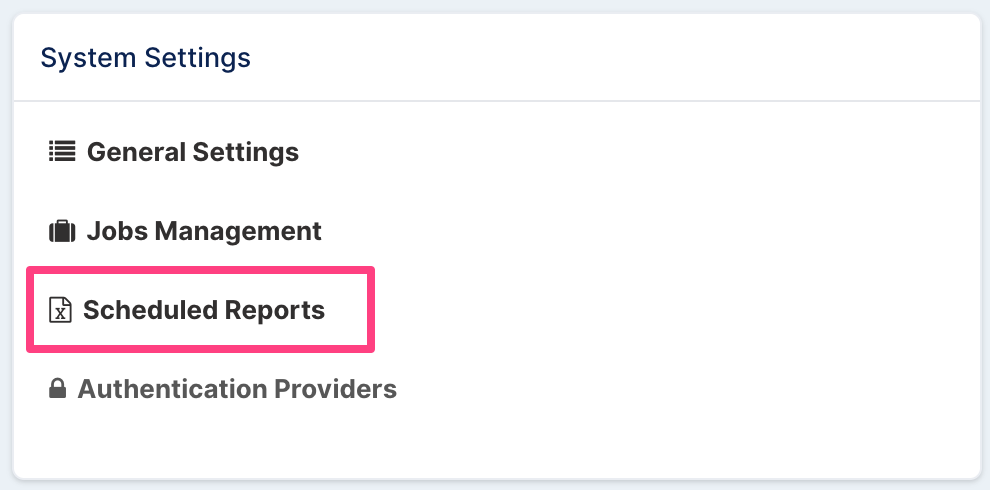
To set a new scheduled report, navigate to the Administration Console page and then select Scheduled Reports in the System Settings section. Please talk to your account manager if you do not see the Scheduled Reports option as it means it has not been configured on your instance.
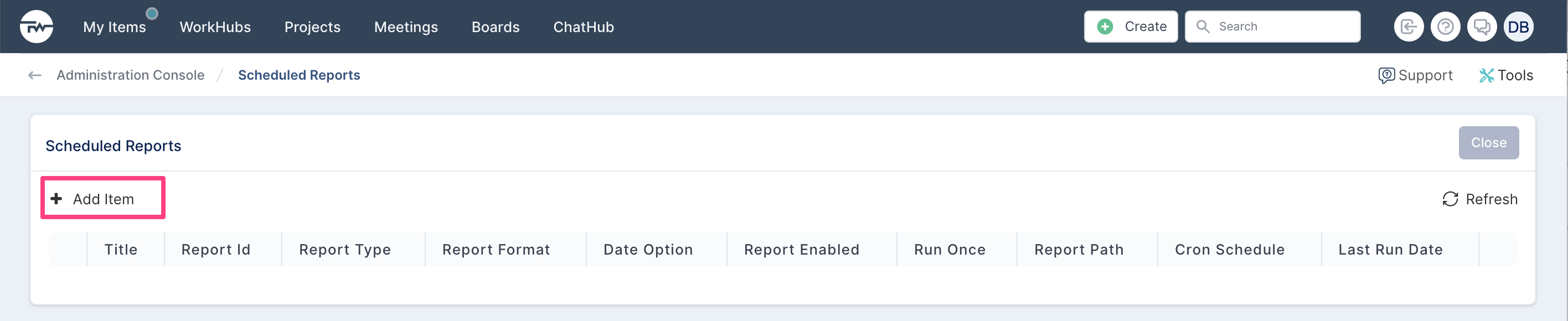
Click on Add Item to schedule a report.
You will be presented with the following dialog. Fill in the fields as described below and click Save to save the report.
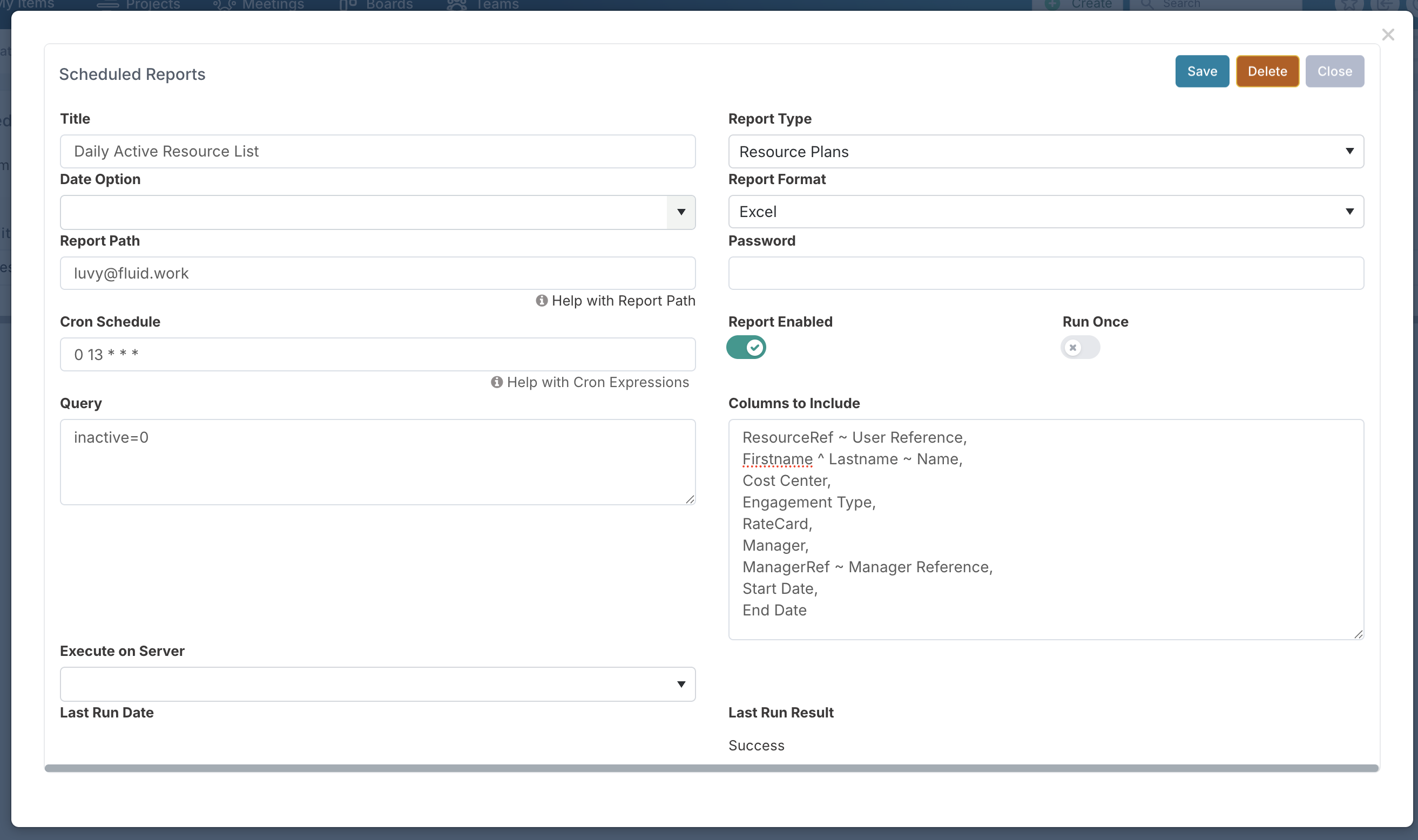
Title | Give a title to the scheduled report. Setting a descriptive title helps identify the purpose of the report, especially when multiple reports have been set up. |
Report Type | Select the type of the report you want to export. |
Date Option | This field applies to report type that requires a date range, e.g. financial reports. Select the date range you want the report for. |
Report Format | Select the format you want the report in - Excel, CSV or Tab Delimited. |
Report Path | Set the location where the report should be sent / saved to. Enter the report path in one of the formats below, depending on the delivery mechanism required:
|
Password | A password may be required depending on the delivery mechanism used. |
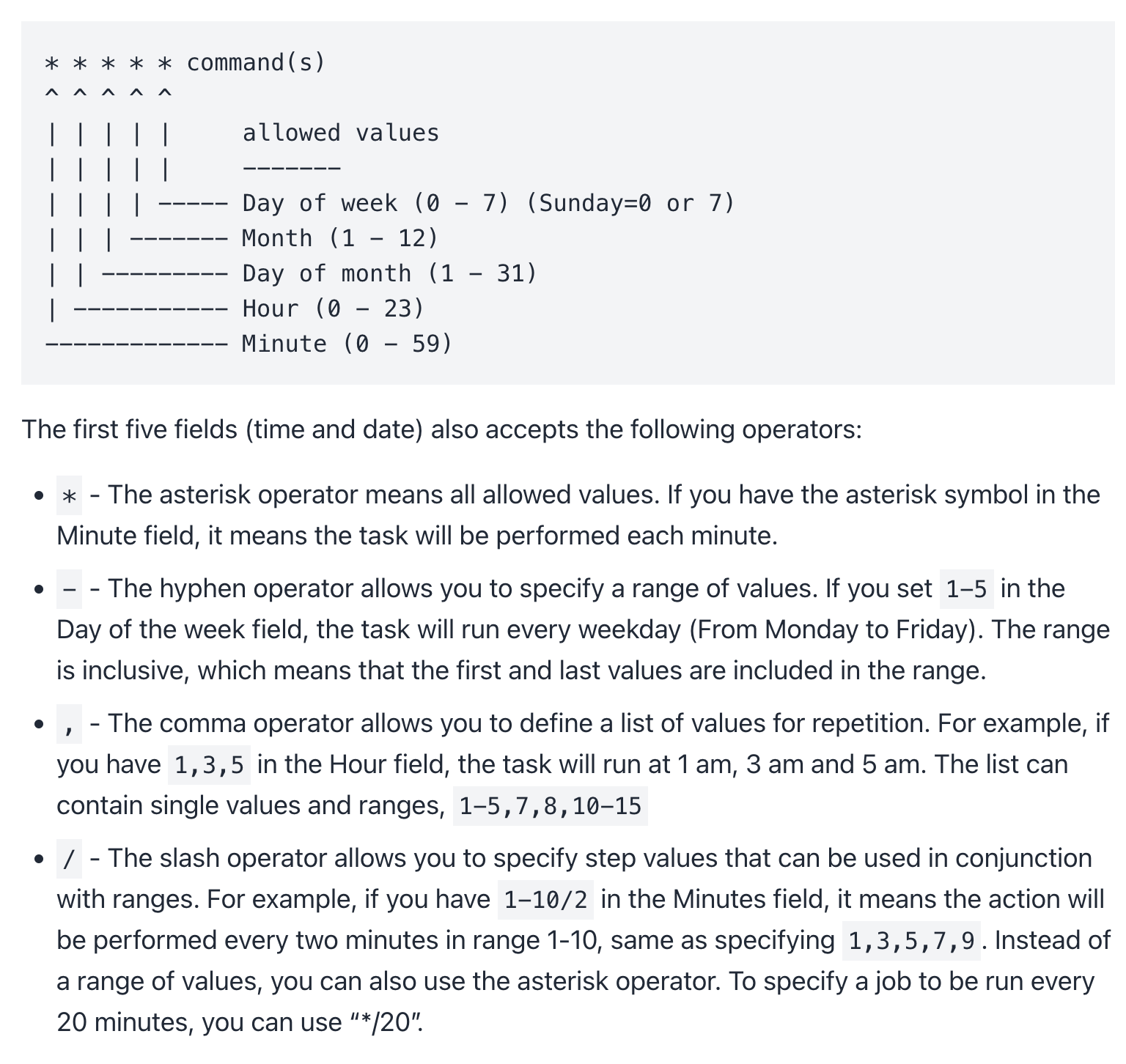
Cron Schedule | Use a Cron expression to schedule the frequency of the report. Please see below on how to use Cron expressions. |
Report Enabled | Set the toggle to Yes to schedule the report. Set the toggle to No if you no longer want the report to run. |
Run Once | Set the toggle to Yes if you want the report to only run once and to be disabled after the first run. |
Query String | Use this field to apply project or resource filters and only export the report for projects or resources that match the filter criteria. |
Columns to include | Use this field to control which columns are returned in the scheduled report export. Unlike Export to Excel reports, where the columns are fixed, scheduled reports let you:
Enter your columns as a comma-separated list (you can use one line per column to keep it readable). |
Execute on Server | Select the server the report should run from (if applicable). |
Last Run Date | After the report has been set up, these two information fields will display when the scheduled report was last run and whether it succeeded or failed. This is particularly useful if you need to check the scheduled report status. |
Configuring the report columns
The Columns to include field supports three patterns: include, rename, and concatenate.
1) Include a column (no renaming)
Enter the field name on its own.
Example:
CostCenter,
EngagementType,
RateCard
2) Rename a column using ~
Use ~ to rename the column header in the export.
Format:
FieldName ~ Export Column Header
Examples:
ResourceRef ~ User Reference,
ManagerRef ~ Manager Reference
3) Concatenate fields using ^ (and optionally rename)
Use ^ to combine multiple fields into a single exported value, then use ~ to name the resulting column.
Format:
FieldA ^ FieldB ~ New Column Header
Example:
Firstname ^ Lastname ~ Name
Notes
If no columns are specified in the Columns to include field, the export will return all available columns for the selected report type.
As soon as one or more columns are specified, only the columns listed in this field will be included in the export.
Order matters: columns appear in the export in the same order you list them.
You can mix all three patterns in the same report.
Renaming/concatenation only affects the export output, not the underlying data in Fluid.
Cron expression help