
Assigning user permissions and roles via SCIM in Fluid
Once you have configured SCIM identity synchronisation, see Setup SCIM Identity Syncronization (Azure AD) you can optionally manage Fluid security roles and license types from AD. Users are assigned to specific groups in Active Directory which are in turn mapped to user roles or license types within Fluid.
If you decide not to do this, then user security roles / license types will need to be managed internally within Fluid via the User Administration console.
The AD group name is the key used for Fluid role mapping, you need to create the AD group according to the list below, ensure the group name is exactly as defined. Users which are apart of the AD group, will be mapped and assigned to the corresponding security role / license type in Fluid.
Security Roles
1. Create all the groups listed in the table in Active Directory.
Group in Active Directory | Role in Fluid |
Fluid Accountable Executive | Accountable Executive |
Fluid Application administrator | Application administrator |
Fluid Benefit access | Benefit access |
Fluid Budget Approver | Budget Approver |
Fluid Data Administrator | Data Administrator |
Fluid Financial access | Financial access |
Fluid Financial Administrator | Financial Administrator |
Fluid Project access | Project access |
Fluid Project administrator | Project administrator |
Fluid Project submission | Project submission |
Fluid Project Viewer | Project Viewer |
Fluid Resourcing access | Resourcing access |
Fluid Team manager | Team manager |
Fluid Timesheet administrator | Timesheet administrator |
Fluid Timesheet Exempt | Timesheet Exempt |
Fluid User | User |
Fluid User Administrator | User Administrator |
For more information on the security user roles, see User Security Roles.
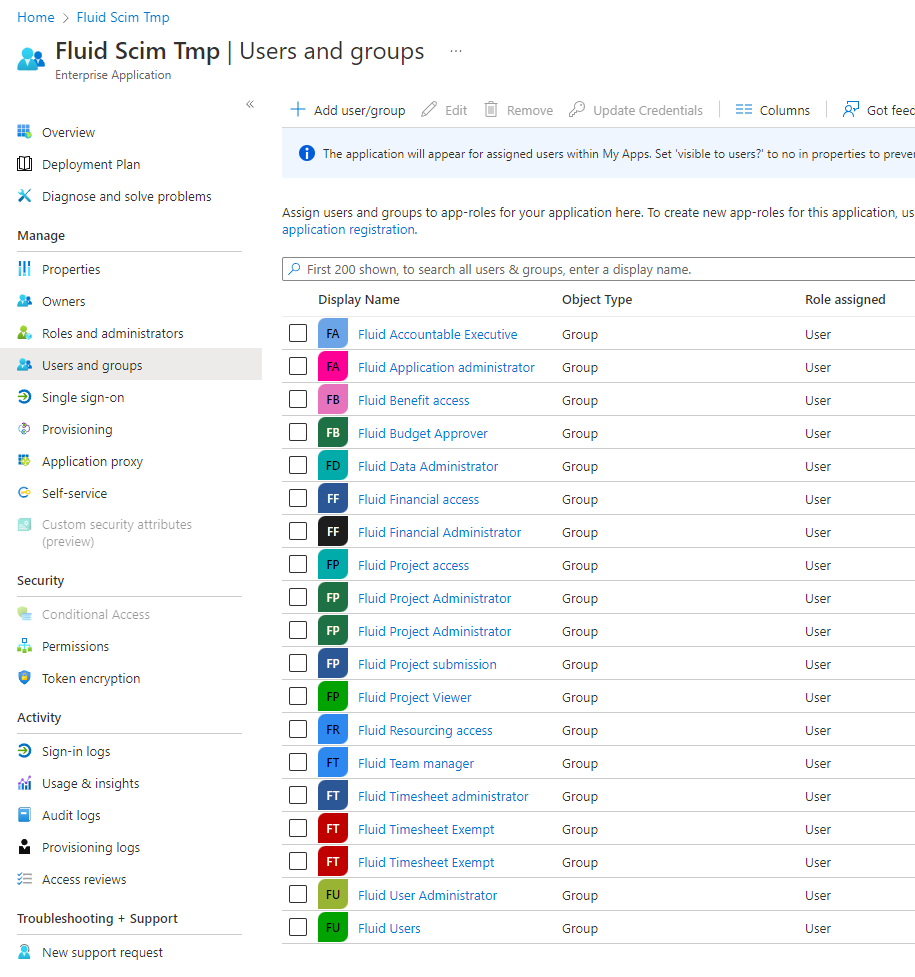
2. Assign all the groups to the Enterprise Application.
3. To assign a user a role in Fluid, add them as a member to the appropriate group with in the Enterprise Application. You can also assign the user to a group for the license type that will be applied to the user.
Example:
1. To provision a user with only the Fluid User role: add the user as a member of the "Fluid Users" group in Active Directory.
2. To provision the user with the Fluid Project Administrator role add the user as a member of the "Fluid Users" and the "Fluid Project Administrator" groups.
License Type
Users created in Fluid as part of SCIM are automatically assigned the "User" security role and "Unlicensed" license Type. To manage license type as part of your AD user onboarding, then you need to define the AD groups per the table below and assign the users accordingly.
If you decide not to do this, then license types will need to be managed internally within Fluid via the User Administration console.
Below are the AD groups for license type. You will need to create the AD group as defined below.
1. Create all the groups listed in the table in Active Directory.
Group in Active Directory | License Type |
Fluid Licensed User | Licensed User - all roles are available. |
Fluid Collaborator User | Collaborator License - locked to three roles: project access, timesheet exempt, user |
Fluid Unlicensed User | Unlicensed User - disallow login remove the user role. |
2. Assign all the groups to the Enterprise Application.
3. To assign a user a license type in Fluid, add them as a member to the appropriate group with in the Enterprise Application.
Example:
To provision a user with only the Collaborator License type: add the user as a member of the "Fluid Collaborator User" group in Active Directory.
Custom Group Mapping Names
You can use your existing Active Directory group names and map them to the corresponding Fluid AD groups for provisioning. This is helpful if your organisation requires specific naming conventions or would like to reuse established groups.
This can be setup via the Administration Console. To do this first turn off the config feature Disable SCIM UserSync.
Then in the User Management section of the Administration Console there is an option called SCIM Configuration.

This page allows the SCIM User Group name that you have defined in your environment to be linked on a one to one basis with a Fluid User Role
In addition the page also allows you to map a SCIM license group to a Fluid License Type.
It’s important that this mapping configuration is completed before the groups are assigned to SCIM provisioning. SCIM is sensitive to provisioning errors caused by incorrect or unmapped group names, and repeated failures may result in provisioning being temporarily suspended or quarantined. Setting this up in advance helps ensure a smooth and reliable provisioning process.