
Assigning Project Roles to Schedule Tasks
Fluid allows you to assign schedule tasks to project roles—such as the Project Manager or Technical Owner—instead of specific individuals. This can be done whether you're:
Creating a project from a project template, or
Updating the schedule of an existing project using the schedule bulk edit file.
Using roles in your schedule simplifies setup, ensures consistency, and makes project schedules easier to maintain and reuse.
Why Assign Tasks by Role?
Assigning tasks by role offers several advantages:
Templates and schedules become reusable, regardless of who is managing each project.
Task ownership is automatically assigned, based on the project’s current role assignments.
Schedule setup is faster and more scalable, especially across large portfolios.
When a project schedule is updated, Fluid checks who is assigned to each role on the project (e.g. Project Manager, Owner, Executive) and applies those assignments automatically.
How to Assign Roles in the Schedule Bulk Edit File
Fluid uses a schedule bulk edit file (Excel format) to define the tasks within a project template. You can assign roles in this file using the steps below:
1. Download the Schedule Bulk Edit File
You can start with one of the following options:
Download a blank schedule bulk edit file from Fluid to create a new schedule from scratch.
Download the schedule from an existing project if you want to reuse or adapt its schedule as a template.
Once downloaded, open the file and update the task list as needed. You’ll define the assignees using role placeholders in the next step.
2. Assign Roles in the “Assignees” Column
Instead of entering a user’s name, enter a role in brackets to indicate that the task should be assigned to the person holding that role on the project.

Example roles:
(Primary PM)(Owner)(Sponsor)(Executive)(Manage)→ maps to the Editor role
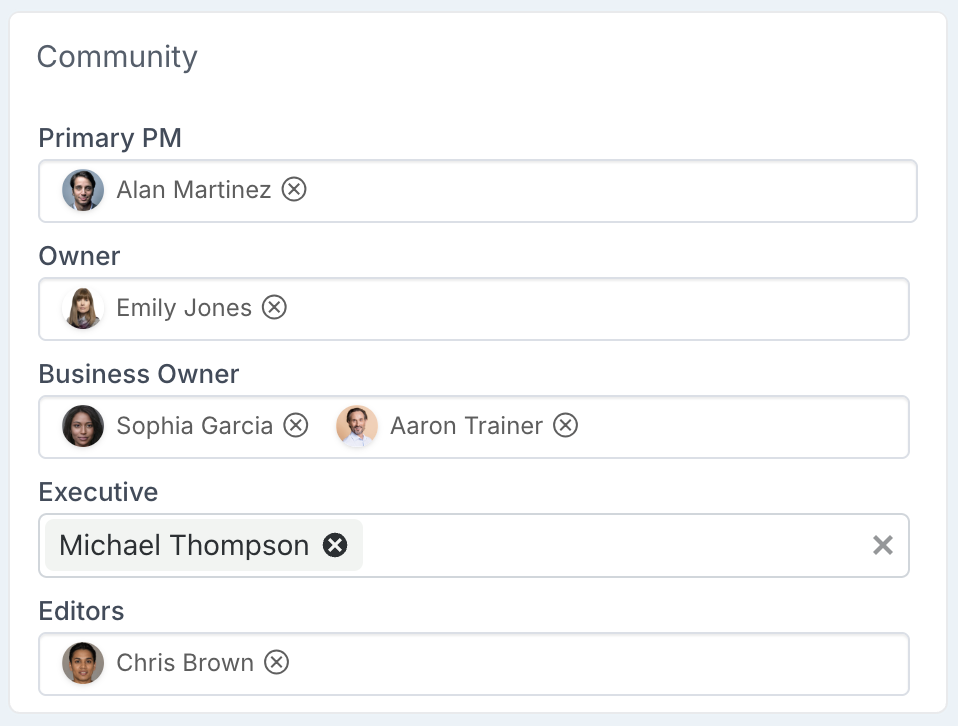
Note: Role names must match the project's community labels defined in the Project Labels & Field Names administration page.
3. Specify Hours (If Using Flex Schedules)
If your instance uses schedule-based allocation:
Add hours directly in the Assignees column:
e.g.(Primary PM)[8h]Or use the Flex Hours column to enter the hours separately.
4. Upload the File to the Project Template
Once your schedule is configured, upload the file to the relevant project template using the Bulk Edit Schedule functionality.
When a project is created from the template:
Fluid assigns the task to the person holding the specified role on that project
Allocated hours are applied based on your entry
Role Assignment Rules
When using the bulk edit file to assign schedule tasks to project roles or named users, Fluid follows a consistent set of rules:
Roles must be populated on the project for the mapping to work.
If a task is assigned to(Primary PM)and no Primary PM is set on the project, the task will remain unassigned.If multiple users are assigned to a role, all will be assigned to the task.
For example, if two users are set as Owners, both will be assigned when the task is mapped to(Owner).Named users can be mixed with roles.
You can list both roles and named individuals in the Assignees column — e.g.(Primary PM), beth.
If using Flex Hours
Users (roles or named) only receive hours if hours are set.
No one will receive any allocation unless:Hours are explicitly defined in brackets next to the role or name — e.g.
(Owner)[4h],beth[8], orA total is defined in the Flex Hours column.
Examples:
(Owner), bethwith no Flex Hours → all get 0h(Owner)[4h], beth[8]→ Owners split 4h, Beth gets 8h
If multiple users are assigned to a role, hours are split.
If two or more users hold a role (e.g. two Owners), the hours are divided equally between them.This only applies when hours are defined either:
In square brackets in the Assignees column — e.g.
(Owner)[4h], orIn the Flex Hours column.
If no hours are specified in either place, no hours are allocated.
Hours in the Assignees column take precedence.
If hours are set in the Assignees column, those values override anything in the Flex Hours column.If no hours are specified in Assignees, use the Flex Hours column.
If roles or users are listed without hours, the value in the Flex Hours column is divided equally across all listed assignees.
Examples (Assuming the Following Role Setup)
Greg is the Project Manager
John and Michael are the Owners
Beth is not assigned to any role on the project
