
Reporting Templates
The 'Reporting Templates' page contains a collection of pre-designed, default templates which can be used to generate reports containing your live project data.
The templates are tailored to meet common reporting needs across various teams and processes, ensuring standardisation and efficiency.
You can also create and upload your own reporting templates on this page.
This article will explain how to upload and manage your reporting template metadata.
Default Templates
You can download any of Fluid's default templates from the 'Reporting Templates' page as a starting point for creating your own custom templates.
These provide examples of tables, binding & filtering options
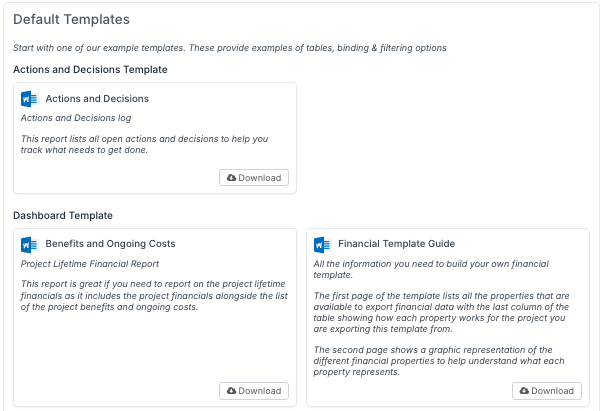
To download a default template, click on the 'Download' icon on the template tile.
From here you can amend the template using the features of your word processing software (e.g. MS Word) or presentation software (e.g. MS PowerPoint), adding your own branding colours, logos and styles.
You can amend the report content by amending the binding elements and filters. For more information on how to create your own templates, please click here.
Once you are happy with the changes, you can save the template file and upload to Fluid for use.
How to Upload a Word or PowerPoint Template
To upload a new template, use the following steps:
Click on “Add a Template”
Navigate to the 'Reporting Templates' page and select the Add a Template option.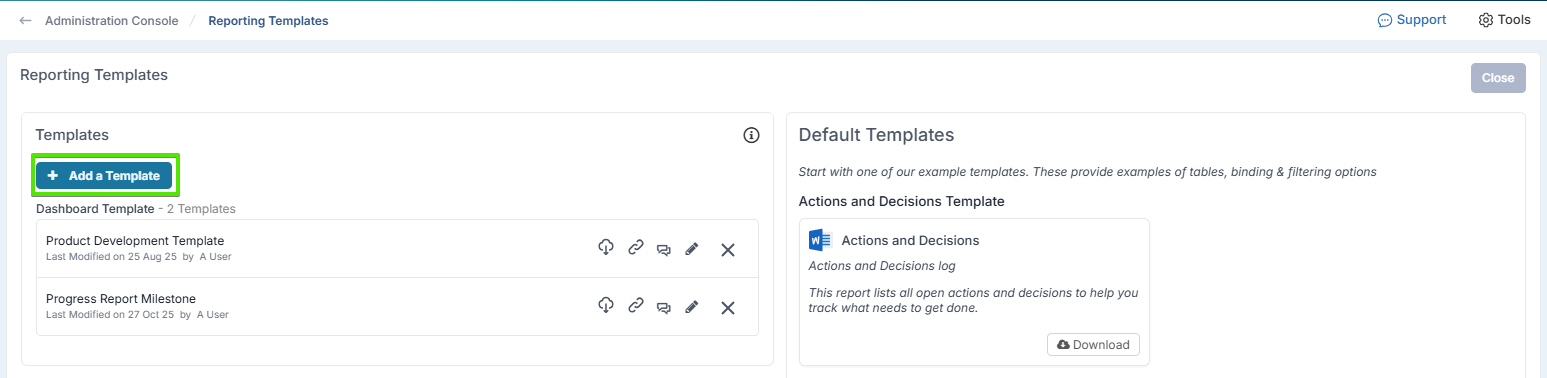
Choose your upload method
You can upload a template in two ways:Add A Document - Upload from your local machine as a document
Link To A Document - URL for an external document
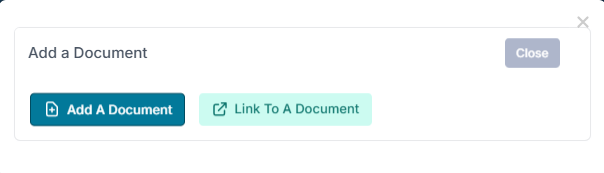
Add the document
Click on 'Add a Document' and select the file you want to upload.
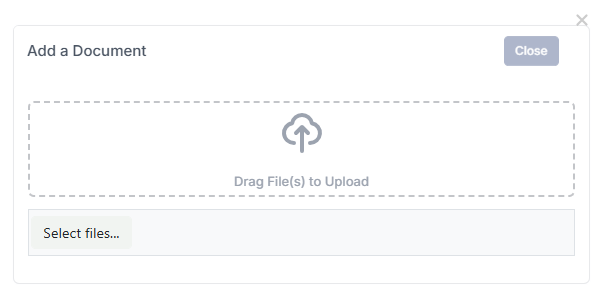
Pre-define the metadata
Enter the required details:
Title
Document Type
Status
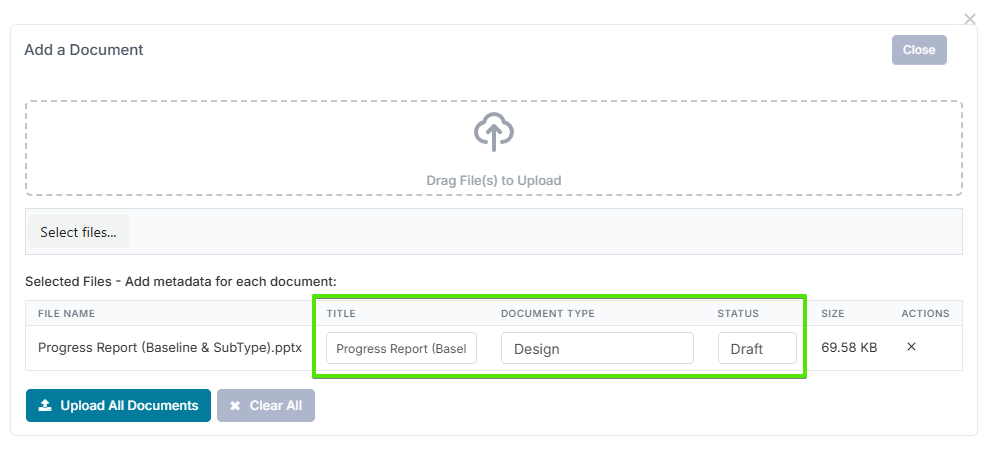
Confirm and upload
Once all details are correct, click 'Upload All Documents' to complete the process.
You can create custom templates to report on project status or meetings. Click here to learn how to build your own Word or PowerPoint templates.
Editing the Template Metadata
To edit the metadata of the uploaded templates, follow these steps:
Click the 'Edit' icon
Locate the template you want to update and click the 'Edit Metadata' option (edit pencil icon on the far right).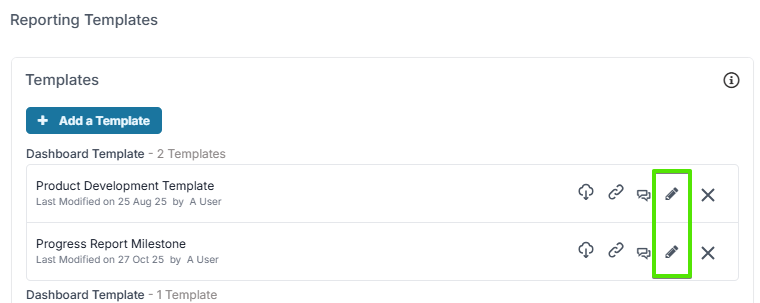
Modify the details
This will take you to the edit page where you can modify the following details:Title
Document Type
Status
Description
Save your changes
After editing the details, click 'Save' to apply the changes.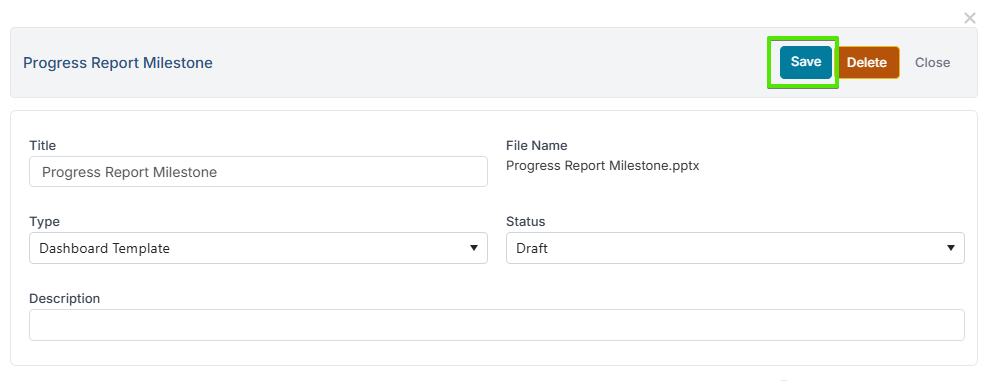
Note: Adding a template in the 'Reporting Templates' page makes the template available to all projects and meetings across the platform. Templates can also be uploaded under the 'Documents' section of projects and meetings for a custom report or minutes template, specific to that project or meeting.