
Email Notification Types
This guide explains each email event type emitted by Fluid’s Email Sender utility. For every event you will find a plain-language description of when it fires, who receives it, what the subject line communicates, and any special rules or feature flags that govern delivery.
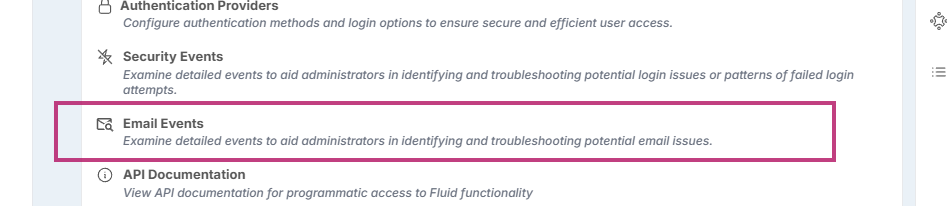
Fluid Administrators can review outbound emails using the Email Events Admin console page.
Quick Reference
Event type | Purpose |
|---|---|
| One-time login PIN delivery for passwordless sign-in. |
| Reserved identifier for future sign-up journeys (currently unused). |
| Batched mention reminders when someone tags you in chat. |
| Project milestone status change alerts for project leadership. |
| Cross-project dependency (“handshake”) updates for project managers. |
| Alerts board column owners when work enters their board column. |
| Summaries of outstanding actions for people or meetings. |
| Notifications when an action, decision, or approval is assigned. |
| Invitations confirming you have been added to a team space. |
| Real-time alert that a user’s account has been locked. |
| Notifies process owners of a new work request card. |
| Confirms roles added to a meeting. |
| Sends meeting follow-up actions to guests or members. |
ApprovalRequest | Sent when an item requires your formal approval. You are listed as an approver for the workflow. Open the link, review details and either approve or reject. |
WorkHubApprovalRequest | Sent when a workflow requires any member of the Work Hub (team space) approval (e.g. onboarding step, access request, stage gate). |
ApprovalRequest & WorkHubApprovalRequest
Trigger: Sent when something (a task, change or document) needs your approval for a project, meeting or item you’re involved with.
Recipients: You receive it because you were selected as an approver. Others listed as approvers get their own copy. When issuing WorkHub approval notifications, these are received by all members of the WorkHub.
Subject & content: The subject shows the approval type and the item it relates to. Inside you will see the item name, its current status, who it’s assigned to, any due date and key details.
Special handling: Your response immediately updates the item and notifies the requester. If there are supporting fields they are included so you can decide without hunting elsewhere.
OneTimePin
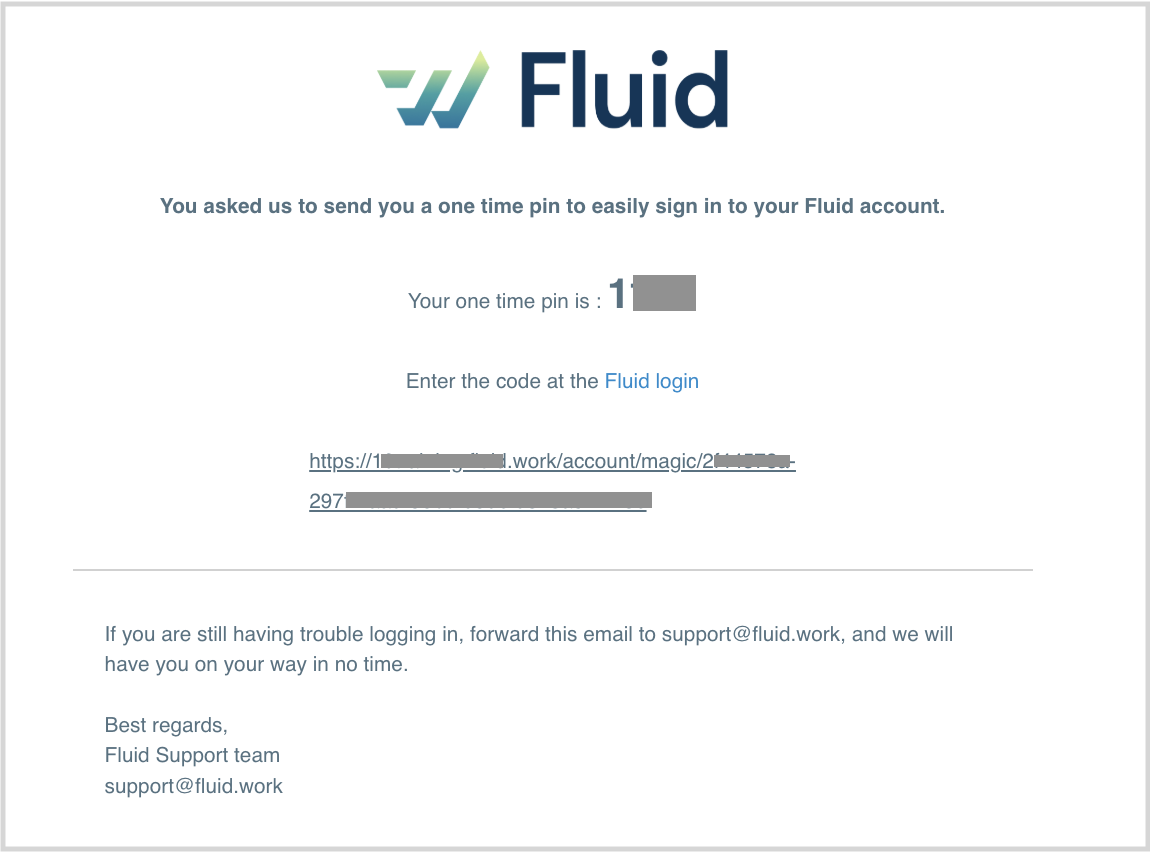
Trigger: Sent when a user requests a one-time login PIN from the Fluid login page and their account is active.
Recipients: The targeted user only; delivered even if the profile has email notifications disabled, forcing the email sending to guarantee access.
Subject & content: Subject line shows the four-digit PIN (e.g., “1234 is your Fluid … One Time Login Pin”) and the body template includes the PIN, recipient name, and request timestamp.
Special handling: Feature flags do not block this mail, and digits are masked for security before storing audit data.
SignUp
Trigger: Reserved for future use. Current sign-up verification emails use the dedicated
SignUpEmailVerificationidentifier instead of this constant.Recipients: Not applicable.
Subject & content: Not applicable today.
Special handling: None. Keep the identifier available for reporting consistency if a dedicated sign-up event is required later.
ChatMention
Trigger: Hourly, daily, weekly, or yearly mention jobs gather unread @mentions and send a digest when the
SendChatMentionEmailsfeature is enabled.Recipients: Each mentioned person who has outstanding mentions within the aggregation window.
Subject & content: Subject is “You have been mentioned”; the body groups mentions by container (project, meeting, etc.) so recipients can jump back to conversations.
Special handling: Skips sending if mention processing fails, and respects the feature flag so tenants can disable mention emails entirely.
MilestoneNotification
Trigger: Fires when a schedule action representing a milestone moves into a new status and the
SendProjectMilestoneNotificationsfeature is on.Recipients: Project managers for the associated project, plus project editors when the
AllowProjectEditorNotificationsfeature is enabled.Subject & content: Subject reads “{TaskType} moved to {TaskStatus} on {Project}”. The email highlights the action title, new status, due and baseline dates, modifier, and links back to the project.
Special handling: Sends only when the task still matches the triggering status and logs the notification to Hangfire for traceability.
ProjectNotification
Trigger: Generated during cross-project “handshake” workflows: when a dependency is requested, accepted, rejected, or removed, including when the declaring or target task is deleted.
Recipients: Project managers for the declaring or target project, excluding the person who performed the action.
Subject & content: Titles such as “A scheduling dependency has been accepted by {Project}” or “… removed …” describe the event; the body outlines the impacted tasks, dates, and who took the action, with quick links back to the relevant project.
Special handling: Each email also posts an in-app bot message summarising the change so stakeholders see the update even if email delivery is disabled.
ColumnOwnerAction
Trigger: Raised when a board card transitions into a column that has owners, provided the
SendBoardColumnOwnerNotificationsfeature is active.Recipients: Column owners except for the person who moved the card.
Subject & content: Subject mirrors the milestone pattern (“{TaskType} moved to {TaskStatus} on {Board}”). The email lists card details, due dates, modifier, and links to the board and card.
Special handling: Also issues a bot direct message that contains the same context and a shortcut to the card.
OpenActions
Trigger: Two scenarios:
Personal reminders generated by the action reminder job (daily/weekly/monthly) when the
AllowActionReminderAlertsfeature is enabled and it is not a weekend.Meeting open-action digests sent to meeting owners/members when outstanding actions exist for a meeting.
Recipients: Individual users responsible for outstanding actions or meeting participants tied to open meeting actions.
Subject & content: Subjects read “Open Actions Reminder” or “Open action reminder for {Meeting}”. The mail groups actions by project or meeting, surfaces counts for open, overdue, and approval items, and links back to dashboards or meetings.
Special handling: Personal reminders also send a supporting bot message so users get nudged inside the app; meeting digests are delivered by email only.
ActionNotification
Trigger: When an action, decision, approval, or scenario is assigned to someone directly, to a meeting, to a project, or to a team workspace, provided the item is not closed.
Recipients:
Direct assignees (people).
Meeting owners/members for meeting assignments.
Project managers and, when enabled, project editors for project assignments.
Team space owners for work hub assignments. The sender never receives their own notification.
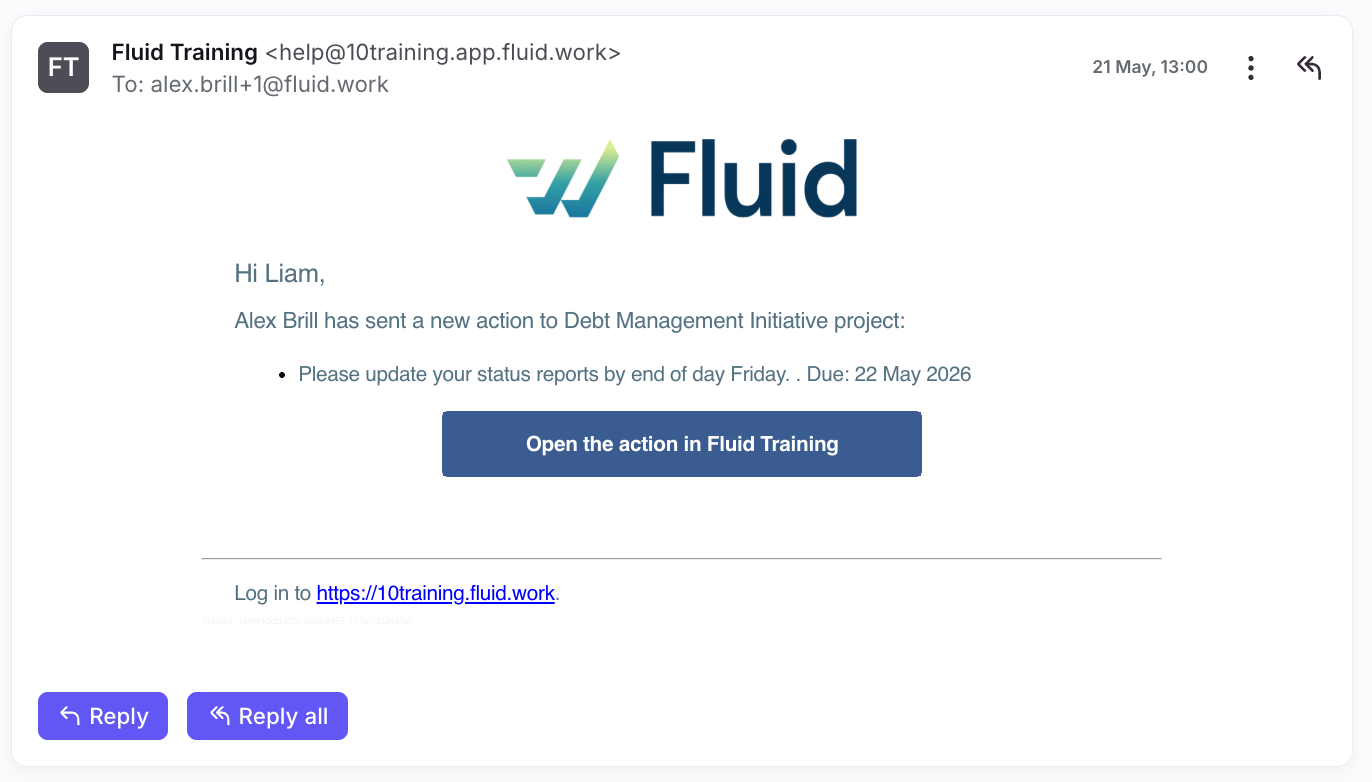
Subject & content: Subject adapts to the context (e.g., “You have been sent an action by {Sender}” or “An action has been sent to {MeetingName} meeting”). The body lists each assigned item with title, type, due date snippet, and navigation links.
Special handling: An email notification is sent straight away, although this may take around 10 minutes to land in their inbox. When aggregated Open Actions emails are sent out based on the (daily/weekly/monthly) setting in a user profile, if the item is still outstanding, it will be included there.
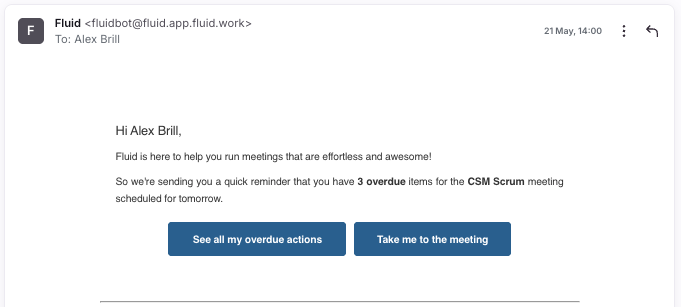
Where Actions are assigned as part of a meetings, you will also receive a notification before the next meeting in the series detailing any outstanding items you have the day before.
TeamNotification
Trigger: When someone is added to a team space (new room creation or additional members) across owner, member, or facilitator roles.
Recipients: Newly added principals according to their role.
Subject & content: “You have been added as an/a {Role} to the {Team Name} {WorkHub/Chat Group}” plus details about who added them and the access link.
Special handling: Email-only notification so stakeholders outside the app still receive confirmation.
AccountLocked
Trigger: Runs immediately when a user’s account becomes locked due to security policies.
Recipients: The locked-out user.
Subject & content: Subject “Your account has been locked” with template content explaining the lock and next steps.
Special handling: None beyond standard audit logging.
NewWorkRequest
Trigger: Fired when someone submits a work request to a process board.
Recipients: All owners of the targeted board.
Subject & content: “A new work request has been sent to {Board} by {Author}.” The message includes the request title and direct link to review it.
Special handling: Delivery is logged through Hangfire console output so operators can audit when notifications were generated.
NewMeetingOwner / NewMeetingMember / NewMeetingFacilitator
Trigger: Sent when a meeting is created or when people are newly added to it, differentiated by their role.
Recipients: The new owners, members, or facilitators.
Subject & content: “You have been added as an/a {Role} to the {Meeting Name} meeting,” with links to open the meeting and confirmation of who added them.
Special handling: Posts both a channel announcement in the meeting chat and a personal bot message for the assignee.
MeetingGuestActionNotification / MeetingMemberActionNotification
Trigger: Generated when meeting actions or decisions are assigned during or after a session conclusion, depending on whether guests or members should be notified.
Recipients: Guests and/or members with outstanding actions from the meeting.
Subject & content: “You have been assigned {action summary} in {Meeting Name} meeting.” The mail summarises assigned actions/decisions, including due dates and quick links.
Special handling: Honours the
toGuestsandtoMembersswitches on the job so facilitators can control who is contacted.
Using this guide
Use the quick reference table to map audit logs or analytics entries back to the business event that produced them. The detailed sections provide enough context to explain to stakeholders why someone received an email and what to expect inside it.