
How documents move from a Pipeline card to a Project
When you use a Project Workflow or Stage Gate Workflow, your work usually starts on a Project Pipeline board. Depending on the workflow, the Pipeline card may represent either:
a new work request that will become a Project, or
an existing Project moving through a workflow or stage gate.
In both cases, any documents attached to the Pipeline card are automatically copied to the related Project when the card is approved, converted, or synced.
For intake workflows, this means key documents such as requirements, business cases, specifications, approvals, or supporting material are carried across when the Project is created.
For Project Workflows or Stage Gate Workflows, this means documents added during the review or approval process are copied back to the existing Project, so the Project record stays up to date.
This means Project Managers do not need to manually download and re-upload documents from the Pipeline card to the Project.
When are documents copied to the Project?
Documents are copied when a Pipeline card is moved into a workflow stage that creates or syncs a Project.
This happens when the card is moved into a column configured to:
Create Project
Sync to Project
Once the workflow action runs, documents attached directly to the Pipeline card are copied to the related Project.
Documents attached to sub-items are not copied.
Are documents moved or copied?
Documents are copied, not moved.
The original document remains attached to the Pipeline card, and a separate copy is added to the Project.
Once a document has been copied, the original on the Pipeline card is automatically protected to preserve its integrity. This prevents accidental changes to the source document after it has been synced. You can read more about protected documents here.
Which documents are copied?
The system only copies documents when needed.
Documents are copied when:
The Pipeline card is synced to the Project for the first time.
A document on the Pipeline card has been replaced or updated since the last sync.
Documents are not copied again when:
The same document has already been copied to the Project.
This prevents the Project from being filled with unnecessary duplicate files every time the card is synced.
How does the system know if a document has changed?
The system tracks each document using a unique identifier that links the copy on the Project back to the original document on the Pipeline card.
When a sync occurs, the system checks whether the document has already been copied by matching its unique identity. If the document has already been synced, it is skipped. If the document on the Pipeline card has been replaced or updated (for example, by re-uploading a new file to the same field), the system treats it as a new version.
Where do copied documents appear on the Project?
Copied documents are added to the Project’s Documents area. The folder they appear in depends on the workflow the card was synced from.
For documents copied from a Work Request or Project Workflow Pipeline board, the folder is named after the Pipeline board. For example, if the board is called Work Requests 2025, the documents will appear in a Project folder called Work Requests 2025.
For documents copied from a Stage Gate Workflow, the folder structure follows the project’s governance framework:
Gate type | Folder structure |
|---|---|
Standard gate | Phase › Gate |
Package gate | Phase › Gate › Package Instance |
For example:
3. Agile Delivery › 1. D15 › D15 #1
In this example, the document was submitted against the first D15 package instance in the Agile Delivery phase.
This structure helps Project Managers and PMO teams see where documents came from and trace them back to the relevant board, phase, gate, or package instance. You can read more about project document folders here.
What happens when a document is updated?
If a document on the Pipeline card is replaced or updated after it has already been copied to the Project, the next sync will copy the new version to the Project.
When this happens:
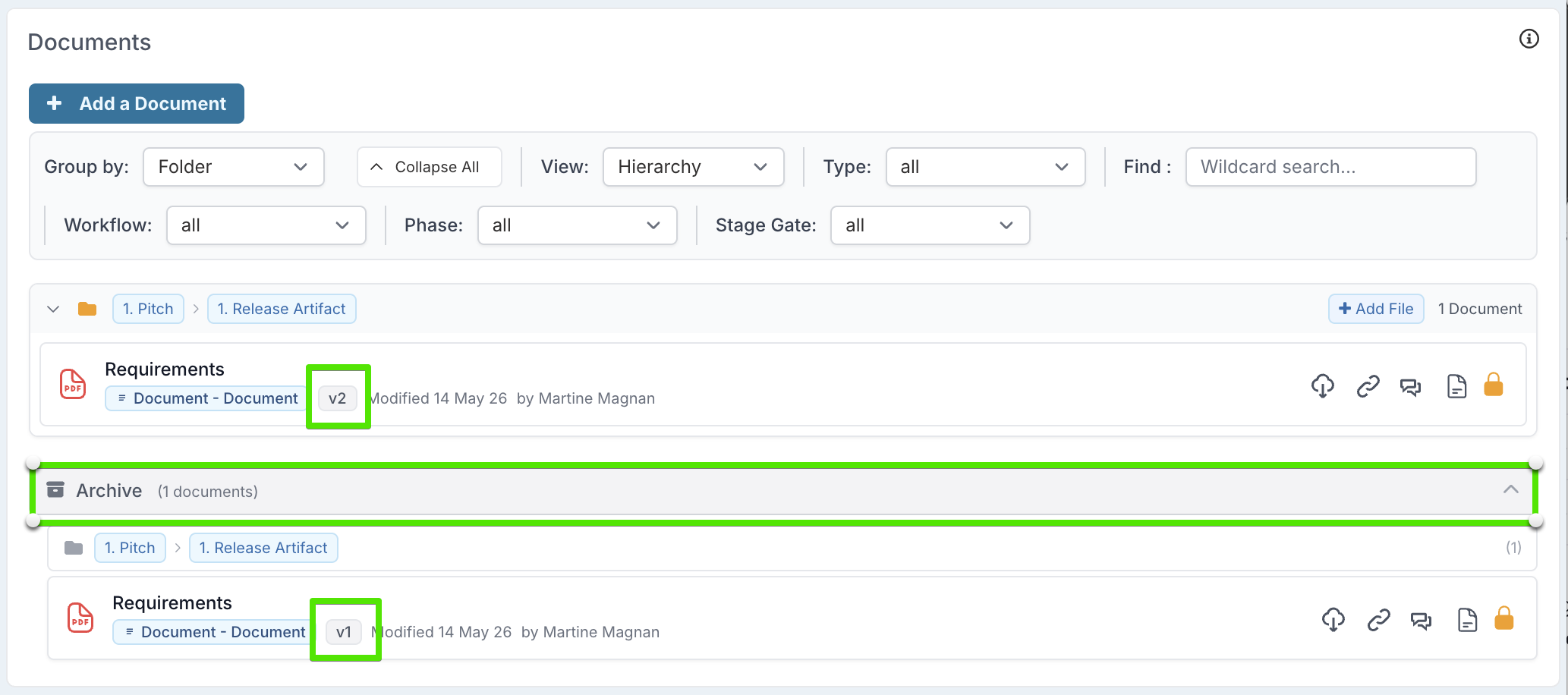
The previous version on the Project is automatically archived.
The new version is added with an incremented version number.
For example:
Version | Document | Status |
v1 | Requirements.pdf | Archived |
v2 | Requirements.pdf | Current |
This gives Project Managers a clear version history. Only the latest version is shown by default, while older versions are archived for reference.
You can read more about resyncing documents here.