
End of Year Release
This release delivers a significant set of enhancements across intake, workflows, governance, and data control, designed to better reflect how PMOs and project teams operate in practice. The focus is on reducing friction at the point of request, strengthening governance through clearer workflow logic, improving collaboration, and ensuring that project and portfolio data remains consistent, controlled, and auditable as it moves from intake through delivery.
Together, these changes give PMOs more confidence, more control, and less manual effort across the full project lifecycle, from first request to execution.
Intake, Requests & Boards
This release introduces a series of enhancements to community request boards, making project intake and request handling faster, clearer, and more aligned to real PMO workflows. Whether you’re managing project intake, change requests, or governance workflows, these updates reduce friction at the front door while giving PMOs more control over how requests enter the system.
1. Configure Boards to Skip the Backlog
Community request boards can now be configured to bypass the backlog and send new requests straight into the workflow.
Previously, all submitted requests were placed into a backlog, requiring a board owner or member to manually move them into the workflow before any review or processing could begin. For many intake processes, this backlog step added unnecessary friction, especially when the first column of the board already represents triage or initial review.
With this release, you can configure a community request board so that new requests are created directly in the first (left-most) column. This allows requests to enter the workflow immediately and aligns the board more closely with how many PMOs actually operate their intake and review processes.
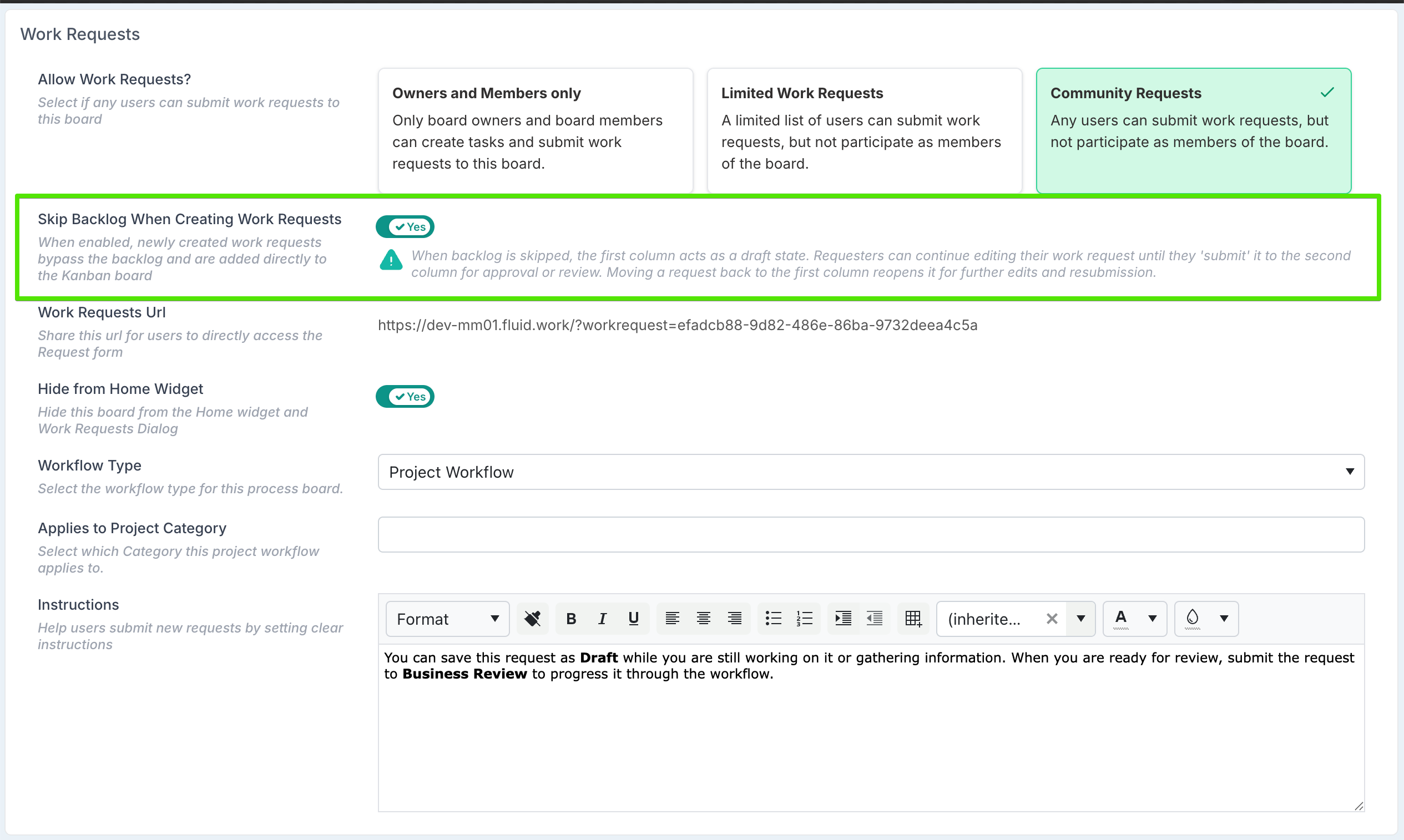
This is particularly effective for project intake, change requests, or governance workflows where the backlog was acting purely as a holding area rather than a meaningful step.
2. Control Where Community Request Boards Appear and How They’re Grouped
PMOs now have greater control over how community request boards are presented to requesters, helping keep the intake experience focused and intuitive.
Using the Hide from Home Widget setting on the board definition, you can choose whether a community request board should appear in the two main discovery points for work requests:
the Home page work request widget, and
the list of boards shown when users select Create → Work Request.
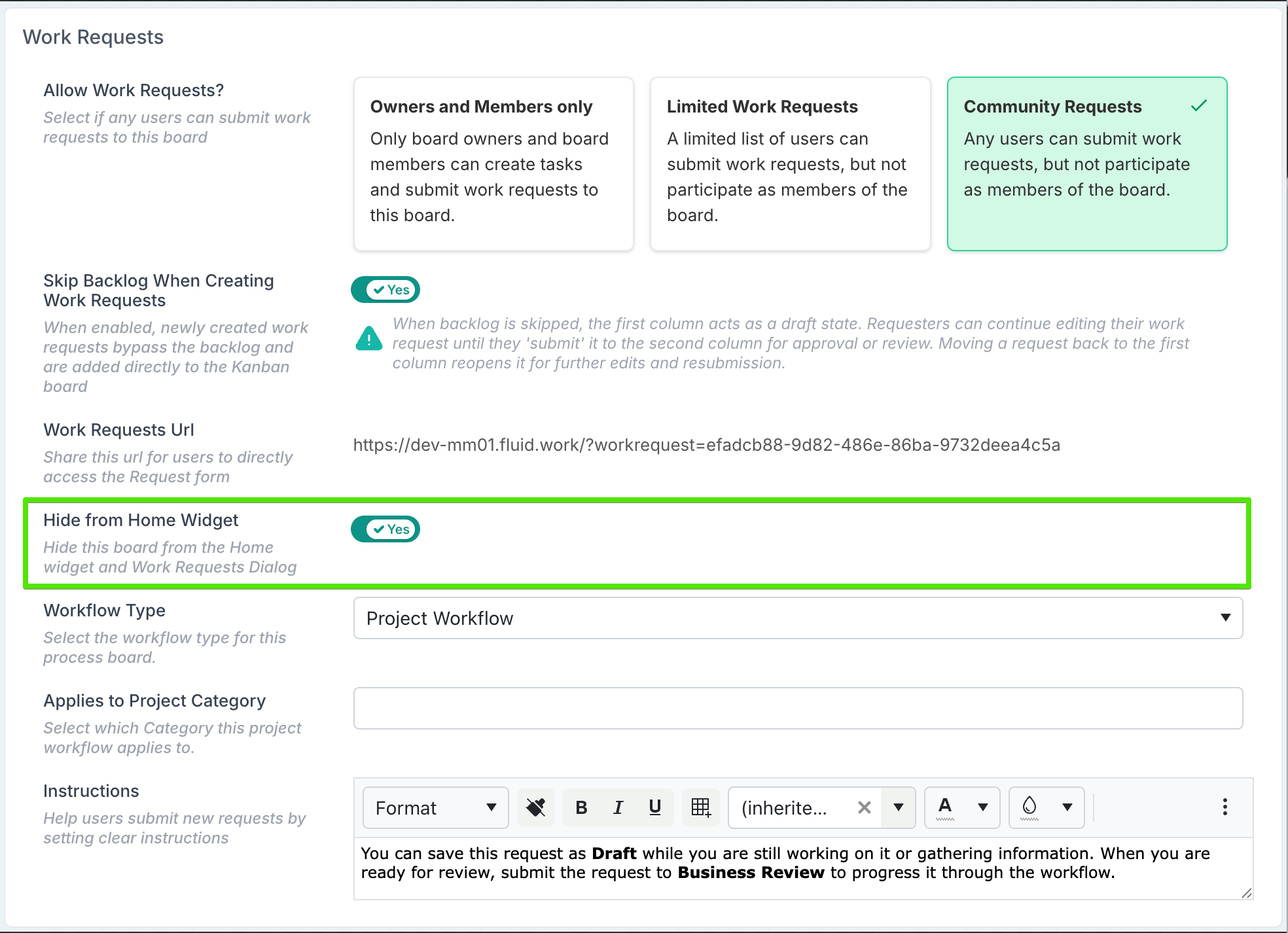
The Hide from Home Widget option gives you precise control over how requests are surfaced. This can be used to temporarily hide a board - for example while designing an intake process or retiring an old workflow. A board may also be intentionally hidden while still actively in use, with requests raised only via its direct work request URL. This is useful when submissions need to be tightly controlled, or embedded into supporting guidance rather than made broadly discoverable.
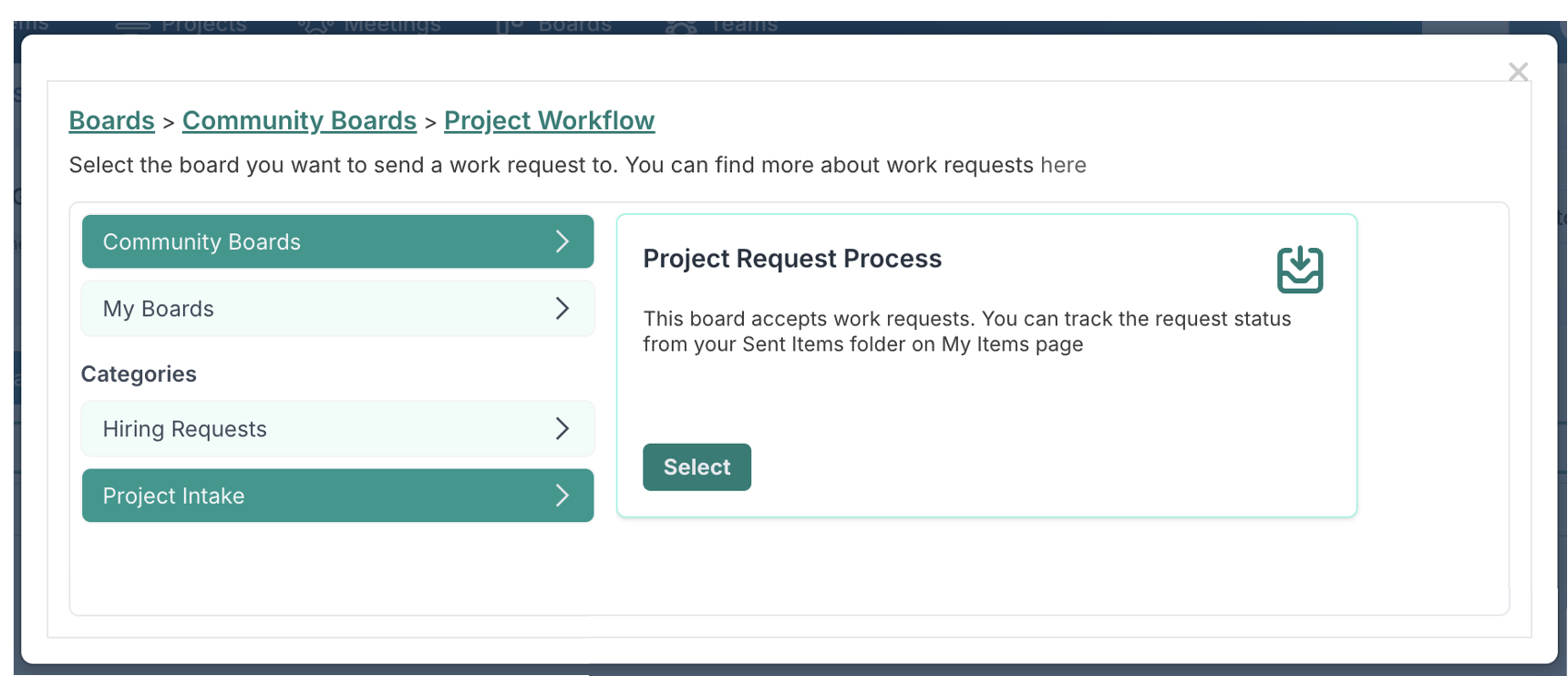
For boards that remain visible, you can now also assign them to categories. Categories are shown to requesters when browsing available work request boards and help guide users to the right intake path, such as Project Intake, Change Requests, Operational Work, or Governance Reviews.
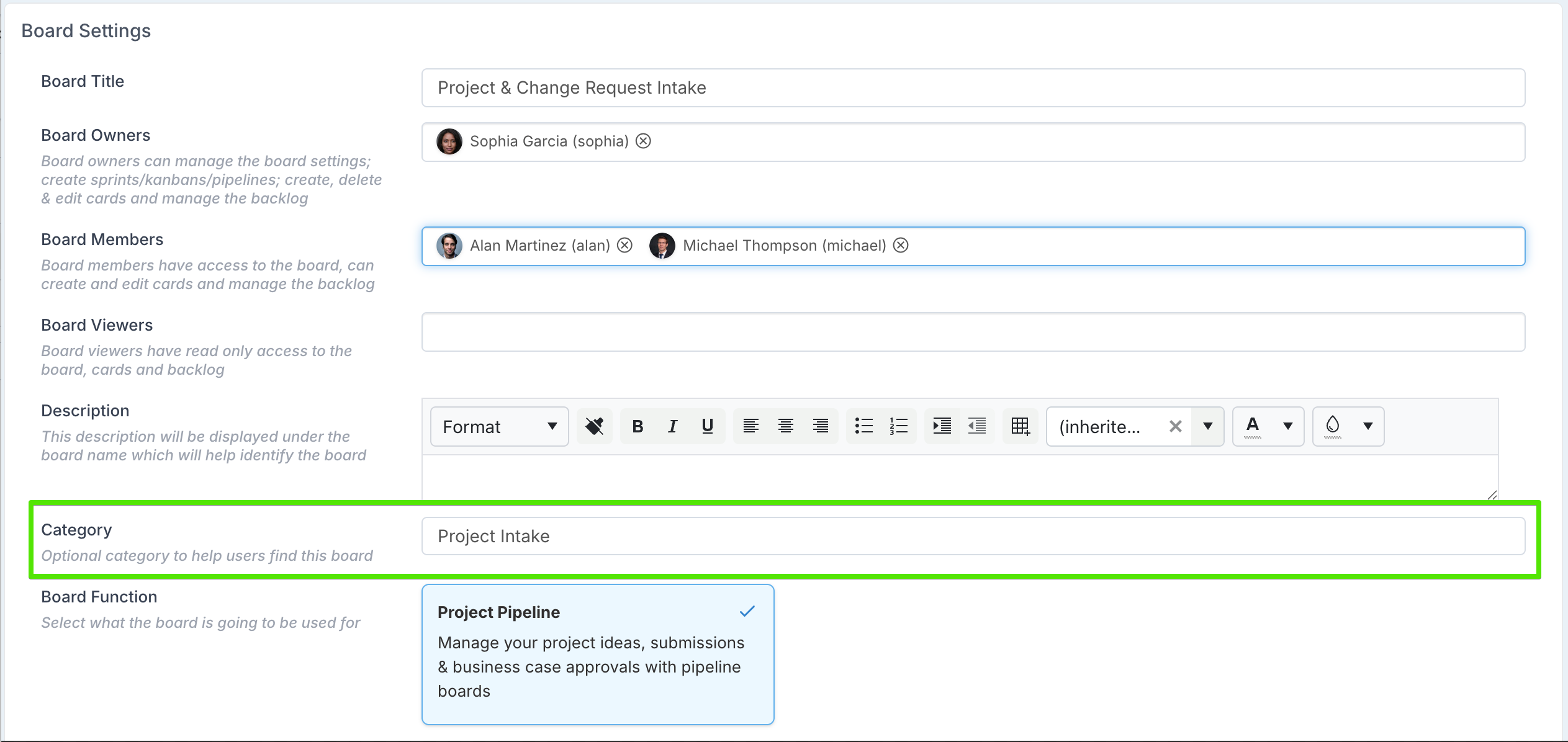
This combination of visibility control and categorisation makes it much easier to present a clean, purposeful request experience, even in organisations with multiple intake channels.
3. Define the Workflow Type for Each Board
Community request boards can now be explicitly configured with a Workflow Type, clarifying how each workflow is intended to be initiated and how it interacts with projects. This allows PMOs to design intake and governance processes that behave correctly whether requests are raised independently or in the context of an existing project.
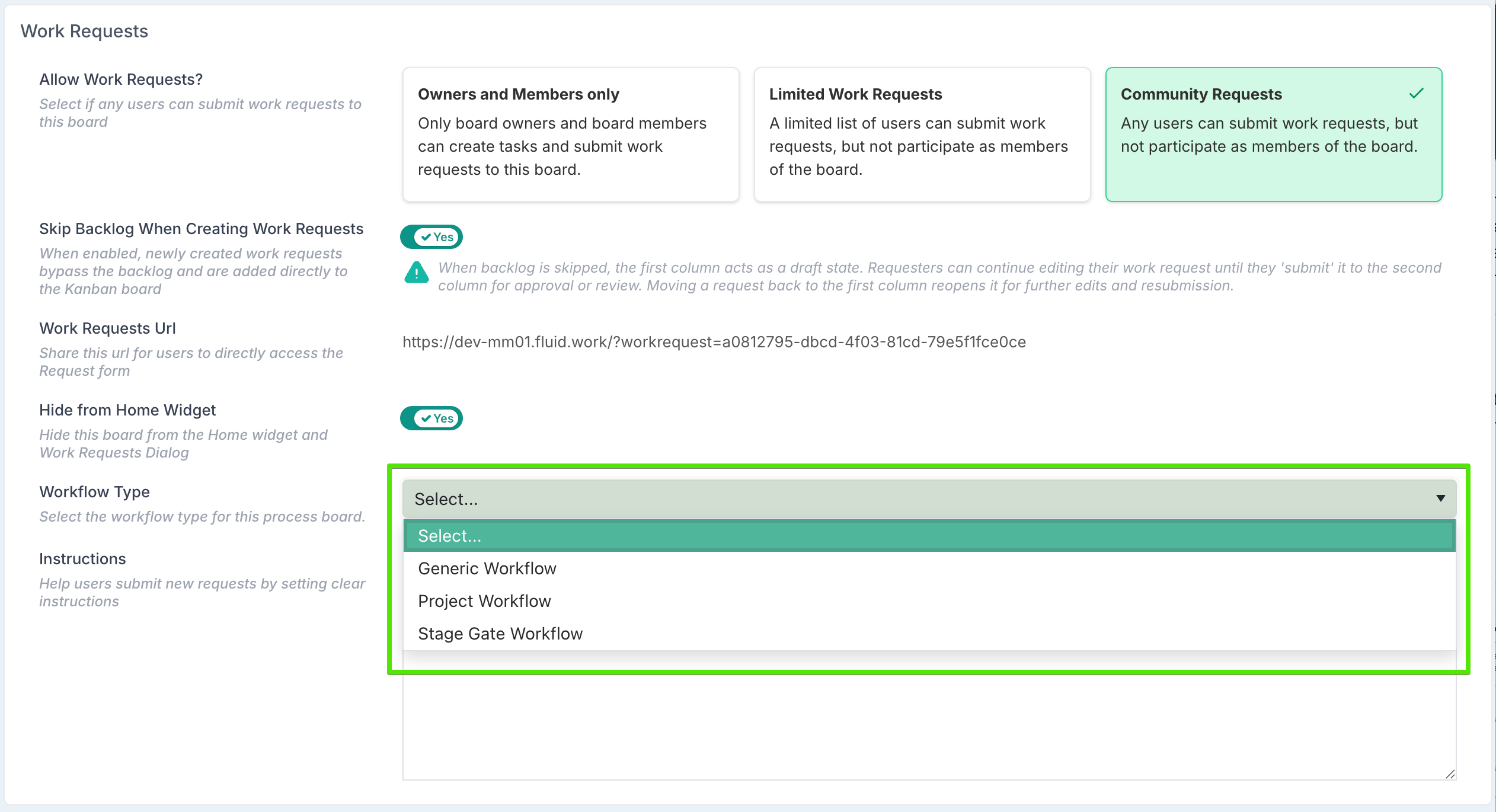
When defining a board, you can choose from three workflow types:
Generic Workflow
Used for requests that are not inherently project-specific, or where the request does not need to be linked to a project at the point of submission. Typical examples include operational requests, general enquiries, or early-stage ideas.
Generic workflows are always initiated outside the project context and, when visible, are accessed via the Home page or Create → Work Request entry points.
Project Workflow
Used for workflows that relate directly to projects, such as project intake requests, change requests, or project-level approvals.
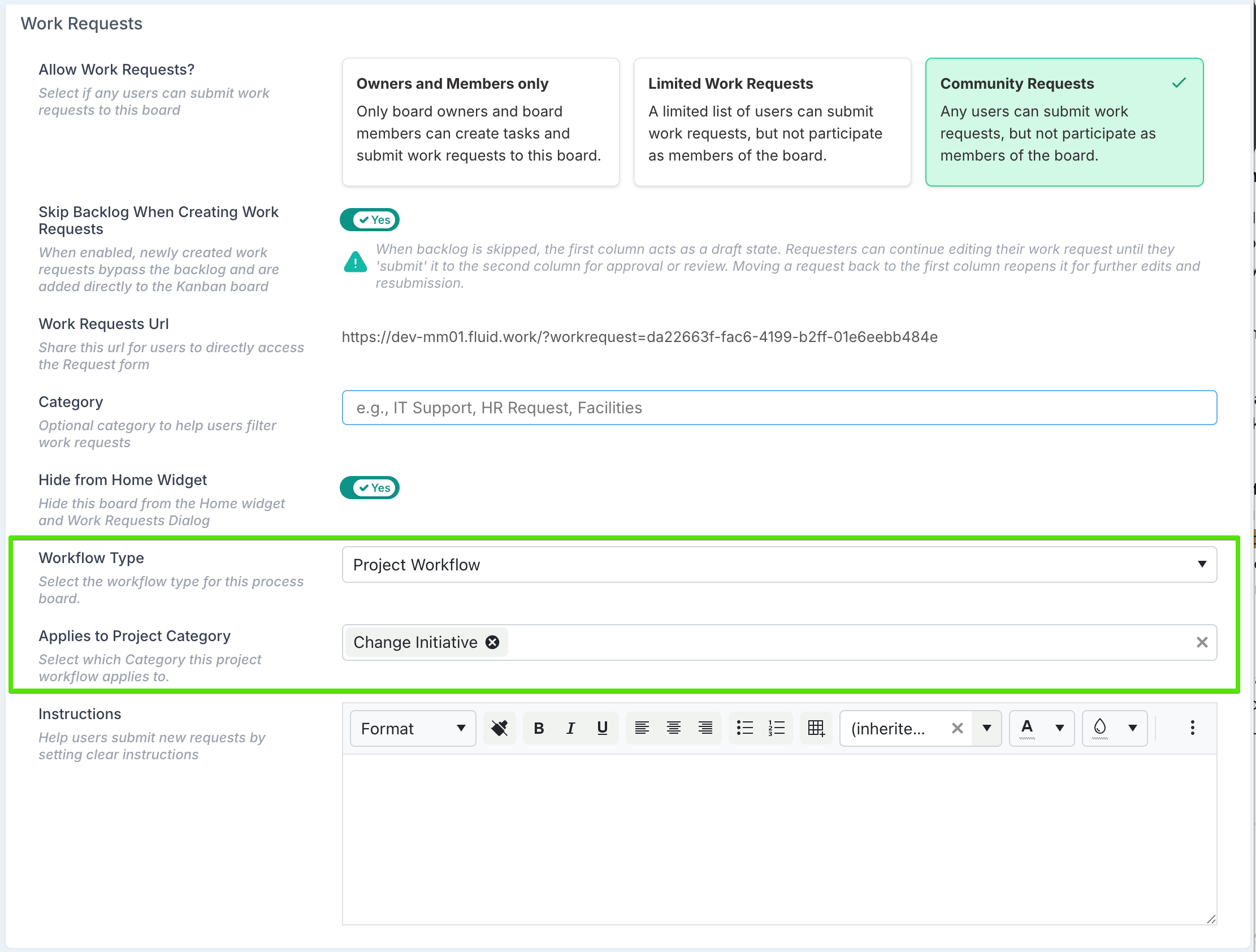
How a Project Workflow board can be initiated depends on whether it is hidden from the main discovery points:
If the board is not hidden from the Home widget, requests to this workflow are initiated from the Home page or Create → Work Request menu (i.e. as a standard work request entry point).
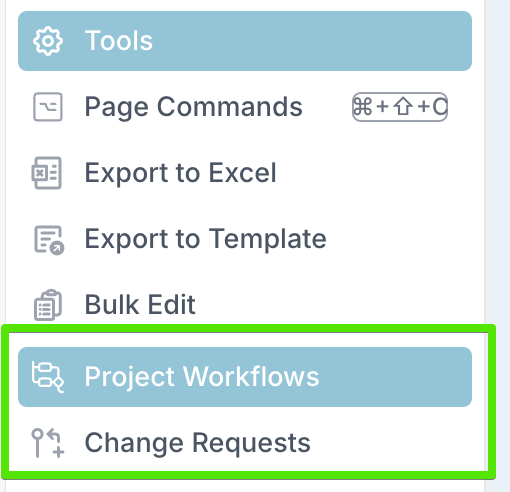
If the board is hidden from the Home widget, the workflow becomes project-contextual and can be initiated from within a project. In this mode, the Project Category setting controls which projects can initiate a workflow request:
If a Project Category is specified, only projects in that category will expose the workflow in the Project Workspace.
If no category is specified, the workflow is available from the Project Workspace for all projects.
When a request is initiated from a project, any matching project properties are synchronised to the card, ensuring the request inherits the relevant project context without manual re-entry.
Stage Gate Workflow
Used specifically for governance processes linked to stage gates. When selected, the board can be associated with one or more stage gates, ensuring that approvals, reviews, or supporting actions are triggered as part of the project lifecycle, rather than as standalone requests.
When a request is created from a stage gate, any matching project properties are automatically synchronised to the card, ensuring that the workflow inherits the correct project context without requiring manual re-entry. This keeps stage gate approvals tightly aligned with the project data they govern and improves traceability across governance decisions.
By defining the workflow type up front, PMOs can ensure each board is surfaced in the right place reducing confusion, and keeping request-driven processes tightly aligned with portfolio governance.
Cards, Drafts & Collaboration
This release introduces improvements to how work requests are created and prepared before entering formal workflows. Together, these changes support more flexible drafting, better collaboration, and higher-quality submissions.
1. Progressive Capture: Save Requests Before They’re Ready
When a community request board is configured to skip the backlog, requesters can now work on a request over time instead of having to complete everything in one go.
Previously, all required fields had to be completed before a request could be saved. This often forced users to either rush submissions or abandon requests altogether if they didn’t yet have all the information.
With this release, requests can now be saved in the first column (typically a Draft status) even if required fields have not yet been completed. This allows users to start a request, save it as a draft, come back later, and continue working on it as information becomes available. Required fields are only enforced when the request is formally submitted into the workflow.
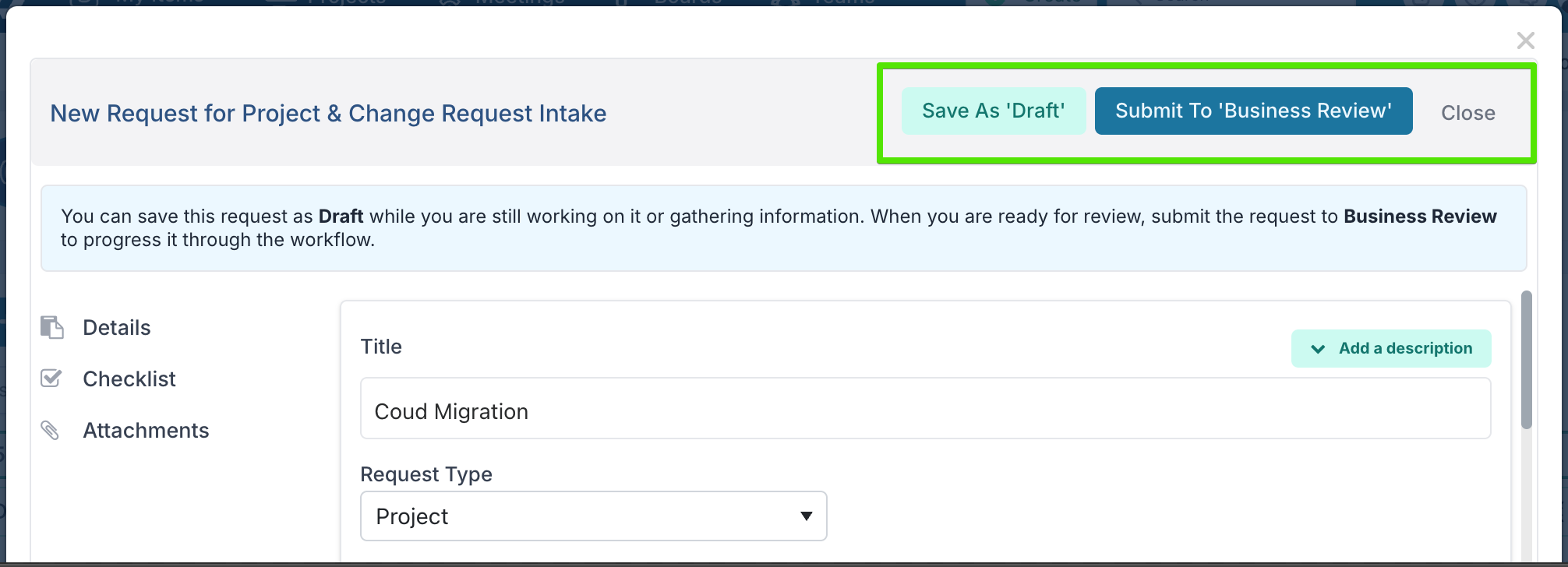
The behaviour is driven by the board structure:
The first column represents draft or in-progress requests.
The second column represents the point at which the request is ready and enters formal review or processing.
This gives requesters far more flexibility during intake, improves the quality of submissions, and ensures governance rules are applied at the right moment — when a request truly moves into the workflow.
2. Collaborate on Requests Before Submission
When initiating a work request, collaborators can now be added while the request is still in Draft. This allows multiple people to work together to complete the request before it enters the formal workflow.
This is particularly useful for intake scenarios where information needs to be gathered from different roles - for example, combining delivery details from a project manager, financial input from a PMO analyst, or technical context from a subject matter expert - before the request is ready for review.
Collaborators can edit the request only while it remains in Draft. Once the request is submitted into the workflow, the card becomes read-only for both the requester and collaborators, ensuring that the information reviewed and approved remains stable as it progresses through governance or delivery stages.
Project & Card Synchronisation
This release strengthens the two-way relationship between boards and projects, ensuring that information captured through workflows stays aligned with the project data it relates to. Whether projects are created from boards or requests are raised from within projects, synchronisation now works in both directions to reduce duplication and keep records consistent.
1. Card to Project Synchronisation
Project pipeline boards can define specific columns or statuses that trigger synchronisation between a card and a project. Until now, this was primarily used to create a new project: when a card moved into a configured column, Fluid would create the project and copy across any matching card properties into the new project record.
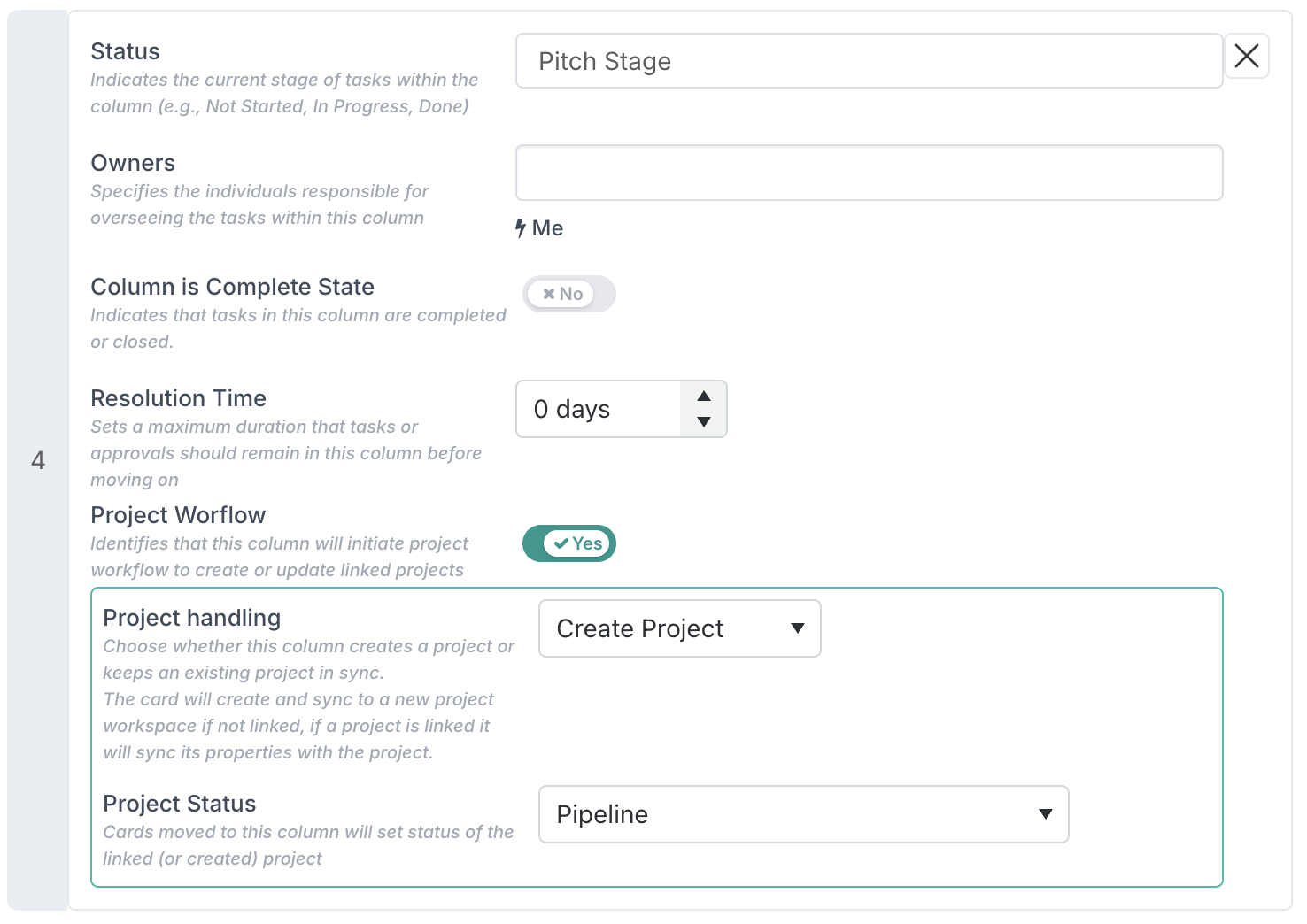
What’s new in this release is that these same columns can now be configured to sync properties to the project already linked to the card, rather than creating a new project. This means that when a card is being used to drive a workflow against an existing project, any additional or updated information captured on the card can be pushed back into the project automatically (where matching properties exist). This is particularly valuable for governance and approval workflows where project data is progressively refined and should be reflected on the project once the workflow reaches a defined point.
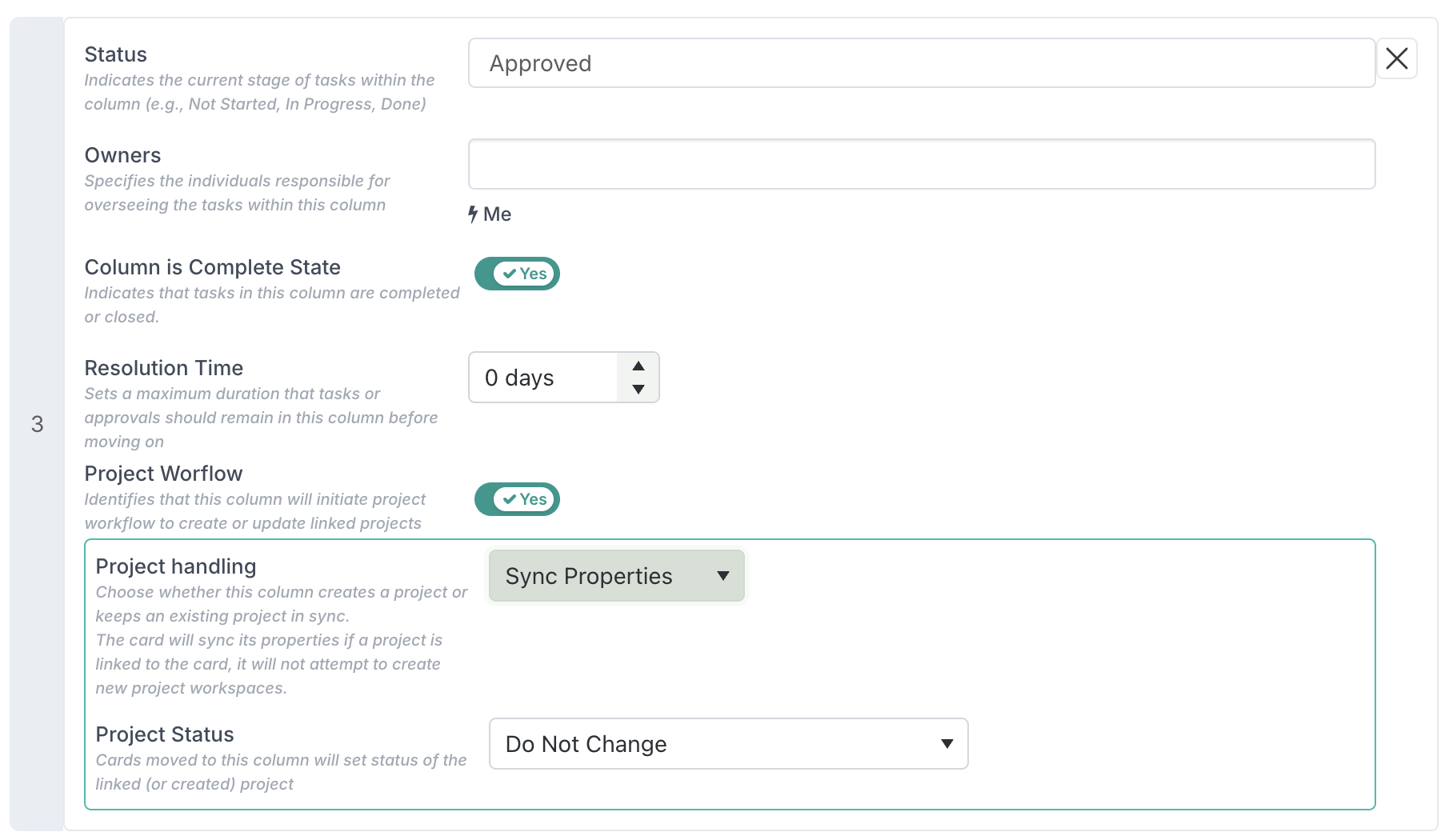
In addition, when configuring a column to sync properties to an existing project, you can also control how the project status is handled. Selecting Do Not Change ensures the project status remains exactly as it is, while choosing a specific status allows you to explicitly move the project to a new state as part of the workflow. This gives PMOs precise control over whether a governance step updates project data only, or also advances the project’s lifecycle.
2. Project to Card Synchronisation
Synchronisation has also been extended in the opposite direction for requests initiated from a project.
When a request is raised from within a project - such as a change request or a stage-gate-related workflow - the project’s properties can now sync back to the card, provided matching properties exist on the board. This ensures that cards driving project workflows always reflect the latest project context, improving traceability and reducing the risk of inconsistencies between project data and the requests associated with it.
Together, these enhancements provide PMOs with tighter integration between intake, governance workflows, and project execution, supporting better data quality, clearer audit trails, and less manual effort across the lifecycle.
Decisions & Governance
This release strengthens how decisions drive workflow progression, giving PMOs clearer control, stronger governance, and more predictable outcomes when approvals are embedded into board workflows.
1. Control Card Movement Based on Decision Outcomes
Workflows have long supported the automatic creation of decisions when a card reaches a specific column or status. In this release, that capability is extended so that what happens next is driven directly by the decision outcome.
You can now use expressions to control how a card moves once a decision is approved or rejected. For example, a card can automatically move to an Approved column when accepted, return to Further Review when rejected, or remain in the same column depending on the outcome. This allows governance decisions to actively steer the workflow, rather than simply recording an approval in isolation.
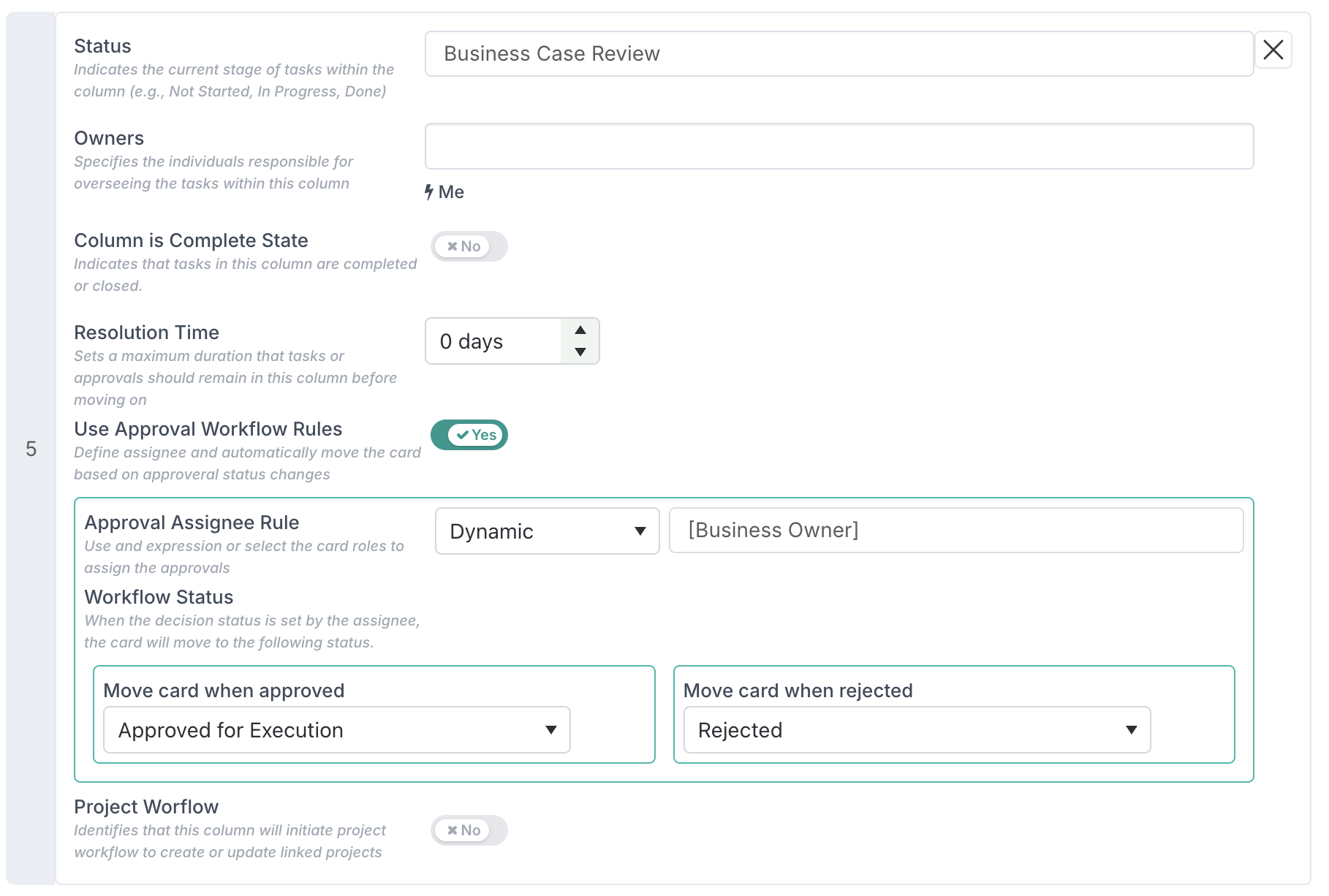
This behaviour is configured directly at column level on the board. When defining a column, you enable Approval Workflow Rules, specify who the decision approvers are (using static or dynamic roles), and then define how the card should move based on the decision outcome.
This means approval logic, accountability, and workflow progression are all defined in one place, making it clear how governance decisions translate into concrete next steps in the process.
2. Decision Outcomes Are Final in Workflow-Driven Decisions
For decisions initiated as part of a workflow, approval outcomes are now final. Once an approver approves or rejects a decision, the status cannot be changed.
This prevents decisions from being reversed after the fact, ensuring a clear and auditable governance trail. If circumstances change and a different outcome is required, a new decision must be raised and reassigned, rather than editing the original one. This behaviour applies only to workflow-driven decisions and does not affect decisions created manually outside workflows.
3. Simplified Decision Actions in Workflows
To reinforce this clarity, workflow-driven decisions have been simplified:
The Conditional option has been removed.
The action button now clearly reads Submit, rather than Save.
Approvers can only approve or reject the decision.
This removes ambiguity at decision points and ensures that workflow-driven decisions behave consistently, supporting stronger governance and cleaner auditability across approval processes.
Custom Properties & Data Control
This release significantly expands the role of custom properties as a core governance and data-control mechanism across Fluid. PMOs now have much finer control over who can see and edit data, how values are derived and constrained, how documents are captured and governed, and how property definitions are reused across boards, projects, and environments.
Together, these enhancements strengthen data consistency between intake and delivery, reduce manual configuration and errors, and ensure that critical project and governance information is captured, protected, and reused in a controlled and auditable way as work moves from request to execution.
1. Control Visibility and Edit Rights on Custom Properties
You can now define a visibility mode for each custom property, giving you precise control over who can see a property and who can edit it.
For each custom property, you can choose one of the following visibility modes:
Editable by all users
The property is visible to all users and can be edited by anyone who has edit rights on the item. For example, on Project Details, a project manager can update a property that is set to Editable by all users.
This mode is suited to general project information that is expected to be maintained collaboratively, such as delivery notes or high-level context.Hidden from non-admin users
The property is only visible and editable by project administrators. Non-admin users cannot see the property at all. For example, on a project, this property would be visible to a Project Administrator, but completely hidden from a Project Manager viewing the Project Details.
This is useful for internal governance fields, control flags, or data that should remain strictly within the PMO or admin team.Visible but read-only for non-admin users
The property is visible to all users, but only project administrators can edit it. For example, a Project Manager will see the property on the Project Details page but will not be able to change it, while a Project Administrator can update the value.
This is ideal for controlled information such as governance outcomes, financial indicators, or calculated values that should be transparent but protected from manual edits.Visible and read-only for all users
The property is visible to everyone and cannot be edited by any user, including project administrators.
This mode is typically used when a property is populated by a workflow or automated process. For example, when project approval data is written as part of an intake or stage-gate workflow, the values should remain locked once the project is approved, ensuring that governance decisions captured during the workflow cannot be altered afterwards.
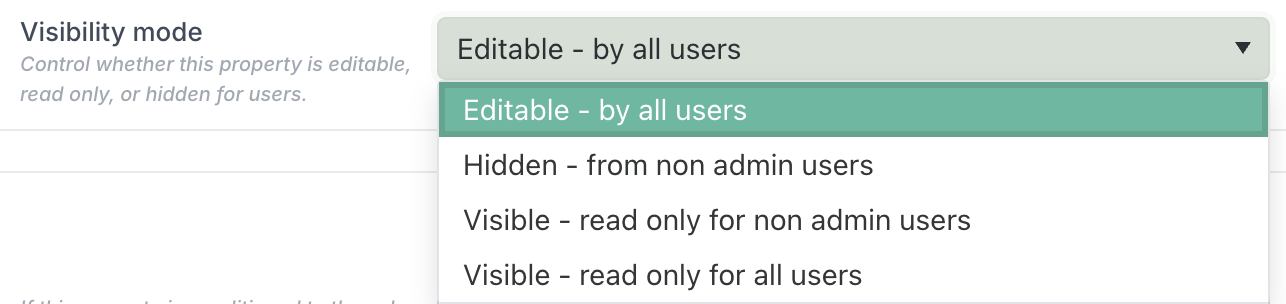
These visibility modes allow PMOs to balance transparency and control, making key information available where it adds value, while protecting critical or sensitive data from unintended changes.
2. Dynamic Logic Expressions: Drive Smarter Forms, Workflows, and Governance
This release introduces Dynamic Logic Expressions, allowing data already captured in Fluid to drive calculations, decisions, and workflow behaviour automatically.
Dynamic Logic Expressions are small formulas that are evaluated in real time against project, board, or any other entities. As values change, the expression is automatically re-evaluated, ensuring outcomes stay consistent without manual intervention.
Smarter Forms and Data Capture
You can configure custom properties to be driven by expressions, allowing their values to be calculated automatically based on other data entered in the form. This removes the need for manual updates and ensures values remain consistent as inputs change.
You can review the full list of supported expressions and syntax in the Dynamic Logic Expressions documentation.
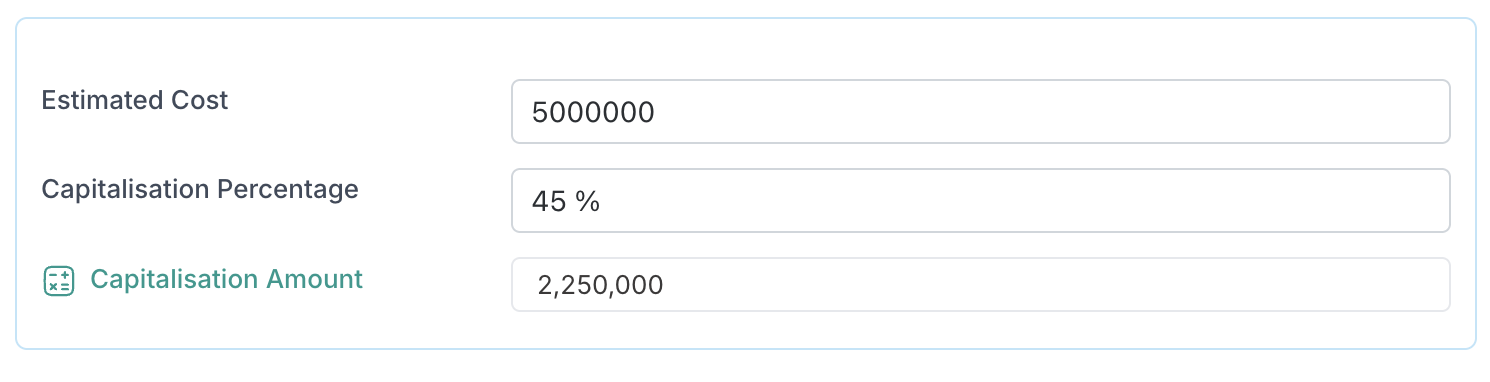
For example:
A project intake form captures Estimated Cost and Capitalisation Percentage
A third field, Capitalised Amount, is automatically calculated using an expression

As the user updates either input, the calculated value updates instantly
Workflow-Driven Decisions and Card Movement
Dynamic Logic Expressions can be used within workflow decision rules to control what happens to a card once a linked approval decision has been approved or rejected.
When a card reaches a column configured to automatically raise an approval decision, you can define expression-based rules that determine how the card should move after the decision is approved or rejected. This allows approval outcomes to drive workflow progression in a consistent and data-driven way.
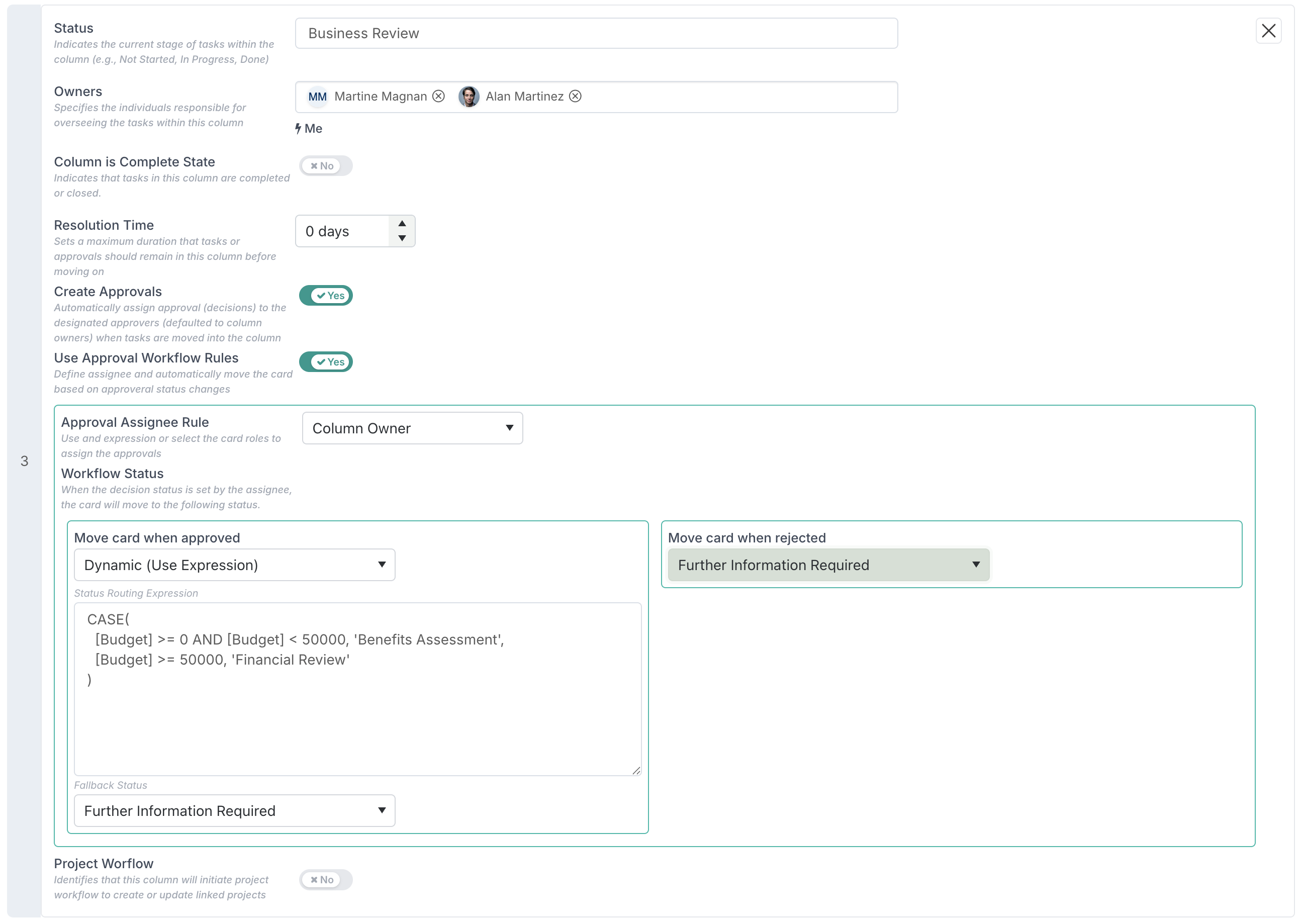
For example, when a decision is approved, an expression can be evaluated to decide the next step:
Route the card to Financial Review if the forecast budget exceeds a defined threshold
Move directly to Benefits Assessment for lower-value requests
When a decision is rejected, the card can be routed to a fixed status such as Further Information Required, ensuring the request returns to the right point for clarification or rework.
This logic is defined directly on the board column using dynamic expressions. Expressions evaluate the data already captured on the card - such as budget - to determine the appropriate outcome automatically.
By combining automated decisions with expression-driven routing, workflows can enforce governance rules consistently, reduce manual judgement, and ensure that requests progress through the right review stages based on their actual content rather than a one-size-fits-all process.
3. Dynamically Filter Person Properties Using Lookup Expressions
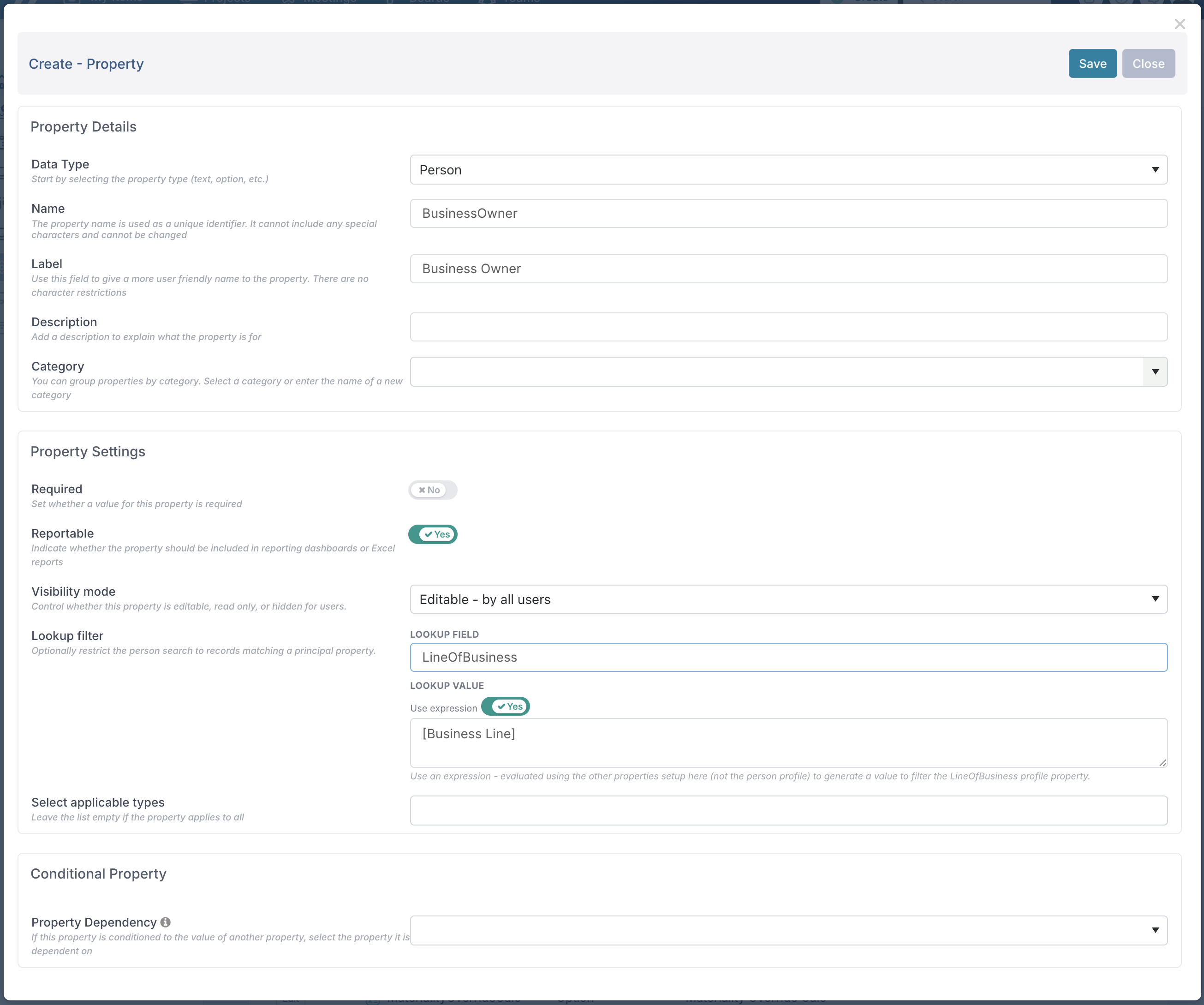
Custom properties of type Person can now be configured with lookup expressions to control who can be selected for the property.
When a lookup expression is defined, users still manually select a person, but the list of available people is automatically filtered by the application based on the configured criteria. This prevents users from selecting anyone outside the defined rules, while still keeping the final choice explicit.
In the example shown below, a Business Owner custom property has been created as a Person property and configured with a lookup filter:
The Lookup Field specifies which property on the user record should be evaluated (for example, Line of Business).
The Lookup Value uses an expression that references another property on the item, in this example the project’s Business Line.
As a result, only users whose Line of Business matches the project’s Business Line will be available for selection when completing the Business Owner field.
This means users cannot accidentally assign someone outside the relevant organisational scope, while still retaining control over the final selection.
This approach is particularly useful for enforcing ownership rules, guiding approver selection, and ensuring consistent role assignment across projects and workflows.
4. Custom Properties: Attach Documents Using Document Properties
Custom properties now support a new Document type, allowing documents to be captured as structured project data rather than as general attachments.
When creating a custom property - whether for projects, boards, schedules, tasks, impacts, or other entities - you can now define the property as type Document. Users can upload one or more documents directly against that property, making it clear why the document exists and what it relates to.
When a document is uploaded via a Document property:
the document is shown directly against the property value, and
it is also added to the appropriate document location for the entity:
the Documents section for project workspaces, or
the Attachments section for items such as cards, scheduled tasks, or impacts.
This ensures documents are both contextually visible and centrally accessible.
5. Workflow-Controlled Document Locking
The application can be configured to lock documents that are introduced as part of a workflow, regardless of how they were added to the card.
This applies to:
documents uploaded via a Document custom property, and
documents uploaded directly to the card’s Attachments section.
When a card progresses through a workflow and documents are synchronised to a project, those documents are copied to the Documents section of the project workspace. Once the synchronisation occurs and document locking is enabled, the documents become fully locked on the project.
Locked documents:
cannot be deleted, including by Project Administrators, and
cannot be edited or replaced.
Please note that while the card remains within the workflow, board owners and board members can continue to add or remove documents as needed. However, once the workflow reaches the point where documents are synced to the project, those documents are preserved as part of the project’s formal record.
This ensures that documents approved or submitted through governance workflows, such as business cases, approvals, or compliance evidence, remain immutable once they form part of the project, providing strong auditability and protecting the integrity of governance decisions.
6. Export, Import, and Copy Custom Properties Across Boards and Projects
Custom properties can now be reused more easily across boards and projects, without duplicating entire configurations. You can copy properties directly from another board, or export and import them using a JSON file — with full control over which properties are applied and how they are merged.
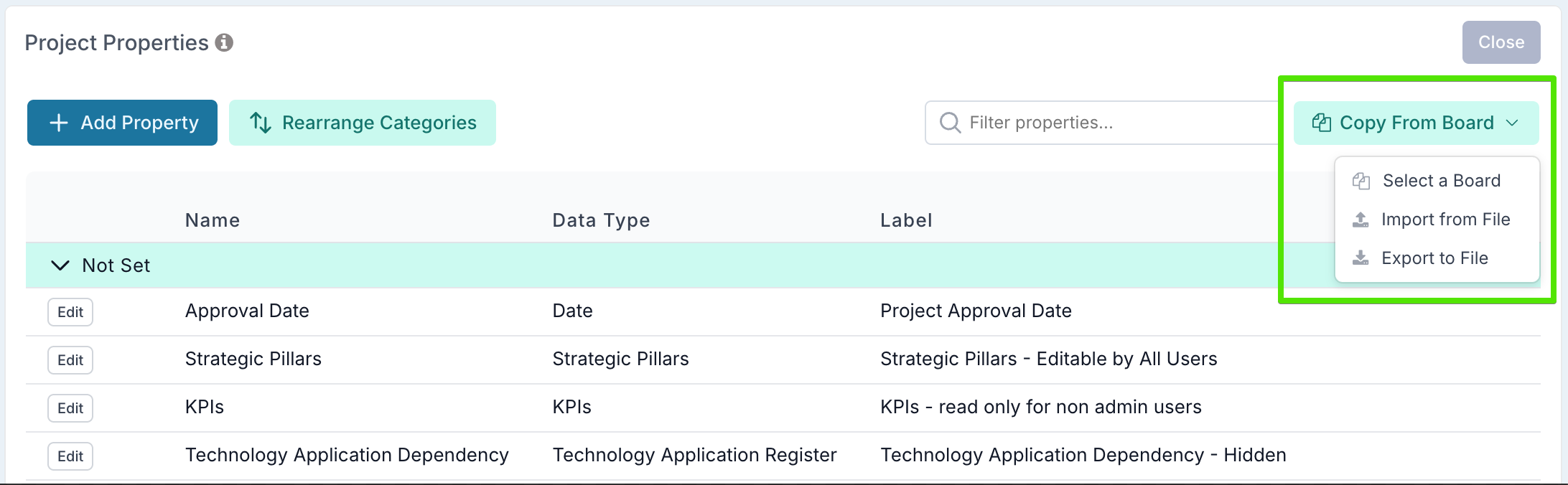
From the Board Settings page or the Manage Custom Properties page for projects, you can now:
Copy custom properties from another board
Select an existing board you want to copy the properties from. Once selected, the list of properties available to copy is displayed, allowing you to uncheck any properties you do not want to include. This provides precise control over which property definitions are copied into the target board or project. Then decide whether to:Replace all existing properties on the target with the selected ones, or
Merge them, adding only properties that do not already exist and leaving existing definitions unchanged.
Export custom properties to a JSON file
Export custom property definitions as a JSON file so they can be reused elsewhere. This is typically used to keep board and project properties aligned, reuse property definitions without duplicating entire boards, and move configuration safely between environments, such as promoting changes from a sandbox to production.Import custom properties from a JSON file
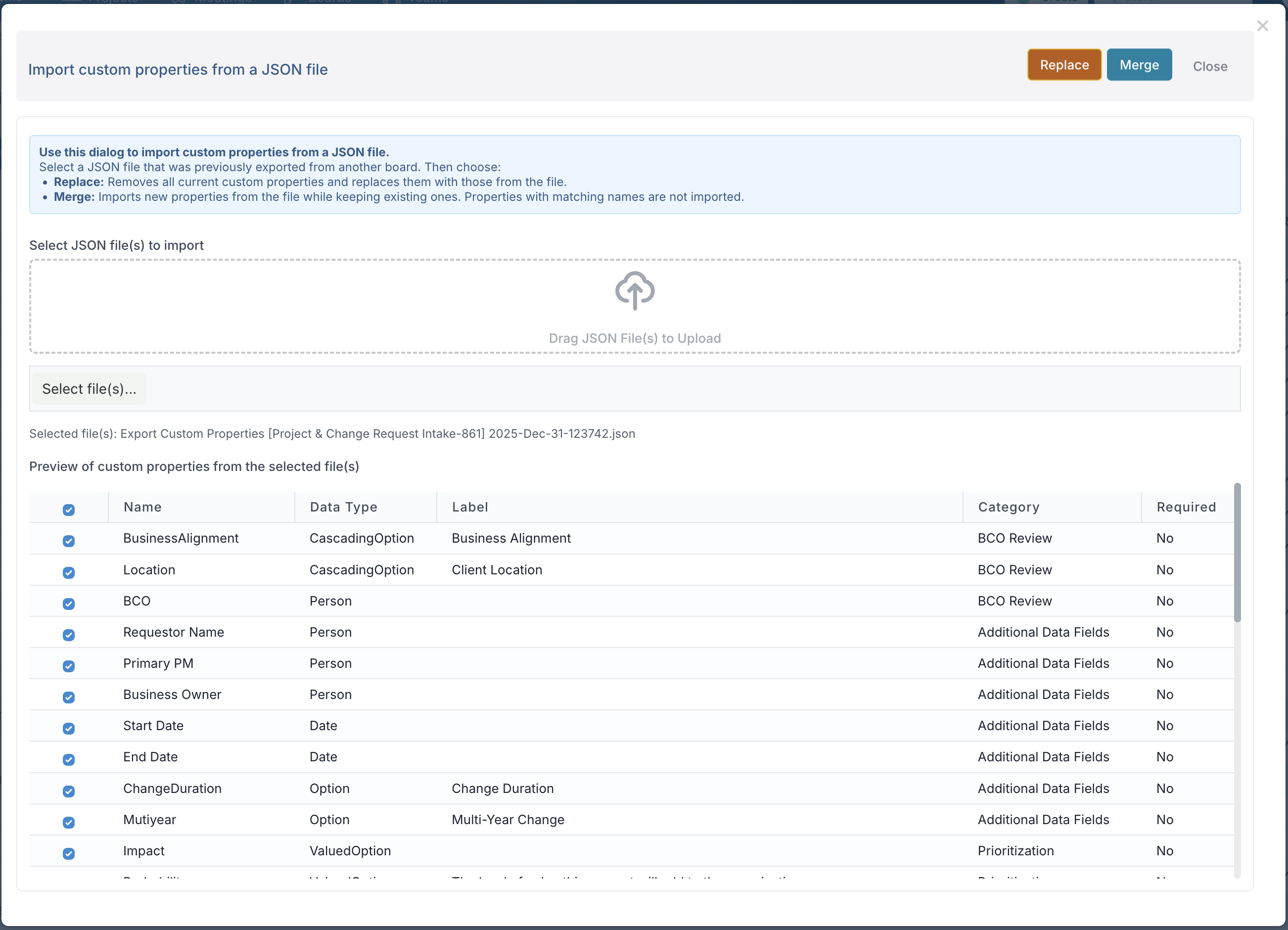
Upload a previously exported JSON file and review the list of properties contained within it. Before applying the import, you can select or deselect individual properties and choose whether to replace or merge them with existing ones.
In all cases, copied or imported properties retain their structure, data type, and configuration, enabling consistent data capture across boards and projects while reducing manual setup and the risk of misalignment.
Advanced Stage Gate Control & Governance
This release introduces new capabilities that give PMOs greater control over how stage gates behave across the project lifecycle. Together, these enhancements allow governance to be both stricter where required and more flexible where appropriate, ensuring that projects are governed consistently while still reflecting real delivery conditions and portfolio rules.
1. Enforce Phase Progression Based on Gate Completion
This release strengthens phase-level governance by allowing project phase progression to be explicitly controlled by stage gate completion.
When a methodology is applied to a project and phases are defined with associated gates, you can now enforce a rule that prevents the project from progressing into the next phase until all gates in the current phase have been completed. This setting is applied at application level and is configured by the Project Administrator, ensuring consistent behaviour across all projects using governed methodologies.
The behaviour is designed to be practical and non-disruptive:
If a project attempts to advance but one or more gates are still outstanding, the project remains in the earliest phase with incomplete gates.
Where gates are complete, the project can progress naturally to the next phase in line with its planned dates.
If a project has passed its end date or no valid phase applies, the current phase is cleared accordingly.
This ensures that governance checkpoints genuinely control delivery flow, reducing the risk of premature phase changes while maintaining a sensible progression model for active projects.
2. Conditionally Display Stage Gates Using Expressions
Stage gates can now be conditionally shown or hidden using expressions based on project properties.
This means PMOs can define rules that determine whether a gate is applicable to a project at all. For example, a gate might only be visible for projects above a certain budget threshold, for specific project types, or for initiatives within a particular portfolio or business area.
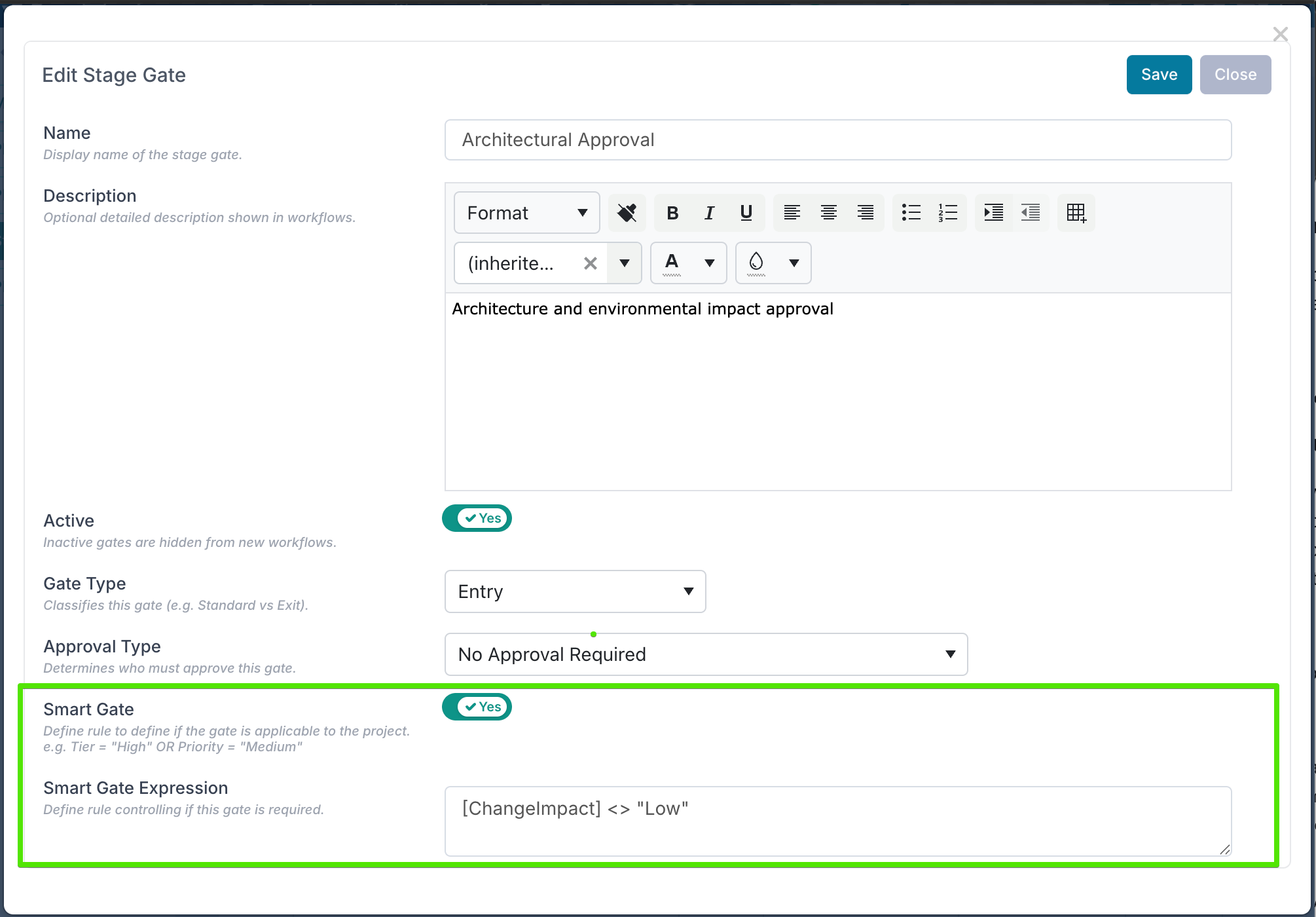
In the above example, the Architectural Approval gate will only be required for projects where the impact of the change is High or Medium.
By using expressions tied to project data, governance frameworks can be made more adaptive without duplicating methodologies or creating unnecessary gates for projects where they do not apply. This helps reduce noise in delivery workflows while ensuring that the right level of governance is applied to the right projects.
Please note that stage gate expressions are feature-driven. The application instance must be configured to enable this capability before expressions can be defined and used on stage gates.
3. Enforce Entry-Before-Exit Gate Completion Within a Phase
When the application setting to prevent progression to the next phase until all gates in the current phase are completed is enabled, an additional control is now applied within the same phase.
In this mode, a project cannot complete an exit gate for a phase unless all entry gates for that phase have already been completed. This ensures that projects cannot bypass required entry approvals and move straight to phase exit decisions.
This behaviour reinforces correct governance sequencing by ensuring that:
entry checks and approvals are completed before exit decisions are made, and
phase completion reflects a fully compliant governance path, not just a final sign-off.
Together with phase progression blocking and conditional gate visibility, this provides PMOs with a robust and consistent stage-gate framework that enforces governance in the right order, while still allowing flexibility where rules are intentionally relaxed.
Notifications
This release expands notifications to improve visibility across workflows and project lifecycle events, ensuring stakeholders are kept informed without having to actively monitor boards or dashboards.
1. Workflow & Request Notifications
Several new notifications have been introduced to improve transparency across intake, requests, and decision workflows.
When a decision is routed to a Workhub, the Workhub owner is now notified, ensuring that approval requests sent to teams are clearly owned and acted upon.
Requesters are also notified whenever the status of their work request changes, keeping them informed as their request moves through review, approval, or rejection stages.
In addition, when an intake request is approved and a project workspace is created, a notification is sent to both the Requester and the Project Manager. This confirms that the intake process is complete and clearly signals that the project is ready to proceed, closing the loop between request, approval, and project initiation.
2. Project-Level Notifications
New notifications have also been added to improve visibility around key project changes.
Project Managers are now notified when:
the project status changes, and
the Primary Project Manager assignment is updated.
These notifications ensure that PMs remain aligned with important ownership and lifecycle updates, reducing the risk of missed changes and improving day-to-day awareness.
Project Security
This release introduces additional flexibility in how project fields are locked and managed, helping PMOs balance governance control with day-to-day delivery needs.
Projects can already be configured to lock specific fields so that only Project Administrators can update them. One of these fields is the Primary PM filed, which is often tightly governed in regulated or portfolio-controlled environments.
A new Allow Primary PM Edits option has now been added to work alongside this field-locking configuration. This allows organisations to decide whether:
all locked fields should remain restricted to Project Administrators only, or
the Primary PM field remains editable, even when other project fields are locked.
This gives PMOs finer control over ownership management - for example, allowing PM handovers to happen smoothly without requiring admin intervention, while still keeping other sensitive project fields protected.
Board Bulk Edit Enhancements
The bulk edit functionality for boards has been enhanced to allow the Requestor to be set or updated across multiple work request cards at once.
This is particularly useful in scenarios where requests were submitted on behalf of others, imported in bulk, or require correction after submission.
To update requestors in bulk, export the board bulk edit file, populate the RequestedBy column with the appropriate value for each card, and upload the file back into Fluid.