
February 2026 Release Notes
26 February Patch Release
Project Audit History
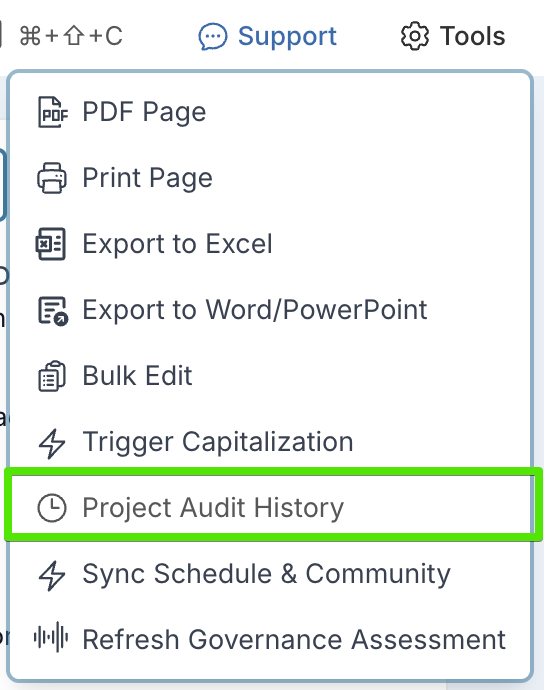
A new Project Audit History page is now available from the Tools menu in any project workspace.
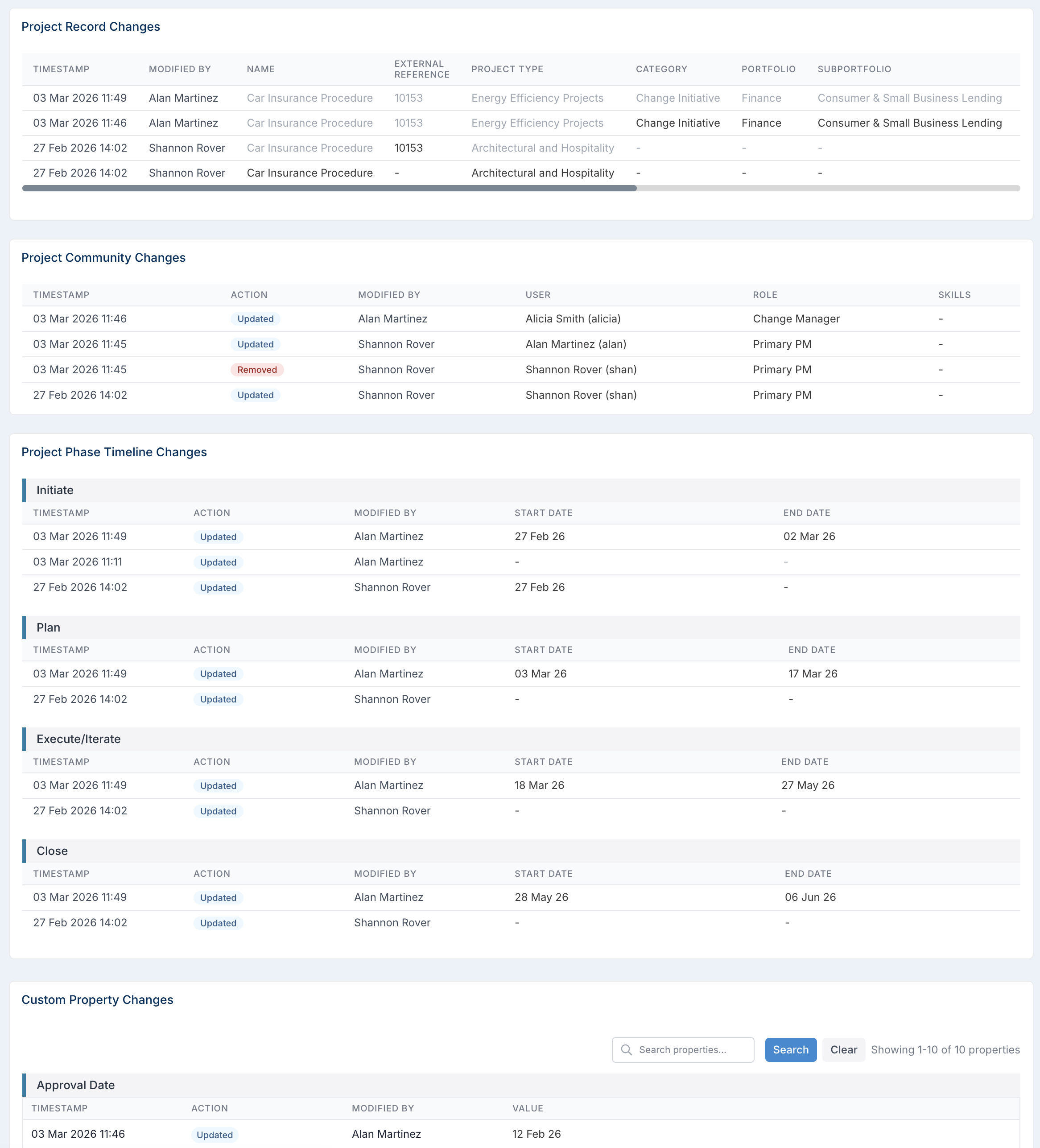
This page provides a consolidated history of key project changes, including updates to first-class project properties, changes to the project community (such as resources added or removed), phase timeline updates, and custom property changes.
Each entry records the timestamp, action taken, and the user who made the change, providing full visibility and traceability of project updates over time.
Resource Dashboard – Project-Filtered Capacity Calculation
The Capacity view on the Resource Dashboard now dynamically responds to project-level filters.
When no project filters are applied, capacity reflects all allocations across active projects. When filters such as Portfolio, Project Type, Project Status, Tier, or other project attributes are applied, the dashboard recalculates capacity based only on allocations from projects matching those filters.
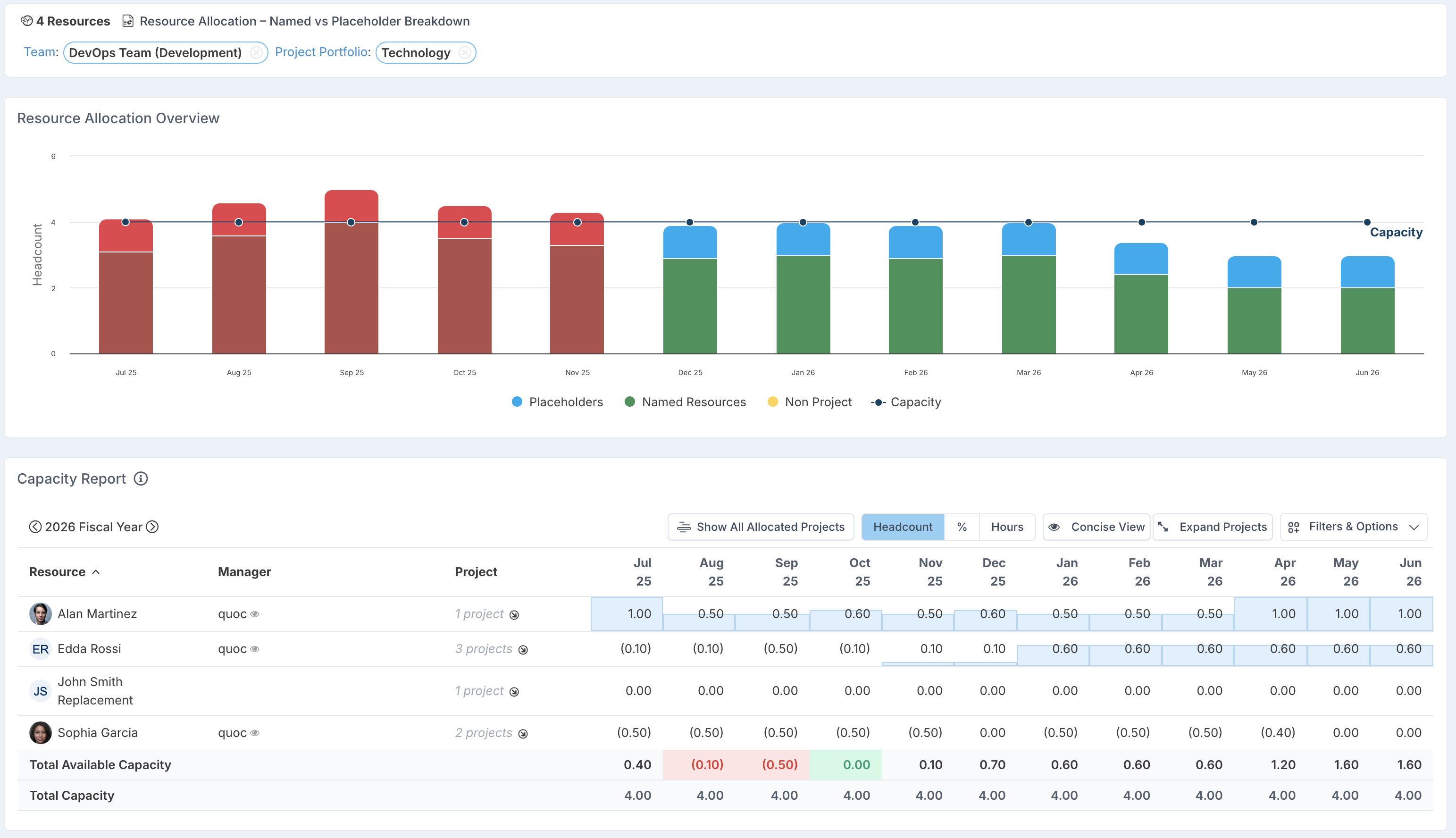
This enables more targeted capacity analysis and supports what-if planning scenarios — for example, assessing resource availability if they were allocated only to a specific portfolio, project type, or strategic initiative.
Historical Status Reports – Export to Excel
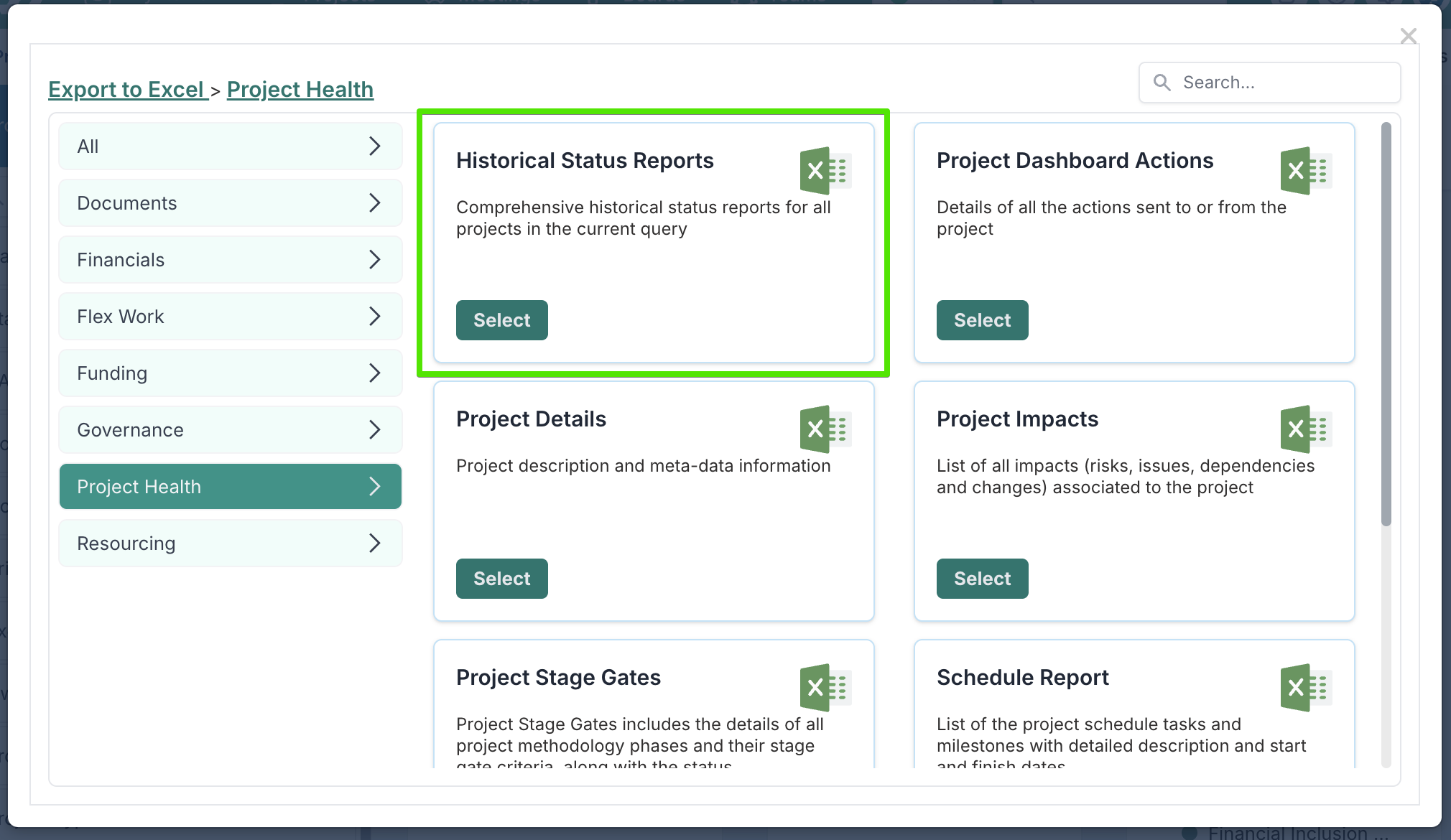
A new Excel report, Historical Status Reports, is now available. The report includes all status reports for projects returned in the current query, providing a comprehensive historical view across multiple projects in a single export. The report also includes the status report custom properties that have been set to reportable.
Export Users and Resource Plans – Power BI Integration
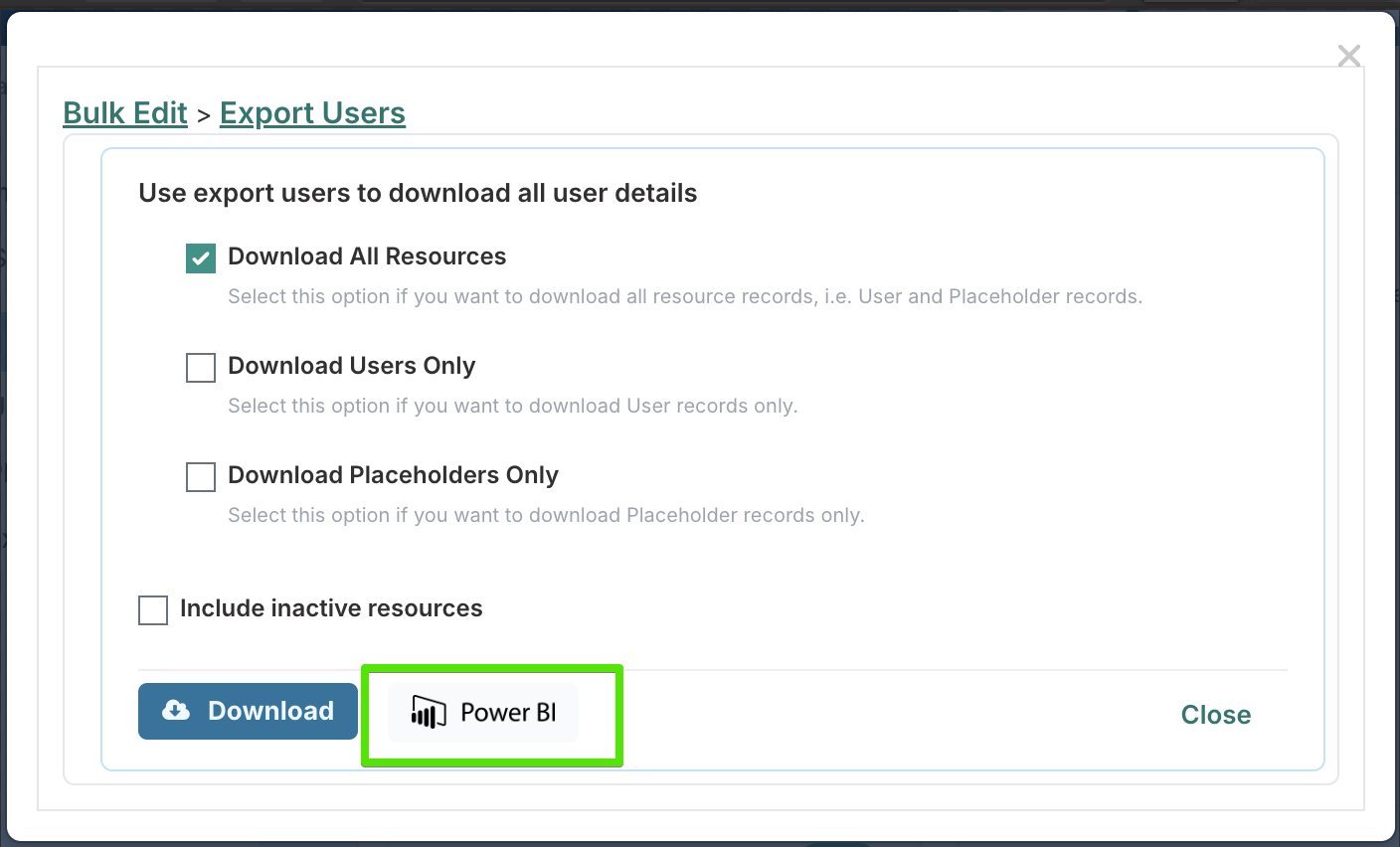
The Export Users and Resource Plans reports now support Export to Power BI, allowing you to connect the report directly to Power BI for live reporting and advanced analysis. This enables easier integration of user and resource data into external dashboards and business intelligence workflows.
Governance Assessment – Schedule Progress vs Timeline
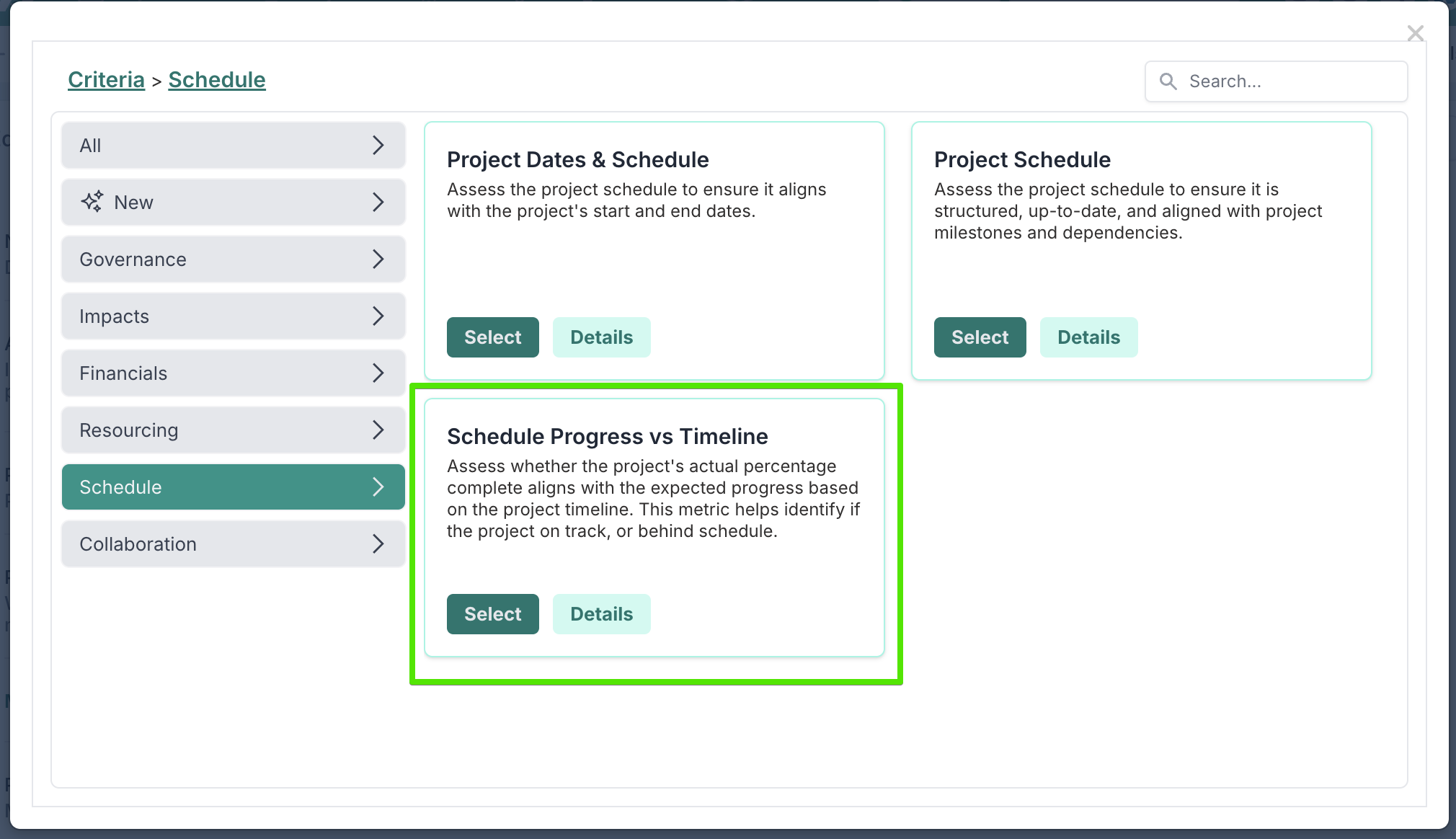
A new governance assessment has been added to evaluate whether a project’s actual percentage complete aligns with the expected progress based on its timeline.
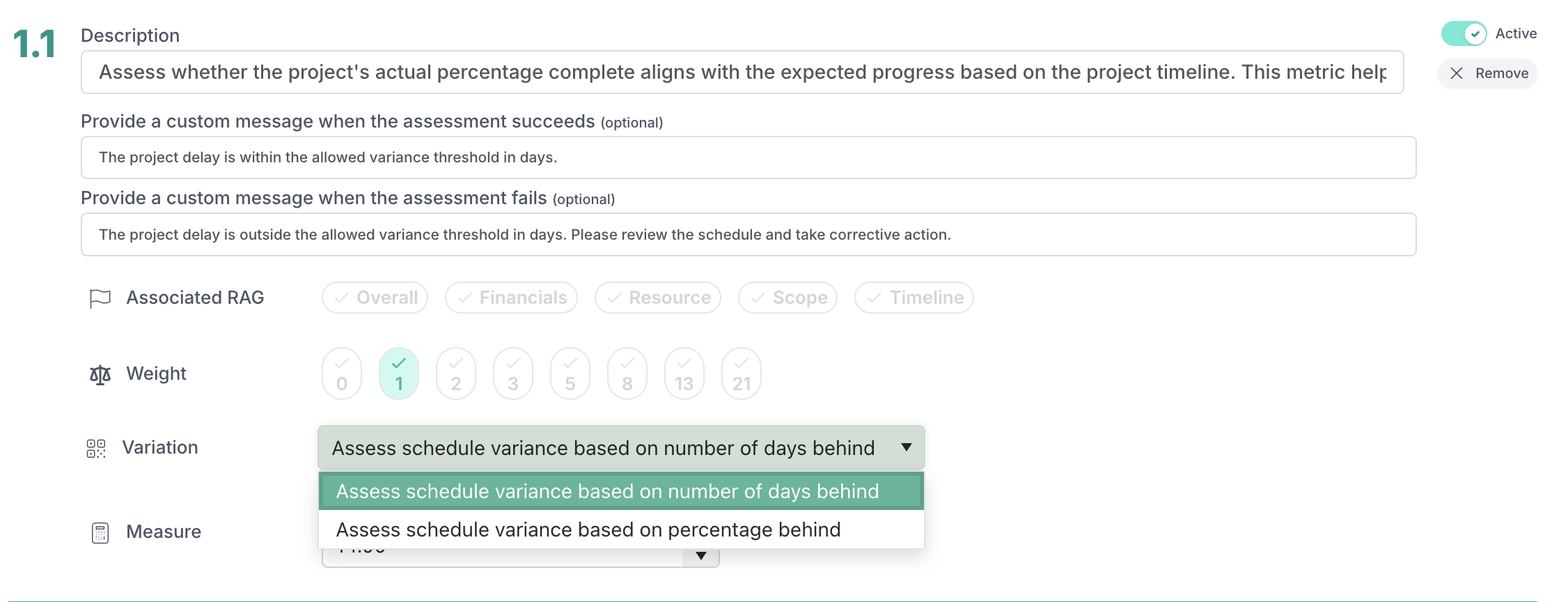
The assessment compares current schedule progress against where the project should be at this point in time and can measure variance either by number of days behind or by percentage behind. This helps identify projects that may be progressing slower than
Fixed:
Project Details – Bulk Edit: Prevented the Tier value from being removed when updating other project properties via bulk edit.
24 February Patch Release
Fixes:
AI Token Limit: Updated prompt handling to prevent token limit errors.
Financial Actuals with Timesheet Hours Report: Resolved an issue where the report could fail to generate in certain scenarios due to a parameter limit exception in the query logic.
Schedule Tasks Bulk edit : Fixed an issue with schedule tasks reordering and % complete calculation.
Schedule – % Complete Calculation: Corrected an issue where the percentage complete for auto-calculated tasks could display incorrect values after tasks were reordered.
23rd February Release (Partial Rollout)
Enhanced Smart Gate Expressions
You can now configure advanced logic to determine whether a stage gate applies to a project using any expression that evaluates to true or false. This means you’re not limited to simple conditions - you can use IF, CASE, logical operators, comparisons, and combinations of project fields, as long as the final result resolves to a Boolean value. If the expression evaluates to true, the gate is displayed and enforced; if false, it is not applied.
This flexibility allows you to design highly tailored governance rules. For example, you can trigger specific approvals only for certain change types, require additional controls when risk levels exceed a threshold, or apply gates based on combinations of funding type, business unit, or strategic classification.
By supporting full Boolean logic, smart gates can now better reflect real-world governance models—ensuring the right level of oversight is applied to the right projects, without introducing unnecessary gates or manual intervention.
Concise Project Details Bulk Edit Download & Flexible Upload Validation
You can now download a concise version of the Project Details bulk edit file, making it easier to work with only what you need. When selected, the download includes just the project’s primary (first-class) properties, excluding custom properties and phase date columns. This streamlined template is ideal for quick updates and reduces unnecessary complexity in your file.
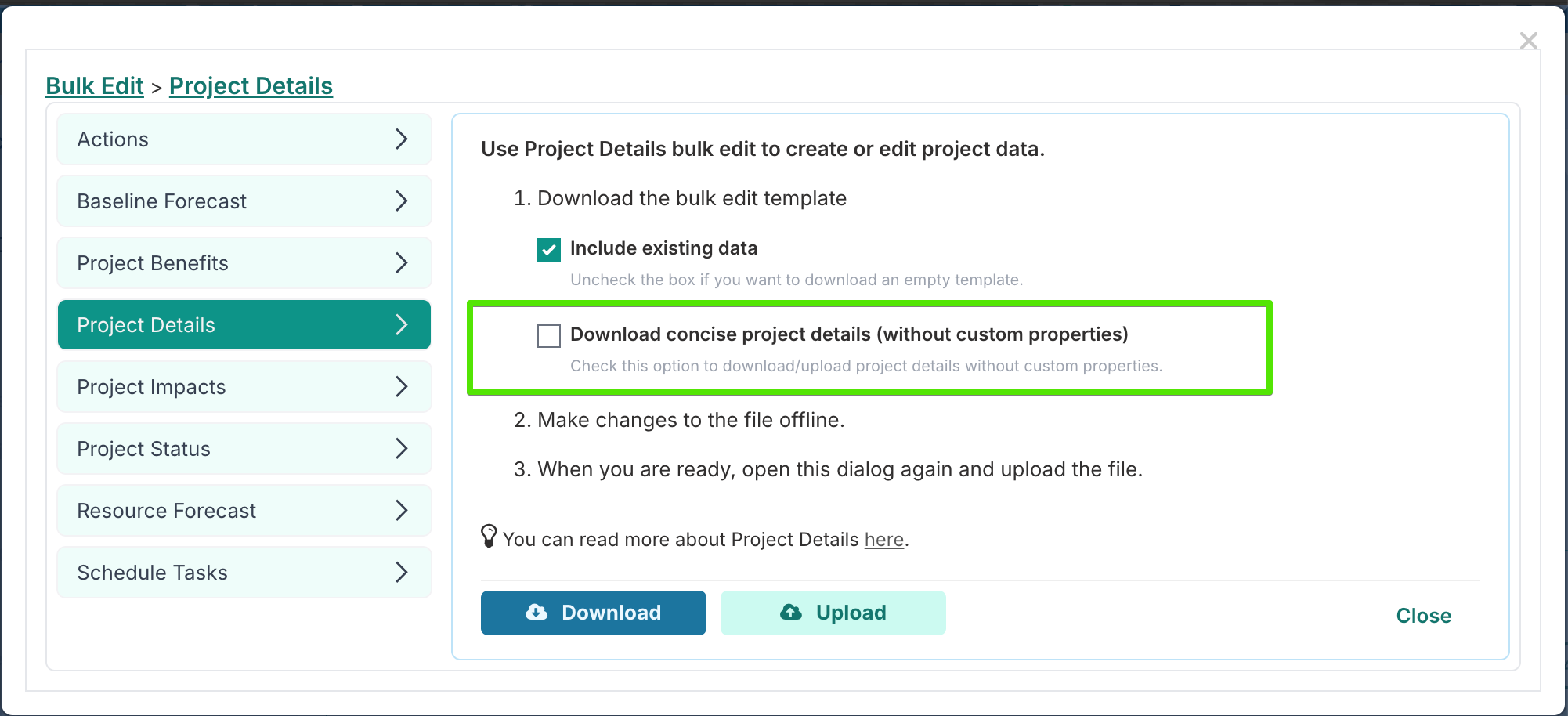
We’ve also made bulk upload more flexible. Previously, uploads required all primary fields, custom properties, and phase date columns to be present in the file. Now, only the primary project properties are mandatory. Custom property and phase date columns are optional, meaning you can remove any columns you’re not updating. For example, if you only need to update a single custom property, you can keep just that column and delete the rest—no need to re-upload values for every custom field.
This change reduces the risk of unintentionally overwriting data. In scenarios where project details are updated through workflows (such as intake processes syncing card updates back to projects), bulk edit files could become outdated between download and upload. By allowing you to upload only the specific custom properties you intend to change, bulk edit now helps ensure you update exactly what’s needed—without overriding more recent changes made elsewhere.
Board Owners Can Now Edit “Read-Only for Non-Admins” Properties
Custom properties configured as “Visible – read-only for non-admin users” could previously be updated only by Application Administrators. Even in the context of a specific Process Board, Board Owners were not able to modify the value of these properties.
With this update, Board Owners can now edit and set the values of properties configured with this visibility setting within their board. This gives board-level administrators greater autonomy and removes the need to involve an Application Administrator for board-specific updates.
Board Members will continue to have read-only access to these properties, ensuring controlled governance while keeping the information visible to all relevant users.
19th February Release
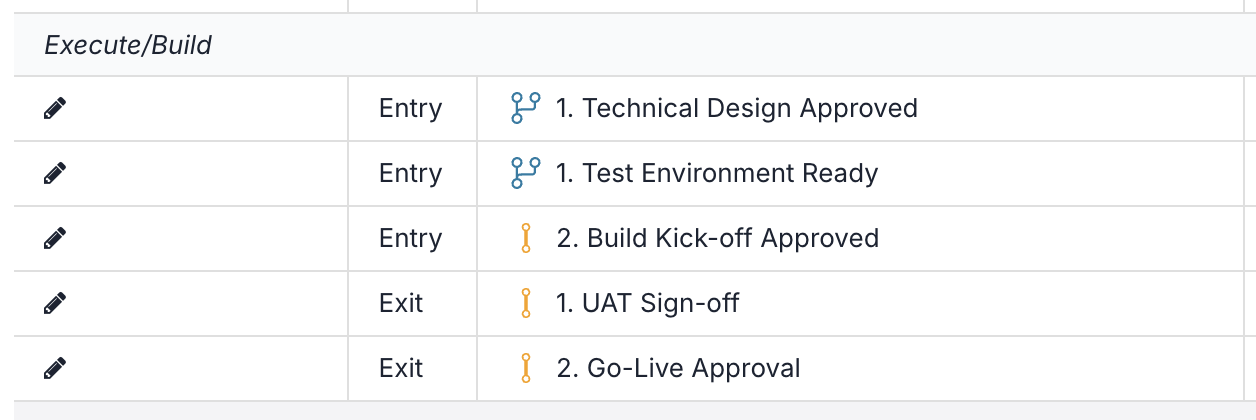
Enforced Stage Gate Sequencing Within Phases
You can now control the execution order of stage gates within a phase using the Gate Order field. The number assigned to each gate determines its sequence within its type. For Entry gates, a gate with order 2 cannot be completed until all Entry gates with order 1 have been closed.
The same logic applies to Exit gates - Exit gates with a higher order cannot be completed until lower-order Exit gates are closed.
In addition, Exit gates cannot be triggered until all Entry gates for the phase have been completed, regardless of order. This ensures the correct progression from Entry to Exit while maintaining sequencing within each group.
If you want multiple gates to be completed in parallel, assign them the same Gate Order number - gates sharing the same number can be actioned simultaneously.
Enhancements:
Shared Lists – Cascading Option Properties: You can now create shared lists for Cascading Option type properties. This allows the same cascading list structure to be reused across projects, boards, and other workspaces when configuring custom properties. Using a shared list ensures consistency and prevents lists from becoming misaligned across different areas of the system.
Stage Gates – Methodology Changes: When a project’s methodology is changed, existing stage gates and their approval history are preserved and intelligently re-aligned to the new methodology’s phases.
If the new methodology includes the same gates, they are reused and updated to match the new phase order.
Gates that were closed or in progress are retained and moved to the closest matching phase.
Gates that were not started are replaced by the new methodology’s gates.
This ensures continuity, preserves audit history, and maintains approval context even as project frameworks evolve. For full details on how stage gates are managed when changing methodologies, please refer to this article.
Fixes:
Timesheet Instructions: Increased the width of the instructions text area to improve visibility and readability when entering timesheets.
Action Dialog: Corrected an issue where project documents were displayed when creating a new action.
Schedule Filters: Removed a duplicate “Show Milestone” option from the filter selection.
Timesheet Export to Excel: Resolved an error that occurred when exporting the timesheet report from a Delivery Team workspace.
Reporting Template Upload: Restored availability of the following document types when uploading a reporting template: Dashboard Template, Actions & Decisions Template, and Meeting Minutes Template.
Intake Form: Restored the functionality of the Details link so it correctly scrolls to the top of the form.
Custom Properties – Read-Only Rendering: Corrected an issue where text-type custom properties could overlap in read-only mode.
Stage Gates – Approval Workflow: Strengthened validation to prevent multiple approval workflows from being triggered for the same gate when a project workspace is open in multiple browser tabs or windows. A gate can now only generate a single approval request.
16th February Release
New Financial Actuals and Timesheet Export Reports
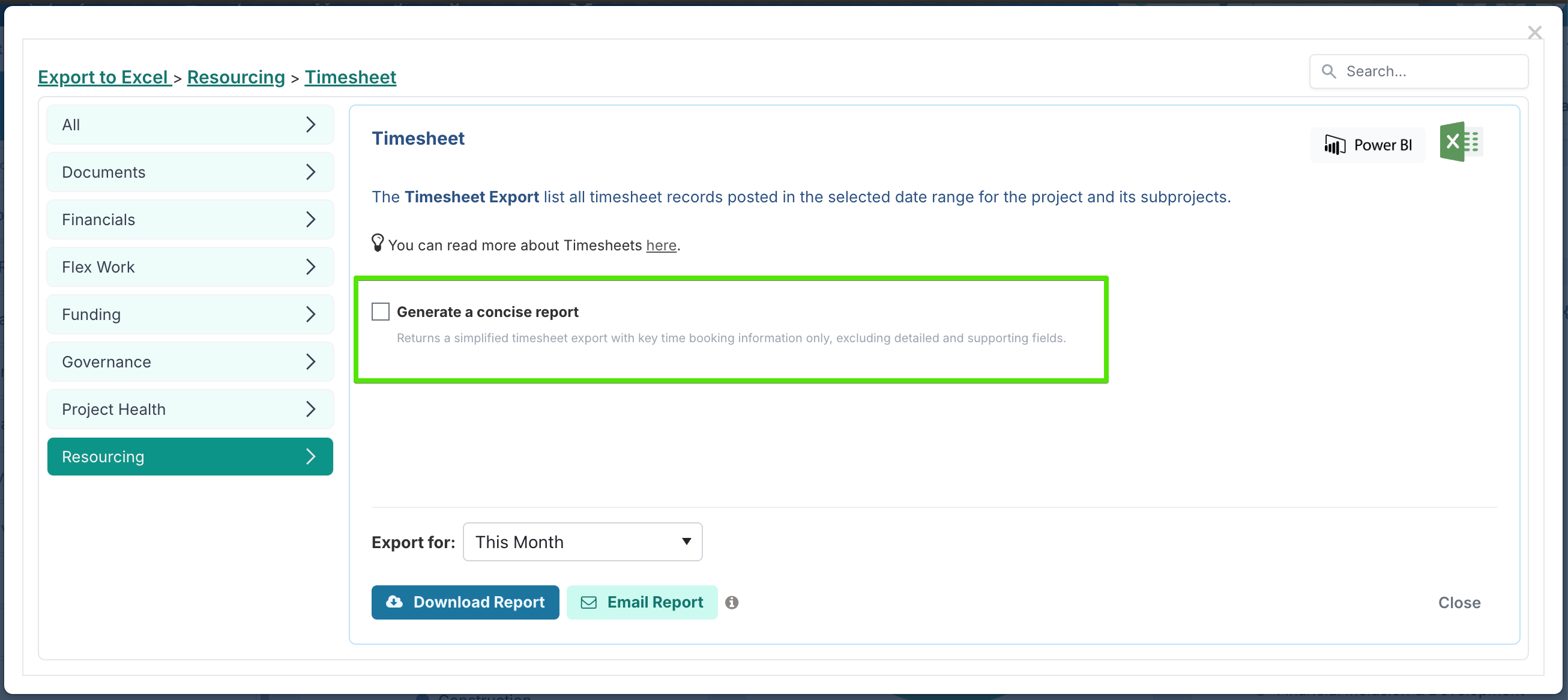
Financial Actuals with Timesheet Hours: A new financial report is available that returns financial actuals for both resource and non-resource records. For resource-based actuals (timesheet entries), the report includes the total weekly actual amount alongside the corresponding total hours booked, with a daily breakdown of hours (Monday to Sunday). This allows you to clearly see how recorded time drives the calculated financial actuals. Non-resource actuals are included in the report without an hours breakdown.
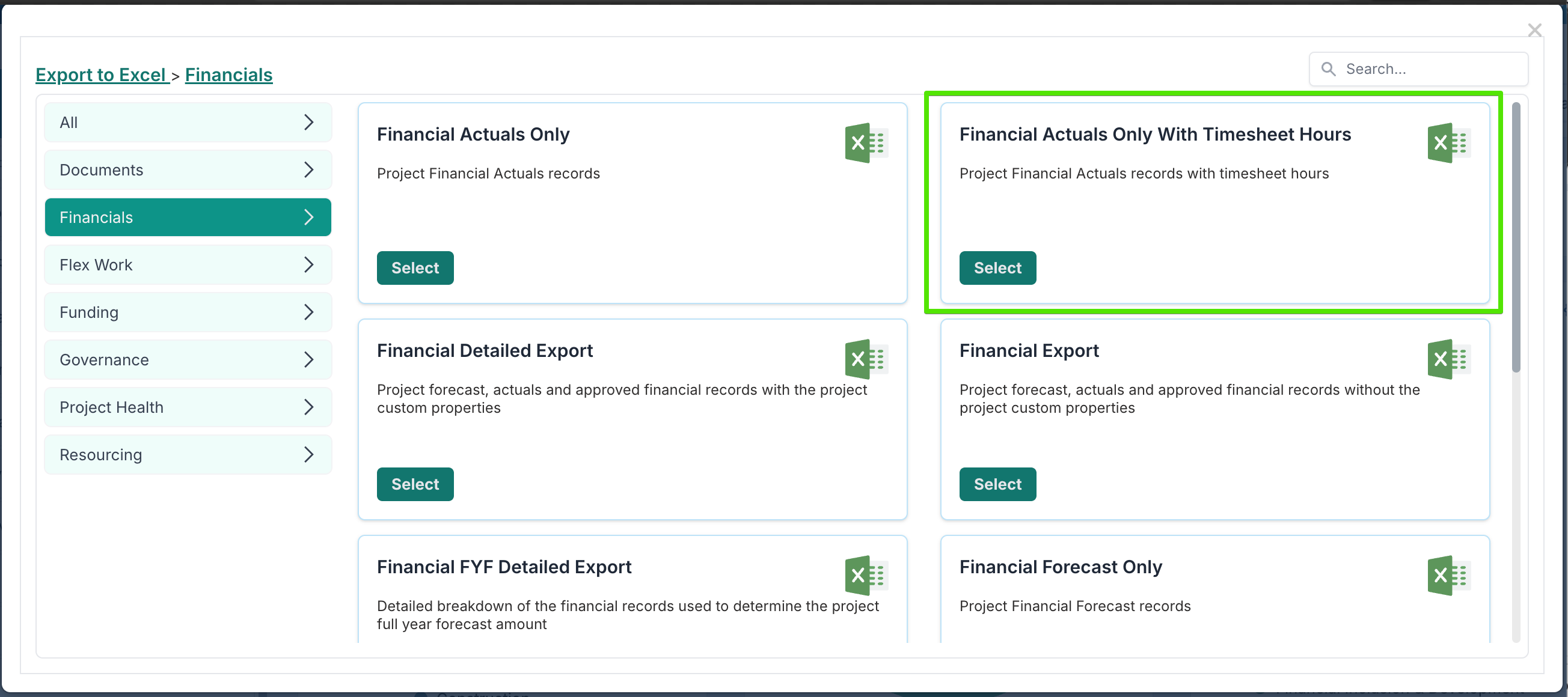
Financial Detailed Export with Non-Project Lines: Financial administrators can now export both project and non-project financial records using the new Financial Detailed Export with Non-Project Lines, available from the Financial Administration page. This enables a more comprehensive financial extract in a single report.
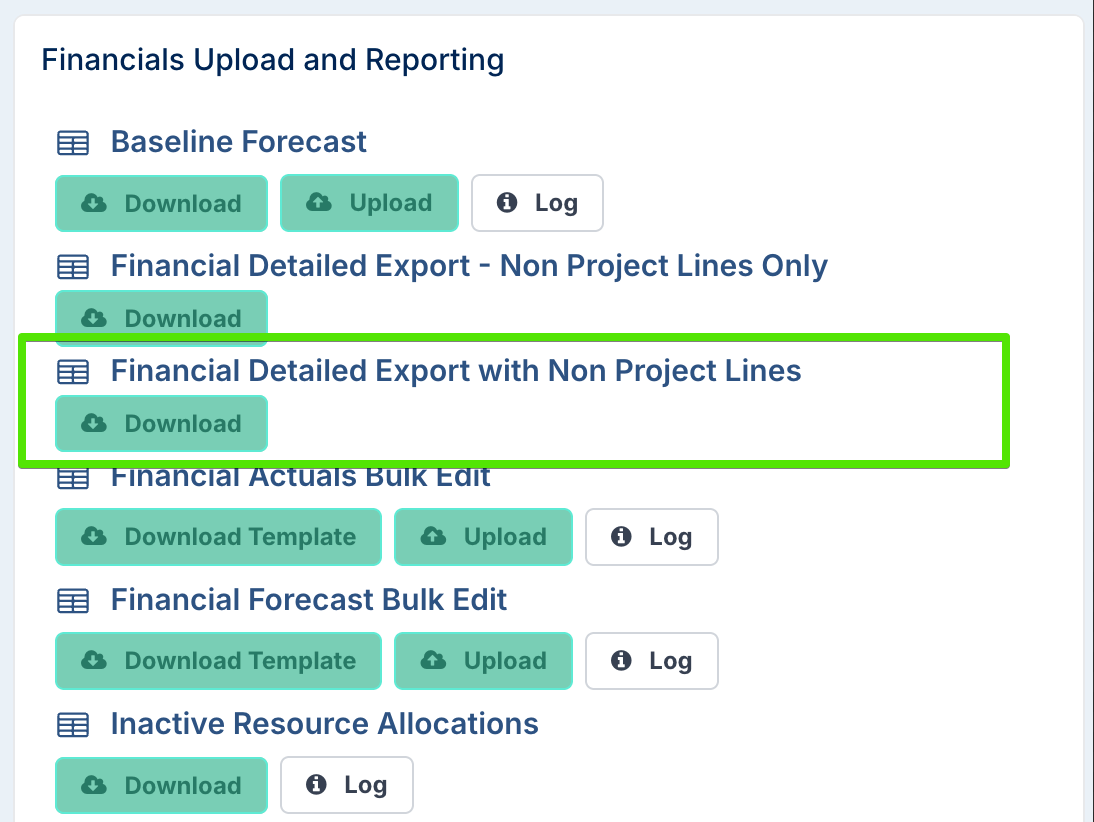
Timesheet Export – Concise View: A new Concise View option is available when exporting Timesheet data to Excel. This streamlined report includes resource and timesheet details without the full project financial properties, supporting operational and reconciliation needs.
Fixes:
Project Benefits: Corrected an issue where project documents were incorrectly attached to benefit records.
Fiscal Year View – Export to Excel: Updated the date selection options to ensure that only a single fiscal year can be selected for export.
Process Boards: Resolved an issue where editing a process board task could fail if no assignees were selected. Task editing has also been updated to ensure the task SubType is saved correctly during edits.
Timesheet Export to Excel: Corrected an issue where the capitalization flag on some timesheet entries was exported as None instead of Opex.
10th February Patch Release
Fixes:
Governance Assessment: Fixed an issue where, when multiple governance models applied to a project, the model with the highest priority was not consistently used.
Governance Assessments – Stage Gates: Fixed an issue where phase stage gate assessments did not correctly validate whether gates for prior phases had been completed.
Governance Assessments – Funding Comparison: The Project Total Cost to Project Funding assessment now correctly applies the project setting (above-the-line or below-the-line financials) when comparing the full-year forecast with the budget.
Exporting to Word and PowerPoint: Fixed an issue where the Project Type binding element returned blank data in Word and PowerPoint templates. A new binding element,
{Project.ProjectType}, is now available.Status Report Export to Excel: Fixed a server error that occurred when exporting Status Reports to Excel from the project dashboard.
Project Search: Searching for projects by end dates was returning the incorrect result set.
9th February Patch Release
Fixes:
Financial Cap Amort Export to Excel: Fixed an issue where the FYF flag incorrectly marked the first open month actual as Yes in the Excel export.
Tier Project Property: The maximum character limit for the Project Tier property has been increased to 255 characters, allowing longer tier values to be stored.
Exporting to Word and PowerPoint: Fixed an issue where the Program Word Report failed to generate when Generate Combined Report and Roll Up Promoted Sub-Projects were both enabled for programs containing sub-projects.
6th February Patch Release
Fixes:
Jira Integration: Fixed an issue where non–rich text Jira custom fields were not syncing correctly when mapped to rich text custom properties in Fluid. These fields are now supported and synced correctly.
Task Editing: Fixed an issue where the cursor jumped to the end of the task title when editing tasks created via bulk import.
Archived Project Export: Fixed an issue where exporting archived projects from the Financial Administration page returned an empty file.
Project Details Bulk Edit: Fixed an issue where mandatory columns were not validated correctly during bulk edit.
5th February Patch Release
Fixes:
Expense Type Management: Fixed an issue where newly created expense categories were not available when creating new expense types.
Export to Word or PowerPoint: Fixed an issue where Word exports were not generated for programs containing sub-projects.
MS Project Upload: Updated the upload process to use each task’s unique ID. This allows users to save MS Project files using either Save or Save As without impacting the upload.
4th February Release
New - Exclude Below-the-Line costs from project totals & budget variance
We’ve extended Below-the-Line (BTL) cost handling so it can be tracked separately without impacting project budget performance.
Previously, you could mark expense categories as BTL to split reporting totals (ATL vs BTL). However, BTL costs were still included in core project financials such as Full Year Forecast and Estimated at Completion (EAC) and therefore always contributed to variance vs budget/funding.
What's new
A new instance-level setting (configured once for the entire instance) now determines whether projects are allowed to exclude BTL costs from budget calculations.
When this instance setting is OFF (default behavior):
BTL costs are tracked separately but still included in project total cost, Full Year Forecast, EAC, and budget variance (unchanged behavior).
When this instance setting is ON (new capability):
Projects gain the ability to exclude BTL costs from their total cost and budget variance calculations.
When excluded, BTL costs:
do not roll up into Full Year Forecast or EAC / Estimated Cost at Completion
do not affect budget consumption or variance vs budget (because they’re not part of the “project total cost” used for comparison)
BTL costs are still fully supported for tracking:
you can forecast them
you can capture actuals (including via timesheets, if applicable)
you can report them separately from ATL totals
How it works
Instance configuration (new)
An administrator enables the 'Enable ATL/BTL Funding Reporting' setting that allows BTL costs to be excluded from project totals.Expense category setup (existing)
Expense categories are marked as Below the Line (BTL). All expense types under those categories inherit the same classification.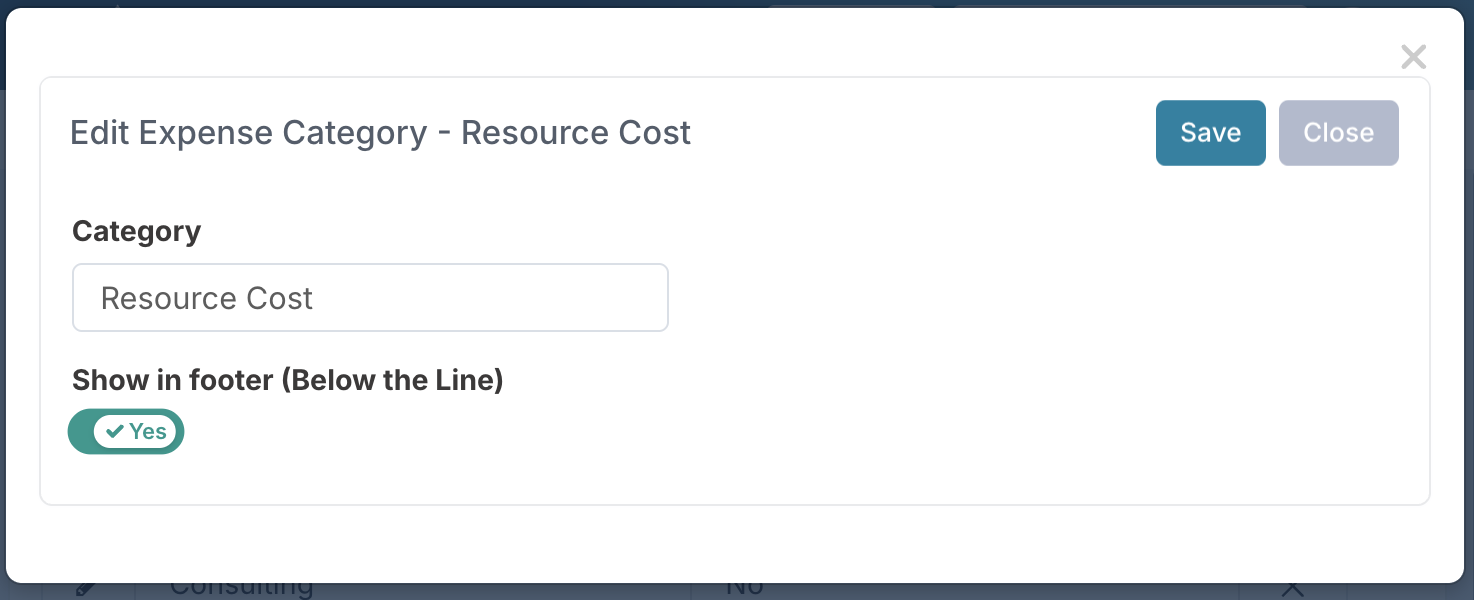
Project-level behavior (enabled by the instance setting)
When the 'Enable ATL/BTL Funding Reporting' setting is on, each project gains a new control on the Project Edit page under Financial Management:Include Below-the-Line for Budget Variance
This setting determines whether Below-the-Line (BTL) costs are included in the project’s total cost and budget variance calculations.
Yes
Below-the-Line costs are included in project financials.
Project total cost = ATL + BTL (same behavior as before).
BTL costs contribute to Full Year Forecast, EAC, and variance vs budget.No
Below-the-Line costs are excluded from project financials.
Project total cost = ATL only.
BTL costs remain visible for tracking and reporting but do not affect Full Year Forecast, EAC, or budget variance.
This allows teams to track indirect or non-budgeted costs on a project while keeping budget performance focused on above-the-line, funded costs.
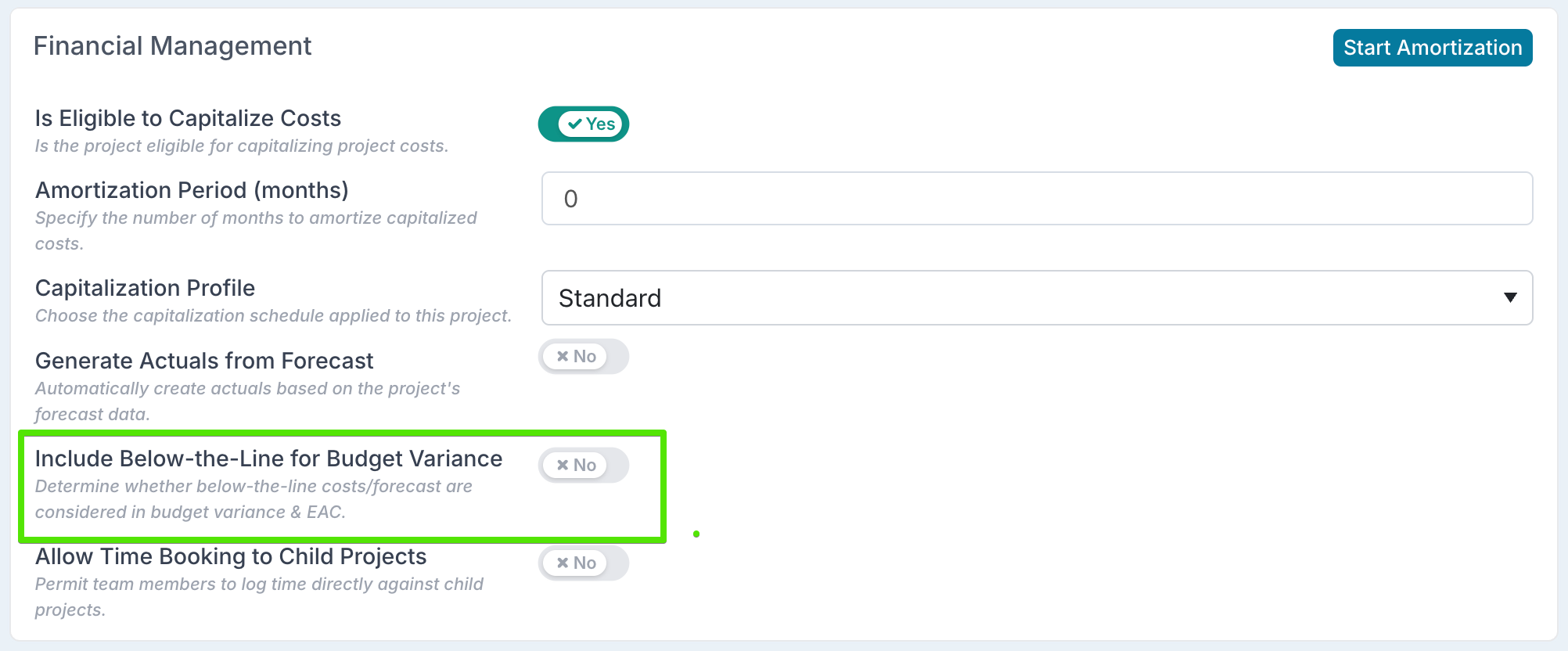
Please note that the flag is turned on by default, i.e. below-the-Line costs are included in project financials.
Project workspace
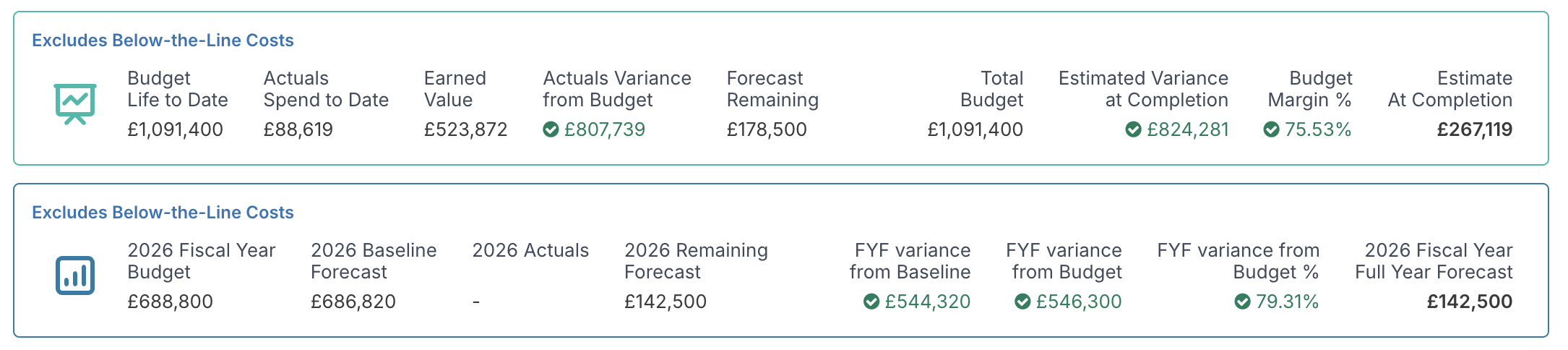
When Below-the-Line exclusion is enabled for a project, the project workspace clearly reflects this in both summary metrics and financial tables.Project financials summary
The project financials summary displays a clear indicator such as “Excludes Below-the-Line Costs” to show whether Below-the-Line costs are included in or excluded from project total cost and budget variance calculations. If BTL costs are excluded:All funding, variance, and margin metrics shown in this view are calculated using Above-the-Line (ATL) costs only. Below-the-Line (BTL) costs are not included in:
budget variance
Estimated Variance at Completion (EAC)
Full Year Forecast comparisons
Financial section
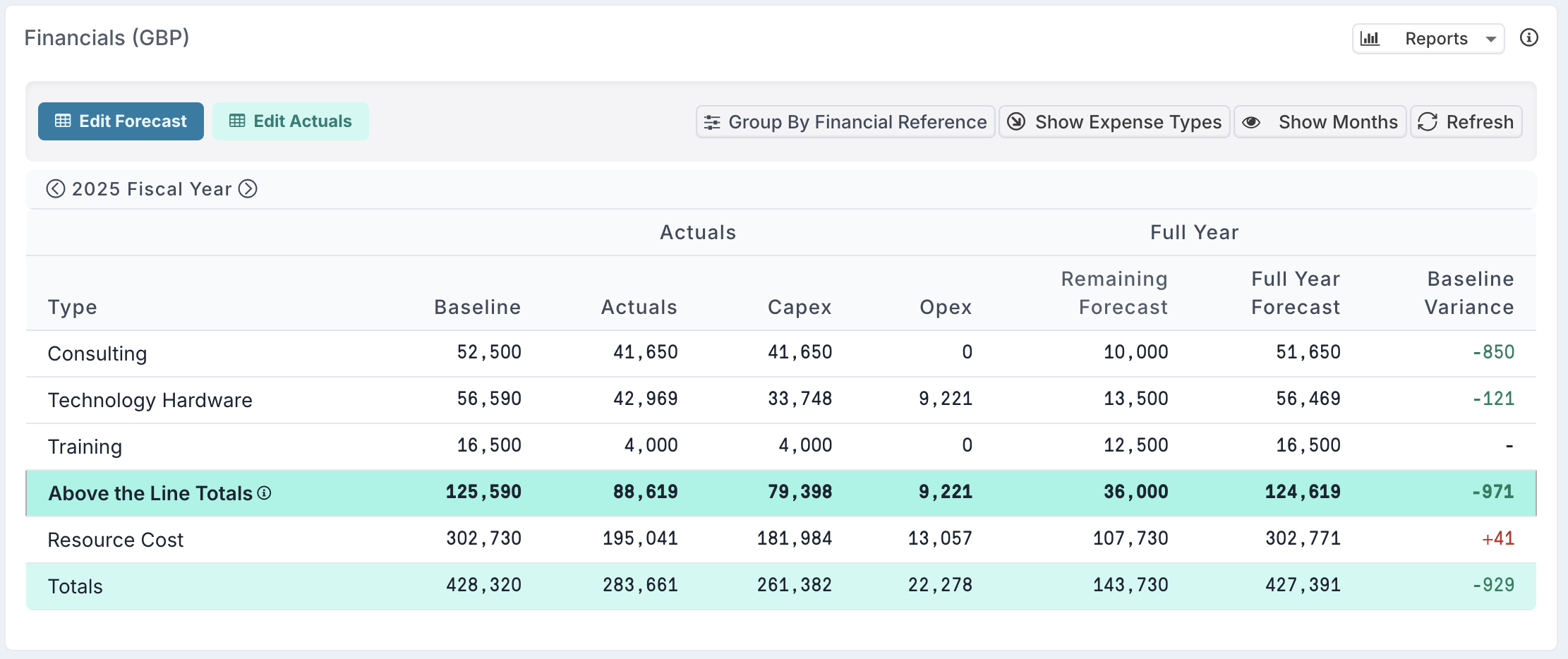
In the financial breakdown:Above-the-Line Totals are shown as a distinct subtotal, representing the costs that impact budget and variance.
Below-the-Line categories (for example, internal resource costs) continue to appear in the table with their own forecasts and actuals.
The overall Totals row still reflects all costs (ATL + BTL), ensuring full cost visibility, while budget and variance calculations rely on the ATL subtotal when exclusion is enabled.
This makes it easy to:
understand which costs are driving budget performance
track indirect or non-budgeted costs without losing visibility
switch between an ATL-only budget view and a full cost view without duplicating data or projects
When to use it
Use this when you want to track costs operationally but not treat them as consuming project budget. Common examples:
Internal resource costs / timesheets tracked for utilization, but not funded by the project budget
Overheads / allocations needed for visibility or finance reporting, but not part of the project’s controllable spend
Chargebacks or indirect costs that shouldn’t drive “on/off budget” status
Enhancement - Improved Handling of Date-Based Project Phases
We’ve enhanced how date-based project phases work to make phase evaluation more consistent across governance and financial use cases, especially when phases overlap, fall mid-month, or interact with stage gates.
While date-based phases were already supported, this enhancement clarifies which phase truly applies on a given day, separates planned progression from governance constraints, and ensures consistent behavior across reporting and capitalization.
To support this, we’ve formalized the distinction between Nominal Phase (what the dates and phase order indicate) and Current Phase (what the project is actually allowed to progress to based on stage-gate completion). This gives PMOs and PMs clearer insight into why a project is in a given phase — and what needs to happen for it to move forward.
For full details and examples, (including overlapping phases, gaps, stage-gate blocking, and capitalization behavior), see the article How Date-Based Project Phases Work.
2nd Februray Patch Release
Fixes:
Process Boards: Fixed an issue where collapsing a grouped backlog could intermittently cause a UI lock-up error.
Timesheet Compliance Export to Excel: Fixed a query timeout that could occur when exporting the Timesheet Compliance Report to Excel.
MS Project Upload: Tasks that are both pinned and set to auto-calculate are now imported with auto-calculate enabled only, as these settings cannot be applied simultaneously.
Status Reporting: Fixed an inconsistency where the RAG status update character limit was fixed at 200 characters and not aligned with the Status Report Update limit. The configured status limit now applies consistently to both Status Report and RAG status straplines.