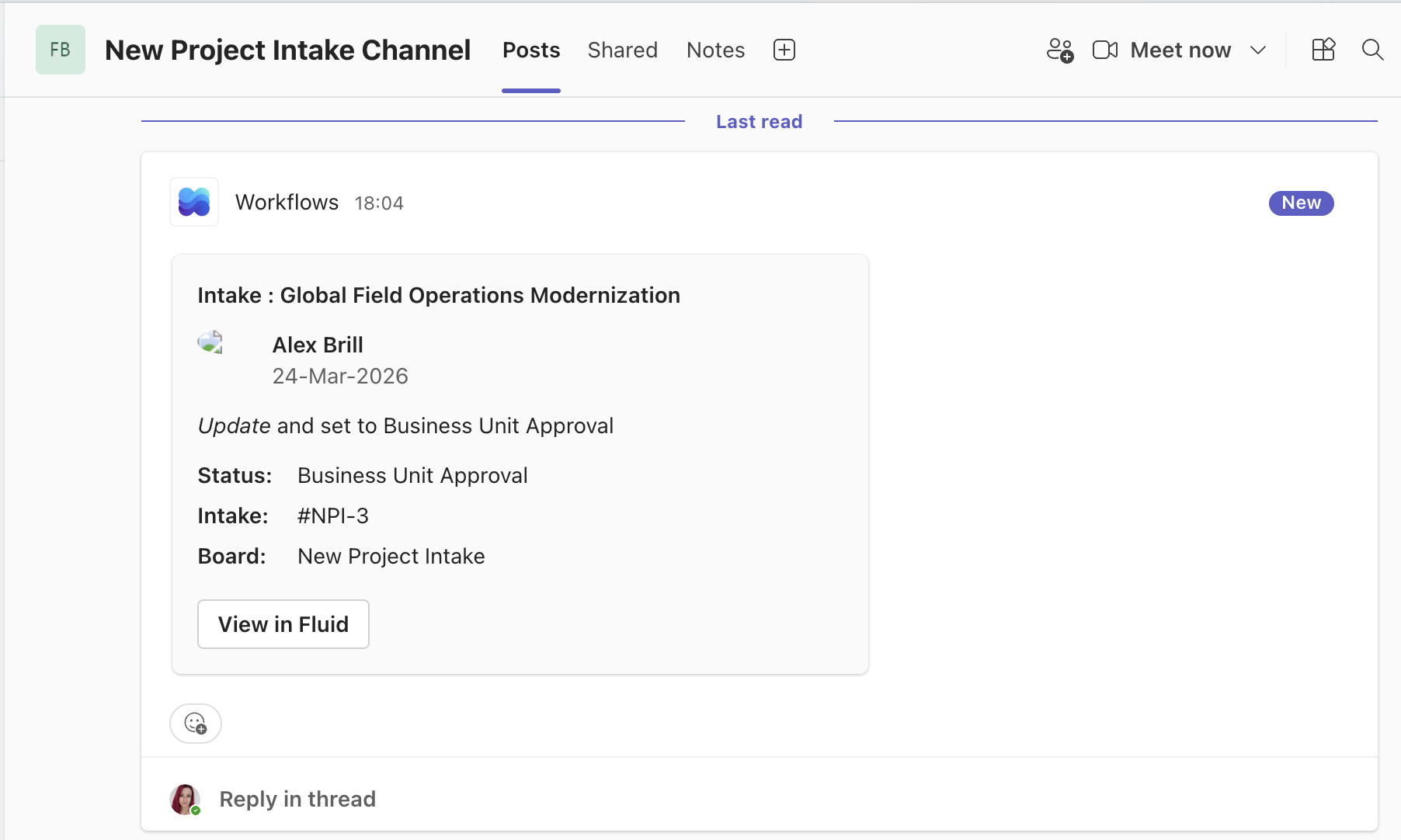
Configure MS Teams to Receive Status Updates from Fluid Boards
Fluid boards can be configured to integrate with a Microsoft Teams chat or channel, sending task update notifications, using webhooks, directly to the chat or channel when there is a new task or the status or due date of a task changes. This guide walks you through the setup process for a Teams Channel from start to finish.
What You Need Before You Start
Before configuring the integration in Fluid, you will need:
Access to the Microsoft Teams channel where the webhook will be created
Permission to add workflows/apps in that channel
Allow MS Teams Webhooks enabled (please contact your CSM or Fluid Support)
Board Owner permissions in Fluid to update the Teams Integration token
Steps to Setup the Integration
1. Open the Team and Channel in Microsoft Teams
Navigate to the channel where you want Fluid notifications to appear.
2. Create the Workflow
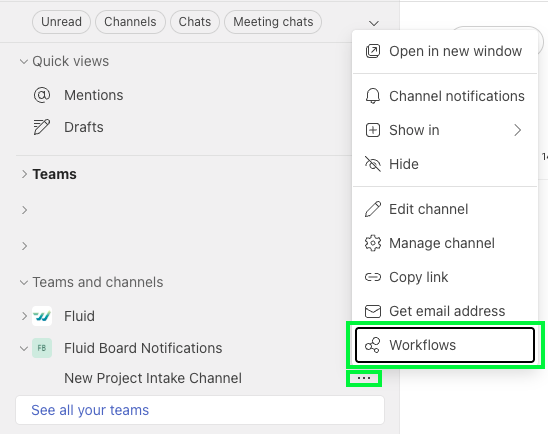
Click the … (More Options) next to the channel name
Select Workflow
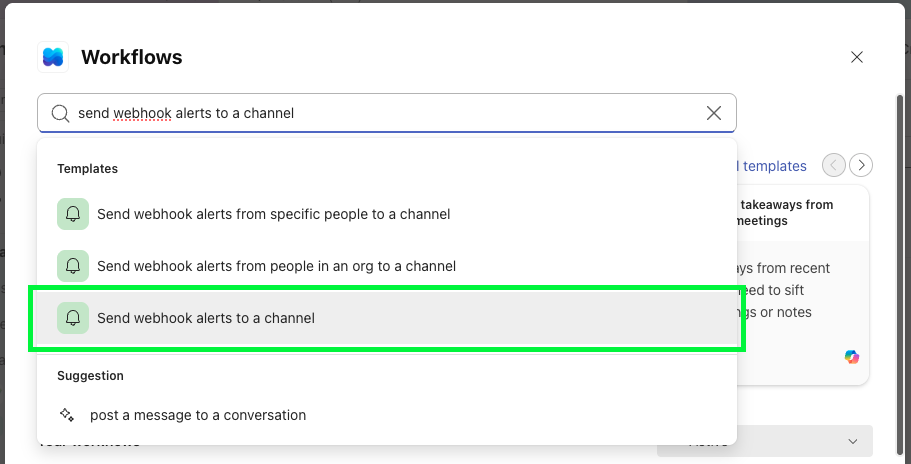
Search for “Send webhook alerts to a channel”
Select it
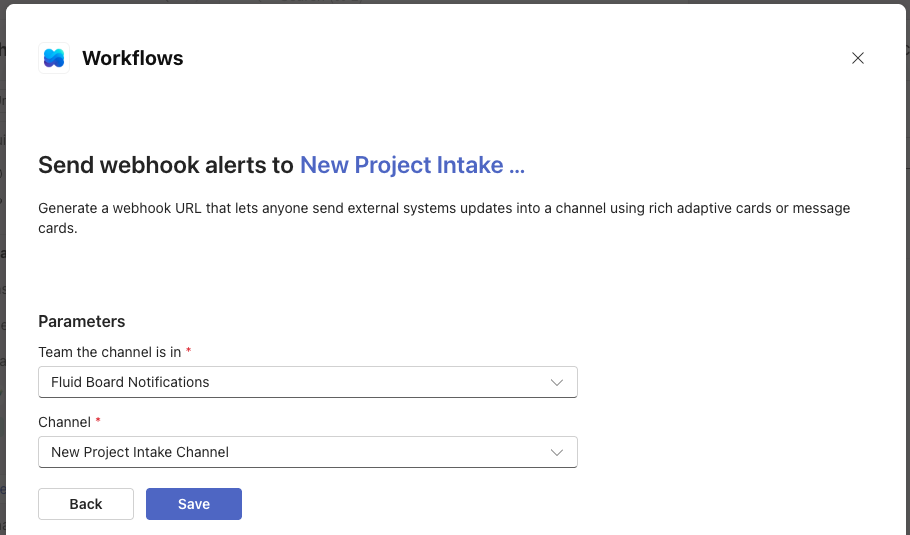
Select the Team the channel is in and the Channel the alerts should be sent to.
Click 'Save'
3. Copy the Generated Webhook URL
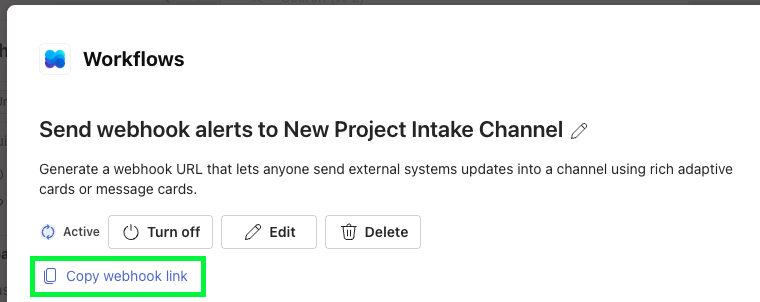
After saving, Microsoft Teams will display a unique Webhook URL.
Click 'Copy webhook link' in the Teams Workflow dialogue
4. Add the Webhook URL to Fluid
Navigate to the board you want to push notifications from in Fluid
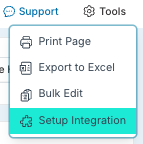
Click 'Tools' > 'Setup Integration'
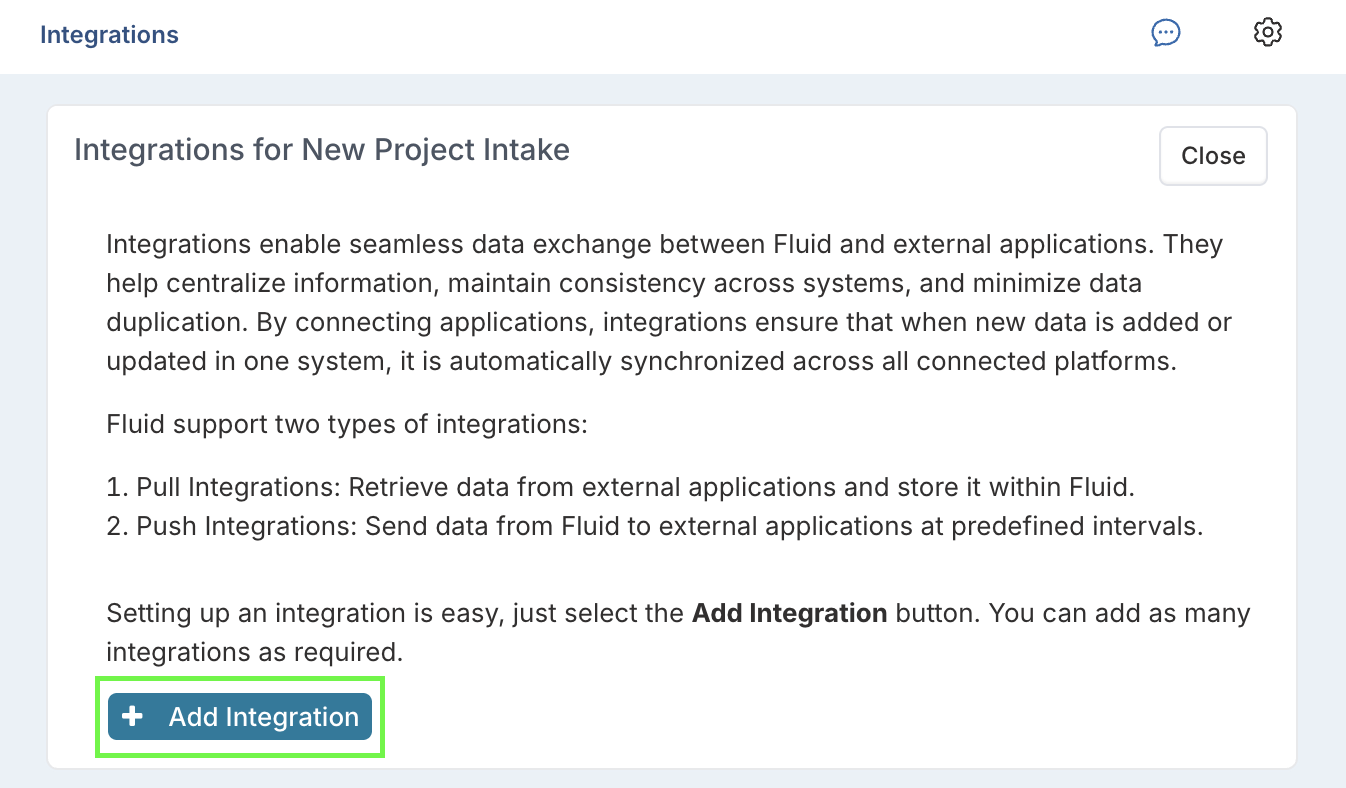
Click the '+ Add Integration' button
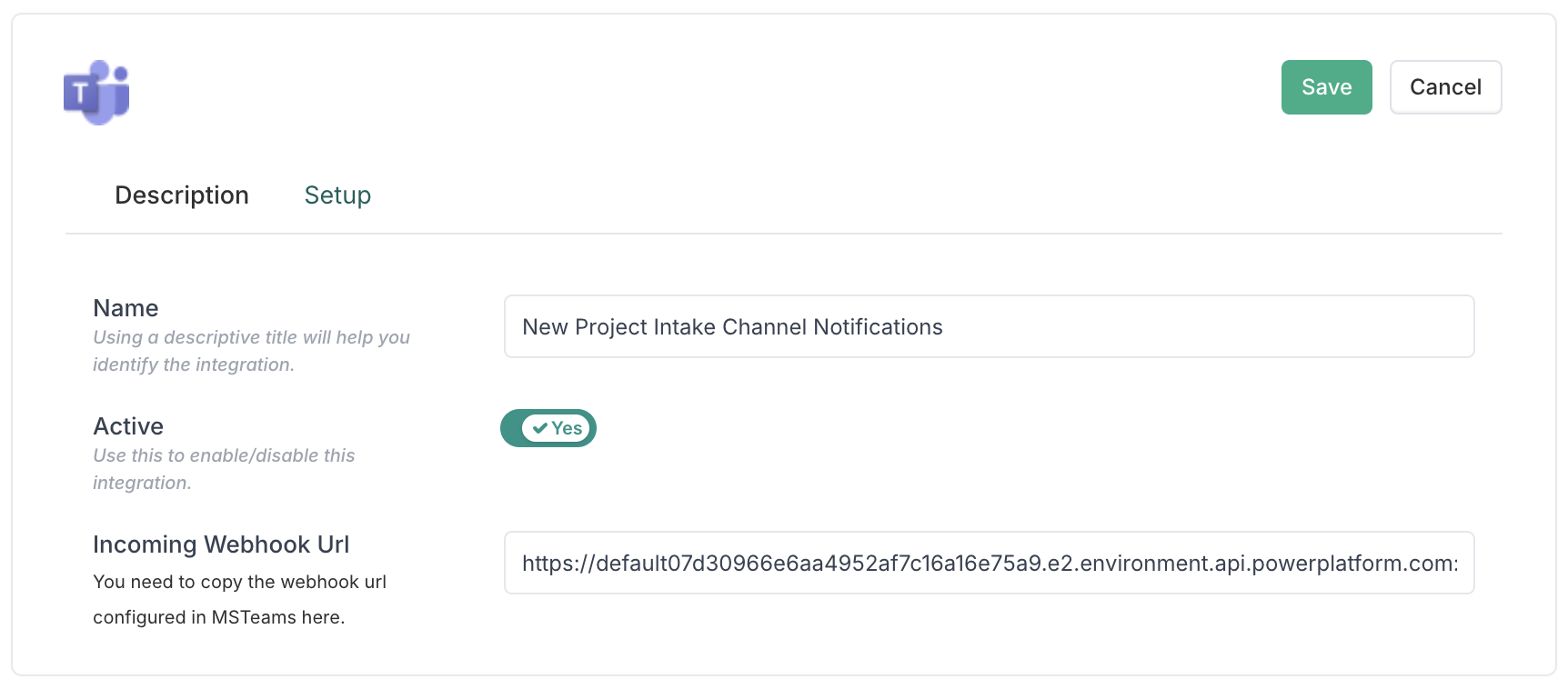
Select the 'MSTeams' icon
Click the 'Setup' tab
Add a descriptive title will help you identify the integration
Paste the Webhook URL into the 'Incoming Webhook Url' field
Click the 'Save' button to save your changes
That's it; you're all done!
Now when the status, or due date of a task changes, you will receive automatic status updates to your Teams Channel.