
Restart stage gates when approvals need to be revisited
Stage gates are checkpoints in your project workflow that control whether a project can move forward to the next phase. Sometimes a gate decision needs to be revisited — for example, when new information comes to light, documents need updating, or an approval was made prematurely. Restarting a stage gate reopens it so that the approval process can run again from the beginning.
This article explains who can restart a gate, what happens when they do, and what to expect afterwards.
Key Rules
Before diving into the details, keep these important rules in mind:
Current phase only — A gate can only be restarted if it belongs to the project's current phase. Gates in past phases (already progressed through) cannot be restarted. If the project has no active phase, no gates can be restarted.
Approval gates only — The restart policy applies exclusively to gates using the Approval gate mode. Gates configured as Declared, Informational, or External Workflow are always Not Restartable, regardless of any restart policy setting.
Role-based, not ownership-based — Any user with the required permission level can restart an eligible gate. You do not need to be the person who originally initiated the approval.
Understanding the Two Types of Approval Gate
Before explaining the restart process, it is important to understand that Fluid supports two types of approval gate. The restart behaviour differs between them.
Decision Gates
These are gates where approval is handled by a person or role — for example a Portfolio Approver, Project Owner, Executive, Business Owner, or a Named Person. When the gate is triggered, a decision request is sent to the designated approver(s), who then approve or reject it directly.
Workflow Gates
These are gates where approval is routed through a Workhub (Process Board). When the gate is triggered, a task (card) is created on the designated board and moves through its workflow columns. The card may pass through multiple stages — each potentially involving its own decisions — before reaching a final state that closes the gate.
Why does this matter? When a gate is restarted, the way the approval is reset depends on which type of gate it is. The sections below explain both cases.
Permission Options
Not everyone can restart a stage gate. Each gate has a Restart Policy that controls who is allowed to restart it. This is configured by an administrator when setting up the stage gate template.

Restart Policy | Who Can Restart? | Description |
Not Restartable | ❌ Nobody | The gate cannot be restarted once closed. This is the default setting and is appropriate for final, binding decisions. |
Project Managers | ✅ Project Managers and Project Admins | Users who have manage permissions on the project can restart the gate. This is the most common setting for routine approvals. |
Project Administrators Only | ✅ Project Admins only | Only users with project administrator privileges can restart the gate. Use this for sensitive or high-governance approvals. |
How Do I Know If I Can Restart a Gate?
If you can see a restart button (circular arrow icon) next to a closed gate, you have permission to restart it.
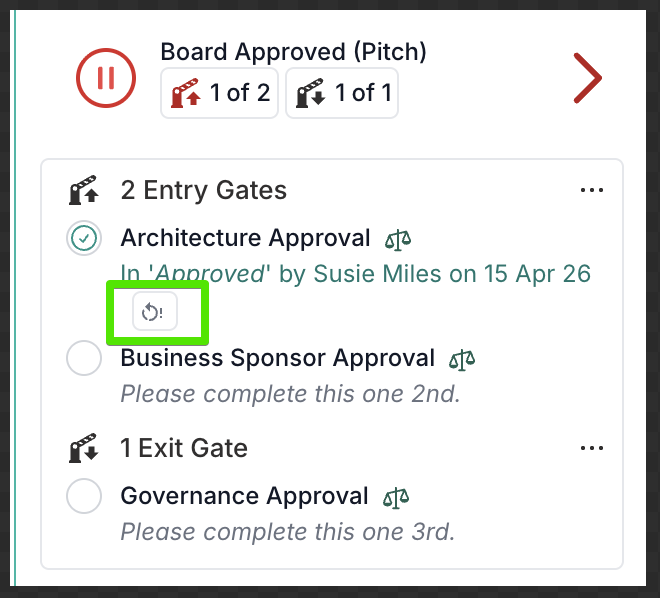
If no restart button appears, either:
The gate's restart policy is set to Not Restartable, or
Your role does not meet the permission requirement for that gate, or
The gate is not in the project's current phase (gates in past phases cannot be restarted), or
The gate is not using the Approval gate mode (Declared, Informational, and External Workflow gates cannot be restarted).
Tip: If you need to restart a gate but don't have permission, contact your project administrator or portfolio administrator to either restart it on your behalf or adjust the restart policy.
How to Restart a Gate
Navigate to the project detail page for the project containing the gate.
Scroll to or open the Stage Gates section.
Locate the gate you want to restart.
Click the restart button (circular arrow icon) next to the gate.
A confirmation dialog will appear:
"Are you sure you want to restart this gate? This will restart any existing decision and reopen the gate for a new approval."
Click Yes to confirm.
The gate will reopen and a success notification will appear: "Gate has been restarted successfully."
What Happens When a Gate Is Restarted
When you restart a stage gate, several things happen automatically. The gate itself always reopens in the same way, but the way the underlying approval is handled depends on whether the gate is a Decision gate or a Workflow gate.
1. The Gate Reopens
The gate status is set to Open.
The gate becomes blocking again — the project cannot progress past this gate until a new decision is made.
The previous approval or rejection decision is cleared from the gate.
2. The Approval Is Reset
This is where the two gate types behave differently.
Decision Gates (Portfolio Approver, Owner, Executive, Business Owner, Named Person, Workhub)
When a Decision gate is restarted:
The existing decision request is reset back to its initial pending state.
The previous approve/reject decision is cleared — the same request is effectively sent back to the approvers as if it were new.
The same approvers are asked to provide a fresh decision. Approver assignments do not change.
No new decision request is created. The original request is reused and overwritten.
In practice, this means the approvers will see the same request reappear in their task list, ready for a new decision. Any comments or context from the original decision remain visible in the action's history, but the decision itself must be made again.
Workflow Gates (Process Board)
When a Workflow gate is restarted:
The action card is moved back to the board's starting column — the very first stage of the workflow.
The card is reopened so that it can progress through the entire workflow again from the beginning.
Decisions from the previous workflow run are not reset or deleted. Any approvals, rejections, or comments made at each stage of the previous run remain attached to the card as historical records.
As the card moves through the workflow columns again, new decisions are created at each decision point. This means the card accumulates a full decision history across each restart cycle.
In practice, this means approvers at each workflow stage will be asked to make new decisions as the card reaches them. They can refer to the previous decisions on the card for context, but the new run is treated as a fresh pass through the workflow.
Example: A gate is linked to an approval board with three stages: Review → Finance Sign-Off → Final Approval. After the card completes all three stages and the gate closes, a PM restarts the gate. The card moves back to the Review column. As it progresses through the board again, new decisions are created at each stage. The decisions from the first run remain visible on the card for reference.
3. Documents Are Not Automatically Affected
Restarting a gate does not delete or modify any documents already synced to the project.
Documents attached to the approval action remain available.
If you upload new or updated documents and the action is re-submitted, document versioning and archiving will apply.
Frequently Asked Questions
General
Q: Can I restart a gate from a previous or future phase? A: No. Gates can only be restarted when they are in the project's current phase. Once a project has progressed past a phase, the gates in that phase can no longer be restarted.
Q: Can I restart a Declared or Informational gate? A: No. The restart policy only applies to gates using the Approval gate mode. Declared, Informational, and External Workflow gates cannot be restarted, regardless of any restart policy setting configured on the gate template.
Q: Does any user with the PM role restart any gate, or only gates they initiated? A: Any user with the required permission level (Project Manager or Project Administrator, depending on the policy) can restart an eligible gate. You do not need to be the person who originally triggered the approval.
Q: Who configures the restart policy on a gate? A: Portfolio or system administrators configure restart policies when setting up stage gate templates in the administration area. The restart policy is set per gate and can differ between gates in the same phase. If the gate mode is changed away from Approval, the restart policy is automatically reset to Not Restartable.
Q: Will restarting a gate affect other gates in the same phase? A: No. Restarting affects only the specific gate you selected. Other gates in the same phase remain unchanged.
Q: What if I restart a gate by mistake? A: You can simply re-approve or re-reject the gate through the normal approval process. There is no "undo restart" action, but completing the approval cycle returns the gate to a closed state.
Q: Does restarting a gate send notifications to approvers? A: The restart itself does not trigger approval notifications. For Decision gates, notifications are sent when the approval request is resubmitted through the normal workflow. For Workflow gates, notifications follow the board's own notification rules as the card moves through each column.
Q: How can I tell if a gate is a Decision gate or a Workflow gate? A: When viewing the stage gates on a project, Decision gates show an approval status (e.g. "Approval Pending, Due:…" or "Approved by…"), while Workflow gates show the current workflow column status (e.g. "In Review, Due:…"). The gate's approver type is configured in the administration area and determines which type is used.
Decision Gates (Portfolio Approver, Owner, Executive, Business Owner, Named Person, WorkHub)
Q: Does a Decision gate need to be closed (approved or rejected) before I can restart it? A: Yes. For Decision gates, the restart button only appears once the approver has made a decision — either approved or rejected. If the gate is still open and awaiting a decision, it does not need restarting because the approval process is already in progress.
Q: What happens to the previous decision when I restart a Decision gate? A: The previous approve or reject decision is cleared, and the same decision request is reset back to a pending state. The same approvers are asked to provide a fresh decision. No new decision request is created — the original request is reused. An audit trail of the previous decision is maintained in the action's history.
Q: Can I restart the same Decision gate multiple times? A: Yes, provided the restart policy allows it and the gate remains in the current phase. Each time the gate is closed (approved or rejected), it can be restarted again if you have the appropriate permissions.
Q: Are the approvers changed when I restart a Decision gate? A: No. The original approver assignments remain in place. The same approvers receive the reset request. If you need different approvers, the gate configuration must be updated by an administrator.
Workflow Gates (Process Board)
Q: Does a Workflow gate need to be closed before I can restart it? A: No. Unlike Decision gates, Workflow gates can be restarted at any stage of the workflow — including while the action card is still in progress on the board. The restart button appears as soon as the workflow is active, so you can restart the gate even if the card has not yet reached a final state.
Q: What happens to the action card when I restart a Workflow gate? A: The action card is moved back to the board's starting column — the very first stage of the workflow. It is reopened so that it can progress through the entire workflow again from the beginning.
Q: What happens to the decisions that were made during the previous workflow run? A: They are preserved. Any approvals, rejections, or comments made at each stage of the previous run remain attached to the action card as historical records. They are not cleared or overwritten. When the card moves through the workflow columns again, new decisions are created at each decision point, building up a complete decision history across restarts.
Q: Can I restart the same Workflow gate multiple times? A: Yes, provided the restart policy allows it and the gate remains in the current phase. Each restart cycle sends the card back to the beginning of the board, and new decisions accumulate on the card with each pass through the workflow.
Q: Why would I restart a Workflow gate that is still in progress? A: Common reasons include: the card was moved forward prematurely, new information requires the workflow to start again from the beginning, or the scope of the request has changed and all workflow stages need to re-evaluate from scratch. Restarting returns the card to the first column so the full workflow runs again.