
How to Configure Webhooks with Power Automate to Filter and Send Fluid Notifications to Microsoft Teams
This guide explains how to create a Power Automate flow that receives webhook events from Fluid, filters them based on task status, and sends a formatted notification to a Microsoft Teams channel.
Note: Power Automate uses SAS authentication. As such for webhook integration, choose "Shared Secret Signature Validation" and enter a value for the secret. Power Automate will then override and use its own SAS authentication internally.
Overview
This setup allows you to:
Receive webhook events from Fluid
Parse the incoming JSON payload
Apply conditional logic (e.g. only send updates when status = “Done”)
Send a rich Adaptive Card notification to Microsoft Teams
Prerequisites
Access to Microsoft Power Automate
Permission to create flows
Access to the target Microsoft Teams channel
A webhook integration configured in Fluid to send data to Power Automate- How to Configure Webhooks to Fluid Boards Integration
Step 1: Create the Flow
Click Create
Select Instant cloud flow
Enter a name (e.g. Teams Webhook Filter)
Choose the trigger:
When a Teams webhook request is received
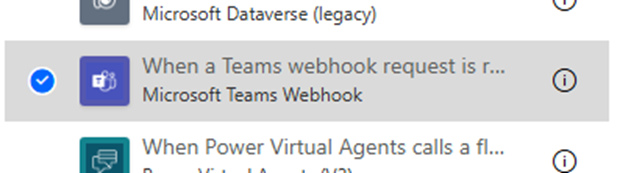
Click Create
Ensure the trigger is set to Anyone can trigger
Step 2: Parse the Incoming JSON
Click + New step
Search for and select Parse JSON
In Content, select Body from Insert dynamic content
Click Use sample payload to generate schema
Paste the sample JSON payload provided
{
	"fields": {
		"assignee": null,
		"attachmentCount": 0,
		"boardCategory": 0,
		"boardId": 0,
		"boardGuid": "2c8f0918-4f6b-4f5e-9dee-f12e582bbdef",
		"boardTitle": "webhook",
		"businessValue": 0,
		"contentType": "Process",
		"createDate": "2026-03-30T17:30:48.0000000Z",
		"description": "This is a test payload generated by Fluid to verify the webhook endpoint is reachable and authentication is configured correctly.",
		"descriptionHtml": "This is a test payload generated by Fluid to verify the webhook endpoint is reachable and authentication is configured correctly.",
		"dueDate": "2026-04-06T17:30:48.0000000Z",
		"endDate": "2026-04-06T17:30:48.0000000Z",
		"impediment": 0,
		"isClosed": false,
		"modifiedDate": "2026-03-30T17:30:48.0000000Z",
		"points": 1,
		"parentGuid": "672aea66-22a5-40d6-b658-f2f6b20d12e6",
		"priority": "Medium",
		"principalGuid": "2c8f0918-4f6b-4f5e-9dee-f12e582bbdef",
		"ragStatus": "Green",
		"shortCode": "TEST-1",
		"startDate": "2026-03-30T17:30:48.0000000Z",
		"status": "Not Started",
		"statusCode": 1,
		"taskType": "Task",
		"title": "[Test] Webhook connectivity test",
		"titleRichText": "[Test] Webhook connectivity test",
		"titleHtml": "<p>[Test] Webhook connectivity test</p>"
	},
	"id": 99999,
	"methods": [
		{
			"type": "PermaLink",
			"httpMethod": "GET",
			"url": "https://localhost:62199/Action/EditFull/21ed8132-f904-48f2-a682-eaf615d6d273"
		},
		{
			"type": "Update",
			"httpMethod": "PUT",
			"url": "https://localhost:62199/rest/api/action/99999",
			"description": "Update Action",
			"payload": {
				"fields": {
					"description": "<Description>",
					"title": "<Title>"
				},
				"attachments": null,
				"customProperties": [],
				"checkList": null
			}
		},
		{
			"type": "Delete",
			"httpMethod": "DELETE",
			"url": "https://localhost:62199/rest/api/action/99999"
		}
	],
	"related": {},
	"guid": "21ed8132-f904-48f2-a682-eaf615d6d273",
	"url": "https://localhost:62199/rest/api/action/99999"
}
Click Done
Step 3: Add a Condition (Filter Logic)
Click + New step
Select Condition
Configure:
Left value: fields → Insert Dynamic Content → Body Status
Operator: is equal to
Right value: e.g. Done
💡 You can modify this condition to filter on any field (e.g. priority, board, task type) that is available in the schema.
Step 4: Send Notification to Microsoft Teams
Inside the If yes branch:
Click Add an action
Search for Microsoft Teams
Select Post card in a chat or channel
Configure:
Team → Select your Team
Channel → Select your Channel
Adaptive Card → Paste your Adaptive Card JSON
Sample
{
    "type": "AdaptiveCard",
    "$schema": "http://adaptivecards.io/schemas/adaptive-card.json",
    "version": "1.4",
    "body": [
        {
            "type": "ColumnSet",
            "columns": [
                {
                    "type": "Column",
                    "width": "auto",
                    "items": [
                        {
                            "type": "TextBlock",
                            "text": "🔔",
                            "size": "Large"
                        }
                    ],
                    "verticalContentAlignment": "Center"
                },
                {
                    "type": "Column",
                    "width": "stretch",
                    "items": [
                        {
                            "type": "TextBlock",
                            "text": "New Task",
                            "weight": "Bolder",
                            "size": "Medium",
                            "wrap": true
                        },
                        {
                            "type": "TextBlock",
                            "text": "@{triggerBody()?['fields']?['title']}",
                            "wrap": true,
                            "size": "Default",
                            "weight": "Bolder",
                            "color": "Accent"
                        }
                    ],
                    "verticalContentAlignment": "Center"
                }
            ]
        },
        {
            "type": "ColumnSet",
            "separator": true,
            "spacing": "Medium",
            "columns": [
                {
                    "type": "Column",
                    "width": "stretch",
                    "items": [
                        {
                            "type": "FactSet",
                            "facts": [
                                {
                                    "title": "📋 Board",
                                    "value": "@{triggerBody()?['fields']?['boardTitle']}"
                                },
                                {
                                    "title": "🏷️ Type",
                                    "value": "@{triggerBody()?['fields']?['taskType']}"
                                },
                                {
                                    "title": "📌 Status",
                                    "value": "@{triggerBody()?['fields']?['status']}"
                                },
                                {
                                    "title": "🎯 Priority",
                                    "value": "@{triggerBody()?['fields']?['priority']}"
                                },
                                {
                                    "title": "🚦 RAG",
                                    "value": "@{triggerBody()?['fields']?['ragStatus']}"
                                },
                                {
                                    "title": "🆔 Code",
                                    "value": "@{triggerBody()?['fields']?['shortCode']}"
                                }
                            ]
                        }
                    ]
                }
            ]
        },
        {
            "type": "TextBlock",
            "text": "📝 Description",
            "weight": "Bolder",
            "spacing": "Medium",
            "separator": true
        },
        {
            "type": "TextBlock",
            "text": "@{triggerBody()?['fields']?['description']}",
            "wrap": true,
            "spacing": "Small"
        }
    ],
    "actions": [
        {
            "type": "Action.OpenUrl",
            "title": "🔗 View in Fluid",
            "url": "@{triggerBody()?['methods']?[0]?['url'] }",
            "style": "positive"
        }
    ]
}
This card can include dynamic values such as:
Task title
"@{triggerBody()?['fields']?['title']}"Status
"@{triggerBody()?['fields']?['status']}"Priority
"@{triggerBody()?['fields']?['priority']}"Dates
@{formatDateTime(triggerBody()?['fields']?['startDate'], 'dd MMM yyyy')}Direct link back to Fluid
triggerBody()?['methods']?[0]?['url']Event type
triggerOutputs()?['headers']?['X-Fluid-Event']
Learn more about adaptive cards:
Step 5: Leave “If no” Empty
No action is required in the If no branch.
If the condition is not met, no notification will be sent.
Step 6: Save and Test
Click Save
Trigger a test event from Fluid
Confirm that:
The flow runs successfully
A Teams notification is sent only when the condition is met