
5th June Release - Governance, Stage Gates, and Workflow Enhancements
This release is strongly focused on helping PMOs strengthen governance without making delivery processes harder to run in practice. The updates span stage gates, workflows, documents, scheduling, reporting, and financial management, giving organisations better control over how projects move through approvals, reviews, and governance checkpoints, while still allowing teams to adapt when circumstances change.
The biggest area of investment is stage gates, which now support a broader range of governance scenarios: approvals can be restarted when circumstances change, gates can be informational or managed by external workflows, and a new Stage Gate Packages feature lets teams run repeatable approval cycles within a single phase. Gates can also be scoped to specific project types and rolled up to parent projects, giving programme managers visibility across child project governance without opening each project individually.
Workflow and approval processes have also seen significant updates: project workflows can now auto-create sub-projects, approvals can be assigned by project role, and a new Project Workflow Configuration Inspector gives administrators a searchable, snapshotted view of the full workflow setup.
Document management has been substantially improved, with new filtering and grouping options in the Documents panel and a new roll-up view that lets parent projects surface documents from direct sub-projects — useful for programme managers reviewing governance evidence across a hierarchy.
Elsewhere, we've introduced Draft Status Reports, giving project managers more control over when reports are published; Strict Status Reporting and Strict Risk and Issue Management to improve data quality and consistency; tighter schedule controls through protected schedule items and the new L5 Suppressed promotion level; Confidential Projects to restrict access to sensitive work; and a new Simplified Capitalisation Model for organisations that want broader, phase-independent capitalisation rules.
For PMOs, the overall theme is clearer governance, better traceability, and more practical control across the project lifecycle. For project teams, these changes reduce manual work, improve consistency, and make it easier to operate within the governance approach your organisation has defined.
Stage Gates
1. Restart stage gates when approvals need to be revisited
Each stage gate can be configured with a Restart Policy that controls whether — and by whom — a gate's approval decision can be restarted. This is particularly useful when project circumstances change after a gate decision has been made — for example, if new risks emerge or deliverables have been reworked — giving PMOs the flexibility to re-evaluate at a gate without needing to create a new process.
The Restart Policy setting is available in the gate administration area and applies exclusively to gates using the Approval gate mode; gates configured as Declared, Informational, or External Workflow will always default to Not Restartable. There are three options:
Not Restartable (default) — the gate's approval decision is final and cannot be reopened.
Project Managers — users with project management permissions can restart the gate.
Project Administrators Only — only project administrators can restart the gate.
A gate can only be restarted if it belongs to the project's current phase. Gates in past phases (already progressed through) cannot be restarted, even if the restart policy and user permissions would otherwise allow it. This ensures that restarting a gate is only used to revisit a decision that is relevant to where the project currently stands, preventing unintended changes to completed phases or phases the project hasn't reached yet.
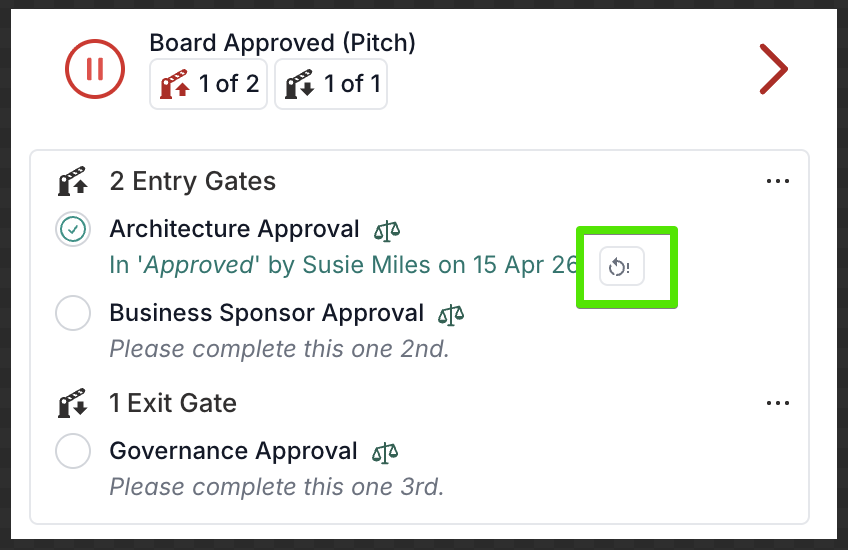
Restarting a gate reopens it, makes it blocking again, and resets the approval flow based on the gate type. For decision-based approval gates, the existing request is reset so the same approvers can make a fresh decision. For workflow-based approval gates, the action card is moved back to the first column so it can progress through the workflow again, while preserving the previous decision history for reference.
There is no limit on how many times a gate can be restarted — each time the gate is subsequently closed (approved or rejected), it can be restarted again provided the user has the required permissions and the gate remains in the current phase.
The restart policy is configured per gate, allowing different levels of control across gates within the same phase or methodology. If a gate's mode is later changed away from Approval, the restart policy is automatically reset to Not Restartable.
You can read more about restarting stage gates here.
2. Restarted stage gates preserve document history in workflow-based approvals
When a workflow-based stage gate is restarted, any documents already synced to the project remain in place. If the approval action is updated with revised documents and submitted again, Fluid compares the new submission with the existing project documents, archives the previous versions, and adds the latest versions to the active project folder.
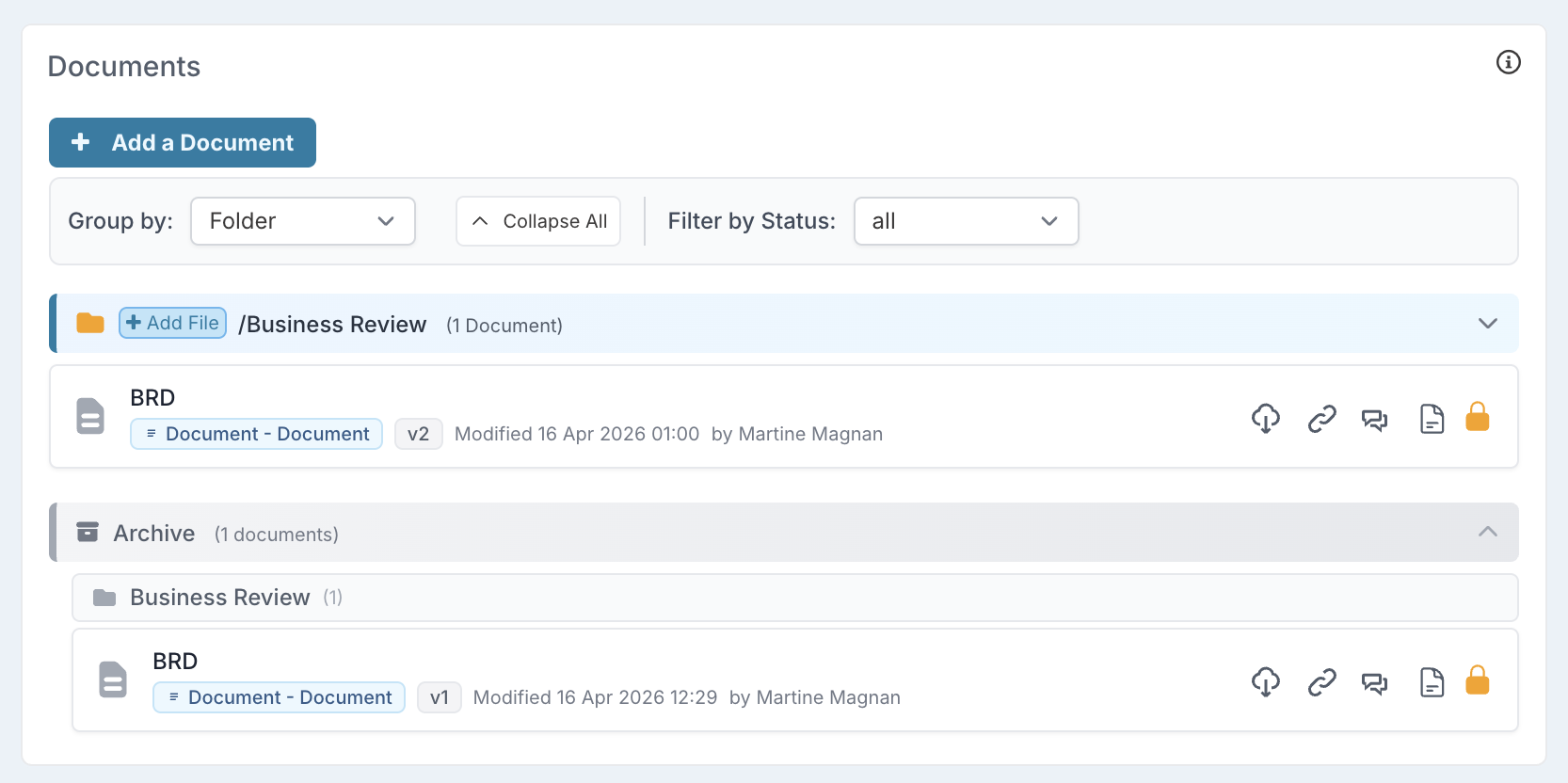
This gives PMOs and project managers a clear audit trail of what was approved at each stage, while keeping the current approved version easy to find. If document protection is enabled, both the synced project documents and the source documents on the workflow action are protected as part of the approval process.
For more detail, see the Knowledge Base article on documents in workflow-based stage gates.
3. Informational Stage Gates
You can now configure Informational stage gates for scenarios where you want to show relevant information without blocking project progress.
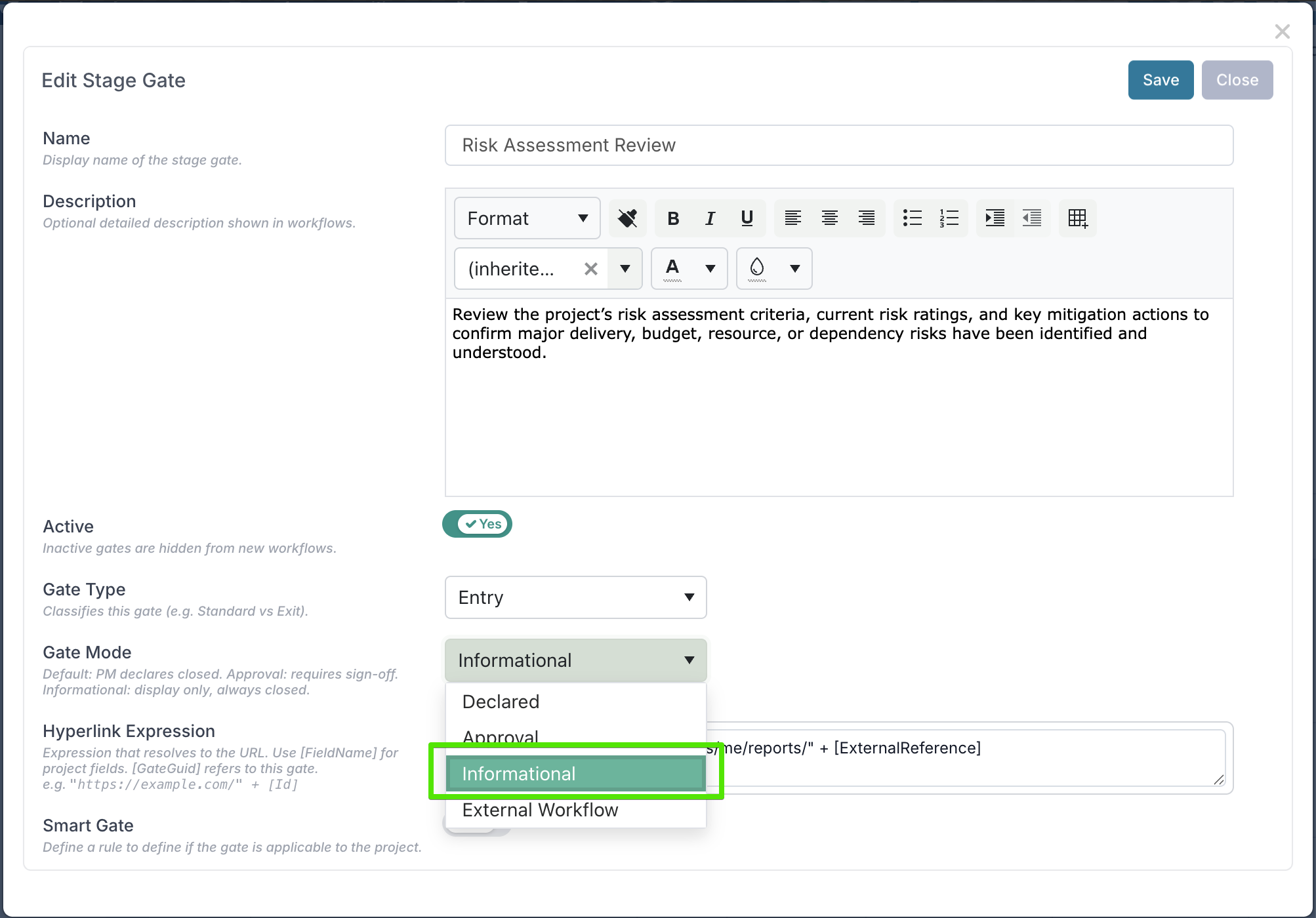
Informational gates are non-blocking and are always treated as closed in Fluid. Unlike Declared gates, which are manually closed, or Approval gates, which require sign-off, Informational gates do not require a gate action in the system before the project can move forward.
They can be used to surface useful context at a specific point in the project lifecycle, such as guidance, supporting information, or a link to an external report, dashboard, document, or workflow.
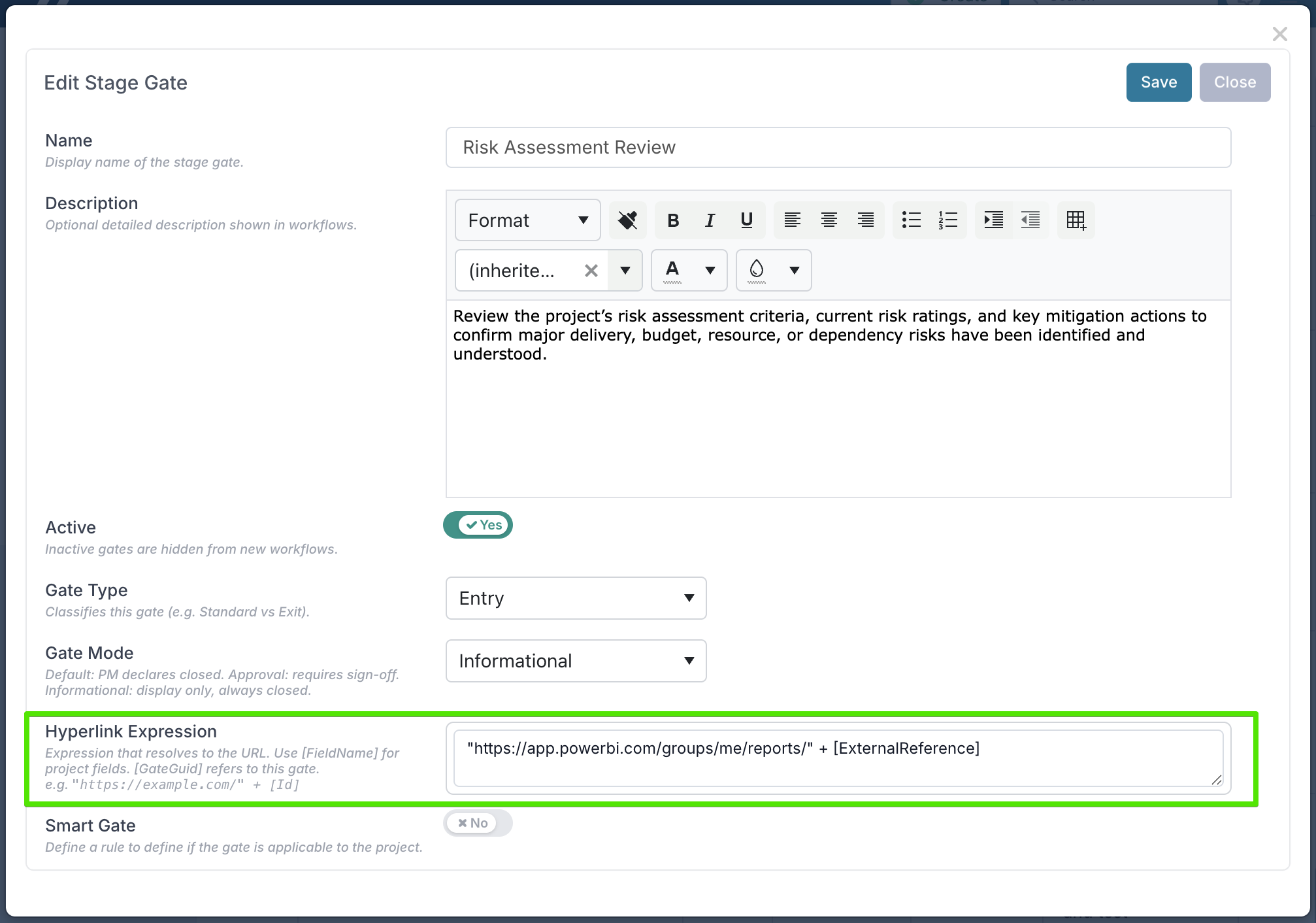
Informational gates also support a Hyperlink Expression, allowing you to generate dynamic project-specific links using field values such as [Id] or [ExternalReference] or custom property values. This means you can direct your team straight to a filtered BI report, a SharePoint page, or any other external system relevant to the project — without anyone needing to look up the URL themselves.
You can read more about Informational stage gates here.
4. External Workflow Stage Gates
You can now use External Workflow as a new stage gate type for projects where the gate state is managed by an external app or workflow, rather than by users in Fluid.
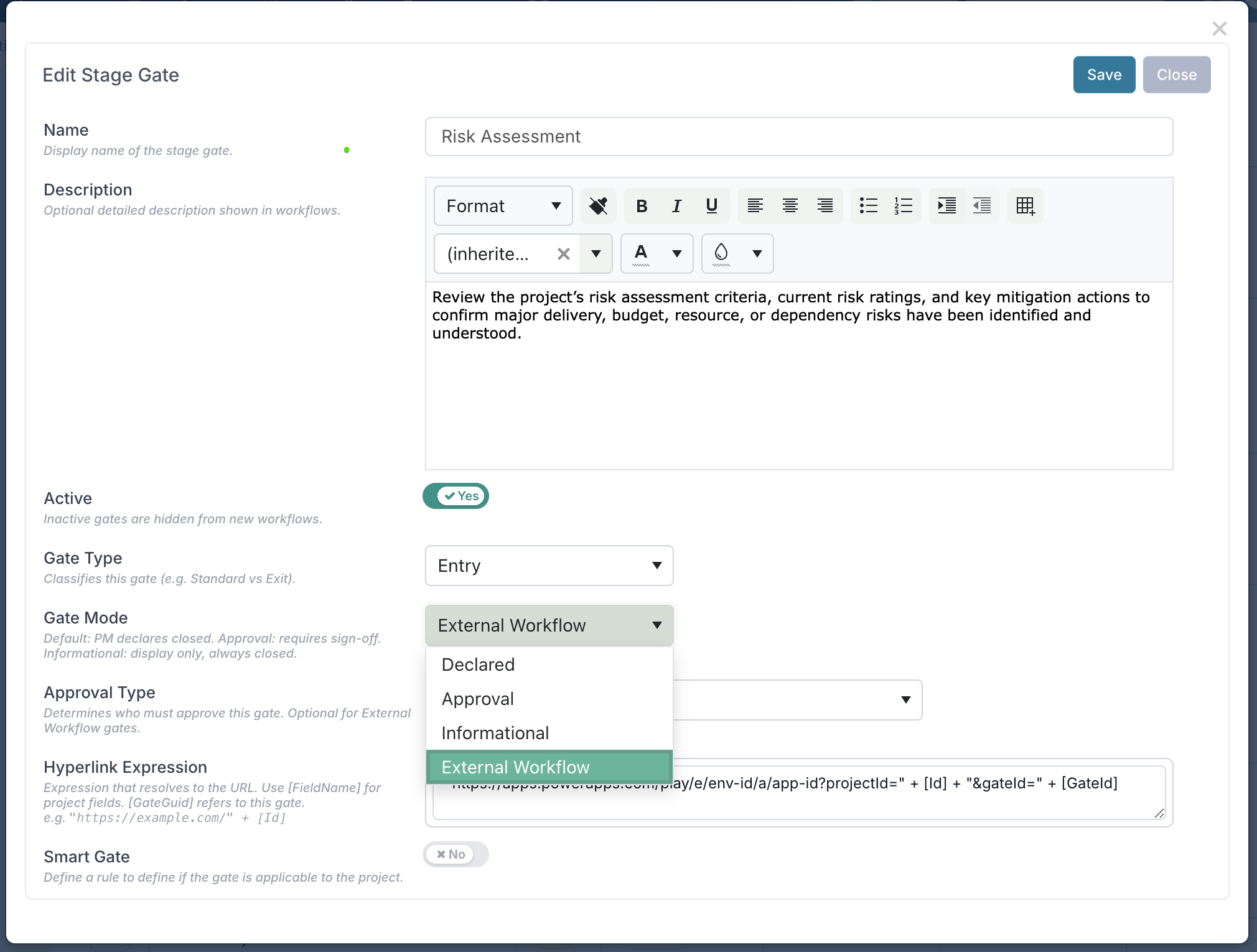
This gate is designed for integration-led governance scenarios. Instead of being closed manually by Project Managers, the gate is updated by an external system — such as Power Automate, Power Apps, ServiceNow, Jira, or Azure DevOps — which writes the gate status back to Fluid via the Fluid V3 API.
When added to a phase, the gate is visible in the workspace so users can see whether it is open, in progress, or closed, but they cannot close it themselves. The external app remains the source of the gate decision, while Fluid reflects the current status on the project.
You can also configure a dynamic hyperlink on the gate to direct users straight to the external workflow, form, or approval tool that manages the action.
As with other gates, if Enabled Blocking Phase Stage Gates is turned on, the phase cannot progress until the gate is closed — in this case, by the connected external system.
Pairing with Fluid Approvals
External Workflow gates can optionally be paired with a Fluid approval. When an Approval Type is configured on the gate (such as Named, Executive, Business Owner, Owner, or Portfolio Approver), the external system's close request does not close the gate immediately. Instead, Fluid creates a formal approval task for the configured approver. The gate remains blocked until the approver signs off — giving you a two-step governance model where the external system triggers the review and a Fluid approver makes the final decision.
This new gate type gives teams a cleaner way to support governance processes that happen outside Fluid, while still keeping gate visibility and project control inside Fluid. It is especially useful when manual override should not be allowed.
Read the full user guide for External Workflow Gates and External Workflow Gates Paired with Approvals.
5. Stage Gate Packages: Repeatable governance gates for recurring project cycles
Some project phases need the same set of approvals more than once — for example, one approval cycle per software release, vendor evaluation round, or audit cycle. Stage Gate Packages make this easier by letting administrators define a reusable bundle of gates that Project Managers can initiate as many times as needed within a phase.
Administrators can now create a package, add the required gates in the right order, and assign it to a methodology phase as a Package Gate.
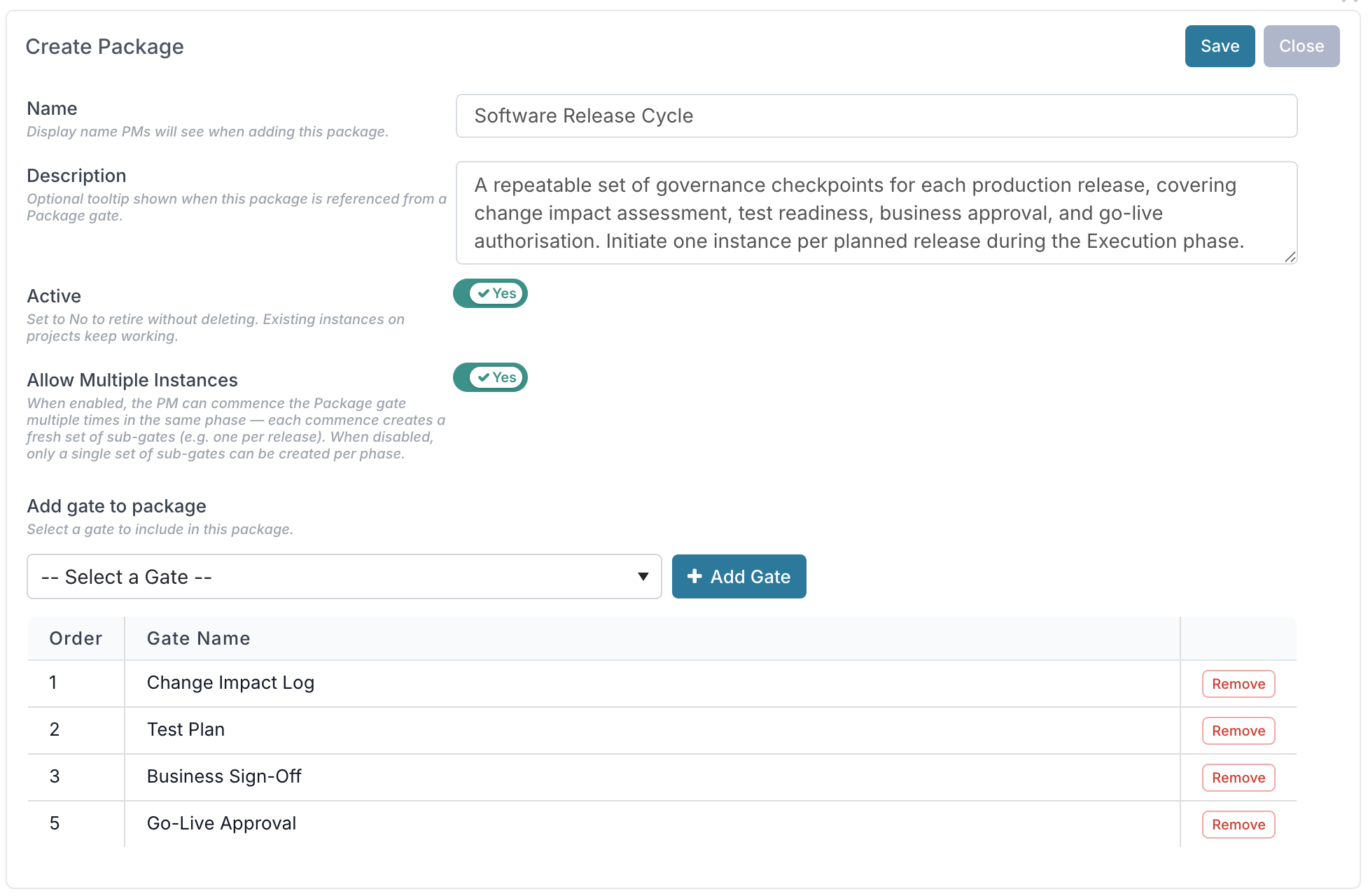
Once available on a project, Project Managers can start a new package instance, give it a meaningful name such as “Release 1 — June 2026”, and work through the generated child gates just like standard stage gates.
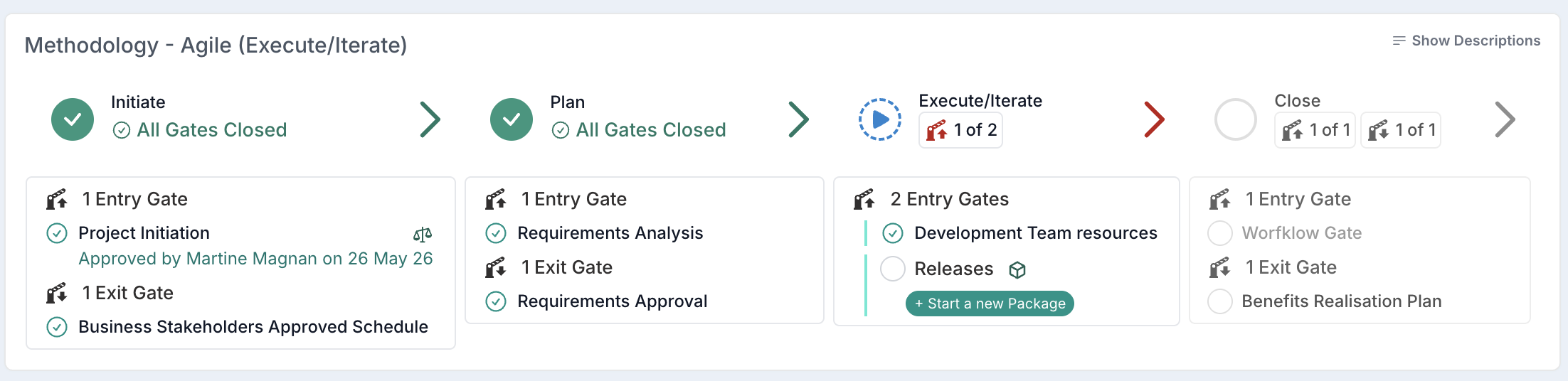
Each package instance has its own set of gates, status, approvals, workflows, and progress tracking.
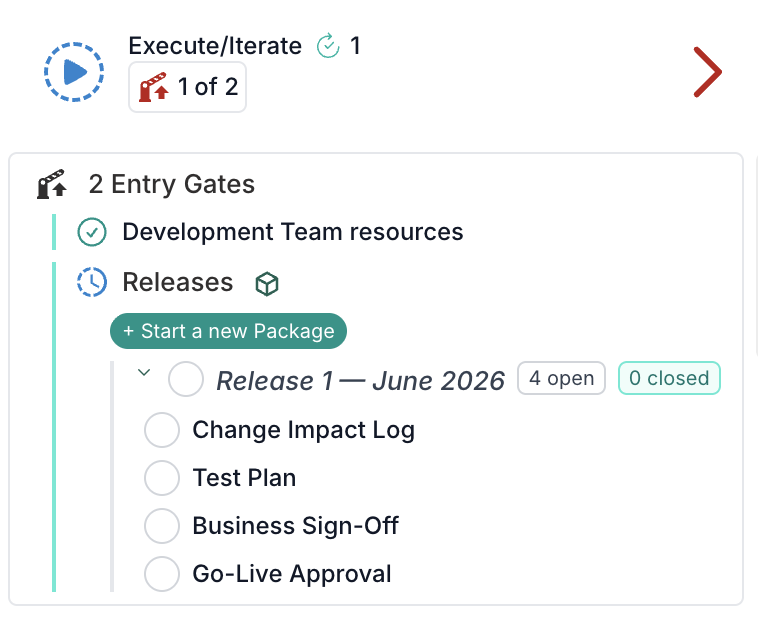
Multiple instances can run in parallel, and the overall Package Gate closes automatically once all child gates across all instances are complete. If any child gate is reopened, the parent package status updates automatically too.
Learn more in the Stage Gate Packages article.
6. Control which projects a stage gate applies to
Stage gates can now be shown only on the projects where they are relevant. When setting up a gate in your methodology, use Project Applicability to decide whether the gate should appear on all projects, only parent projects, only child projects, projects with no children, or projects that are not children themselves.
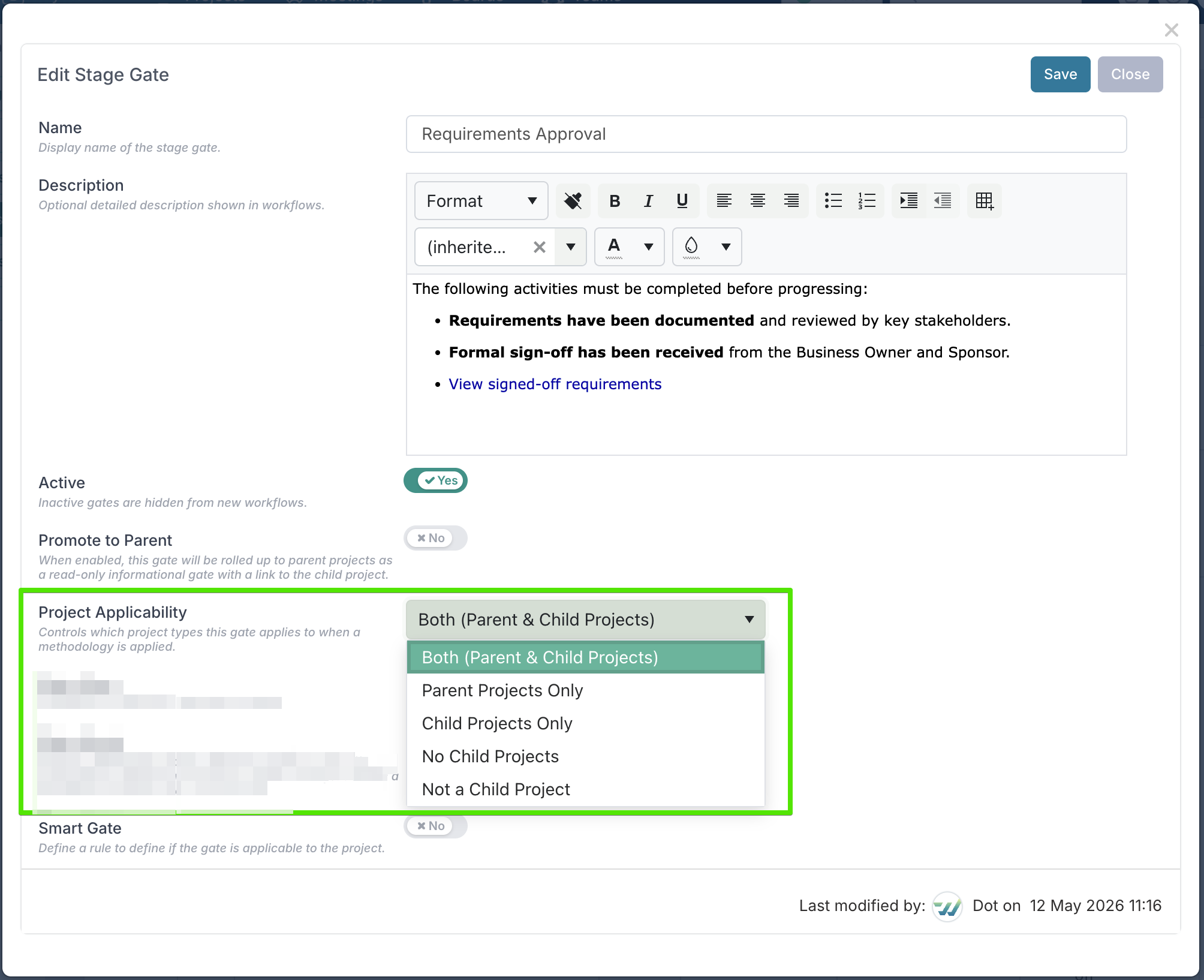
This helps keep methodologies cleaner for teams working with parent-child project structures. For example, programme-level gates can be limited to parent projects, while delivery-level gates can be shown only on child projects.
To learn more about each option and when to use it, see the Stage Gate Applicability article.
7. Rolling up child project gates to the parent project
Programme managers and portfolio leads can now track key governance checkpoints from child projects directly on the parent project.
A new Promote to Parent setting is available on stage gates. When enabled, the gate is automatically shown on the parent project’s Stage Gates view as a read-only informational row. This means parent projects can show the current status of important child project gates, such as Go-Live Approval or other key decision points, without users needing to open each child project individually.
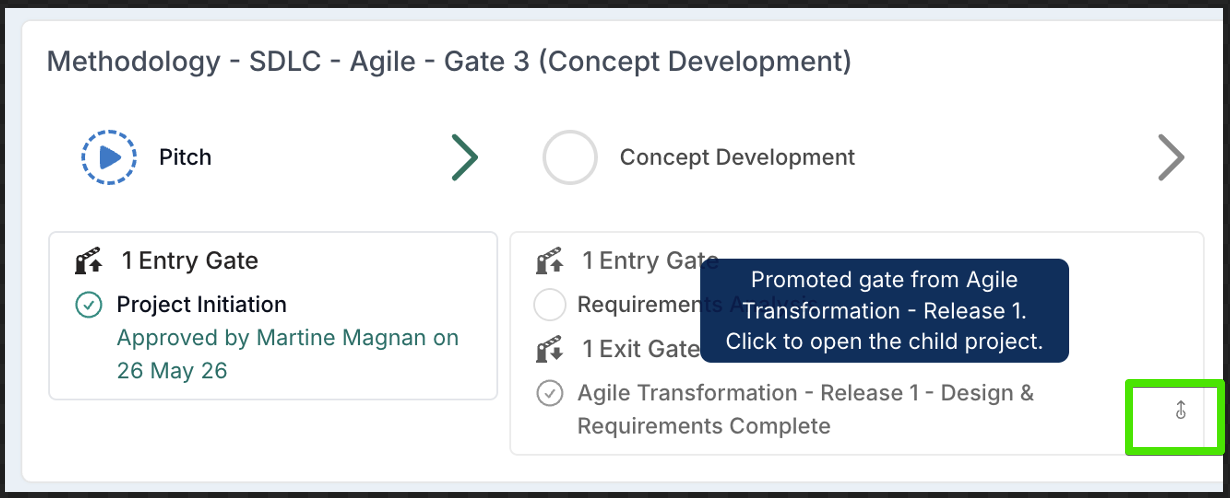
Promoted gates continue to be managed on the child project as normal. Project Managers can action them, approvers can approve them, and the gate can be closed from the child project. On the parent project, the promoted gate is informational only and cannot be actioned, approved, reopened, or closed.
On the parent project, users can see the child project name, the promoted gate’s current status, and a link back to the child project for quick navigation. If promoted package instances are in progress on child projects, each commenced instance is shown separately with its progress, such as 3 of 5 gates closed.
To enable this, Project Administrators can go to Admin → Methodologies, Phases and Tasks Setup → Stage Gates, edit the relevant gate, set Promote to Parent to Yes, and save. Once the methodology is applied or re-applied, matching gates from immediate child projects will roll up to the parent automatically.
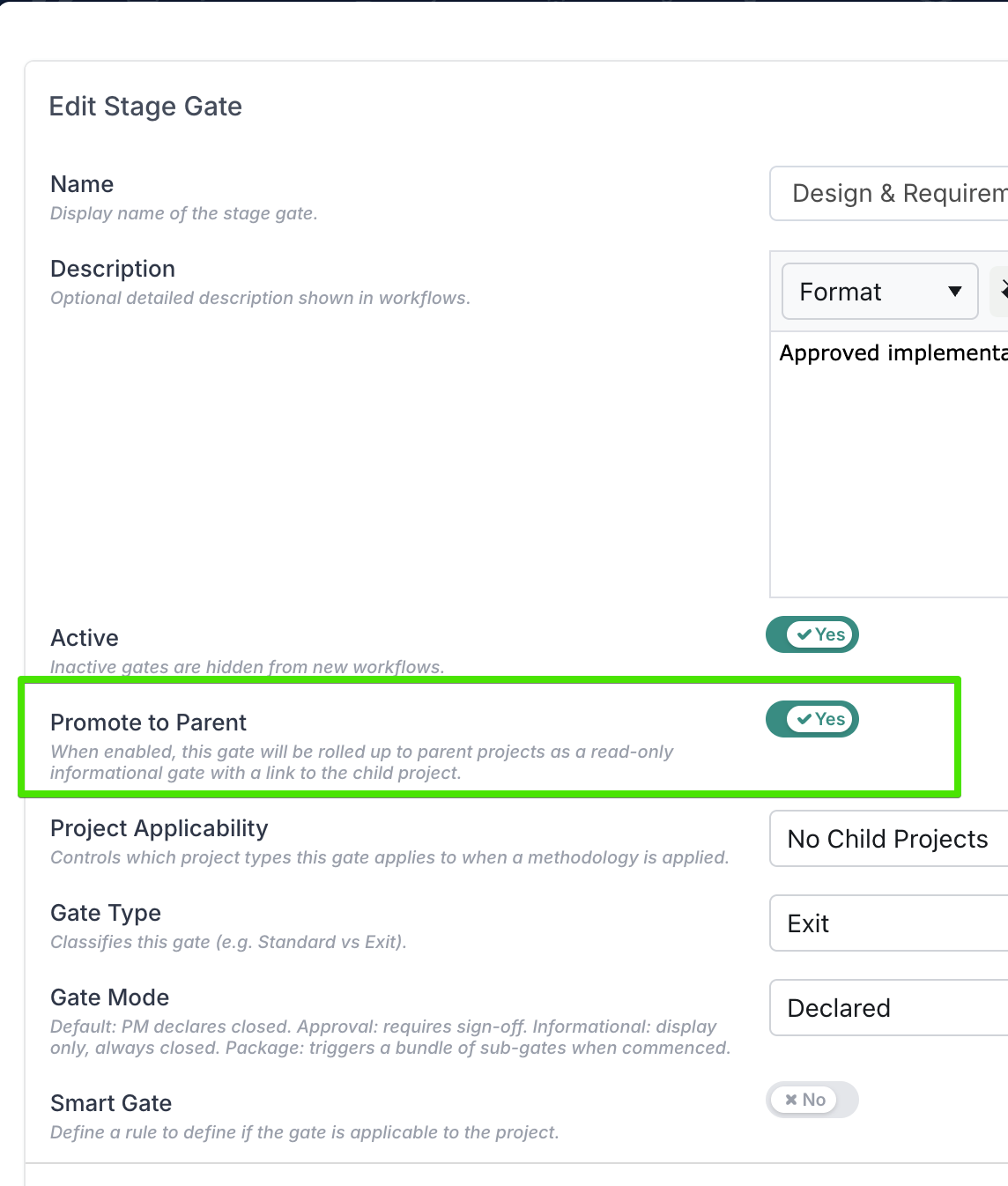
You can read more about promoting stage gates to parent here.
8. Other Enhancements
Expressions – Project financial data: Project financial values are now available in the expression context for Stage Gates and Governance Assessments. This means expressions can reference key financial measures such as actuals, forecasts, estimate at completion, funding, budget variance, revenue, and earned value when determining whether a gate applies or a governance rule is met.
This allows organisations to create more financially aware governance rules - for example, showing a gate only when a project is forecast to exceed its current-year funding, when a budget variance passes a defined threshold, or when a project has used a high proportion of its approved funding.
Methodology setup navigation: It is now easier to find and manage configuration records on the Methodology, Phases, Tasks & Stage Gate Management page. All six setup tabs now include an instant search box that filters by name and description as you type, with a clear option to reset the search quickly.
The Stage Gates and Phase Gates tabs also include additional filters, allowing administrators to narrow results by methodology, phase, approver, or gate mode. These filters can be combined with search, making it faster to locate the right gate or configuration item without scrolling through long setup lists.
Stage Gates – Bulk Edit: Stage gates can now be updated using bulk edit, making it easier to apply changes across multiple records more efficiently. You can read more about the new functionality here.
Project Audit History: The Project Audit History page now includes a dedicated section for project approvals. This section lists approvals associated with the project together with key details such as approval date, approver, workflow state, and any comments entered on the decision.
Stage Gates – Live Updates: Added live gate updates within the workspace so project managers can immediately see changes to gate and phase status.
Stage Gates – Approval SLA: Setting a gate’s Duration for Approval value to
0now indicates that the gate has no SLA or due date.
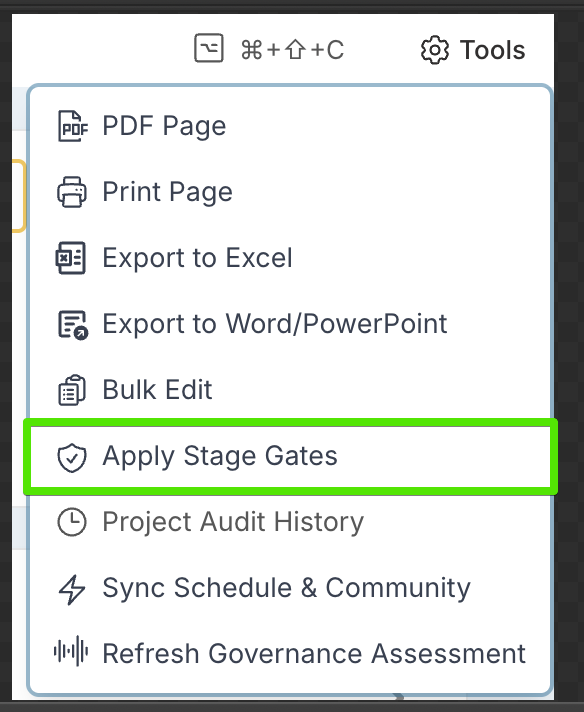
Refresh Stage Gates: Project Administrators can now apply the latest Stage Gate definition changes to a specific project directly from the Project workspace. To refresh a project’s Stage Gates, open the Tools menu and select Apply Stage Gates. This makes it easier to keep individual projects aligned with updated governance processes without needing broader project changes.
Workflow and Approval Processes
1. Create sub-projects automatically with Project Workflow
When teams need to deliver work in defined stages—such as releases, work packages, or phased delivery—sub-projects often need to follow a consistent structure. This update gives you more control over how those sub-projects are created, helping ensure each one is set up in the right place, with the right information, at the right point in your workflow.
With Project Workflow on a Project Pipeline board, you can now configure a column to automatically create a sub-project when a card is moved into it. This is especially useful for Agile delivery teams managing multiple releases from a parent project, where each release needs its own child project for planning, tracking, and reporting. Instead of creating release projects manually, teams can use the workflow to create them in a more consistent and governed way.
When a card reaches a configured Create Project column, Fluid creates a new sub-project beneath the linked parent project. The new sub-project uses the card title as its name and carries over matching card properties, attached documents, and relevant project details. If later columns are set to sync, the same card can continue updating the existing sub-project as it progresses through the workflow.
For step-by-step setup guidance and configuration details, see the full help article.
2. Project Workflows visible to non-project admins in Limited Work Request lists
You can now make project workflows visible to non-project admins when they are explicitly included in a workflow’s Limited Work Request list. This means users who are authorised to trigger specific project-level workflows — such as updating project data or creating subprojects — no longer need project admin rights just to see and launch them. The change removes an unnecessary restriction and makes it easier for the right people to run the workflows they’ve been assigned.
3. Continued syncing of first-class properties after project creation
The Project Workflow feature now keeps first-class properties in sync even after a project has been created. In the past, matching properties were only copied from the workflow card to the project during the initial creation.
With this update, if a project workflow is set to sync properties on a column, any changes to those properties on the card will also update the corresponding properties in the project as the card moves through later workflow stages. This ensures your project data stays up-to-date as it evolves, no longer relying just on the initial setup step.
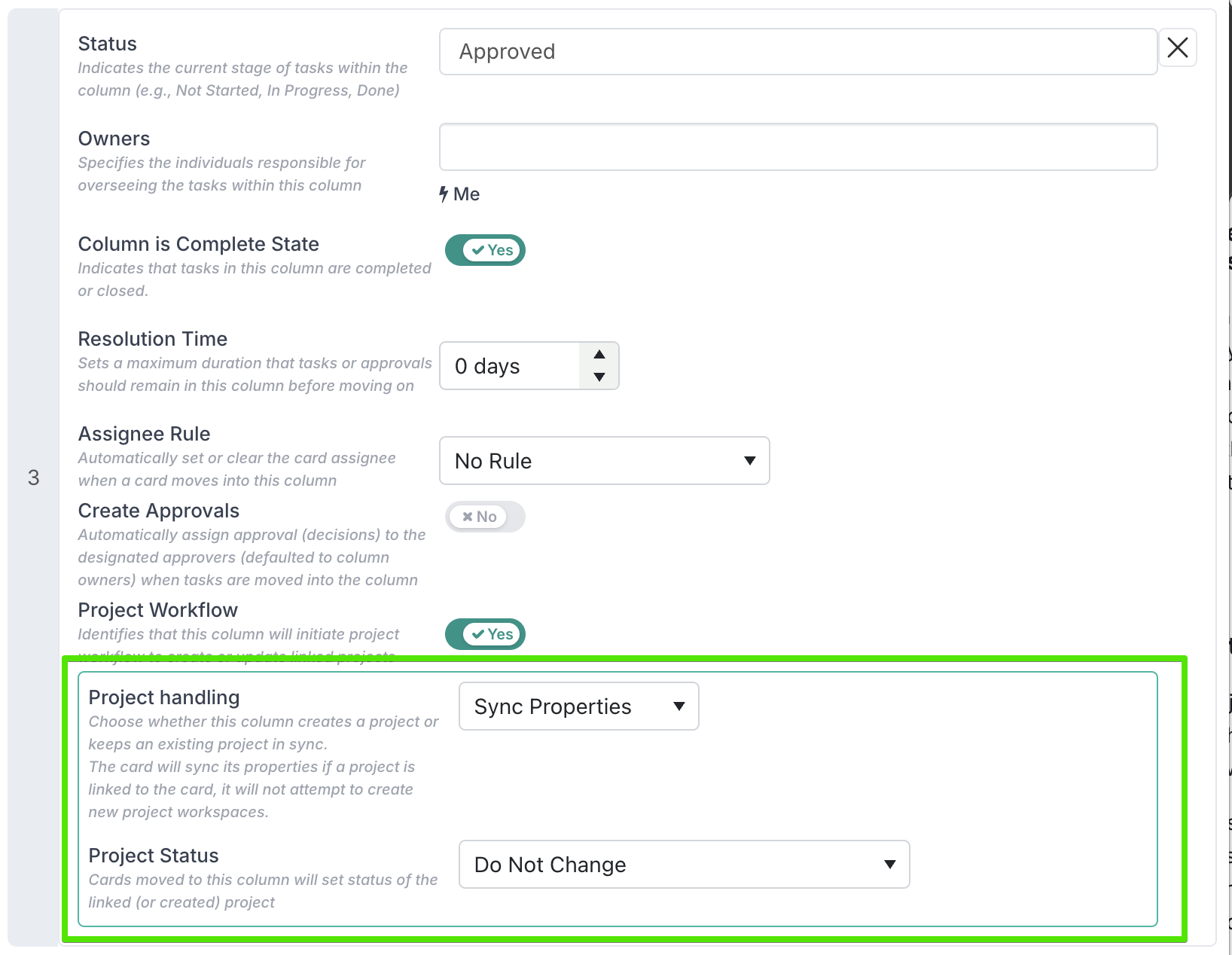
To set a board column to sync properties back to the project, turn on Project Workflow for the column, then set Project handling to Sync Properties. You can also choose whether moving a card into that column should update the linked project’s status or leave the project status unchanged.
4. Refresh project metadata on workflow cards
Workflow cards linked to a project can now be refreshed to pull in the latest project metadata. This helps keep project-related fields on the card up to date when values change on the linked project.
The refresh applies to any eligible property set as Read Only for Everyone, including first-class project properties such as methodology or project type, as well as custom properties mapped from the project.
Manual refresh: From the card’s left-hand navigation, select Refresh Project Metadata, then confirm the refresh. Fluid will sync the eligible read-only properties from the linked project and show a notification with the result, including which properties were updated when changes are detected.
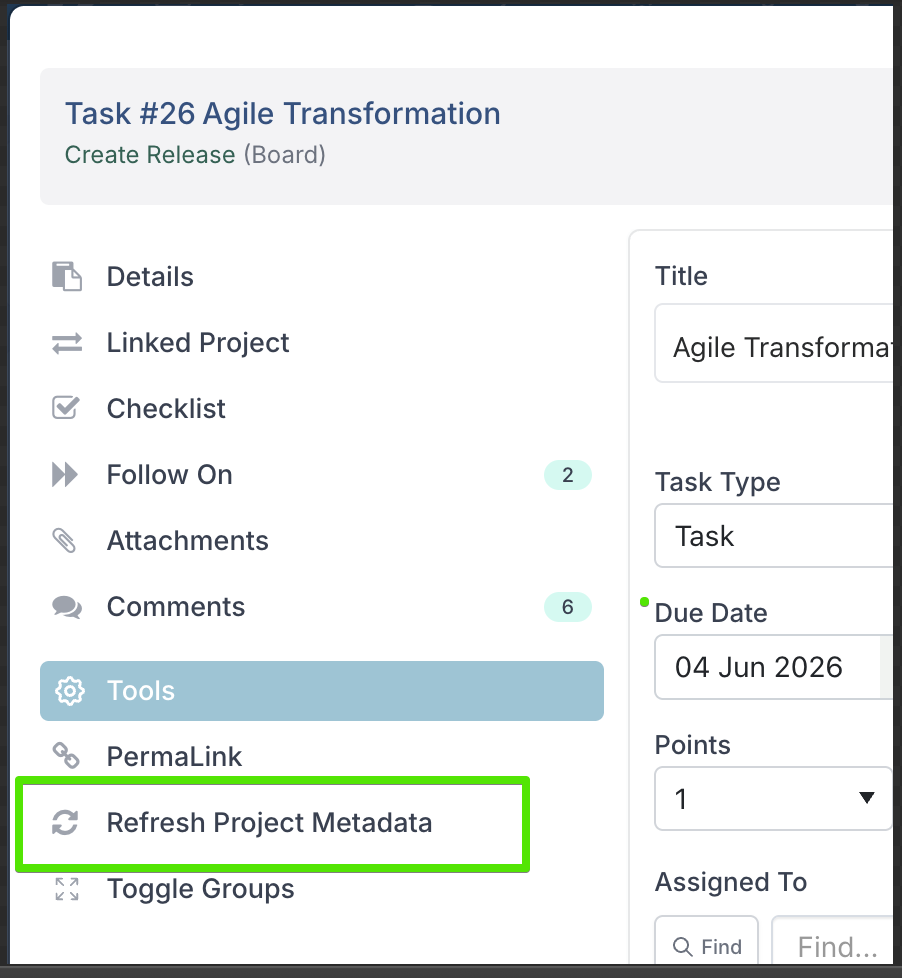
Automatic refresh: Cards in the board's first (request) column also refresh project metadata automatically when opened — no action required. This runs silently in the background before the card loads, as long as the card is linked to a project, is not closed, and the user has Editor or higher permission.
For more detail, including availability rules and what happens after the refresh, see the Refresh Project Metadata on Workflow Cards article.
5. Workflow requests and decisions now show the project reference
To make workflow requests easier to recognise and manage, any request triggered from a project — whether from a stage gate or a project workflow — will now automatically display the relevant project reference on the card. The same reference will also be added to any decision associated with that workflow.
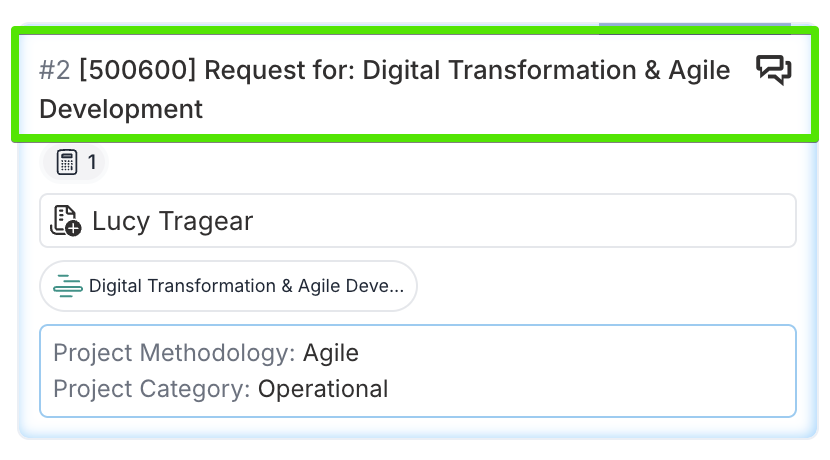
Previously, workflow requests and related decisions only displayed the project title. While this helps, it is not always the identifier PMOs, portfolio managers, and approvers rely on when reviewing projects across a portfolio. Even when a project is created directly in Fluid through Project Intake, the project reference often becomes the key identifier used in day-to-day governance. In some cases, teams also maintain an external reference to link Fluid with other business systems or downstream processes. Showing the relevant reference directly on workflow requests and decisions makes it easier to recognise the right project at a glance, reduce ambiguity during review, and support faster, more confident approvals.
By default, the displayed reference follows this order: Alternate Reference, then External Reference, then Project ID.
6. Clearer audit trail for workflow request decisions
Workflow request decisions now show the date they were approved or rejected directly in the decision card. Before, only the status was visible, which made it harder to understand exactly when a decision had been made.
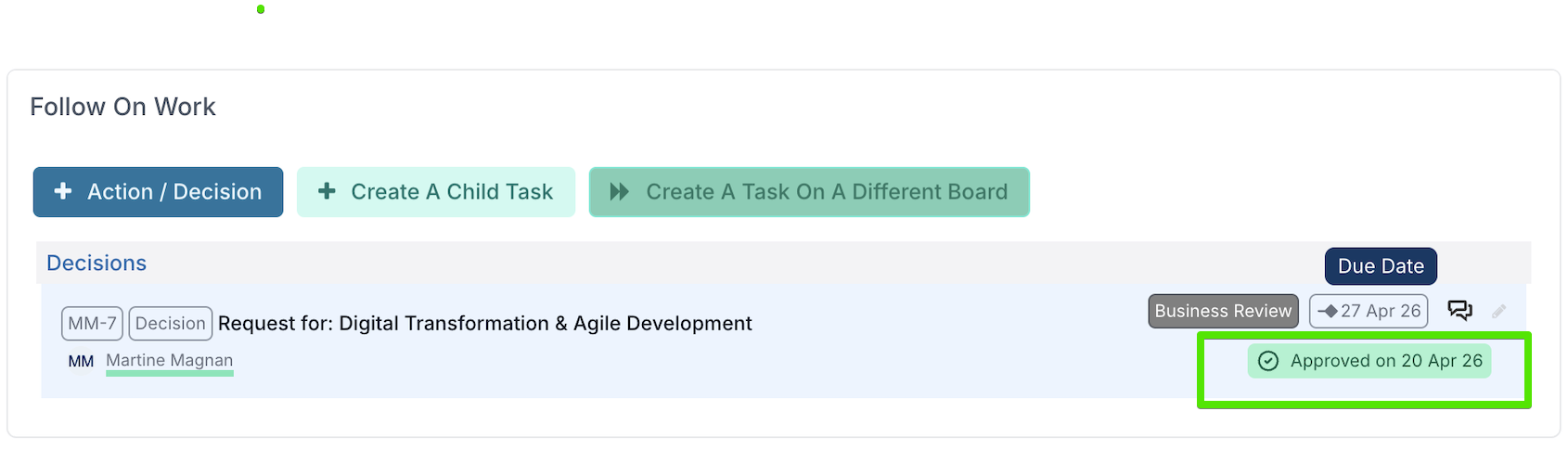
By surfacing the decision date, teams get a clearer audit trail, better historical context, and an easier way to track request progress and governance activity at a glance.
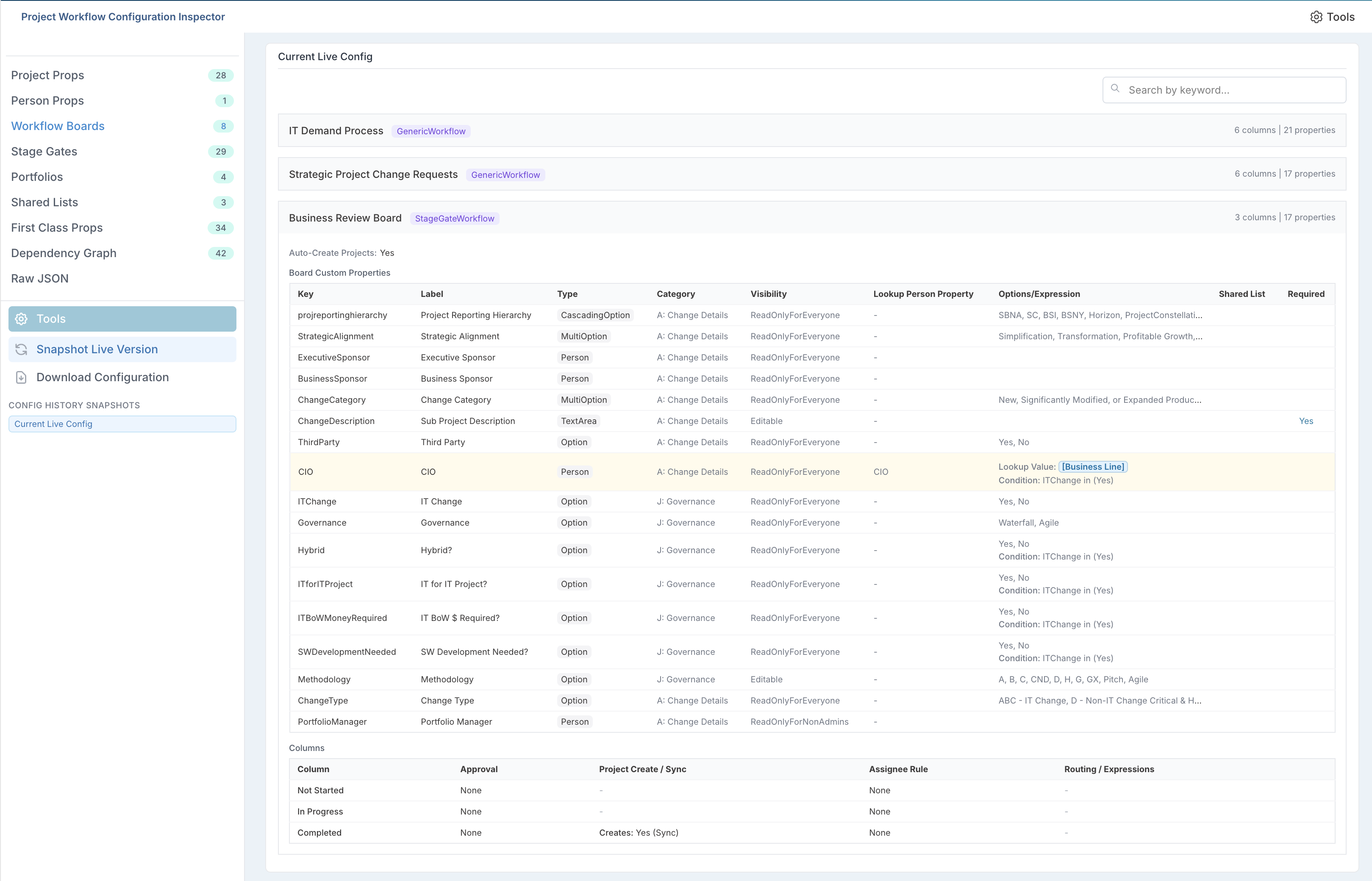
7. Project Workflow Configuration Inspector
The Project Workflow Configuration Inspector is a read-only administration tool that gives you a complete, searchable overview of how your organisation's project workflows and stage gates are set up.
It is available only to Project Administrators and Application Administrators, and can be accessed from the Admin area at Admin → Project Workflow Config.
The inspector automatically generates a snapshot of your current configuration and lets you browse it across several categories (Project Properties, Person Properties, Workflow Boards, Stage Gates, Portfolios, Shared Lists, and First Class Properties) so you can quickly check how fields, boards, and stages are configured without navigating through each setup screen individually.
At any time, you can take a snapshot of the live configuration to permanently record how everything is set up at that moment. These snapshots are saved with a timestamp and the name of the person who created them, building up a version history that you can return to later. From the history panel you can browse previous snapshots, open any past version to review what the configuration looked like at that point in time, download snapshots as JSON files for offline reference or sharing, and delete snapshots that are no longer needed.
You can search by keyword to find specific fields or settings, view the history of past configuration snapshots, and download them for offline review or record-keeping.
It is particularly useful when you need to audit your workflow setup, troubleshoot why a field or board is behaving a certain way, or share your configuration details with colleagues or support teams.
8. Assign Workflow Approvals by Project Role
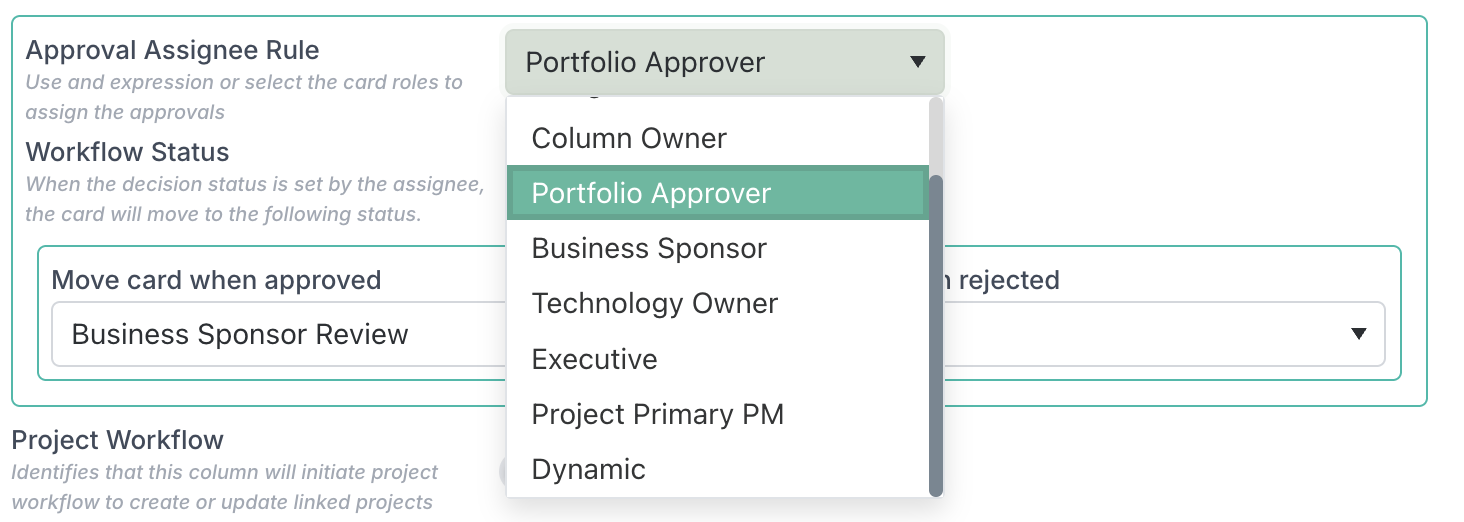
Workflow approval decisions can now be assigned based on project roles. Previously, approvers could be set as the requester, column owner, card assignee, or through a dynamic expression.
With this update, you can also select project role-based approvers, such as Portfolio Approver, Business Sponsor, Technology Owner, Executive, or Project Primary PM, so approvals follow the right governance roles for each project more accurately.
9. Other Enhancements
Project Pipeline Boards – Draft Cards: Project workflows still enforce a single draft card per project, however users can submit multiple draft cards to generic project pipeline boards without restriction.
Project Workflow Logging: A new setting controls whether verbose workflow logging is active. When enabled, detailed diagnostic messages are written to logs and posted to workflow card chat channels during document sync — useful when configuring or troubleshooting complex workflows in sandbox environments. The setting can be found in Administration Console under Setup Project Features.
Documents
1. Better ways to find and organise project documents
We’ve improved the Documents section to make it easier to find and organise project documents, especially where projects contain a large number of files, workflow outputs, or governance submissions.
The Documents panel now includes a Filters & Options side panel where users can search documents, change how documents are grouped, and apply available filters.
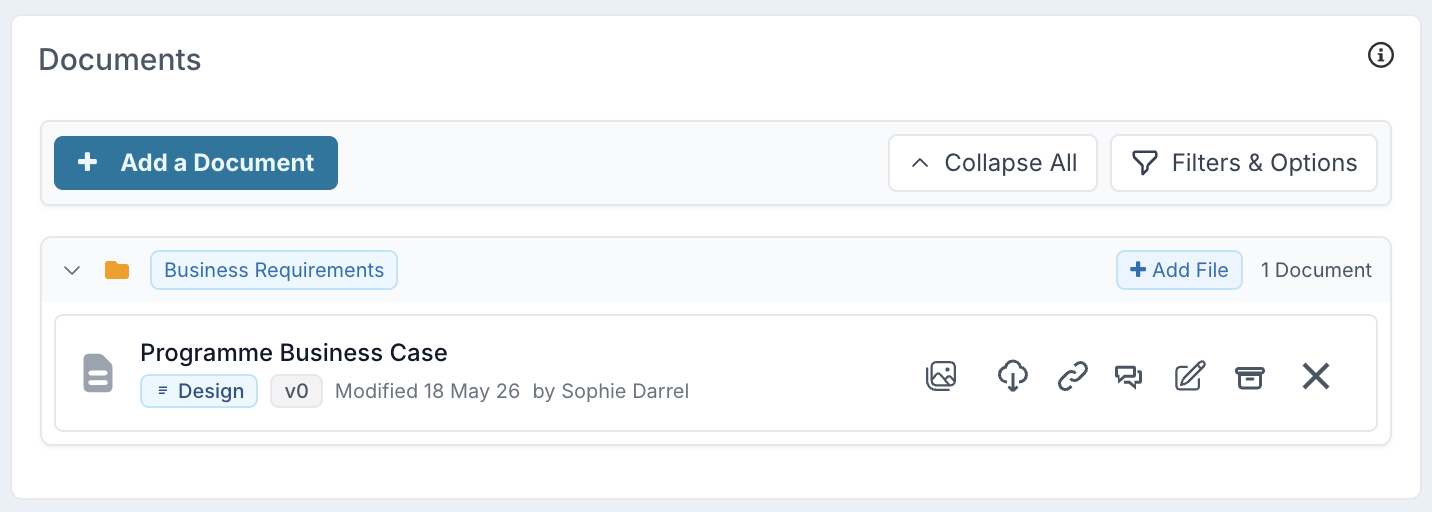
Users can now open the Filters & Options panel from the Documents section to search documents, control what is included in the view, filter the list, and group documents in the way that best supports their review.
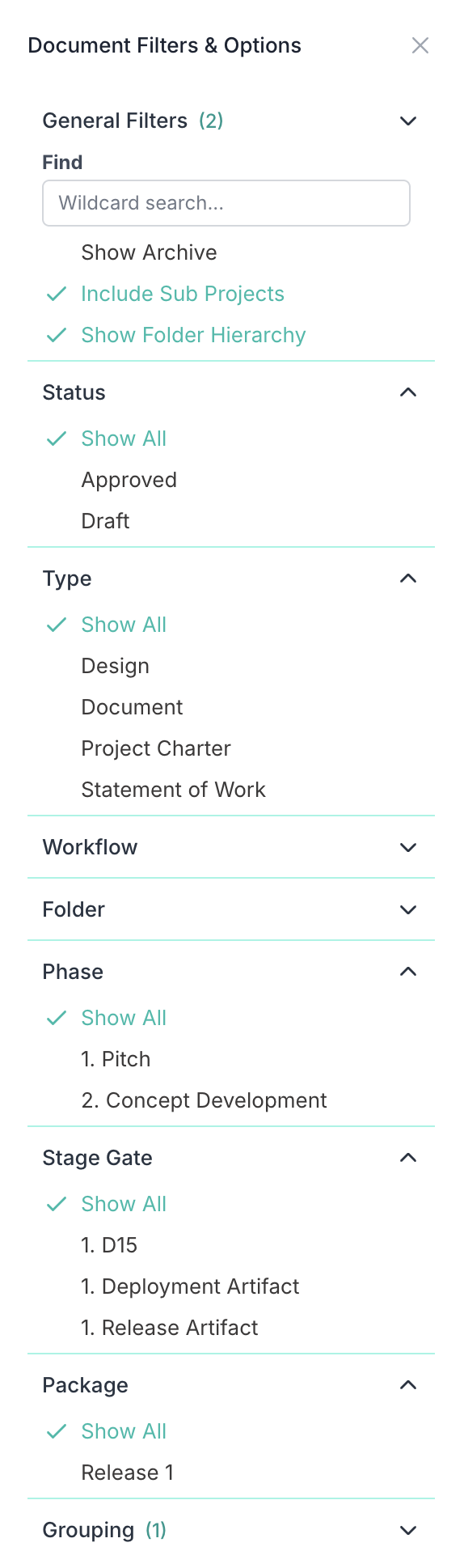
The available options may include:
Find — search by document name or filename.
Show Archive — include archived documents when reviewing previous or historical files.
Include Sub Projects — include documents from direct sub-projects, where document roll-up is available.
Show Folder Hierarchy — display documents within their folder structure.
Users can also filter documents by available values such as:
Status — for example, Approved or Draft.
Type — such as Design, Document, Project Charter, or Statement of Work.
Workflow — filter documents linked to a specific workflow, where applicable.
Folder — focus on documents stored in a specific folder.
Phase — filter by project or governance phase, where applicable.
Stage Gate — filter documents linked to a specific stage gate, where applicable.
Package — filter package gate documents, where applicable.
Users can also group documents using the grouping options available for that project, making it easier to review documents by the structure or context that matters most.
Please note that the filters, filter values, and grouping options shown are dependent on the documents available in the project. For example, stage gate, phase, workflow, and package filters are only visible when the project has documents linked to those governance or workflow structures.
For stage gate documents, Fluid also supports a governance-based folder hierarchy. Standard gate documents are organised by Phase > Gate, while package gate documents are organised by Phase > Gate > Package Instance. This makes it easier to review documents submitted for a specific governance checkpoint, gate, or package run.
You can read more about these changes in our articles on Managing Project Documents and Document Filters & Options
2. Link existing project documents to Work Requests
When completing a Project Workflow or Stage Gate, users can now select an existing project document for a Document-type Custom Property instead of uploading a duplicate file.
This is useful when supporting evidence already exists on the project, such as a business case, approval pack, funding document, or governance file. Users can reuse the existing document as evidence for a Work Request, helping keep project documentation consistent and reducing duplicate uploads.
Where applicable, users can also select documents from related projects in the same project hierarchy, including the project’s direct parent project, its sub-projects, and sibling projects that share the same direct parent. This supports programme-level governance where key documents are managed at the parent level and reused across child project workflows or stage gates. It also helps teams reuse evidence across related sub-projects without creating additional document copies.
For example, a project may have several sub-projects, with each sub-project representing a different release. Some release artifacts, such as an approval pack, test evidence, deployment checklist, or lessons learned document, may be completed for one release and then reused as supporting evidence for a future release. Instead of uploading those files again, users can link the existing document from the related release sub-project.

When an existing document is selected, Fluid stores a reference to the selected document file. The underlying file is reused, but the document metadata remains specific to the context where the document is linked, such as the related workflow, stage gate, approval history, or project. The reference points to the specific file version selected at the time, supporting clearer governance and auditability.
You can read more about this change in Linking Existing Project Documents to Work Request Document Custom Properties.
3. New document roll-up for parent and sub-projects
Reviewing project documents across a program or parent-child structure is now much easier.
Parent projects can now show documents from linked sub-projects directly in the same Documents panel, giving teams one place to review supporting materials, governance evidence, and project deliverables across the project hierarchy.
The Documents panel can show:
Documents stored directly on the current project.
Documents from linked sub-projects.
The source project for each rolled-up document.
Rolled-up documents are not copied into the parent project. They remain owned by their original source project, source project permissions still apply, and metadata updates are saved back to the source project. The parent project provides a consolidated view, not a separate document store.
By default, the Documents panel includes sub-project documents so users can immediately see the wider document set across the hierarchy. Users can use Filter & Options to unselect Include Sub Projects when they only want to see documents stored directly on the current project.
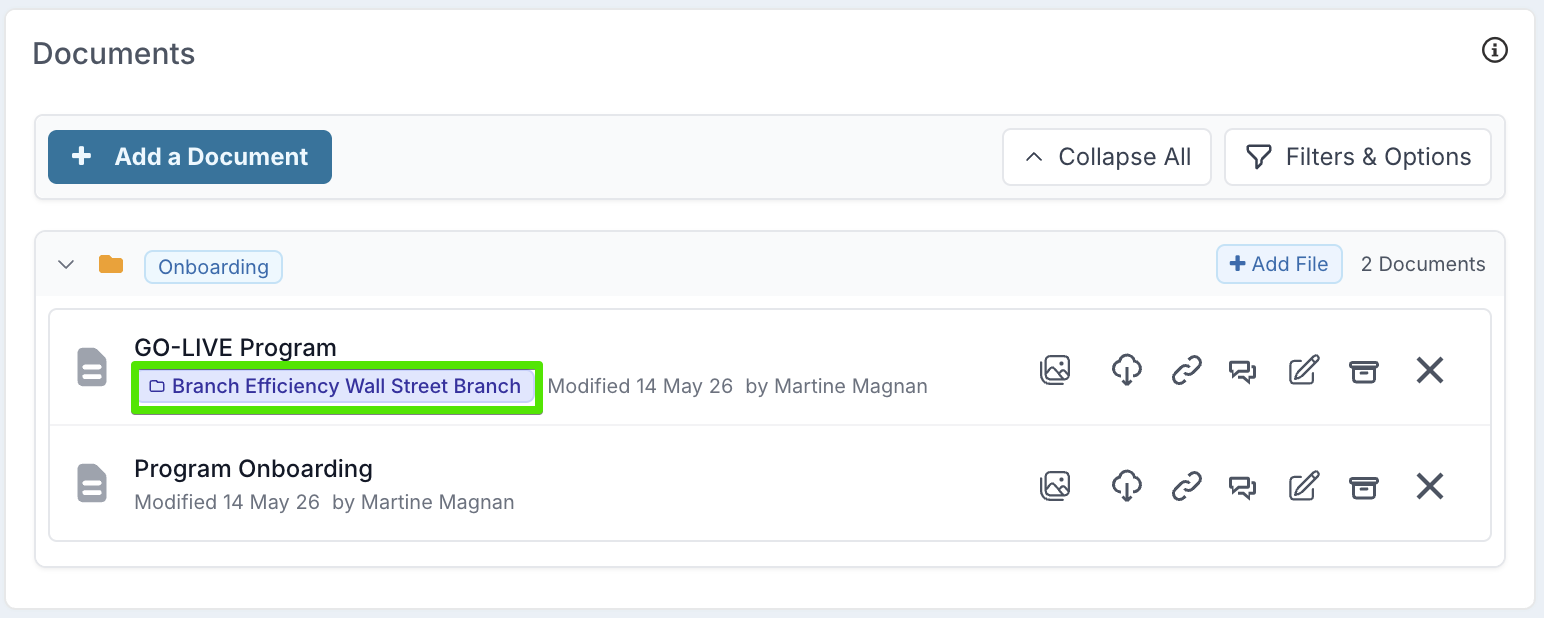
Documents from sub-projects are clearly identified with a source project label, making it easy to see where each document comes from.
You can read more about document roll-up here.
4. Approval history visible from document metadata
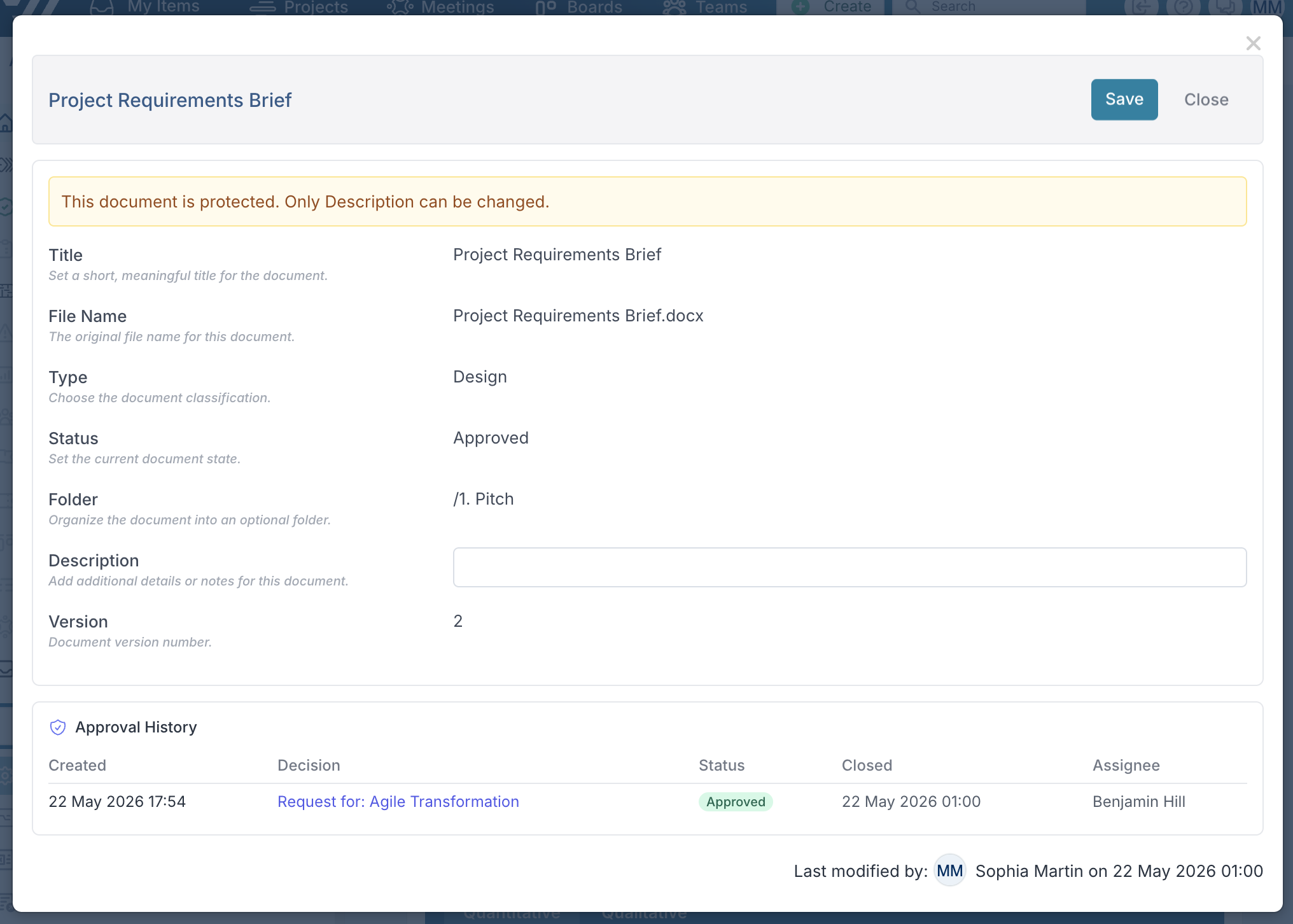
Users can also open a document’s metadata to view its Approval History.
When a document has been approved through a Project Workflow, Stage Gate, or other approval process, the approval history is displayed directly in the document metadata. This gives users a clear record of the approval decision, including the related workflow or request, the approval status, when it was approved, and who the approval was assigned to.
This makes it easier to understand where a document came from, confirm whether it has already been reviewed, and trace the governance process behind approved project documents.
5. Other enhancements
Document status: Application administrators can now set the default status applied to new documents by navigating to the Metadata page from the Administration Console.
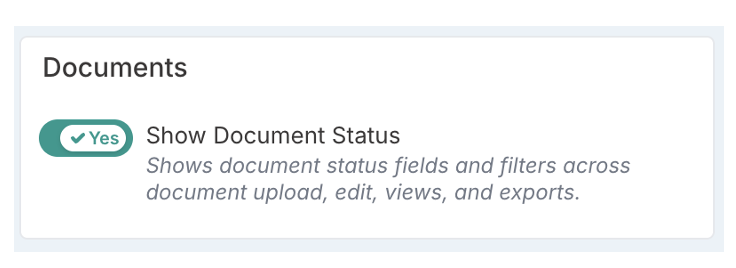
Project administrators can also now choose whether document statuses are used and displayed by navigating to the Setup Project Features page from the Administration Console. When document status is turned off, status fields and filters are hidden across document upload, edit, views, and exports
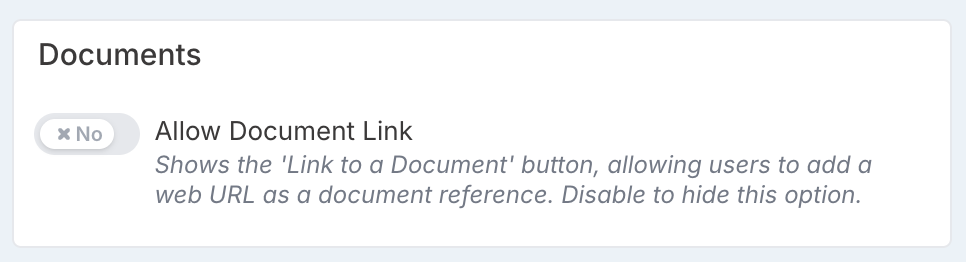
Document Links: A new application setting has also been added to control whether users can add document links. When disabled, users can only upload physical files, and the option to add a document using a web URL as a document reference is hidden.
Viewing PDF Documents in Fluid: When you upload a PDF document to Fluid, it becomes available to view directly in your web browser — no need to download it first. Simply click the document and it will open in a new browser tab, where your browser's built-in PDF viewer lets you read, scroll, and zoom through the file. If a document has only just been uploaded and is still being prepared by the system, you may see a brief message asking you to try again in a moment — this is normal and the file will be ready shortly.
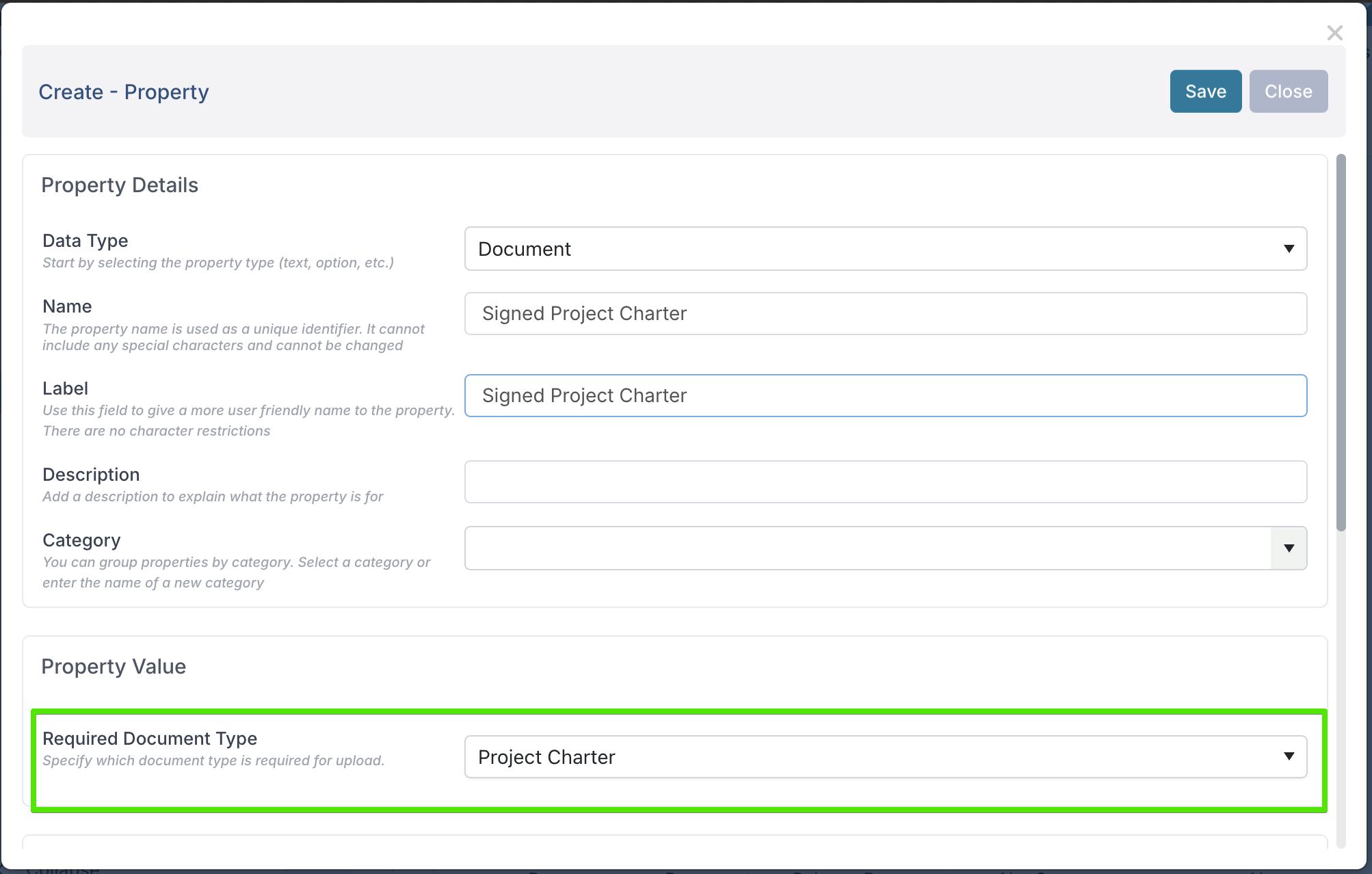
Document custom properties: When setting up a custom property of type Document, administrators can now specify the document type that should be applied to uploaded files. This is particularly useful for Project Workflows, where approved documents often become protected and their metadata cannot be changed later, helping ensure documents are organised correctly from the start.
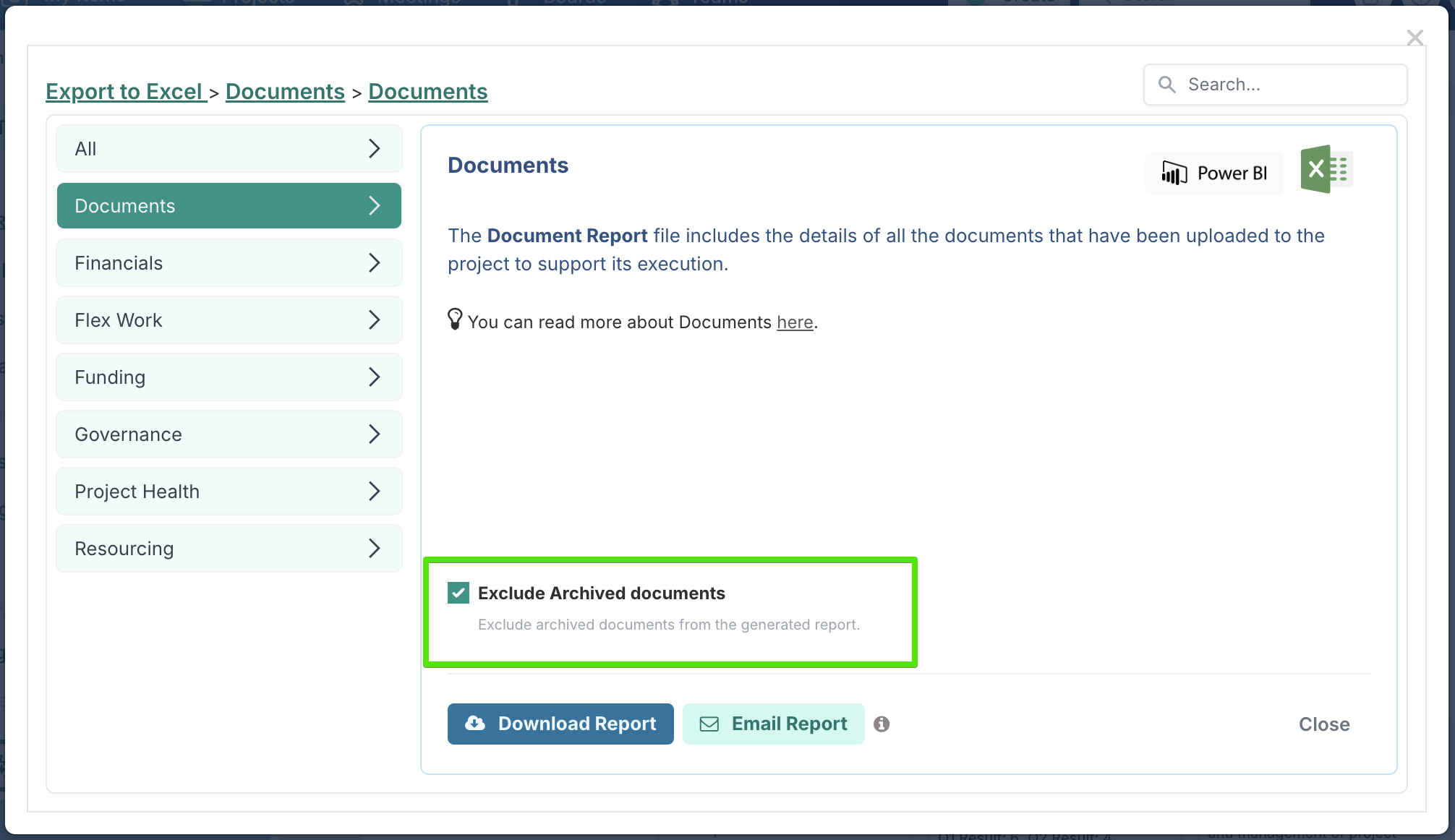
Document Export to Excel: Document exports now include an option to export active and archived documents or active documents only. The export has also been enhanced to include additional governance details, such as the workflow, phase, gate, package instance, and sub-gate the document is associated with.
New Governance Checks Help Ensure Schedules and Impacts Stay Current
We’ve added two new governance checks to help PMOs identify projects where schedules or impacts may not be receiving regular review. By flagging projects where key data has not been updated within a defined timeframe, these checks make it easier to prompt timely action from project managers.
Schedule Recently Updated
This check looks at whether any schedule item has been updated within a timeframe you define. If no updates have been made during that period, the project is flagged for attention.
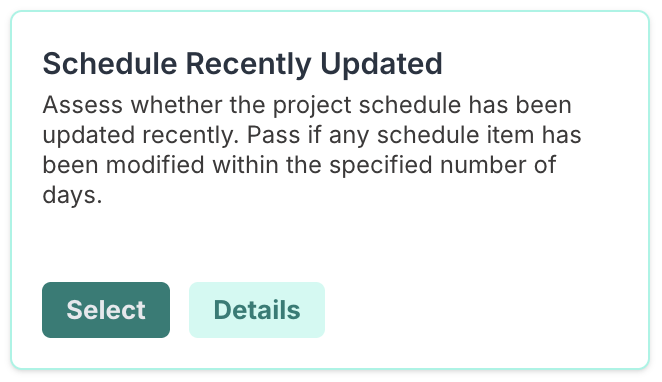
Keeping schedules up to date is a core responsibility for project managers. This check gives PMOs a simple way to spot projects where schedule data may no longer reflect the latest plan and where follow-up may be needed.
Impacts Recently Updated
This check looks at whether any open impact has been updated within your chosen timeframe. If open impacts have not been reviewed recently, the project is flagged for attention.
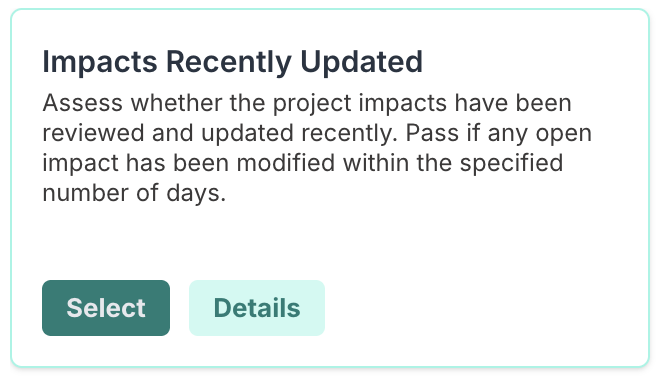
Project managers need to regularly review impacts to ensure risks and consequences are still accurate. This check helps PMOs identify where impact data may be out of date, so they can prompt timely review before issues are missed.
Planning and Schedule Control
1. Protected Schedule Items: Keep Key Governance Tasks in Place
You can now protect key schedule items so they cannot be renamed, retyped, or deleted by non-admin users.
This is especially valuable when building project templates, where standard phases, milestones, deliverables, and governance checkpoints need to be included in every project created from that template. By setting these items as protected up front, PMOs and Project Administrators can make sure important schedule structure stays in place as Project Managers tailor the rest of the plan.
Once Enable Protected Schedule Items is turned on in Feature Settings, Project Administrators can mark schedule items as protected. This can be done directly in the schedule or through bulk edit and template imports using the Protected column.
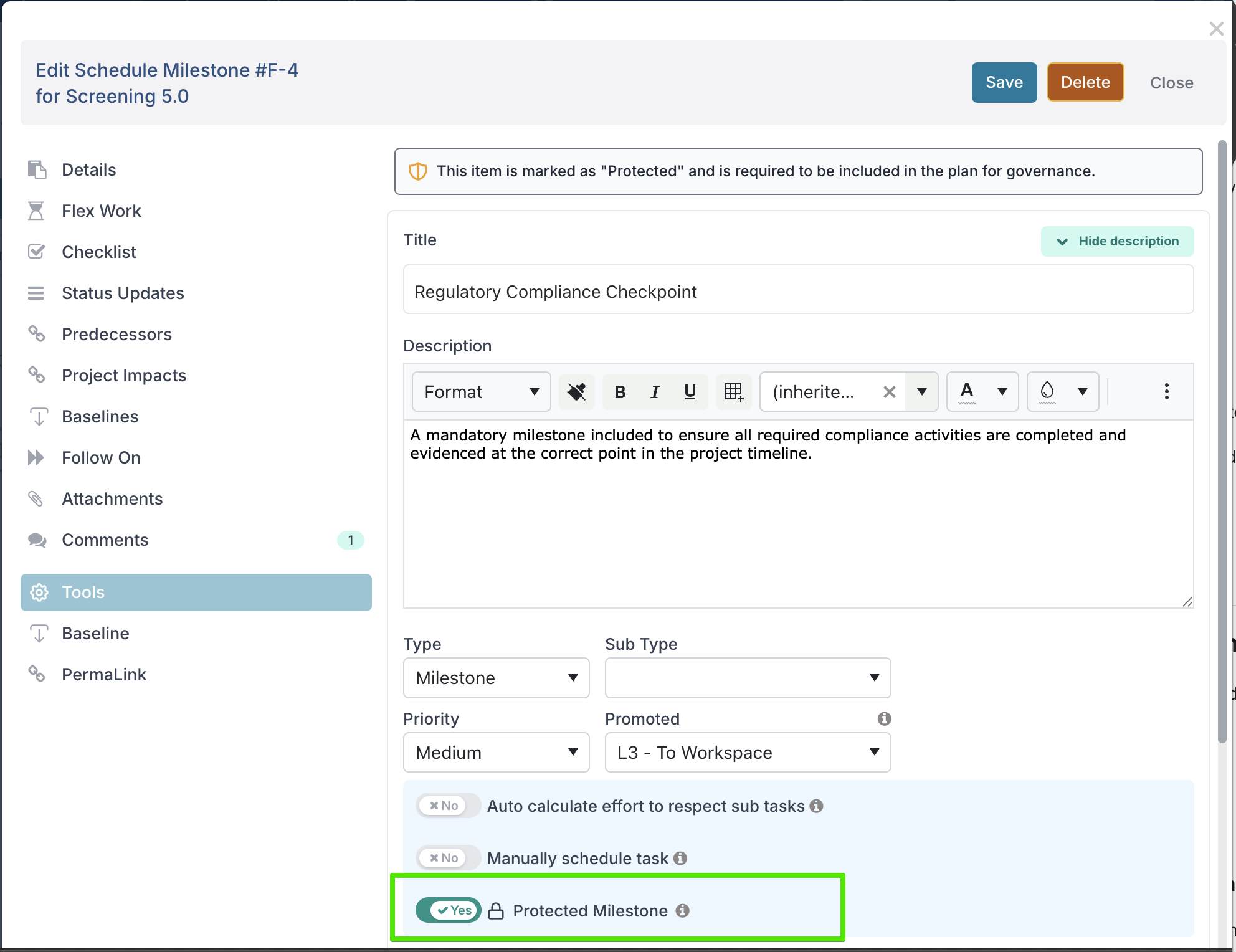
When an item is protected, non-admin users cannot:
change the title
change the type or subtype
delete the item
delete a parent item that contains protected child items
They can still update other scheduling details such as dates, status, assignments, and progress.
This makes it easier to standardise schedule governance across projects without making the whole plan inflexible.
You can read more about protected schedule items here.
2. Keep inactive schedule items out of reporting without deleting them
You can now mark schedule items as L5 – Suppressed to remove them from the active plan without deleting them. This is useful for descoped work, deferred phases, or template tasks that should be kept for reference but no longer included in reporting.
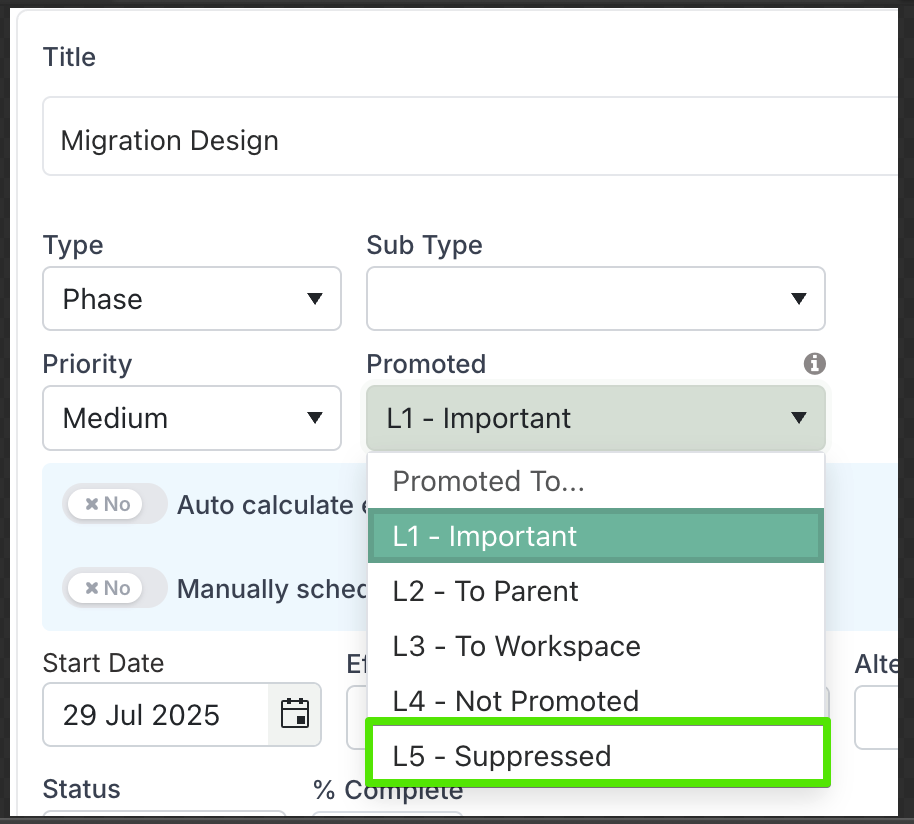
When a schedule item is set to L5 – Suppressed, it remains visible in the project Gantt but is treated as inactive. Suppressed items are excluded from portfolio schedules, roadmaps, watchlists, promoted schedule components, status reports, project % complete calculations, and schedule-based governance checks. They also do not trigger overdue or late indicators.
If you suppress a parent item, all child items are suppressed automatically. Reverting the item back to L1–L4 restores it to the active plan.
Users with Manage permission or above can update promotion levels individually or in bulk.
For full details on behaviour, permissions, and recommended use cases, see the KB article on Inactive Schedule Items.
3. Change promotion level for multiple tasks in Edit Gantt View
You can now update the promotion level for multiple tasks at once in Edit Gantt View. To use this feature, first select the tasks you want to update — the Change Promotion action becomes available once tasks are selected. You can use Shift to select a continuous range of tasks, or Ctrl/Cmd to select individual tasks.
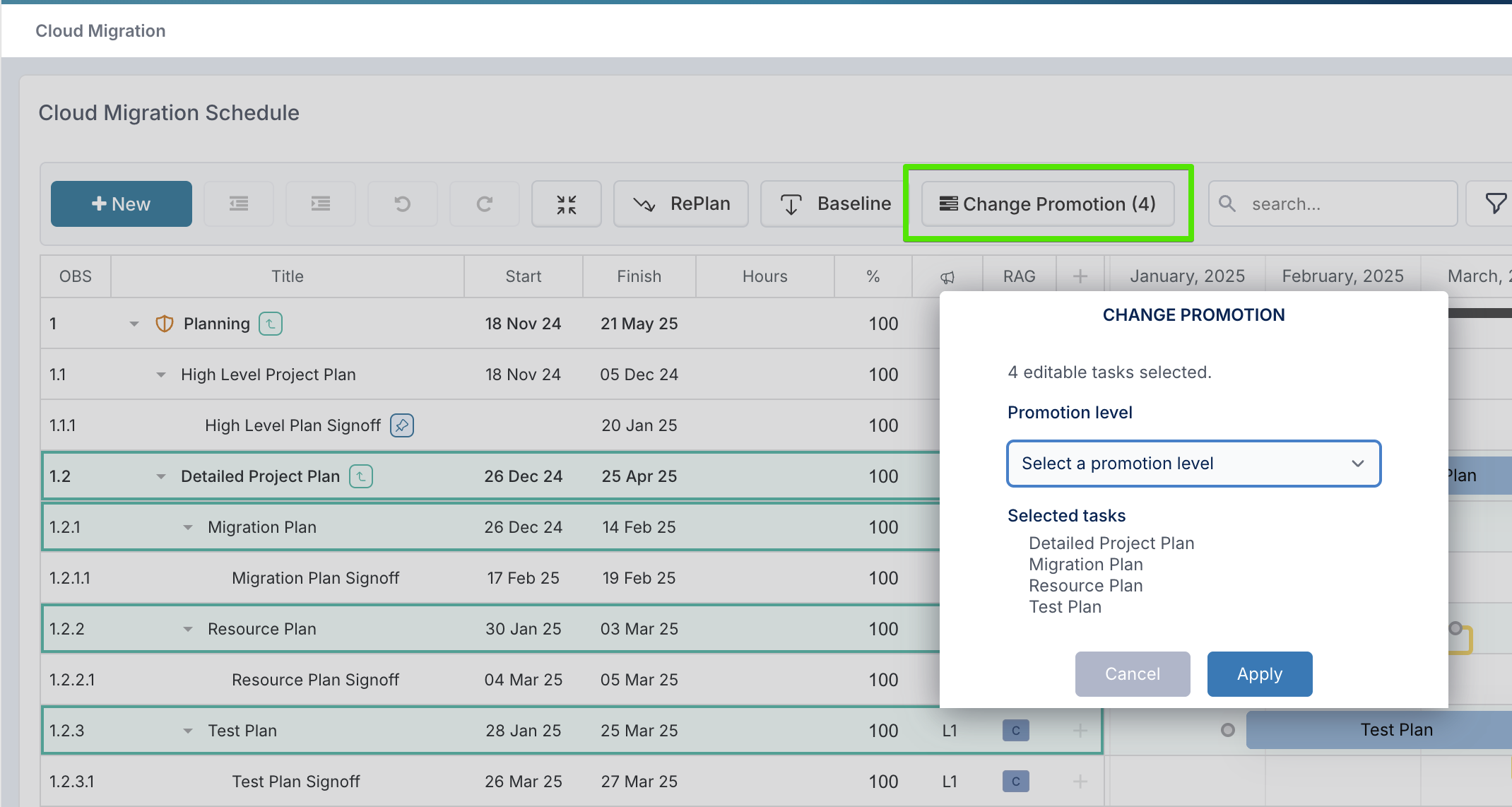
This makes it easier to quickly adjust promotion levels across a group of tasks, depending on the report you are working on, without having to update each task one by one. As a result, users can make changes faster, work more efficiently through larger sets of tasks, and keep promotion settings aligned more consistently across their plan.
4. Expanded Baseline Permissions to Portfolio Administrators
The Enable Project Managers Baseline setting has been updated to give more flexibility over who can create baselines.
When the setting is on, project managers can baseline projects.
Previously, when the setting was off, only project administrators could do this. Now, when the setting is off, portfolio administrators can also create baselines. This expands access for organisations that manage baselining at portfolio level.
5. Other enhancements
Schedule – Gantt Edit View: Added new columns to display Baseline Dates and Baseline Variance to End Date, making it easier to track schedule drift directly within the Gantt grid.
Schedule Action Tasks: Schedule actions can now be created without requiring an assignee.
Schedule Sub Types: Expanded supported characters for schedule subtype names to include
,,.,/and#.
Reporting, Status, and Data Quality
1. Strict Risk and Issue Management
We have introduced Strict Risk and Issue Management to help organisations improve the quality, consistency, and usefulness of risk and issue data across the portfolio. In many cases, Risks and Issues are logged with only partial information, which can make ownership unclear, weaken reporting, and make it harder to track mitigation actions effectively. This feature helps address that by requiring users to complete key fields before a Risk or Issue can be saved.
The feature is controlled by the Disable Strict Risk and Issue Reporting feature flag, which can be configured in Administration Console > Setup Project Features. When strict mode is enabled, users must complete all mandatory fields before saving a Risk or Issue. These fields include Description, Impact, Probability, Owner, Due Date, and Mitigation.
Strict validation applies only to Risks and Issues. Other impact types, such as Assumption, Dependencies, Changes or Lessons Learned are not affected.
For full details on how the flag works, including its inverted logic and the impact types affected, see Strict Risk and Issue Management.
2. Suppressing Impacts with Promotion Level L5
In large programmes and portfolios, not every impact (such as risks, issues, dependencies, decisions, and lessons) stays relevant forever. Some may be descoped, resolved outside the formal workflow, or simply logged as placeholders. Previously, these cluttered up workspaces, dashboards, and governance views—affecting metrics and drawing attention away from the items that matter right now.
The L5 – Suppressed promotion level solves this by allowing PMOs and PMs to “retire” impacts gracefully. Suppressed impacts remain in the system for audit trail and future reference, but no longer influence reporting, compliance, or day-to-day project views.
How It Works
Set as L5 – Suppressed: Any impact (risk, issue, dependency, decision, or lesson) can be set to L5 using the Promotion Level field.
Hidden from dashboards and portfolio reports: Once suppressed, these impacts are excluded from dashboards, most workspace views, watchlists, and roll-up reports. They will not appear in governance checks or contribute to compliance metrics.
Reversible: The suppression is not permanent—PMOs and PMs can restore an impact by updating its promotion level back to L1–L4 at any time, returning it to active workflow and visibility.
3. Enforcing Strict Status Reporting
We’ve introduced Strict Status Reporting to help improve the quality, consistency, and control of project status reporting.
When this feature is enabled, Project Managers can only update status reports dated today or in the future, helping prevent retrospective changes to previously submitted reporting periods. It also makes key fields on the status report mandatory, including Strapline, Achievements, and Next Steps, so reports contain the minimum information needed for effective review and oversight.
Project Administrators can still edit past-dated reports where needed. The same rules also apply to bulk update, so bulk edit cannot be used to bypass reporting controls.
This feature is off by default and can be enabled from Administration → Setup Project Features under the Project Health group by Project Administrators.
Click here to read more about strict status reporting.
4. Draft Status Reports
We’ve introduced Allow Draft Status Reports to give Project Managers more control over when status reports are shared.
When this feature is enabled, users can now choose whether to Save As Draft or Save And Publish when creating a status report. Draft reports remain work in progress and stay hidden from dashboards, portfolio views, and other published reporting outputs until they are explicitly published.
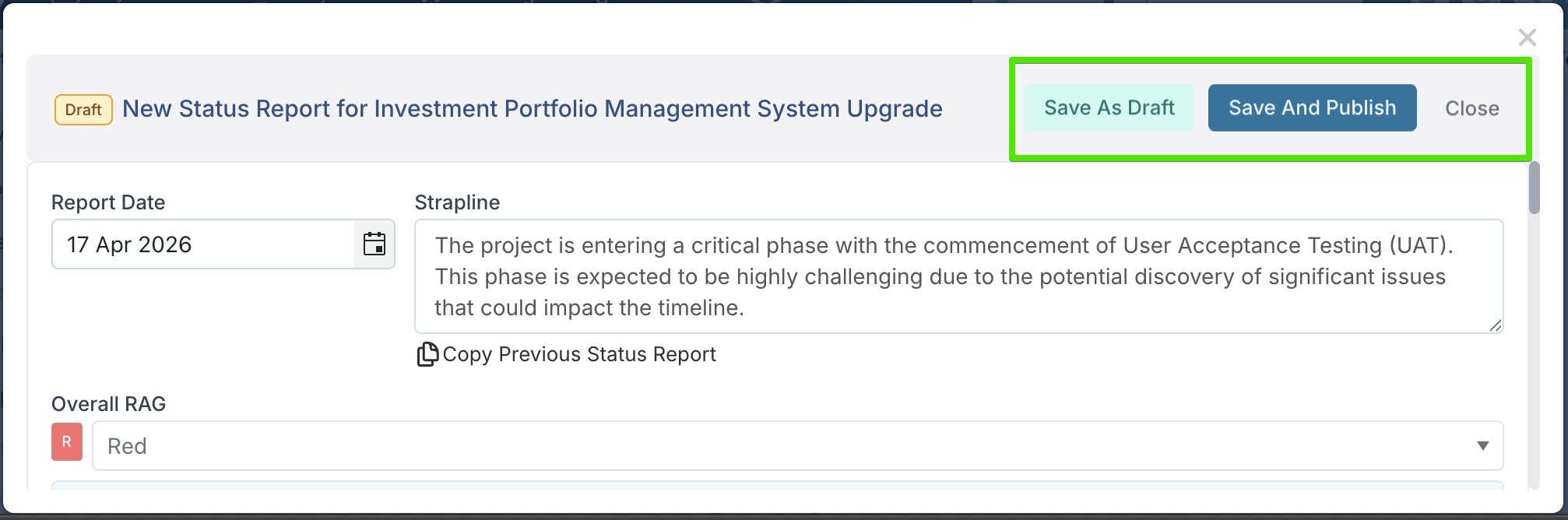
If a draft report exists, the Status Report section in the project workspace displays a yellow banner. Users can select Edit Draft Report from this banner to reopen the draft, continue working on it, or delete it if no longer needed.
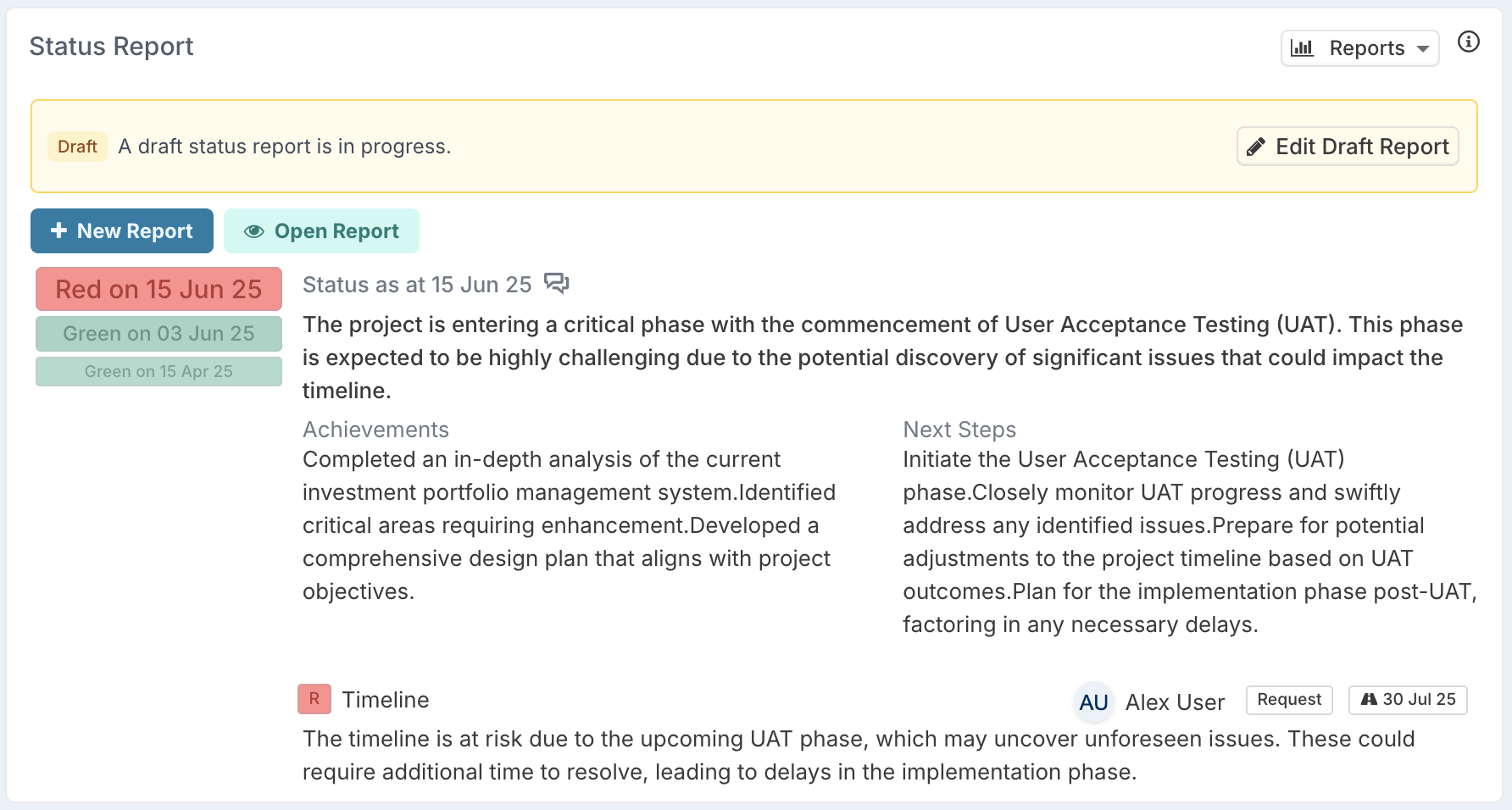
Once published, the report becomes visible as part of formal reporting. If your organisation also uses Strict Status Reporting, edit access after publishing will follow those rules.
Bulk Edit has also been updated. When the feature is enabled, a new PublishedStatus column is available, allowing Project Managers to view and update whether a report is set to Draft or Published.
This feature is off by default and Project Administrators can enable it from Administration → Setup Project Features under the Project Health group.
To read more about draft status reports, click here.
5. More control over Executive Summary on Status Reports
Project Administrators can now configure the Executive Summary field on status reports in two new ways:
Rename the Executive Summary field: using Project Labels & Field Names, administrators can change the field label to match their organisation’s terminology.
Show or hide the Executive Summary field: using the Enable Status Report Executive Summary feature flag, administrators can control whether the field is available across status reports, dashboards, and exports. When disabled, the field is hidden from the UI, excluded from Excel exports, and ignored by the Excel loader if the column is present.
This gives teams more flexibility to align status reporting with their internal language and reporting needs. For full configuration details, see Configure the Strapline and Executive Summary on Status Reports.
6. Separate RAG statuses for Schedule Tasks and Impacts
Administrators can now define a separate set of RAG statuses for Schedule Tasks and Impact items, such as risks, issues, assumptions, dependencies, decisions, and lessons learned.
Previously, these items used the same RAG statuses as project and programme status reports. This meant the options used for formal project reporting also had to work for day-to-day task and impact tracking, even though these areas often need different labels, defaults, or levels of detail.
With this update, Schedule Tasks and Impacts can now use their own item-level RAG statuses. This gives organisations more control over how delivery items are tracked, while keeping project status reporting focused on overall project health.
Application administrators can configure these values from Administration > Metadata Management > Item Status RAGs. From this new metadata page, administrators can add and manage the RAG options used for Schedule Tasks and Impacts, including the label, colour, weight, default status, active status, and description.
Note that where organisations do not want to track or display RAG status history for Schedule Tasks and Impacts, the application can also be configured to hide the Status Updates tab and RAG history panel from Schedule and Impact dialogs.
7. Other Enhancements
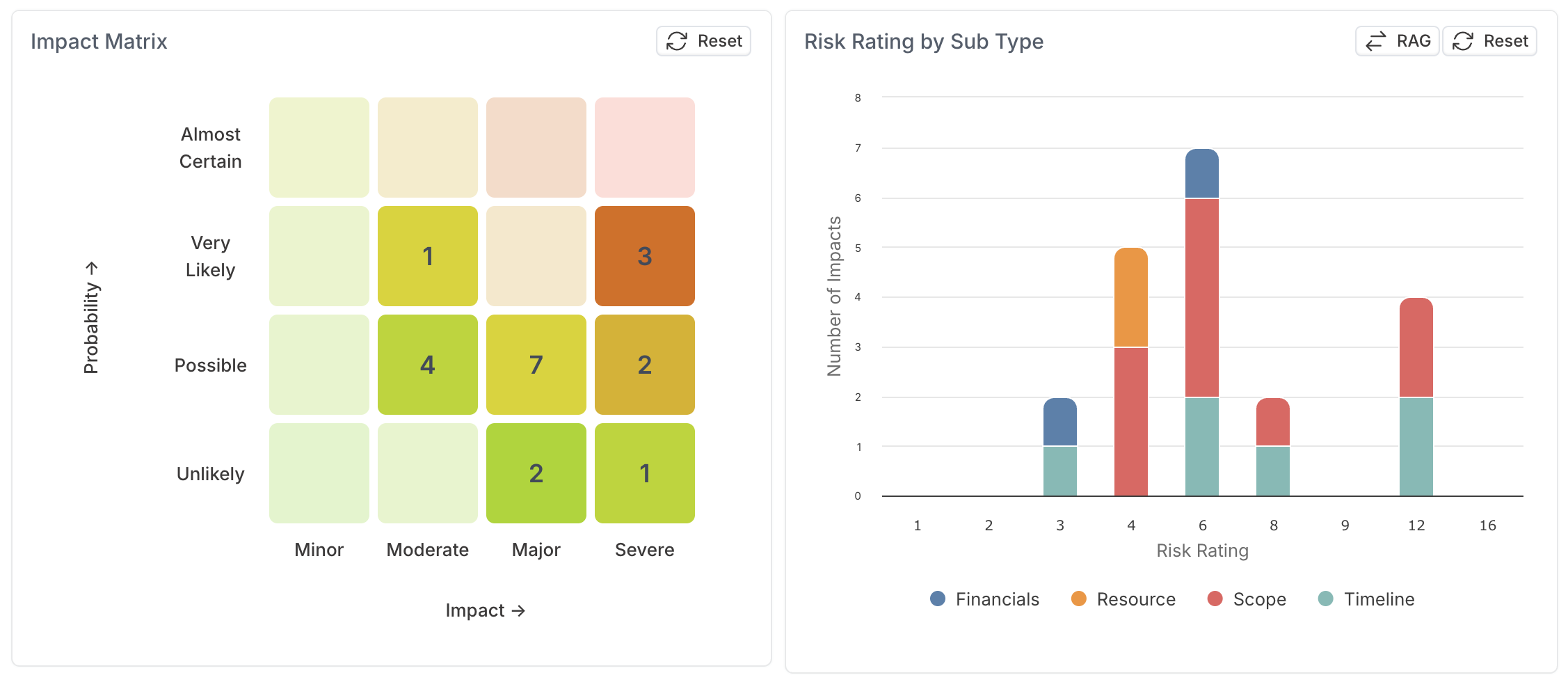
Impact Risk Matrix: The Impact Risk Matrix has been updated so the chart now displays RAG by subtype by default. Users can still switch to RAG by risk rating using the toggle when they want to review risk distribution by rating.
Status Reports – Overall RAG: Corrected behaviour so that Overall RAG can be edited independently when Allow Edit Overall RAG is enabled, rather than being overridden by component RAG values.
Visibility, Access, and Sensitive Work
1. Restrict access to sensitive work with Confidential Projects
You can now mark projects as Confidential to limit visibility and access to only the users explicitly named on the project.
When a project is marked as confidential, access granted through broad global roles is removed and the project is hidden from places such as search, portfolio dashboards, and programme hierarchies. This means users with roles such as Project Viewer or Portfolio Administrator cannot see or access confidential projects unless they have been explicitly added to the project.
The Confidential setting can only be enabled or updated by users with the Project Administrator role, either in the project settings or through Bulk Edit. Project Administrators continue to have access to confidential projects so they can manage the setting when needed.
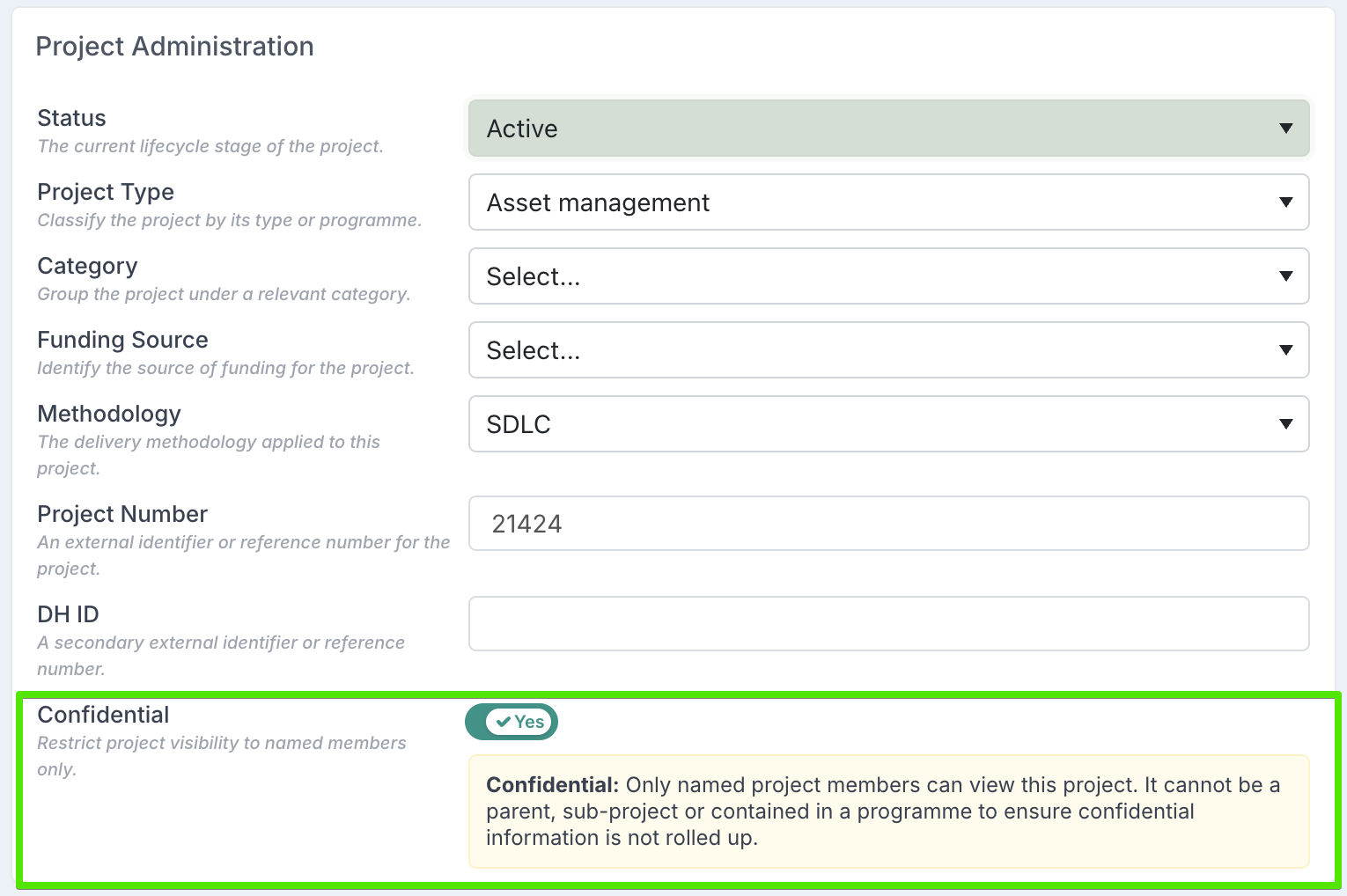
Confidential Projects give you tighter control over sensitive initiatives, helping ensure that only the right people can view and manage them.
For full details on how confidential projects work, see the Confidential Projects knowledge base article.
New Simplified Capitalization Model
Fluid now supports two capitalization models: the existing Comprehensive model and the new Simplified model. The selected model is configured at the application level, so each environment uses one model consistently rather than choosing a model per project.
The application is also configured to use either the project Implementation Date or Project End Date as the capitalization cut-off date. This cut-off date helps define the project’s capitalizable window, alongside the Capitalization Lock Date and the applicable financial period rules.
The Comprehensive model applies more detailed rules based on project phases, tasks, and amortization settings, while the Simplified model uses broader project, role, expense type, and date-based eligibility criteria.
Resource forecasts
For both models, resource forecasts are only capitalizable when the forecast date falls within the valid forecast capitalization window: after the Capitalization Lock Date, before the configured project cut-off date — either the Implementation Date or Project End Date — and within an open financial period.
The difference is how role eligibility is assessed.In the Comprehensive model, the resource must be forecast against a role that is capitalizable for the specific project phase the forecast falls within.
In the Simplified model, phases are ignored; the forecast is capitalized if the project is eligible and the role is capitalizable.
Resource actuals
For both models, resource actuals are assessed against the timesheet date and processed within the eligible actuals processing window, which covers the locked financial period plus one additional month after that period. The timesheet date must be after the Capitalization Lock Date and before the configured project cut-off date — either the Implementation Date or Project End Date.
The difference is what determines whether the timesheet entry is capitalizable.
In the Comprehensive model, the timesheet entry must be posted against a capitalizable task within a capitalizable project phase.
In the Simplified model, tasks and phases are not considered; actuals are capitalized if the project is eligible and the resource’s rate card and expense type are capitalizable.
Non-resource forecasts
The same capitalization logic applies in both models. Non-resource forecasts are capitalized if the project is eligible, the expense type has a capitalization percentage greater than 0%, and the forecast financial date falls within the valid forecast capitalization window: after the Capitalization Lock Date, before the configured project cut-off date — either the Implementation Date or Project End Date — and within an open financial period.
Forecasts beyond that cut-off date are treated as operational costs.
Non-resource actuals
For both models, non-resource actuals must be uploaded through the supported bulk edit process, include a capitalization percentage, fall after the Capitalization Lock Date, and be processed within the eligible actuals processing window, which covers the locked financial period plus one additional month after that period.
The difference is how the configured project cut-off date is applied.
In the Comprehensive model, the actual financial date must be before the configured cut-off date — either the Implementation Date or Project End Date.
In the Simplified model, non-resource actuals can still be capitalized after that project cut-off date, provided the other criteria are met.
You can read more about capitalization here.
Productivity, Control, and Platform Experience Improvements
Sub-project management: clearer project hierarchy and status visibility
We’ve updated the way sub-projects are shown and managed from parent projects and programmes, making it easier to review the projects that sit underneath a parent and understand their current status at a glance.
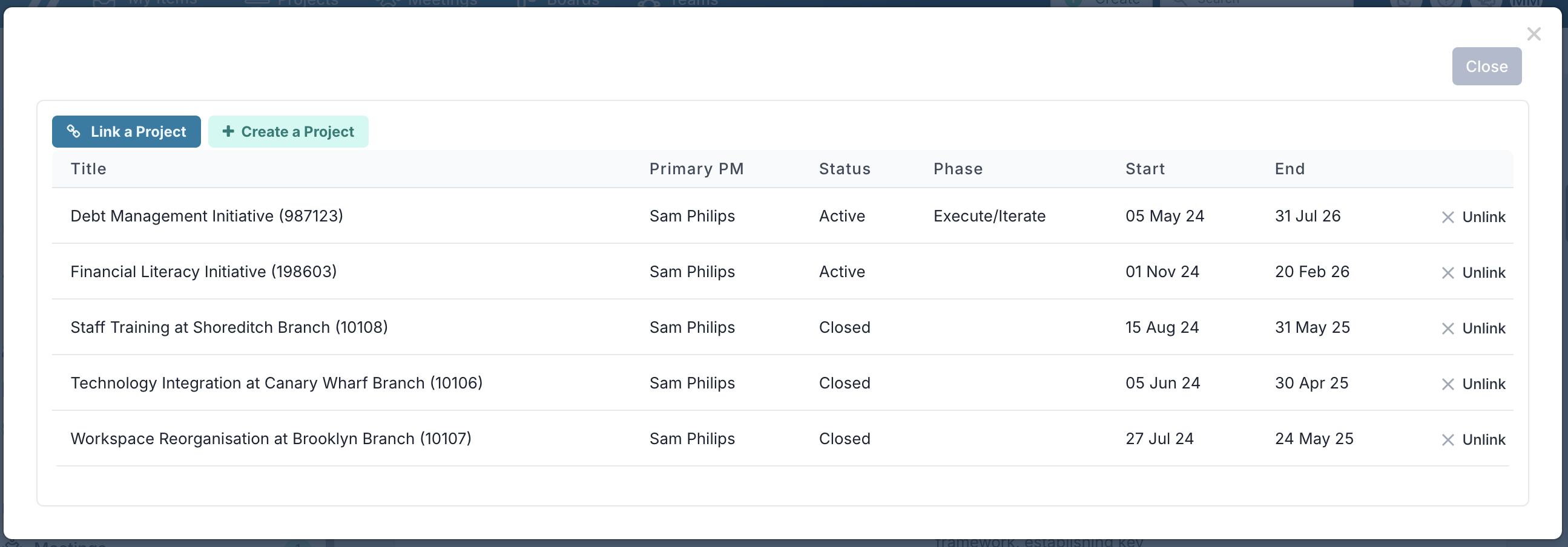
Previously, sub-project information was split across separate areas: one section listed the linked sub-projects and allowed users to create, link, or unlink projects, while the Promoted Status and Path to Green sections showed promoted project status information. This made it harder for programme managers to get a single, consolidated view of the status of projects that made up a programme.
These views have now been combined into one Sub-Projects section. Users can see the linked sub-projects together with their latest status information in the same place, including status report details and path-to-green information where available.
Because the section now uses the Projects with Status component, users can also use Group By and Change View to review the information in different ways, such as project details, full project details, governance, or status-focused views.
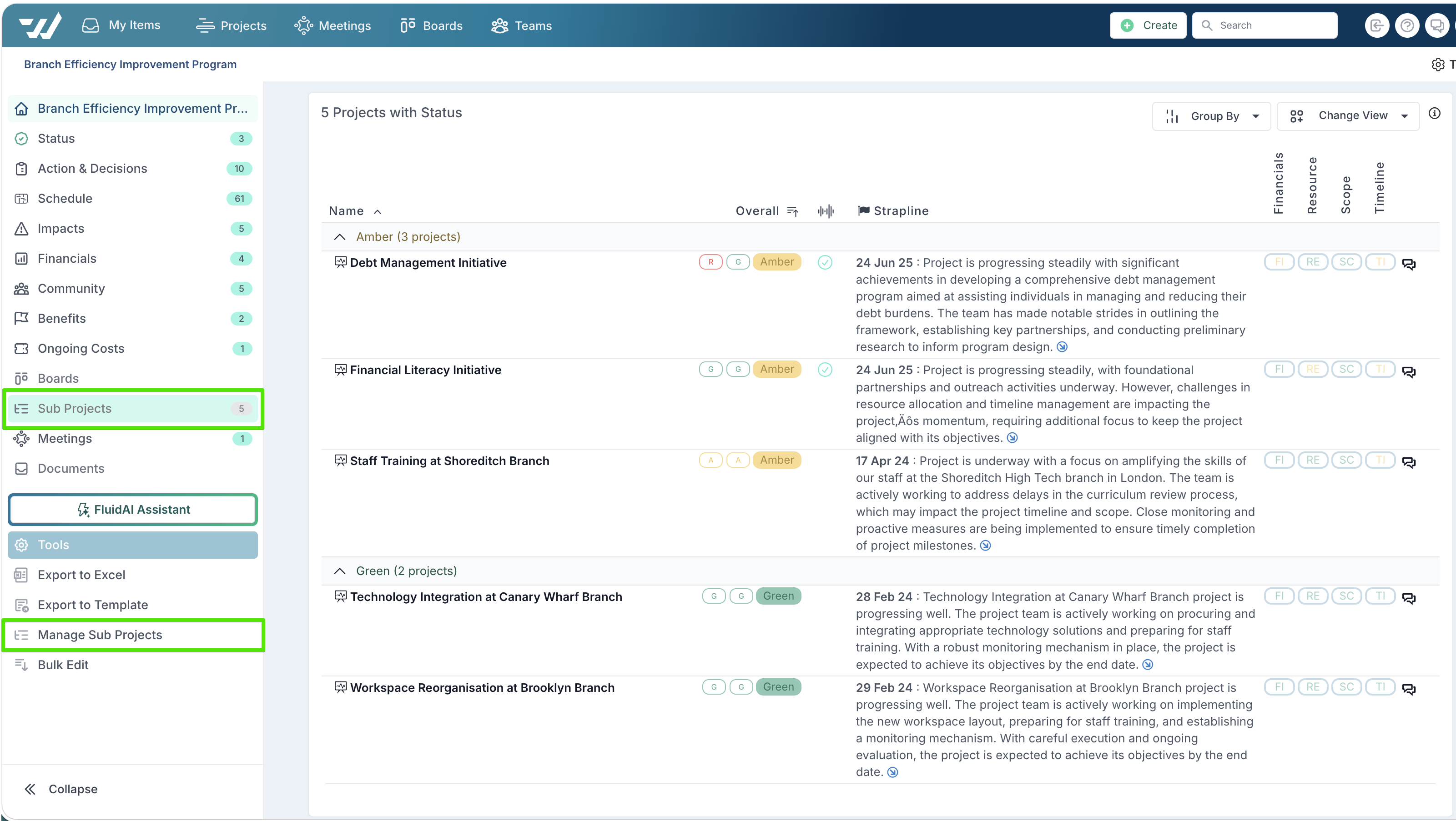
For programmes, the Sub Projects section has also been moved higher up the page so the projects that make up the programme are easier to find and review. Please note that the section is called Projects for programmes.
Creating, linking, and unlinking sub-projects is now handled from Tools → Manage Sub Projects. This opens a dedicated dialog where authorised users can link existing projects, create new sub-projects, or unlink projects from the parent.
Access to these actions is controlled more tightly: users must either be Project Administrators or have the required edit permissions on the project and the Project Submission role. This helps organisations ensure that only authorised users can create or change project hierarchy relationships.
Platform and Usability Enhancements
PDF Export: Custom property sections are now expanded by default when using PDF export, ensuring all grouped properties are visible without appearing collapsed in the output.
Home Page: The home page layout has been updated to make key user actions more prominent. Timesheets and Requests now appear in the top-left area of the page, bringing the most action-oriented tasks into immediate view as soon as users land on the home page.
General Settings - Home Page Setup: The Home Page Setup section of the General Settings page lets you customise what users see when they first land on the Fluid home page. There are three settings:
Home Page Header Content - This is a fixed content area that appears at the top of the home page, above the carousel. You can use it to display a welcome message, company branding, important links, or any static information you want every user to see when they log in.
Show Home Page Carousel - This toggle controls whether a rotating announcement banner (carousel) is displayed on the home page. Set it to Yes to show the carousel to all users, or No to hide it.
Home Page Carousel Content - This is where you add the content that appears inside the carousel. You can create multiple slides — each slide is a separate panel that automatically rotates in sequence. Use this to highlight announcements, upcoming deadlines, key updates, or any messages you want to broadcast to your team.
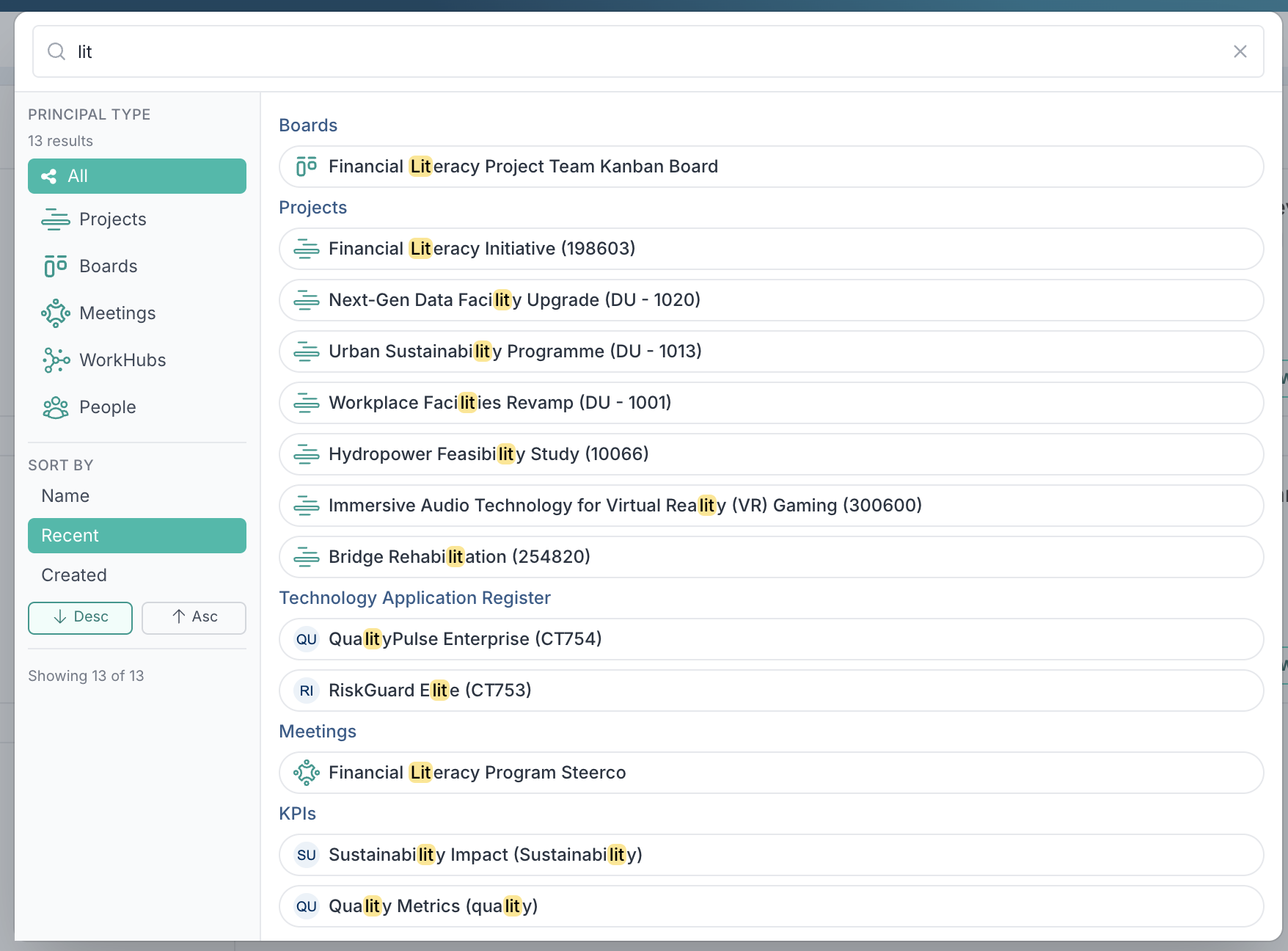
Smarter Global Search: Global Search has been redesigned to make finding the right item faster and more intuitive. Results are now shown in a cleaner, searchable list with matched text highlighted, making it easier to see why each result appears.
You can also filter results by principal type, sort by name, recency, or creation date, and switch between ascending or descending order. This helps users quickly narrow down large result sets and jump to the right project, board or meeting with less scanning and fewer clicks.
Board performance: We’ve improved board performance for high-volume boards with large numbers of cards and custom properties. Boards with a very large number of cards now load and respond more efficiently, making it easier to manage large workflows without slowdowns.
Number custom properties: Number-type custom properties are now displayed left-aligned, consistent with other property types. This makes values easier to scan in large windows and provides a cleaner, more consistent layout.
Timesheets
Timesheet export to Excel: Users can now select one or more timesheet statuses before downloading the Timesheet Excel export, so only timesheets with the selected statuses are returned. When no status is selected, the export includes timesheets across all statuses.
Timesheet configuration: Resolved an issue where the configured timesheet start date could be interpreted differently across time zones, causing some users to see timesheet periods start later than expected. Timesheet periods now align correctly with the configured start date.
Financial Management
Project financials: Financial References now preserve the case entered by users when displayed in Fluid, instead of being shown in lowercase.
Manage Forecast: Fluid can now be configured to copy actual expense rows across financial years when no forecast exists, so the Edit Financial Forecast grid remains consistent when users move between years. When enabled, actual rows and their Financial References remain visible across the relevant fiscal year views. This behaviour is disabled by default and should only be enabled where organisations want actual-only rows to continue displaying in the forecast grid.
Manage Forecast: Resolved an issue in the FYF view where the FYF Total column only included forecast values and did not include actuals. Totals now calculate correctly based on the monthly values displayed in the grid.
Financial Actuals upload: Resolved an issue where capitalization percentage values were not processed correctly when uploaded from Excel as formulas or text-formatted percentages, such as
100%. Capitalization percentages are now handled correctly whether they are uploaded as formulas, percentage-formatted values, or numbers.
Capitalization: Fluid can now be configured to calculate capitalization as soon as financial forecasts or actuals are added, updated, or uploaded to a capitalization-eligible project. This gives teams more timely capitalization values when needed, instead of waiting for the standard overnight calculation or manually triggering a recalculation for the project.
Administration and User Management
SCIM group mapping: Administrators can now manage SCIM group mappings directly in Fluid by navigating to Administration Console > User Management > SCIM Configuration. Customers using SCIM for user management can map Fluid user groups to SCIM groups, and any existing mappings are displayed on the configuration page.
Resource Database Upload: Corrected an issue where uploading new resources could incorrectly populate the License Number field, resulting in inaccurate resource counts.
DevOps and Jira integration control: DevOps and Jira integrations can now be configured to delay creating linked work items until a Fluid card moves out of the first workflow column.
From the relevant board, go to Setup Integration, then open the Jira or DevOps integration. Enable Skip First Column Create in Jira or Skip First Column Create in DevOps. When enabled, cards created in the first workflow column will not immediately create linked work items in Jira or DevOps. The linked work item is only created once the card moves to a later status.
This helps teams keep early-stage, draft, or intake items out of their delivery tools until they are ready to progress.
Branding and Communications
Email branding: Fluid notification emails now display the company logo uploaded in General Settings instead of the default Fluid logo. If no company logo has been uploaded, the Fluid logo will continue to be used.