
Protected Schedule Items: Keep Key Governance Tasks in Place
Protected schedule items help you put the right level of governance around your project plan without making the whole schedule rigid.
They are designed for the parts of a schedule that must stay in place no matter who is maintaining the plan. For example, you might want to protect key approval points, governance gates, compliance checkpoints, mandatory deliverables, or milestone phases that every project is expected to include.
For a Project Administrator, this means you can define the structure that must be preserved. For a Project Manager, it means you can still manage the schedule normally, while being clear about which items are part of the project’s required governance framework.
Before you start
Protected schedule items are only available when the Enable Protected Schedule Items feature is turned on.

If this feature is turned off:
the option to mark a schedule item as protected is not available
protected badges, warnings, and restrictions do not appear
all schedule items behave like standard editable items
To make protected schedule items available, a Project Administrator or Application Administrator must enable Enable Protected Schedule Items in Feature Settings.
This is the first thing to check if you are expecting to use protected items but cannot see the option in the schedule.
Why use protected schedule items?
Not every task in a project schedule needs to be locked down. In most cases, Project Managers should be free to update timelines, ownership, priorities, and delivery details as the project evolves.
Protected schedule items are there for the exceptions: the tasks and milestones that should not be renamed, repurposed, or removed because they are part of how your organisation governs delivery.
Typical examples include:
steering committee approvals
compliance or audit checkpoints
standard delivery gates
mandatory milestones in a project lifecycle
template-driven phases or deliverables that every project must retain
This gives PMOs and Project Administrators a practical way to standardise governance across projects, while still allowing Project Managers to manage the real work around those items.
What happens when an item is protected?
A protected schedule item is a task, deliverable, milestone, or phase that has extra controls applied to it.
When an item is protected:
non-admin users cannot change its title
non-admin users cannot change its type or subtype
non-admin users cannot delete it
non-admin users cannot delete a parent item if it contains one or more protected child items
At the same time, protection does not stop normal schedule management. Users can still update the parts of the item that are expected to move during project delivery, such as:
dates
status
priority
percentage complete
descriptions
assignments
other non-governed fields
That balance is important: protected items preserve structure, but they do not prevent Project Managers from running the project.
Who can do what?
For Project Administrators
Project Administrators have full control over protected items. They can:
mark an item as protected
remove protection from an item
update the title
change the type or subtype
delete the item
delete a parent item that contains protected child items
edit any other field
This makes the feature useful for setting governance rules without blocking the admin team from maintaining templates or correcting schedules when needed.
For Project Managers and other non-admin users
Project Managers and other users can still work with protected items, but with limits on governance-related changes.
They can still update day-to-day planning fields, but they cannot:
change the protected status
edit the item title
change the type or subtype
delete the protected item
delete a parent item that includes protected child items
This makes it clear which parts of the schedule are mandatory, while still leaving room to manage delivery properly.
How to set up protected schedule items
Once Enable Protected Schedule Items has been turned on, Project Administrators can start marking specific schedule items as protected.
This can be done in a few ways, depending on how your organisation manages schedules.
Option 1: Set protection in the schedule item dialog
When a Project Administrator opens a schedule item in the UI, the item dialog shows a protected toggle in the schedule flags area.
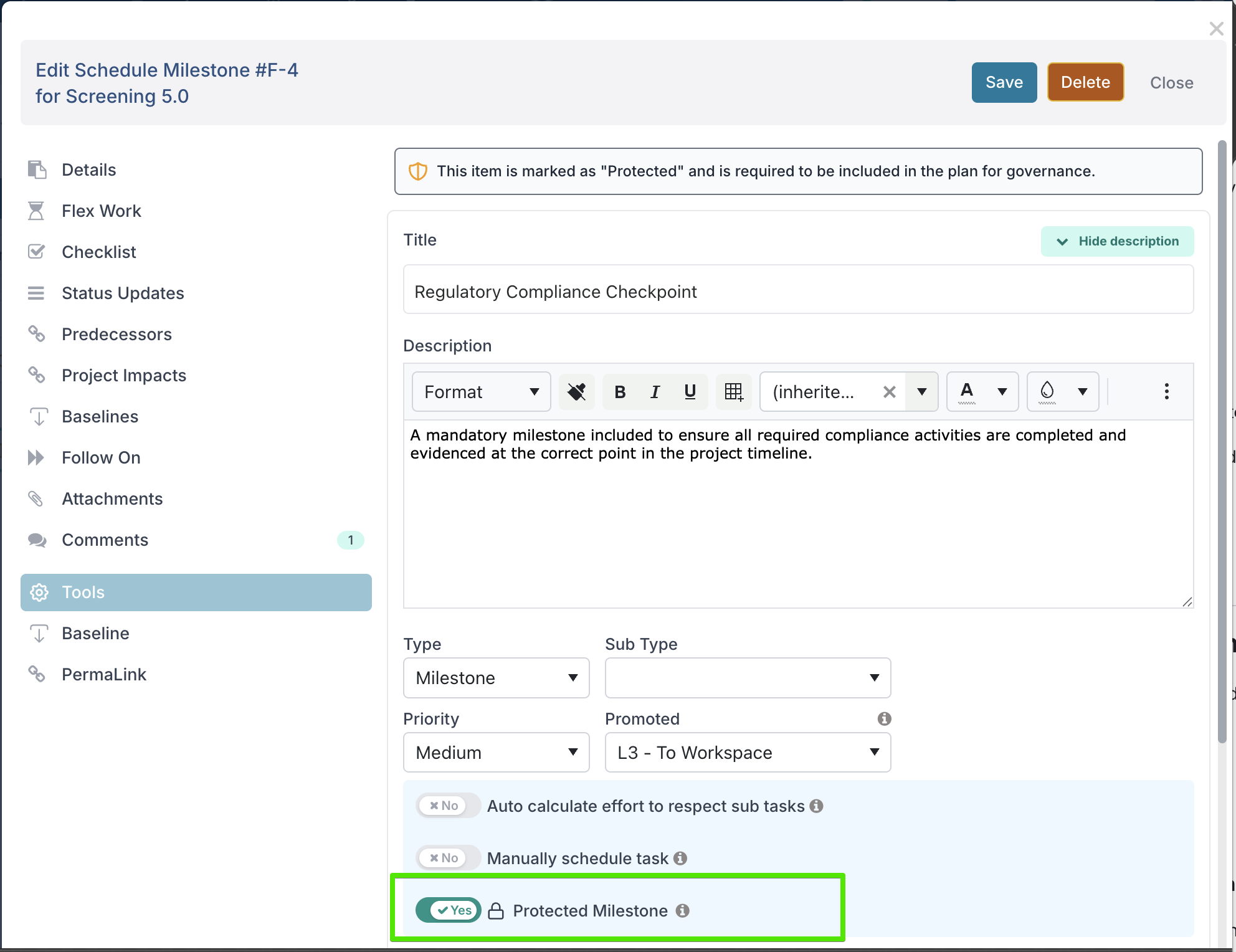
The toggle label reflects the item type, for example Protected Milestone.
This is the simplest way to protect individual items in a live project schedule. It is useful when governance needs to be applied to a specific project, or when an administrator is refining a schedule after initial setup.
Once the item is marked as protected, the change is visible to everyone working on the schedule.
What users will see
Protected items are clearly identified in the product so users understand why they behave differently.
In the schedule item dialog, users will see a banner explaining that the item is protected and required in the plan for governance purposes.

In the Gantt grid, protected items display a visual badge next to the task name.

These cues are important for Project Managers, because they explain that the item is not just another task — it is part of the required structure of the plan.
Option 2: Using bulk edit and templates
Protected items become even more useful when you use them as part of a repeatable project setup.
Bulk edit and import
Project Administrators can use schedule bulk edit to set up protected items at scale.
When Enable Protected Schedule Items is turned on, the bulk edit template includes a Protected column. During upload, the system reads this value and applies protection to the relevant items.
This is especially helpful when you are creating or maintaining standard project structures and do not want to protect items one by one in the UI.
Why templates matter
Templates are where protected schedule items often deliver the most value.
If your organisation uses standard project templates, you can define the phases, milestones, and deliverables that must always be present from the moment a project is created. That means Project Managers start with the correct governance framework already built into the schedule.
For a PMO or Project Administrator, this supports consistency across projects. You are not relying on each individual PM to remember which tasks must stay in place. The template does that work for you.
For a Project Manager, this provides clarity. The mandatory structure is already there, and you can focus on tailoring the rest of the schedule around it rather than rebuilding governance from scratch.
A good practice is to make protected items clear in the schedule file associated with the template, so it is obvious which phases or deliverables are intended to remain in place.
Working with protected items in projects
In day-to-day use, protected items should feel straightforward.
If you are a Project Manager, you can still manage the timing, progress, and ownership of the item as part of the broader schedule. What you cannot do is remove or redefine something that has been put in place for governance.
If you are a Project Administrator, you can use protected items to make sure required schedule structure survives as projects are updated over time, especially when multiple users are editing the same plan.
This is particularly useful in organisations where projects follow a defined governance model, where reporting depends on standard milestones, or where certain approvals and checkpoints must always appear in the schedule.
Frequently asked questions
Q: Why can’t I see the Protected option on a schedule item?
Usually, this means one of two things:
the Enable Protected Schedule Items feature is not turned on
you are not logged in as a Project Administrator
Only Project Administrators can apply or remove protection.
Q: Can a Project Manager delete a protected item?
No. Protected items cannot be deleted by non-admin users.
Q: What happens if I try to delete a parent item that contains protected child items?
If you are not a Project Administrator, the deletion is blocked. This prevents protected items from being removed indirectly through a parent task or phase.
Q: Can I still update dates and status on a protected item?
Yes. Protected items are not fully locked. Protection only applies to the item’s title, type/subtype, protected status, and deletion behaviour. Other editable fields can still be updated.
Q: Can protected items be set up through a template or import?
Yes. When the feature is enabled, the bulk edit or import template includes a Protected column, and that value is used during upload.