
Process Board Card Date Colours
Each card on the process board can display a Start Date and an End Date. The background colour of those date badges changes automatically to give you an at-a-glance health signal. This guide explains every possible colour, what it means, and when it applies.
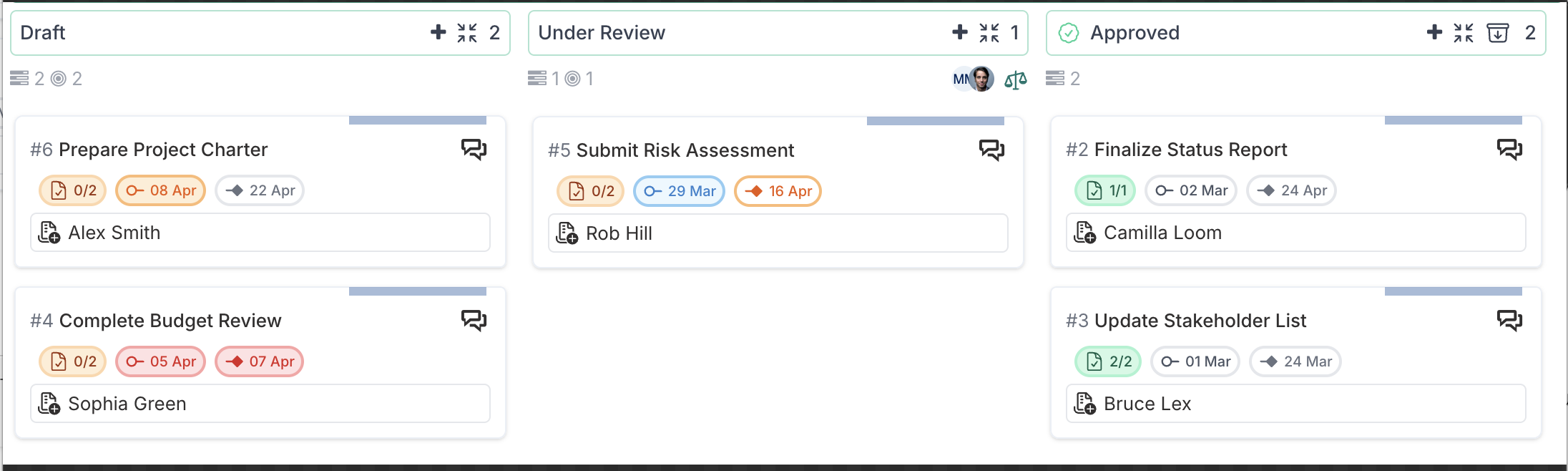
Overview
Badge | Meaning |
No colour (plain) | Date is not yet a concern, or the card is already closed |
🔵 Blue | Task is underway — start date has passed and the end date is still in the future |
🟠 Amber | A warning — the start date has passed but the task has not been started yet, OR the end date is approaching or is today |
🔴 Red | Overdue — the end date (and therefore the start date) has already passed |
Start Date Badge
The start date badge uses the task's current status and both its start date and end date to decide which colour to show.
No colour (plain grey)
Shown when none of the warning conditions below are met. This is the normal state when:
The start date is still in the future, or
The card is already closed / completed.
Closed cards always show plain dates regardless of what the dates are.
🔴 Red — End date is overdue
If today's date is after the end date and the card has not been completed, the start date badge turns red. Because the whole task window has passed, both start and end badges are red together.
Example: Task due 07 Apr — viewed on 09 Apr → start and end both red.
🟠 Amber — Task has not started but the start date has already passed
If today's date is after the start date and the task's status is still "Not Started", the start date badge turns amber.
This signals that work should have begun but hasn't.
Example: Start date 08 Apr, status = Not Started, viewed on 09 Apr → start badge is amber.
🔵 Blue — Task is in progress
If today's date is after the start date, the task's status is anything other than "Not Started" (i.e. the card is not in the left column), and the end date has not yet passed, the start date badge turns blue.
Blue means the task is running within its planned window — everything is on track.
Example: Start date 29 Mar, status = Review, end date 16 Apr, viewed on 09 Apr → start badge is blue.
End Date Badge
The end date badge is driven purely by how far away the end date is relative to today.
No colour (plain grey)
Shown when the end date is more than 7 days away, or the card is closed / completed.
Example: End date 22 Apr, viewed on 09 Apr (13 days away) → plain/no colour.
🔴 Red — End date is overdue
If today's date is after the end date, the end date badge turns red.
Example: End date 07 Apr, viewed on 09 Apr → red.
🟠 Amber (solid background) — Due today
If the end date is today, the badge turns amber with a solid background.
🟠 Amber (border only) — Due within 7 days
If the end date is between 1 and 7 days away (inclusive), the badge shows an amber border and amber text but no filled background. This is an early warning to prompt action before the deadline arrives.
Example: End date 16 Apr, viewed on 09 Apr (7 days away) → amber border.
Quick Reference: Colour Decision Tables
Start Date
Condition | Colour |
|---|---|
Card is closed / approved | No colour |
End date has passed (today > end date) | 🔴 Red |
Status is "Not Started" AND start date has passed | 🟠 Amber |
Status is NOT "Not Started" AND start date has passed AND end date is in the future | 🔵 Blue |
None of the above | No colour |
End Date
Condition | Colour |
|---|---|
Card is closed / approved | No colour |
End date has passed (today > end date) | 🔴 Red |
End date is today | 🟠 Amber (solid) |
End date is 1–7 days away | 🟠 Amber (border only) |
End date is more than 7 days away | No colour |
Reading the Board at a Glance
Using the colour rules above you can scan the board and immediately understand each card's health:
All plain dates in the Approved column — closed cards; colours are suppressed because the work is done.
Blue start / amber end — the task is running but the deadline is approaching; keep an eye on it.
Amber start / no colour end — the task should have started but hasn't; follow up with the assignee.
Red on both badges — the entire task window has passed; the card is overdue and needs attention.