
How do I add and edit task dependencies directly in the Schedule using inline editing?
Question: How do I add and edit task dependencies directly in the Schedule using inline editing?
Answer:
To add a dependency using inline editing, you can type directly into the Predecessor or Successor columns in the Gantt chart.
1. Click on the Edit Gantt menu and make sure that Keyboard Control is enabled. If you do not see the Predecessor or Successor columns, make sure that the Keyboard Control feature is enabled, as these columns are only visible when this setting is active.
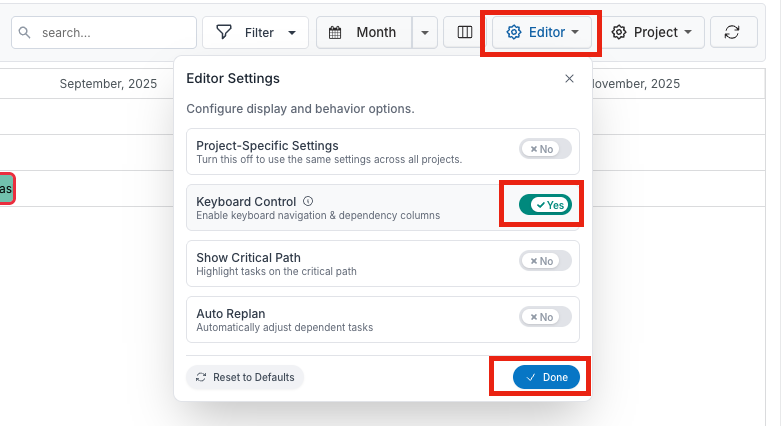
2. Navigate to the task where you want to add a dependency. The Predecessor and Successor columns are located to the right of the % Completion column for each task.
3. Enter the dependency as text using the following format:
WBS[REL][LAG]
WBS refers to the task number (for example: 1.2, 3)
REL is optional and defines the relationship type: FS (default), SS, FF, or SF
LAG is optional and indicates delay or lead time, written as +N or -N days.

Examples:
2 → Finish-to-Start (default relationship)
3FF+2 → Finish-to-Finish with a 2-day lag
3.1FS+1, 5SS-2 → Multiple dependencies entered together
You can enter multiple dependencies by separating them with commas.