How can I quickly identify tasks that are slipping or overdue in my schedule?
Question: How can I quickly identify tasks that are slipping or overdue in my schedule?
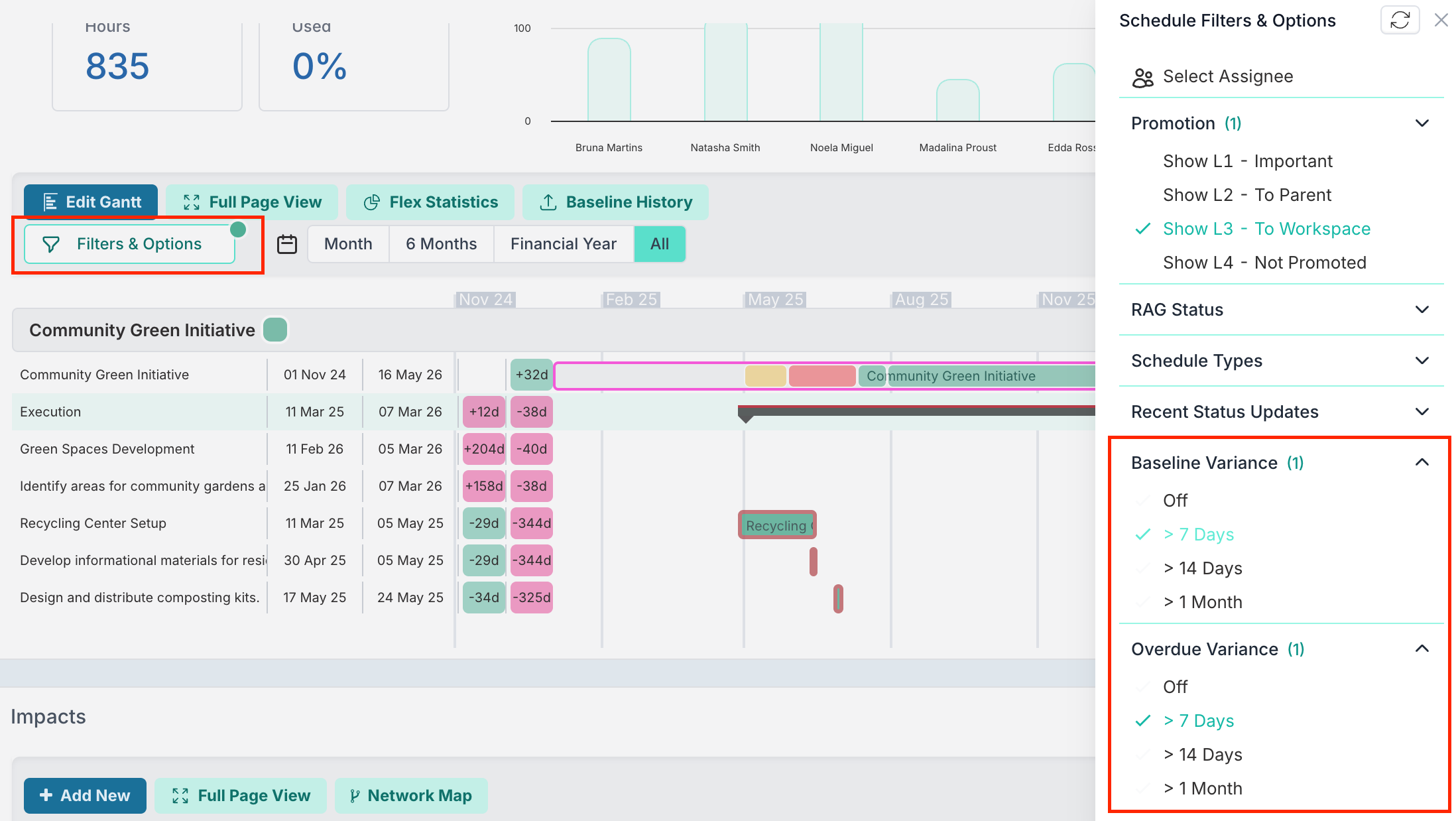
Answer: When managing a project schedule, it can be difficult to spot which tasks need attention most, especially in a busy Gantt Chart. Variance filters help you quickly surface tasks that have moved significantly from plan or are already overdue, so you can focus on the items creating the greatest schedule risk.
You can use two types of schedule variance filters:
Baseline Variance
Shows tasks where the current end date has shifted from the baseline end date. This helps you identify work that is slipping against the original plan.
Overdue Variance
Shows tasks that are past their due date. This helps you quickly find work that should already have been completed.
For both filter types, you can choose thresholds of more than 7 days, 14 days, or 1 month.
Step-by-Step Instructions
Go to the relevant project workspace and open Schedule.
In the Gantt Chart, click Filters & Options.
Under Baseline Variance or Overdue Variance, select the threshold you want to apply:
More than 7 days
More than 14 days
More than 1 month
Review the filtered results directly in the schedule.
When a variance filter is applied, the Gantt Chart displays two additional variance indicators for each task. These appear as coloured blocks showing the number of variance days, helping you quickly see which items have shifted the most.
The left variance column shows Baseline Variance
The right variance column shows Overdue Variance
You can also use these filters while working in edit mode in the Schedule.