
Informational Stage Gates
Informational Stage Gates are non-blocking, display-only stage gates that are always treated as closed.
Unlike Declared stage gates, where a project manager manually marks the gate as closed, or Approval stage gates, which require formal sign-off before the project can proceed, Informational stage gates do not stop a project from moving through its lifecycle.
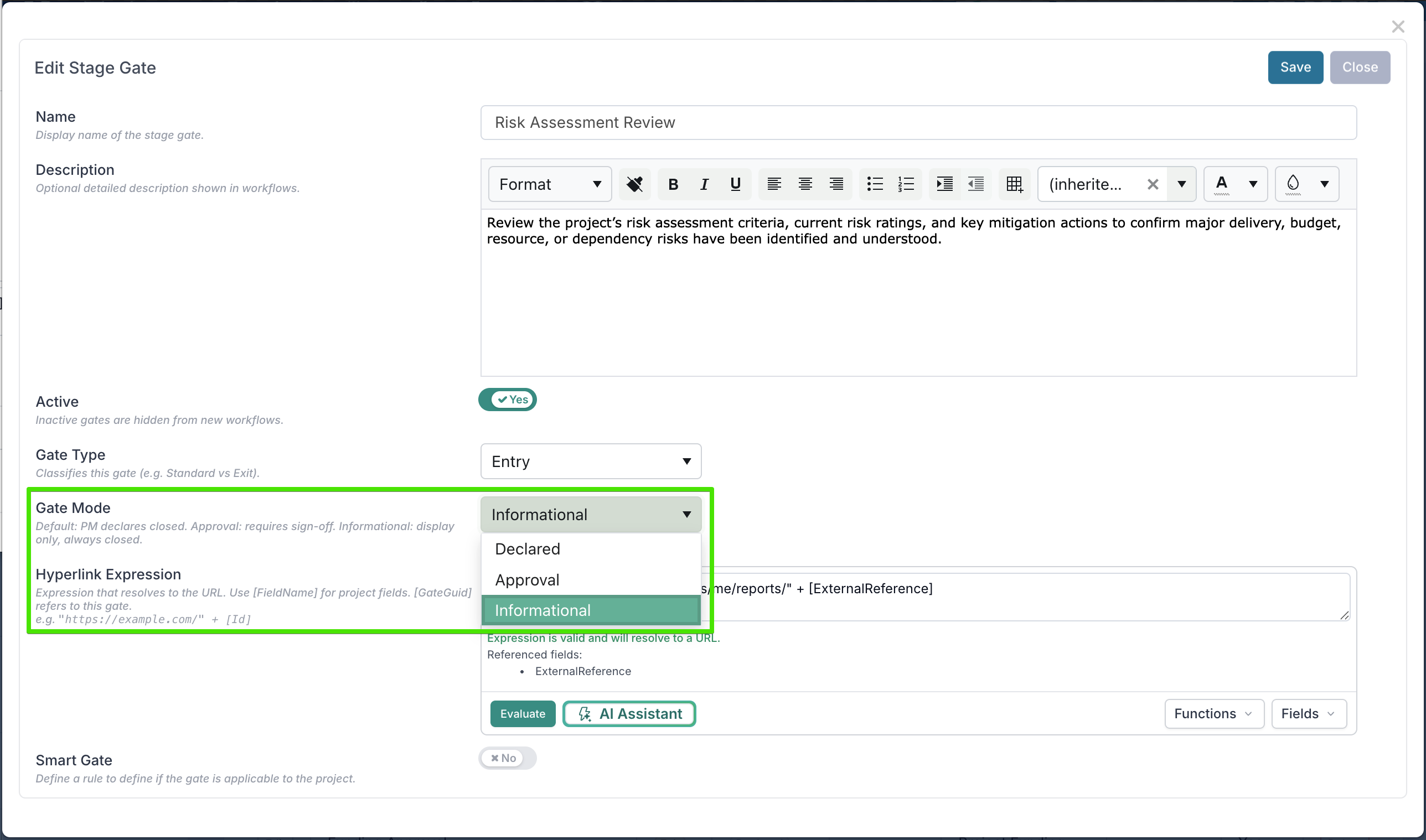
Their purpose is to present useful reference information directly within the stage gate panel, such as guidance, supporting context, or links to external reports, dashboards, documents, or other systems. While no gate action is required within Fluid, the information or linked resource may still point users to activities that need to be reviewed or completed outside the platform.
When to use an Informational Stage Gate
Informational stage gates are useful when you want to:
provide guidance or reminders at a specific stage
link to an external report, dashboard, or document
surface supporting information without introducing an approval step
keep key reference materials visible within the project workflow
For example, an Informational gate could be used to link to a risk dashboard, a financial report, a governance checklist, or a SharePoint document relevant to that stage.
Hyperlink Expression
Informational stage gates can include a Hyperlink Expression, which creates a clickable link on the gate to an external resource.
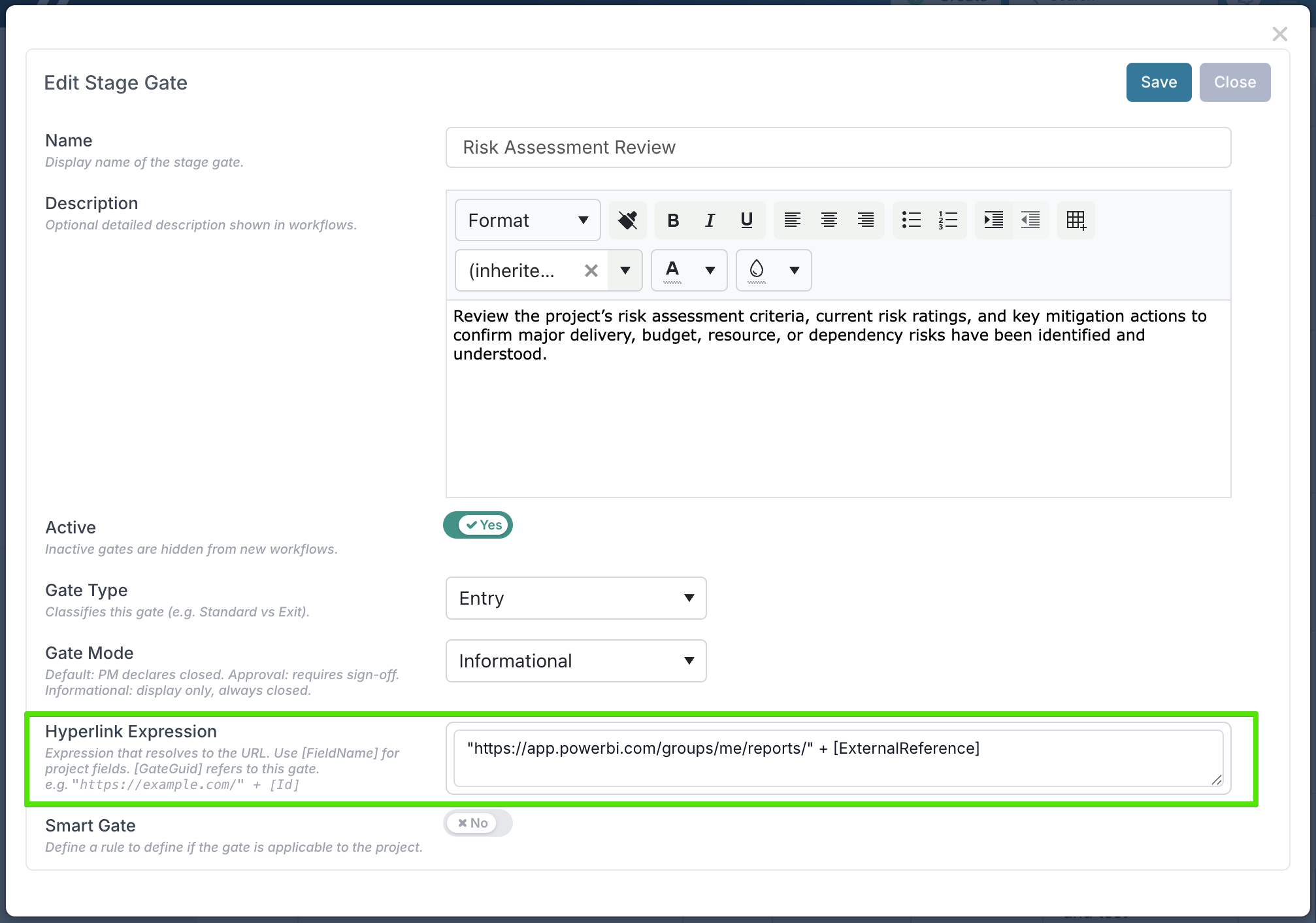
This link can be dynamic. You can insert project field names in square brackets, and Fluid will replace them with the corresponding project values when the gate is displayed.
Examples of supported field references include:
[Id][ExternalReference]custom project properties such as
[AppID]
Two special placeholders are also available that are specific to the gate itself:
[GateGuid]— resolves to the gate's unique identifier.[GateId]— resolves to the gate's numeric ID.
This allows you to generate project-specific links automatically.
Example
If the Hyperlink Expression is:
"https://example.com/" + [Id]and the project Id is 12345, the generated link will be:
https://example.com/12345This can be used to direct users to a filtered BI report, a document library, a SharePoint page, or another external system that uses a project-specific identifier.
How it works
When the stage gate is displayed, Fluid evaluates the Hyperlink Expression and builds the final URL using the referenced project fields.
If the expression is valid, users will be able to open the linked resource directly from the stage gate. This makes it easier to access relevant information without having to search for it elsewhere.
Best practices
To get the most value from Informational stage gates:
use clear gate names that describe the purpose of the information
include concise descriptions so users understand what they are viewing
use project fields in the hyperlink expression when the destination varies by project
link to resources that are directly relevant to the stage, such as dashboards, reports, or governance documents
Summary
Informational Stage Gates are designed to surface useful information without introducing a workflow checkpoint. They are always treated as closed and can include dynamic hyperlinks to external resources. This makes them a simple way to embed helpful, project-specific reference points directly into the project lifecycle.