
What Happens to Documents When You Restart a Workflow-Based Stage Gate?
If a stage gate is restarted, what happens to the documents that were already synced to the project?
The short answer is simple: nothing is lost.
If documents from the workflow card were already synced to the project, they stay on the project. Restarting the gate does not remove them or roll them back.
What happens next depends on whether the documents on the workflow card stay the same or whether any document in the set is updated before the gate is approved again.
What Happens When a Gate Is Restarted and Documents Are Re-submitted
When a stage gate is restarted (see Restarting Stage Gates), the existing documents on the project are not deleted or changed. However, if the approval action is subsequently modified with new or updated documents and re-submitted through the workflow, the following process occurs:
Step-by-Step: Document Sync After a Gate Restart
Gate is restarted — The gate reopens and the associated action returns to its initial state. Documents already synced to the project remain untouched.
User updates documents on the action — New files are uploaded or existing files are replaced on the approval action.
Action progresses through the workflow again — The updated action moves through the approval process.
Document sync is triggered — When the action reaches the sync point, the system compares the action's documents with what already exists on the project.
Existing project documents are archived — The system identifies documents on the project that match the re-submitted documents (matched by source property key or filename). These existing documents are archived — not deleted.
New versions are created — The documents are copied to the project with an incremented version number. If multiple documents were submitted together, they are versioned as a set: if one document changes, the previous set is archived and a new version is created for the full set of documents.
Protection is applied — If the Protected Document Workflow feature is enabled, both the new document copies and the source documents on the action are marked as protected.
Why This Matters
For PMOs, this means a restarted gate does not break the audit trail.
You do not lose previously approved documents, and you do not need to worry about old versions being overwritten without a trace. If a document changes and is approved again, Fluid keeps both the current version and the history of earlier versions.
That makes it easier to answer questions like:
What was approved the first time?
What changed before the second approval?
Which version is the current approved version?
What You Will See in the Project
When documents are synced from a workflow card to a project:
they are added to a folder named after the workflow board
the latest approved version stays in the active folder
older versions move to Archive
archived versions stay grouped under the same folder name
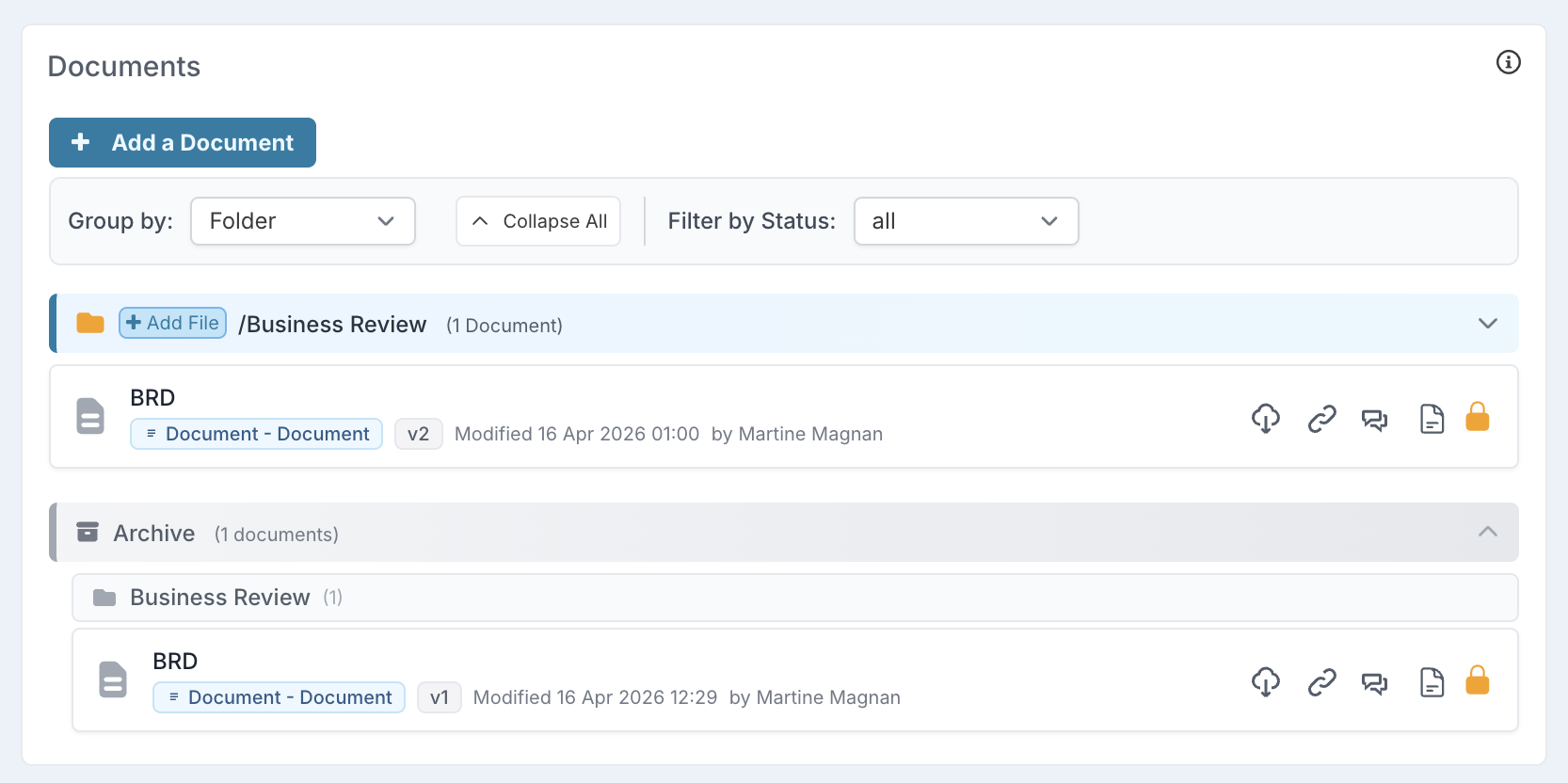
So the project always shows the current approved document clearly, while still keeping the earlier versions available for reference.
What If Nothing Changed?
This is worth calling out because it often causes confusion.
If a gate is restarted and approved again, but the documents on the workflow card are still the same as before, Fluid does not create duplicate copies on the project.
However, if the card contains multiple documents and any one of them is changed, the documents are treated as a package: the previous approved set is archived and a new version is created for the full set.
In other words, re-approval on its own does not automatically create a new version. A new version is only created when at least one of the document being synced has changed.
Document Versioning and Archiving
How Versioning Works
Every time a document is synced from an approval action to a project, the system checks whether a previous version already exists.
Version numbers apply to the approved sync package. When documents are submitted together from the same approval action, they move forward as a set, so a change to one document creates a new approved version of the full set.
Scenario | What Happens | Version Number |
|---|---|---|
First sync — no existing document on project | Document is copied to the project | Version 1 |
Re-sync after gate restart — one or more documents in the set changed | Existing approved set is archived, new set is created | Version 2, 3, 4... |
Same document re-synced without changes | Duplicate is detected and skipped — no new version created | Unchanged |
How Archiving Works
When a newer version of a document is synced to the project:
The previous version is marked as archived 📦
Archived documents are not deleted — they remain in the system
Archived documents are excluded from active document lists but can still be accessed for audit purposes
The new version becomes the active document on the project
How Documents Are Matched
The system uses two methods to identify whether a synced document is an update to an existing one:
Source Property Key matching (primary) — Documents are matched by the custom property field they were uploaded through. This is the most reliable method and handles scenarios where filenames change between submissions.
Filename matching (fallback) — If no source property key is available, documents are matched by filename. This supports legacy uploads.
Important: Because matching uses the source property key, you can upload a completely different file (with a different name) through the same upload field, and the system will correctly identify it as a new version of the previous document from that field.
Document Protection Rules
When the Protected Document Workflow feature is enabled, the following rules apply:
What Is Protected
Document | Protected? | Details |
|---|---|---|
Documents on the approval action | ✅ Yes | Marked as protected when synced to a project |
Documents copied to the project | ✅ Yes | Protected on creation |
Archived previous versions | ✅ Yes | Remain protected even after archiving |
What Protection Means
🔒 Cannot be deleted — Protected documents cannot be removed by any user, including administrators
🔒 Cannot be overwritten — Uploading a file with the same name will not replace a protected document
✅ Can be viewed and downloaded — All users with appropriate project access can still view and download protected documents
✅ Can be archived — The system can archive protected documents when newer versions are synced (archiving is not the same as deletion)
When Protection Is Not Applied
When the Protected Document Workflow feature is turned off, documents behave normally and are not marked as protected.
Documents uploaded outside of the approval workflow (e.g., directly on the project) are not automatically protected by this feature.
Quick Reference
Document Lifecycle During a Gate Restart
┌─────────────────────────────────────────────────────┐
│  1. GATE CLOSED (Approved/Rejected)                 │
│     Documents synced to project (Version 1)         │
│     Documents marked as protected (if feature on)   │
└──────────────────────┬──────────────────────────────┘
                       │
                       ▼
┌─────────────────────────────────────────────────────┐
│  2. GATE RESTARTED                                  │
│     Gate reopened, action reset                     │
│     ⚡ Existing project documents NOT affected       │
└──────────────────────┬──────────────────────────────┘
                       │
                       ▼
┌─────────────────────────────────────────────────────┐
│  3. DOCUMENTS UPDATED ON ACTION                     │
│     User uploads new/revised files                  │
└──────────────────────┬──────────────────────────────┘
                       │
                       ▼
┌─────────────────────────────────────────────────────┐
│  4. ACTION RE-SUBMITTED & SYNCED                    │
│     Version 1 documents → ARCHIVED 📦               │
│     New documents → Created as Version 2 🆕         │
│     All documents marked PROTECTED 🔒               │
└─────────────────────────────────────────────────────┘
Protected Document Workflow Feature Comparison
Behaviour | Feature OFF | Feature ON |
|---|---|---|
Documents synced to project | ✅ Yes | ✅ Yes |
Old versions archived on re-sync | ✅ Yes | ✅ Yes |
Version number incremented | ✅ Yes | ✅ Yes |
Documents marked as protected | ❌ No | ✅ Yes |
Protected documents cannot be deleted | ❌ N/A | ✅ Yes |
Duplicate detection (skip unchanged) | ✅ Yes | ✅ Yes |