
Confidential Projects
Confidential projects restrict visibility so that only users who have been explicitly named on the project can see or access it. When a project is marked as confidential, broad access granted through global roles such as Project Viewer, Portfolio Viewer, or the default User role is removed. The project is also hidden from portfolio-level dashboards, search results, and programme hierarchies.
Project Administrators are the exception: they always retain access to confidential projects and can manage the confidential setting at any time.
Enabling the feature
Confidential projects are controlled by the Enable Confidential Projects feature flag
Admin → Setup Project Features → Project Security
When this flag is turned off, the Confidential toggle and related columns do not appear in the UI or in bulk edit exports.
Feature flag | Effect |
Enable Confidential Projects | Activates the confidential project capability across the platform. |
What happens when a project becomes confidential
When a Project Administrator enables the Confidential toggle on a project, the following changes take effect immediately:
Global role access is removed — The system removes the global User, Project Viewer, and Portfolio Viewer permission entries from the project. Only users who have a named role on the project (such as Primary PM, Editor, or Owner) can discover or open the project.
Programme and parent links are cleared — Confidential projects cannot be linked to parent projects, programmes, or reporting programmes. Any existing links are cleared when the project becomes confidential.
Connection search is hidden — The project is excluded from general connection search results to prevent inadvertent discovery.
Workspace badge — A red Confidential badge with a lock icon appears next to the project title in the workspace header, providing a clear visual indicator to anyone who can access the project.

If the project is later changed back to non-confidential, the global role entries are restored during the next permission maintenance cycle, and the project becomes visible to users with matching global roles again.
Who can set the Confidential flag
The Confidential toggle is restricted to users with the Project Administrator global role. It appears in the Project Administration section of the project settings panel only when the feature flag is active and the current user has Project Administrator access.
Non-admin users such as Project Managers and Editors can see the confidential badge on the workspace if they have been named on the project, but they cannot change the Confidential setting.
The confidential flag can be set in either of these places:
the Project Edit Details page
Bulk Edit
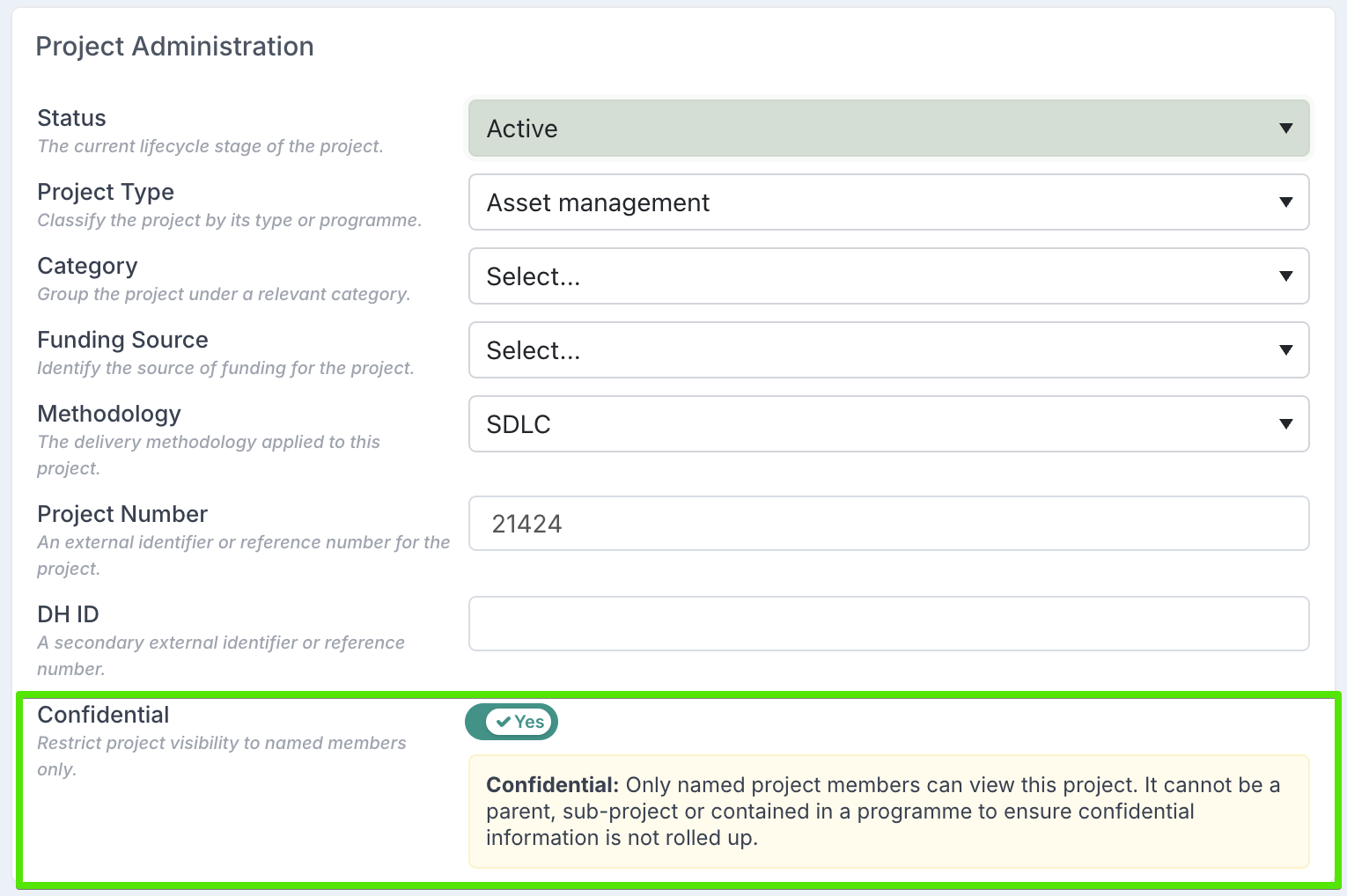
Project Administrator access
Project Administrators always have access to confidential projects.
This means they can:
open confidential projects
manage and configure confidential projects
update or remove the Confidential flag
access confidential projects even when they are not explicitly named on the project team
This access is retained regardless of whether other global roles have been removed from the project.
Bulk Edit
When the Enable Confidential Projects feature flag is active, a Confidential column appears in the Project Details bulk edit export file. The column uses Yes / No values.
Who can change the value
The Confidential column is only processed for users who have the Project Administrator role. If a non-admin user uploads a bulk edit file that includes a value in the Confidential column, the value is ignored and the project’s confidential status remains unchanged.
Exports
When the feature flag is off, the Confidential column is automatically removed from the exported spreadsheet so the file layout stays clean. When the flag is on, the column is included and reflects the current state of each project.
Summary
Aspect | Behaviour |
Who can see a confidential project | Only users with a named role on the project (PM, Editor, Owner, etc.) and Project Administrators. |
Who can set the flag | Project Administrators only, via the UI toggle or the Bulk Edit Confidential column. |
Programme / parent links | Automatically cleared when a project becomes confidential and cannot be re-added while the project remains confidential. |
Workspace indicator | Red Confidential badge with lock icon beside the project title. |
Bulk Edit column | Confidential (Yes / No) — only appears when the feature flag is on, and only writable by Project Administrators. |