
How to setup Stage Gates for External System Workflows
Scope of this article: This article covers External Workflow gates where no Fluid approval is configured — the external system has full control over opening and closing the gate. If you want to pair an External Workflow gate with a Fluid approval (so that the external system triggers the close, but a Fluid approver must sign off before the gate actually closes), see External Workflow Gates Paired with Approvals.
External Workflow gates are a type of stage gate where the open/closed status is controlled by an external system — not by users inside Fluid. They are designed for scenarios where a sign-off, approval, or decision happens in another platform (such as Power Apps, Power Automate, ServiceNow, Jira, or Azure DevOps) and that platform writes the result back to Fluid via the API.
Key characteristics:
Project Managers cannot close the gate manually — it is read-only in the Fluid workspace.
If 'Enabled Blocking Phase Stage Gates' setting is on, the gate blocks phase progression until the external system closes it.
An optional hyperlink can be configured to give the PM a clickable link to the external system where the action takes place.
The gate supports three states: Open, In Progress, and Closed. The external system controls transitions between these states via the API.
This makes External Workflow gates ideal for governance scenarios where you need to prevent manual override and ensure the gate decision is made in a controlled external process.
Gate States
External Workflow gates have three states that reflect the lifecycle of an external review or approval:
State | What it means | API state value |
Open | The gate is waiting for the external system to begin processing. This is the default state when the gate is first applied to a project. The gate does not block phase progression in this state. | 0 |
In Progress | The external system has started working on the gate. If stage gate blocking is enabled, the gate actively blocks phase progression until the external process is complete. | 1 |
Closed | The external workflow is complete and the gate has been closed. Phase progression is unblocked. | 2 |
A typical flow looks like this:
Gate starts as Open (state
0) — not blocking, not closed.The external system picks up the gate and sets it to In Progress (state
1) — now blocking phase progression if stage gate blocking is enabled.Once the review/approval is finished, the external system sets it to Closed (state
2) — phase can progress.
Tip: If your external process does not need the "In Progress" step, you can go directly from Open (
0) to Closed (2).
How to Configure an External Workflow Gate
Step 1 — Open Stage Gate Administration
Navigate to Administration Console > Stage Gates.
Select an existing stage gate or create a new one.
Add or edit a gate within a phase.
Step 2 — Set the Gate Mode
Set the Gate Mode field to External Workflow.
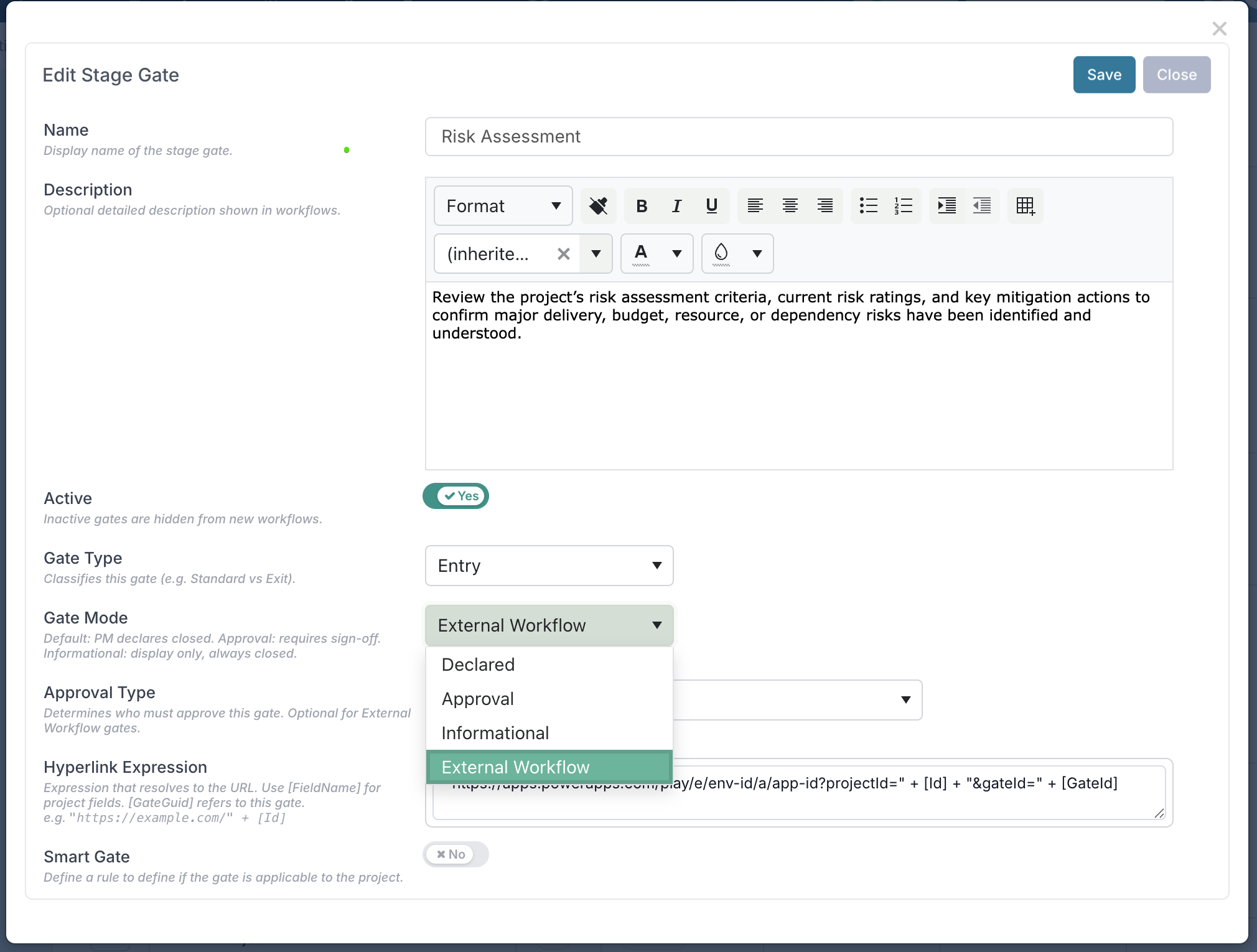
Step 3 — Configure the Hyperlink (optional but recommended)
The hyperlink gives the Project Manager a direct link to the external system that manages this gate. The Hyperlink Expression is a dynamic expression that resolves to a URL. It can include project fields and gate-specific variables.
Step 4 — Save and Propagate
Save the gate. Changes will take effect when the gate is applied to all projects. Gates that are already closed on existing projects will not be affected.
Understanding GateId and GateGuid
When you configure the hyperlink or build your external integration, you'll work with two key identifiers:
Property | What It Is | Where It Comes From | When to Use It |
|---|---|---|---|
GateId | The numeric Id of the gate instance on a specific project ( | Returned by the Fluid API and available in the expression context as | Use this when calling the API to close the gate. This is the value the |
GateGuid | A unique identifier (GUID) assigned to the gate definition in the template ( | Available in the expression context as | Use this when you need a stable identifier to match a gate across projects — for example, to look up the correct form or record in your external system. |
In summary: GateGuid identifies which gate definition this is (consistent across projects). GateId identifies this specific gate on this specific project (unique per project).
Writing the Hyperlink Expression
The Hyperlink Expression is a dynamic expression that resolves to a URL when the gate is displayed on a project. You can reference any project field using [FieldName] syntax, plus the two gate-specific variables [GateGuid] and [GateId].
Expression Syntax
Wrap literal text (including URL parts) in double quotes:
"https://example.com/"Reference fields with square brackets:
[Id],[GateGuid],[GateId]Concatenate parts with
+
Referencing the project in your expression
You can identify the project using either of these fields:
Field | Type | Description |
[Id] | Numeric | The project's numeric Id. Use this with the workflow API endpoint. |
| GUID (string) | The project's unique GUID. Use this with the GUID-based API endpoint. |
Both are available in the expression context. Choose whichever matches the API endpoint your external system will call.
Example — Link to a Power App
Suppose you have a Power Apps app that collects a gate sign-off. The app needs the project Id and the gate Id so it can call the workflow API endpoint to update the gate state when the sign-off is complete.
Hyperlink Expression:
"https://apps.powerapps.com/play/e/your-environment-id/a/your-app-id?projectId=" + [Id] + "&gateId=" + [GateId]
When a PM views the gate on a project with Id 100 and the gate's project-level Id is 42, the resolved URL will be:
https://apps.powerapps.com/play/e/your-environment-id/a/your-app-id?projectId=100&gateId=42
Tip: The expression editor in the Stage Gate Administration UI validates your expression in real-time and shows you which fields are referenced.
Updating the Gate State via the API (Write-Back)
Once your external workflow progresses, the external system must call the Fluid V3 API to update the gate state. This is the only way an External Workflow gate can be changed.
There are two API endpoints available:
Option 1 — Workflow endpoint with three-state support (recommended)
This endpoint lets you set the gate to any of the three states (Open, In Progress, or Closed) using a single numeric value in the URL. It uses the numeric project Id ([Id]).
Code
PUT /rest/api/stagegates/workflow/{projectId}/{gateId}/{state}
Parameter | Type | Description |
|---|---|---|
| integer (path) | The numeric project Id (available as |
| integer (path) | The project-level stage gate Id (available as |
| integer (path) | The desired state: 0 = Open, 1 = In Progress (Blocking), 2 = Closed. |
No request body is required — all parameters are in the URL path.
Examples:
Set the gate to In Progress:
PUT https://your-fluid-instance.com/rest/api/stagegates/workflow/100/42/1
Set the gate to Closed:
PUT https://your-fluid-instance.com/rest/api/stagegates/workflow/100/42/2
Re-open the gate back to Open (e.g., if the review was rejected):
PUT https://your-fluid-instance.com/rest/api/stagegates/workflow/100/42/0
Option 2 — GUID-based endpoint (open/closed only)
This endpoint supports setting the gate to open or closed only (no "In Progress" state). It uses the project GUID ([PrincipalGuid]).
Code
PUT /rest/api/stagegates/{projectGuid}/{gateId}
Request Body:
JSON
{ "isClosed": true }
Parameter | Type | Description |
|---|---|---|
| string (path) | The GUID of the project (available as |
| integer (path) | The project-level stage gate Id (available as |
To re-open the gate:
JSON
{ "isClosed": false }
Requirements (both endpoints)
The API call must include a valid authentication token.
The calling identity must have at least Editor-level access to the project.
Reading Gate State
You can retrieve all gates for a project to check current state:
GET /rest/api/stagegates/{projectGuid}
This returns a list of all gates including their Id, GateMode, IsClosed, IsBlocking, and other properties.
To determine the current state from the response:
|
| State |
|---|---|---|
|
| Open |
|
| In Progress (Blocking) |
|
| Closed |
End-to-End Example: Power Apps Sign-Off
Here is a complete worked example tying everything together:
Administrator creates a gate called "External Risk Review" in the template, sets the Gate Mode to External Workflow, and configures:
Gate Title: Complete Risk Review
Hyperlink Expression:
"https://apps.powerapps.com/play/e/default-env/a/risk-review-app?projectId=" + [Id] + "&gateId=" + [GateId]
Gate is propagated to projects. On Project Alpha (Project Id: 100), the gate is assigned GateId 42. The gate starts in the Open state.
Project Manager on Project Alpha sees the gate as Open with a clickable link: "Complete Risk Review". Clicking it opens:
https://apps.powerapps.com/play/e/default-env/a/risk-review-app?projectId=100&gateId=42The Power App opens the risk review form. The reviewer begins their assessment. On form load, the Power App sets the gate to In Progress so the phase is blocked while the review happens:
PUT https://your-fluid-instance.com/rest/api/stagegates/workflow/100/42/1The reviewer completes their assessment and submits. On submit, the Power App (or a triggered Power Automate flow) sets the gate to Closed:
PUT https://your-fluid-instance.com/rest/api/stagegates/workflow/100/42/2The gate is now Closed in Fluid. The phase can progress.
Alternative using the GUID-based endpoint: If your external process doesn't need the In Progress state, you can use the GUID-based endpoint instead. In Step 5, the Power App would call:
Code
PUT https://your-fluid-instance.com/rest/api/stagegates/abc-123/42
Body: { "isClosed": true }
This goes directly from Open to Closed in a single call.
Frequently Asked Questions
Can a Project Manager manually close an External Workflow gate? No. The gate can only be changed via the API. This is by design to ensure governance control.
What are the three gate states? Open (state 0) — the gate is not blocking and not closed. In Progress (state 1) — if stage gate blocking is on, the gate is blocking phase progression while the external review is underway. Closed (state 2) — the review is complete and phase progression is unblocked.
Do I have to use all three states? No. If your external process doesn't need an "In Progress" step, you can go directly from Open (0) to Closed (2). You can also use the GUID-based endpoint with isClosed: true which will close the gate in a single call.
What happens if the gate definition is changed after propagation? Gates that are already closed on existing projects will not be affected. Open gates will pick up the new configuration.
Can I use the same hyperlink expression mechanism on Informational gates? Yes — Informational and External Workflow gates both support Hyperlink Expression. The difference is that Informational gates are non-blocking and auto-closed, while External Workflow gates block phase progression and require an API call to close.
What fields can I use in the expression? Any project-level field available in the expression context, plus [GateGuid] and [GateId] which are specific to the gate.
What is the difference between the two API endpoints? The workflow endpoint (/rest/api/stagegates/workflow/{projectId}/{gateId}/{state}) supports all three states (Open, In Progress, Closed), uses the numeric project Id, and requires no request body. The GUID-based endpoint (/rest/api/stagegates/{projectGuid}/{gateId}) only supports open/closed (no In Progress state) and requires a JSON request body.
Can I re-open a closed gate? Yes. Using the workflow endpoint, send state 0 (Open). Using the GUID-based endpoint, send { "isClosed": false }.