
Debugging and Writing Expressions
This guide explains how to write expressions for custom properties, how to use the Evaluation Trace to debug them, and how different field types (text, number, and boolean) behave inside an expression.
Anatomy of an Expression
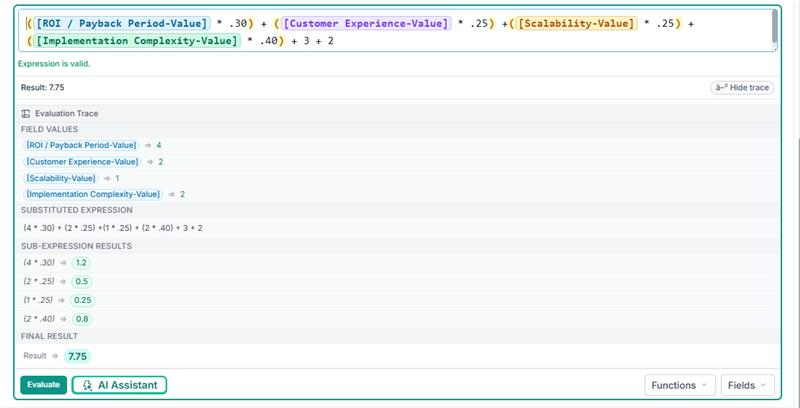
An expression is a formula that calculates a value automatically from other fields on the record. Here is an example that produces a weighted score:
([ROI / Payback Period-Value] * .30) + ([Customer Experience-Value] * .25)
  + ([Scalability-Value] * .25) + ([Implementation Complexity-Value] * .40) + 3 + 2
Breaking It Down
Component | What It Does |
|---|---|
| A field reference — the square brackets pull in the current value of that field from the record. |
| A multiplication operator followed by a numeric literal. Multiplies the field value by 0.30 (30 %). |
| Parentheses group a sub-calculation so it is evaluated first. |
| The addition operator adds the results together. |
| Plain numeric literals added to the total. |
When the expression above is evaluated against a record where:
[ROI / Payback Period-Value]→ 4[Customer Experience-Value]→ 2[Scalability-Value]→ 1[Implementation Complexity-Value]→ 2
the result is 7.75.
The Evaluation Trace
When you click Evaluate in the expression editor, a result is displayed. The Evaluation Trace expands below and walks you through every step the engine took to reach that result. Click Show trace to reveal it, and Hide trace to collapse.
The trace has four sections:
1. Field Values
Lists every field reference found in the expression together with its current value from the loaded sample record.
[ROI / Payback Period-Value]       ⇒ 4
[Customer Experience-Value]        ⇒ 2
[Scalability-Value]                ⇒ 1
[Implementation Complexity-Value]  ⇒ 2
Tip: If a field shows (null) here, the record does not have a value for that field. Null fields can cause unexpected results — see Handling NULL Values below.
2. Substituted Expression
The engine replaces each field reference with its resolved value so you can see the raw calculation:
(4 * .30) + (2 * .25) + (1 * .25) + (2 * .40) + 3 + 2
This is helpful for spotting when a field resolved to an unexpected value.
3. Sub-Expression Results
Each parenthesised group is evaluated individually:
(4 * .30)  ⇒ 1.2
(2 * .25)  ⇒ 0.5
(1 * .25)  ⇒ 0.25
(2 * .40)  ⇒ 0.8
If one sub-expression produces an unexpected number, focus your debugging there.
4. Final Result
The fully calculated answer:
Result ⇒ 7.75
Using Sample Fields
Before you can evaluate an expression you need a sample context — a real or representative set of field values to test against.
Automatic loading — When you enable expressions on a custom property and begin editing, the editor automatically loads a sample context from the current entity type (Project, Action, or Person). The Fields dropdown in the editor footer lists every available field name and its sample value.
Inserting fields — Click the Fields button to browse available field names. Selecting a field inserts it into the expression wrapped in square brackets, e.g.
[Priority].Checking field validity — The editor highlights any field token that does not exist in the loaded context. If you see a red "Invalid" badge next to a token, the field name is misspelled or is not available for this entity type.
Reviewing values — Open the Fields dropdown to see the sample value next to each field name. This tells you whether the field is a number, a piece of text, a boolean, or null.
Field Types and How They Behave
Number Fields
Number fields (e.g. Score & Number properties) resolve to a numeric value in the expression context.
You can use arithmetic operators directly:
[Score] * 2,[Budget] + 1000.Division by zero will produce an evaluation error.
If a number field is empty (null), arithmetic with it returns null. Guard against this with
COALESCE([Score], 0).
Text (String) Fields
Text fields (e.g. Status, Category, an Option's display text) resolve to a string value.
Compare with quotes:
[Status] = "Active".String comparison is case-insensitive.
The
+operator on two strings performs concatenation:"Phase: " + [Phase]producesPhase: Build.
Boolean (Yes/No) Fields
Yes/No fields resolve to true or false.
Use them directly in conditions:
IF([IsActive], "Yes", "No").Combine with
AND/OR:[IsActive] AND [HasBudget].The values
FALSE,0,""(empty string),NULL, and the literal string"false"are all treated as falsy. Everything else is truthy.Be aware that the string
"false"is a special case — even though it is a non-empty string, the engine treats it as falsy to align with the Yes/No data type.
Date and DateTime Fields
Dates are compared chronologically:
[DueDate] < [StartDate].Use the
DIFFfunction to get the difference between two dates:DIFF([StartDate], [EndDate], "day").
What Happens When You Mix Types
Using a Text value in a Numeric operation
If a field is a text (string) type and you attempt to use it in an arithmetic operation such as multiplication or subtraction, the expression engine will try to coerce the string into a number.
Scenario | Example | Result |
|---|---|---|
String contains a valid number |
|
|
String is not a number |
| Error — the engine cannot convert "High" to a number and the expression fails. |
String is empty or null |
| The |
Validation warning: When you save a property definition, the editor validates the expression by substituting placeholder values for each referenced field. If a text field is used in a position where a number is expected, the validation will flag this as an error. Fix it by either:
Changing the referenced field to a Number data type, or
Wrapping the field in a guard:
IF([TextField] = NULL, 0, [TextField])so it always resolves to a number.
Using a Number value in a String operation
When you use + and one side is a string, the engine converts the number to text and concatenates:
"Score=" + [Score]
If [Score] is 85, the result is the string "Score=85".
Common Debugging Tips
Always click Evaluate after writing or changing an expression. The trace immediately shows whether field values are what you expect.
Check the Substituted Expression to see the raw calculation. If a field resolved to
nullor an unexpected string, that is the source of the problem.Look at Sub-Expression Results to isolate which group is producing the wrong number.
Watch for type mismatches. A field you think is numeric might actually be stored as text (e.g. an option value). The trace will show its resolved type.
Use COALESCE for safety. Wrap any field that could be empty:
COALESCE([OptionalScore], 0)ensures a zero instead of null.Use IF for branching. Guard expressions with
IF([Field] = NULL, <default>, <calculation>)to avoid errors on incomplete records.Check for invalid tokens. If a field name badge appears in red below the expression, the name does not match any available field. Check spelling, spacing, and capitalisation.
Quick Reference
Operators
Operator | Description |
|---|---|
| Addition (numbers) or concatenation (strings) |
| Subtraction |
| Multiplication |
| Division |
| Modulo (remainder) |
| Equals |
| Not equals |
| Comparisons |
| Both sides must be true |
| At least one side must be true |
| Negates a condition |
Functions
Function | Syntax | Description |
|---|---|---|
|
| Returns one of two values based on a condition. |
|
| Evaluates conditions in order; returns the first match or the default. |
|
| Returns the first non-null value. |
|
| Absolute value of a number. |
|
| Difference between two dates in the specified unit (day, month, year). |
|
| True if the text contains the search string. |
|
| True if the text starts with the prefix. |
|
| True if the text ends with the suffix. |
Truthiness Rules
Value | Treated as |
|---|---|
| Falsy |
Any non-zero number, non-empty string (except | Truthy |
Worked Example
Goal: Calculate a weighted priority score from four rating fields and add a fixed baseline of 5.
Expression:
([ROI / Payback Period-Value] * .30) + ([Customer Experience-Value] * .25)
  + ([Scalability-Value] * .25) + ([Implementation Complexity-Value] * .40) + 3 + 2
Trace output with sample values:
Step | Detail |
|---|---|
Field Values | ROI / Payback Period-Value → 4, Customer Experience-Value → 2, Scalability-Value → 1, Implementation Complexity-Value → 2 |
Substituted Expression |
|
Sub-Expression Results | (4 * .30) → 1.2, (2 * .25) → 0.5, (1 * .25) → 0.25, (2 * .40) → 0.8 |
Final Result | 1.2 + 0.5 + 0.25 + 0.8 + 3 + 2 = 7.75 |
If any of these ratings were empty, wrapping them in COALESCE would prevent a null result:
(COALESCE([ROI / Payback Period-Value], 0) * .30)
  + (COALESCE([Customer Experience-Value], 0) * .25)
  + (COALESCE([Scalability-Value], 0) * .25)
  + (COALESCE([Implementation Complexity-Value], 0) * .40) + 3 + 2