
External Workflow Gates Paired with Approvals
External Workflow gates allow an external system — such as Power Automate, ServiceNow, or Azure DevOps — to control the progression of a Fluid project phase. Unlike a standard Declared gate, which a Project Manager closes manually, an External Workflow gate can only be opened or closed through the Fluid REST API. This makes it ideal for integration scenarios where the approval decision happens outside Fluid.
When paired with a Fluid approval, an External Workflow gate goes one step further: the external system signals that the gate is ready to close, and Fluid then creates a formal approval task for a configured approver before the gate actually closes. This gives organisations a powerful two-step governance model — an external trigger followed by an internal sign-off.
How It Works
External Workflow Gate set with No Approval
The gate is created in the stage gate template with Gate Mode set to External Workflow.
No Approval Type is configured (set to None).
The gate appears on the project phase as open and cannot be toggled by users in the UI.
An external system calls the Fluid V3 API to set the gate to Closed (or Open / In Progress).
The gate closes immediately when the API call is made.
External Workflow Gate Paired with a Fluid Approval
The gate is created with Gate Mode set to External Workflow.
An Approval Type is configured — for example Executive, Business Owner or a Workflow Request.
The gate appears on the project phase as open and cannot be toggled by users in the UI.
An external system calls the Fluid V3 API to set the gate to Closed.
Instead of closing immediately, Fluid sets the gate to Blocking and creates an approval decision / task for the configured approver.
The approver receives a notification and reviews the gate.
On approval, the gate closes automatically.
On rejection, the gate returns to Open (not blocking, not closed) and the external system can call the API again to re-trigger the approval.
Important: If no approver can be resolved for the configured Approval Type (for example, the project has no Executive assigned), the gate closes directly without creating an approval task. This prevents the gate from becoming permanently stuck.
This pairing means the external system decides when the gate is ready for review, while the Fluid approval workflow decides whether the gate should actually close.
Configuring External Workflow Gates with Approvals
Prerequisites
You must have Administration Console access.
Project methodologies and phases must already be configured.
Step 1 — Create or Edit a Stage Gate
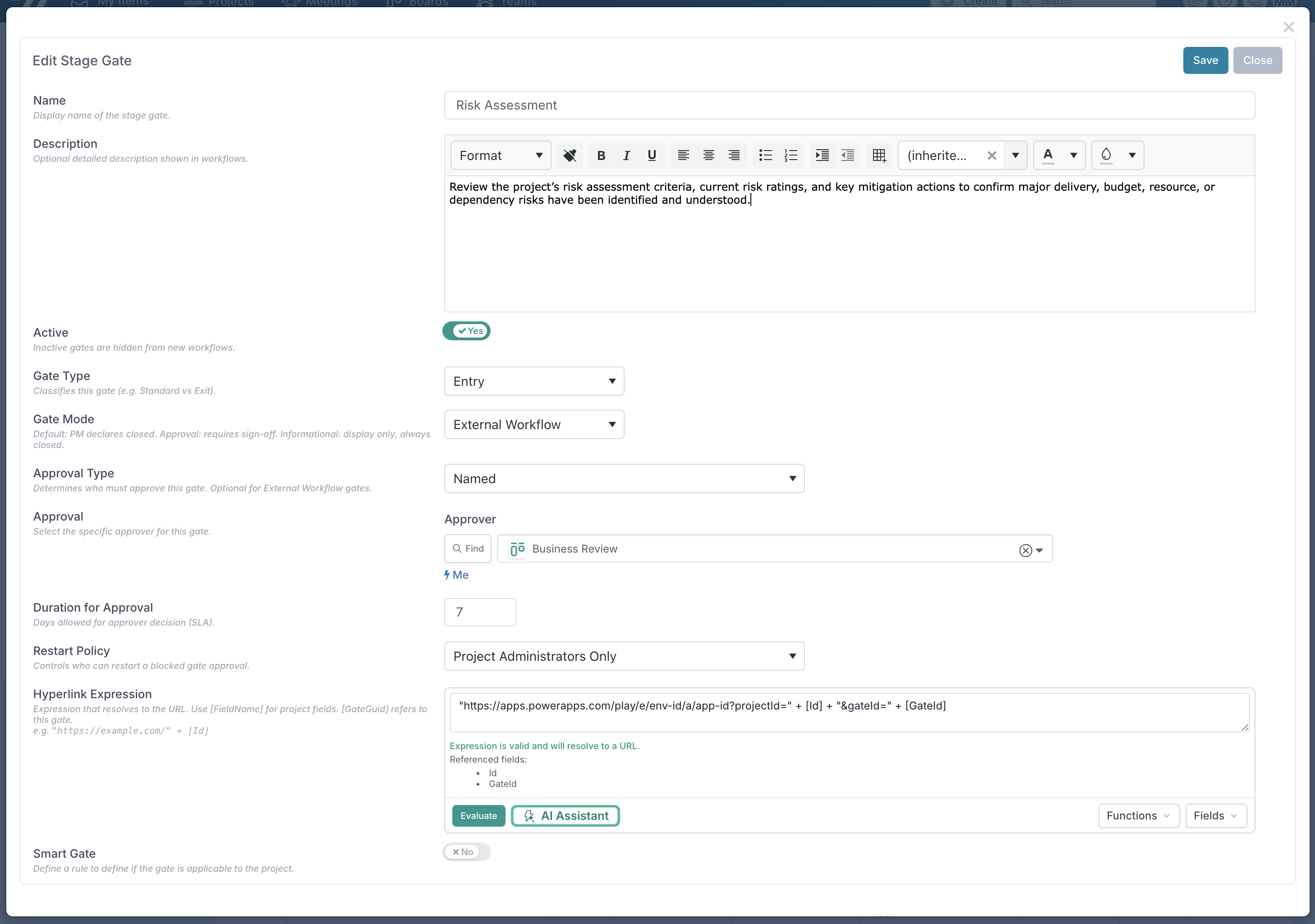
Navigate to Administration Console → Project Settings → Methodologies, Phases and Stage Gates.
In the Stage Gates tab, click Add Item to create a new gate, or click an existing gate to edit it.
Fill in the following fields:
Field | Value | Notes |
|---|---|---|
Name | A descriptive name for the gate | e.g. "External Design Review" |
Description | (Optional) Detailed criteria for the gate | Shown to users on the project workspace |
Active | On | Set to Off to hide the gate from new workflows |
Gate Type | Entry or Exit | Entry = start of phase, Exit = end of phase |
Gate Mode | External Workflow | This is the key setting |
Step 2 — Configure the Approval
When you select External Workflow as the Gate Mode, additional fields appear:
Field | Value | Notes |
|---|---|---|
Approval Type | None, Named, Portfolio Approver, Business Owner, Owner, or Executive | Determines who must approve the gate when the external system requests closure. Set to None if no Fluid approval is needed. |
Approval | (Only when Approval Type = Named) | Select the specific user, workhub or work request workflow that will receive the approval task. |
Duration for Approval | Number of days (default 7) | SLA for the approver to act on the approval task. |
Restart Policy | None, Project Managers, or Project Admins Only | Controls who can restart a blocked approval if it is rejected or stalls. |
Tip: If you set the Approval Type to anything other than None, the external API call to close the gate will trigger a Fluid approval workflow instead of closing the gate directly. The gate will remain in a Blocking state until the approver acts.
Step 3 — Configure a Hyperlink (Optional)
External Workflow gates support an optional Hyperlink Expression that surfaces a clickable link on the project workspace. This is useful for pointing users to the external system where the gate decision is managed.
Field | Value | Notes |
|---|---|---|
Hyperlink Expression | A dynamic expression resolving to a URL | Use |
Example expressions:
"https://myapp.example.com/review/" + [Id]"https://apps.powerapps.com/play/e/env-id/a/app-id?projectId=" + [Id] + "&gateId=" + [GateId]
Step 4 — Assign the Gate to a Phase
Switch to the Phase Gates tab.
Click Add Gate to Phase.
Select the Methodology, Phase, and the Stage Gate you just created.
Set the Gate Order (controls sequencing within the phase).
Save.
Step 5 — Propagate to Projects
Click Apply to All Projects to push the new gate configuration to all existing projects using the methodology, or create new projects to pick up the gate automatically.
How the Approval Flow Works Internally
When the external system sends a close request, Fluid checks whether the gate has an Approval Type configured:
If
ApproverRoleis None (or empty), the gate closes immediately.If
ApproverRoleis set (Executive, Business Owner, Owner, Portfolio, Workhub or Work Request), Fluid:Sets the gate to Blocking (
IsBlocking = true,IsClosed = false).Resolves the approver(s) based on the configured role and the project's team.
Creates an approval task (either a board workflow card or a decision request, depending on the approver type).
The approver receives a notification with an SLA deadline.
If the configured role cannot be resolved (e.g. no Executive is assigned to the project), the gate closes directly as a fallback.
When the approver acts:
Approved → gate is set to Closed (
IsBlocking = false,IsClosed = true). Phase progression is unblocked.Rejected → gate returns to Open (
IsBlocking = false,IsClosed = false). The external system can call the API again to re-trigger the approval cycle.
Note: This approval behaviour applies to both API endpoints — the workflow endpoint (
/rest/api/stagegates/workflow/{projectId}/{gateId}/{state}) and the GUID-based endpoint (/rest/api/stagegates/{projectGuid}/{gateId}). In both cases, requesting a close on a gate with an approval type configured will initiate the approval workflow rather than closing directly.
How Users Experience External Workflow Gates with Approvals
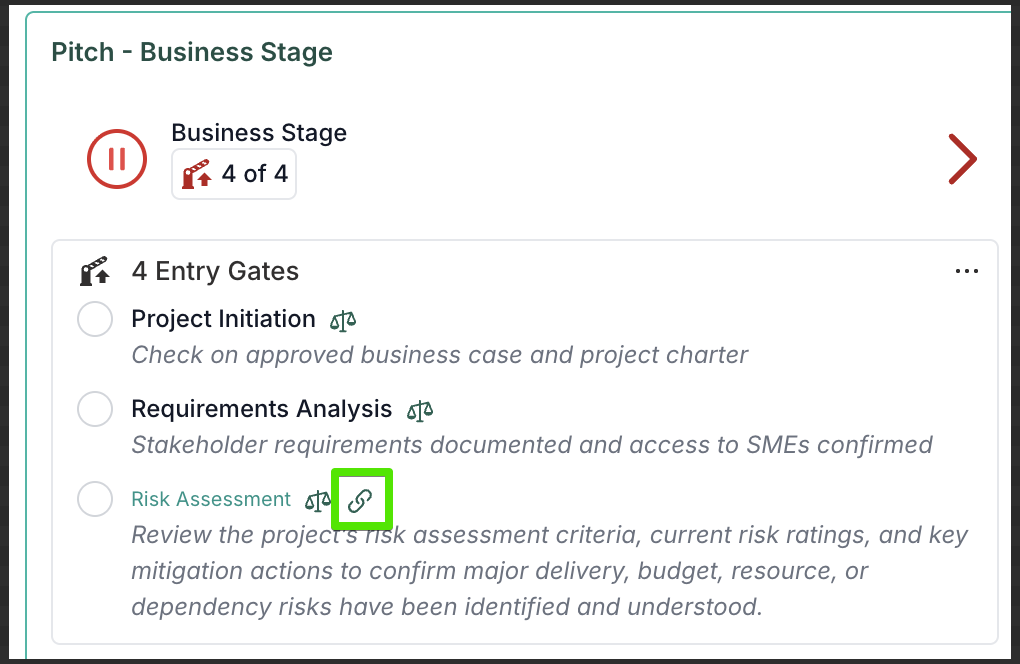
The gate appears on the project's stage gate panel with a visual indicator that it is externally managed.
Users cannot toggle the gate open or closed from within Fluid.
If a hyperlink is configured, users see a clickable link that takes them to the external system.
When the external system triggers a close and an approval is configured, the approver sees a standard Fluid approval task in their task list.
The gate shows as Blocking while the approval is pending.
The gate blocks phase progression until the approval is completed.
Summary of Gate Behaviour by Configuration
Approval Type | What Happens When API Sends a Close Request |
|---|---|
None | Gate closes immediately. |
Named / Executive / Business Owner / Owner / Portfolio | Gate moves to Blocking, an approval task is created for the configured approver. Gate closes only after approval. If no approver can be resolved, gate closes directly. |
Restart Policy
If an approval is rejected or stalls, the Restart Policy determines who can reset the gate:
Restart Policy | Who Can Restart |
|---|---|
None | Gate cannot be restarted. |
Project Managers | Users with manage permissions on the project. |
Project Admins Only | Only users with project admin permissions. |
Restarting a gate resets it to Blocking (IsBlocking = true, IsClosed = false) and resets the associated approval action back to its initial request state. The gate can only be restarted when it is in the project's current phase.
Frequently Asked Questions
Can a Project Manager manually close an External Workflow gate? No. External Workflow gates can only be opened or closed via the Fluid V3 API. The Project Manager can view the gate status but cannot change it.
What happens if the approver rejects the gate? The gate returns to Open (not blocking, not closed). The external system can call the API again to re-trigger the approval. If a Restart Policy is configured, a user with the appropriate role can also restart the approval from within Fluid.
What happens if no approver is assigned for the configured role? The gate closes directly without creating an approval task. For example, if the Approval Type is set to Executive but the project has no Executive assigned, the gate will close immediately when the API call is made.
Can I change the Approval Type after projects are already using the gate? Yes. Changes to the gate template will apply to any projects where the gate has not yet been closed and no approval workflow has been started. Projects where the gate is already closed or has an active approval in progress are not affected.
Do External Workflow gates follow the same sequencing rules as other gates? Yes. External Workflow gates respect all three stage gate rules:
Phase Rule — Cannot close gates in future phases.
Entry/Exit Rule — All entry gates must be closed before exit gates in the same phase.
Order Rule — Gates must be closed in sequence within their type.
Can I use a Smart Gate expression with an External Workflow gate? Yes. The Smart Gate Expression field (Conditional Expression) is available for all gate modes and controls whether the gate is applicable to a given project based on a dynamic rule.
Does the approval trigger on both API endpoints? Yes. Both the workflow endpoint (/rest/api/stagegates/workflow/{projectId}/{gateId}/{state}) and the GUID-based endpoint (/rest/api/stagegates/{projectGuid}/{gateId}) will trigger the approval workflow when closing a gate that has an Approval Type configured. The only difference is that the workflow endpoint supports the three-state model (Open/In Progress/Closed) while the GUID-based endpoint only supports open/closed.