
Linking Existing Project Documents to Work Request Document Custom Properties
Project Workflows and Stage Gates often require supporting evidence before a request can progress. For example, a Project Workflow may require evidence for a project update, extension request, funding request, or new sub-project request. A Stage Gate may require a business case, approval pack, or governance document before the project can move to the next phase.
When you trigger a Project Workflow or Stage Gate, Fluid creates a Work Request. That Work Request may include Custom Properties of type Document, where you are asked to provide one or more supporting files.
If the document has already been added to the Project, you do not need to upload it again. You can select the existing Project document and associate it with the Document-type Custom Property.
Where applicable, you can also select documents from related Projects in the same project hierarchy, including the Project’s direct parent Project, its sub-projects, and sibling Projects that share the same direct parent.
This helps avoid duplicate files, keeps supporting evidence consistent, and ensures the workflow or gate is referencing the same source document already used on the Project.
Why select an existing document?
Project Workflows and Stage Gates often reuse documents that already exist on the Project.
For example, a business case may already have been uploaded during project initiation, but later be required again as evidence for a Stage Gate. A funding approval document may already exist on the Project, but need to be referenced when a Project Workflow is triggered to request an extension or additional funding.
Supporting evidence may also be managed on a related Project. For example, a programme or large delivery initiative may include several sub-projects, with each sub-project representing a different release. Some release artifacts, such as an approval pack, test evidence, deployment checklist, or lessons learned document, may be completed for one release and then reused as supporting evidence for a future release.
Rather than uploading another copy of the same file, you can select the existing document when completing the Document-type Custom Property on the Work Request.
This is useful because it helps you:
avoid duplicate copies of the same file;
reuse important project evidence across multiple Project Workflows or Stage Gates;
keep a clear link between the supporting document and the workflow or gate where it was used;
preserve the document context needed for governance and auditability.
Uploading or selecting a document
When a Work Request includes a Custom Property of type Document, you can populate it in one of two ways:
Upload a new document from your computer.
Select an existing document that has already been added to the current Project, the direct parent Project, a sub-project, or a sibling Project that shares the same direct parent.
Use Upload a new document when the file has not yet been added to the relevant Project.
Use Select an existing document when the file is already attached to the current Project or to a related Project in the same project hierarchy, and should be reused for the current Project Workflow or Stage Gate. This avoids uploading another copy of the same file. Instead, Fluid stores a reference to the selected document.

When you choose Select Existing Document, Fluid shows the documents available in the Work Request’s project context. This may include documents from:
the current Project;
the direct parent Project, where applicable;
sub-projects, where applicable;
sibling Projects that share the same direct parent, where applicable.
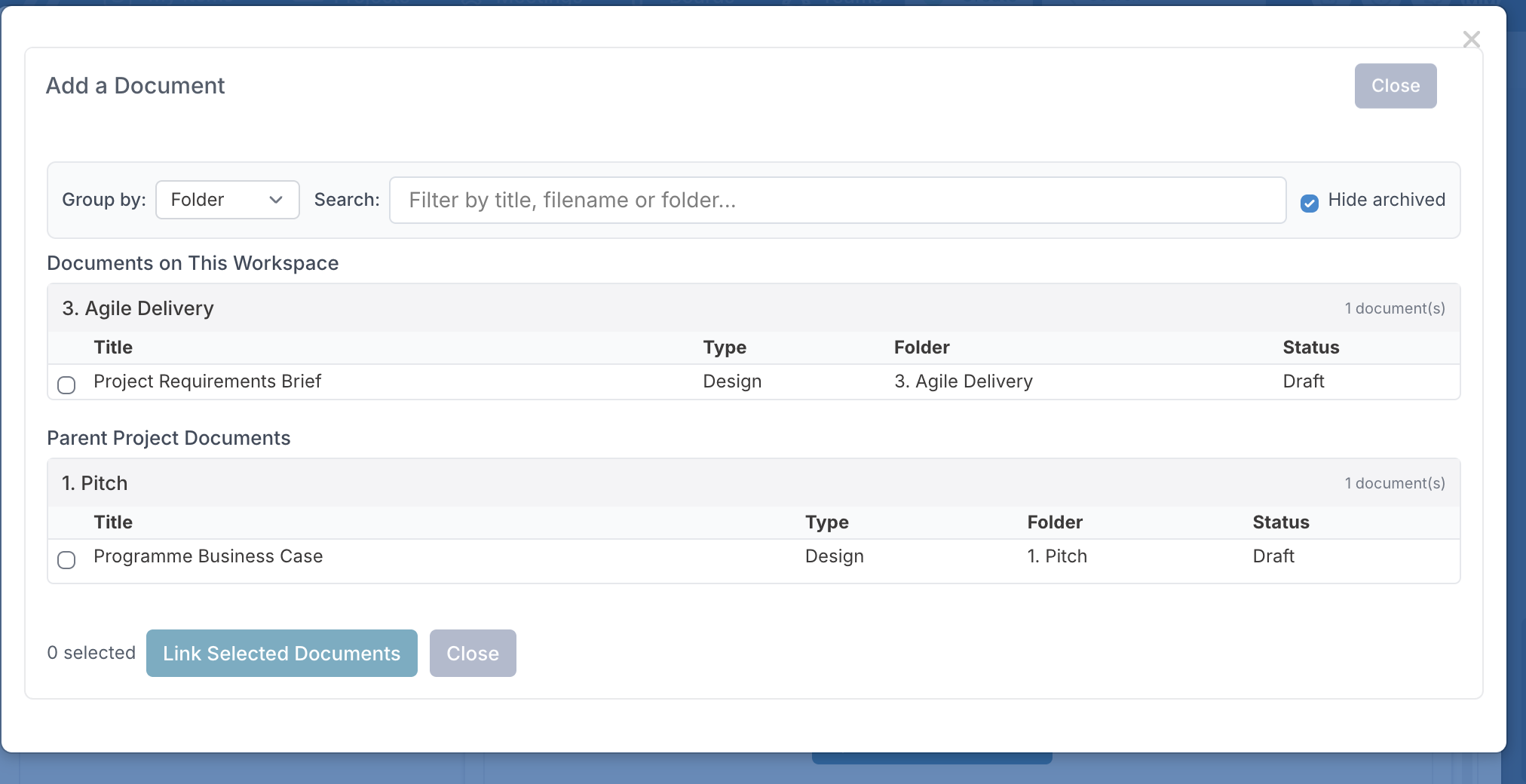
To select an existing document, tick the document you want to use and click Link Selected Documents.
The selected document is then associated with the Document-type Custom Property. No new file is uploaded, and no duplicate copy is created.
What "linked" actually means
When you select an existing document for a Document-type Custom Property, Fluid stores a reference to the selected document file. It does not upload a new file and does not create a duplicate copy.
This has several important implications:
The same file can be referenced in multiple places.
The same document can be associated with multiple Document-type Custom Properties, across Project Workflows or Stage Gates, where it is available to select. This helps avoid duplicate uploads when the same supporting document is needed in more than one place.The file content is shared, but the document metadata is separate.
When two Work Requests, Project Workflows, Stage Gates, or projects reference the same document, they point to the same underlying file content. However, each document reference can have its own metadata. This metadata records the context in which the document was used, such as the workflow, phase, gate, package, approval history, or other governance information associated with that specific use of the document.The reference points to the selected file version.
The property references the document file version that was selected at the time it was associated with the property. If a new version of that document is uploaded later, the existing property reference does not automatically move to the new version.For example, if a document is selected as evidence for a Stage Gate, and that Stage Gate is later reopened and the document is updated, Fluid creates a new version of the document. Other Work Requests, Project Workflows, or Stage Gates that were already referencing the original document continue to reference the version that was originally selected.
This is important for governance and auditability, because each workflow or gate continues to point to the evidence that was selected at the time.
Deleting the source document affects the reference.
If the original document is deleted, the property will no longer be able to display or download the file.