
Refresh Project Metadata on Workflow Cards
Workflow cards linked to a project can carry project metadata, such as mapped custom field values. If the project information changes after the card is created, the card may need to be refreshed so it reflects the latest project data.
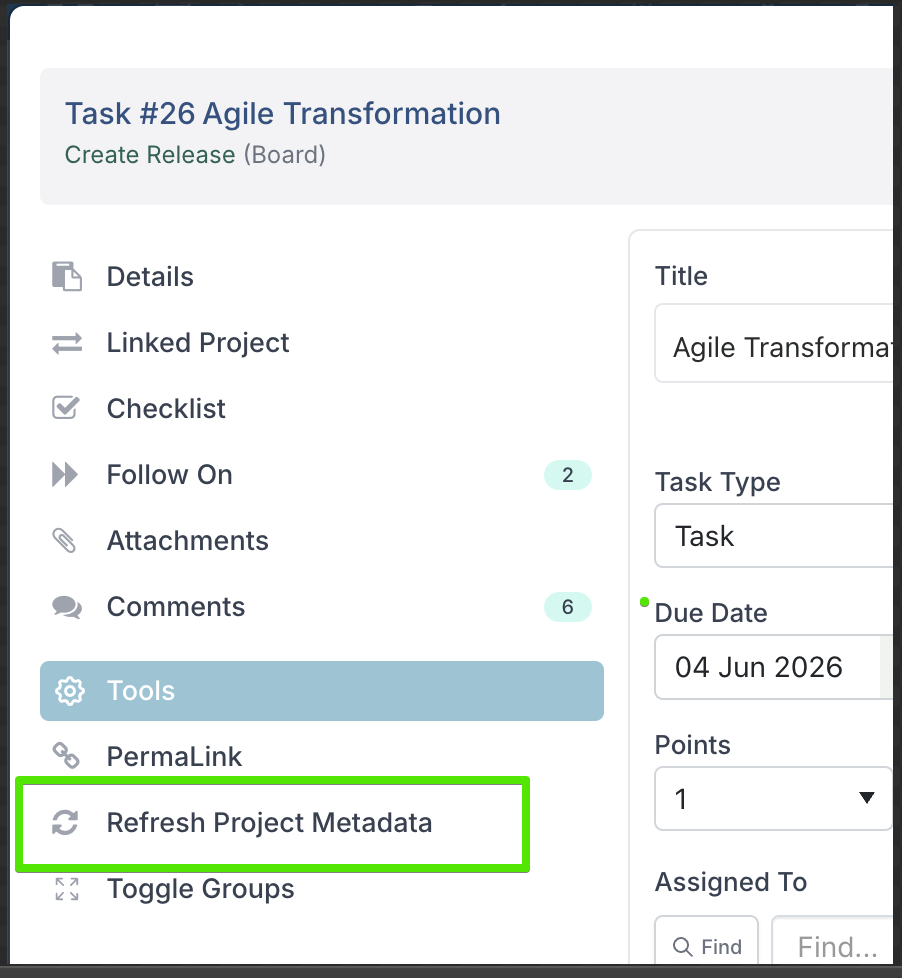
Use Refresh Project Metadata from the card’s left-hand navigation to manually update eligible read-only card properties with the latest values from the linked project.
Which cards does this apply to?
Refresh Project Metadata is available on workflow cards that are linked to a project.
It is not limited to a specific board type. If a card is linked to a project and meets the required conditions, the option can appear in the card’s left-hand navigation.
When is Refresh Project Metadata available?
The Refresh Project Metadata option appears in the card’s left-hand navigation only when both of the following are true:
The card is linked to a project — cards that are not linked to a project will not show this option.
The card is not closed — once a card is moved to a closed status, the option is no longer available.
Who can refresh project metadata?
You can refresh project metadata if you are:
an assignee on the card, or
a member of the board.
If the card is still in Draft, the requester can also refresh project metadata, even if they are not an assignee or board member.
If you do not meet one of these access conditions, Refresh Project Metadata will not be available.
What gets updated?
Only card properties configured as Read Only for Everyone are updated.
These properties are usually values that come from the linked project and are meant to stay consistent while the card moves through the workflow. For example, a workflow card may include project-level information such as priority, portfolio, sponsor, budget, or target date. If those values change on the project, refreshing project metadata updates the matching read-only properties on the card.
Editable card properties are not refreshed, as they contain workflow-specific information that users are expected to update directly on the card.
What will I see after the refresh?
When you select Refresh Project Metadata, a confirmation message appears asking you to confirm that you want to refresh project metadata on the workflow card.
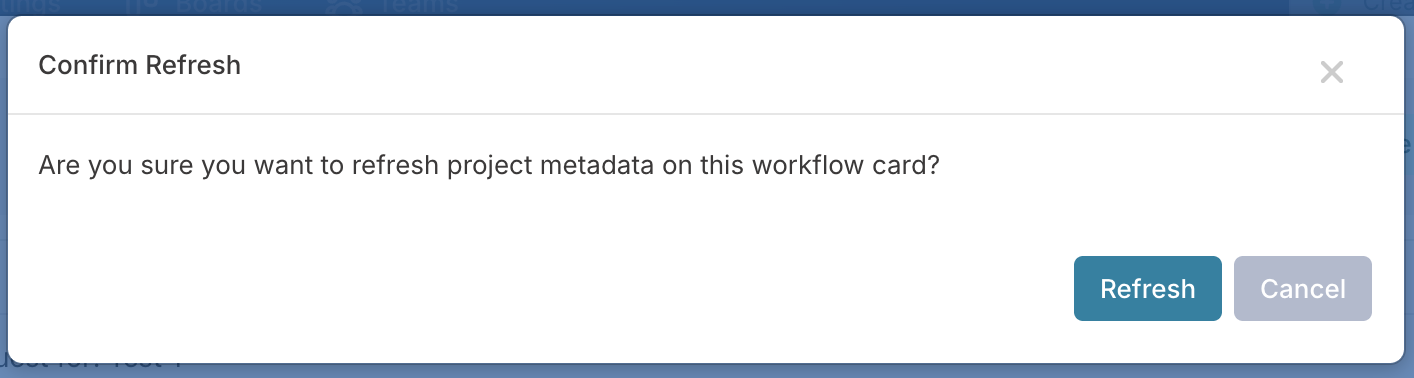
Click Refresh to continue, or Cancel to close the message without making changes.
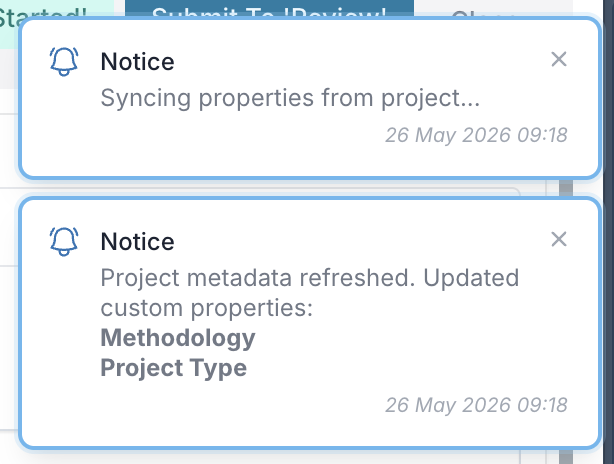
After you confirm, you will see a notification while the system syncs the latest properties from the linked project. Once the refresh is complete, a second notification will explain the result.
Outcome | What you will see |
|---|---|
Properties were updated | A notification confirms that project metadata was refreshed and lists the custom properties that were updated. |
No changes detected | A notification confirms that project metadata was refreshed, but no custom property value changes were detected. |
No eligible properties exist | A notification explains that no properties were updated. |
Card is closed or not linked to a project | An error message explains why the refresh could not run. |
Automatic refresh when opening a card
In addition to the manual Refresh Project Metadata button, Fluid can automatically sync project metadata when a card is opened — no action required.
This automatic refresh runs silently in the background before the card dialog loads, and only triggers when all of the following conditions are met:
The card is a workflow/process card.
The card is linked to a project.
The card is not closed.
The user opening the card has Editor permission on the board or card.
The card is currently in the board's first (request) column — its status matches the board's request state.
When these conditions are met, Fluid syncs the latest project data to the card automatically. The same rules apply as with a manual refresh: only properties configured as Read Only for Everyone are updated. Editable card properties are not changed.
This automatic refresh does not trigger the confirmation prompt used by the manual Refresh Project Metadata flow.