
Stage Gate Packages
A Stage Gate Package is a reusable bundle of governance gates that can be initiated one or more times within a single project phase. Think of it as a "template" of checkpoints that you stamp out each time your project needs to repeat the same set of approvals — for example, once per software release, once per vendor evaluation round, or once per audit cycle.
Why Do They Exist?
Regular stage gates are fixed; your methodology defines exactly how many gates appear on each phase. But some phases need the same checks to be repeated an unknown number of times. For example:
An Execution phase delivering 4 production releases, each requiring a Change-Impact Log, Test Plan, Business Sign-Off, and Go-Live Approval.
A Procurement phase running 3 vendor evaluations, each needing an RFP Review, Scoring Sheet, and Shortlist Sign-Off.
An Operate phase scheduling periodic compliance audits, each needing Evidence Collection, Internal Review, and External Attestation.
Without packages, your administrator would need to hard-code gates for every possible release — which doesn't work when each project is different. Packages let you (the Project Manager) decide how many cycles your project needs.
Key Concepts
Package — A named bundle of gates defined by your project administrator. For example, "Software Release Cycle" might contain a Change-Impact Log, Test Plan, Business Sign-Off, and Go-Live Approval.
Package Gate — A special gate on your phase that represents the package. It acts as the container for package instances. You don't close this gate yourself — it closes automatically when all child gates inside are complete.
Instance — One copy of the package that you initiate on your project. Each time you start a package, you create a new instance with its own name (e.g. "Release 2 — June 2026") and its own set of child gates to work through.
Child Gates (Sub-Gates) — The individual approval and checkpoint gates inside an instance. These work exactly like normal stage gates — same approvers, same rules, same workflows.
How to Create a Package (Project Administrator)
Before You Start
Make sure the individual gates you want to include in the package already exist in Stage Gate Administration. Packages reference existing gates — they don't create new ones. If a gate you need doesn't exist yet, create it first using the standard stage gate setup.
Steps
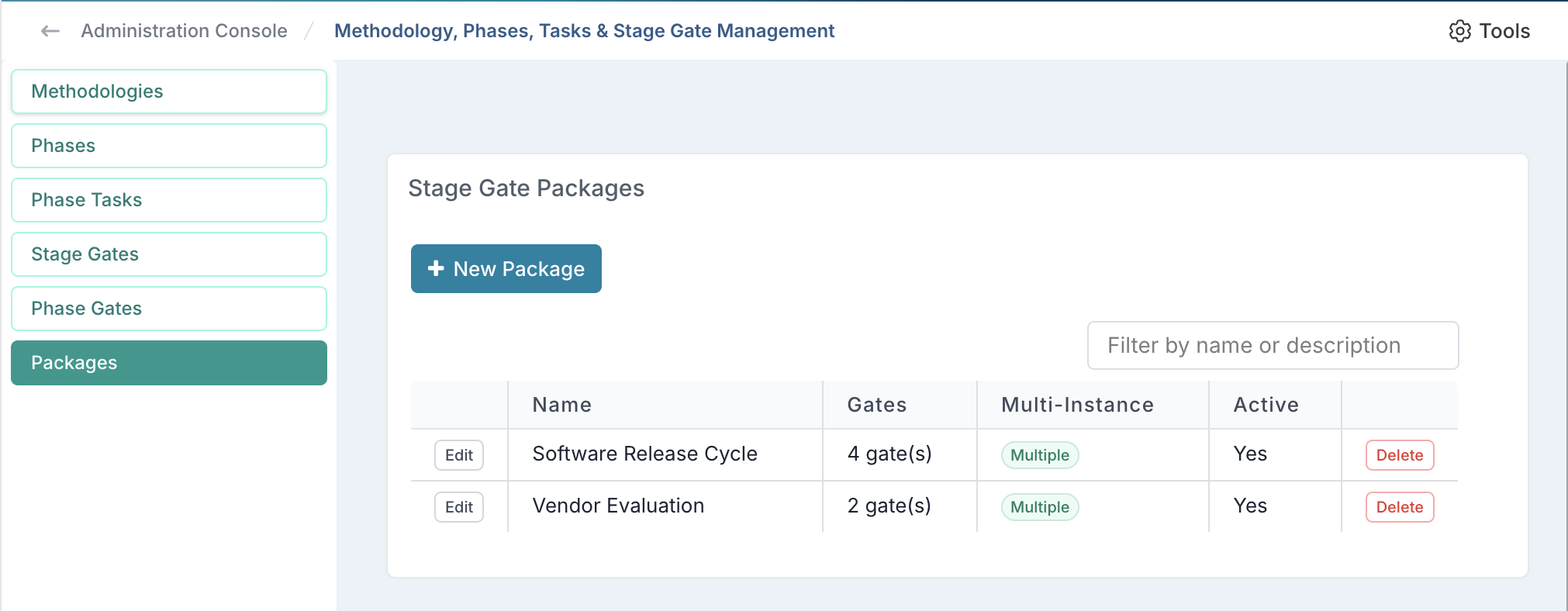
Navigate to Admin → Methodologies, Phases and Tasks Setup.
Open the Packages tab.
Click + New Package.
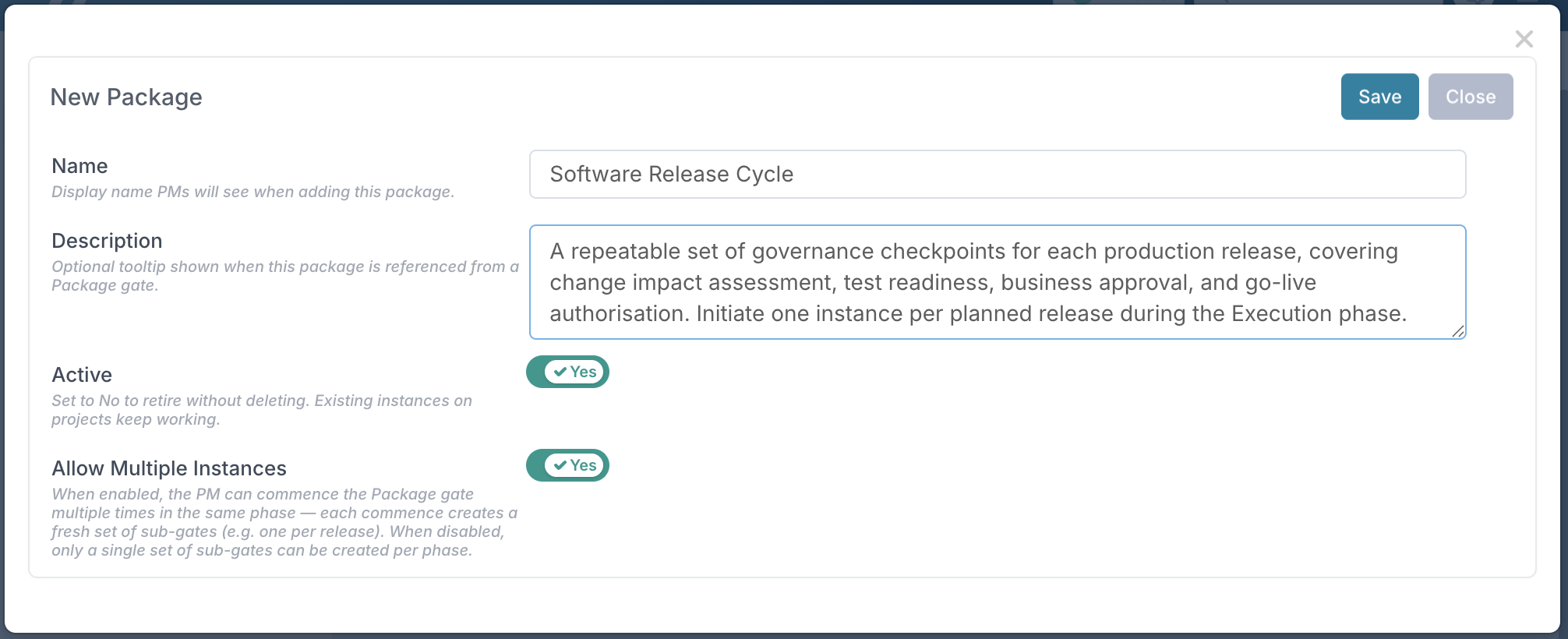
Fill in the following fields:
Name (required) — This is what Project Managers will see when initiating the package. Choose something short and recognisable, e.g. "Software Release Cycle". Avoid cryptic codes like "Pkg-1".
Description (optional) — Shown as a tooltip when this package is referenced from a Package gate. Use it to explain when/why a PM would use this package.
Active — Defaults to Yes. Set to No to retire a package without deleting it. Existing instances on projects will keep working; the package simply won't appear as an option for new instances.
Allow Multiple Instances — Defaults to Yes. When enabled, the PM can start the package multiple times on the same phase (e.g. once per release). When disabled, only a single instance can be created per phase — use this for optional one-time packages.
Add gate to package — Use the dropdown to select a gate to include in this package, then click + Add Gate. Repeat for each gate you want in the bundle. Gates appear in the order list below the picker — this is the order Project Managers will see when they initiate an instance. Use the Remove button to take a gate out if added in error.
Click Save.
Adding Gates to the Package
Once the package is saved, you can add its member gates:
Select an existing gate from the package's gate dropdown field and click + Add Gate.
Repeat for each gate that should be included in the bundle.
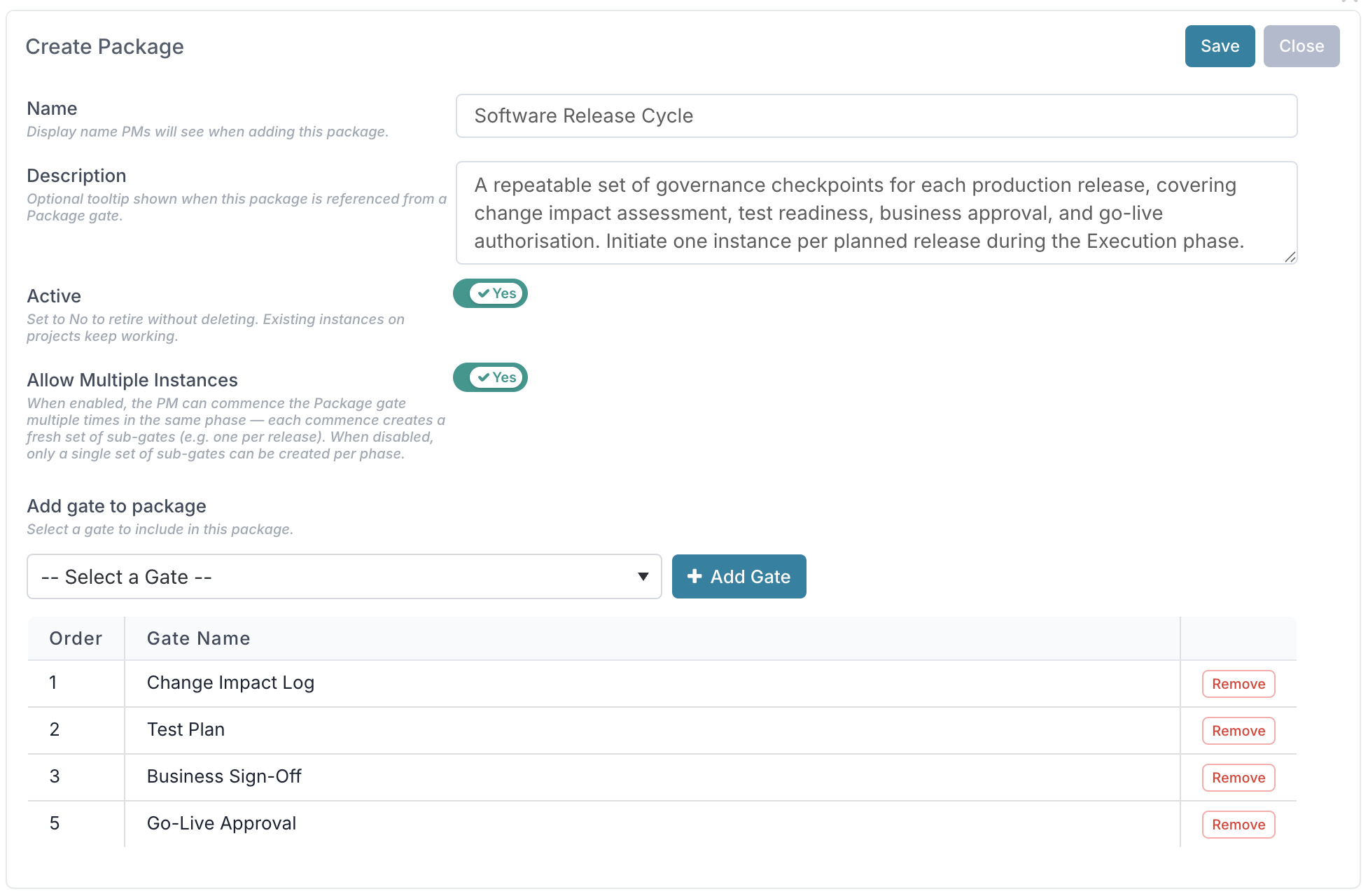
Important: Think of the package members as a template. Once a PM initiates an instance, they cannot reorder, add, or remove gates within it — the bundle is the unit of governance. Get the order right here.
How to Set a Gate as a Package Gate ( Project Administrator)
Once you've created a package definition, you need to place a Package gate on a methodology phase so that it gets pushed out to projects. This is the gate that Project Managers will "commence" to create instances.
Steps
Navigate to Admin → Methodologies, Phases and Tasks Setup.
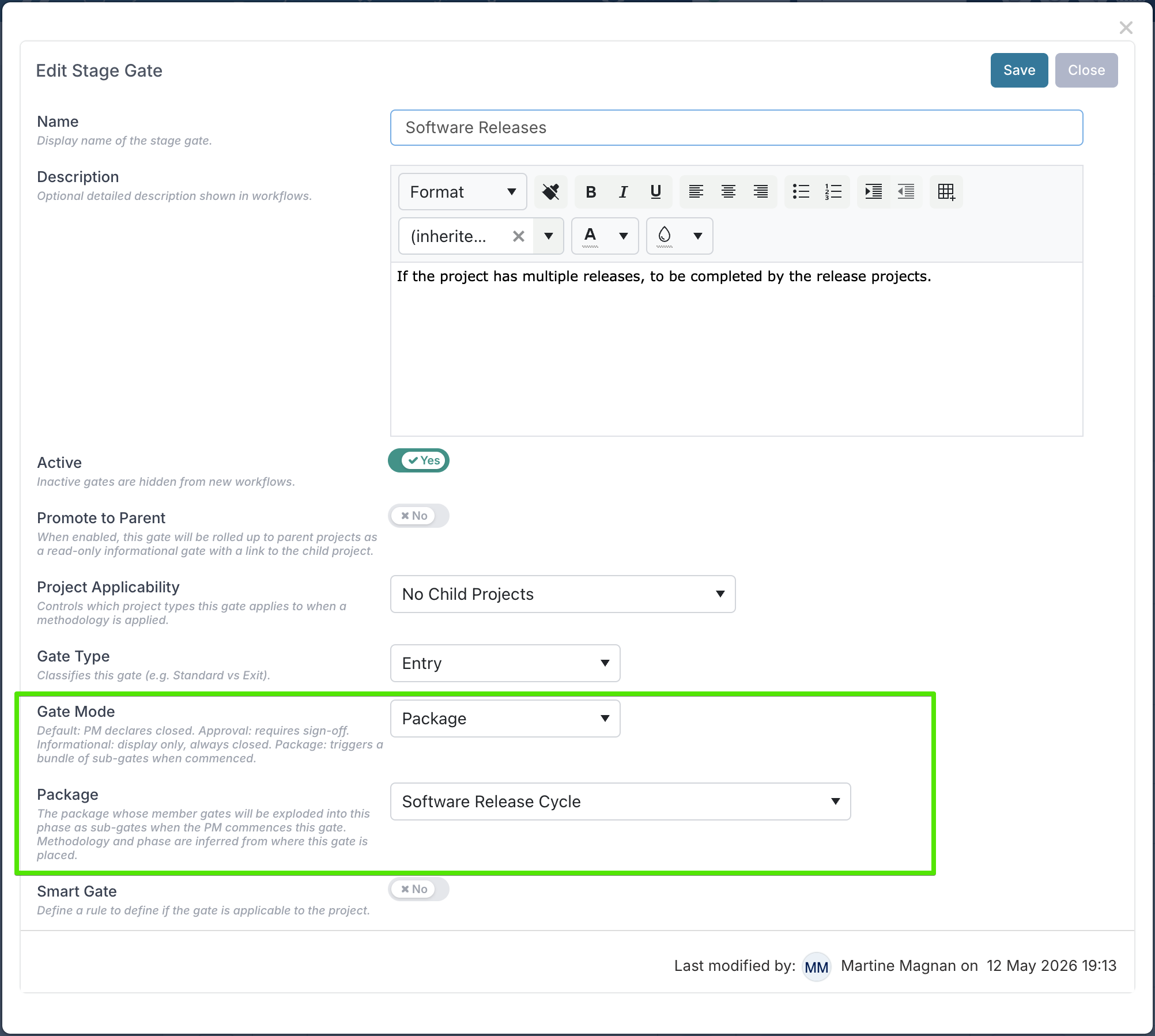
Open the Stage Gates tab.
Create a new stage gate (or edit an existing one you want to convert).
Set Gate Mode to Package. A new Package picker will appear.
In the Package picker, choose the package whose member gates should be created when a PM commences this gate.
Set the Gate Type, Project Applicability, Promote to Parent and Smart Gate fields as required.
Click Save.
Go to the Phase Gates tab and assign this Package gate to the phase(s) where it should appear.
What Happens Next
When the methodology is applied to a project, the Package gate appears on the relevant phase just like any other gate.
The PM sees the Package gate on their project and can commence it to create instances.
The Package gate cannot be closed manually by the PM — it closes automatically when all child sub-gates across all instances are closed, and reopens if any child is reopened.
How to Initiate (Start) a Package (Project Manager)
Once your project administrator has created a package and assigned it to a phase, you'll see a + Start a new Package button beneath the Package gate on your project's Stage Gates view.
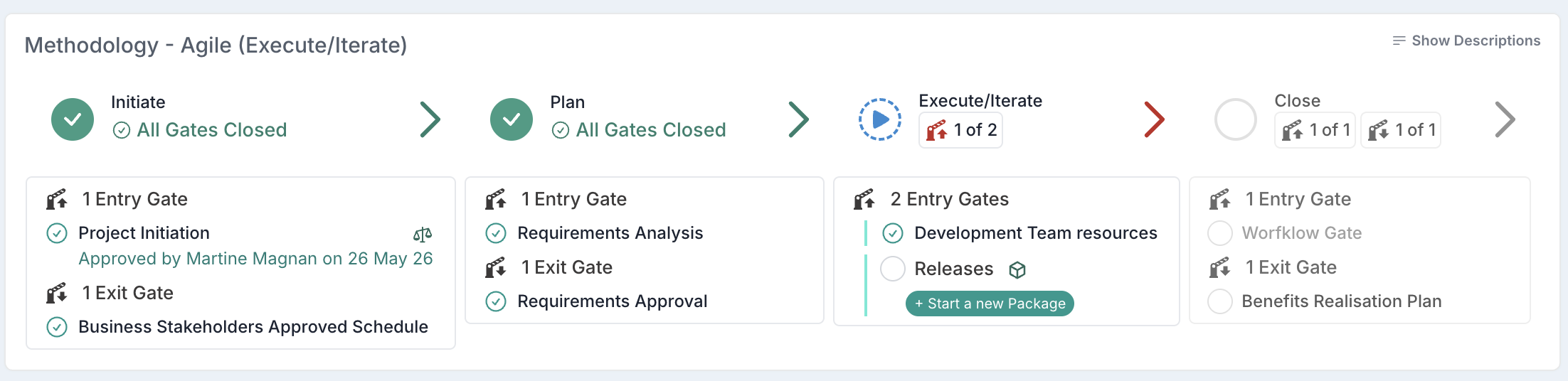
Click the + Start a new Package button displayed beneath the gate. When prompted, enter a name for this instance — something that distinguishes it from other instances on the same phase, e.g. "Release 1 — June 2026" or "Q3 Vendor Cut" and click Confirm.
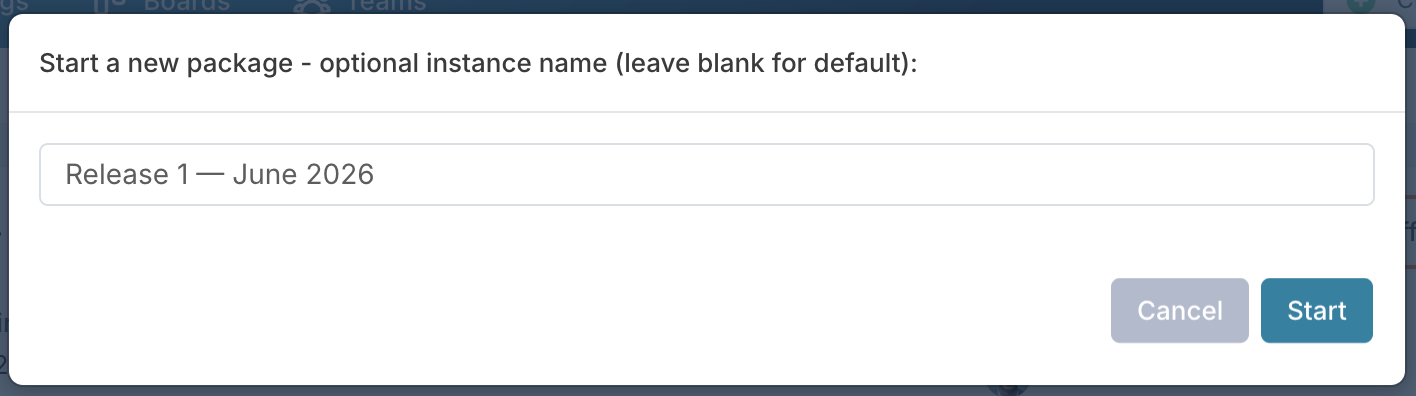
Note: The instance name is optional. If you leave it blank, Fluid will automatically assign a default name using the package name followed by a sequence number (e.g. "Software Release Cycle #1", "Software Release Cycle #2"). However, it's recommended to enter a meaningful name so you and your stakeholders can easily tell instances apart in the gate panel and in reports.
What You'll See After Starting
A collapsible parent row showing the instance name you entered. This summarises the status of everything inside.
A set of child gates beneath it, in the order defined by the package.
You can collapse or expand the parent row using the chevron arrow to keep your gate panel tidy when you have several instances.
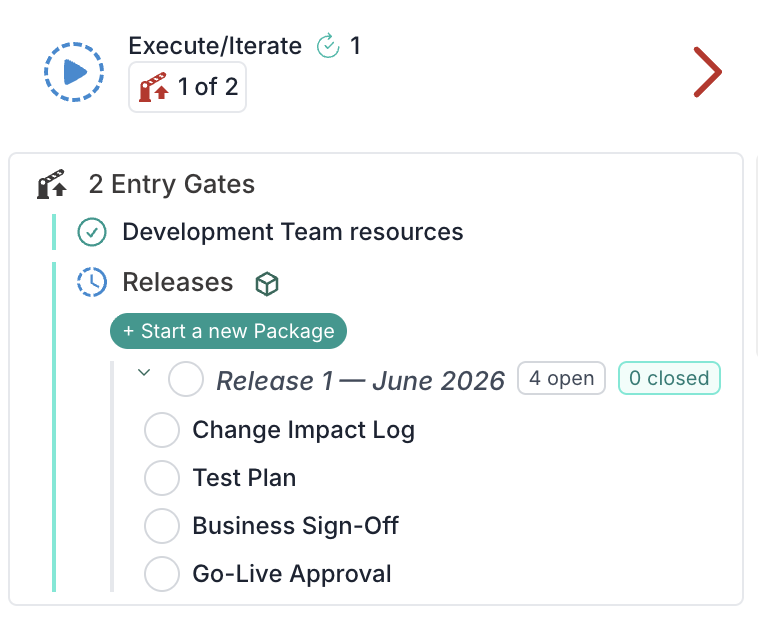
Completing the gates inside a package instance
Every gate inside a package instance behaves like any other stage gate on your project:
The same approver roles apply.
The same SLA and decision rules apply.
The same approval workflows run (if configured).
When Is a Package Instance Complete?
A package instance is considered complete when all of its child gates have been closed. You don't need to do anything extra, the parent row updates automatically:
As you close child gates, the parent row shows progress (e.g. 2 of 4 gates closed).
When the last child gate is closed, the parent row closes automatically.
If a previously-closed child gate is reopened (e.g. due to rework or a rejected approval), the parent row reopens automatically too.
You never close the parent row directly — it is always driven by the status of its children.
Starting Additional Instances
If the package allows multiple instances, you can click + Start a new Package again to create another set of the same gates — for example, one per release. Each instance gets its own name and its own independent set of child gates to work through.
You can have multiple package instances running in parallel. For example, you might start "Release 1 — June 2026" and "Release 2 — August 2026" at the same time, each with their own child gates at different stages of completion. Instances don't depend on each other — you don't need to complete one before starting the next.
The overall Package gate only closes when all instances on the phase are complete (i.e. all child gates across every instance are closed).