
Rolling Up Child Project Gates to a Parent Project
Promote to Parent is a setting on a stage gate that makes it visible on the parent project in a project hierarchy. When enabled, the gate's status is automatically rolled up from the child project and displayed as a read-only informational row on the parent project's Stage Gates view.
This gives programme managers and portfolio leads visibility of key governance checkpoints happening in child projects — without needing to open each child project individually.
How It Works
A gate with Promote to Parent enabled works normally on its own (child) project — the Project Manager actions it, approvers approve it, and it closes as usual.
On the parent project, the gate appears as a read-only row showing the child project's name and the gate's current status (open, blocking, or closed).
The promoted gate on the parent cannot be actioned — it's purely informational. It updates automatically whenever the gate's status changes on the child project.
If the child project has package instances with Promote to Parent enabled, each commenced instance is shown as a separate row on the parent, including progress (e.g. 3 of 5 gates closed).
When to Use It
Use Promote to Parent when a parent project (programme or portfolio) needs to track key milestones or decision points happening in its child projects. Common examples:
A programme / parent project wants to see whether each child project has completed its Go-Live Approval gate.
A portfolio dashboard needs to show which child projects have open blocking gates.
A parent project needs visibility of release cycle progress across its sub-projects.
If your parent project doesn't need to see a particular gate from child projects, leave Promote to Parent disabled — it keeps the parent's gate panel uncluttered.
How to Enable It (Project Administrator)
Navigate to Admin → Methodologies, Phases and Tasks Setup.
Open the Stage Gates tab.
Edit the gate you want to promote.
Set Promote to Parent to Yes.
Click Save.
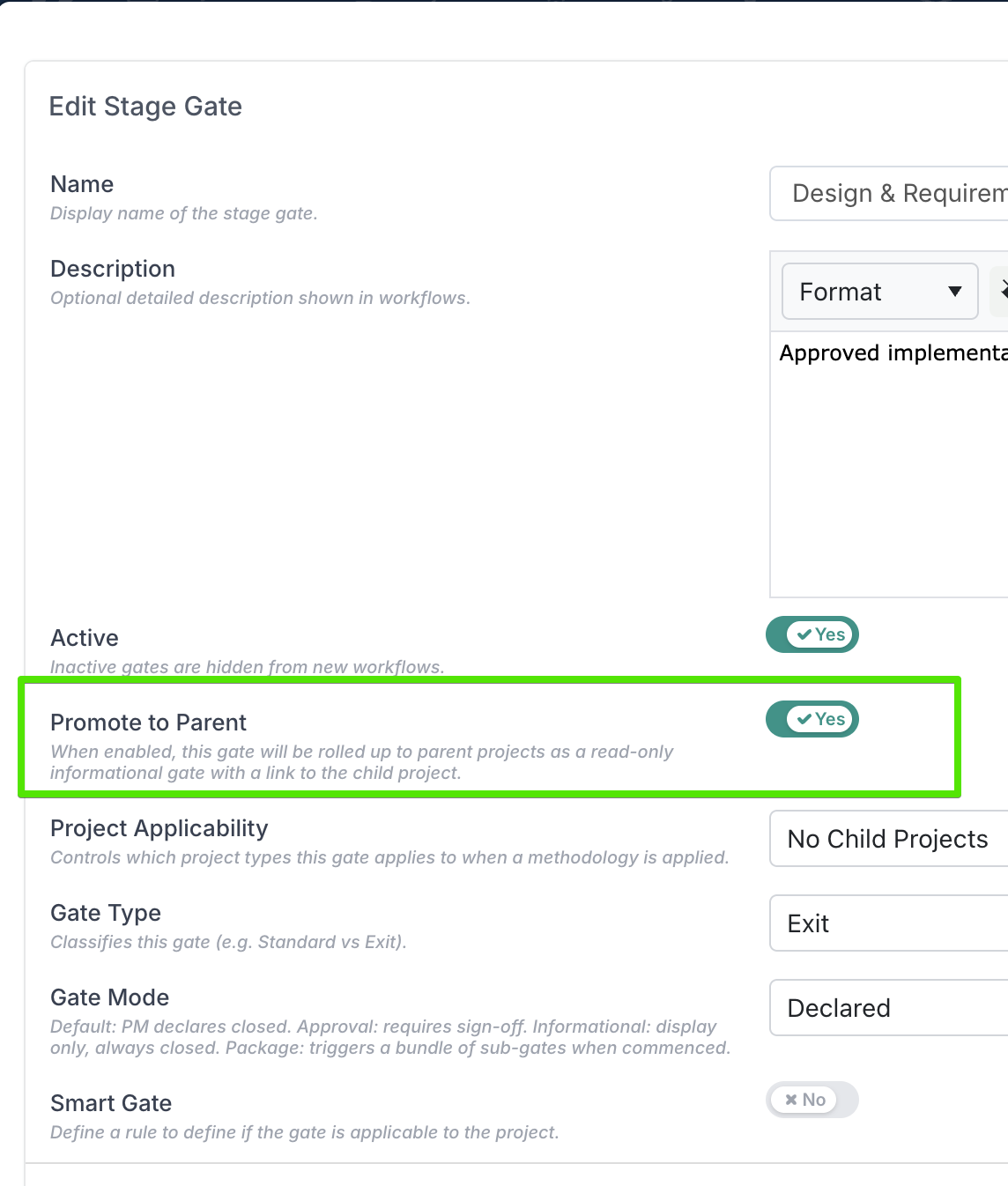
Once the methodology is applied (or re-applied) to projects, any child project with this gate will have it rolled up to its parent project automatically.
What You'll See on the Parent Project
On the parent project's Stage Gates view, promoted gates appear with:
The child project's name prefixed to the gate name (e.g. "Project Alpha — Go-Live Approval").
The gate's current status (open or closed).
A link back to the child project so you can navigate directly to it if needed.
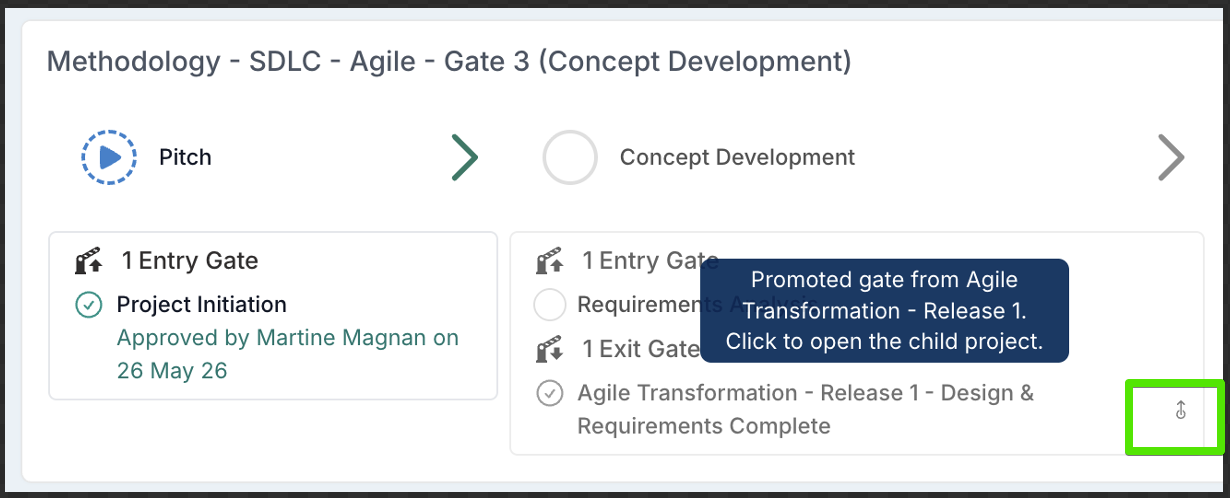
These rows are read-only — you cannot close, reopen, or approve them from the parent. They reflect the real-time state of the gate on the child project.
Key Points to Remember
Promote to Parent is a per-gate setting — you choose which gates are important enough to roll up.
The gate still works normally on the child project. Enabling promotion doesn't change how the PM or approvers interact with it.
Promoted gates appear as informational on the parent — they are non-blocking and cannot be actioned.
Only immediate child projects are rolled up. Gates from grandchild projects do not cascade further up the hierarchy.
If you no longer need a gate promoted, set it back to No — it will stop appearing on the parent after the next refresh.