
Live Reporting from Fluid in Excel (Mac)
Fluid supports direct integration with both Power BI and Excel using a live data connection, allowing you to build dynamic reports with data that can be refreshed on demand. This article covers the setup process for Excel on Mac (Microsoft 365).
If you are using Excel on Windows, please refer to the Windows version of this article.
Please contact your Account Manager if you do not see the Power BI / Export feature on your instance.
Step 1. Determine the data that requires an export
Once the feature is enabled, the first step is to determine what information is to be exported from Fluid to your report.
Navigate to your Projects dashboard page and use the left navigation pane to filter the information you would like to export.
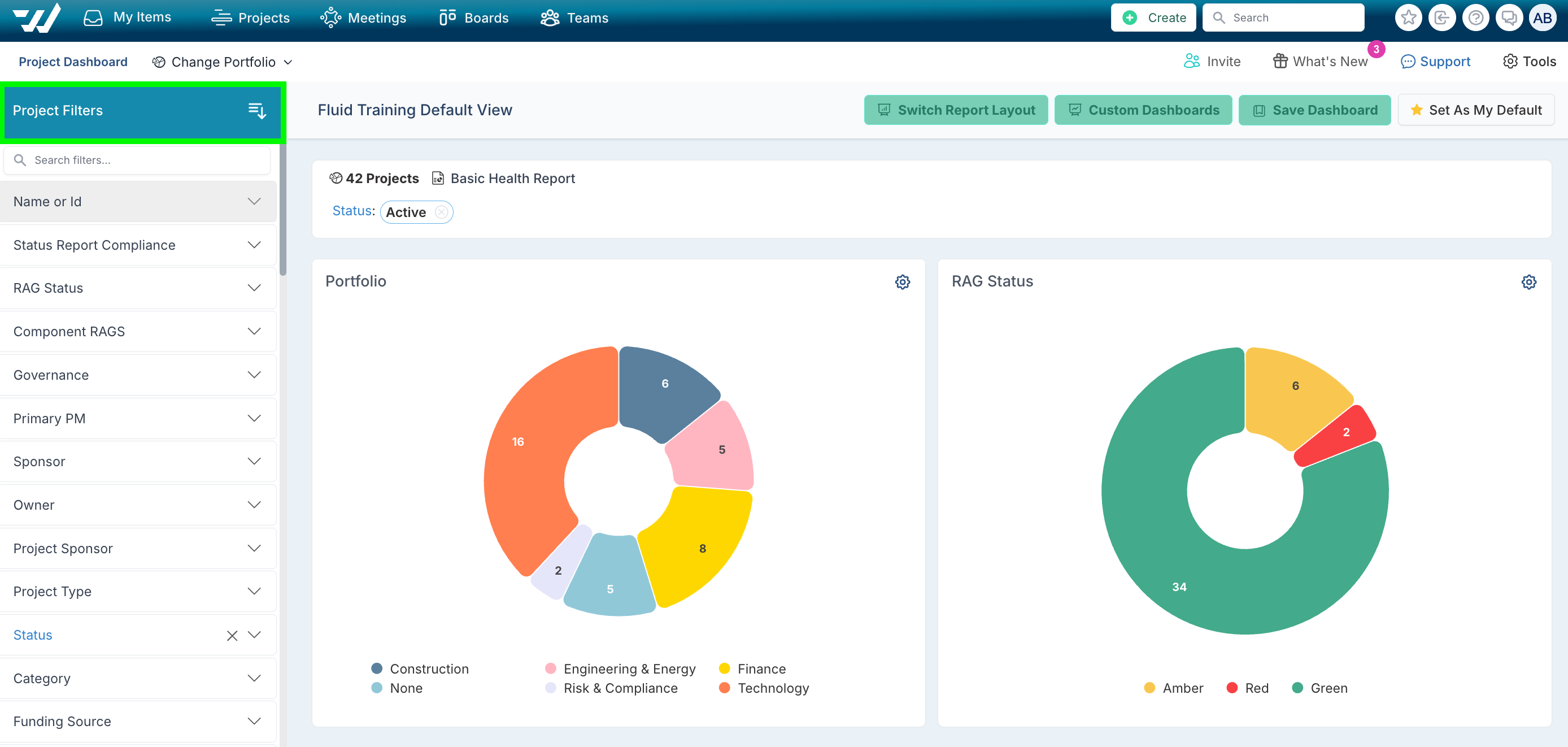
Step 2. Copy the feed URL
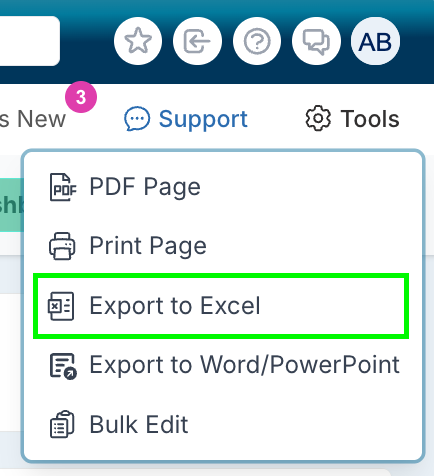
Once you have applied all of your filters, select Tools and Export to Excel.
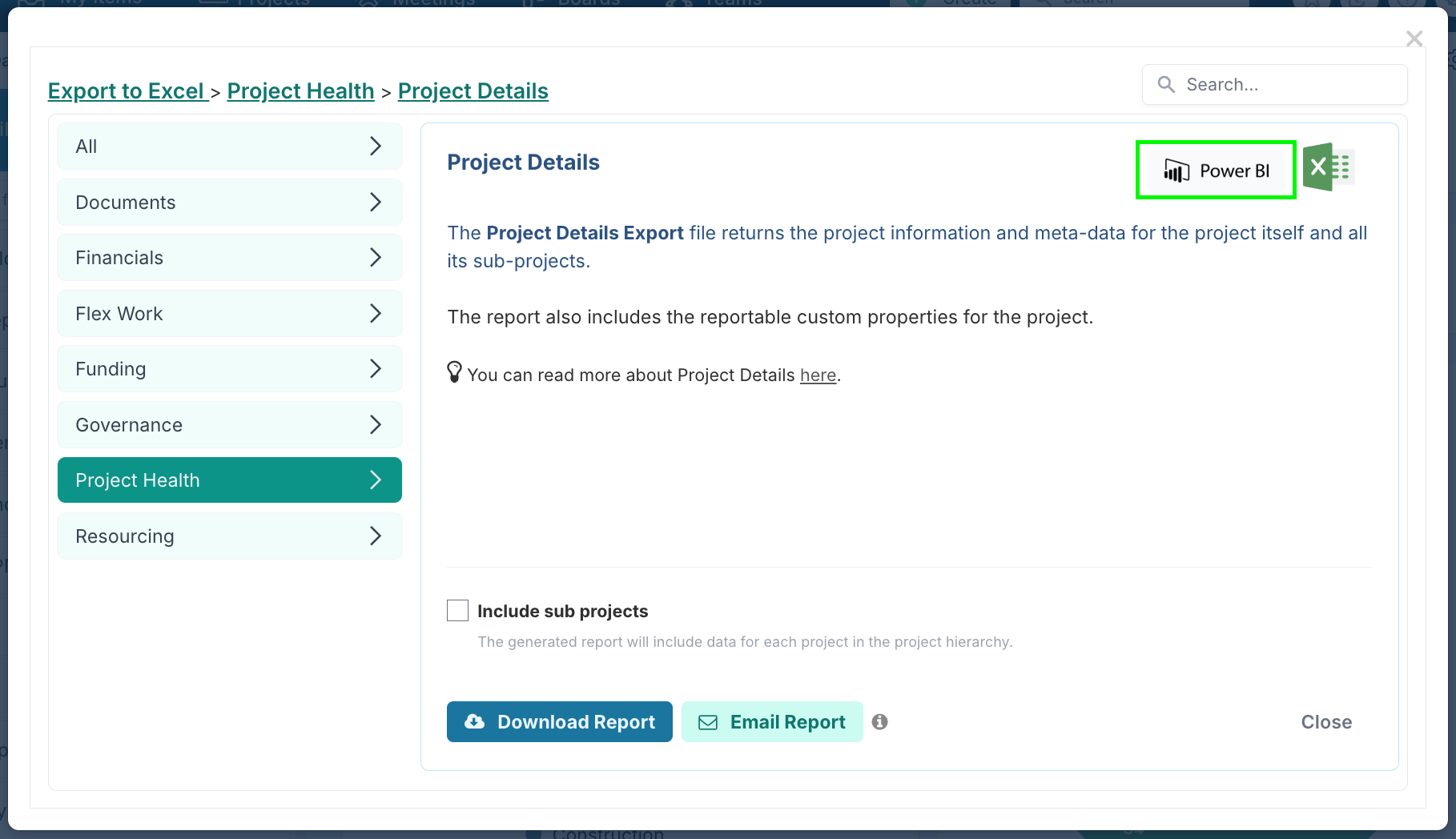
Select the Report that you would like to view.
Instead of downloading the report, select the Power BI button in the top right of the dialog.
Select Copy URL on the Power BI Data Source dialog.
TIP: Open a text editor such as TextEdit so you can paste the data source link URL there for use during this process.
Step 3. Create a Personal Access Token
The Personal Access Token (PAT) remains valid until you regenerate a new token, and expires within 365 days. The expiry date is shown once a token is generated.
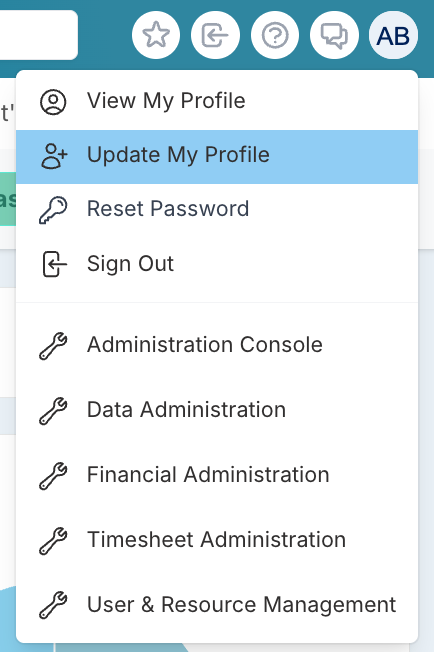
Navigate to your user profile icon at the top right of your screen and select Update my Profile from the dropdown list.
Click Generate Personal Access Token, or if you have created on previously, find those credentials from where you stored them securely.
(Please contact Fluid Support if this button is not visible).

Click Copy Token and paste the username and password into your text editor so you can copy and paste later in a plain text format.
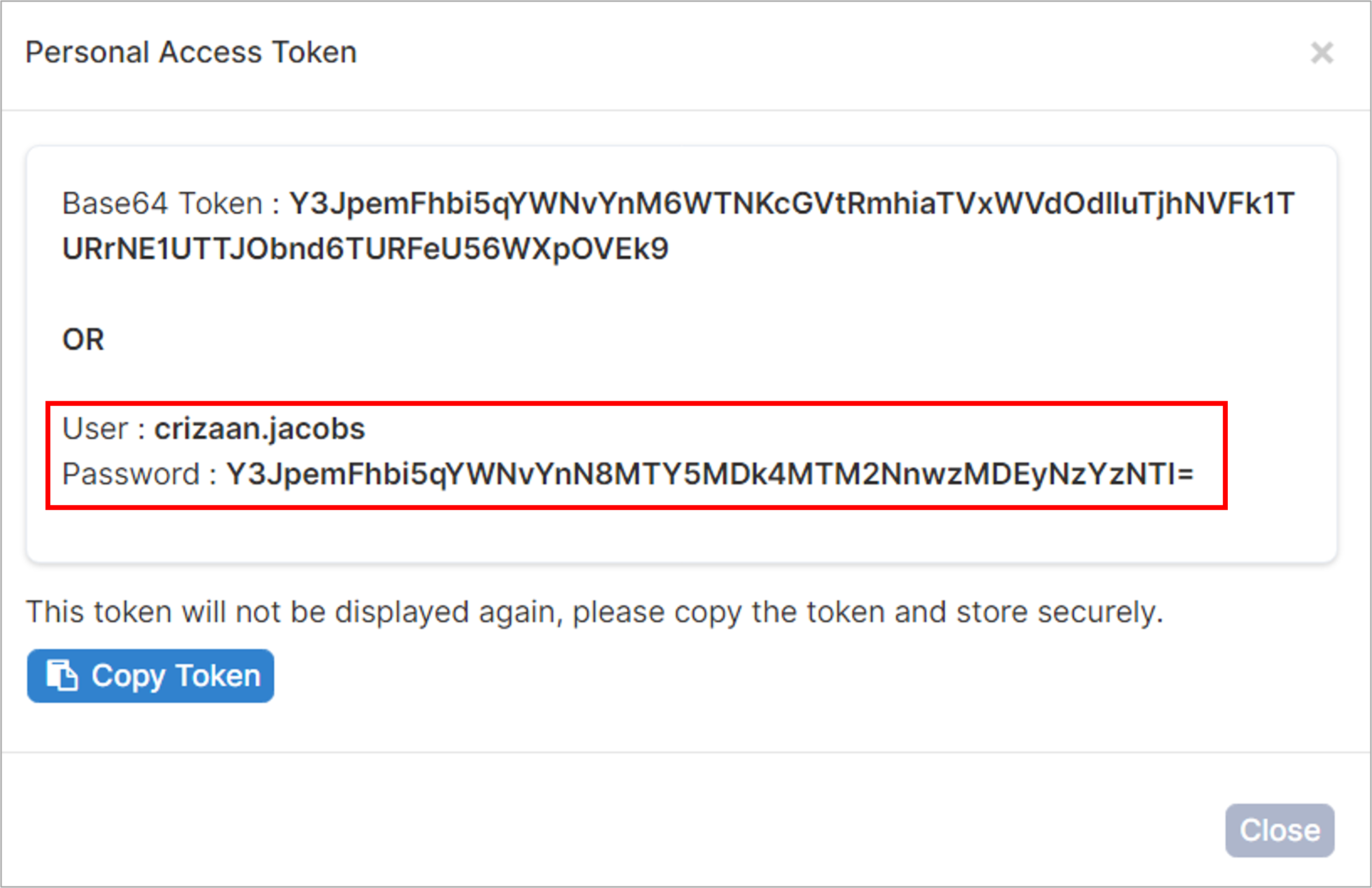
Note: You should store these credentials somewhere secure such as a password manager.
Step 4. Connect to Fluid from Excel on Mac
Unlike Excel for Windows, Excel for Mac does not have a From Web button on the ribbon. Instead, you will use the Blank Query option within the Power Query editor. The steps below walk you through this.
Open a Blank Query
Open an Excel spreadsheet.
Click the Data tab.
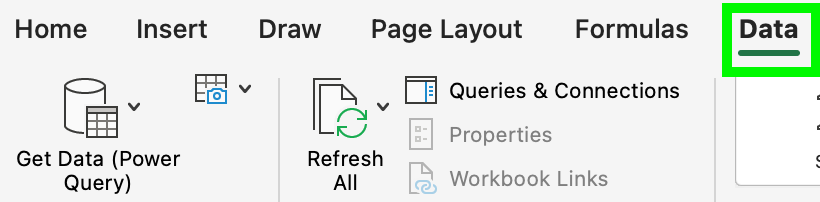
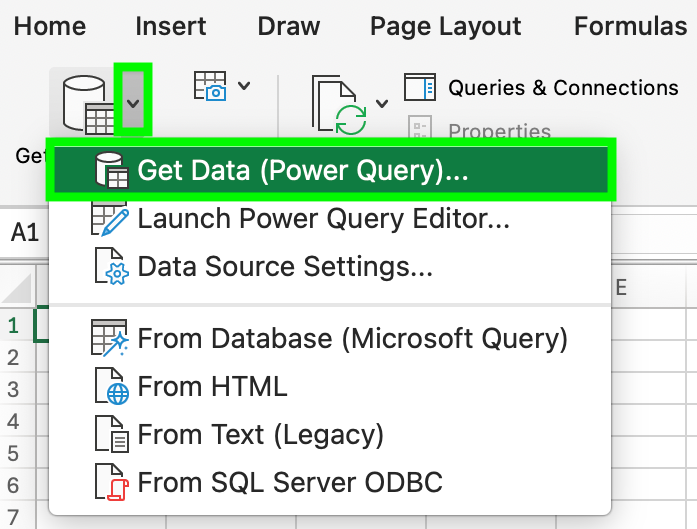
Click the dropdown arrow on the Get Data (Power Query) button.
Select Get Data (Power Query)... from the menu.
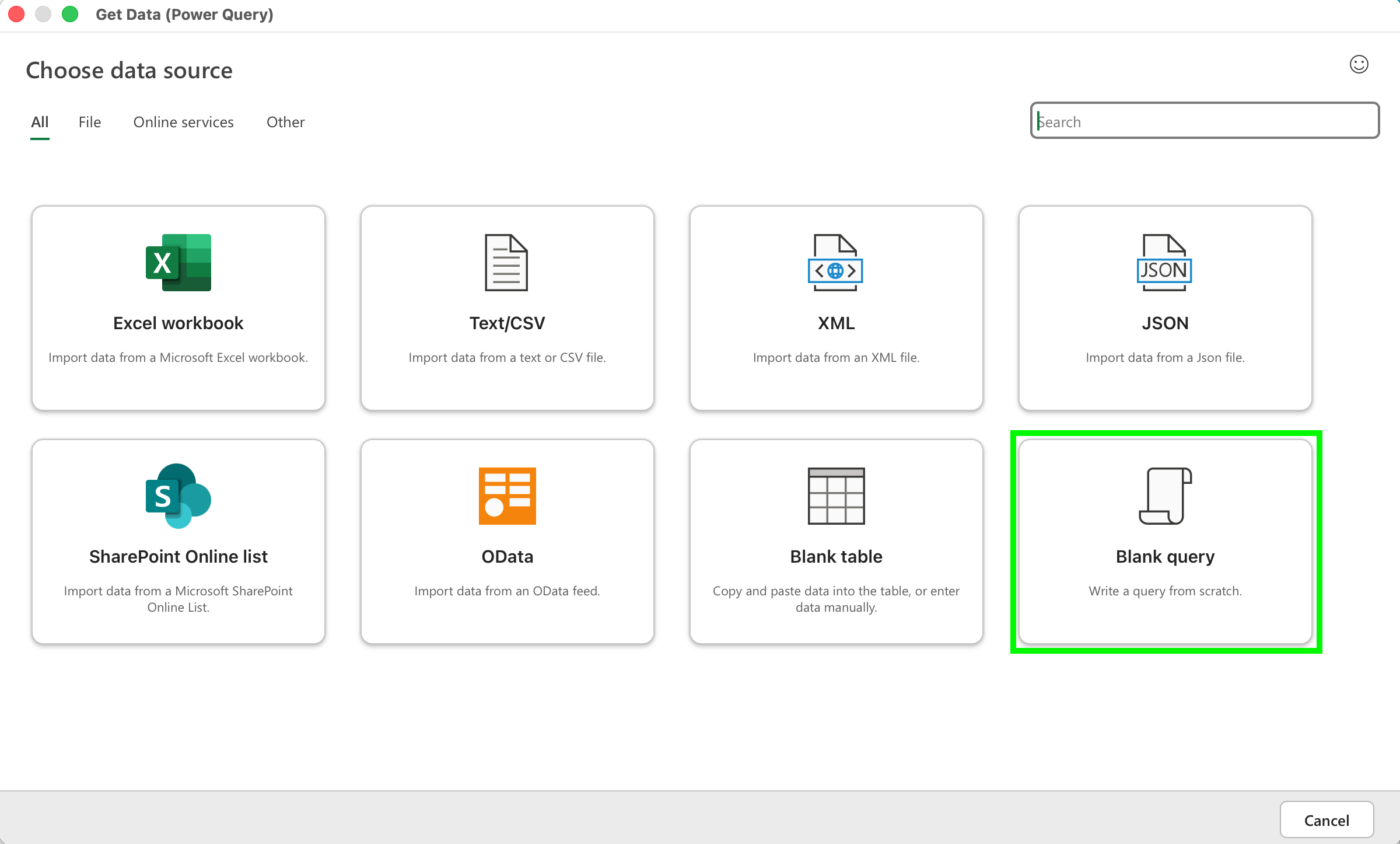
In the Choose data source dialog, select Blank query (listed under the Other tab or visible in the All view).
Enter the Fluid URL
The Power Query Editor will open:
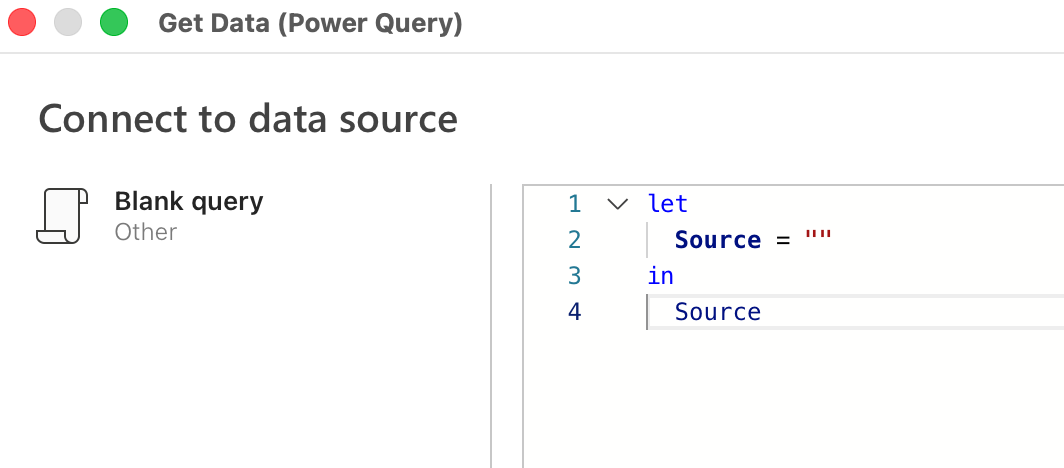
Click into the formula area and replace the existing content with the following:
let
    Source = Json.Document(Web.Contents(""))
in
    Source
Click between the two quotation marks
""and paste your Fluid feed URL in between them.The result should look like this:
let
    Source = Json.Document(Web.Contents("https://yourinstance.fluid.work/api/Feed/..."))
in
    Source
Example:

Click Next to confirm.
Configure Authentication
A yellow warning bar will appear saying We could not evaluate this query due to invalid or missing credentials.

Click Configure connection.
In the Connect to data source dialog:
Set Authentication kind to Basic
Enter the Username from your PAT token
Enter the Password from your PAT token
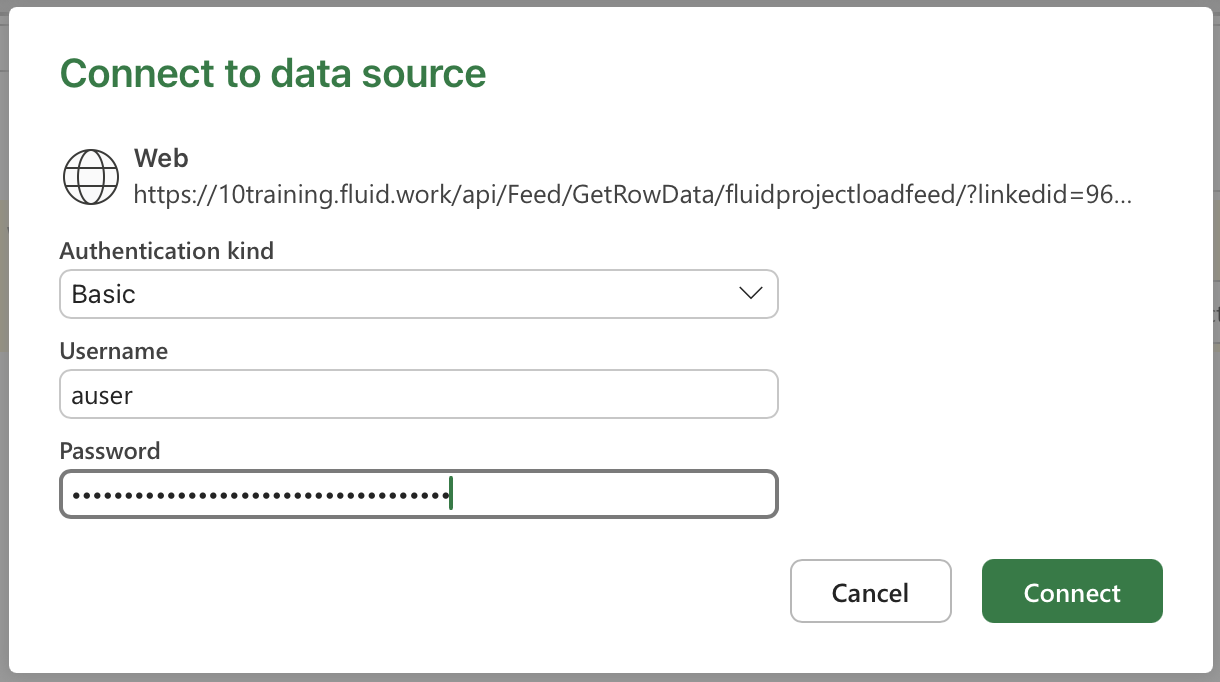
Click Connect.
NOTE: This authentication step is required per user. Each person connecting to Fluid from Excel must complete this process using their own PAT token credentials.
You may not be asked for these credentials if you have previously authenticated.
Step 5. Setting up the data in the Query Editor
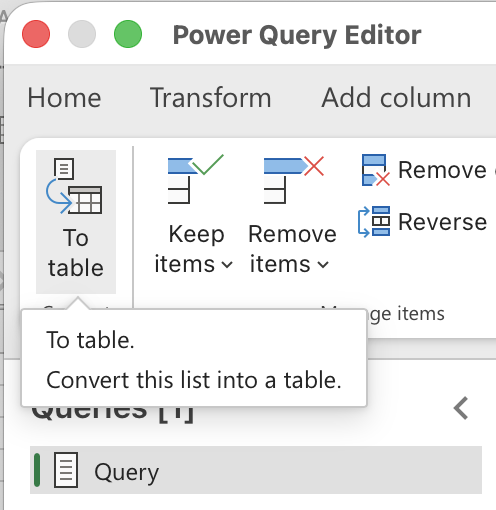
Click To Table in the top left of the ribbon (visible under the List tools tab).
Leave the delimiter and extra columns settings as their defaults and click OK.
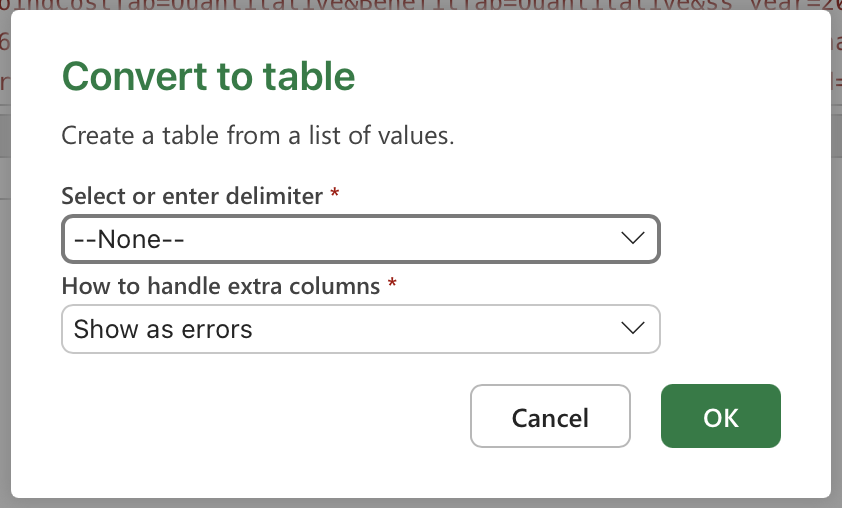
A table will appear with a single column. Click the expand icon (double-headed arrow) in the column header.
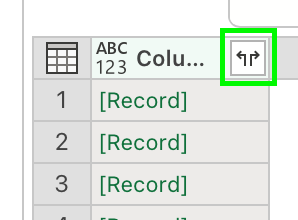
Select the columns you want to include, or leave all selected to import everything.
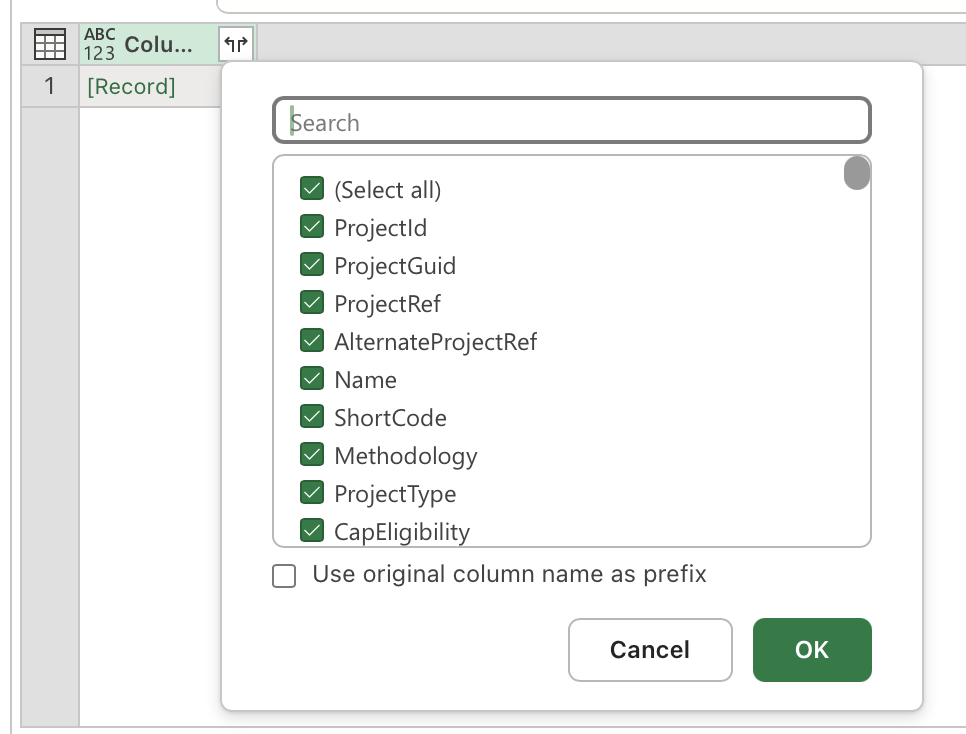
Click OK.
Click Close & Load in the top left of the ribbon.
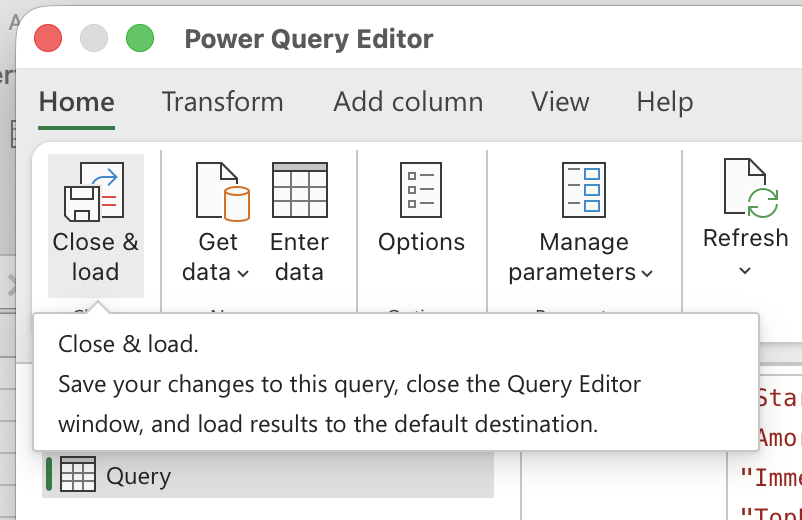
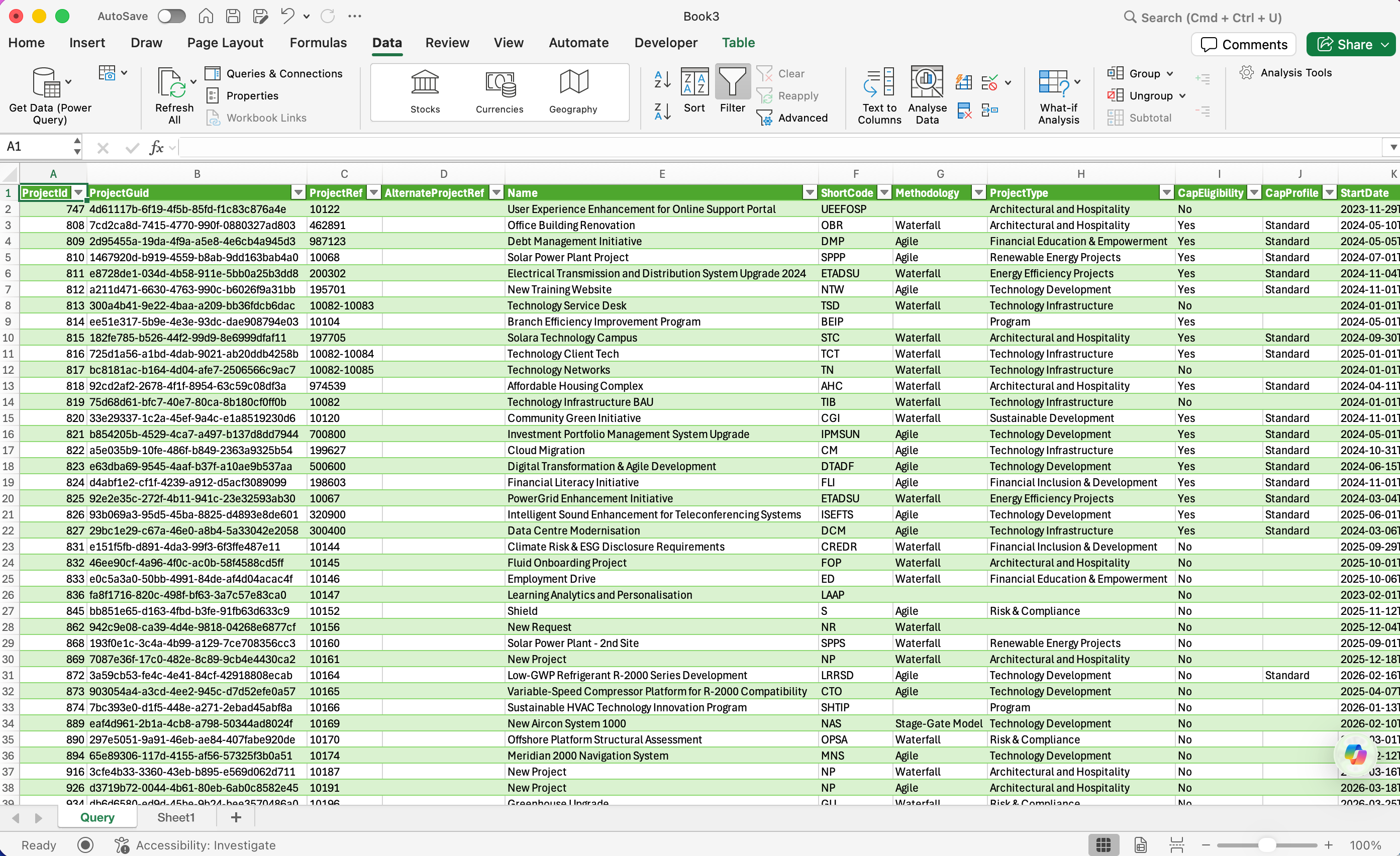
The data will load into your Excel spreadsheet as a table.
Refreshing the data
Once set up, you can update the data at any time by clicking Refresh All on the Data tab. This will pull the latest data from Fluid based on the filters in your original feed URL.
Troubleshooting
"We could not evaluate this query due to invalid or missing credentials"
This appears when credentials have not been entered or have previously been saved incorrectly.
Click Configure connection and re-enter your PAT username and password, ensuring Authentication kind is set to Basic.
If the issue persists, clear the existing saved connection by going to Data → Data Source Settings, locating the Fluid connection, and deleting it. Then repeat Step 4.
PAT token expired
PAT tokens expire after 365 days. If your data stops refreshing:
Open Fluid and go to your profile icon → Update My Profile
Check the Token Expiry Date under Personal Access Token
If expired, click Generate Personal Access Token to create a new one
Update your credentials in Excel via Data → Data Source Settings, select the Fluid connection, and click Edit Permissions to update the username and password.