This release focuses on four areas: a major upgrade to the project schedule and Gantt, more control over the project Community and stakeholder roles, custom properties on documents, and new reporting on project workflows and audit activity.
Project Schedule & Gantt
The biggest set of improvements this release is to the project schedule. Building your plan gets finer control — a new Task type for detailed working steps, an On Hold status that pauses work without losing progress, parents that switch to auto-calculate as you add sub tasks, one-click cloning of tasks or whole branches, and baselining across a multi-task selection. The Gantt itself becomes easier to read and easier to shape: every schedule type now has its own silhouette on the timeline, schedule custom properties can be shown and edited as grid columns, administrators can set a column policy for their whole organisation, and RAG can now run as a simple visual signal without straplines.
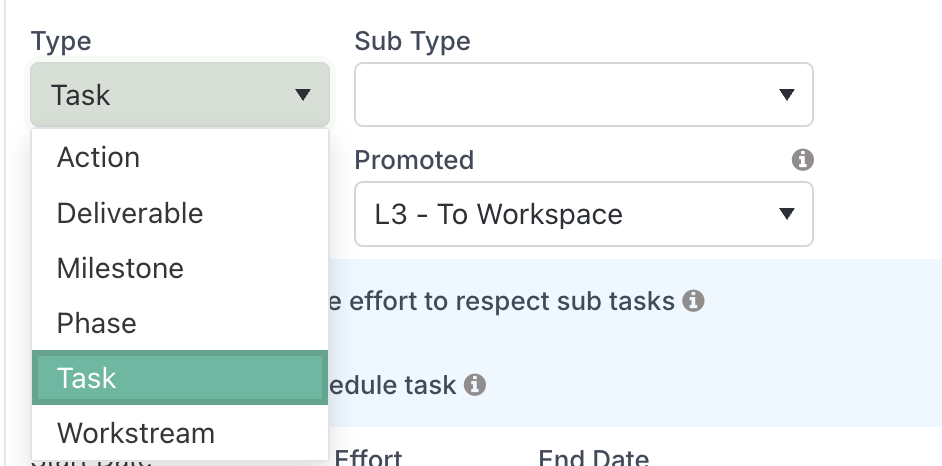
Break your schedule down with the new Task type
Schedules gain a sixth item type: Task. A Task works exactly like an Action for dates, effort, editing and hierarchy, with one deliberate difference — it stays inside the schedule and never appears in the project workspace Actions & Decisions list. Use Tasks for the detailed working steps of your plan: the individual activities that build up to a deliverable or workstream, where the schedule is the right place to track them. Reserve Actions for work that needs visibility beyond the schedule — items someone should see and follow up on from the project workspace.
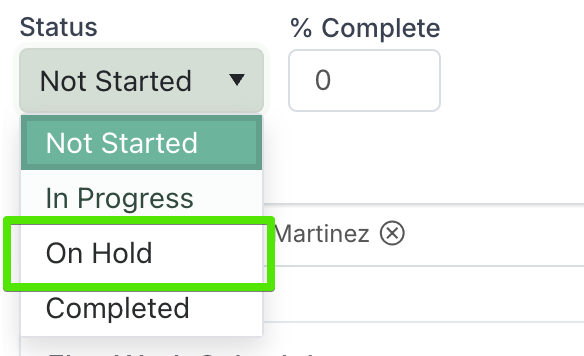
Pause work without losing progress with the new On Hold status
Schedule items now offer a fourth status: On Hold, available on every schedule type. On Hold means paused but still open — it doesn't close the item, doesn't set a closed date, and, most importantly, keeps the percentage complete exactly where it was. An item paused at 67% resumes at 67%. On-hold items turn grey on the Gantt (while still showing their progress) so a paused stretch of the plan is visible at a glance. One thing to know: a parent using Auto calculate effort to respect sub tasks still derives its status from its children — to hold a parent manually, switch auto-calculate off first.
Parents can now roll up automatically as you build your plan
A new option, Auto-calculate parent on sub task add (off by default), takes the manual step out of structuring your schedule. When it's on, any task that gains a sub task — whether you add a new sub task beneath it, indent a sibling, or drag a task under it — automatically switches to auto-calculate, so its dates and duration are driven by its children from that moment on. The calculator icon appears on the parent row straight away. If a parent later loses its last child (deleted, outdented or moved away), it returns to manual scheduling just as automatically.
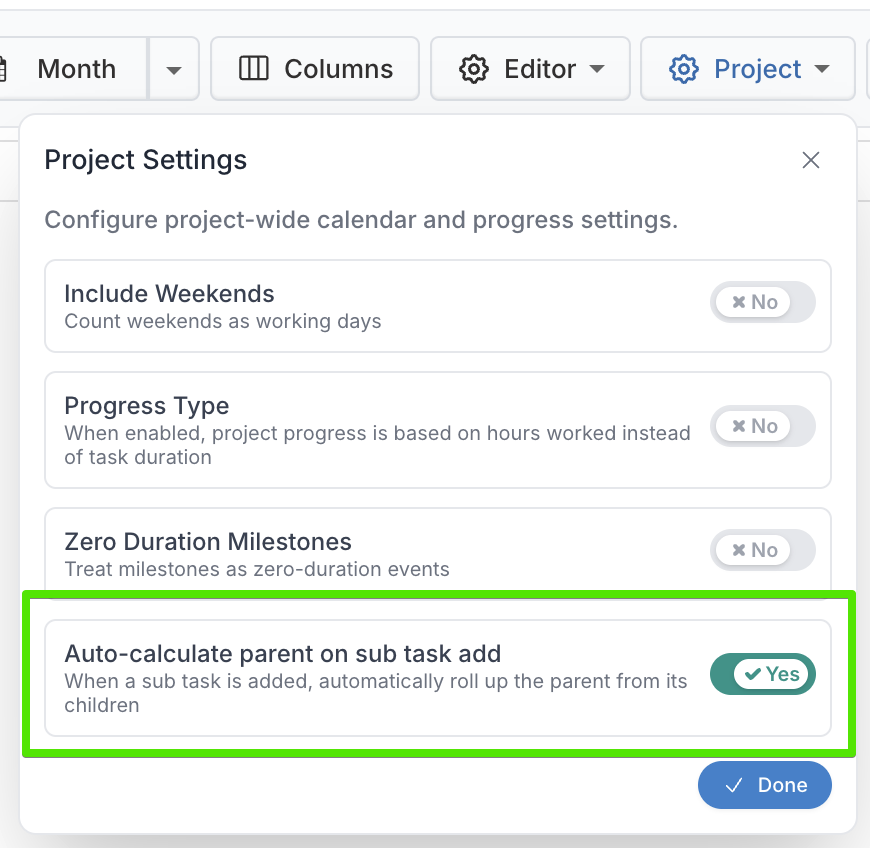
Administrators set the default for the whole organisation, and each project can override it from the Gantt's schedule settings panel — so teams who prefer to manage parent dates by hand can keep doing so.
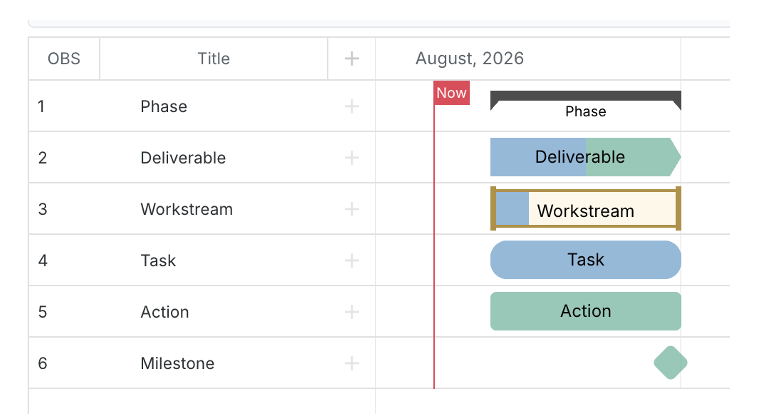
Every schedule type now has its own shape on the Gantt
You can now identify an item's type from the timeline alone, without reading the Type column:
Phase — a thick dark bar, as before
Workstream — an open outlined track, with the fill inside showing its progress
Deliverable — a square-ended bar with a darker leading edge
Action — the standard rounded bar
Task — a slimmer rounded bar
Milestone — a diamond, as before
Shape carries the type, so colour stays reserved for RAG status — nothing about your RAG colours changes.
Clone Tasks in the Gantt Schedule
You can now create an exact copy of any schedule task instead of rebuilding it from scratch. Cloning is ideal for repeating pieces of work — recurring phases, standard checklists, or a template task you want to reuse across your plan.
The clone copies the original's content and setup — its type, dates, effort, priority, description, checklist items, assignees, custom properties, and attachments. Status, progress and RAG are not carried over: every clone starts fresh at Not Started, 0% complete, and your default RAG, ready to be worked. Each copy is placed directly beneath its original, at the same level in the plan, and the new copies are left selected so you can move or edit them straight away.
Highlights
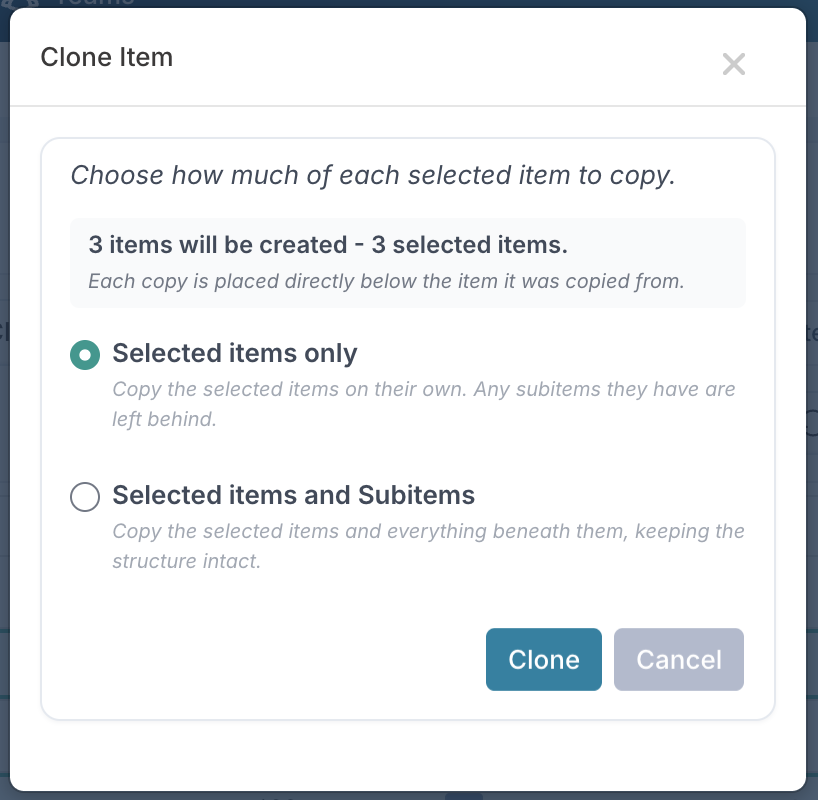
Three ways to clone — a Clone button on the schedule toolbar (enabled as soon as you select a task), Tools → Clone inside the task's edit window, and a keyboard shortcut (Ctrl/Cmd + Shift + D) when Keyboard Control is on. All three open the same Clone dialog.
Clone several tasks at once — select multiple rows and clone them all in one go. The dialog shows you exactly how many items will be created before you confirm.
Bring the sub-tasks too — choose between copying the selected tasks only or including their sub-tasks, so a whole branch can be duplicated in one action. Dependency links between the copied tasks are recreated automatically, and if your selection includes a task that's already inside another selected branch, it's copied once, not twice.
Good to know
Clones always start at Not Started, 0% complete, and the default RAG. The original's status, progress, RAG and RAG update history (including straplines) stay with the original — the clone begins its own history from the moment it's created.
Links to other items are not cloned. Linked tasks, linked impacts, and dependencies on tasks outside the copied selection are not carried over to the clone (so the original's relationships aren't doubled up). Only dependency links between the copied tasks themselves are recreated.
Linked and cross-project rows are never duplicated. Tasks surfaced in your schedule from other projects are skipped by the clone — only the schedule's own tasks are copied.
Comments, subscriptions, timesheet entries, baselines, and meeting links are not carried over — the clone starts clean on those.
Cloning from the task's edit window copies the last saved version — any unsaved edits in the open window are not included.
Cloning respects your existing permissions — you need edit rights on the schedule.
Baseline several tasks at once
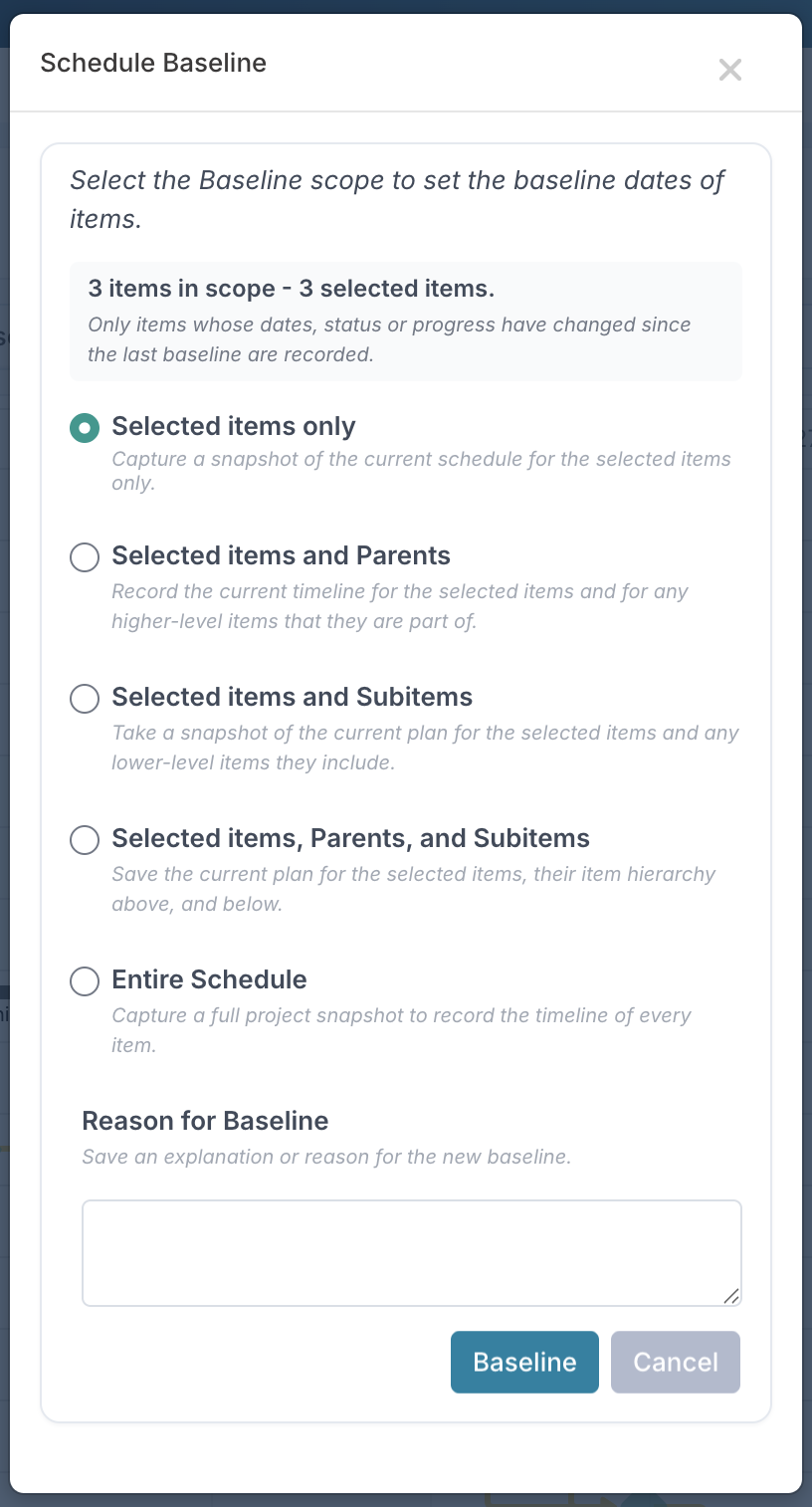
Baselining now works with multi-select. Select any number of tasks in the Gantt and click Baseline — the whole selection is captured in a single baseline, instead of baselining one task at a time. The Schedule Baseline dialog works just as before: choose the scope (the selected items only, with their parents, with their subitems, both, or the entire schedule) and optionally record a reason. The dialog now tells you exactly what your chosen scope covers before you confirm — for example "3 items in scope" — and, as always, only items whose dates, status or progress have changed since the last baseline are recorded.
Run schedule RAG without straplines
The Schedule RAG with Strapline system setting (on by default, configured by your administrators) lets organisations choose between two ways of tracking RAG on schedule tasks:
With straplines (the default) — as today: every RAG update on a schedule task carries a strapline (a one-line status comment), a strapline is required whenever the RAG is below Green, and the task dialog shows the full history of updates. That panel has been renamed RAG Status Updates (previously "Status Updates") on schedule dialogs to better say what it holds — impacts, benefits and other items keep their existing wording.
Without straplines — a simpler, lighter way of working for organisations that want RAG as a quick visual signal rather than a commented history:
The strapline disappears from the schedule everywhere: the grid column, the column chooser, the task dialogs, bulk edit and exports. The strapline-required rule no longer applies.
The RAG Status Updates panel is removed from the schedule dialogs. Instead, the RAG picker sits inline alongside Status and % Complete — set the current rating and move on.
On the Gantt grid, clicking the RAG cell gives you a plain dropdown instead of a popup — with no strapline to write, a RAG change is a single click.
New tasks (and cloned tasks) start with a "Not Started" RAG, shown as a grey badge, so a task that hasn't been assessed yet is never mistaken for one that's on track. Once a task's RAG is set to Green, Amber or Red, Not Started can't be selected again — from that point the task always carries a real assessment. Existing tasks keep whatever RAG they already have.
Good to know
Schedule bulk-edit files download without the Strapline column while the setting is off, and a file downloaded in one mode uploads cleanly in the other. If an uploaded sheet contains strapline text while the setting is off, the upload succeeds and tells you the strapline text was not saved, rather than dropping it silently.
Projects created from a template whose schedule was captured while the setting was off populate their schedules correctly.
Show your schedule custom properties as columns on the Gantt
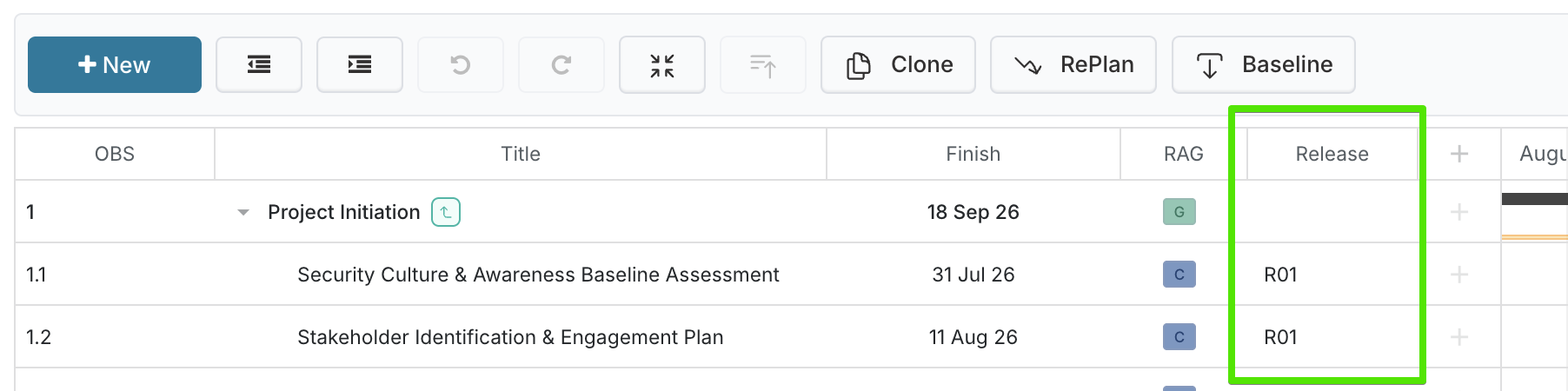
Custom properties configured for schedule tasks can now be displayed as columns on the schedule grid, right alongside the built-in columns. Pick the ones you want under the new Custom Properties group in Configure Columns, then click any value in the grid to update it — the edit popup uses the same fields as the schedule task dialog, so option lists, required fields and read-only rules behave exactly as they do everywhere else. Supported property types are Date, Text, Option List, Multiselect Option, Valued Option, Person and Multi Person.
Finding columns is now much faster
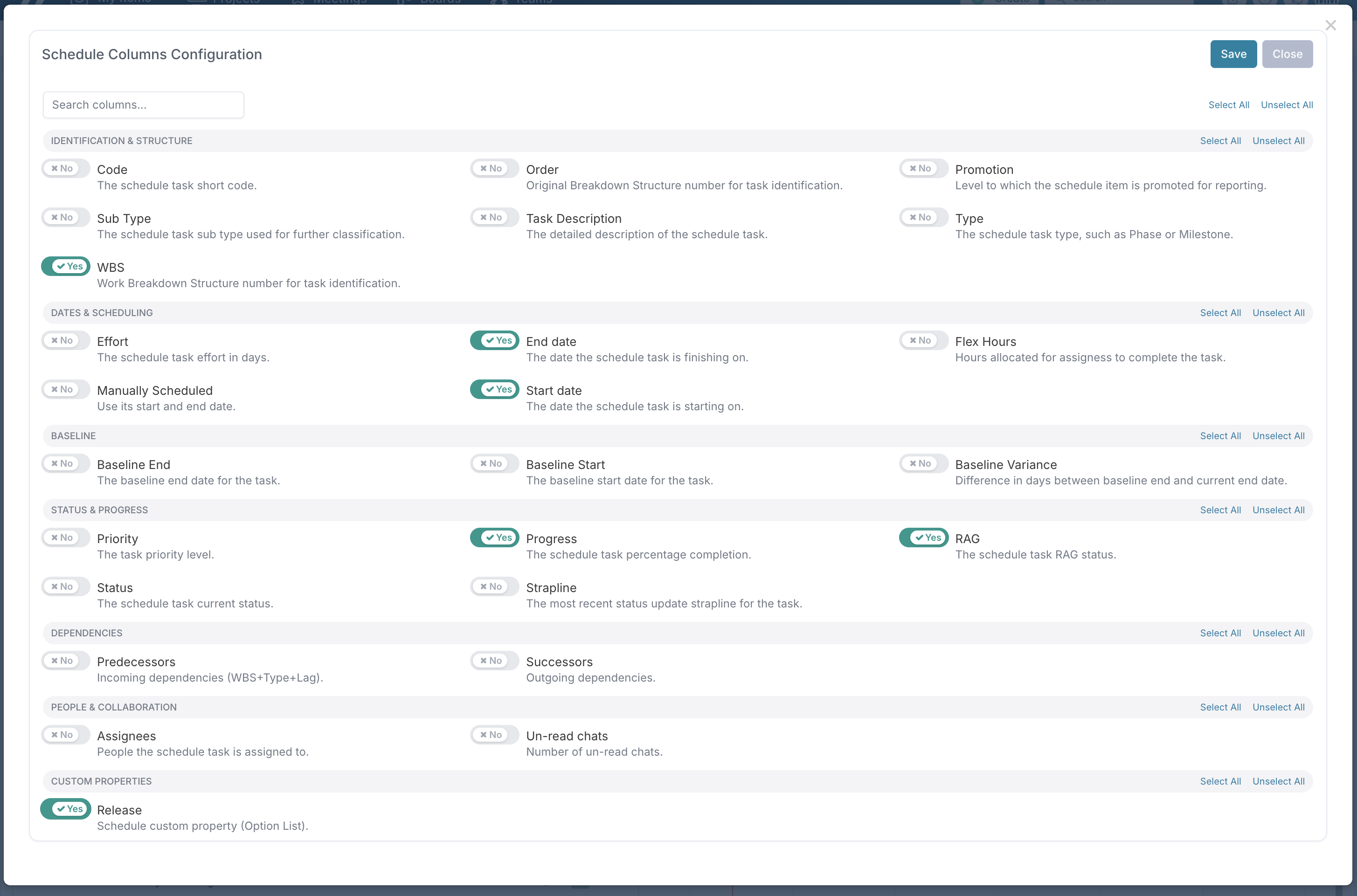
The Configure Columns dialog has a search box, and columns are organised into six categories: Identification & Structure, Dates & Scheduling, Baseline, Status & Progress, Dependencies, and People & Collaboration. Each category has its own Select All / Unselect All, the dialog is wider, and large screens show three columns at once — no more scanning one long alphabetical list.
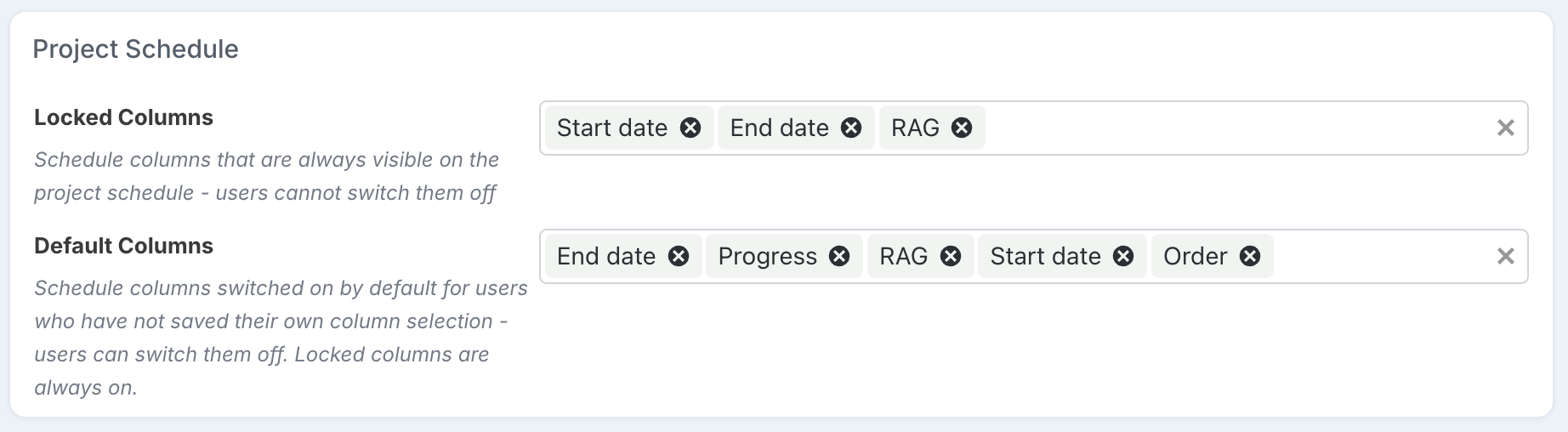
Administrators can now set a column policy for their organisation
A new Project Schedule section on Admin → Activity Setup lets you define:
Locked Columns — always visible on every schedule; users cannot switch them off. They appear in the column chooser with a lock icon.
Default Columns — switched on by default for anyone who hasn't saved their own column selection. Users remain free to change them.
Both pickers include your schedule custom properties as well as the built-in columns.
MS Project import: inactive tasks stay out of your numbers
Tasks you've marked inactive in MS Project are now suppressed (L5) when imported into Fluid. Previously an inactive task imported as an ordinary working task — so it kept counting towards parent date roll-ups, percent complete and portfolio reporting, even though you'd taken it out of the schedule in MS Project. A suppressed task stays visible in the plan but is excluded from all of those calculations, matching what "inactive" means in MS Project.
Worth knowing:
This works on re-imports of a file Fluid already knows — the usual case, since tasks are typically inactivated in a later revision of an already-imported plan. The existing task in Fluid is suppressed on the next import.
Promotion levels remain yours: the import only ever sets L5 from the inactive flag. Any level you've chosen in Fluid (L1/L2/L3) is untouched by re-imports, exactly as before.
Reactivating the task in MS Project lifts the suppression on the next import: the task returns to its default level (L1 for phases and milestones, L4 for everything else). If you'd previously promoted it to a custom level, re-apply that in Fluid after reactivating.
Inactive tasks only exist from MS Project 2010 Professional onwards. Older MPP files, MPX and MSPDI carry no such flag and are unaffected.
Other Schedule Enhancements
Gantt child project rollup: For programs and parent projects with sub-projects, the "Show child projects" option on the Gantt now respects your Project Type configuration. Sub-projects whose type has the Schedule component switched off no longer appear as rows in the rollup, so the Gantt only shows projects that actually have a schedule to contribute. The parent project you're viewing is always shown, and the overall timeline dates are calculated from the visible projects only. Projects with no sub-projects are unaffected — the rollup option only applies where child projects exist.
Alternate Date retired from the project schedule: The Alternate Date field has been removed from the schedule: the task dialogs, the Gantt grid column and column chooser, the marker on the portfolio schedule and roadmap views, and schedule exports. Bulk-edit spreadsheets that still contain an Alternate Date column will upload without issue — the column is simply ignored. No data is deleted: previously entered alternate dates remain safely stored, they are just no longer displayed. If you used Alternate Date to track an extra date on tasks, a schedule custom property of type Date is the recommended replacement — these can now be shown as columns on the Gantt grid.
Schedule Sub Types — more flexible naming: Schedule Sub Type names now support additional characters — parentheses, hyphens, colons, square brackets and commas — alongside letters, numbers, spaces,
/,#and.. So names like "Design (UX) - Phase 1" or "Build: Testing [UAT]" are now accepted.Task links navigation: The schedule task dialog's left-hand menu now has separate Predecessors and Successors entries, each with its own count — and both are hidden entirely on tasks that have no links.
Keyboard Control: Turning Keyboard Control on or off no longer switches the Predecessors and Successors columns on or off for you, or overwrites your saved column selection.
Project Community & Stakeholders
This release gives you more control over how your project community is named, governed and displayed — from relabelling the section to match your organisation's language, to enforcing single ownership of key roles.
Make the Community section speak your language
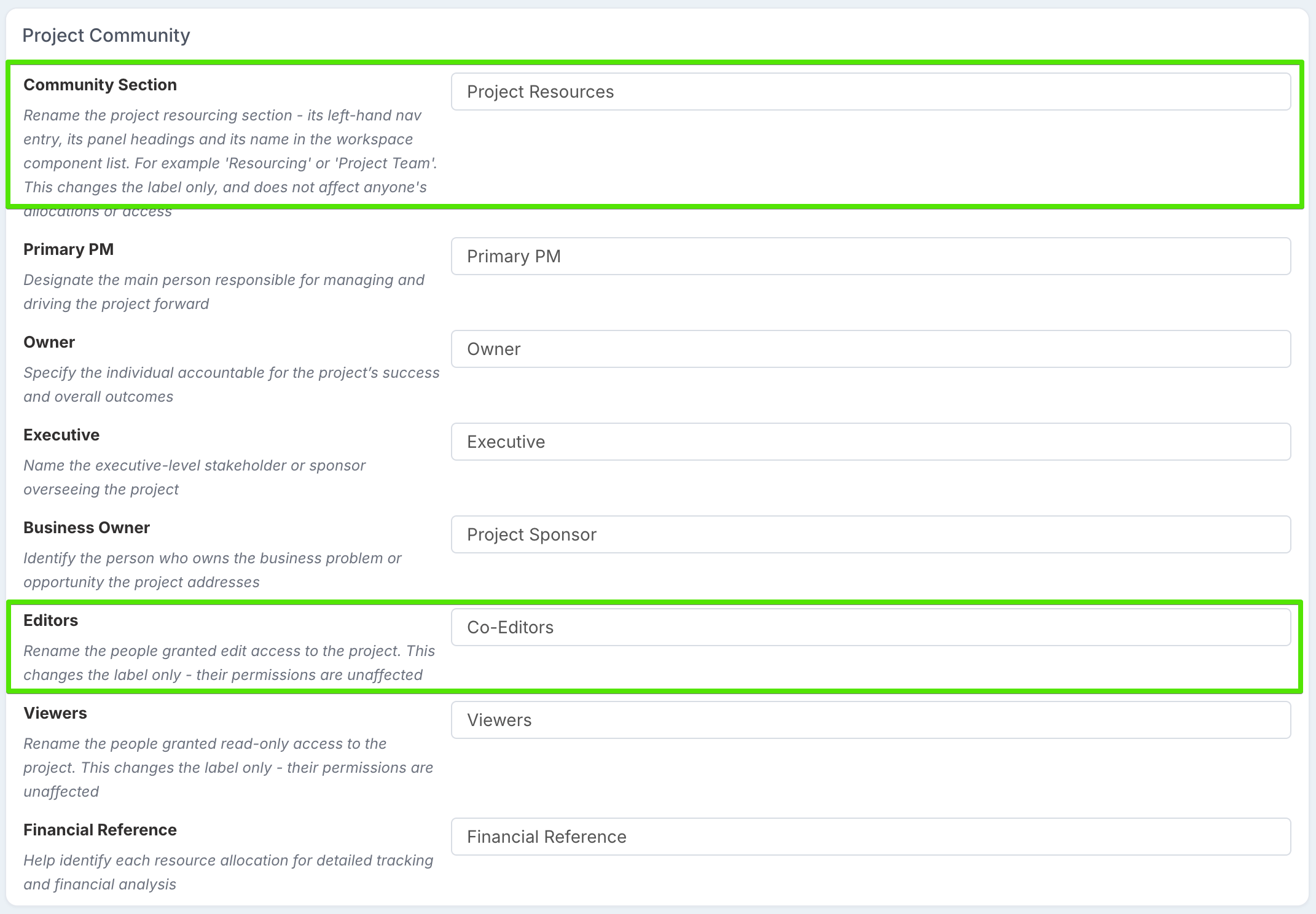
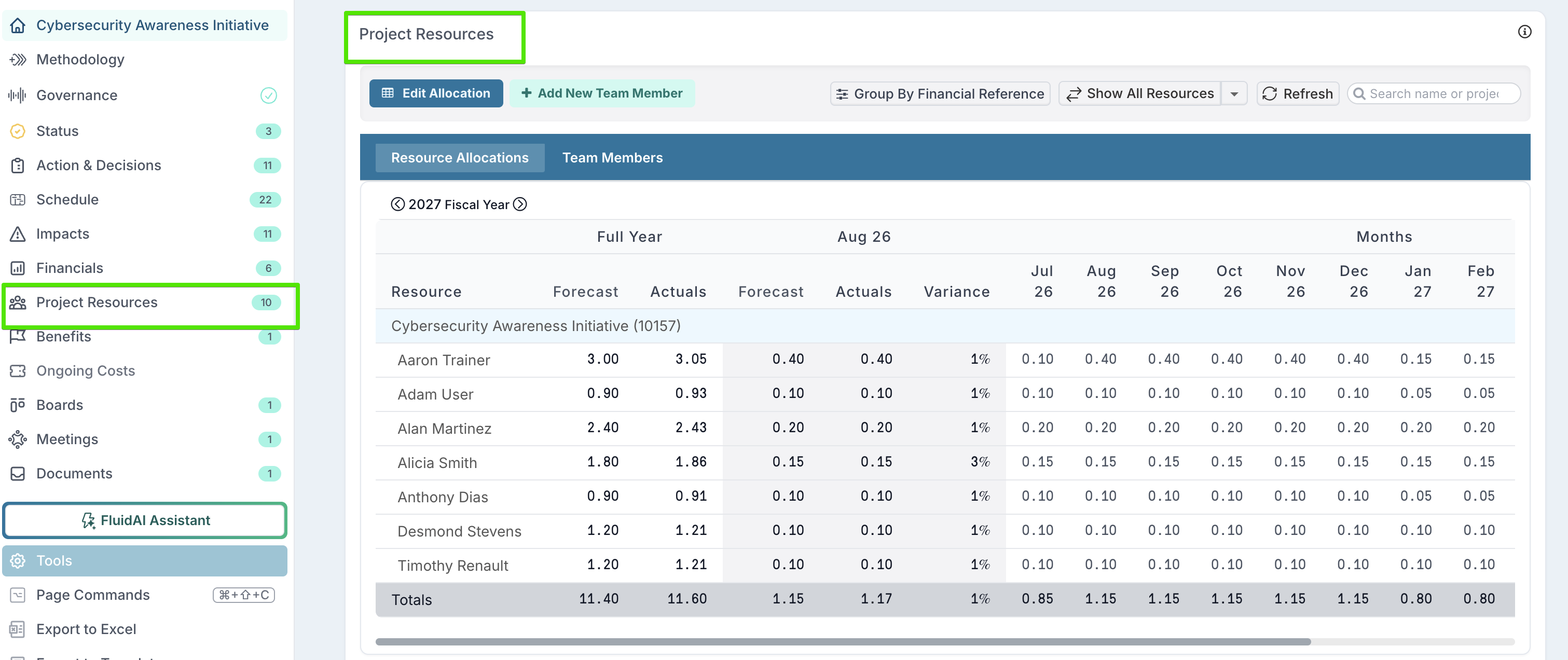
Administrators can now rename the project Community section itself — its left-hand navigation entry, panel headings and its name in the workspace component list — from the new Project Community settings on Admin → Activity Setup. Call it Resourcing, Project Team, or whatever fits your organisation. The Editors and Viewers labels can be renamed there too. All of these are display labels only: renaming them never changes anyone's access or allocations.
New Viewers role for read-only stakeholders
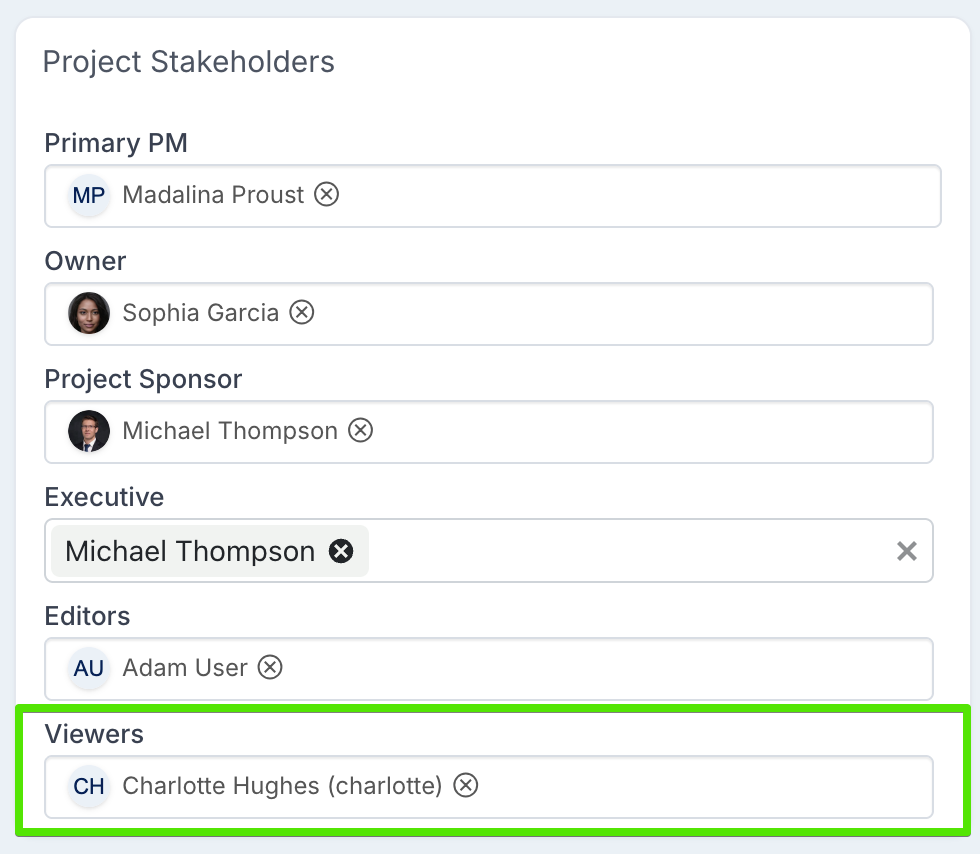
Project stakeholders gain a Viewers role alongside Editors. Viewers can open and read the project but cannot change anything — ideal for stakeholders who need visibility without edit rights. Viewers can be set when creating or editing a project, and via the Project Details bulk edit spreadsheet. Because Editors and Viewers grant access rather than do resource work, they are kept off the resource allocation grid — though anyone who already has a forecast recorded keeps their row, so no existing data is lost.
Restrict Primary PM and Business Owner to one person
A new system setting, Restrict Primary PM and Business Owner to One Person (off by default), lets organisations enforce single accountability for these two roles. This is configured once for the whole system by your project administrators — individual users don't set it per project. When switched on, each role holds exactly one named person across project create and edit, program create, the Project Details bulk edit upload, and projects created from a pipeline card. Projects that already hold more than one person are not broken: they keep the people they have and can reduce down to one — but once a role reaches a single person, it can't grow back.

A clearer Team Members view — now the default
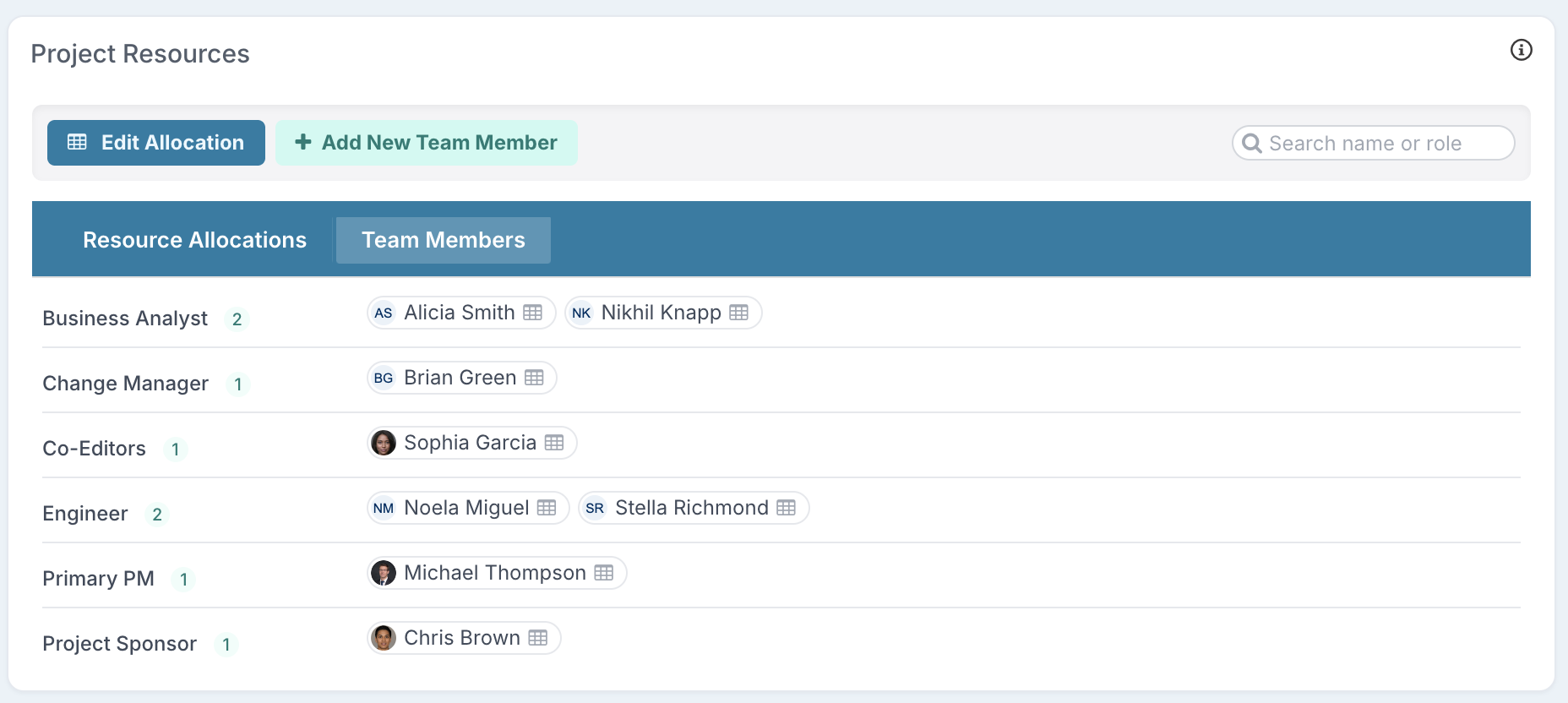
The Community panel on the project workspace now opens on the Team Members tab, showing one row per role with everyone displayed as avatar chips — readable whether your community is three people or a hundred. Editors and Viewers appear under their configured labels, clicking a person takes you to the right editing screen (if you have the rights), and a new search box on the toolbar filters by name or role. The Resource Allocations grid is still a click away on its own tab.
Custom Properties on Documents
Documents can now carry custom properties, just like projects, actions and schedule tasks. Capture the metadata that matters about each file — a review date, an owner, a classification, an approval status — and then sort, group and filter your document library by it. This capability is switched on by your administrators via the new Enable Document Custom Properties system setting.
Setting them up
Administrators will find a new Document section in the custom properties console, alongside Project, Schedule and the other familiar scopes. Each document property can apply to all document types or only the types you choose — so a "Review Date" can appear only on Board Papers, while a "Classification" applies to everything. Web links can carry properties too: Link is offered in the document-type picker just like a real document type. All the usual property options work here — required, read-only rules, categories, and the full range of property types.
Workflow Reporting & Project Audit History
Two new portfolio reports and a richer Audit History page make it easier to answer two questions every PMO asks: where is each project's workflow up to? and when did anything last happen on this project?
See every project workflow's status at a glance
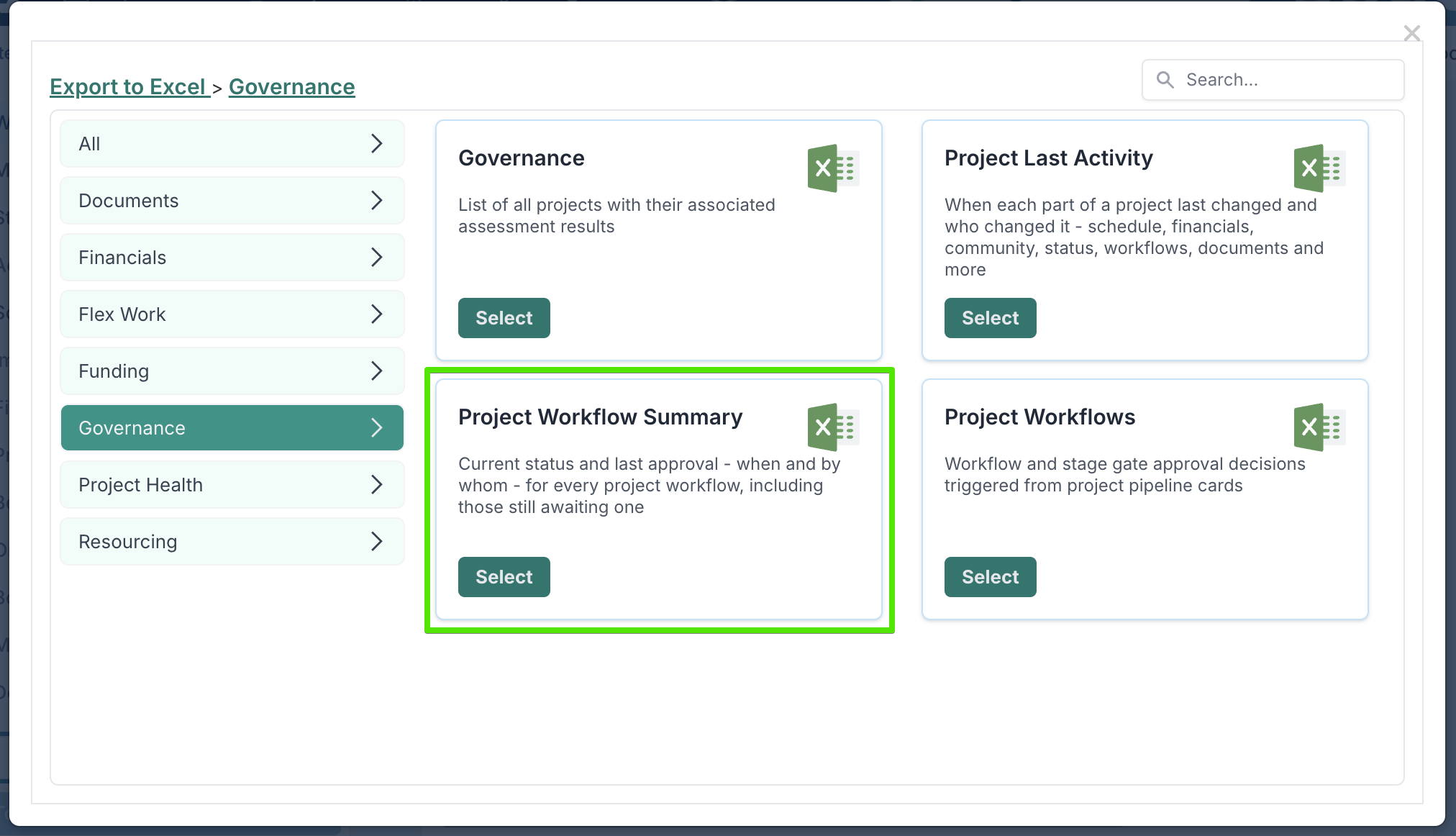
A new Project Workflow Summary export gives you the state of every workflow on every project, in one sheet. You'll find it in the standard Export to Excel menu, under the Governance section.
When a project runs through a workflow, it does so as a card on a workflow board, and approvals are recorded as decisions raised from that card. The summary gives one row per workflow card linked to each project, showing:
The card's current status, whatever stage it has reached — including workflows still waiting for their first approval.
The last decision made on it — its outcome, date, who recorded it, and who it was routed to.
Where it sits in the project's governance — the Phase, Package Name and Gate Name columns. Most workflow cards exist because a stage gate is waiting on their outcome; these columns show the project phase the gate sits in, the stage gate package it came from, and the gate itself. They are blank for cards on ordinary workflow boards that no gate is waiting on; a card serving several gates lists them all.
When it was last submitted, and by whom — the Last Submitted Date and Last Submitted By columns. "Submitted" means the last time the card moved out of the first column of its board — wherever it moved to, so a card that jumps straight past the second column still counts, and if a card is pushed back and resubmitted, you see the most recent submission. Last Submitted By is whoever moved the card, which isn't necessarily the person who raised it. Both columns are blank when the card is still in its first column, was created directly into a later column, or its history predates change tracking on that board.
The existing Project Workflows report is unchanged, and the two serve different purposes. Project Workflows is the decision audit trail: it returns one row for every approval decision recorded on a project's workflows — the gate or step it was for, its outcome, who approved it and when. Use it when you need the full approval history. Because its rows are the decisions, a workflow that has no decisions recorded on it returns nothing there.
The summary answers a different question — where is each workflow now? It returns one row per workflow card, with its current status, regardless of whether any decisions have been recorded on it yet. Use it when you want the live position of every workflow across the portfolio; use Project Workflows when you need the decision-by-decision detail behind them.
Both reports cover workflows running on boards — including stage gates approved via an external workflow, since those raise a card on a board. Stage gates approved directly by a named individual or WorkHub are reported in the Project Stage Gates export instead.
Find out when anything last happened on a project
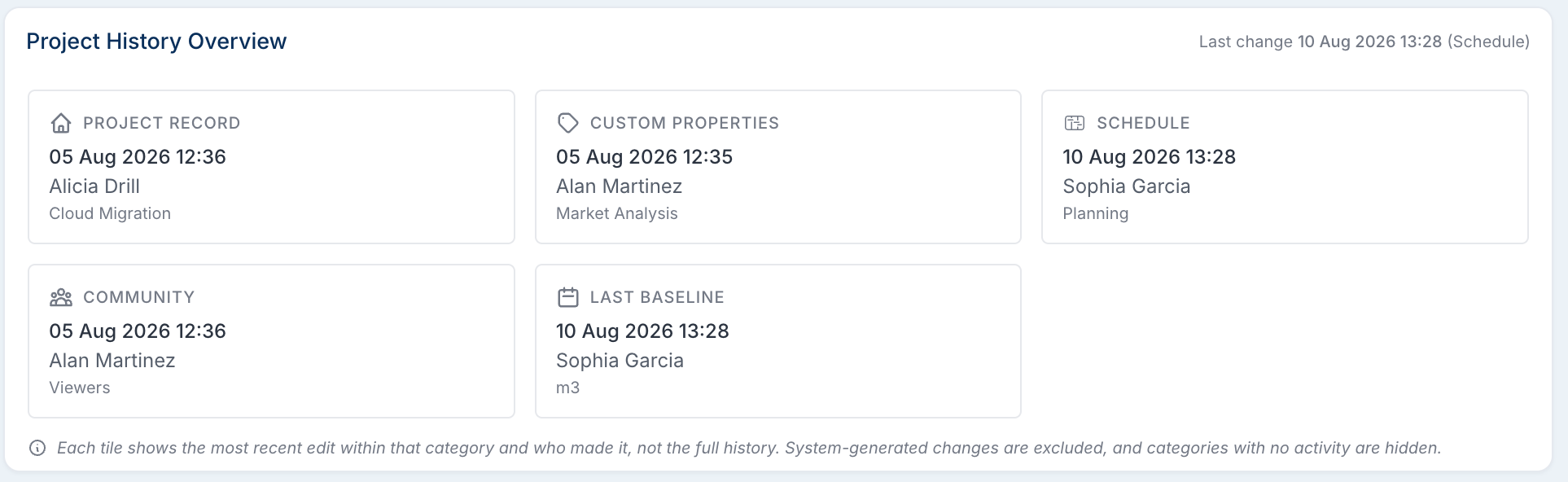
The Audit History page gains a Project History Overview panel answering "when did anything last change on this project, and who changed it." Fourteen areas are tracked, each with its own last-changed date and person: the project record, custom properties, schedule, impacts, community, financial forecast, financial actuals, resource actuals, status reports, workflows, benefits, ongoing costs, documents and the last baseline. Only changes made by people are counted — system-generated updates are excluded — and areas with no activity simply don't show a tile.
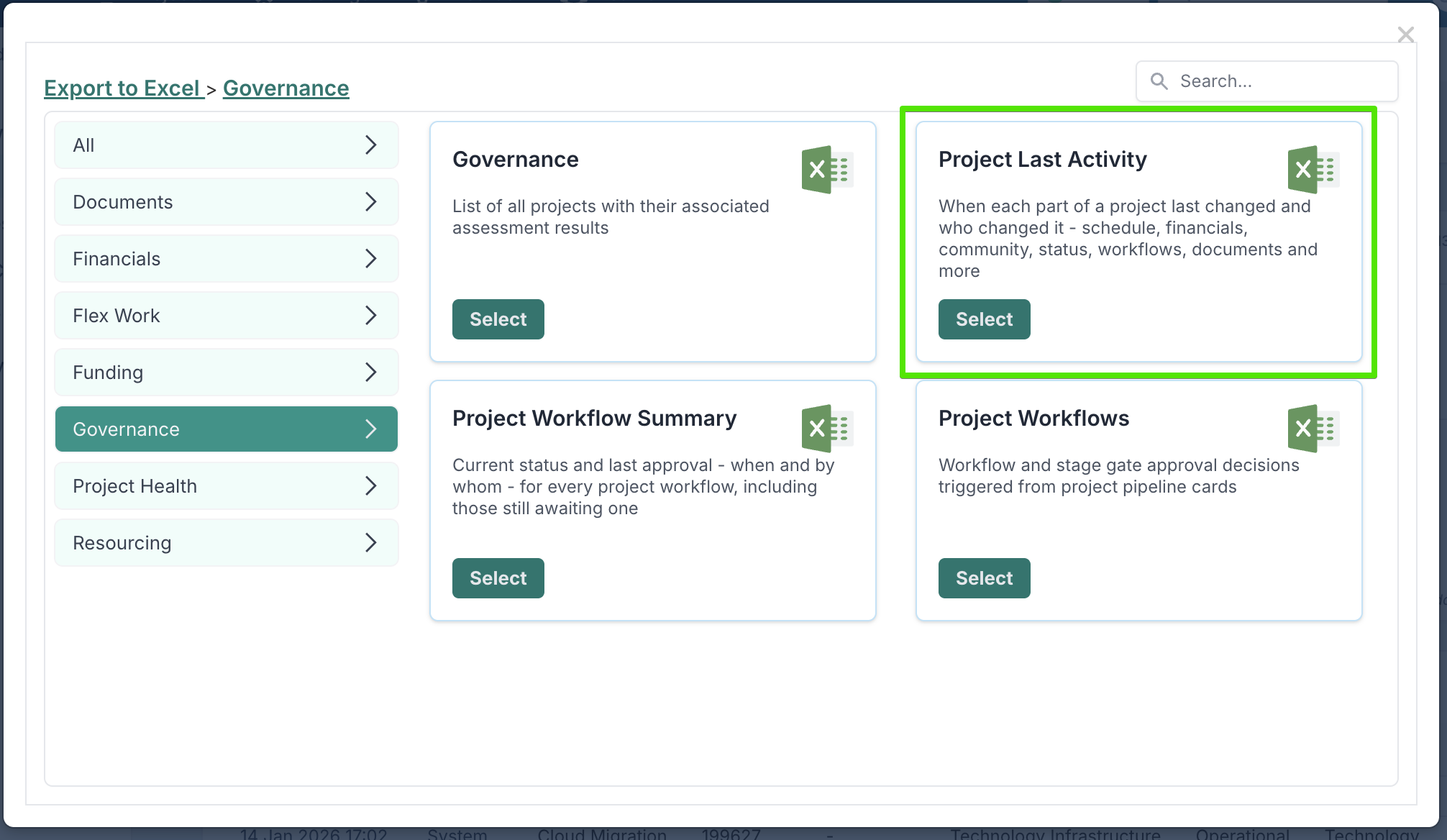
The same information is available across your whole portfolio as a new Project Last Activity export: one row per project, with the date and person of the last change to each area. Use it to find projects that have gone quiet, or to see who last touched a particular area across the portfolio.
Workflow & Stage Gate Approvals, reorganised into governance order
The Workflow & Stage Gate Approvals panel on the Audit History page previously listed decisions by whichever board their card sat on. It now reads the way your governance is structured:
Grouped by phase and stage gate. Each project phase appears once as a heading, with its gates beneath it — instead of the phase repeating in small print on every row.
Gates from a stage gate package are labelled with their package. A gate that a package dropped into the phase carries a small heading above its name showing the package and the instance it came from — for example Funding Approval – Round 1. Because applying the same package again creates a new instance, a project that has been through the package twice shows two separately labelled blocks — Funding Approval – Round 1 and Funding Approval – Round 2 — each with its own gates and its own approval history, even though the gate names inside are identical.
Collapse what you're not looking at. Both phases and individual workflows have expand/collapse chevrons — collapsing a phase hides all of its gates and their decisions in one click.
Tell the two kinds of workflow apart at a glance. Each workflow heading carries an icon and a label — (Stage Gate) for gates in your governance, (Project Workflow) for cards on ordinary workflow boards — which otherwise look identical once rendered as rows.
New Card Submitted column showing when each card was last submitted — the moment it moved out of the first column of its board — and by whom, in your local time.
Modified and Modified By are now one column, with the date and the person together, so the table is easier to scan.
Other Enhancements to Audit History
Filter and group each section your way. Community Changes gains a Filters & Options drawer — group by Person or Role, and filter on Person, Role, Action and Modified By.
All audit dates now display in your local time zone.
Project Record Changes now shows the Secondary External Reference field (under your configured label), so both reference fields are visible side by side.
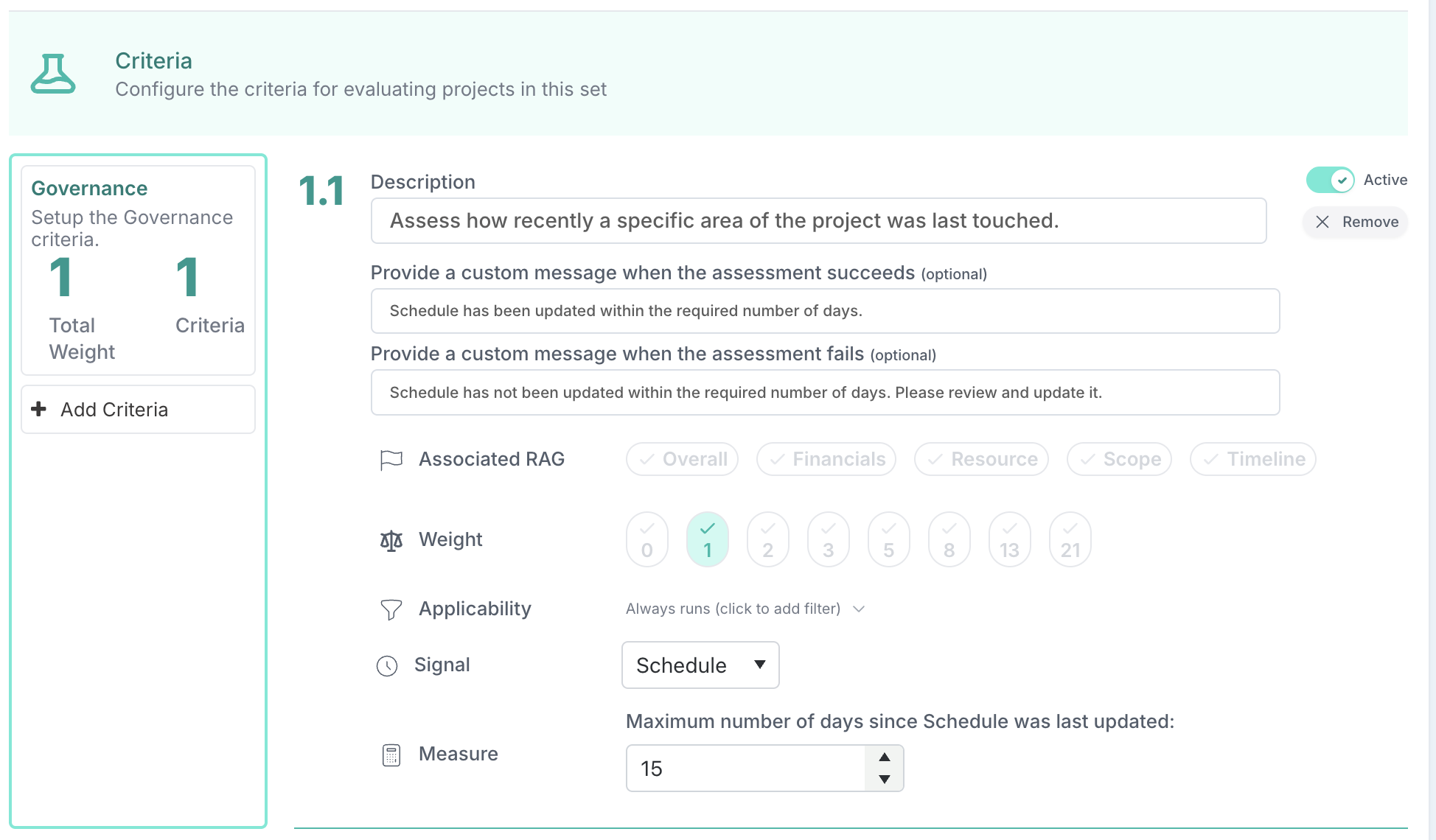
Keep projects fresh with the new Last Activity governance check
Governance assessments gain a matching Last Activity check: pick a tracked area and a maximum permitted age in days, and the check fails for any project where that area hasn't been touched within the threshold. One criterion covers one area, so a template can combine several — for example, "schedule updated within 14 days, status report within 30."
Project Pipeline & Cards
A set of improvements for teams running project intake and governance through pipeline cards.
Project-derived card properties now work. A card custom property whose expression referenced the parent project —
[ParentProjectName],[Project.Status]and similar — previously rendered empty, and saving the card wiped whatever value it had. These expressions now calculate correctly and survive a save.These properties also now look the way they behave: they render as read-only fields with a padlock and a "Calculated on save" note. The previous styling suggested the value was updating live in the browser — in fact it is worked out on the server when you save, and the field now says so.
Calculated fields at project creation. Converting a pipeline card into a project now re-evaluates every expression-driven custom property at that moment, so the project starts from fresh values — including properties hidden on the card form, which previously had no way to be brought up to date.