This Train 18 release introduces new controls for preserving information as work progresses through Fluid, alongside a number of improvements to boards, project pipelines, schedules and timesheets.
Closed cards, projects, schedule tasks and impacts can now retain the property configuration they had when they were closed, workflow approvals can capture the card as it appeared at the time of the decision, and custom properties can be made read-only after an item reaches a particular status.
Boards also gain a redesigned card status control, improved archiving behaviour and configurable card descriptions. Project Pipeline cards can now carry Editors and Viewers through to the projects they create, while a new schedule setting lets organisations choose whether timesheet bookings should update task % Complete.
The release also includes a number of smaller enhancements and fixes.
Keep the record as it was: freezing, snapshots and locking
Closed items now keep the property configuration they closed under
Custom property configuration has always been shared by every item on a board or in a scope. So when a board owner renamed a property, removed an option from a list, or regrouped a board's properties, every closed or archived item changed with it. An item you closed a year ago could quietly stop matching what was actually approved at the time: a value could end up under a different label, or show an option that no longer exists in the list it came from. For audits and governance reviews, the record you looked back at wasn't reliably the record you closed.
To address this issue, we've added a new board setting: Freeze Custom Properties And Status On Closed Cards.
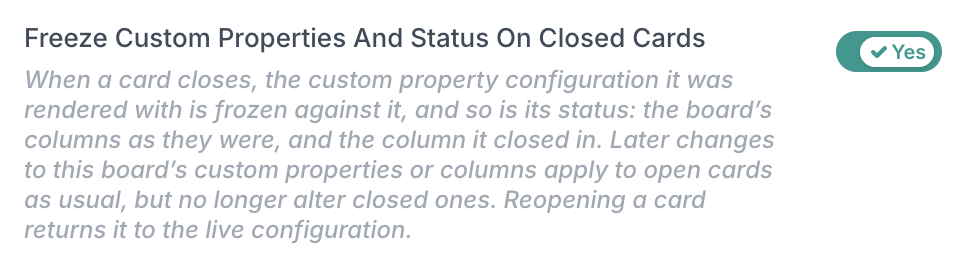
If turned on, when a card is closed or archived, Fluid saves a copy of the custom property setup it closed under, and the closed item displays from that copy from then on:
Closed and archived items are frozen exactly as they closed. Every property is shown read-only, calculated expressions no longer re-evaluate, and any attempt to change a value is ignored. Later configuration changes — renames, removed options, regrouping — affect open items only.
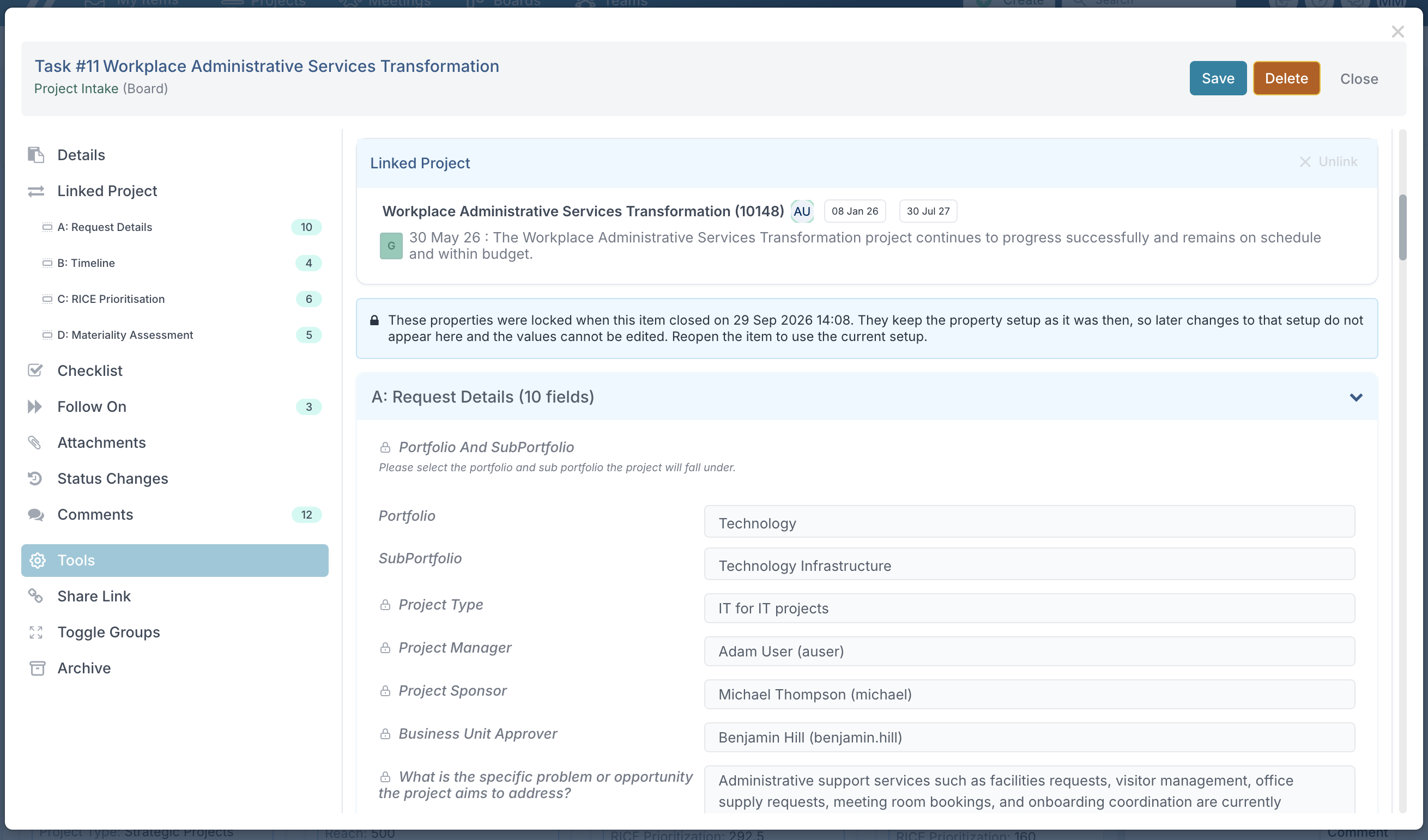
Reopening restores normal behaviour. A reopened item returns to the live configuration and is fully editable again; if it's closed once more, a fresh copy is taken.
Freeze properties on closed projects and schedule tasks
The same snapshot functionality is available on projects. A new global setting, Freeze Closed Entity Properties, applies the freeze to projects and schedule tasks.
For projects, the freeze is tied to the project status. A project counts as closed the moment its status is changed to one of the statuses your organisation has configured as inactive, such as Closed, Completed or Cancelled, and also when the project is archived. At that moment Fluid records the closure date and saves a copy of the custom property configuration the project closed under.
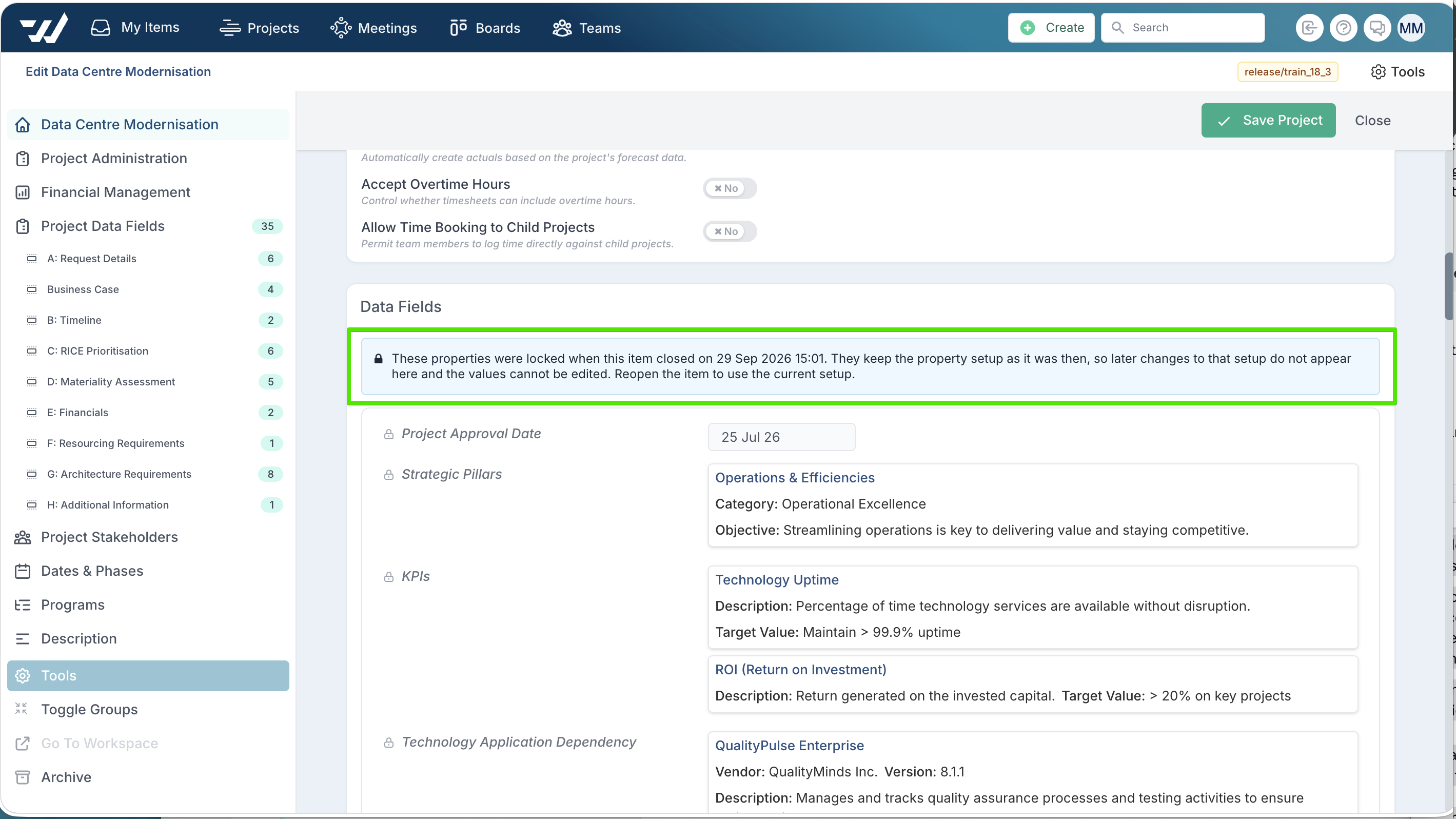
Schedule tasks are frozen in the same way when they are closed. Properties on a closed item are shown read-only, calculated expressions stop re-evaluating, and changes are ignored. Later renames, removed options or regrouped properties never alter what a closed project, task or impact shows.
Moving a project back to an active status, or restoring it from the archive, returns it to the live configuration, fully editable. Closing it again takes a fresh copy. The same applies to reopened tasks and impacts.
Unlike the board setting, which is enabled board by board, this is one system-wide setting covering all three item types, switched on by your project administrators. It is off by default, and it applies to items closed or archived after it is turned on. Items already closed continue to follow the live configuration.
Workflow approvals now keep the card details they were decided on
An approval decision is only as good as the record of what was approved. Until now, opening a settled approval showed the card as it is today and not how it was when the decision was approved.
To address this, we've added a new board setting: Snapshot Card Details On Workflow Approvals.
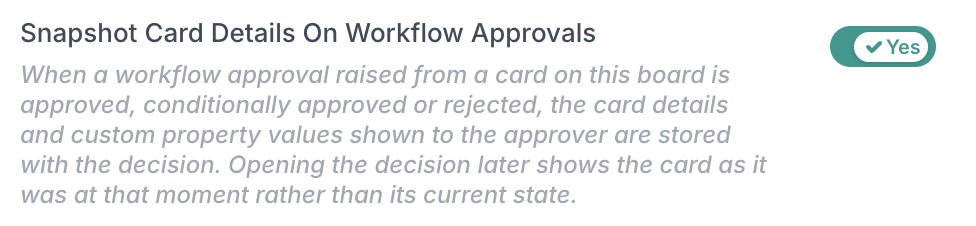
If turned on, whenever an approval is approved or rejected, Fluid stores the card details exactly as the approver saw it, attached to that decision:
The snapshot is taken at the moment of decision, before the outcome moves the card to its next column — so it captures the card in the state it was judged, fields and property values alike.
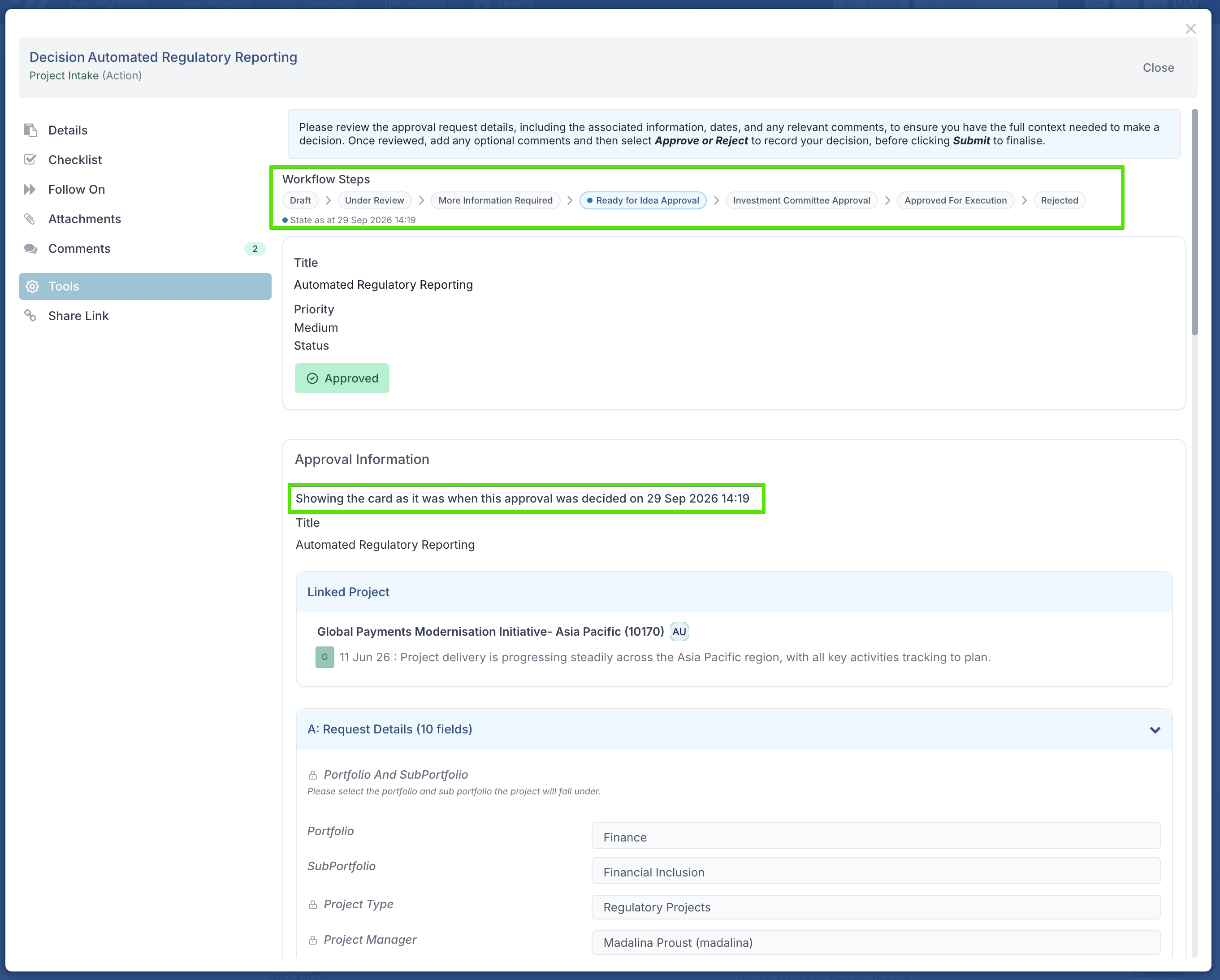
Opening an approval decision shows the status of the card at the time the decision was approved or rejected and the card's properties are displayed as read-only, marked with the time they were captured.
The live card is unaffected. The snapshot is a record attached to the decision; the card itself continues through its workflow as normal, and each subsequent approval on it captures its own snapshot.
Like the freeze setting, this is off by default and enabled per board. Switch it on for the workflow boards where decisions need a durable record. Approvals decided before the setting is switched on have no snapshot; opening those shows the live card, as today.
Lock custom properties after an item reaches a certain status
Custom properties now include a new Editable for statuses setting, alongside the existing Applicable and Required settings. This lets you capture information early in a workflow and then prevent it from being changed once the item has moved beyond the point where that value was agreed.

For board card properties, the setting uses board statuses. For project properties, it uses project statuses.
Specify the statuses in which the property can be edited. In all other statuses, the property remains visible but becomes read-only. If no statuses are selected, the property stays editable everywhere, preserving the existing behaviour for all current properties.
For example, a Business Case Amount could be editable while a card is in Draft or Under Review, then become read-only once the card reaches Approval, ensuring the approved value remains unchanged.
Status changes are also handled without blocking normal workflow progression. A user can still update a property while moving an item out of a status where it is editable, and moving an item back into an editable status makes the property editable again. A save is blocked only when the property is read-only in both the current and destination statuses.
Cards: status, archiving and descriptions
Card status is now a Workflow Steps strip at the top of the dialog
The card's status control has moved to the top of the edit dialog and become a strip of steps, replacing the status dropdown. The strip is headed Workflow Steps in the dialog. Every column of the board is laid out in order as a pill, so the card's whole journey — where it's been, where it is, and where it goes next — is visible at a glance.
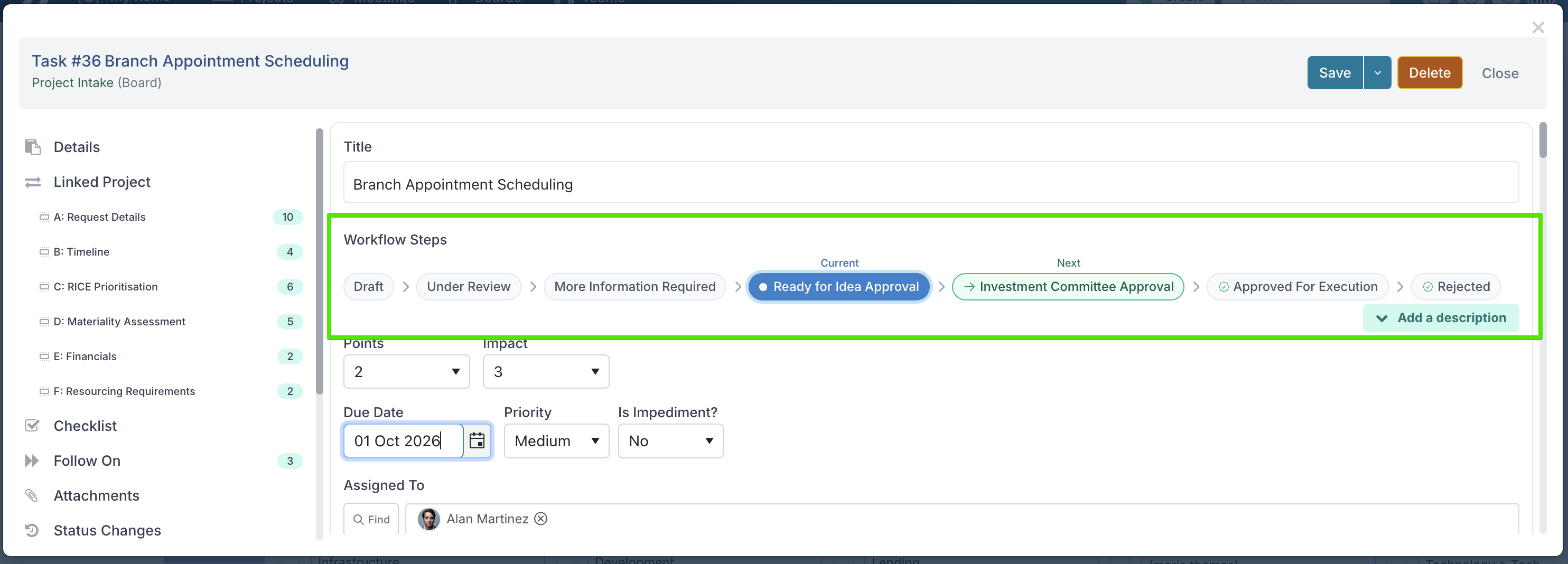
Reading the strip
Each marked pill carries its own label directly above it: Current, Previous, Next.
Current is the one filled blue pill.
Previous. i.e. the column the card came from, is a light dashed blue outline.
Next is a green outline with a forward arrow; if moving there will close the card, it says so.
Every other column is a plain grey pill; a grey column with a green check badge is one that closes the card when it reaches it.
Changing the card status
There are now two ways to move a card:
Click a step. Click any pill on the Workflow Steps strip to move the card to that column, then save.
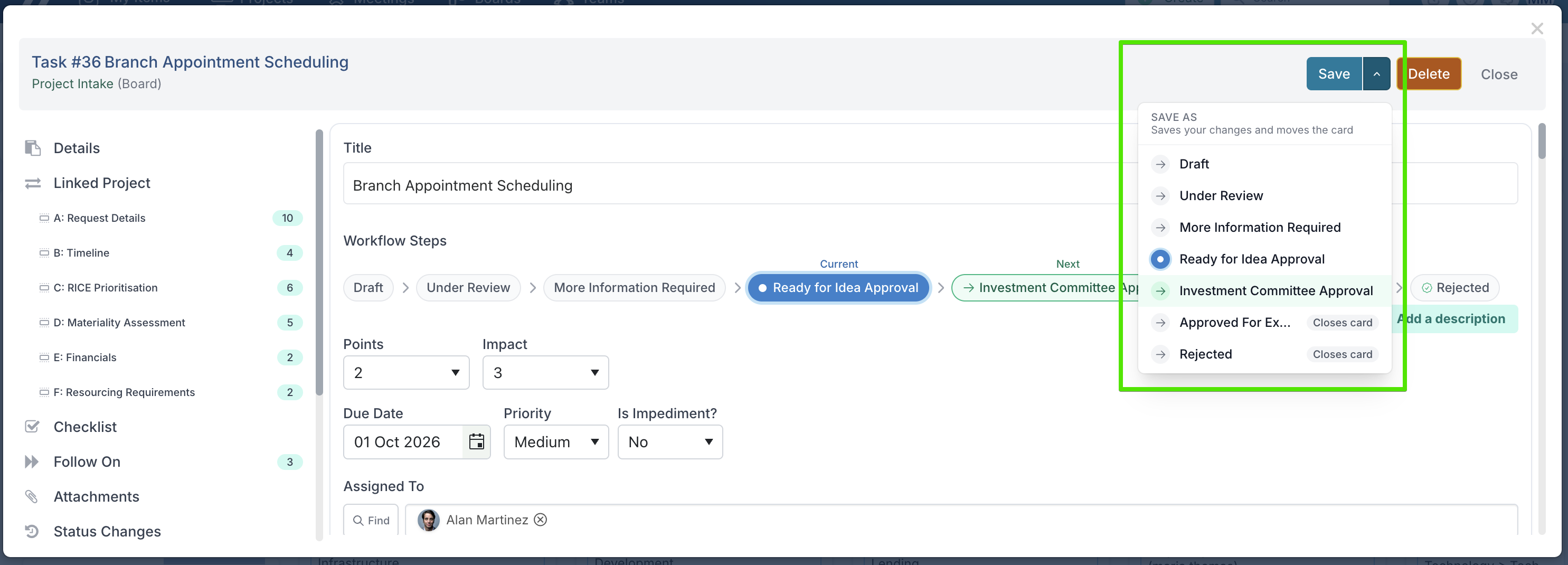
Save As. The Save button is now a split button: Save alone works as it always has, and the arrow beside it opens Save As, listing the board's status. Pick one and Fluid saves your changes and moves the card to that column. Columns that would close the card are marked Closes card in the menu, so there are no surprises.
Archiving and the backlog no longer change a card's status
A card's status is now always one of the board's real columns. Archiving used to overwrite it, so an unarchived card had lost its place in the workflow and a card in the backlog was held in a special "Backlogged" status rather than a real column. Both are now states beside the status: archiving is a flag, and the backlog is simply where the card sits not what status it holds.
Archiving a card
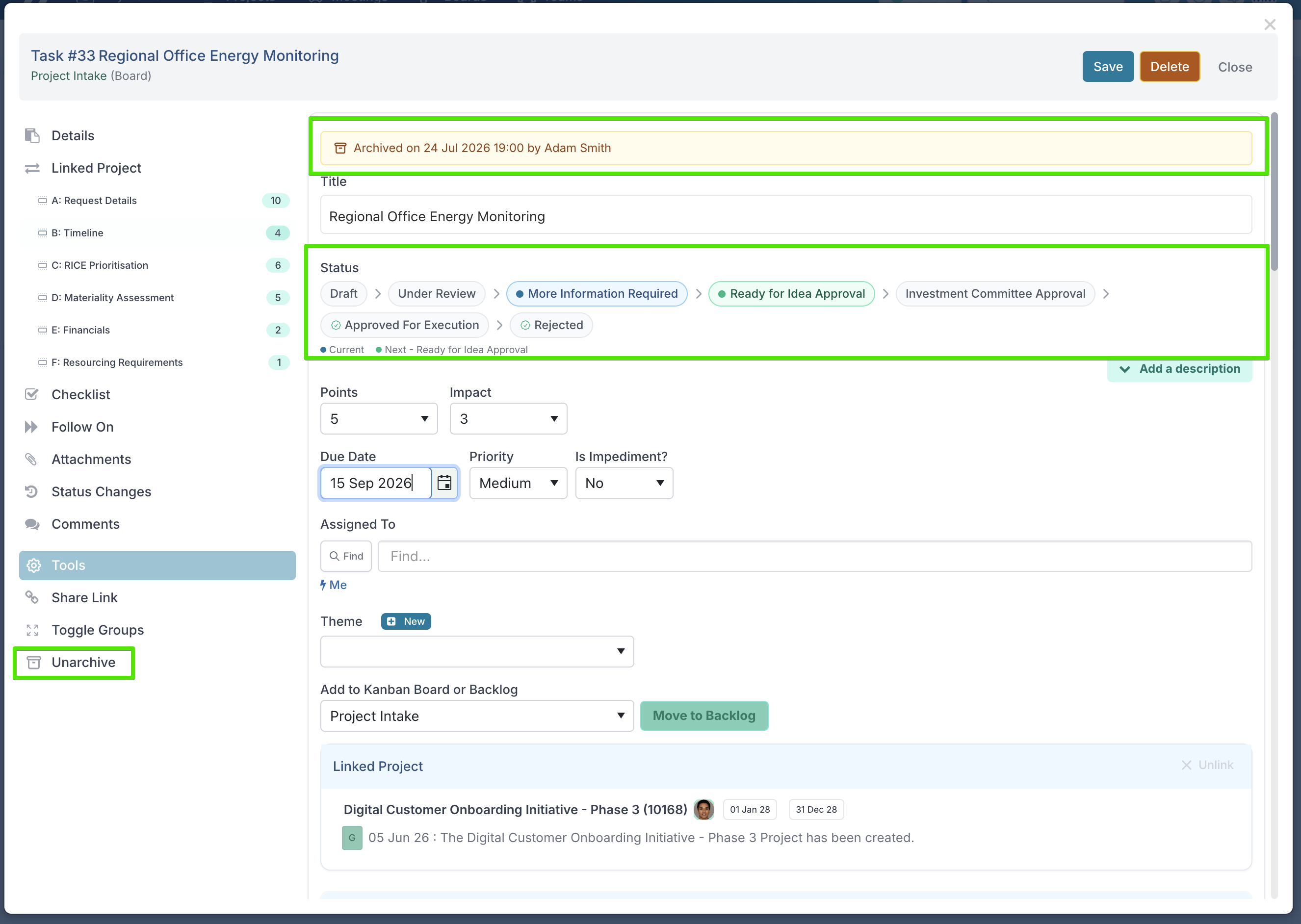
An archived card is marked by the amber bar, not by the status strip. The strip keeps showing the column the card held when it was archived. Archiving takes the card off every open board immediately, for all users.
Archive and Unarchive live in Tools in the card dialog. The card keeps its status once archived.
Unarchiving returns the card to the status it had when archived. You can also restore an archived card straight into a different column by clicking that column on its status strip.
The Archive History export now shows each card's real status (the column it was archived in) plus three new columns: Archived, Archived By and Archived Date so you can see at a glance who archived each card and when, alongside where it stood. The ordinary board export is unchanged.
The backlog
A card in the backlog keeps its real column status throughout: a card created straight into the backlog starts in the board's first column, and moving a card between the backlog and a sprint never changes its status.
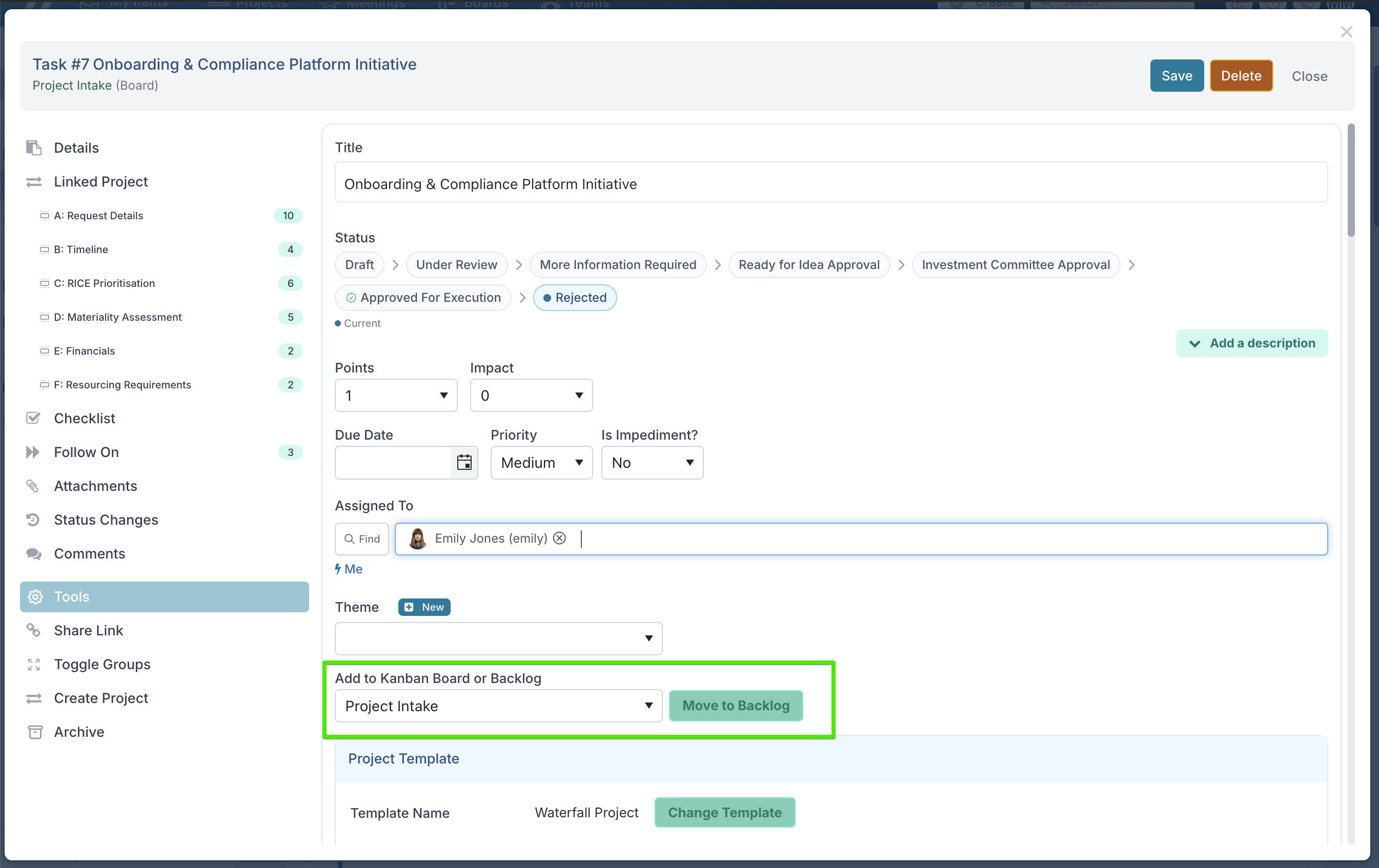
The status strip no longer shows a "Backlogged" pill . A backlogged card is marked in the column it actually holds, and its backlog state shows in the placement field.
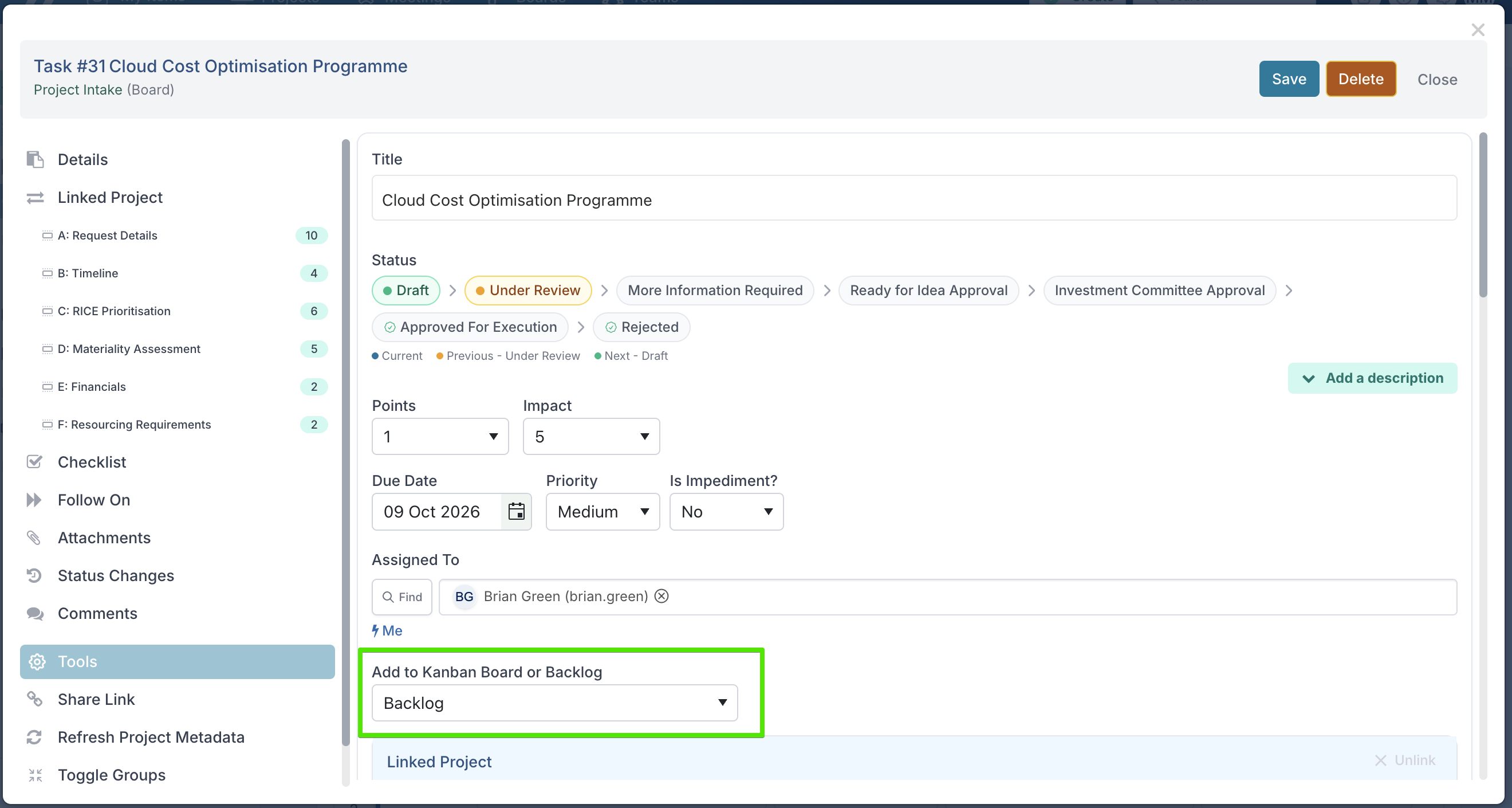
To move a card into the backlog, click Move to Backlog next to the placement field. To move it out, pick a kanban board or sprint in that field and save: the card lands back on the board in the column its status says, exactly where it was before it was backlogged.
Decide per board whether card descriptions are optional, hidden or required
Different boards use card descriptions in different ways. A lightweight triage board may not need them at all, while a request or intake board may need every card to explain what is being requested. Board administrators can now control this using the new Card Description setting on the board's Settings tab.

Optional: keeps the current behaviour. The description remains available behind Add a description, but is not required. This is the default, so existing boards are unchanged.
Hidden: removes the description from card create, edit, read-only and approval views. Existing description content is retained and becomes visible again if the setting is changed later.
Required: keeps the description field expanded in create and edit views and prevents a card from being created or saved without meaningful content. The same validation also applies to integrations and API calls.
For required descriptions, Fluid checks for actual content rather than just editor formatting. Blank paragraphs, line breaks or spaces do not count, while an embedded image does.
Project Pipeline
Editors and Viewers carry through to the project
People named in a pipeline card's Editors and Viewers fields are now added to the project the card creates or syncs to, with matching access: Editors can edit the project, Viewers can open it read-only.
How to set it up: on your pipeline board, give the card a person field (single or multi-person) for each role, named to match your configured Editors and Viewers labels. If your organisation uses the default labels, name the fields Editors and Viewers; if you've renamed the roles in Admin → Activity Setup → Project Community (say, to Project Editors and Project Observers), name the card fields Project Editors and Project Observers.
When the people are carried across:
Creating a project from a card — everyone in the card's Editors and Viewers fields is added to the new project's stakeholders, and the person who created the project is added as an Editor as usual.
Syncing a linked card — add people to the card's fields later, and they're added to the project when the card next moves into a sync column.
Refreshing a card from its project — using Refresh Project Metadata on a linked card fills the card's Editors and Viewers fields from the project's current stakeholders, so the card reflects who actually has access.
The card only ever adds people — it never removes them. Taking someone out of a card's Editors or Viewers field does not take away their access to the project. To revoke access, remove the person from the project's own stakeholders.
Schedules and Timesheets
Choose whether timesheets update schedule % complete
A new system setting, Disable Flex Schedule % Complete from Timesheets, under Setup Project Features → Project Schedules, lets organisations separate time booking from progress tracking on flex schedule tasks.
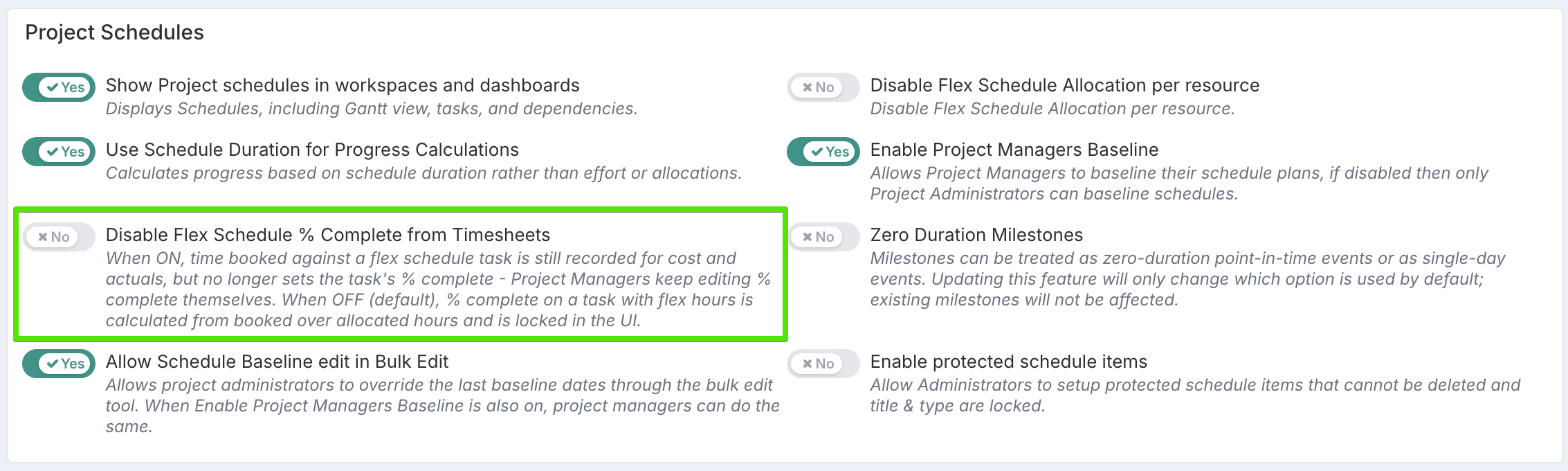
When the setting is off, the existing behaviour continues unchanged. When Flex Schedules and Timesheets are enabled, % Complete for tasks with flex hours is calculated from hours booked against hours allocated. Project managers cannot edit the value directly, and the task remains below 100% until it is marked complete.
When the setting is on, timesheet entries no longer update % Complete. People can continue booking time as normal, and those hours still contribute to cost, actuals and capitalisation. Progress is instead managed manually by the project manager, including for tasks that already have booked time.
This is particularly useful when introducing timesheets to projects already in progress, because existing PM-entered progress is preserved rather than being replaced by an hours-based calculation. It also supports organisations that use timesheets primarily to capture effort and cost rather than to measure delivery progress.
The setting applies across the whole instance and is off by default. If it is later turned off again, existing tasks are not recalculated immediately. Their hours-based % Complete is picked up the next time time is booked against the task or the task is saved. Summary tasks continue to roll up their children's progress, weighted by allocated hours, regardless of how each child's % Complete was set.
Other Enhancements & Fixes
Schedule tasks: Fixed copying/cloning schedule tasks occasionally giving an unrelated summary task the wrong end date.
Schedule Bulk Edit: uploading a schedule can no longer give a task a RAG that contradicts its progress, i.e. an unfinished task can't end up with a "Completed" RAG, and a started task can't keep "Not Started". Where the spreadsheet's RAG doesn't match the task's status, the task keeps its current RAG (or gets the default), and the upload report lists each correction.
Project % complete now matches the Gantt: the project-level completion percentage could show a slightly lower figure than the Gantt grid calculated for the same plan, because rounding was applied at every level of the task hierarchy instead of once at the end. Both now calculate identically.
Financials by Project: column headings, the Totals row and the Project column now stay visible while scrolling; a new Show Margin toggle in Filters & Options lets you hide the Margin column (remembered across sessions); and printing now includes the full grid.
Governance checks: the Impacts Recently Updated and Schedule Recently Updated assessment checks now pass when a project has no open impacts or no open schedule items — previously a project with nothing open was wrongly marked non-compliant for that check.
Catalog custom properties: clearing a catalog selection now stays cleared after saving. Previously the removed selection silently reappeared when the item was reopened. Removing one value from a multi-select catalog property is saved correctly too.