Project Pipelines allow you to create a project at any stage from a board. Whether it be new project requests, change requests, or enhancements, you can capture the entire process from idea to execution. Simply set up your project pipeline board and design it to capture your business process from beginning to end.
User role requires to create a pipeline board: Project Administrator
Speak to your Project Administrator to help you set up your Board. As an owner of the board, you can still customize and edit all normal board functions. The project administrator needs to set the project creation rules and default project status settings to apply the standard business operating procedures. They will also need to assist you in configuring the project detail data fields to best match the project fields set up in the Project Module.
In this article, we will show you how to create and set up a project pipeline board.
Step 1. Create a New Board
To create a pipeline board, click on the Create button in the top navigation bar and then select New Board.
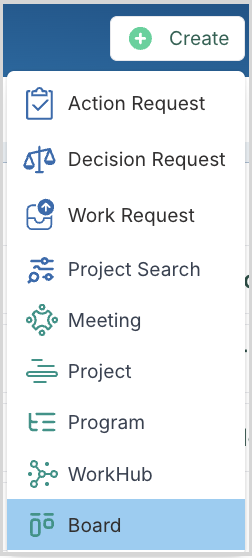
You will be presented with the board settings page to set up your pipeline board.
NOTE: The Project Pipeline icon will only be seen by Project Administrators. If you are a Project Administrator, and you do not see the option to create a 'Pipeline' board option, then this feature is not enabled on your site. To enable it, please follow the instructions here.
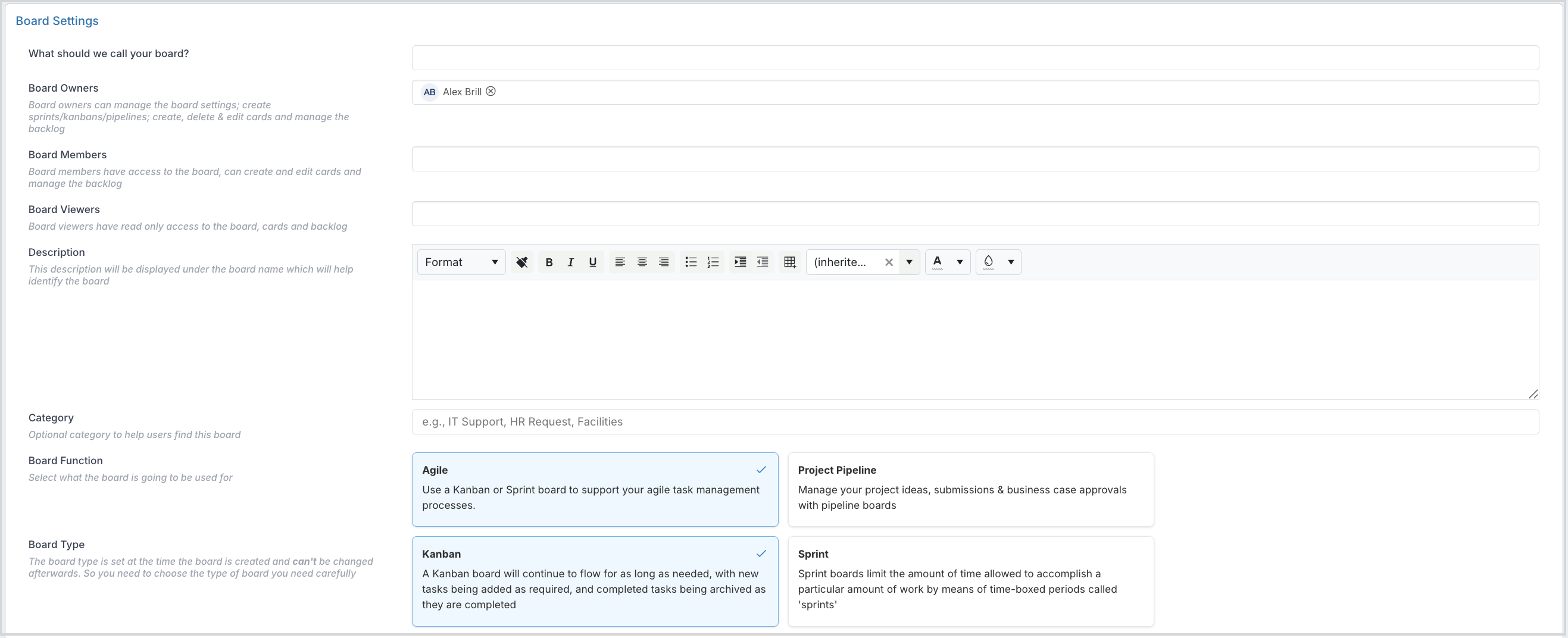
Step 2. Add a Title and Define the Permissions
When setting up your Pipeline Board, think of your approval process and how your request flows from idea to execution.
Start by setting the title, owners and members of the board:
IMPORTANT: Board members/owners will have the ability to create projects from the pipeline board even if they do not have project submission or project administrator roles.
Board Title | Use a board title that will help users identify the board easily. |
Board Owners | Owners can edit the board settings, edit any board tasks and create projects. |
Board Members | Board members can create/edit tasks and create projects, but they cannot edit the board settings. |
Board Viewers | Board viewers can only read/view board tasks. |
You should add a description to the board to define it's purpose and how it will be managed.
Step 3. Configure Pipeline Settings
Next, you will set up your project pipeline settings.
Select Project Pipeline and your settings page will change as per the below image:
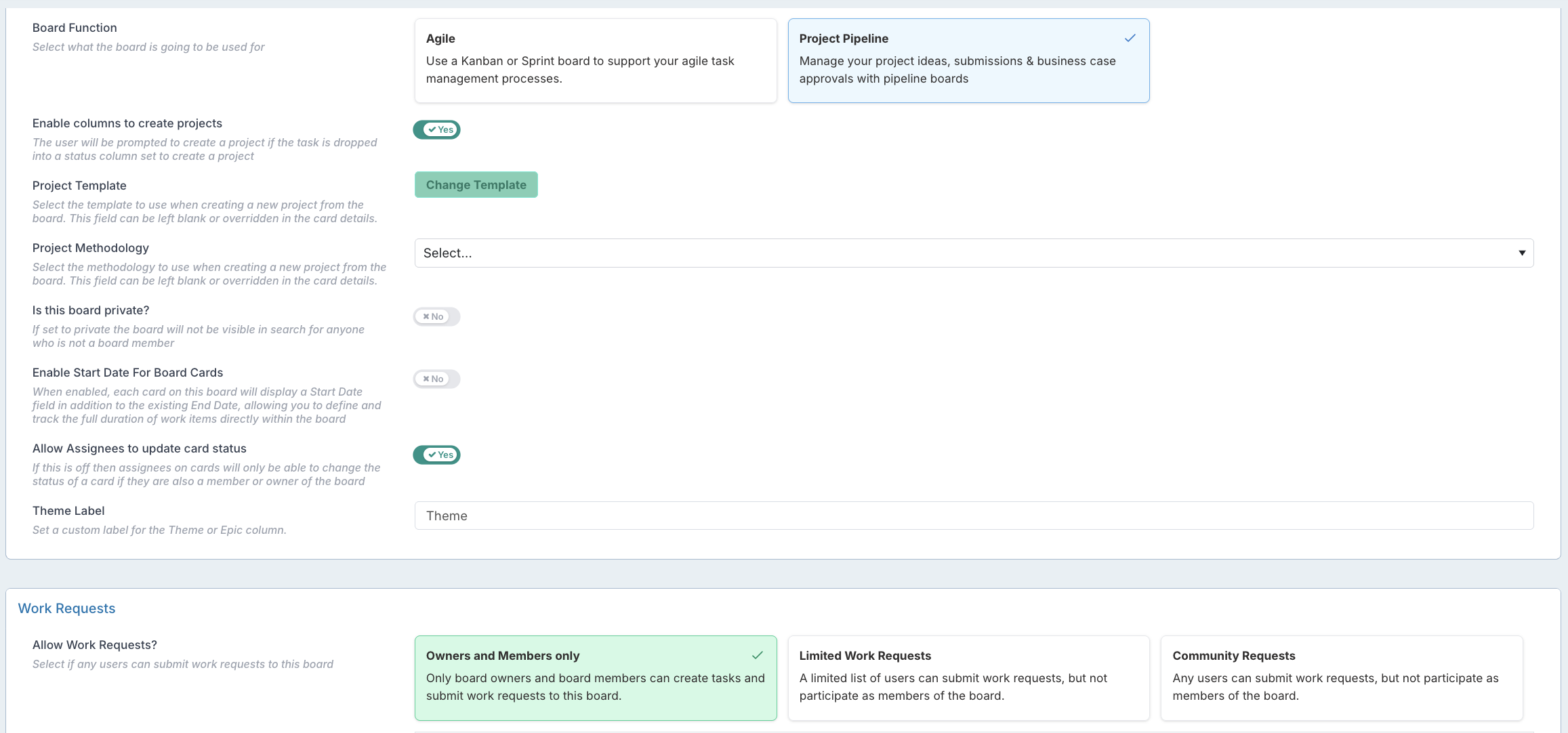
Project Pipelines are always set up as Kanban Boards.
Next, set if you want your status columns to create projects and any default templates and methodologies you would like the projects to use on creation.
Enable columns to create projects | Projects can be created from the task dialog at any stage by a board owner or member. |
Project Template | You can choose a project template to use when creating a new project from the board. This field can be left blank or overridden in the task details. |
Project Methodology | Select the methodology to use when creating a new project from the board. This field can be left blank or overridden in the task details. |
Is the board Private? | If set to private the board will not be visible in search for anyone who is not a board member. |
Enable Start Date For Board Cards | When enabled, each card on this board will display a Start Date field in addition to the existing End Date, allowing you to define and track the full duration of work items directly within the board. |
Allow Assignees to update card status | If this is off then assignees on cards will only be able to change the status of a card if they are also a member or owner of the board. |
Theme Label | Set a custom label for the Theme or Epic label. |
Define who can submit Work Requests.
Allow Work Requests | This feature allows you to set how you would like requests to be captured to your board.
Please ask your application administrator if you do not see this option, as the work request feature has not been turned on if this is the case. |
Instructions | Help users submit new requests by setting clear instructions. These instructions will be seen in the Work Request form. |
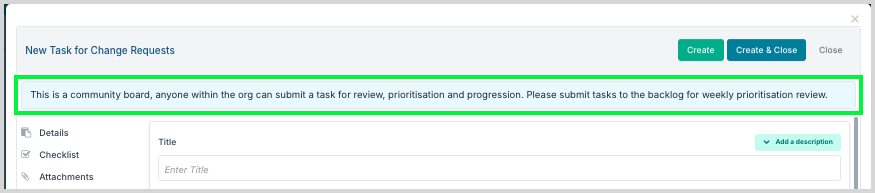
Above: Example of Work Request Instructions
Step 4. Configure Card/Task Types
Next you will need to set the task types of project requests that this board will handle. E.g. New project, New Program, Small Enhancement, Change Request
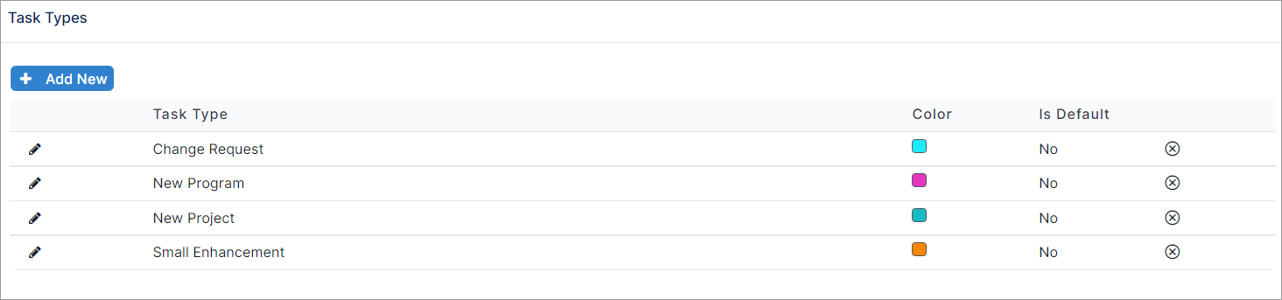
Once you have set the task types, you need to set up the properties needed, that:
- will capture the information about the new project requests (E.g. this is the form that the requestors will submit).
- will record the approval process (these properties are the properties only visible to the owners and members of the board).
- you would like to pre-populate to the project when the project is created from the board. When a project is created, the creation process will try to set as many project properties as possible based on the task properties.
Points to remember when setting up the properties to be used in the project settings:
- The property name needs to match the naming convention in the project workspace.
- The options provided need to match the same options provided at set up in the metadata.
- If the data type is an option, then it needs to be set as an option in the Project settings.
To understand more on how these properties will be used to create the project, Click here.
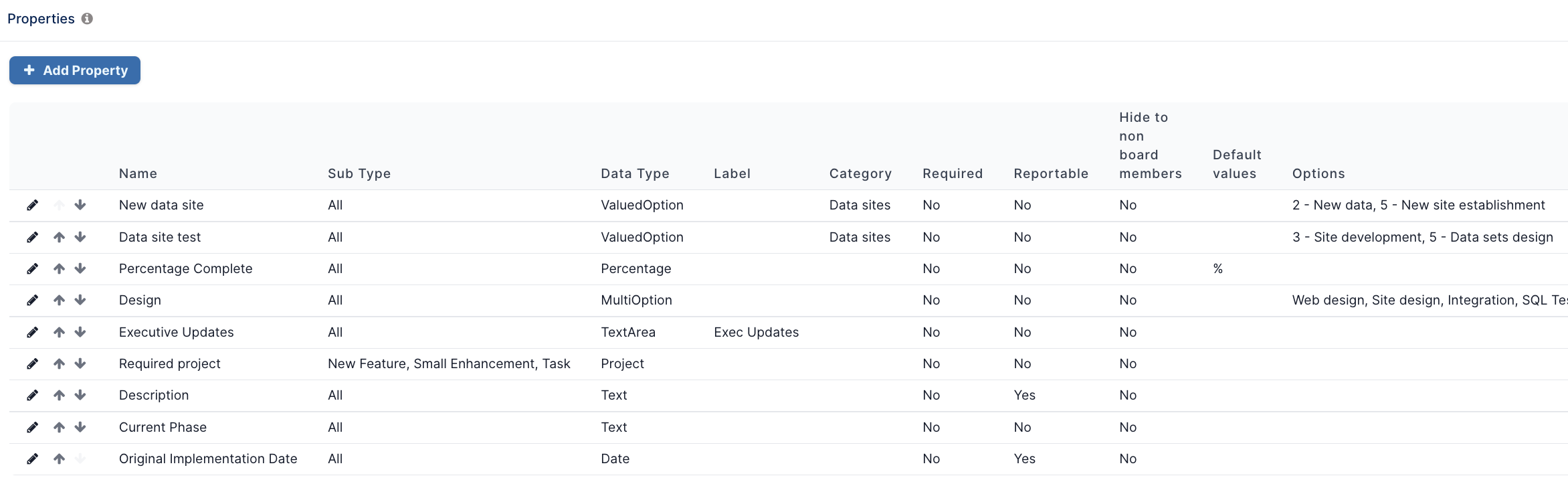
To learn more about how to create task types and custom properties, click here.
Step 5. Final steps for your project pipeline set up
The final step in setting up your board is to set up your status columns and the settings that control the project creation.
If you have selected Yes for the project columns to create projects, you can set which column should create a project.
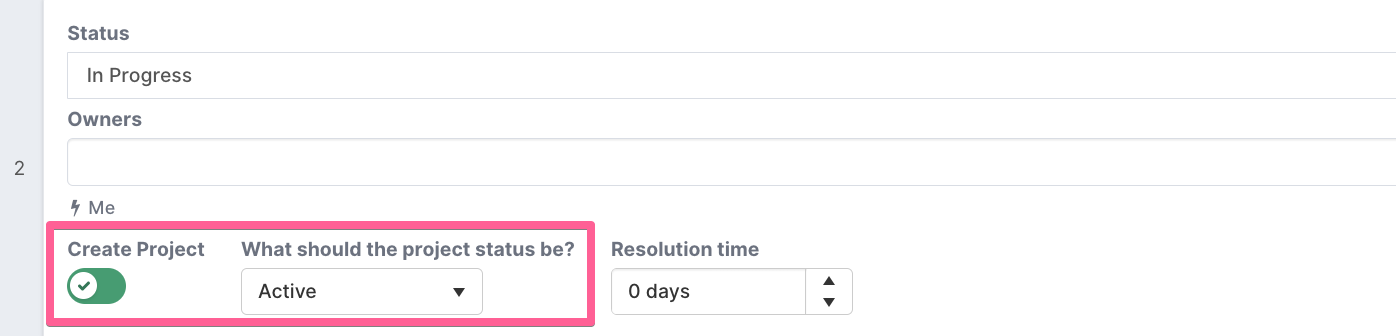
Create Project - turn this on for the column status that you would like set to automatically create the project when a task is dropped into that column. You can select more than one column to create projects, as some requests are approved at an earlier stage than other requests. Using this setting, you can set up project creation according to your various approval processes.
What should the project status be - Set the project status value that the newly created project's status should be set to. Note that this option is only available if the column is set to create a project.
NOTE: A member/owner of the board will still be able to create a project from the task tile at any stage, regardless of the task status. When a project is created from a status that isn't flagged to create a project, the project creation process will always set the project status to the default project status as set up in the Administration Console.
Your project pipeline board is now set up, and ready to go!
This article focused on the board settings that apply to project pipeline boards only. To learn more about how to customise your board further, navigate to the managing a board folder for more articles.