You can send comments to things in Fluid - or create and assign actions/decisions - all from your inbox.
Add a comment or update to a task, action or decision via email
Simply reply!
When you receive a notification email with...
a task, action or decision you have been assigned
comments added to items you own or have created
where you have been @mentioned on a task, action or decision
... simply hit reply and send your comments via return email.
The chat stream of the task, action or decision will be updated with your emailed comments - keeping your update contextual to what it is related to.
Add a comment to the chat stream of a board, meeting or project via email
You can email comments directly to a project, meeting, workhub or board from your inbox.
You will need the unique email address which you can find by navigating to it and clicking on the @ icon.
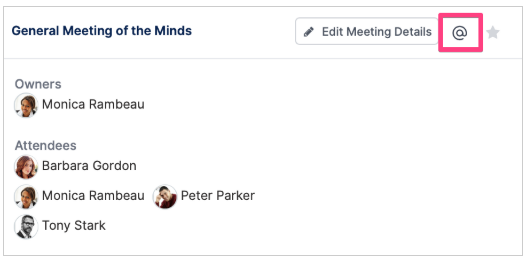
Email the unique address with your comments, and the body of the email will be dropped into the chat channel of the project, meeting, workhub or board.
If you are going to be sending regular comments and updates via email, why not add the email address to your contacts so it is there when you need it!
Create a task, action or decision via email
You can create an action or decision on a project, WorkHub or meeting, or a new task on a board, by sending an email to the unique email address associated with it.
Where do I find the email address?
For projects, workhubs and boards, navigate to the item and click the @ icon to reveal its unique email address. For meetings, you'll find the address in the meeting members section.
Steps
Compose a new email in Outlook (or any email client) and enter the Fluid email address for your project, meeting, workhub or board in the To: field;
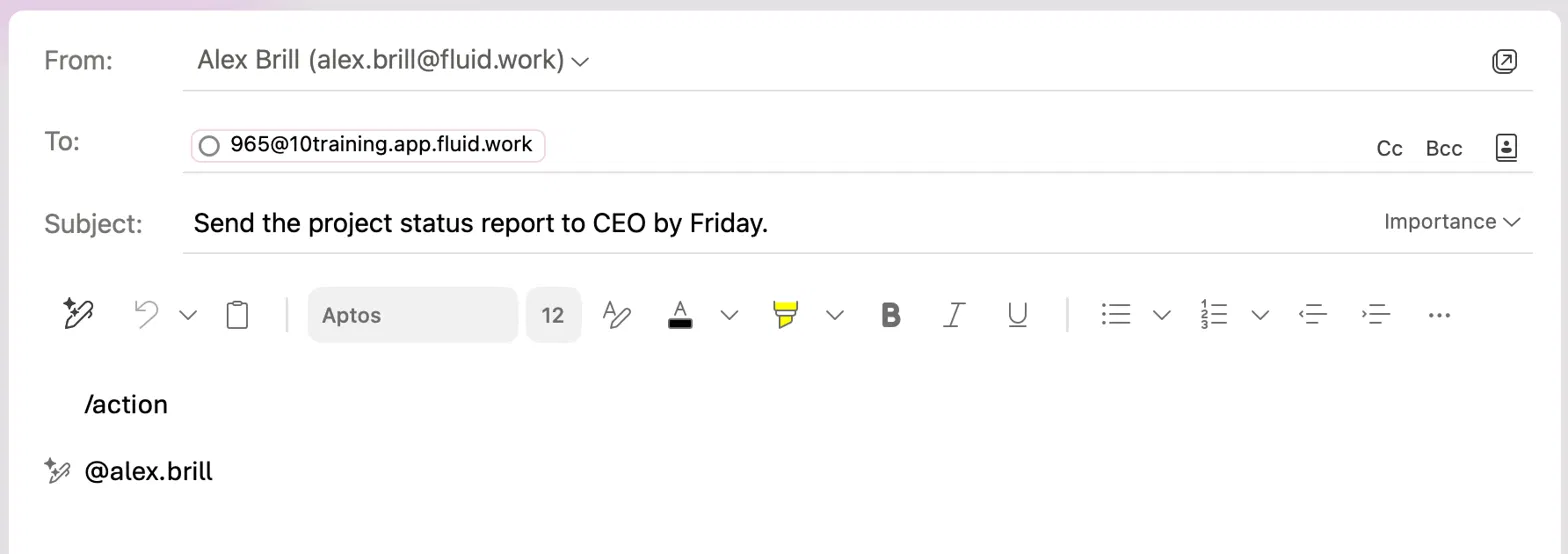
Give the email a subject line - this becomes the title of your new action, decision or task;
Start the email body with the command for what you want to create:
/action - creates a new action on a project, workhub or meeting, or a new task on a board;
/decision - creates a new decision on a project, workhub or meeting;
@mention each person you want to assign the item to;
Add any additional detail the assignees need to know; and
Send your email.
Your new task, action or decision will drop onto the action log of the project, meeting, WorkHub or board the email was sent to.
Worked example
Here we're creating an action on a project by emailing its unique Fluid address. The subject line will become the action title, /action tells Fluid to create an action, and the @mention assigns it:
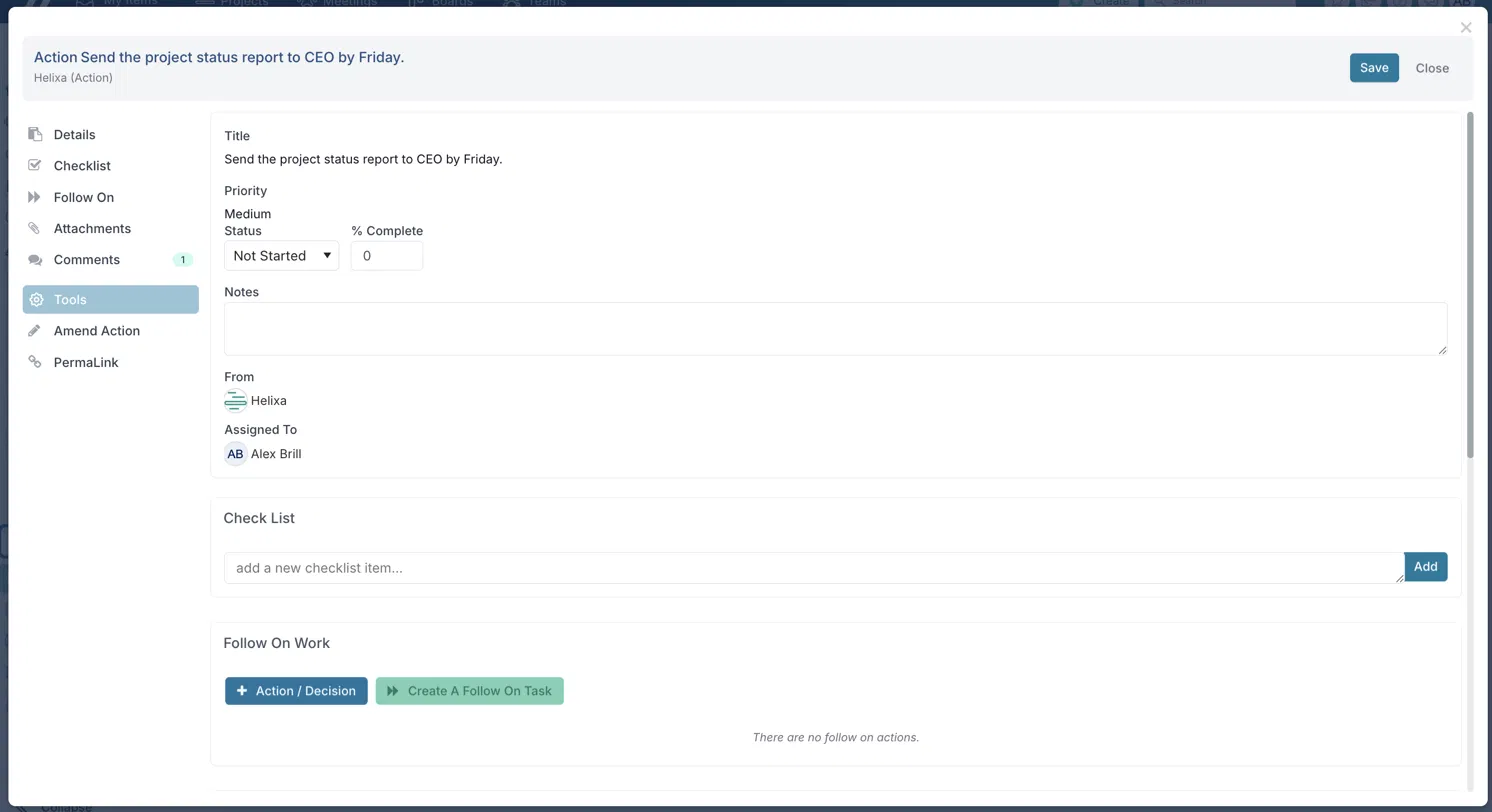
Once sent, the new action appears on the project's Actions and Decisions log, with the email subject as its title and the @mentioned person assigned:

Opening the action shows the full detail — including which Fluid item it was created on (From) and who it's assigned to — ready to update like any other action:
Good to know:
If you don't include a command, or Fluid doesn't recognise the /action or /decision command in the body, the content of your email will be posted to the chat channel of the project, meeting, WorkHub or board as a comment instead.
So you can use email either way: to create items, or simply to send updates.Fluid matches the name following the @ symbol to assign the item. If it can't resolve the name to an active Fluid account, the item will be assigned to the sender of the email.