User roles: ✔ Application Administrator ✔ Project Administrator
Portfolios are a collection of projects and programs that are managed as a group to achieve strategic objectives. Portfolios can be broken down into multiple sub-portfolios.
In this article we will explain how to configure the list of portfolios and sub-portfolios.
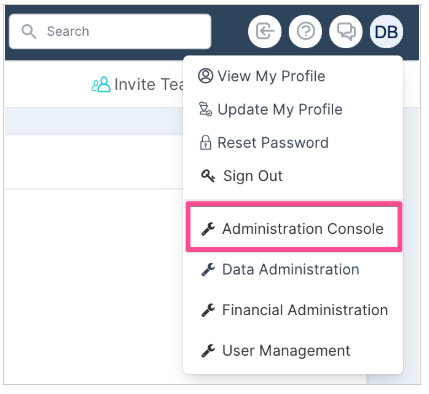
Navigate to Administration Console from the drop-down menu under your Avatar.
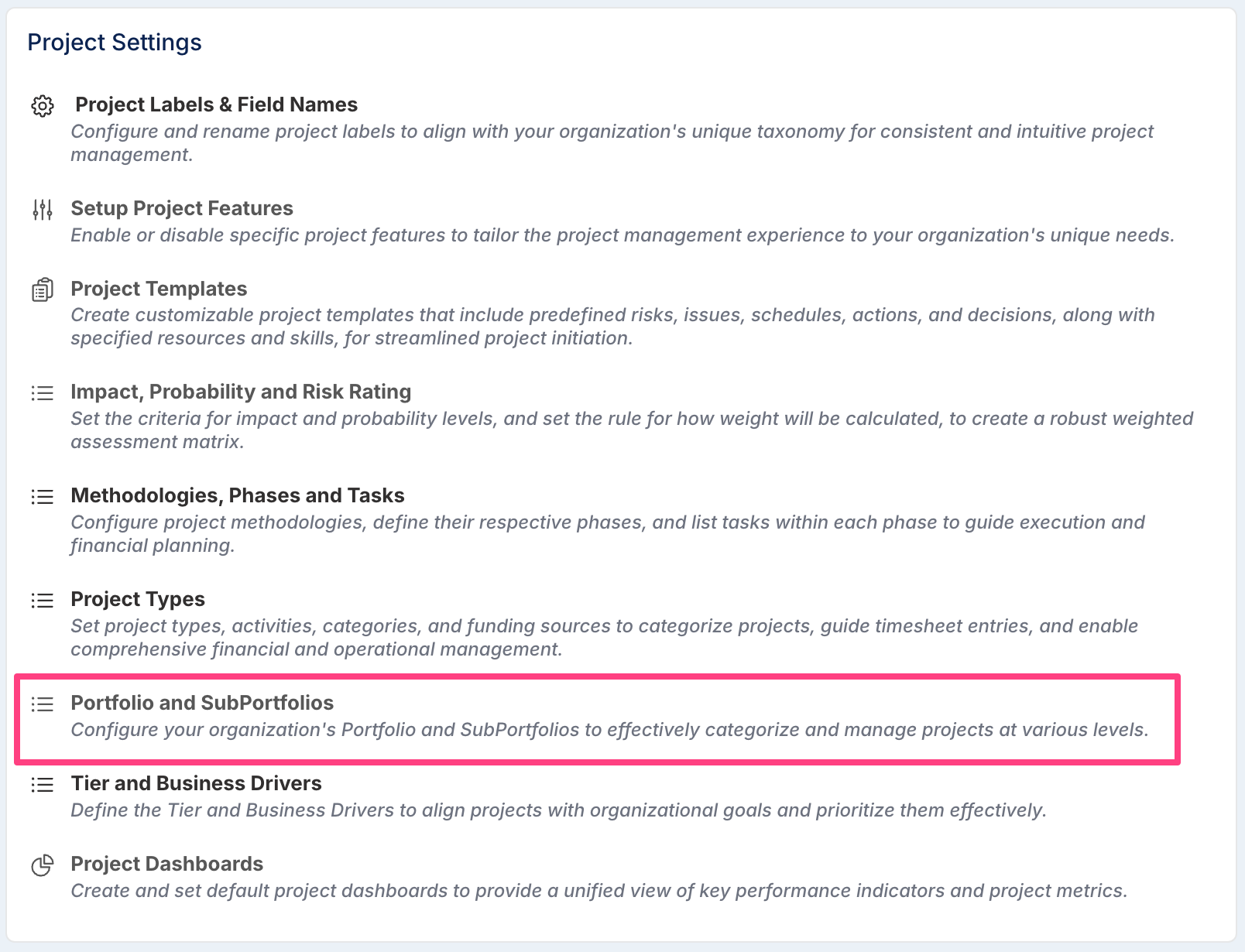
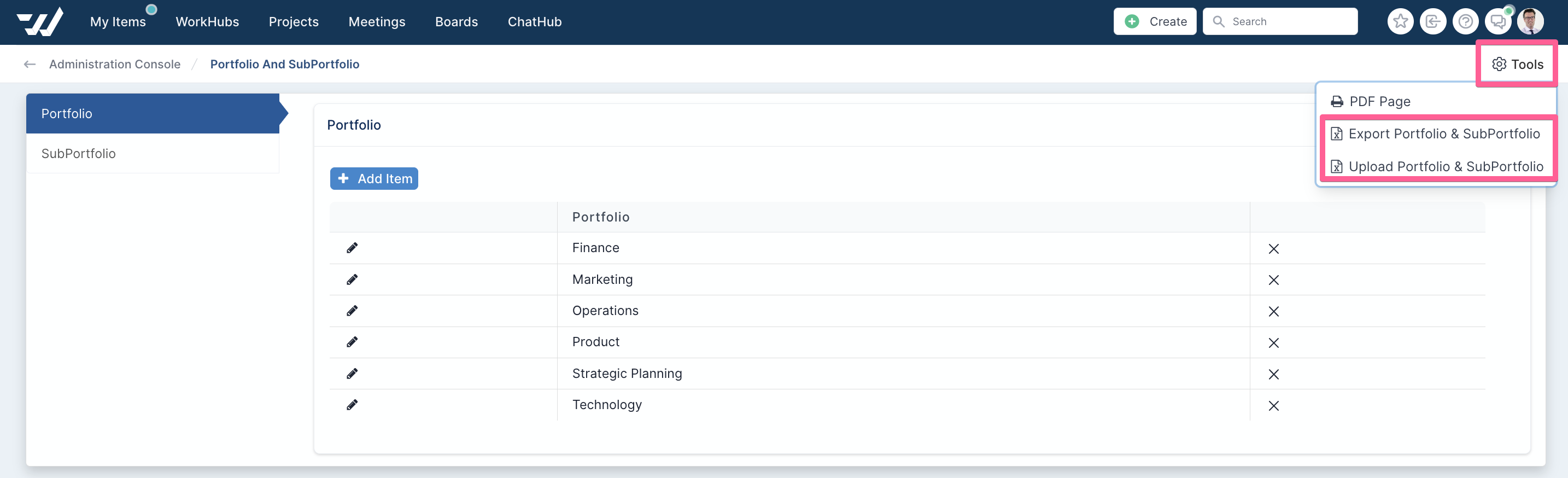
From the Administration Console, navigate to the Project Settings section of the page and select Portfolio & SubPorfolios.
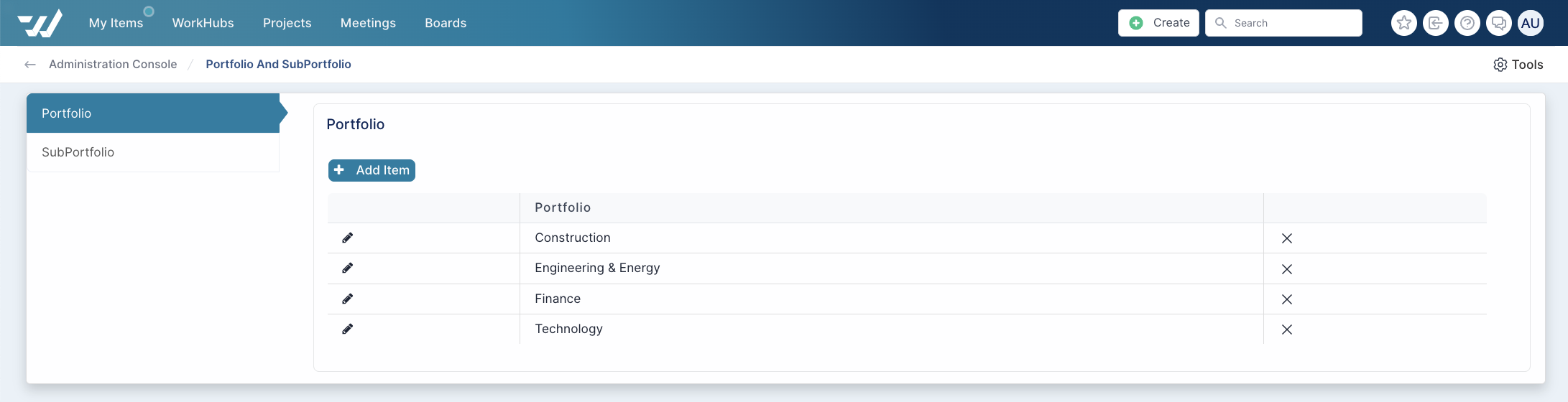
You'll now see a page that lists your portfolios and sub-portfolios.
The Portfolio tab shows all the portfolios that are currently set up. From here, you can add, rename, or delete portfolio names.
The SubPortfolio tab displays all sub-portfolios, grouped by their parent portfolios. You can also add, rename, or delete sub-portfolios from this section.
Adding, Updating, and Deleting Items:
To manage these configurations, follow these steps:
To add a new item, select the tab you want to add an item for and click on the Add Item button.
If you need to update an entry, click on the pencil icon next to that entry to make the necessary modifications.
To delete an entry, click on the cross icon next to the entry you wish to remove.
Note that if the Portfolio and SubPortfolio terminology has been renamed in the Activity Setup configuration page, the new terminology will be displayed on this page.
Portfolio and SubPortfolio Fields
As well as the name, the dialogue that opens when you add an entry or click the pencil icon holds the fields below. They decide who signs off decisions for that part of the organisation.
Governance Approval - who signs off approval decisions for the portfolio: project status changes and, under Simple approval, benefits. It can be a person or a WorkHub, whose members can then decide. This field is on the portfolio itself; a sub-portfolio uses its parent portfolio's Governance Approval person.
Benefit Approval - how a benefit received here is approved. Choose Not Set (the setting above this one decides, and ultimately the Benefits Administration default), Simple approval (one decision for the Governance Approval person) or Board process (a card on a benefit approval board).
Approval Board - the benefit approval board a submitted benefit is raised on. It is shown when Benefit Approval is Board process, and only active Benefit Approval Workflow boards are listed.
Realization Approval - how the realized values of a benefit received here are approved. This is separate from Benefit Approval, so a different group can review results. Choose Not Set, Off - not approved here (realized values received here are not approved at all), Simple approval or Board process.
Realization Board - the board a submitted set of realized values is raised on. It is shown when Realization Approval is Board process; one board can carry both kinds of request.
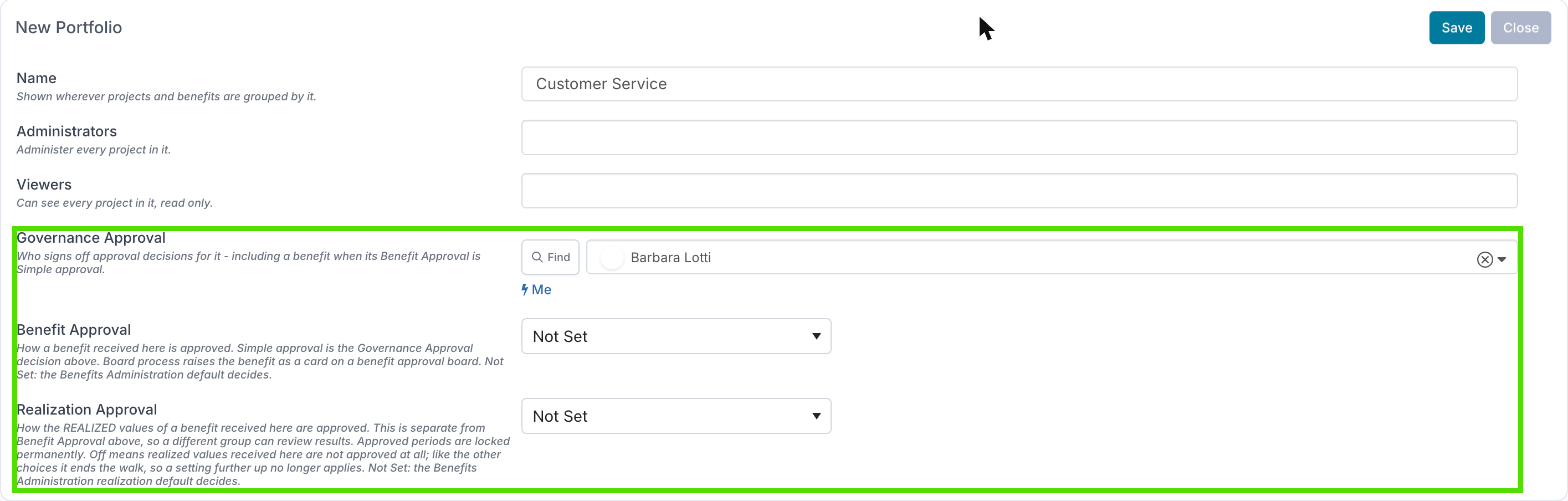
The Benefit Approval and Realization Approval fields appear when the Show Benefit Approval feature is on, and the portfolio list shows them as columns. For a benefit with a Receiving Portfolio, Fluid reads its receiving sub-portfolio first, then its receiving portfolio; for one without, the project's sub-portfolio, then the project's portfolio. The first setting that is not Not Set decides, and if none is set the Benefits Administration default applies. For the full picture, see Setting Up Benefit Baselines and Approval.
Portfolio Bulk Edit
You can use the bulk edit functionality to create, update or delete portfolios and sub-portfolios. Select Export Portfolio & SubPortfolio under the Tools menu to download the portfolio bulk edit file. The file will be empty if no portfolios have been set up. Make the required changes and upload the updated file by selecting the Upload Portfolio & SubPortfolio menu option./p>
You can find the description of the file columns in the next section. Note that the portfolios and sub-portfolios listed in the uploaded file will replace the existing list of portfolios and sub-portfolios. Therefore, if you need to delete a portfolio or sub-portfolio, simply delete the corresponding row in the bulk edit file.
Column description
The Portfolio & SubPortfolio excel file contains two tabs.
Portfolio Tab
Column & Title | Description |
A. Portfolio | The name of the project portfolio. |
F. GovernanceApproval | The name of the person who signs off approval decisions for the portfolio: project status changes and, under Simple approval, benefits. This column was headed Approver in older workbooks, which still upload. |
G. GovernanceApprovalRef | The external reference of the Governance Approval person, so they can be identified unambiguously. This column was headed ApproverRef in older workbooks, which still upload. |
H. BenefitApproval | How a benefit received by this portfolio is approved: Not Set, Simple approval or Board process. |
I. BenefitApprovalBoard | The benefit approval board a submitted benefit is raised on, needed when BenefitApproval is Board process. Boards are matched by name. |
J. BenefitRealization | How the realized values of a benefit received by this portfolio are approved: Not Set, Off, Simple approval or Board process. |
K. BenefitRealizationBoard | The board a submitted set of realized values is raised on, needed when BenefitRealization is Board process. Boards are matched by name. |
SubPortfolio Tab
Column & Title | Description |
A. Portfolio | The name of the project portfolio the sub-portfolio applies to. The portfolio must be listed in the Portfolio tab for the row to be processed. |
B. SubPortfolio | The name of the project sub-portfolio. |
C. BenefitApproval | How a benefit received by this sub-portfolio is approved: Not Set, Simple approval or Board process. A sub-portfolio has no Governance Approval person of its own, so a simple decision goes to its portfolio's. |
D. BenefitApprovalBoard | The benefit approval board a submitted benefit is raised on, needed when BenefitApproval is Board process. Boards are matched by name. |
E. BenefitRealization | How the realized values of a benefit received by this sub-portfolio are approved: Not Set, Off, Simple approval or Board process. |
F. BenefitRealizationBoard | The board a submitted set of realized values is raised on, needed when BenefitRealization is Board process. Boards are matched by name. |
The four benefit columns appear in the exported file when the Show Benefit Approval feature is on. A blank benefit cell, or one reading Inherit in older workbooks, is read as Not Set. A board name alongside a mode other than Board process is ignored.