Managing Project Documents in Fluid
Every project in Fluid has a Documents panel on its workspace where you can store and manage files. Documents are organised into folders and can be viewed using different grouping and filtering options to help you find what you need quickly.
This article covers:
The Documents toolbar and what each control does.
How documents are grouped and filtered.
How folders are created.
How to add, move, and manage files.
The Documents toolbar
After you've uploaded your first document, the document section will display the below toolbar.
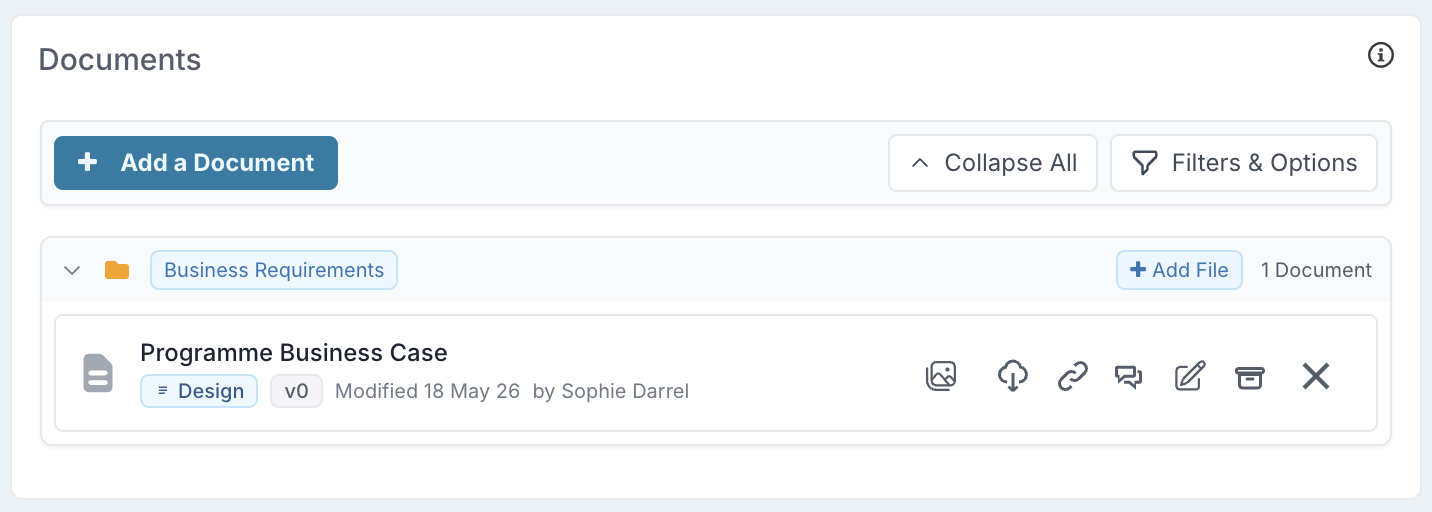
Here's what each control does:
Control | What it does |
+ Add a Document | Opens the upload panel to add a new file or link to this project. |
Expand All / Collapse All | The Documents section opens in the default folder view, with all folders collapsed and documents grouped by folder. Use Expand All to open every folder and view the documents inside. |
Filters & Options | Opens additional controls to refine the document list. Use it to filter the documents shown and change how they are organised, such as grouping by Folder or Type. |
When you select Filters & Options, a side panel opens where you can search, filter, and change how documents are grouped in the list.
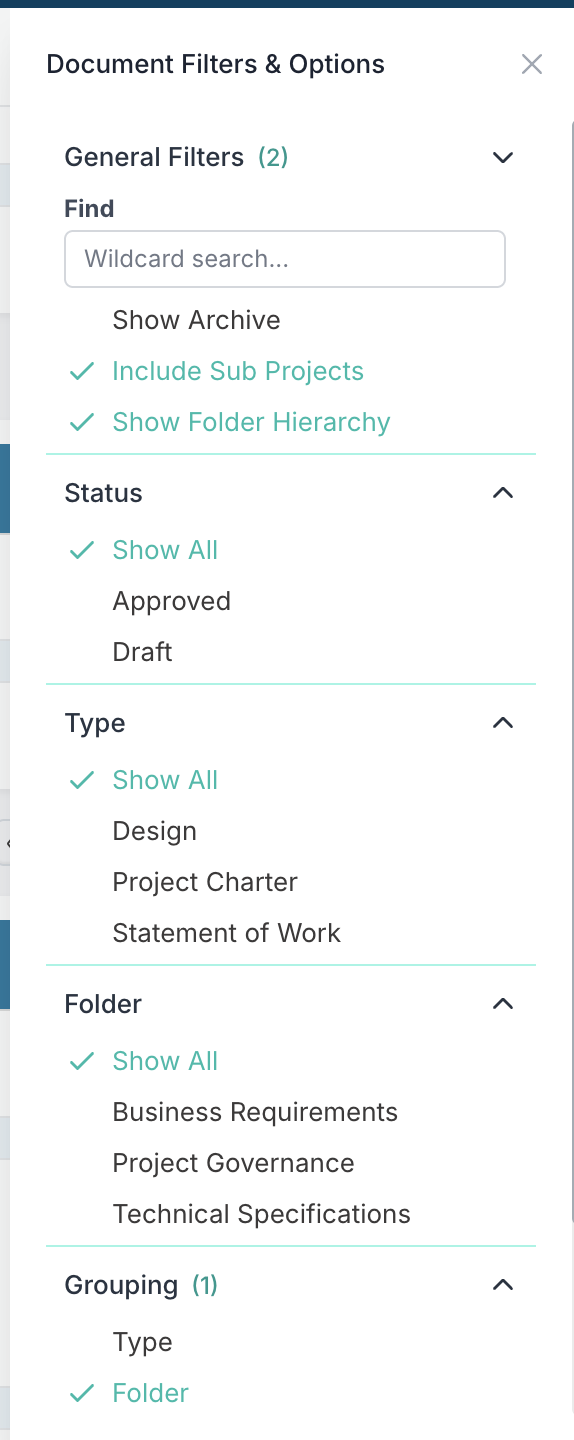
Control | What it does |
Find | A wildcard text search. Type part of a document name to instantly filter the list. Matches anywhere in the document title or filename. |
Show Archive | Includes archived documents in the list. Leave this off to show only active documents. |
Show Folder Hierarchy | Shows documents within their folder structure. Turn this off to view documents without the folder hierarchy. |
Include Sub Projects | Includes sub project's documents in the list. Leave this off to sho only documents from the current project. |
Status | Filters the list by document status, such as Approved. Set to Show All to see documents with any status. |
Type | Filters the list to show only documents of a specific document type, such as Document or Design. Set to Show All to see every type. |
Folder | ilters the list to show only documents in a specific folder, such as Business Requirements. Set to Show All to include every folder. |
Grouping | Changes how documents are grouped in the list. Choose Folder to group documents by folder, or Type to group them by document type. |
Note: The values shown under Status, Type, and Folder depend on the documents currently uploaded to this Documents section and the metadata assigned to them. These values are defined in document configuration, but they only appear in the filter panel when at least one document in this section uses that value.
Note: When documents have been synced from stage gate governance workflows, the toolbar expands with additional filter controls for Phase, Stage Gate, Package, and Workflow. See Stage Gate Document Hierarchy and Filters.
How folders are created
Folders can be created in two ways:
Manually
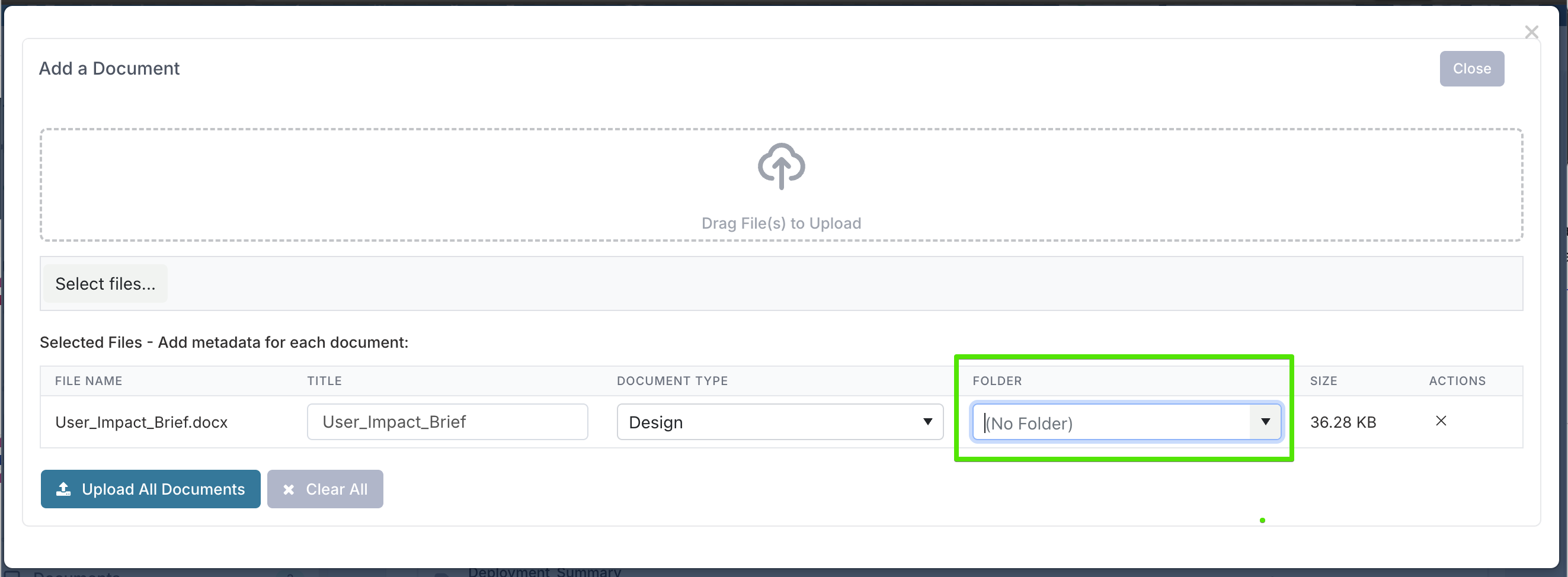
When you upload a file or edit a document's metadata, you can type a folder name. If that folder doesn't already exist, it is created automatically.
Automatically from Project Pipeline sync
When documents are synced to a project from a Project Pipeline or Project Workflow board (Work Request card), they are placed in a folder named after the Process Board. For example, if your board is called "Architecture Review", synced documents appear in a folder called Architecture Review.

Protected documents: When documents are synced from workflow cards, they may be automatically marked as protected. Protected documents cannot be deleted by standard users — only project administrators can remove them. This safeguards governance evidence from accidental deletion. For more information, see Protected Document Workflow in Stage Gate Approvals.
Documents synced from stage gate governance workflows use a different, hierarchical folder structure. See Stage Gate Document Hierarchy and Filters for details.
Moving documents between folders
You can move a document to a different folder by editing the document metadata. Simply open the document's edit panel and change the Folder field.

Archiving Documents
Documents can be archived to remove them from the active view without deleting them. Archived documents appear in a collapsible Archive section at the bottom of the panel.
To archive a document, use the archive action on the document row.

To restore a document, expand the Archive section and use the restore action.