
Stage Gate Document Hierarchy and Filters
When a project uses stage gate governance, documents can be synced to the project from stage gate workflow cards. Unlike regular pipeline syncs (which use the board name as the folder), stage gate document syncs organise files into a hierarchical folder structure that mirrors the governance framework.
This article explains:
How documents are filed when synced from a stage gate card.
The Phase › Gate › Package Instance folder hierarchy.
The additional toolbar filters that appear for stage gate documents.
How versioning works when a gate workflow is restarted.
The extended toolbar
When documents have been synced from stage gate workflows, the Documents toolbar expands with additional controls:
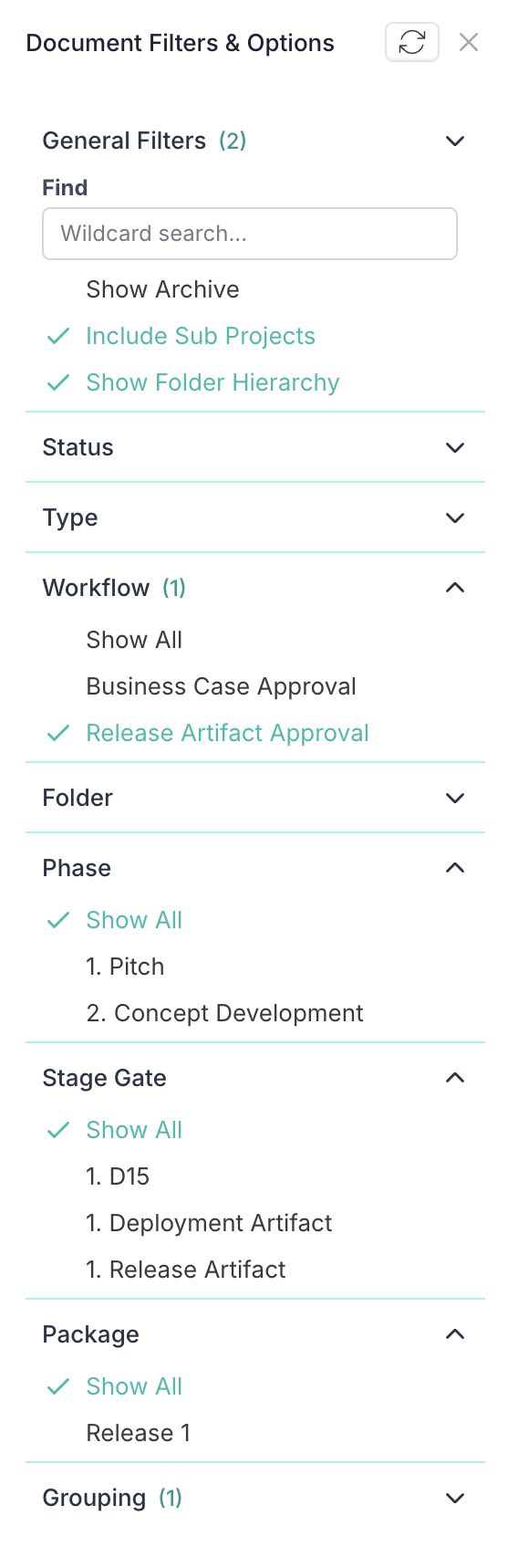
Control | What it does |
Workflow | Filters documents by the governance workflow board they were synced from. Set to Show all to see documents from every workflow. |
Phase | Filters documents to show only those belonging to a specific phase (e.g., 3. Agile Delivery). Set to Show all to see all phases. |
Stage gate | Filters documents to show only those from a specific gate (e.g., 1. D15). Set to Show all to see all gates. |
Package | Filters documents to show only those from a specific package instance (e.g., D15 #1). Set to Show all to see all packages. |
These filters work together — you can narrow down to a specific phase and gate combination, or filter to a single package instance. They also work alongside the standard toolbar controls (Group by, Type, Find).
Note: The Include Sub Projects toggle that may also appear is covered in Document Roll-Up for Parent and Sub-Projects.
These additional filters only appear when the project has at least one document synced from a stage gate workflow. On a project with only manually uploaded or pipeline-synced documents, you'll see the standard toolbar described in Managing Project Documents in Fluid.
When does the hierarchy apply?
This folder hierarchy is created when:
A stage gate workflow card completes (is approved or closed).
The card has documents attached to it.
The documents are synced to the linked project.
The type of gate determines the folder structure:
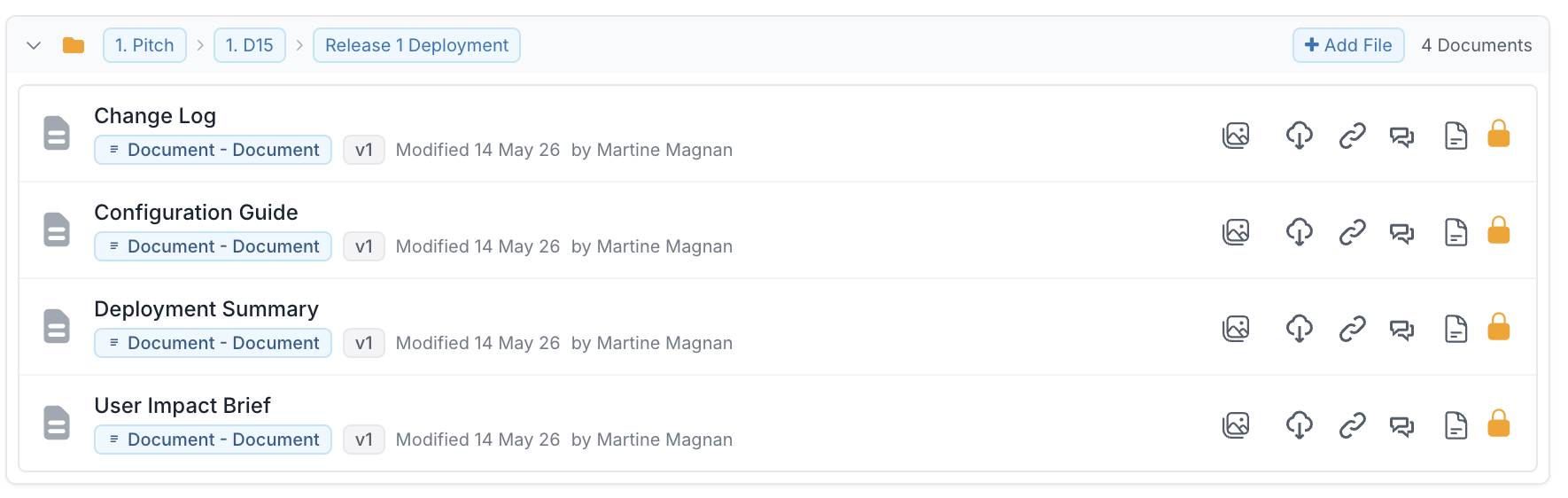
Standard Gate - Documents are placed in a two-level hierarchy: Phase › Gate.

Package gate - Documents are placed in a three-level hierarchy: Phase › Gate › Package Instance.
Using the filters to find stage gate documents
The extended toolbar filters are especially useful on projects with many governance checkpoints. Here are some common workflows:
Find all documents for a specific phase: Set the Phase filter to the phase you're interested in (e.g., 3. Agile Delivery). Leave Stage Gate and Package set to all.
Find documents for a specific gate: Set both Phase and Stage Gate to narrow down. For example, Phase = 3. Agile Delivery, Stage Gate = 1. D15.
Find documents for a specific package run: Set all three filters: Phase, Stage Gate, and Package. This isolates exactly one submission.
Find all documents from a specific workflow board: Use the Workflow filter to show only documents synced from a particular governance board, regardless of phase or gate.
Tip: Combine the extended filters with the Find search box to locate a specific file by name within a filtered set.
Multiple package instances
When a gate has more than one package instance, each instance gets its own sub-folder.
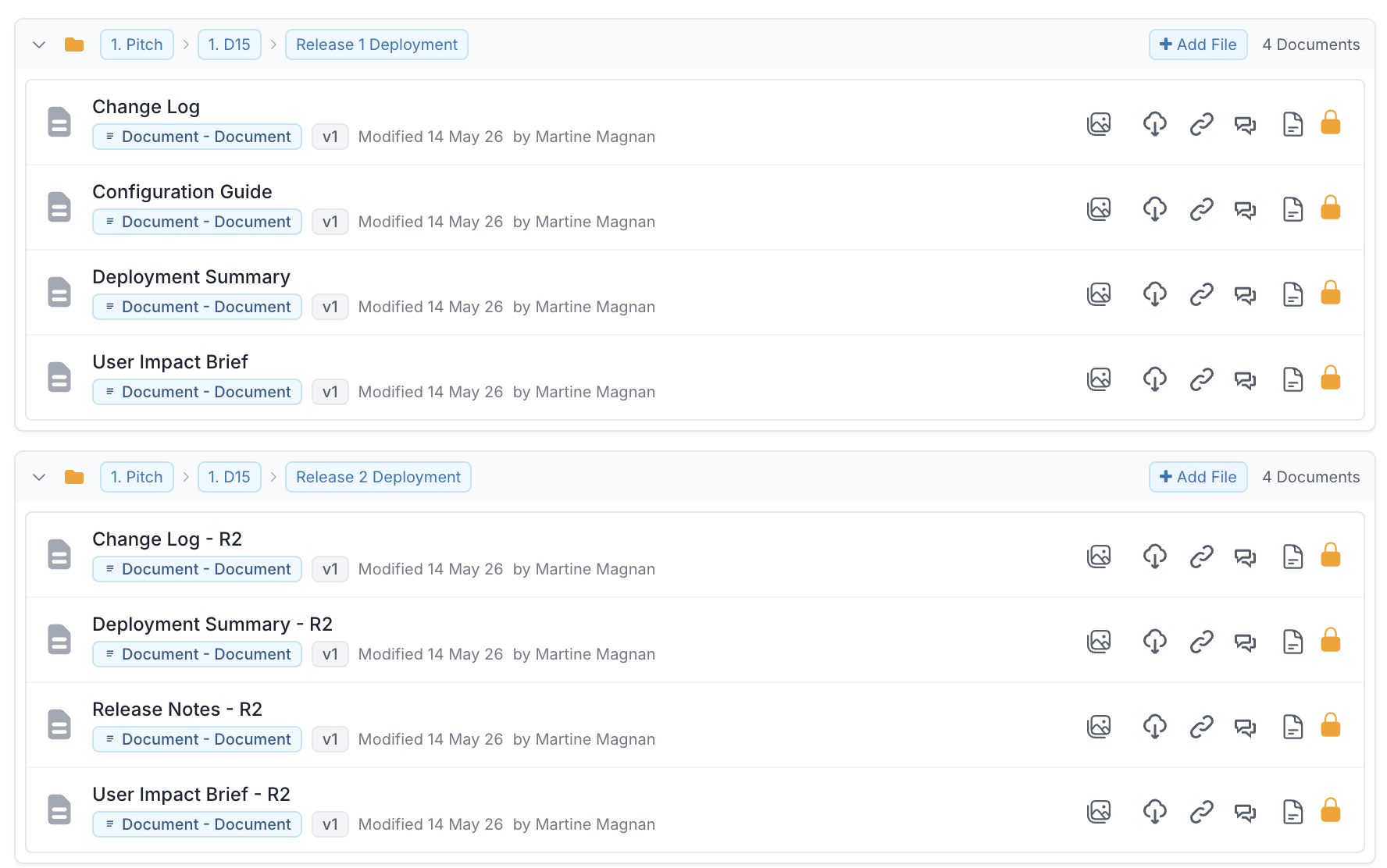
This keeps documents from different package runs cleanly separated, even though they relate to the same gate. Use the Package filter to jump to a specific instance.
What happens on workflow restart
If a stage gate workflow is restarted (for example, because a gate was rejected and needs to be re-submitted), the card may complete again with an updated or new document. When this happens:
The previous version of the document on the project is automatically archived.
A new version is created in the same folder with an incremented version number (e.g., v1 → v2).
The previous version remains visible in the Archive section at the bottom of the Documents panel.
This ensures you always have a complete audit trail of every document submitted at each governance checkpoint. You can read more about it here.