
Document Roll-Up for Parent and Sub-Projects
A Program or Parent Project can have sub-projects linked to it. Each project can store its own documents, but portfolio managers, PMOs, and program leads often need to review documents across the full project hierarchy without opening each sub-project individually.
Document roll-up lets you include documents from direct sub-projects in the parent project’s Documents panel.
When roll-up is enabled, the Documents panel shows:
Documents stored directly on the current project.
Documents from linked child projects.
The source project for each rolled-up document.
This gives you a single place to review supporting material across a program or parent-child project structure.
What document roll-up means
Document roll-up means that a parent project can display documents from its child projects in the same Documents panel.
The documents are not copied into the parent project. They remain owned by their original source project.
This means:
Child-project documents stay attached to the child project.
Permissions from the source project still apply.
Edits to rolled-up document metadata are saved back to the source project.
The parent project provides a consolidated view, not a separate document store.
Roll-up is useful when you want to see the wider picture across a program, portfolio, or project hierarchy.
Including or hiding sub-project documents
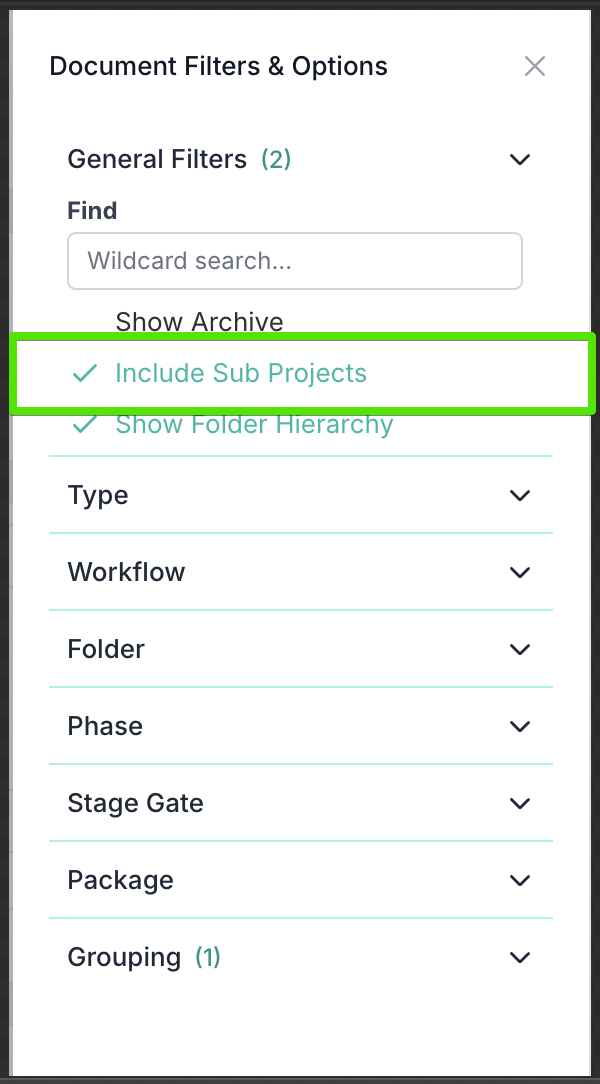
When a parent project has linked sub-projects, the Documents panel shows documents from both the current project and its sub-projects by default.
This gives you a consolidated view of the document set across the parent project hierarchy as soon as you open the Documents panel.
You can use Filter & Options on the Document section to remove the sub-project's documents from the view. Simply unselect Include Sub Projects.
How to tell where a document comes from
When a document comes from a child project, its row includes an indigo project name pill. For instance, the below screenshot shows that the Go-Live Program document belongs to the Branch Efficiency Wall Street Branch project.
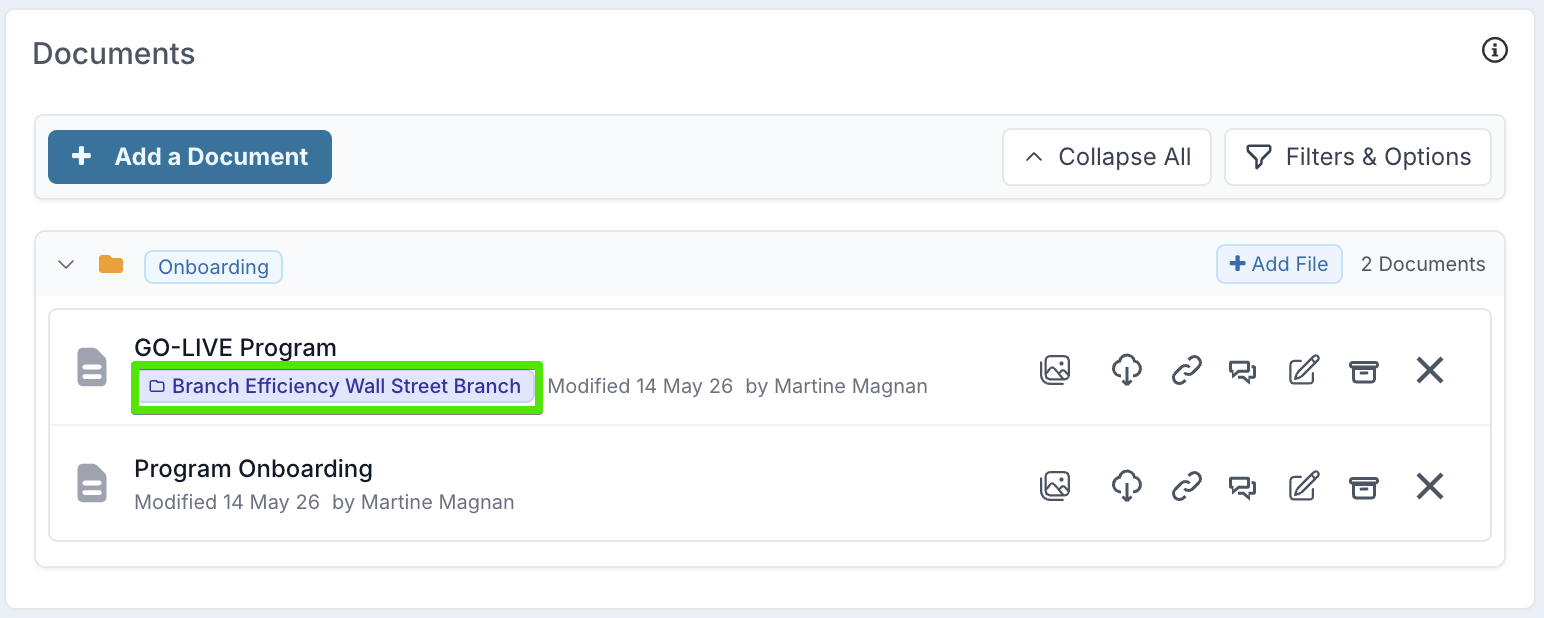
This makes it easy to distinguish your own project documents from rolled-up child-project documents.