This Train 19 release introduces the new Community licence, which brings requesters, sponsors and other stakeholders into your PMO processes through a single, simple portal, and Utilization Types, which let you plan only the people whose capacity you actually manage.
Boards gain more control over how cards move. Board owners can now choose which columns a card can move to from each column, the column settings have been redesigned so a board's workflow is easier to read, and the card dialog shows more clearly where a card is and where it can go next. Closed cards are shown as locked, and a board owner can reopen one in a single step. The board Archive History has also been rebuilt, so archived tasks are quicker to find and can be restored in bulk.
For administrators, all impact settings are now on a single Impact Settings page, and status reports have a new Status Report Settings page of their own.
The release also includes a number of smaller enhancements and fixes.
Community Licence: bring the wider business into your PMO processes
The people who request work, sponsor it or are affected by it are usually not the people who manage it in Fluid. The new Community licence gives them a simple, safe way in. Demand then arrives through your process rather than by email, and stakeholders can check project status for themselves rather than asking a project manager for an update.
Community users sign in, including with SSO, to a single page called the Community Portal. From there they can:
Raise work requests on the boards you publish to them, and follow their progress in My requests.
View project health for projects shared with them using Project Sharing. They see a read-only, one-page summary of the project's status, health, key dates, latest update and promoted schedule and RAID items, with no financials.
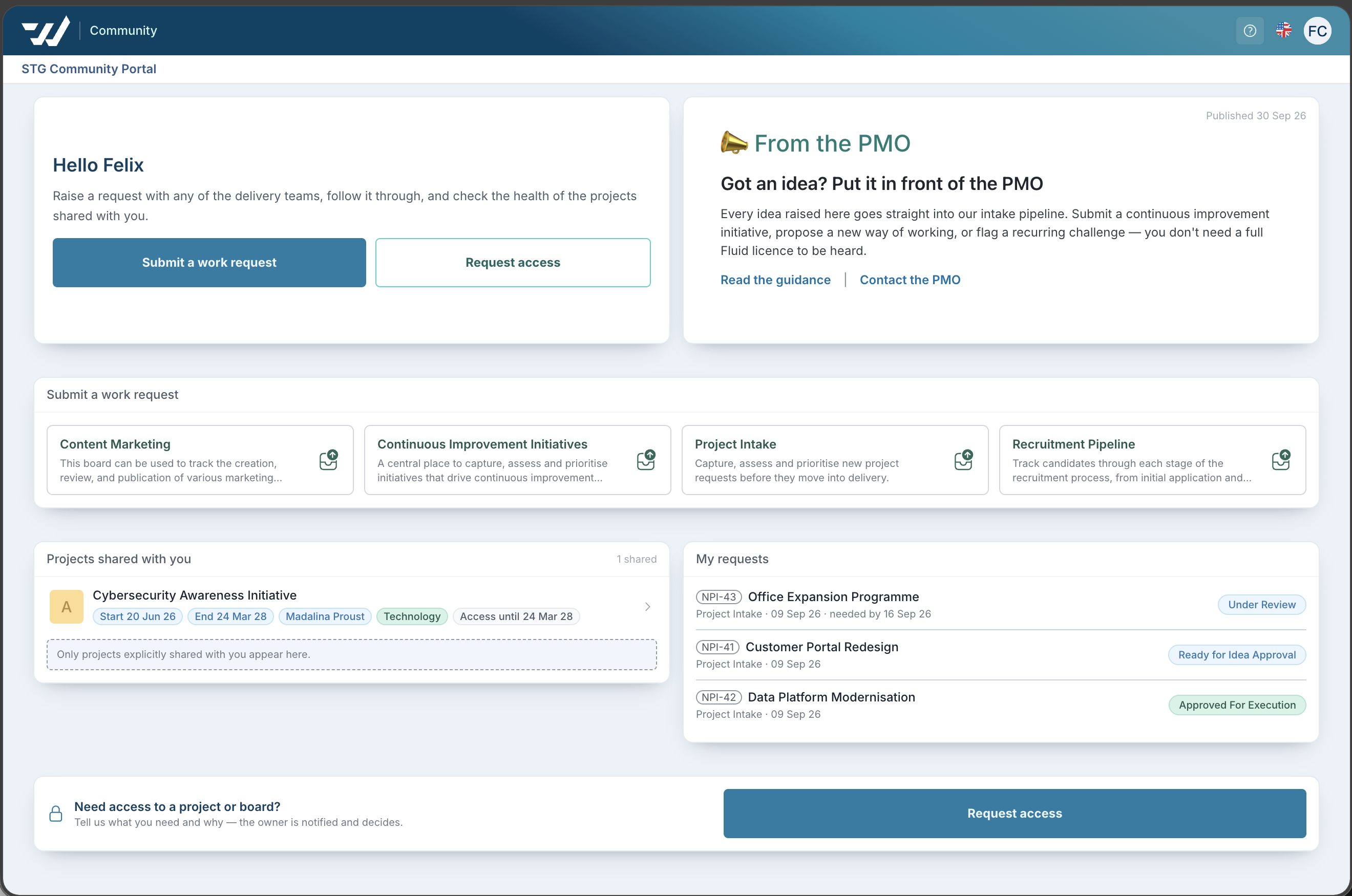
Everything else, including project workspaces, boards, meetings, workhubs, financials and configuration, is out of reach. That makes a Community licence safe to give to your whole organisation, and to external sponsors, clients and vendors.
Getting started
Community licences are off by default. To start using them, an administrator:
Turns on Allow Community licences in Administration Console > Team Sign Up.
Sets up the Portal's greeting and announcement in Administration Console > General Settings > Community Portal.
Gives people a Community licence, individually on the user record, in bulk through the resource import, or through the
Fluid Community UserSCIM group.
To let Community users follow project health, also turn on Project Sharing.
Before you turn it on: once Community licences are on, new users who sign up themselves, sign in via SSO for the first time, accept an invitation, or are provisioned through SCIM without a licence group receive a Community licence by default. Existing users are not affected.
For full details, including what Community users can and cannot do, SCIM provisioning and troubleshooting, see the Community License article. For how it compares with the Licensed and Collaborator licences, see Understanding Fluid Licences.
Utilization Types: plan only the people whose capacity you manage
Not everyone with a Fluid account is someone whose time you plan. Requesters, approvers, sponsors and executives often need an account, but counting them as resources fills your capacity reports with people nobody is planning and makes your utilisation figures wrong.
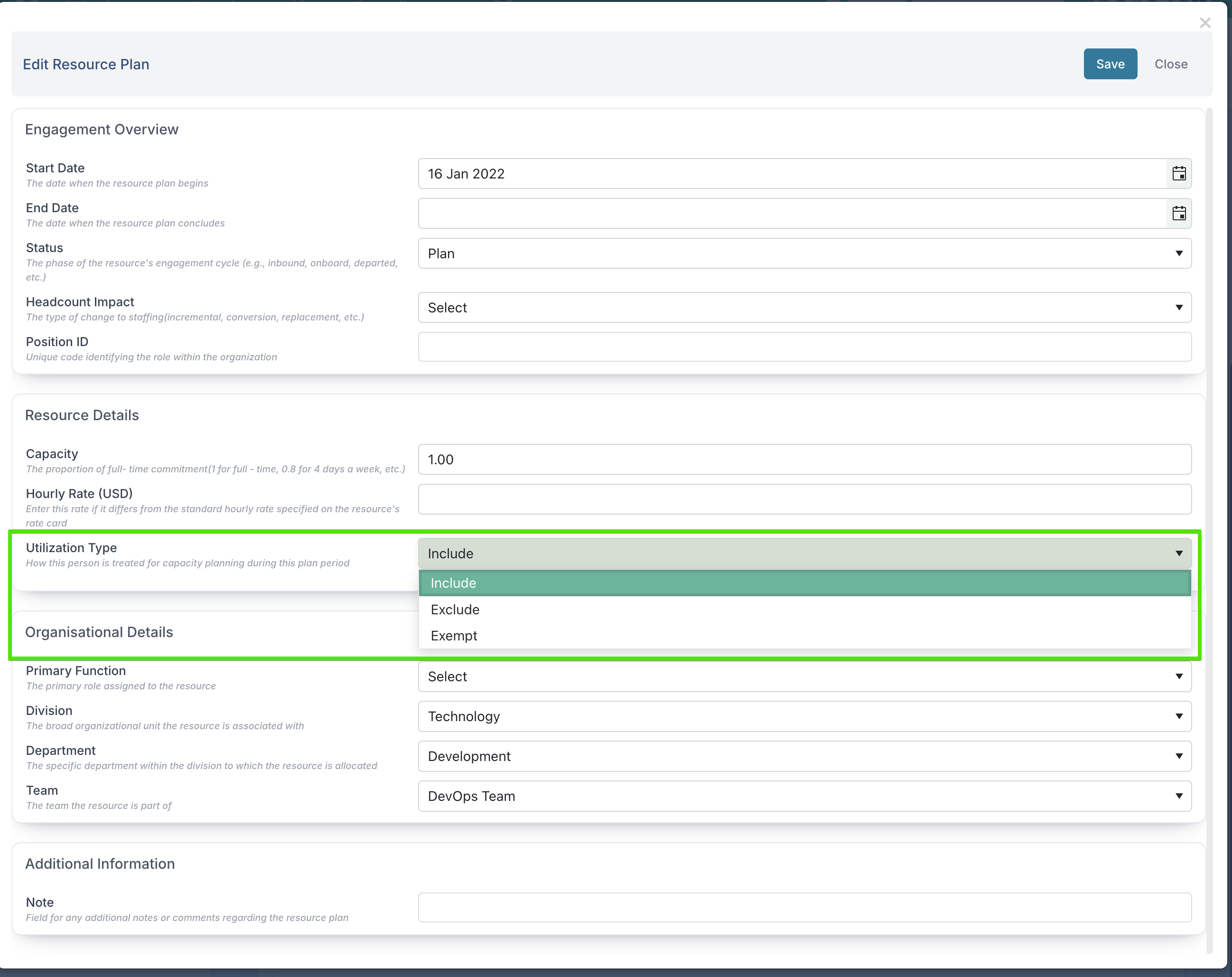
The new Utilization Type, set on each resource plan, answers one question: is this person's capacity actively managed? There are three types:
Include: a planned resource. They can be allocated to projects and count towards capacity on dashboards and in their Delivery Team. This is the default, and how Fluid has always worked.
Exempt: works on projects, but their capacity isn't managed. They can be allocated to projects and their cost counts as normal, but they don't count towards capacity or utilisation. Use it for senior managers and executives who contribute to projects.
Exclude: not a resource. They can't be allocated to projects and never appear in capacity figures. Use it for requesters, approvers and Community licence users.
Utilization Type only decides whether someone is planned, not whether they can take part. Everyone can still be a project stakeholder, hold actions and decisions, and book time against flex schedule tasks. It is also separate from the licence: a licence controls what someone can open in Fluid, while a Utilization Type controls whether they are planned as a resource.
Getting started
Existing resource plans are set to Include, so nothing changes until you choose to change it. New users with a Community licence start as Exclude. You only need to update the people who should be Exempt or Exclude:
For one person: go to Administration Console > User & Resource Management, open the user and their resource plan, and choose the Utilization Type in Resource Details.
For many people: use the
UtilizationTypecolumn in the Manage Resource Plans bulk edit file.
Because it is set per resource plan, someone who leaves the resource pool part-way through the year can be given a new plan from that date, and their earlier allocations and history stay as they were. Note that Exempt and Exclude people are removed from their Delivery Team, and a plan can't be set to Exclude while it has project allocations or booked time in its period.
For examples, default values and how each type affects the Resource Dashboards, see the Utilization Types article.
Archive History: find and restore archived tasks faster
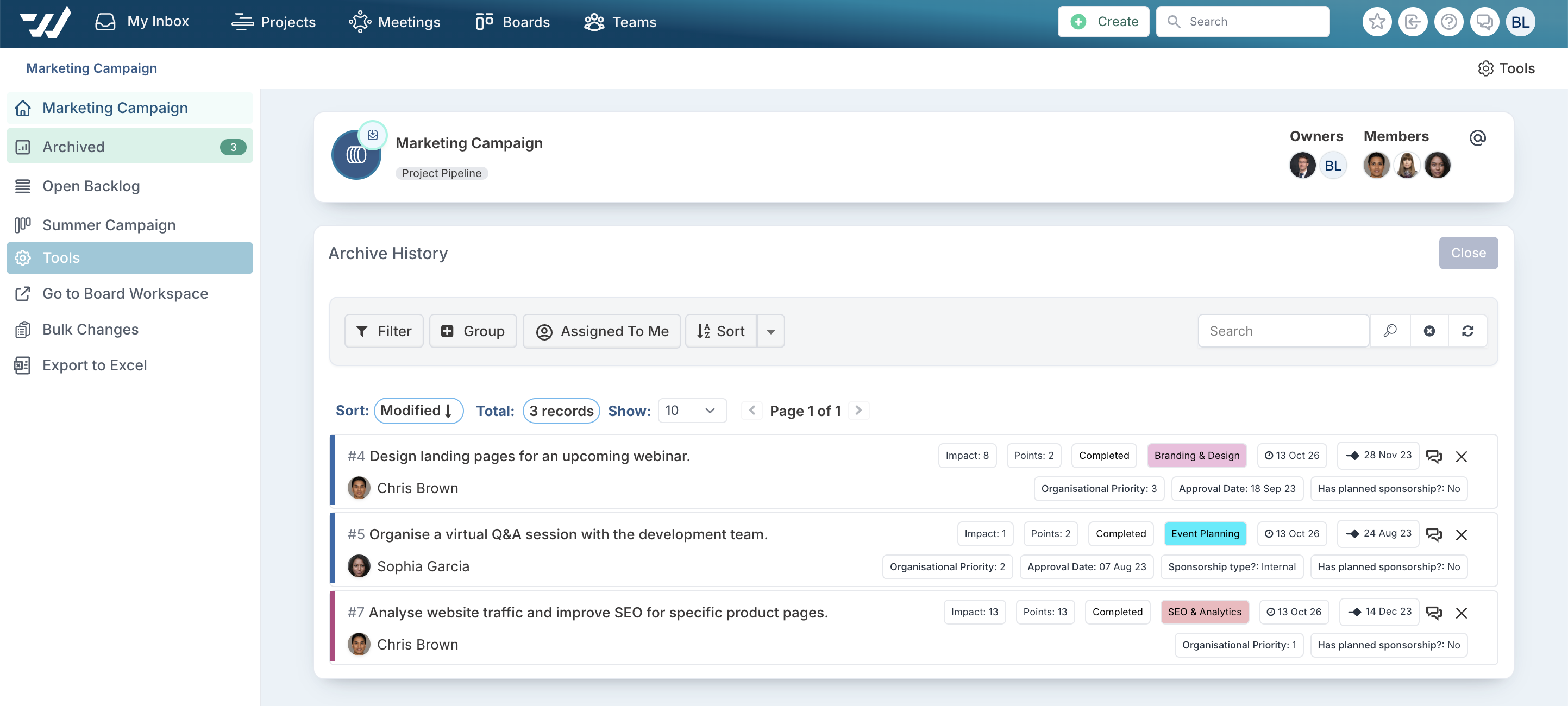
Boards that have been running for a while build up a large archive, and finding a particular archived task, or bringing several back onto the board, used to be slow. The board Archive History has been rebuilt on the same list view as the Backlog, so it is quicker to search, easier to work through and lets you restore tasks in bulk.
Find archived tasks
Familiar tools: Filter, Group, Assigned To Me, Sort and Search work just as they do on the Backlog. Options that don't apply to archived tasks, such as due-date filters, are hidden.
Paging: choose how many tasks to show at a time and move between pages. Tasks are sorted by Modified date, newest first, by default.
Faster on large archives: filtering, sorting and grouping now respond straight away, even on boards with thousands of archived tasks.
Restore several tasks at once
In the board menu, open Tools > Bulk Changes. A checkbox appears next to each archived task.
Select the tasks you want to bring back.
Choose Restore to Board to return them to the board's first column, or Restore to Backlog to return them to the backlog.
Restoring tasks needs Member access to the board. To return a single task to the column it was archived from, open the task and unarchive it from Tools in the task dialog, as before.
Boards: clearer column settings and more control over how cards move
Board owners now have more control over how cards move through a board, and everyone editing a card gets a clearer view of where the card is and where it can go next.
Column settings at a glance
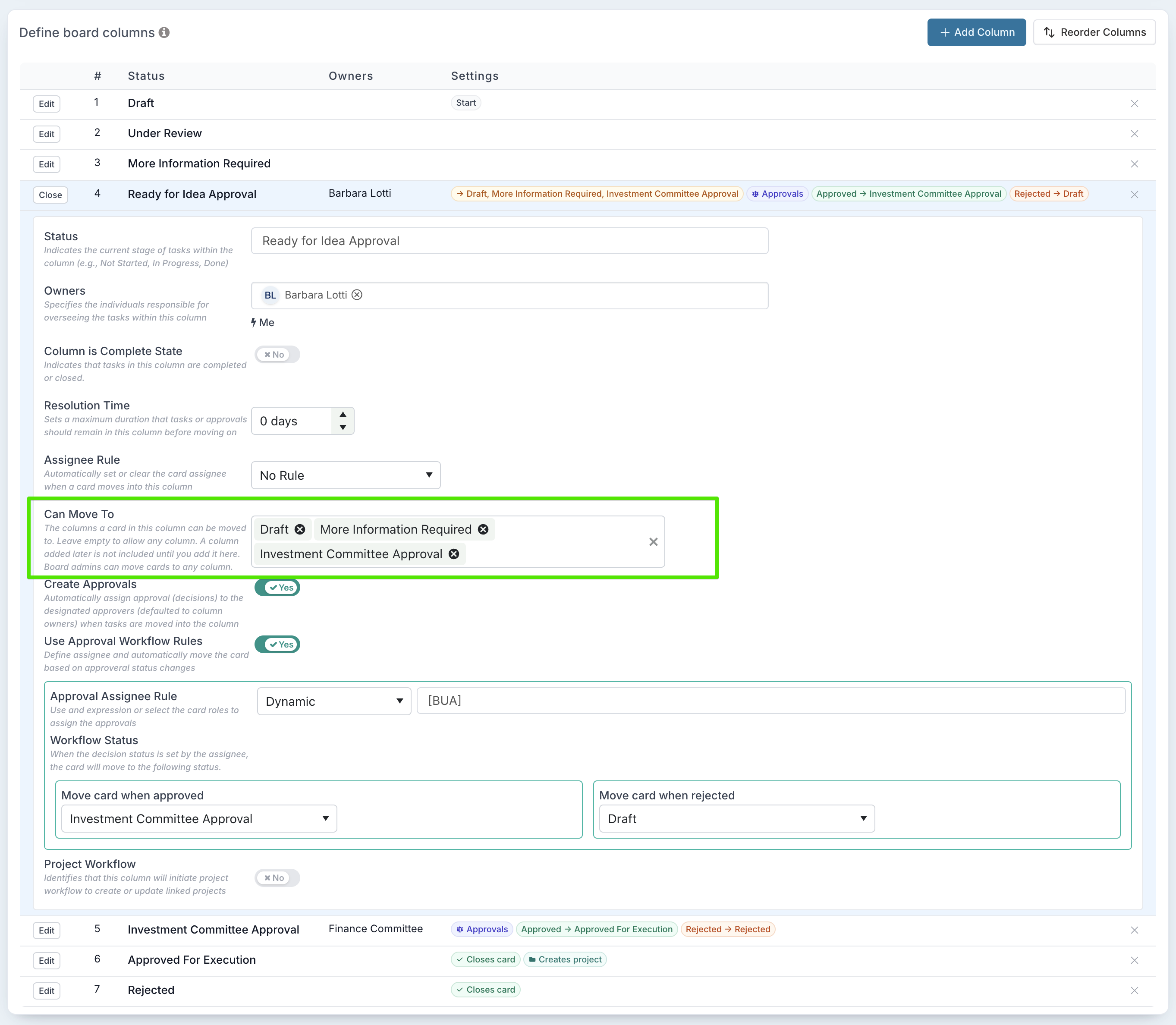
In the board settings, Define Board Columns now shows each column on a single row, with its owners and a summary of its settings, such as Start, Approvals, where the card goes when approved or rejected, Closes card and Creates project. Click Edit on a column to open its settings in place, and Close to collapse it again. Use Reorder Columns to change the order of the columns.
Control where cards can move
Each column has a new Can Move To setting: the columns a card in that column can be moved to. For example, cards in Ready for Idea Approval can be limited to More Information Required and Investment Committee Approval, so they can't skip straight to Approved For Execution.
Left empty (the default): cards can move to any column, so existing boards work exactly as before.
Columns selected: only those moves are allowed. A column added to the board later is not included until you add it.
Who the rule applies to:
Board members can only make the moves the column allows. When they drag a card, the columns it can't go to are greyed out, and a refused move puts the card back and explains why. In the card dialog, those columns are faded, with the reason in the tooltip. The same rule applies to changes made through Bulk Edit Upload and the API.
Board owners can move a card to any column. Columns outside the rule are highlighted in soft yellow as a reminder when dragging cards.
Automatic moves are not restricted, such as an approval decision moving the card on, or a Jira or Azure DevOps sync.
Changing a card's status
In the card dialog, the Process Status strip shows every column of the board in order. The card's current status is the filled blue pill, the status it came from has a dashed outline, and columns that close the card are marked with a tick. Click a pill to move the card to that column; the change is saved when you click Save.
Next to Save, the status button shows the card's current status. Open it to pick the status to move the card to; columns that close the card are labelled Closes card.
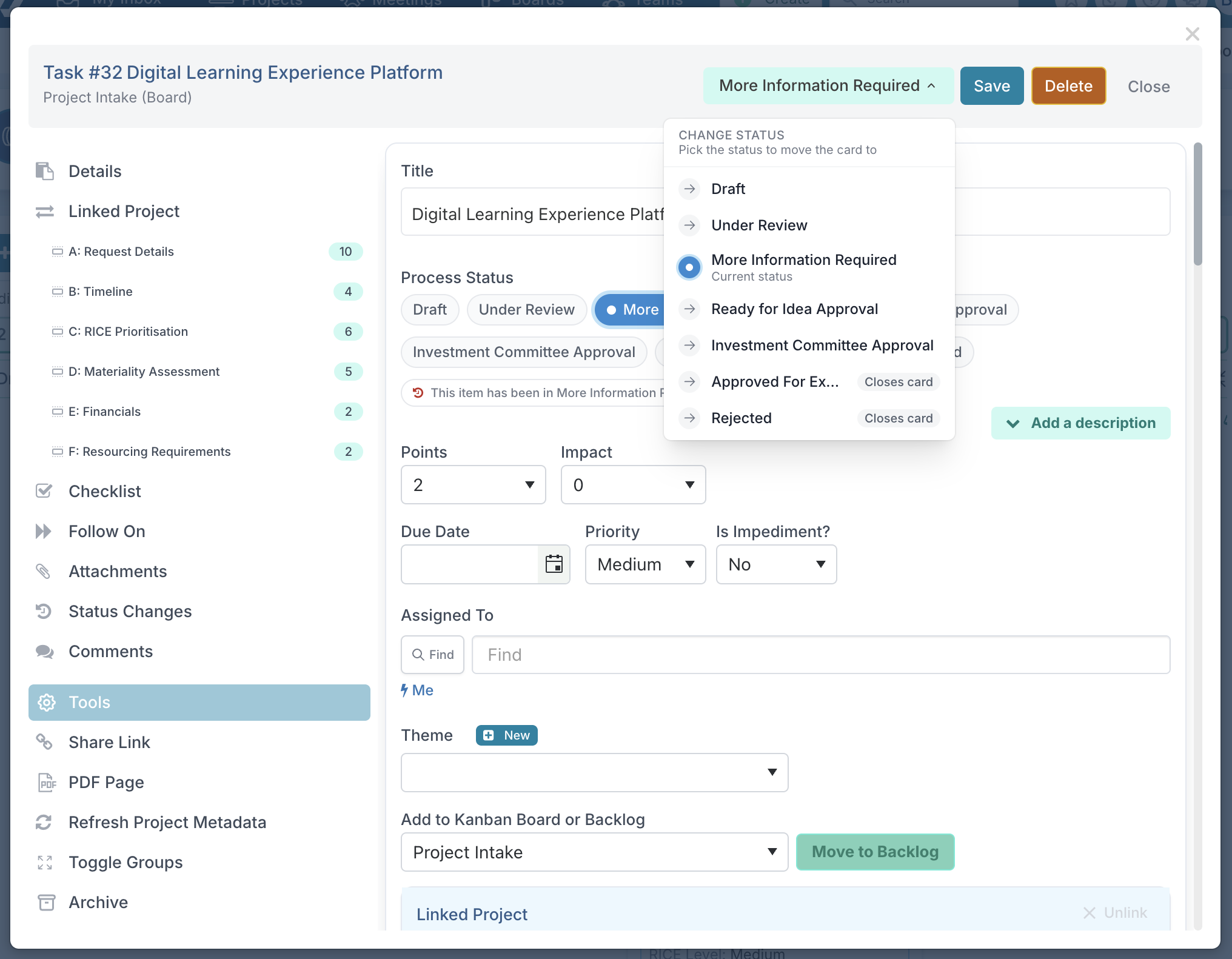
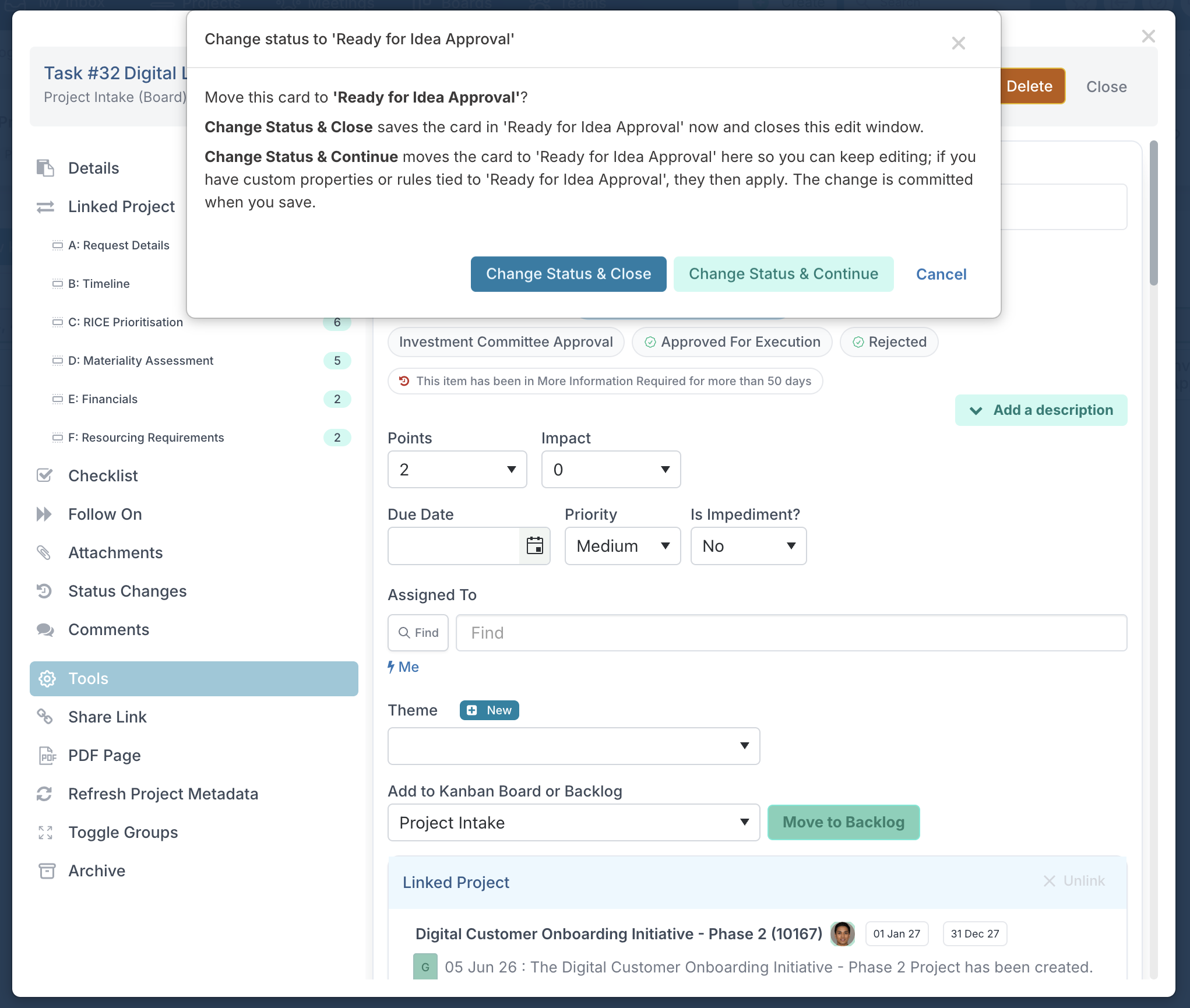
When you pick a status, you choose how to apply it:
Change Status & Close saves the card in the new status straight away and closes the dialog.
Change Status & Continue moves the card to the new status in the dialog so you can keep editing, for example to complete properties required in that status. The change is saved when you click Save.
Closed cards are locked
On boards with Freeze Custom Properties And Status On Closed Cards turned on, a closed card keeps the status and properties it closed with. Its status button shows a lock, the Process Status strip can't be clicked, the card can't be dragged to another column, and a note on the card explains that its properties were locked when it closed.
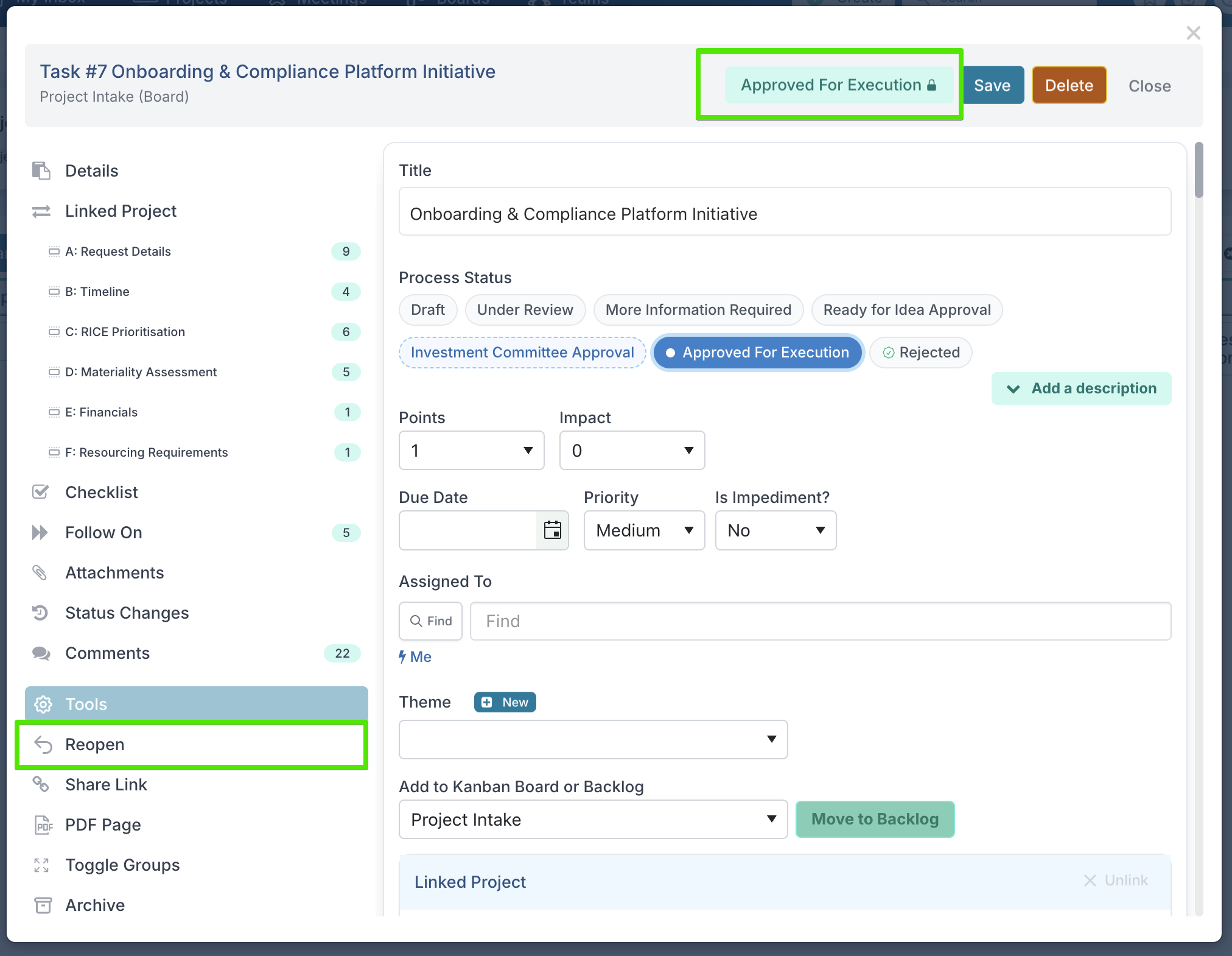
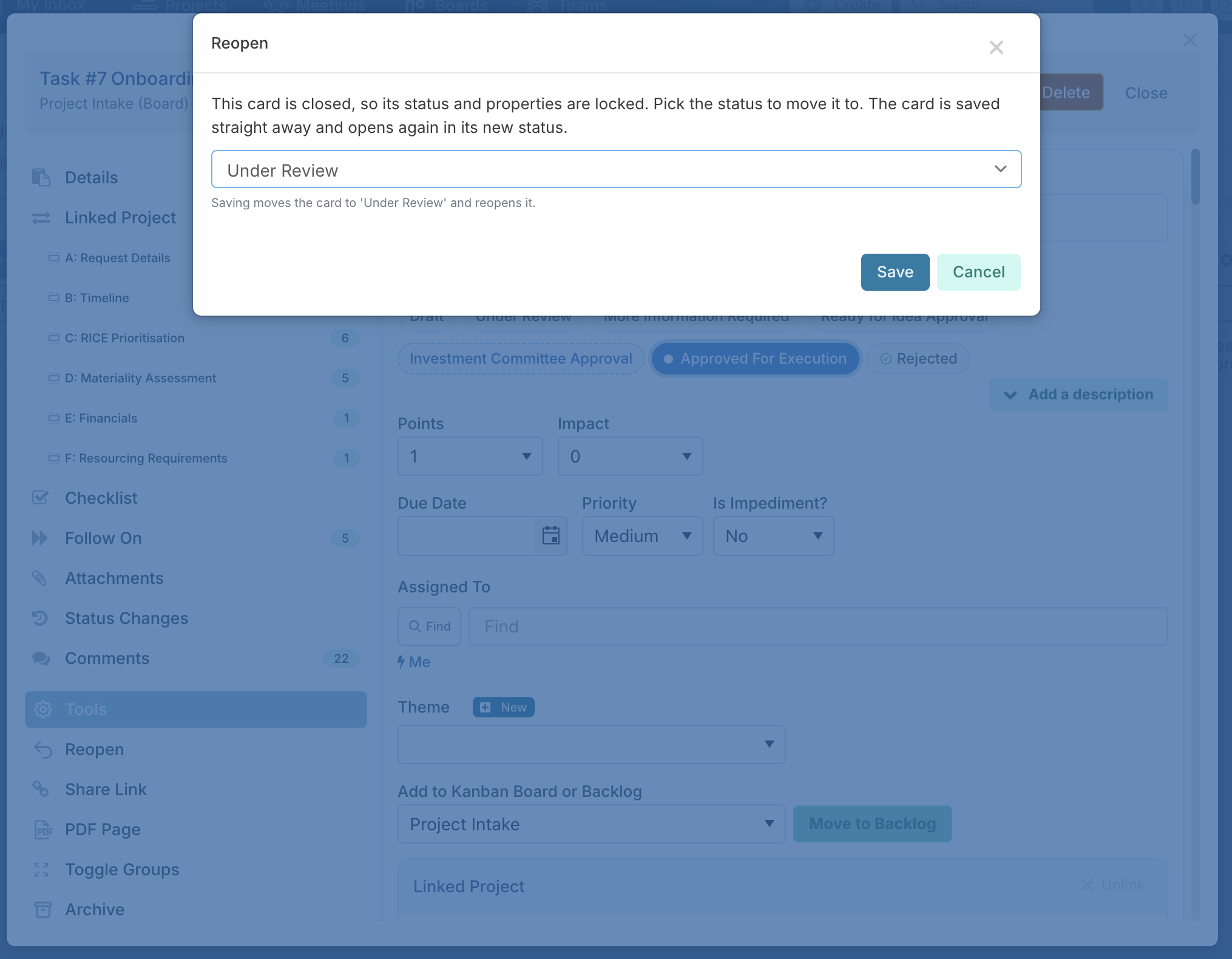
To bring a closed card back into the workflow, a board owner opens the card, selects Reopen under Tools, picks the status to move it to and clicks Save. The card is saved straight away and opens again in its new status, with its properties editable. Other users see a message that only a board owner can reopen the card.
Impact settings in one place, and a new Status Report Settings page
Impact and status report settings used to sit among the many other options on the Project Labels & Field Names page. They have now moved to pages of their own under Administration Console > Project Settings, so project administrators can find them quickly. Your existing settings have moved across unchanged, so there is nothing to set up.
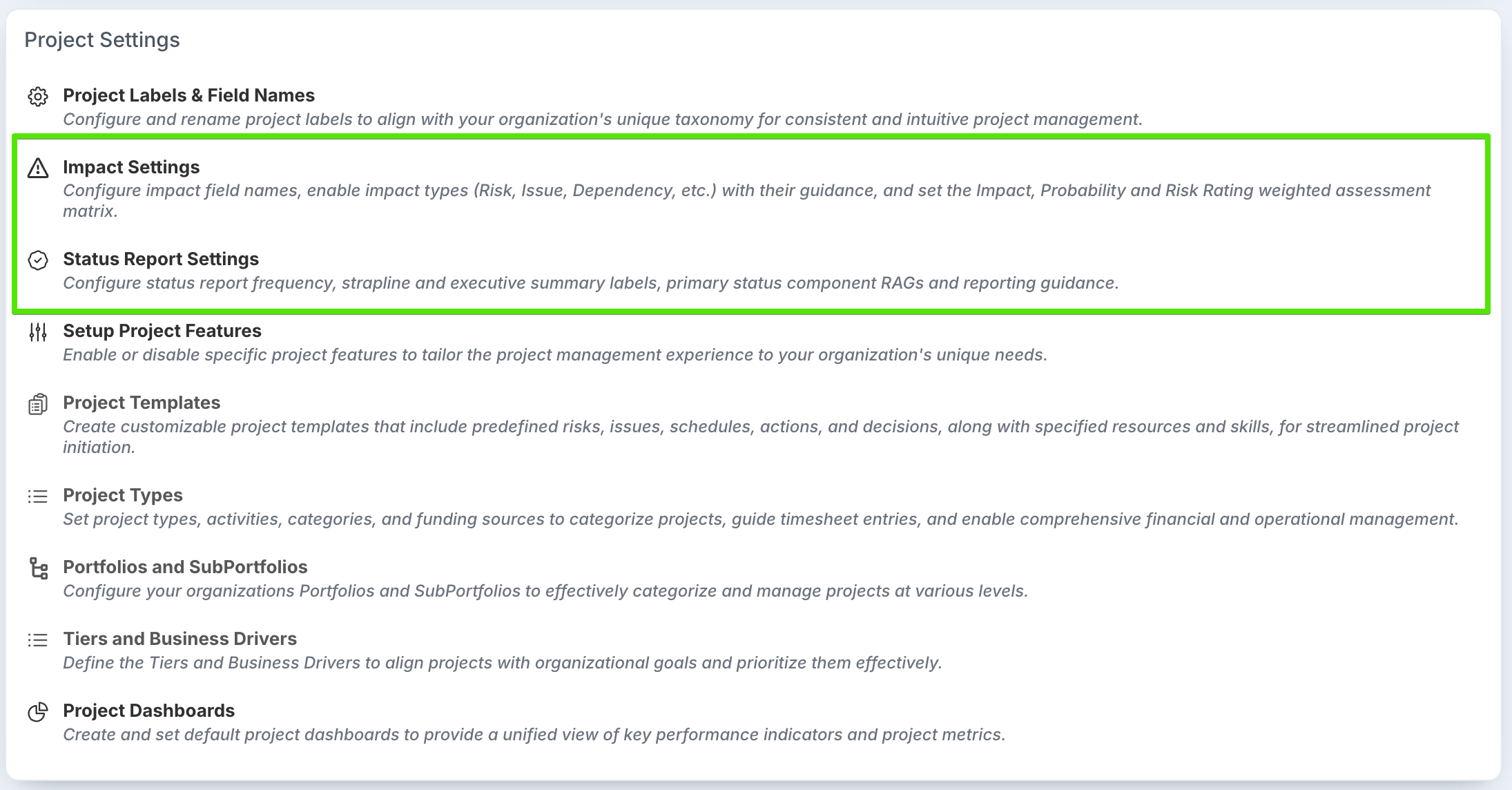
Impact Settings
The page previously called Impact, Probability and Risk Rating is now Impact Settings (shown with your organisation's name for impacts). As well as the Impact, Probability and Risk Rating weighting matrices it already held, it now starts with a Project Impacts section, moved from Project Labels & Field Names:
Field names: what the Impact, Probability and Risk Rating fields are called in your organisation.
Enabled Impact Types: which impact types users can create, such as Assumption, Dependency or Lessons Learned. Risk and Issue are always on.
Everything about impacts is now set up on one page and saved with a single Save.
Status Report Settings (new page)
Status report configuration has moved from Project Labels & Field Names to a new Status Report Settings page:
Status report frequency.
The Strapline label and maximum length.
The Executive Summary label and help text.
Primary status component RAGs.
Status report instructions shown to users, and the placeholder text for component commentary.
Other Enhancements & Fixes
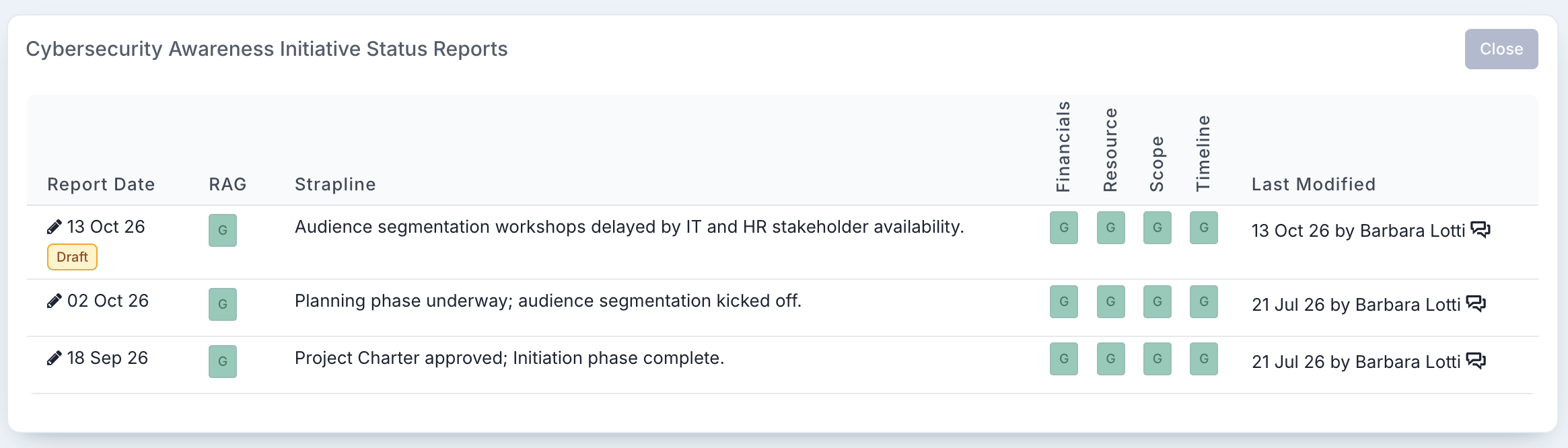
Draft status reports: Draft status reports are now labelled with a Draft badge in the status report history and on the report itself, and the draft banner shows on the project page. Drafts are only visible to project managers and admins.
Program section in Project Details: If your organisation doesn't use programs, the Program section and its navigation link no longer show in Project Details. Projects that are already linked to a program still show the section.
Freezing closed impacts: Fixed an issue where, with Freeze Closed Project Properties turned on, closing an impact did not freeze its custom properties. Closed impacts are now frozen with the property configuration they closed under, in the same way as closed projects and schedule tasks.
Project Watchlist filters: Only custom properties set as Reportable can now be used as filters on the Project Watchlist. Saved dashboards that filter on a property that isn't Reportable now ignore that filter. To keep filtering on a property, set it to Reportable.
Person property filters: Fixed an issue where clearing a person custom property filter did not clear the filter.
Detailed List headers: The column headers on the Detailed List and Detailed List With Latest Status views now stay visible as you scroll.
Option List to Multiselect Option: An Option List custom property can now be changed to a Multiselect Option property by editing its Data Type. Existing values are kept. Changing a Multiselect Option back to an Option List is not supported.
Importing scored-option properties: Fixed an issue where importing board custom properties onto a board that doesn't have the matching shared list created Scored Options properties with no options. They now keep their full set of options, the same as regular Option List properties.
Pipeline project creation: Fixed an issue where custom properties that are conditional on a calculated property could be dropped when a project was created from a pipeline card. Calculated properties are now worked out before conditions are checked on every save, and a property whose parent property is hidden is now cleared on save, matching what the form shows.
Bulk project upload and calculated properties: Fixed an issue where the project bulk upload discarded answers that are only shown when a calculated custom property has a certain value. These answers now load. Calculated columns are always worked out from their expression, so a value typed into a calculated column in the upload file is ignored.
Resource forecast matching: Resource forecast uploads and API calls now find a resource by email address even if that user has never signed in to Fluid, for example users provisioned through SCIM. The same fix applies to the manager reference column in the user loader.
Portfolio and Sub-Portfolio upload: Project Admins can now upload Portfolio and Sub-Portfolio files, as well as Project Types files.
Default rate card: The Default rate card can no longer be renamed or deleted, either in Admin or through Bulk Edit Upload. A rate card upload that renames or removes the Default rate card is rejected in full with the message "Default rate card cannot be renamed or deleted."
WorkHubs panel on the homepage: When WorkHubs are turned off for your organisation, the WorkHubs panel no longer shows on the homepage. If Delivery Teams are in use, the panel shows only the user's teams, without the Create a WorkHub button.
Personal Access Token expiry reminders: Users with a Personal Access Token (PAT) now receive an email and an in-app notification before their token expires, 7 days and 1 day beforehand by default. The email links to the page where they can create a new token, so integrations that rely on it don't stop working unexpectedly. Reminders are on by default; to turn them off or change when they are sent, contact Fluid support.