User roles: ✔ Project Manager ✔ Governance Approval ✔ Project Administrator ✔ Benefit Administrator
An approved benefit fixes what was promised. What was delivered is a different question, and often a different team answers it: Finance wants to confirm a saving before it appears in the portfolio's results, not discover later that a project manager entered an optimistic number.
Realization approval sends realized values for sign-off before they count. A project manager submits the periods they have reported, the approver checks them against the baseline, and approved periods lock permanently. Dashboards that report delivered value to leadership count only approved figures.
In this article you will learn how to turn realization approval on, how to submit realized values, what each decision does, and how a Benefit Administrator corrects an approved period.
Before You Start
Realization approval needs the Show Benefit Approval feature. See Setting Up Benefit Baselines and Approval.
Realized values can be entered once a benefit is approved or baselined.
Ongoing costs are never approved this way.
How It Works
Realization approval is a separate workflow from benefit approval, so a different group, often Finance, can confirm results. A benefit can have its forecast and its realized values with approvers at the same time.
It is off by default. While it is off, realized values count as soon as they are entered. Where it applies, the Benefits Executive, Benefits P&L, Payback & ROI, Strategic Objectives and Strategic Pillars dashboards count only approved realized values. The Benefits Realization and Benefit Value Variance dashboards show values as entered.
Turn It On
Go to Administration Console → Benefits → Benefits Administration → Realization Approval.
Set the Default: Off - realized values are not approved, Same as benefit approval (whatever route the benefit's own approval resolves to), Simple approval (a decision to the portfolio's Governance Approval person) or Board process (a card on a benefit approval board; choose the Realization Board).
Click Save at the top of the page.
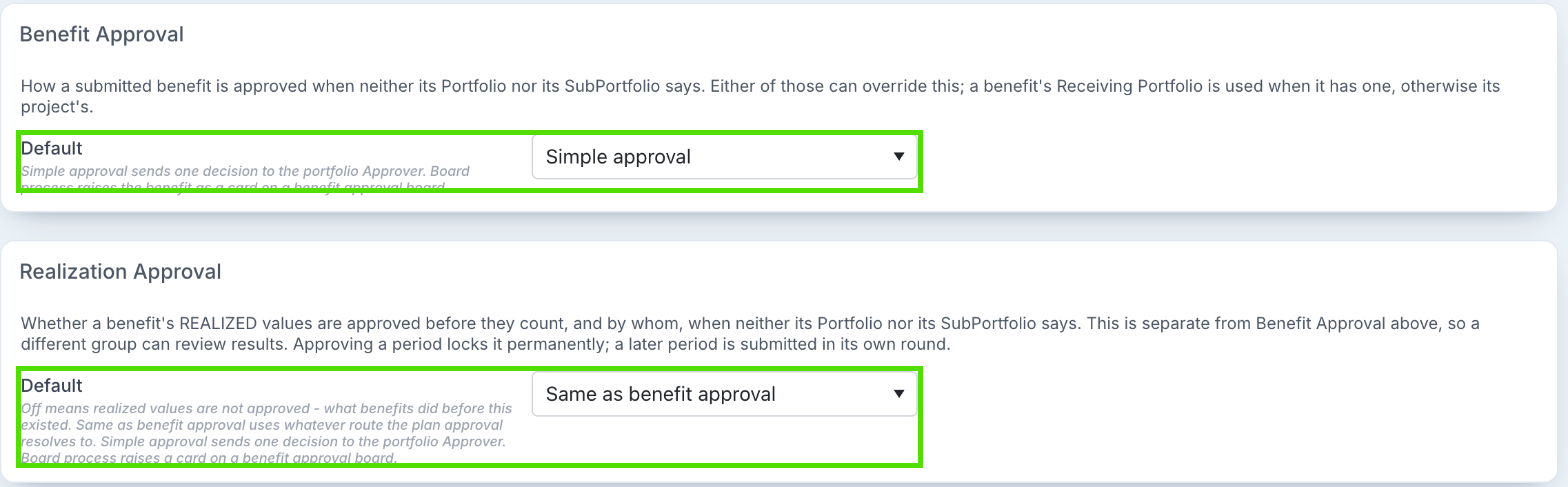
To use a different route for part of the organisation, a Project Administrator sets Realization Approval on a portfolio or sub-portfolio: Not Set, Simple approval, Board process or Off - not approved here. Off there opts that part of the organisation out, even when the default turns approval on. See Portfolio & SubPortfolio Configuration.
Which setting wins works as for benefit approval: the benefit's Receiving Sub-Portfolio and Receiving Portfolio if it has one, otherwise its project's sub-portfolio and portfolio, then the default. If nobody is set as approver, submitted periods are approved automatically and the project manager is told why.
Submit Realized Values
Enter realized values in the Realized row of the benefit's Value section. Enter 0 for a period that delivered nothing; leave a period blank if there is nothing to report yet.
Choose Tools → Submit Realized for Approval, or Save & Submit Realized for Approval from the arrow next to Save. The benefit is saved first.
Check the confirmation. It lists each period and its value, so you can see exactly what the approver will see, and names the setting that decided who approves. Click Submit.
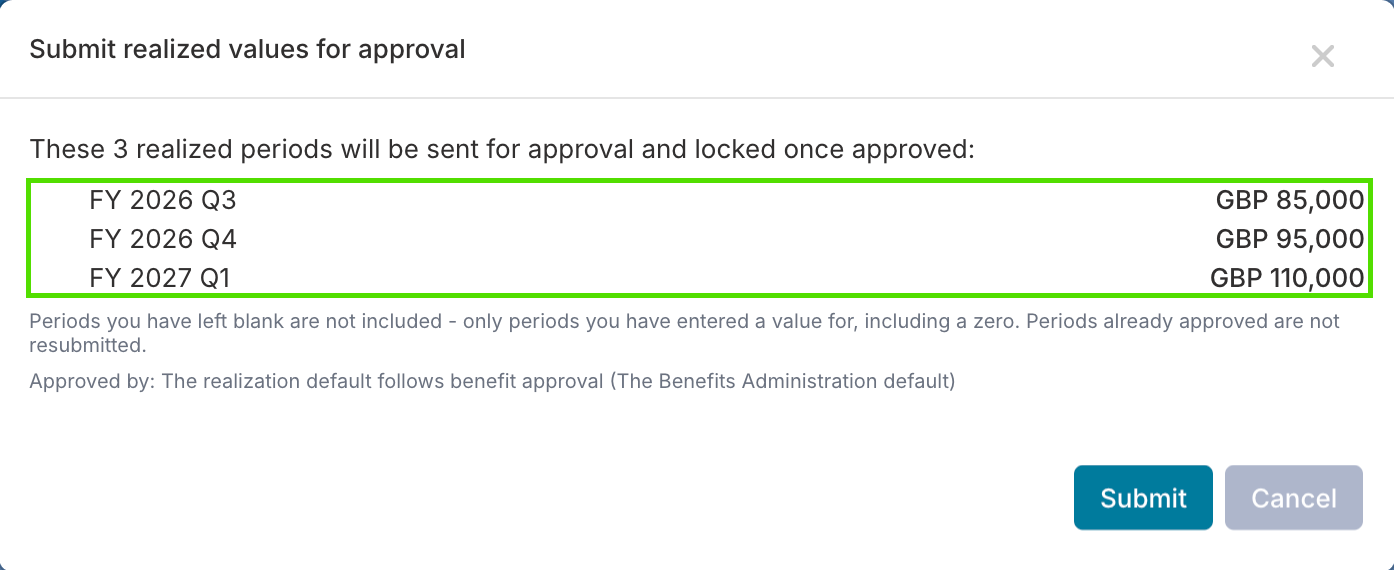
Every period with a value entered is included, including 0 and including future periods, which are marked. A blank period is never submitted.
Periods already approved are not resubmitted.
The benefit shows Realized values awaiting approval, with a link to open the approval, and the benefits list shows a Realized: Awaiting approval pill under the status. Only the submitted periods are locked; every other period stays editable. A Project Administrator can correct a pending value, but cannot clear it.
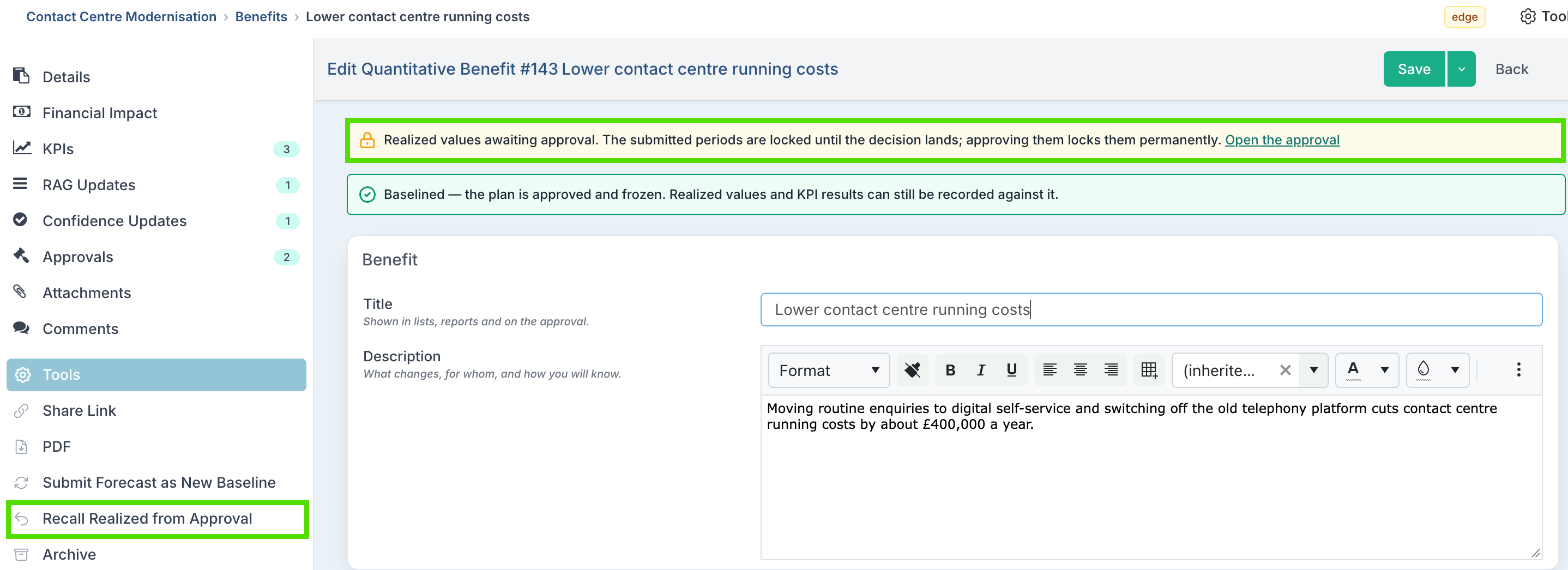
To take the periods back, choose Tools → Recall Realized from Approval: the request is withdrawn and the periods unlock. Values entered after you submit are not part of that request; submit them in a new round. Every submission is its own request, and earlier ones stay in the benefit's Approvals section.
If the approval board's first column is a draft column, the card is raised as a draft and opened for you. Nothing is locked until you submit the card, and it then claims every entered, unapproved period, including any added in the meantime. Recalling a draft deletes it.
The Approver's Decision
The approver sees each submitted period with its Approved Baseline, forecast, realized value and variance, and a total for approval.
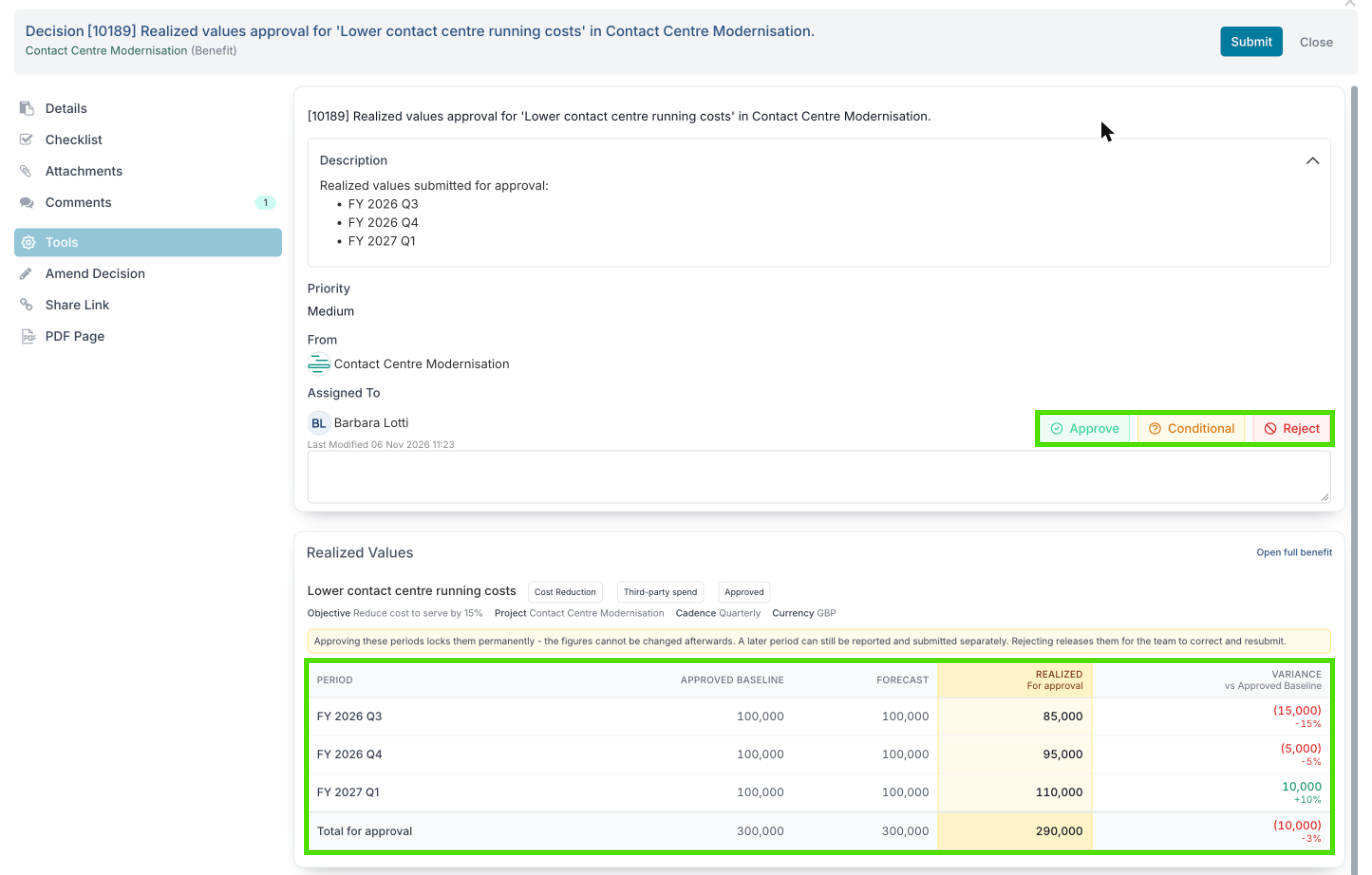
Decision | What happens |
Approved | The periods lock permanently and are marked approved in the benefit's table. |
Rejected | The periods unlock, to be corrected and submitted again. |
Conditional | The periods stay waiting. |
Card archived or deleted | The periods unlock, as if recalled. |
On a board, moving the card into an Approved outcome column approves the submission, and a Rejected column unlocks the periods. A decided realized approval is locked like a benefit approval: a decided card can only be reopened by the board owner with Tools → Reset Status, and a decided simple decision can only be changed by an Application Administrator.
Correct an Approved Period
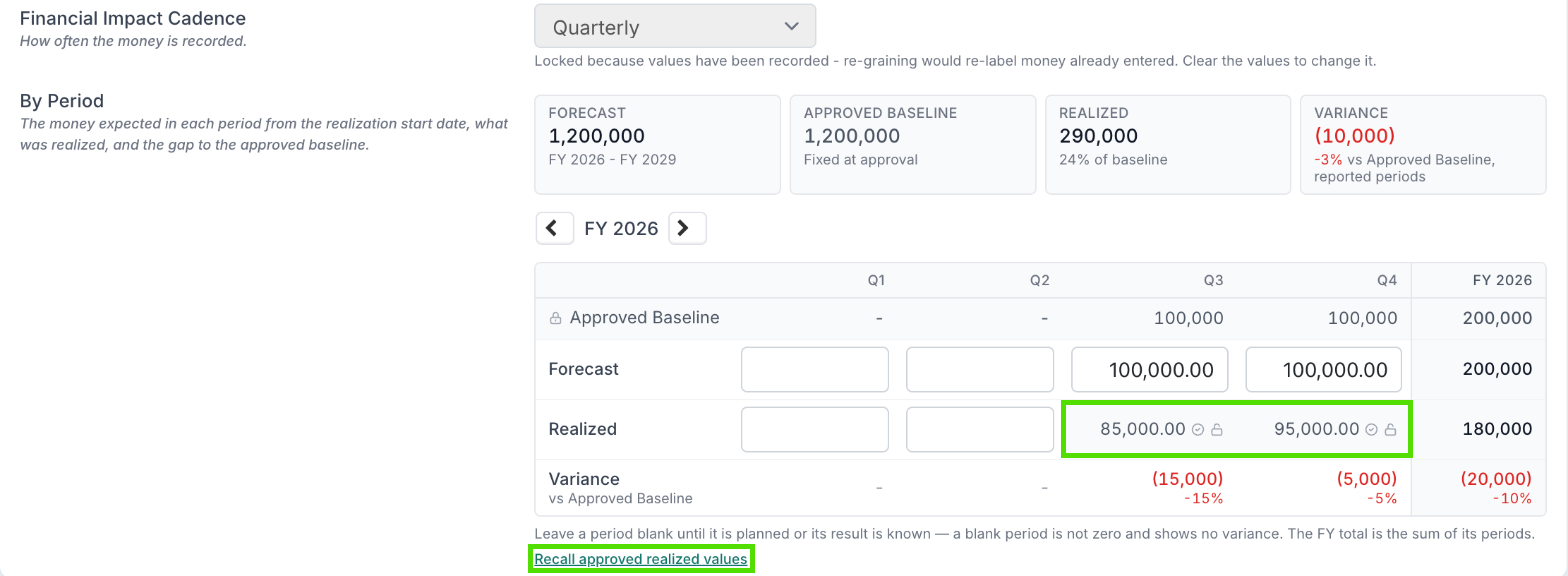
Only a Benefit Administrator (or an Application Administrator) can reopen approved values. There are two ways:
One period: click the padlock on the approved cell and say why it is being unlocked. The reason is required.
A whole approved set: click Recall approved realized values beneath the table. If more than one set has been approved, choose which one, then give a reason.
The reason is added to the benefit as a comment, and the value itself is not changed. The periods become editable, and go back for approval on the next submit.
Good to Know
I can't see Submit Realized for Approval.
Realization approval is Off for this benefit's portfolio, or there are no unapproved realized values to submit.
Does a reported 0 count?
Yes. A reported 0 is a real result and is submitted and locked like any other value. A blank period means nothing has been reported yet, and is never submitted. The same rule applies in the bulk edit workbook.
Can I archive a benefit while its realized values are with the approver?
Yes. Archiving withdraws the open request for you, as Recall Realized from Approval would, and adds a comment recording the withdrawal. See Archiving and Unarchiving Benefits.
Why does the Executive dashboard show less than the benefit?
Where realization approval applies, the Executive, P&L, Payback & ROI, Strategic Objectives and Strategic Pillars dashboards count only approved realized values. Periods still with the approver are left out until they are approved.