25th August Patch Release
Frozen Periods for Financials
Financial Administrators can now temporarily freeze financial forecast values, either for a chosen range of months or for all open months, without waiting for month-end close — useful for holding numbers still during a budget review.
Frozen months become read-only on the forecast grids for everyone. Resource allocations stay fully editable while a period is frozen; only the resulting cost is held at its pre-freeze value.
A freeze can be amended or removed at any time, or set to lift automatically on a chosen date, and month-end close is blocked while a freeze is in place.
You can read more about frozen periods here.
Enhancements & Fixes
Project Type: Program is now a protected project type — it can't be edited or deleted in project type admin. It can however be renamed by changing the Program label in Project Labels & Field Names setup page.
Resource Allocation: People booked to exactly 100% could be wrongly shown as over-allocated. When a forecast is entered in hours, Fluid converts it to a percentage of the person's capacity. That division often doesn't come out even — 92 hours of a 168-hour month is 54.7619047…% — so the figure has to be rounded before it is stored. Across several projects those rounded figures could add up to fractionally more than 100%, and the save was refused even though the screen showed 100%. Fluid now ignores differences under a hundredth of a percent (about a minute across a whole month); real over-allocations are still blocked as before.
SCIM User Provisioning: A group sync that moved someone onto a Collaborator licence also revoked their access to boards, projects and portfolios. Changing a licence is meant to adjust only what a person is allowed to do in Fluid, but the sync was also deleting the underlying permission that a membership grants. The membership itself survived, so the person was still listed as an owner or member while being refused entry and the only way to restore access was to remove them and add them back, which recreates the missing permission. Licence changes now leave memberships and their permissions untouched. Individual user syncs were never affected, only group syncs; anyone affected before this release will need to be removed and re-added once.
20th August Patch Release
Enhancements / Fixes
Timesheet Compliance: Unlicensed users were counted in Timesheet Compliance figures and listed as non-compliant. Because an unlicensed user cannot sign in, they could never submit a timesheet, so they appeared as permanently outstanding and made compliance look worse than it was. Unlicensed users are now excluded, alongside users with the Timesheet Exempt role who were already excluded. Licensed users, including Collaborators, continue to be included as before. This applies to the Timesheet Performance page, the Timesheet Compliance section of My Team, the Timesheet Performance section of Timesheet Admin, and the Weekly Timesheet Compliance export.
Upload performance: Funding, financial, forecast and resource uploads now run significantly faster. Previously the same project's financial summary was recalculated repeatedly during a single upload, which slowed the upload and put the system under heavy load for other users. Each project is now recalculated once. Uploaded figures are unaffected.
18th August Patch Release
Fixes
Fiscal Year View returned no data to Power BI or Excel connections. The Fiscal Year View feed returned an empty result with a single blank column, so there was nothing to expand in Power BI or an Excel data connection. The feed now returns the full report data. Downloading the Fiscal Year View as an Excel export was never affected and is unchanged.
Project Details feed performance restored. A recent change to how custom property values are retrieved had slowed down large Project Details requests. Speed has been restored for reports and data connections that pull this feed. Custom property values updated by an upload may take a short time to appear in the feed.
14th August Release
Baseline Forecast — Capex / Opex Split
Baseline Forecasts now support a Capex and Opex split, bringing them in line with how forecast and actuals are already reported. This applies where the Capitalization feature is enabled; if it is off, nothing changes for you.
1 — Creating a baseline with Capex and Opex
Baselines are built from a downloaded file that you review and upload back. There are two files you can start from, and both now carry the Capex/Opex split.
Downloading the Full Year Forecast. When you generate a baseline from Download Full Year Forecast, Fluid calculates the Capex portion from your capitalization setup — matched on project, cost type, subtype and month — and sets Opex to the remainder. The file arrives with the split already populated, ready to review or adjust before you upload it.
Downloading an existing baseline. You can equally download the baseline you already have. This file returns the Capex and Opex exactly as they were last stored — the values you uploaded, not a fresh calculation — so it is the right starting point when you want to amend a baseline without losing the split you agreed, or simply to see what is currently held. Where a baseline pre-dates this release, it comes down as Capex = 0 with the full amount in Opex; edit those two columns and upload to set the real split.
Uploading. The Baseline Forecast upload template has two new columns after Value:
Capex (column H)
Opex (column I)
Whichever file you started from, the values you upload are stored exactly as provided — Fluid does not recalculate them on the way in. Two rules apply:
Value must equal Capex + Opex. Rows that don't balance are skipped.
Capex can only be held against Cap Eligible projects. If a row carries Capex for a project that isn't flagged Cap Eligible, the Capex amount is saved as Opex instead.
2 — Seeing the split on financial views
Baseline Capex and Opex columns now appear alongside the Baseline total on:
the project and portfolio Financials year tables (including group subtotals and the grand total)
the Watchlist Financials by Project Capex view (including totals)
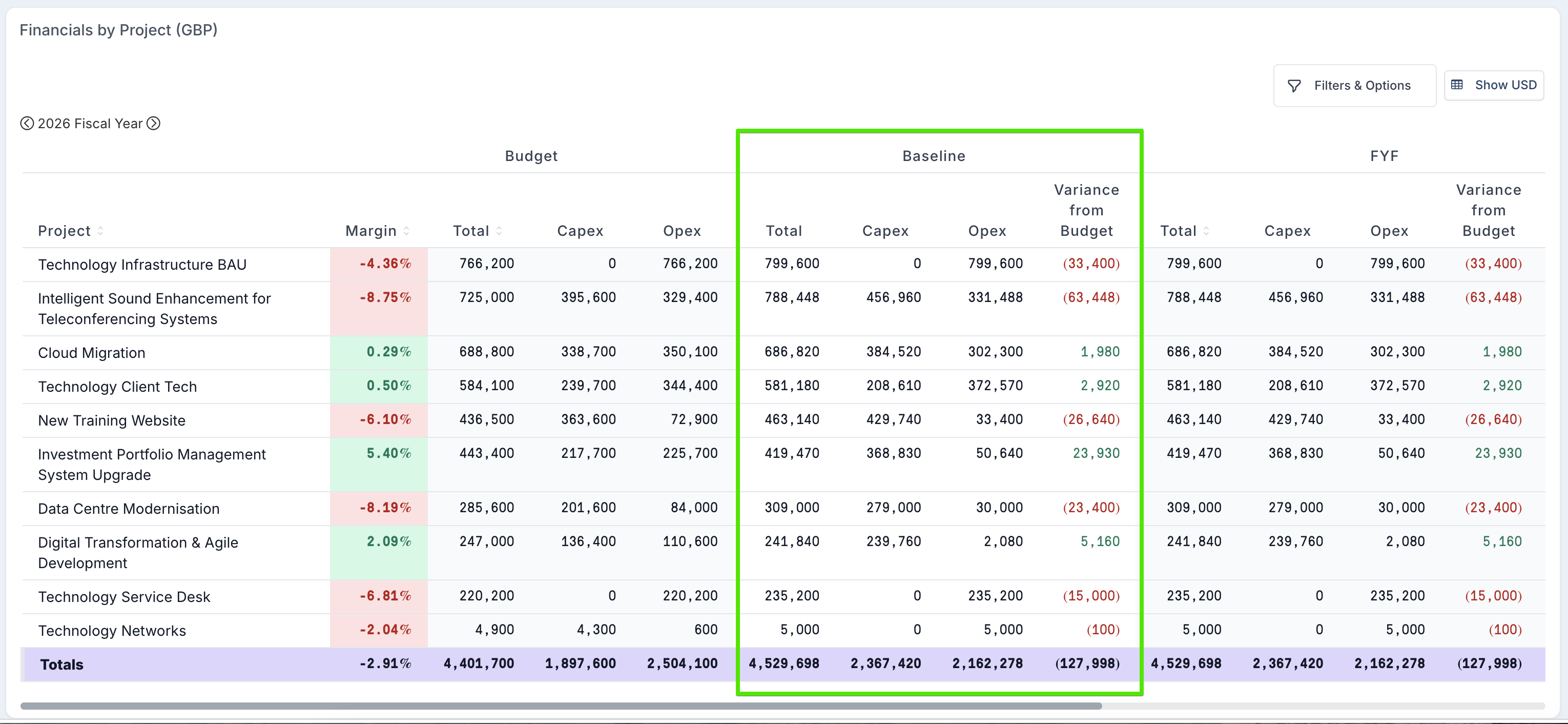
The columns only appear when the baseline actually holds a Capex value, so baselines taken before this release — or without capitalization in play — display exactly as they do today.
3 — New Baseline Forecast Export
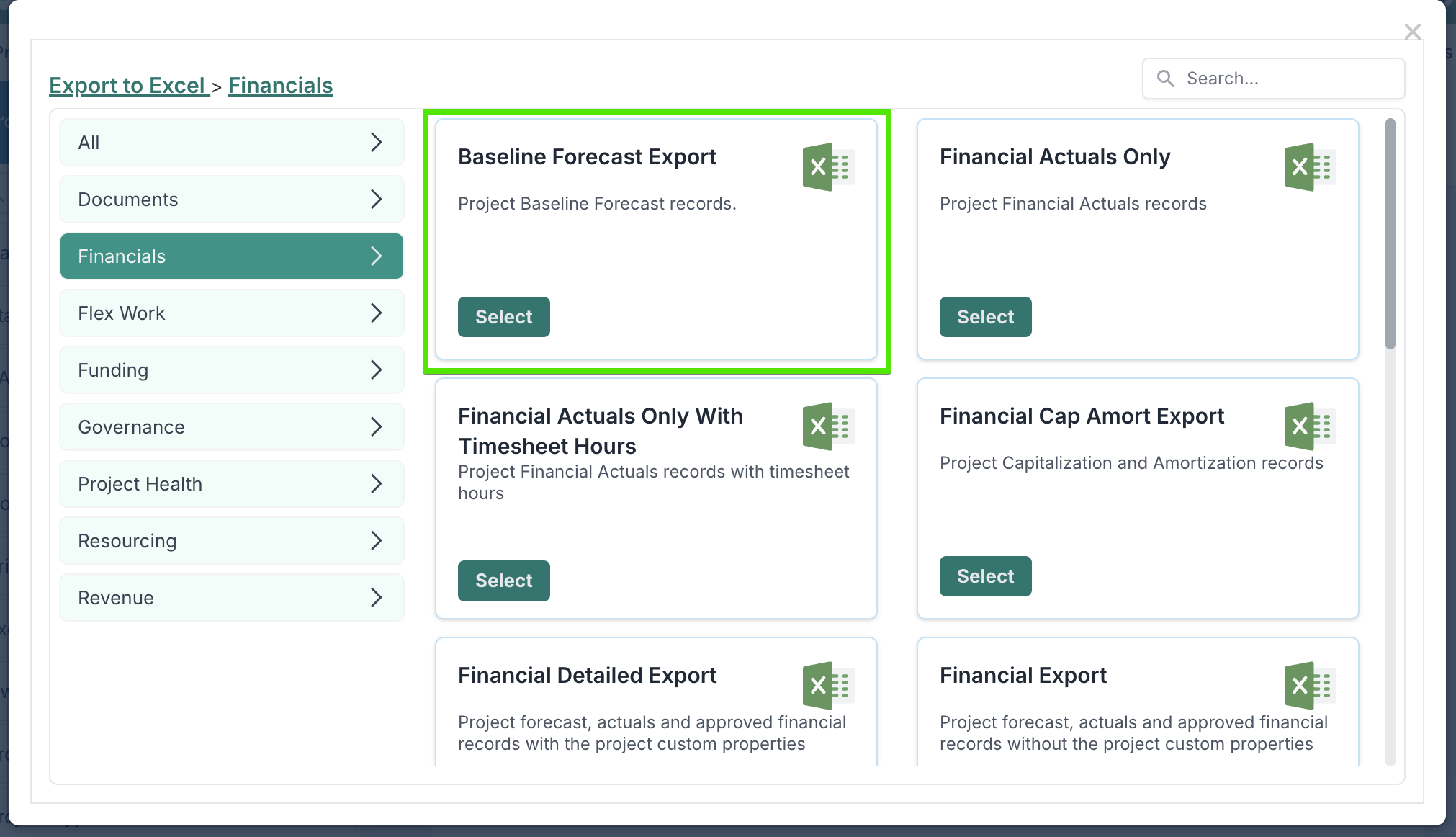
A new Baseline Forecast Export is available from the Financials section of the Export to Excel dialog. It returns the baseline records for the project and its subprojects across the selected date range, in the same layout as the Financial Detailed Extract, and includes the reportable project data fields, resources and community plan. Capex and Opex columns are included when the Capitalization feature is enabled and omitted when it is not.
Fixes
Custom property values could be stale in Project Details exports and API calls. Where a project upload feed added or changed a custom property value, the change was not always invalidated across every node in the farm, so two identical requests could return different values depending on which node answered. The Project Details feed now reads custom property values from the database rather than the cache, so exports to Excel and API responses reflect what was actually saved.
Blank phase dates in the Project Load feed were saved as 31 December 9999. Where a new project was uploaded with a Methodology specified but the phase date columns left empty, the first phase was created with a date of 9999-12-31 instead of no date at all. Any later operation that added a month to that date — including through the API — then failed with an error. Blank and unreadable date cells are now stored as empty, and a project already holding one of these dates can be edited again rather than failing to save.
Project Details bulk edit — downloading a blank file produced a template that would not upload. A blank download now matches the with-data download exactly and can be filled in and uploaded to create new projects.
9th August Release
Timesheet Performance / Compliance
Quarterly compliance view: A new Quarterly tab has been added to Timesheet Compliance, giving teams a three-month view of submitted and approved timesheets by accountable executive. This makes it easier to review compliance across a full quarter, rather than only week by week or month by month.
Quarterly Capex view: A new Quarterly Capex tab has also been added, bringing the same quarterly breakdown to Capex timesheets alongside the existing Weekly, Monthly, and Yearly Capex views.
Year navigation: The Yearly and Yearly Capex tabs now include fiscal year navigation, with back and forward controls to move between years and compare compliance performance over time.
Historical period navigation: Back and forward navigation has been improved so users can move to earlier or later quarters and years. Historical periods before a team’s timesheet start date can now be viewed where data exists.
Compliance export: The Timesheet Compliance Excel export now includes Year, Quarter, and Month columns, and users can export a full quarter’s compliance data directly from the new quarterly views.
Assign cards and approvals to a user's manager
Fluid can now route cards and approval decisions to a person's line manager, using the Manager field on the user's profile. This means boards and workflows can follow the organisation's reporting structure automatically, without administrators needing to name specific people in the configuration — and when reporting lines change, your boards keep routing correctly with no reconfiguration.
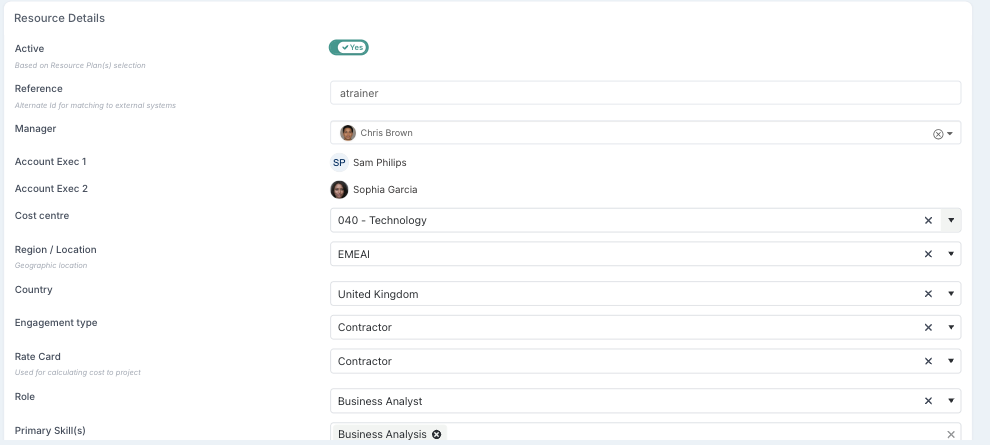
A person's manager is whoever is set in the Manager field on their profile (Administration Console → User & Resource Management → edit user → Resource Details).
Manager-based assignee rules for board columns
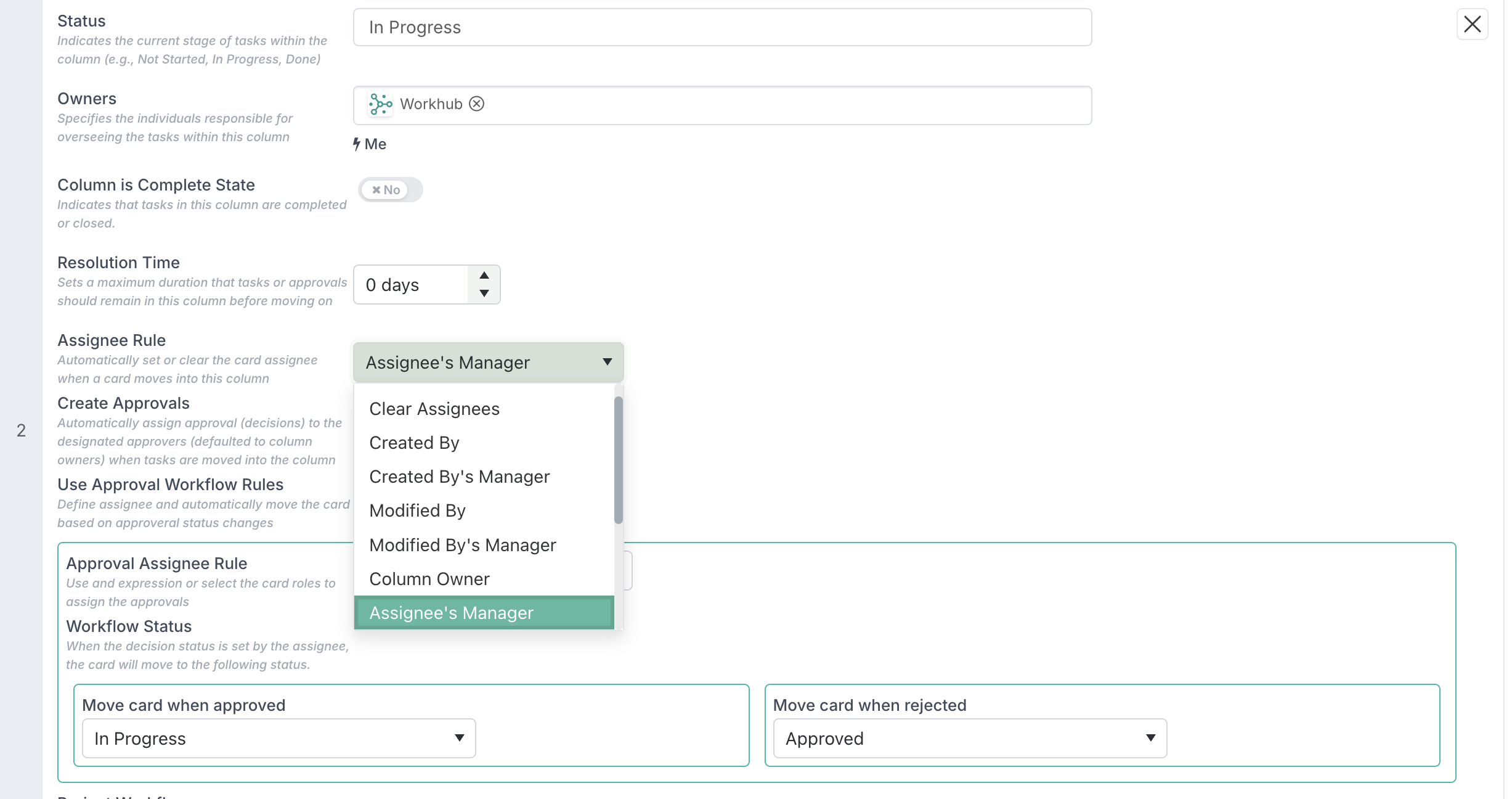
When a card moves into a column, the column's Assignee Rule can automatically set who it is assigned to. Three manager-based rules are new:
Rule | The card is assigned to… |
|---|---|
Created By's Manager | the manager of whoever created the card |
Modified By's Manager | the manager of whoever last edited the card |
Assignee's Manager | the manager(s) of the card's current assignees |
This is useful for approval or escalation steps, where responsibility should move to the relevant manager as work progresses. For example, when an expense card moves into a Needs Approval column with the rule set to Created By's Manager, it lands with the submitter's manager automatically — no one has to look up who that is.
Approval decisions
On columns that create approvals, the Approval Assignee Rule decides who owns the decision. The new option is Requester's Manager — the approval is assigned to the manager of the person who raised the card. The other options (Requester, Assignee, Column Owner, Dynamic, and the project roles on pipeline boards) are unchanged, and the Workflow Status settings work alongside this exactly as before.
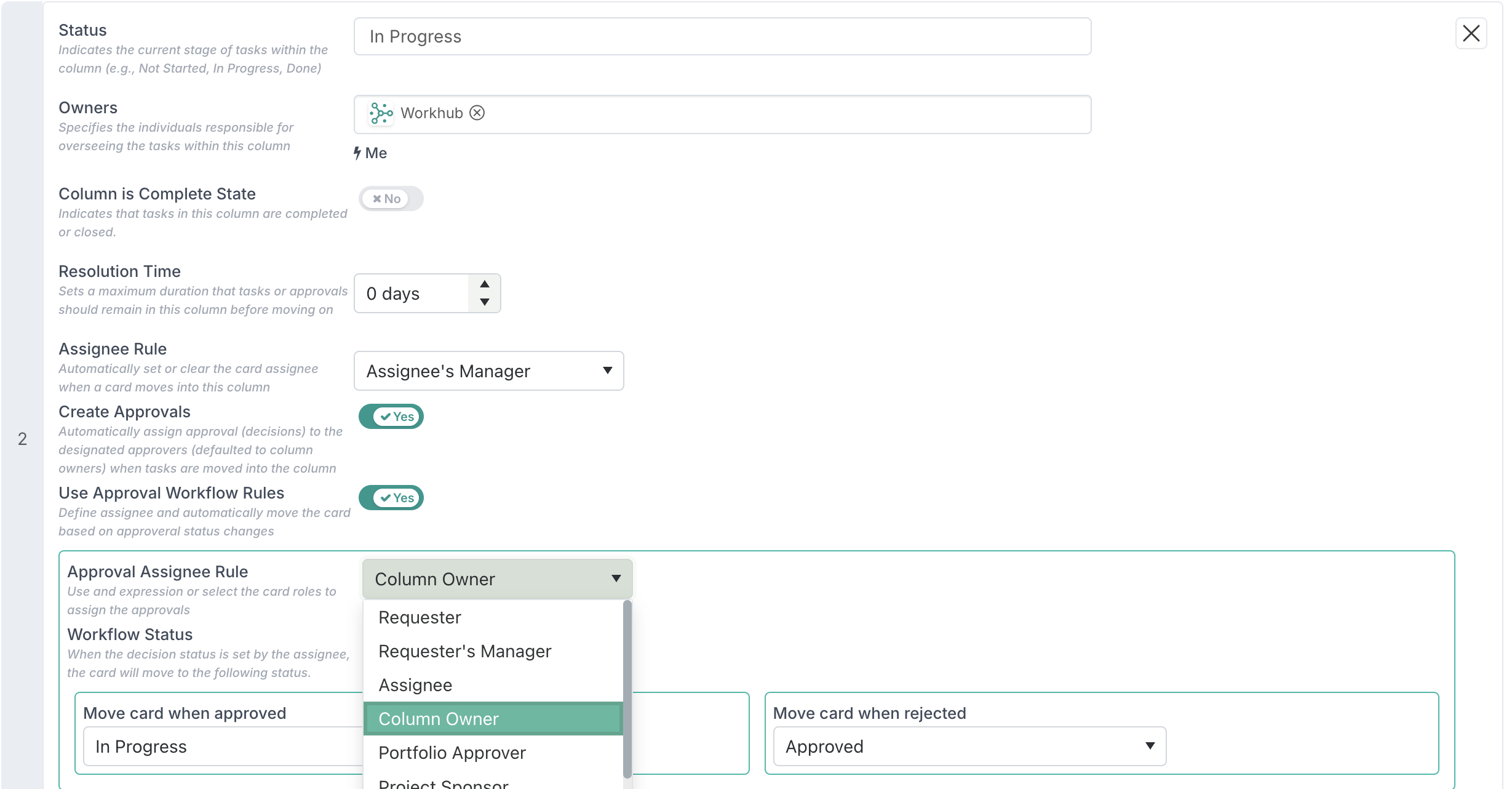
Make sure requesters have a manager recorded before relying on this preset — if no manager is found, the approval has no one to go to. For a built-in safety net, choose Dynamic and use an expression with an IF fallback: when a dynamic expression resolves to nobody, the decision falls back to the column owners so the approval is not left unassigned.
Expressions — full control
For more advanced routing, administrators can use expressions to reference managers directly (choose Expression for column rules or Dynamic for approval rules). The new manager tokens return the relevant manager:
[CreatedByManager]— returns the manager of the person who created the card.[ModifiedByManager]— returns the manager of the person who last modified the card.[AssigneeManager]— returns the manager(s) of the current assignees.
Administrators can also use the new MANAGEROF function to return the manager of any person field:
MANAGEROF([KeyResource])This returns the direct manager of the person selected in the Key Resource field. To move further up the reporting line, add the number of levels to travel (1–5):
MANAGEROF([CreatedBy], 2)This returns the creator's manager's manager.
Where a person may not have a manager recorded, the tokens and MANAGEROF return nothing (0). Use an IF expression to provide a fallback. For example:
IF(MANAGEROF([_Owner]) > 0, MANAGEROF([_Owner]), [ColumnOwner])This assigns the card to the owner's manager when one exists, or to the column owner when no manager is found.
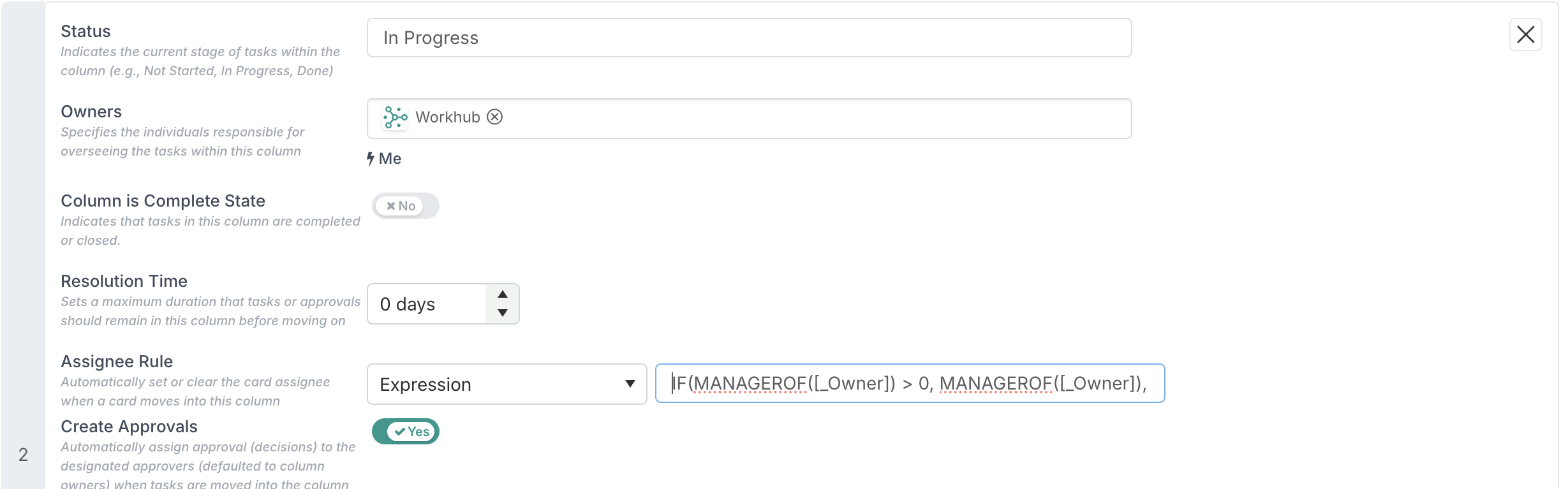
These expressions can be used in column assignee rules, workflow decision assignees and decision states, calculated Person custom properties (the expression must resolve to exactly one person), and stage-gate hyperlinks.
When it's calculated
Manager routing is resolved on the server when the card or record is saved — for board cards, when the card moves into the column. Calculated Person properties show "Calculated on save" until the value is stored. Updates to reporting lines are therefore picked up the next time the relevant item is saved, not retrospectively.
Enhancements & Fixes
Project filters: A new Status Date filter has been added, allowing users to find projects based on the date of their latest status report. This makes it easier to identify projects that have reported recently, or to find projects with no status report in the selected period.
Project filters: Date filters in Simple Search have been made more consistent across project date fields. Start Date, Implementation Date, End Date, Created Date, Current Phase End Date, and Status Date now use the same preset and custom date range control, making date-based filtering easier to use and more predictable.
Gantt search: The Gantt search box now also matches schedule task's codes, making it easier to find schedule items using their associated ID.
Approval dates: When something is approved or rejected — a stage gate, a decision, an approval request, a status report, or a timesheet submitted to you — it is stamped with the date the decision was made. That date appears as the green Approved on and red Rejected on labels against items in your dashboard and approval lists, and as the Rejected on date and time when you open a rejected item. These dates were shown using a shared reference time zone (UTC) rather than your own, so the date shown could differ from the date where you are. For example, someone in the US approving at 10pm on 3 August could see "Approved on 04 Aug". They now show in your own time zone, so the date matches when the approval was actually made. Please note that approval dates in Excel exports are unchanged and are still reported in UTC, so a spreadsheet may show a different date from the screen. This is to ensure that the exports return the same data regardless of the region the exports are triggered from.
4th August Patch Release
Enhancements & Fixes
Portfolio dashboards: Portfolio RAG Summary and FY Financials now support grouped project roles, such as Primary PM and Business Owner.
Timesheets: Copy Previous Week now checks whether project activities and sub-activities are still valid before copying them into a new timesheet. Tasks, hours, and notes are still copied, but any activity or sub-activity that has been deleted or is no longer available to the resource is cleared so the user can select a current valid value.
Financials by Project dashboard: Hyperlink custom properties added as columns in the Financials by Project grid now display as short links. This makes the grid easier to read while still allowing users to open the linked content directly from the dashboard.
Boards: Catalog custom property values are now preserved when moving cards on boards grouped by a catalog field, such as KPIs or Strategic Pillars. Moving a card between columns in the same swimlane keeps the existing catalog value, while moving it to a different swimlane correctly applies the new value. This applies to both single-select and multi-select catalog properties.
Time Actuals API: The Time Actuals query API now supports filtering results by the user’s country. Integrations can pass one or more country values to return time actuals only for users in those countries, with values matched against configured country metadata.
Azure DevOps integration: Dates now stay consistent when synced between Fluid and Azure DevOps, regardless of user time zone. Start dates, due dates, and mapped date custom properties now display the same calendar day in both systems, preventing dates from appearing one day earlier in Azure DevOps or when syncing back into Fluid.