Your PMO's reach shouldn't stop at licensed users. A Community licence connects the wider business and external participants to your PMO processes, through two things:
Work requests - anyone in the business can raise a request through your process and follow its progress.
Project health reporting - sponsors, stakeholders and external participants can view the health of projects that have been shared with them.
A Community user signs in and lands on a single, simple page - the Community Portal. Everything else - project workspaces, boards, meetings, workhubs, financials, configuration - is out of reach, so a Community licence is safe to give to your whole organisation and to people outside it.
Why it matters. The people who request work, sponsor it or are affected by it are usually not the people who manage it in Fluid. A Community licence gives them a front door, so demand arrives through your process rather than by email, and stakeholders can check status for themselves rather than asking a project manager for an update.
A Community user is a real user with their own sign-in (including SSO). Their requests and comments are attributed to them, and they can be provisioned and removed like any other user.
For how the Community licence compares with the other licence types, and how licences are counted, see the Fluid Licence Types article.
Community licence vs. project community. In Fluid, the project community is the project team and its resource allocations. That is unrelated to the Community licence described here.
What Community users can and cannot do
Community users can
Sign in with their own credentials, including SSO.
See the Community Portal - your greeting and announcement, the request forms you publish to them, their requests, and the projects shared with them.
Raise work requests on boards published to Community users.
Track their work requests in My requests on the Portal - the requests they raised and the work requests they are assigned to.
Edit a request they raised while it is still in the board's first column, or at any stage if they are assigned to the request.
Comment on their requests and add attachments.
Open a read-only project health summary for projects shared with them.
Choose their preferred language.
Community users cannot
Open project workspaces or PM dashboards in the main application.
See financials, resourcing, timesheets or capitalization anywhere.
Open process boards, meetings or workhubs.
Reach the Administration Console or any configuration page.
Hold any role other than User.
Own a Delivery Team or manage resources.
See a project unless it has been explicitly shared with them.
See or update any other item they are assigned to, such as schedule tasks and actions.
If a Community user follows a link to anywhere outside the Portal, they are returned to the Portal. If the link was to a project that has been shared with them, they are taken to that project's health summary instead.
These restrictions are enforced by Fluid on every request - not just hidden in the interface - so a Community user cannot reach a page by typing its address.
Assigning items to Community users
Work requests. A Community user can be assigned to any work request, including one raised by someone else. They are notified by email when they are added, and the request appears in My requests on their Portal alongside the requests they raised. As an assignee they can edit the request at any stage, not just while it is in the board's first column. If the board has Allow Assignees to update card status turned on, they can also change the request's status; if it is off, they can edit the request's details but not its status.
Everything else. Community users can also be assigned to schedule tasks, actions, decisions and other items, so that your plans and reports show who is responsible. However, they cannot see or update those items: the items do not appear anywhere on their Portal, and they cannot open them, change their status or record progress against them.
Someone with a Licensed or Collaborator licence - typically the project manager or item owner - needs to keep assigned items up to date on the Community user's behalf. If the person needs to manage their own items, give them a Collaborator licence instead.
The Community Portal
The Portal is the entire Community experience.
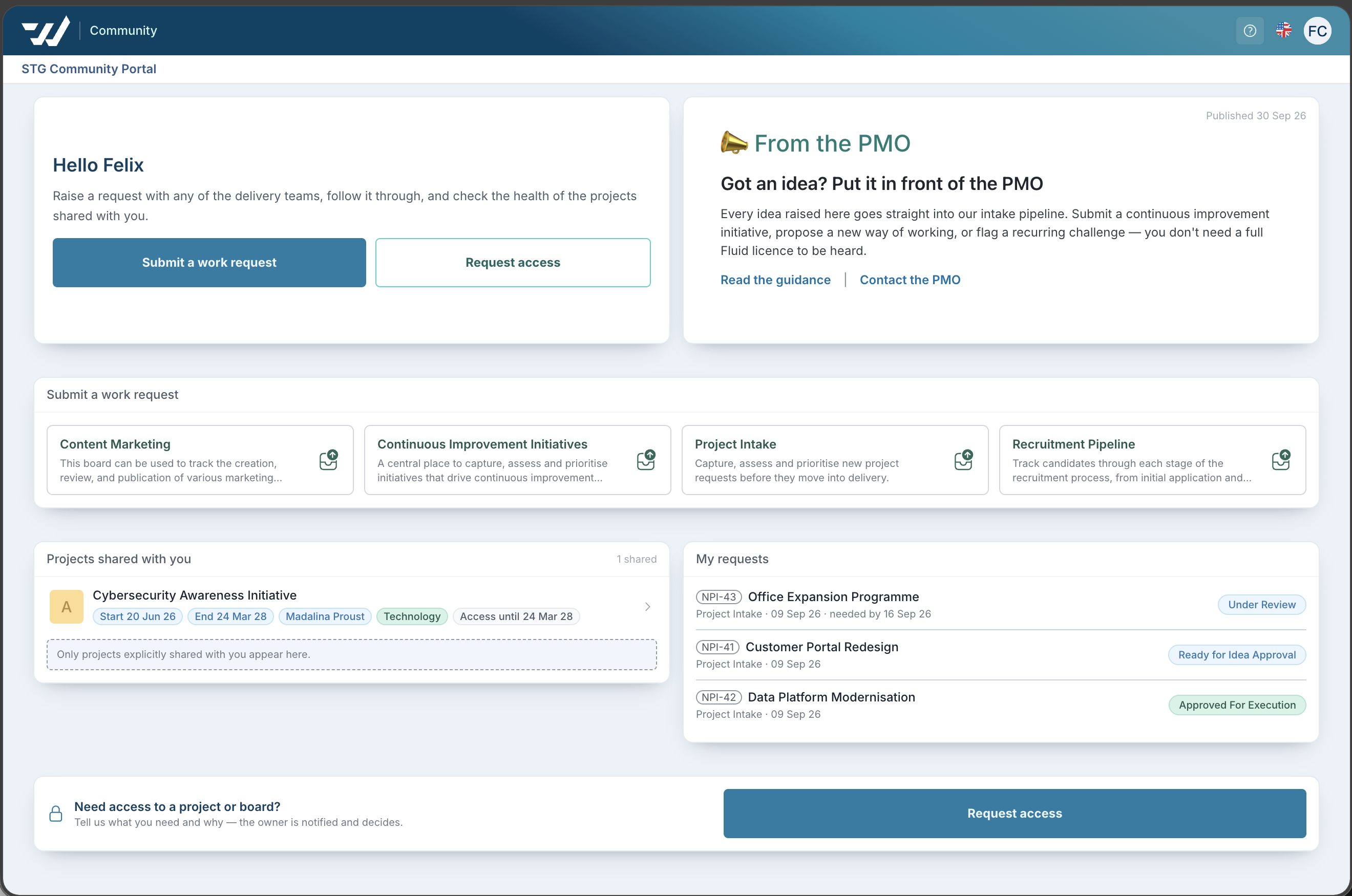
It shows:
Section | What it shows | Where it is controlled |
|---|---|---|
Greeting | "Hello" and the user's first name, followed by your greeting text | Administration Console > General Settings > Community Portal |
Announcement | Your title and rich-text message, with the date it was published | Administration Console > General Settings > Community Portal |
Submit a work request | The request boards published to Community users, as tiles. The first 6 boards (alphabetically) are shown; if there are more, More request types lists them all | Each board's Work Requests settings |
My requests | The work requests the user has raised or is assigned to, with their current status | Automatic |
Shared projects | The projects shared with the user, each showing when access ends. Up to 12 are listed | Project sharing - see Shared projects below |
Request access | A form for asking for more access | Administration Console > General Settings > Community Portal |
Sections with nothing to show are hidden - for example, if no announcement has been written, the announcement panel does not appear.
Shared projects
A Community user can only see a project once it has been shared with them. Project sharing is a separate feature, available for any user, that gives people time-limited, read-only access to a project - see the Project Sharing article for how to turn it on and share a project.
What a Community user gets from a share:
The project appears in the Shared projects section of their Portal, showing when their access ends.
Selecting it opens a read-only, one-page health summary of the project - a cut-down version of the PM Dashboard. It shows the project's status, phase and overall health, key people and dates, the objective and latest update, component commentaries, achievements and next steps, and - where your site uses them - the project schedule and promoted RAID items.
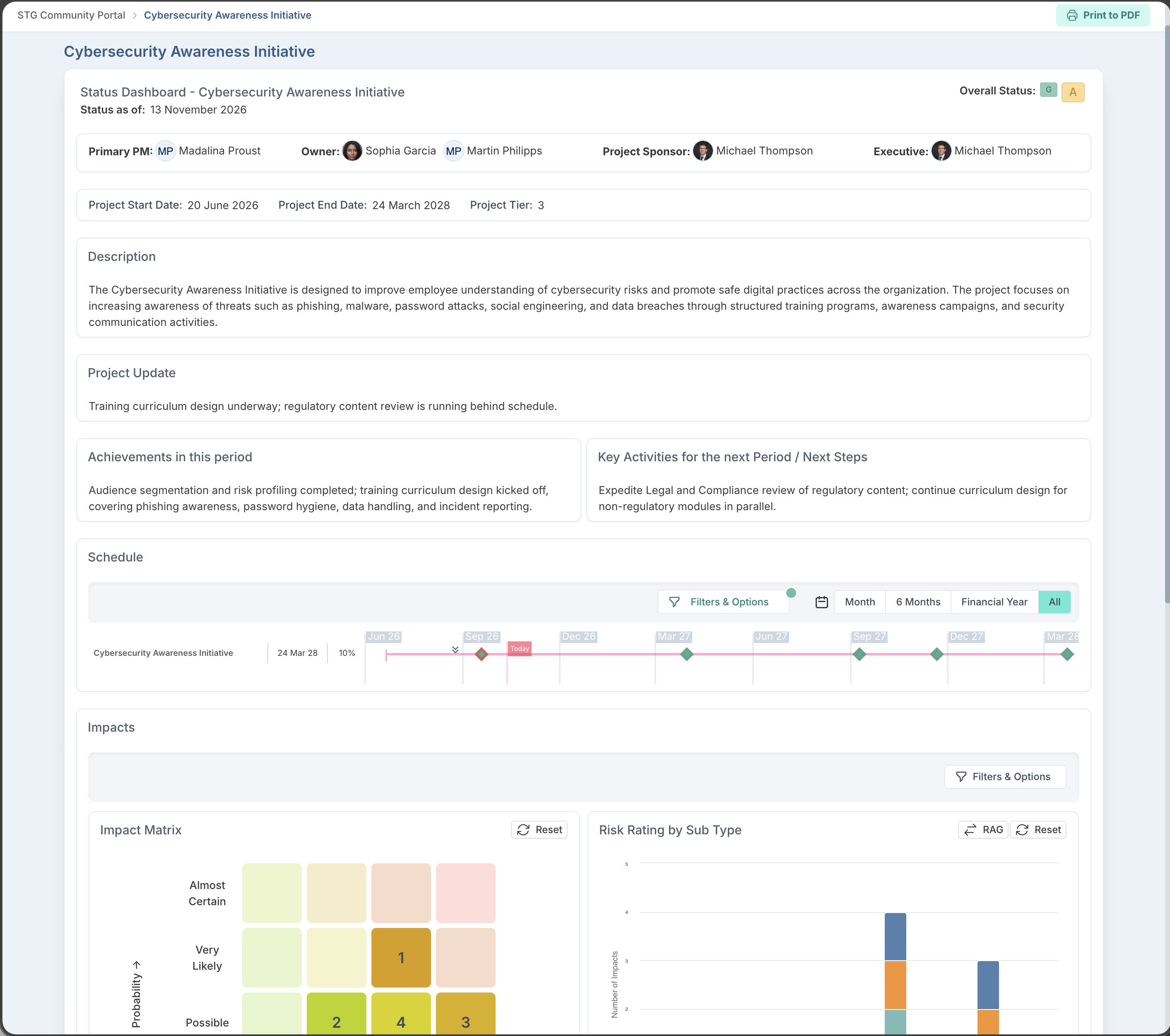
What is different from the full PM Dashboard:
The schedule and RAID items are limited to promotion levels L1 - Important, L2 - To Parent and L3 - To Workspace. Items at L4 - Not Promoted and L5 - Suppressed are never shown, so the summary reflects what the project manager has chosen to report.
The schedule is view-only. Schedule items cannot be opened, and the Gantt editor, flex schedules and baselines are not available.
No financials.
Nothing can be edited.
The page can be printed to PDF.
They receive an email when a project is shared with them, with a link to open it.
The Portal lists up to 12 shared projects. If more than 12 projects are shared with the same person, the others are not listed on the Portal, but the person still has access to them and can open each one from the link in its share email.
When the share ends or is revoked, the project disappears from their Portal and the health summary is no longer available.
A Community user only ever sees the health summary - never the project in the main application - even when someone with a full licence would get more from the same share.
Setting up Community licences
Before you start: Community licences are part of licence management, so licence types must be enabled for your site. If they are not, the Team Sign Up page shows a warning and Community licences have no effect - ask Fluid support to turn on Show User Licenses.
Community licences are off by default. Nothing changes until an administrator turns them on.
Step 1 - Turn on Community licences
Go to Administration Console > Team Sign Up and turn on Allow Community licences.
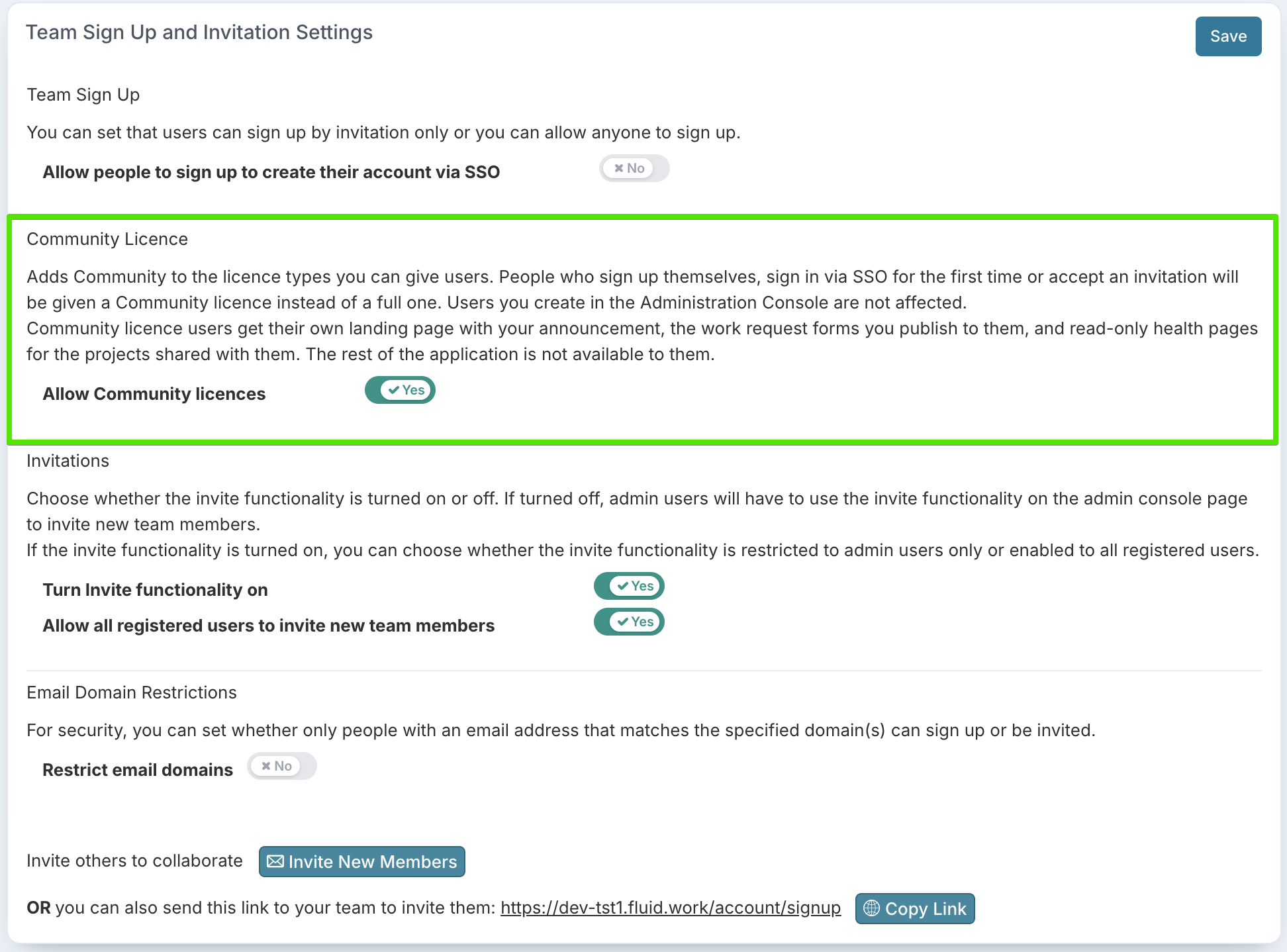
Important - this changes the default licence for people who create their own account. From the moment it is turned on, people who sign up themselves, sign in via SSO for the first time or accept an invitation receive a Community licence. Users provisioned via SCIM also receive Community unless they belong to a licence group, such as
Fluid Licensed User. Users you create in the Administration Console still default to Licensed, and existing users are not affected. If your organisation relies on new starters arriving with a full licence, plan for this - or test in a non-production site first.
Step 2 - Set up the Portal
Go to Administration Console > General Settings (under System Settings). A Community Portal section appears once Community licences are on.
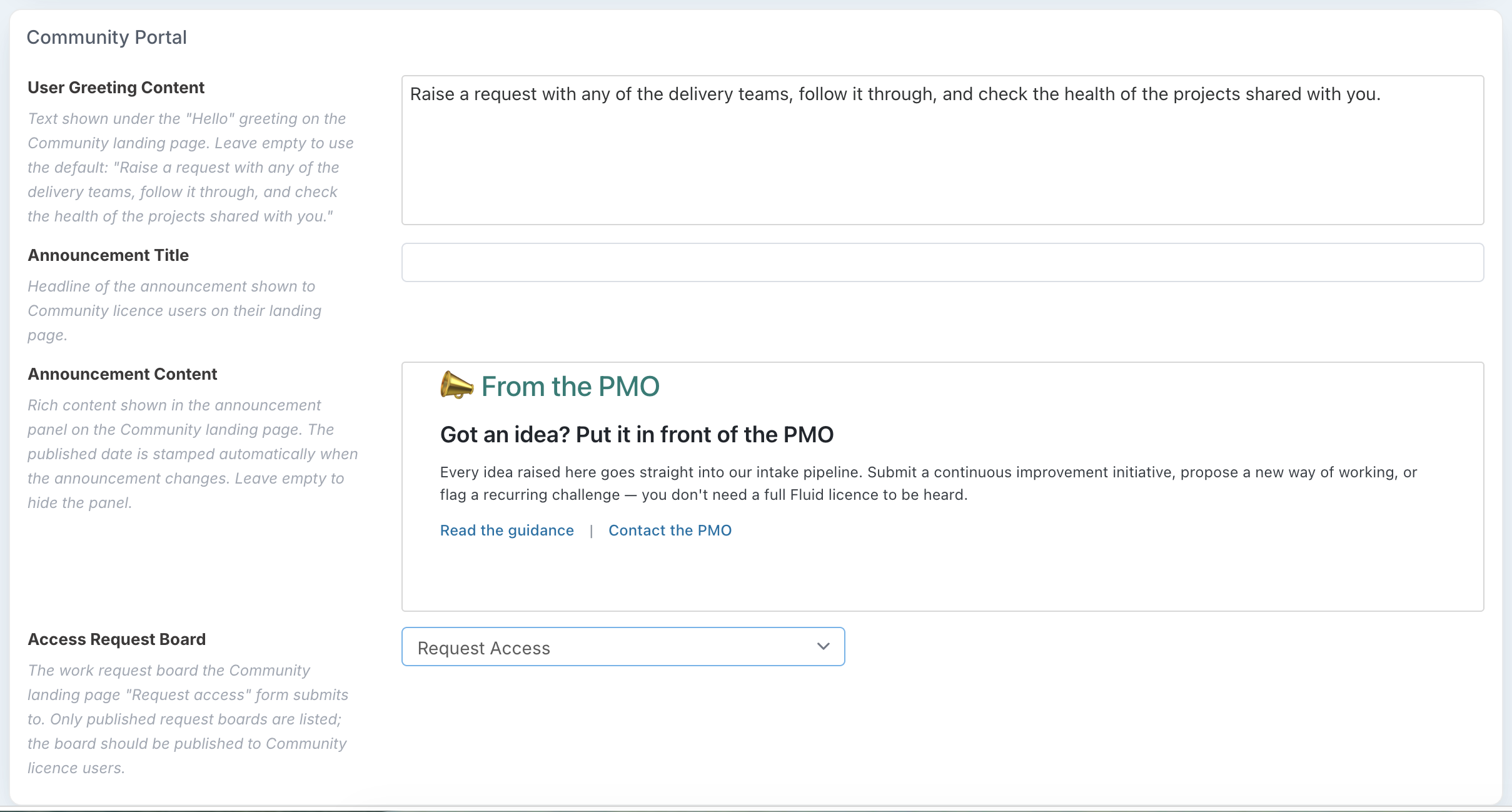
User Greeting Content - the text shown under the "Hello" greeting on the Portal. Leave it empty to use the default: "Raise a request with any of the delivery teams, follow it through, and check the health of the projects shared with you."
Announcement Title - the headline Community users see on their landing page.
Announcement Content - your welcome message: what the Portal is for, what is open for requests and where to get help. The published date is set automatically when the title or content changes, so saving other settings does not make the announcement look new. Leave it empty to hide the announcement.
Access Request Board - the board the Request access form submits to. Only published request boards are listed, and the board you choose should be published to Community users. Choose None to hide the request access form.
Step 3 - Give people a Community licence
Individually - in the Administration Console, edit the user and set their licence type to Community. A Community user can hold only the User role.
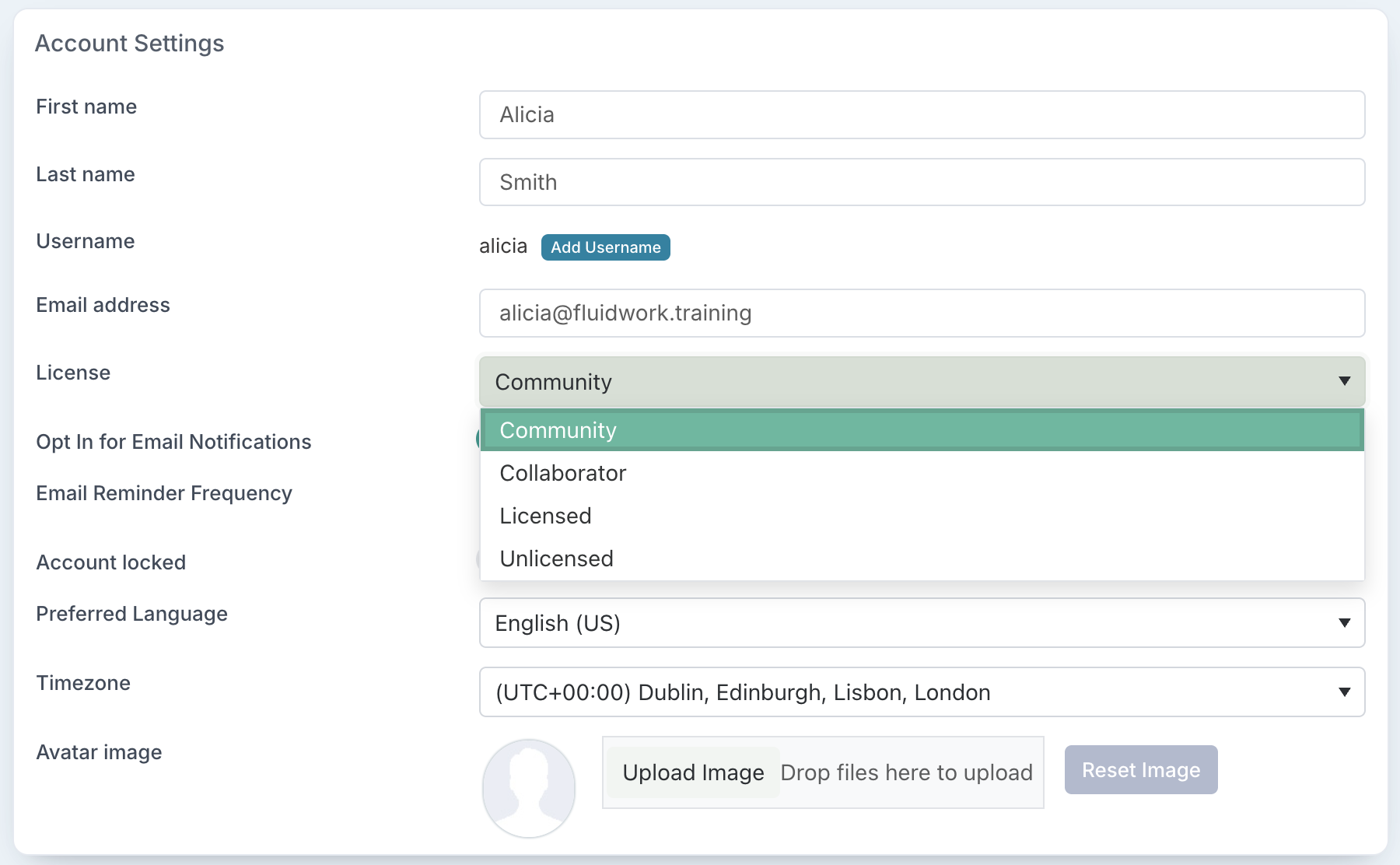
Automatically on sign-up - once Step 1 is done, people who sign up themselves, sign in via SSO for the first time or accept an invitation arrive as Community. Users you create in the Administration Console still default to Licensed, so choose Community for them yourself.
In bulk - the resource import accepts Community as a licence type.
Through your identity provider - see Provisioning Community users with SCIM below.
When you add a Community user, their resource plan defaults to the Exclude Utilization Type, so they are not treated as a resource in capacity planning. You can change this; if you set a Community user to Include, Fluid warns you that they will count as a resource on capacity reports they cannot open. See the Utilization Types article.
Step 4 (optional) - Let Community users see projects
If you want Community users to follow project health, turn on project sharing so project managers can share projects with them. See the Project Sharing article.
Provisioning Community users with SCIM
Community licences work with Fluid's existing SCIM group-based licensing.
SCIM group |
|
Assigns | The Community licence |
Requires | Community licences turned on (Step 1) |
Optional | Ask Fluid support to turn on Allow SCIM to promote the community license - when on, an unlicensed user given the User role is promoted to Community rather than Collaborator |
Add people to the Fluid Community User group in your identity provider (for example Entra ID or Okta) and they are provisioned as Community users on the next sync. Removing them from the group removes the licence in the usual way.
If the group is assigned while Community licences are off, Fluid ignores it rather than granting a licence type your site has not enabled.
This is the recommended way to roll Community licences out at scale - everyone in your directory can become a Community user without anyone administering accounts by hand.
Troubleshooting
The Portal shows no work request tiles. Check, in order:
Public request boards are enabled for your site - if not, ask Fluid support to turn on Allow Process Public Request Boards.
At least one board is a public request board (not members-only or limited request).
That board's Who can make requests to this board? includes Community users.
The board is not hidden from the Home widget.
The board is not a Stage Gate workflow board - these never appear on the Portal.
A shared project does not appear on a user's Portal.
The share may have ended or been revoked - check it on the project (see the Project Sharing article).
The Portal lists up to 12 shared projects. If more are shared with the person, they can open the others from the link in each share email.
A schedule task or RAID item is missing from a shared project's health summary. The summary only shows items at promotion levels L1 - L3. Items at L4 - Not Promoted or L5 - Suppressed are never shown to Community users - change the item's promotion level if it should be reported.
A schedule task or action assigned to a Community user is not in My requests. This is by design. My requests lists work requests only - the ones the user raised or is assigned to. Other items assigned to a Community user are not shown to them; see Assigning items to Community users above.
Setting a Community licence has no effect. Community licences are turned off (Step 1), or licence types are not enabled for your site - ask Fluid support to turn on Show User Licenses. The user's licence is left unchanged.
The Community Portal section is missing from General Settings. It only appears once Community licences are turned on.
New users are unexpectedly arriving as Community. This is the Community licence setting working as designed - it gives a Community licence to people who sign up themselves, sign in via SSO for the first time or accept an invitation, and to SCIM-provisioned users who are not in a licence group. Change individual users' licence type, add SCIM users to the right licence group, or turn the setting off if Community should not be the default.
I can't make a Community user a Delivery Team owner or give them an admin role. Community users can hold only the User role and can never own a Delivery Team. They can be a team member if their Utilization Type is Include.
Frequently asked questions
How are Community licences counted? In the same way as Licensed and Collaborator licences, but against your Community allowance: a user counts if they have the Community licence type at any point during a calendar month, whether or not they are active. If your organisation has unlimited Community licences, they are not counted. See How licences are counted in the Fluid Licence Types article.
Can I give Community licences to people outside my organisation? Yes. A Community user can only reach the Portal and the projects explicitly shared with them, so it suits external sponsors, clients, vendors and auditors who need a view of a project's health.
When should someone have a Collaborator licence instead? When they need to work in Fluid - on boards, in meetings, on actions or project tasks, or to record time. See the Collaborator Licence article.
Can a Community user be a project manager or hold a project role? No. Community users can hold only the User role.
Can I assign a schedule task or action to a Community user? Yes, but they cannot see or update it. The assignment shows who is responsible in your plans and reports, while someone with a Licensed or Collaborator licence keeps the item up to date. If the person needs to update their own items, give them a Collaborator licence. Work requests are the exception - a work request assigned to a Community user appears in their My requests, and they can edit it.
Can Community users see financials? No. Financials are left out of the project health summary and every financial page is closed to them.
Can they comment on requests? Yes, on requests they raised or are assigned to, and they can add attachments.
How does a Community user see a project? Only when it has been shared with them. They then see a read-only health summary on their Portal. See the Project Sharing article.
Do Community users work with SSO? Yes. Once Community licences are on, people signing in via SSO for the first time are given a Community licence.
How do I remove a Community user's access? Change their licence type to Unlicensed, or remove them from the Fluid Community User group if you use SCIM. Deactivating the user alone is not enough to stop them being counted - see How licences are counted in the Fluid Licence Types article.
What happens if I turn Community licences off after assigning them? Community users keep the Community licence type on their record, but Fluid stops honouring it and new Community licences cannot be assigned. Move users to another licence type before turning the feature off - the licence type on their record is what is counted.
Does a Community user have to be excluded from capacity planning? No. Exclude is only the default. See the Utilization Types article.