User roles: ✔ Application Administrators ✔ Data Administrators ✔ Board Owners (for board properties)
Some questions only matter in certain cases. A privacy impact assessment matters only when an AI system will use customer or regulated data, and only on technology projects. Asking every project for it makes the form longer for everyone, and leaves blank answers in reports.
A simple dependency can show a follow-up question when one other property has a particular answer. Advanced applicability goes further: you write the rule yourself, as an applicability expression, and one rule can combine several custom properties with the item’s own fields, such as a project’s Sub-Portfolio or Project Type. Rules chain together into a dependency tree: when a property is hidden, every property that depends on it is hidden too, so people only ever see the questions that apply to them.
In this article you will learn how Fluid decides whether to show a property, how to set up and write an applicability expression, how a dependency tree works through a worked example, and how Fluid helps you keep dependencies working when properties change.
Before You Start
To change project properties, or any properties used across Fluid, you must be an Application Administrator or a Data Administrator. To change a board’s properties, you must be an Owner of that board.
Create the properties your rule will read before you write it. If a property only depends on one answer to one other property, simple applicability is enough: see Conditional Custom Properties: Simple Applicability.
How Fluid Decides Whether to Show a Property
Fluid checks every custom property in this order:
Applicable statuses. If the property has applicable statuses, the item must be in one of them. A property limited to Build is hidden on a project in Draft, whatever else is true.
Its rule. If the property depends on something, under Show This Property, that condition must be met.
A property that fails either check is hidden, and counts as blank to every property that depends on it. That one rule is what makes dependency trees work. Fluid applies the same checks while you fill in the form and again when you save.
Setting Up an Applicability Expression
Open the property in Custom Properties and go to its Applicability section.
If the property only applies in some statuses, choose them in Applicable for statuses. Leave it empty for all statuses. This field only appears for items that have statuses.
Under Show This Property, choose When an expression is true.
Type the rule in Applicability Expression. See Writing the Expression below.
Check the message under the field. Expression is valid. means the rule can be used. A red message explains what is wrong.
Check the Dependency Tree to see where the property now sits, then save the property.
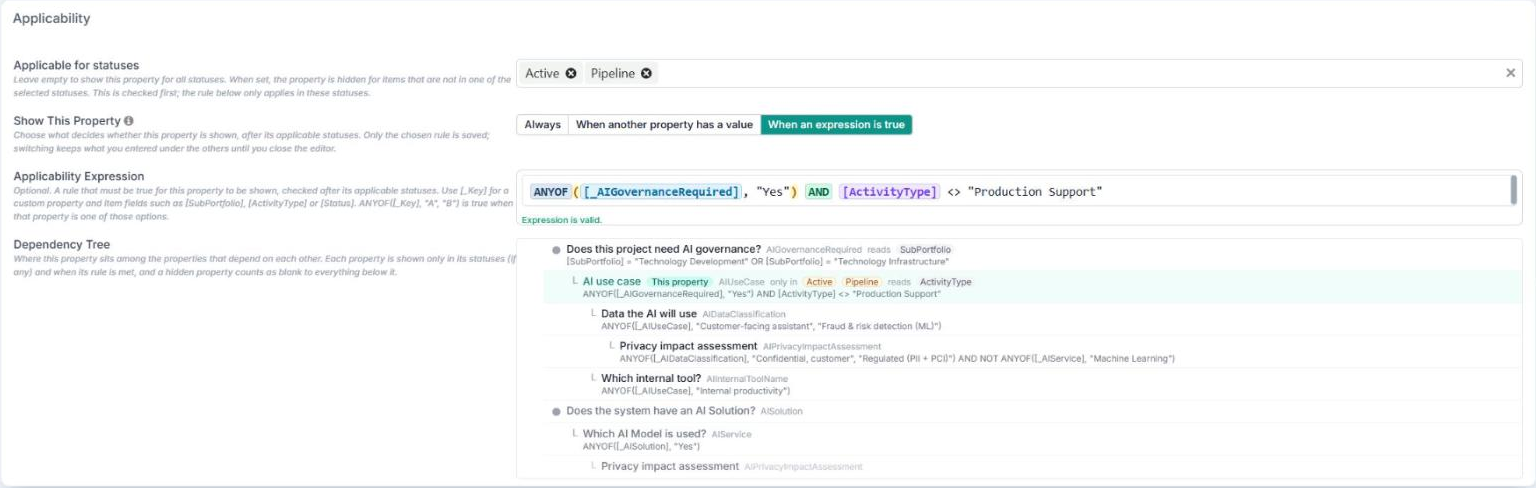
Only the choice selected under Show This Property is saved. Switching between the choices keeps what you entered under each one until you close the editor, so a stray click does not lose a rule you were writing.
Starting from a simple dependency
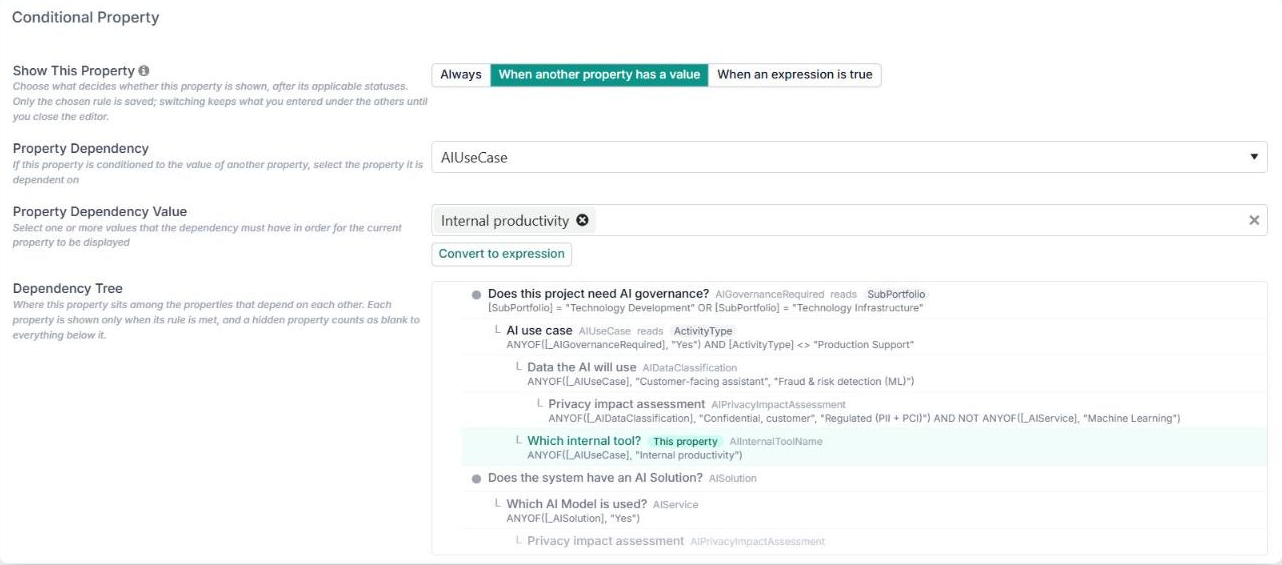
If the property already has a simple dependency, select Convert to expression under Property Dependency Value. Fluid writes the same condition as an expression, such as ANYOF([_AIUseCase], "Internal productivity"), and switches the property to When an expression is true. Nothing changes until you edit the rule, and you can then extend it with AND, OR or the item’s own fields.

Writing the Expression
An applicability expression uses the same language as calculated properties, and must work out to true or false. When you click into the field, it offers autocomplete, and Functions and Fields menus that insert them for you. On project properties, Evaluate tries the rule against a project you choose, with a step-by-step trace. Where FluidAI is turned on, AI Assistant drafts a rule from a plain-English description.
Referring to properties and fields
To read | Write | Example |
|---|---|---|
A custom property | [_Key]: an underscore, then the property’s key | [_AIUseCase] |
A project’s Sub-Portfolio | [SubPortfolio] | [SubPortfolio] = "Technology Development" |
A project’s Type | [ActivityType] | [ActivityType] <> "Production Support" |
The item’s status | [Status] | [Status] = "Active" |
A card’s own field, such as Priority | [Priority] | [Priority] = "High" |
The label of a scored option | [Key-Option] | ANYOF([Risk-Option], "High") |
Always use the underscore form for a custom property. It means the custom property even when a built-in field has the same name.
Conditions
Use | Means | Example |
|---|---|---|
ANYOF | the field is one of these options | ANYOF([_AIUseCase], "Customer-facing assistant", "Fraud & risk detection (ML)") |
AND | both must be true | ANYOF([_AIGovernanceRequired], "Yes") AND [ActivityType] <> "Production Support" |
OR | either can be true | [SubPortfolio] = "Technology Development" OR [SubPortfolio] = "Technology Infrastructure" |
NOT | the opposite | NOT ANYOF([_AIService], "Machine Learning") |
= and <> | equals, does not equal | [Status] <> "Closed" |
COALESCE | use a fallback when blank | COALESCE([_Notes], "") <> "" |
Good to know about ANYOF:
It matches whole options, ignoring upper and lower case. Option names that contain commas, ampersands, brackets or dashes work exactly as written.
For a multi-select property, it is true when any selected option is in the list.
Yes / No properties read as "Yes" and "No".
A blank field never matches, which is how a hidden parent hides its children. When a blank answer should count as a match, use NOT: NOT ANYOF([_AIService], "Machine Learning") is true when the model is anything else, or not answered.
A rule can also read a calculated property, so you can work something out once and use it in several rules.
How Dependency Trees Work
Because a hidden property counts as blank, rules chain. If the top question is hidden, the question that depends on it reads it as blank and is hidden too, and so on down the branch, at any depth. You never have to repeat “and the first answer is Yes” in every lower level. A property can also read properties from different branches.
The Dependency Tree in the property editor shows every property the one you are editing is connected to:
The property you are editing is highlighted and marked This property.
Each row shows the property’s label, its key and the rule that decides when it is shown.
Item fields that a rule reads, such as SubPortfolio or ActivityType, are shown as tags.
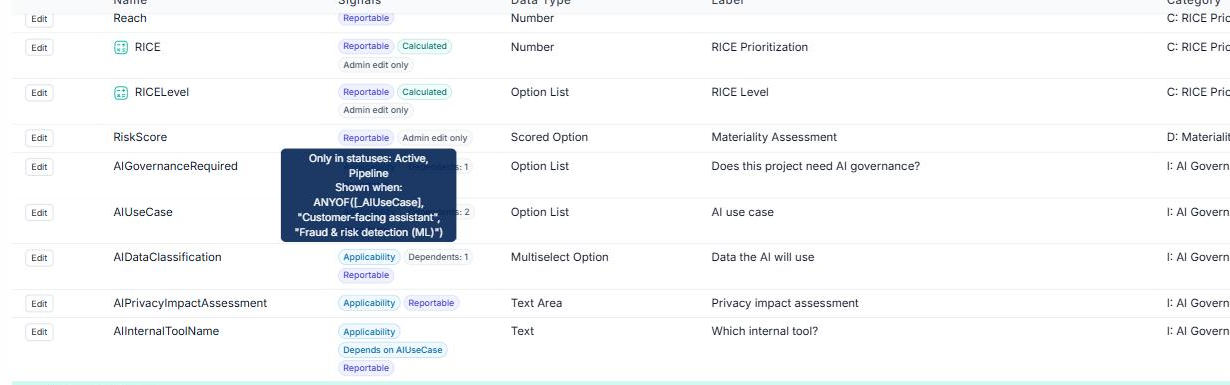
A property limited to some statuses lists them, for example only in Active, Pipeline.
Branches that join the tree lower down are shown in grey. A property that appears in two places is shown in full once and greyed the second time.
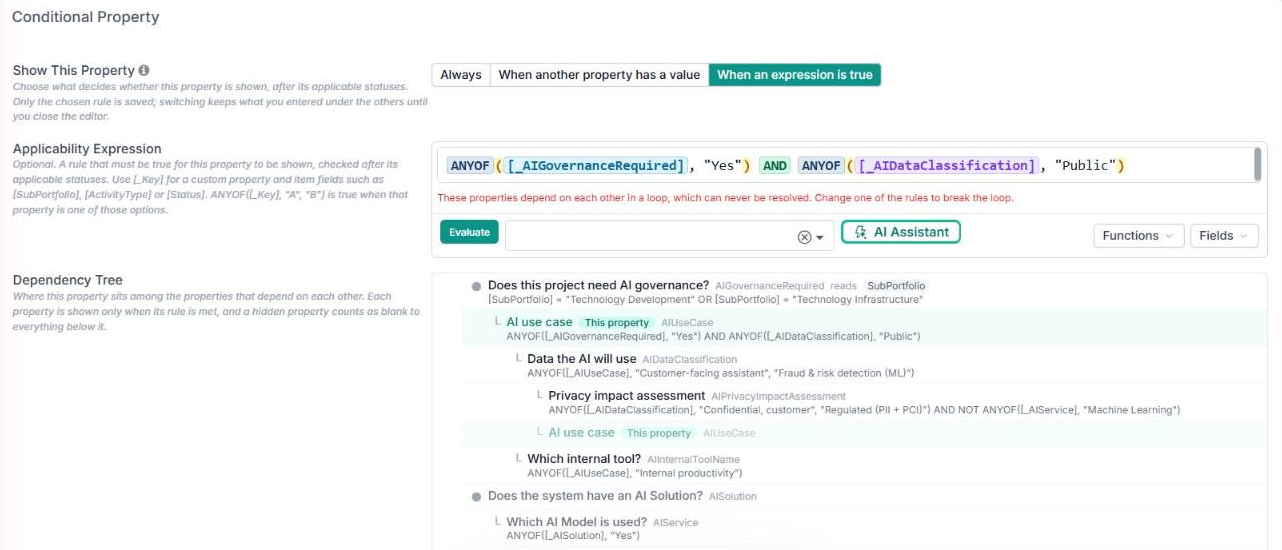
The tree follows your changes as you edit, so you can check the effect before you save. If a rule would create a loop, the property appears again beneath its own dependent, and the field explains why it cannot be saved.
Worked Example: AI Governance on Projects
This example builds four levels of questions on projects. It starts from two project fields, Sub-Portfolio and Project Type, and ends with a check that reads two other properties, one of them from a separate, existing branch.
Level | Property | Type | Shown when | Rule |
|---|---|---|---|---|
1 | Does this project need AI governance? | Option: Yes, No | the Sub-Portfolio is Technology Development or Technology Infrastructure | [SubPortfolio] = "Technology Development" OR [SubPortfolio] = "Technology Infrastructure" |
2 | AI use case | Option: Customer-facing assistant, Internal productivity, Fraud & risk detection (ML) | level 1 is Yes and the Project Type is not Production Support | ANYOF([_AIGovernanceRequired], "Yes") AND [ActivityType] <> "Production Support" |
3 | Data the AI will use | Multi-select: Public, Internal, Confidential, customer, Regulated (PII + PCI) | the use case is customer-facing or fraud detection | ANYOF([_AIUseCase], "Customer-facing assistant", "Fraud & risk detection (ML)") |
3 | Which internal tool? | Text | the use case is Internal productivity | Simple dependency: AI use case = Internal productivity |
4 | Privacy impact assessment | Text area | customer or regulated data is used, and the AI model is not plain Machine Learning | ANYOF([_AIDataClassification], "Confidential, customer", "Regulated (PII + PCI)") AND NOT ANYOF([_AIService], "Machine Learning") |
1. The tree starts from the project’s own fields. This project is in Technology Development and is an IT for IT project, so the I: AI Governance category appears in its side menu.
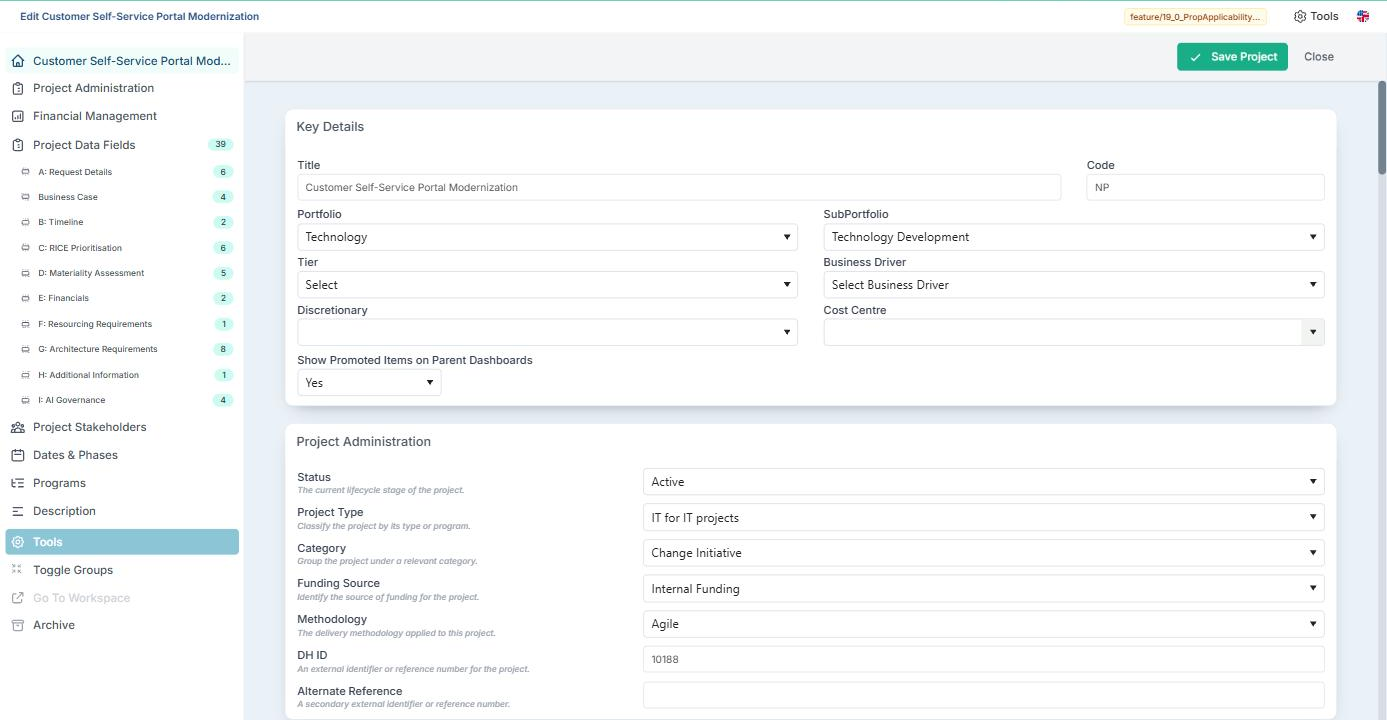
2. Each answer reveals the next level. At first only level 1 is shown. Answering Yes shows AI use case. Choosing Customer-facing assistant shows Data the AI will use. Ticking Confidential, customer or Regulated (PII + PCI) shows the Privacy impact assessment. The section heading counts the fields that currently apply.
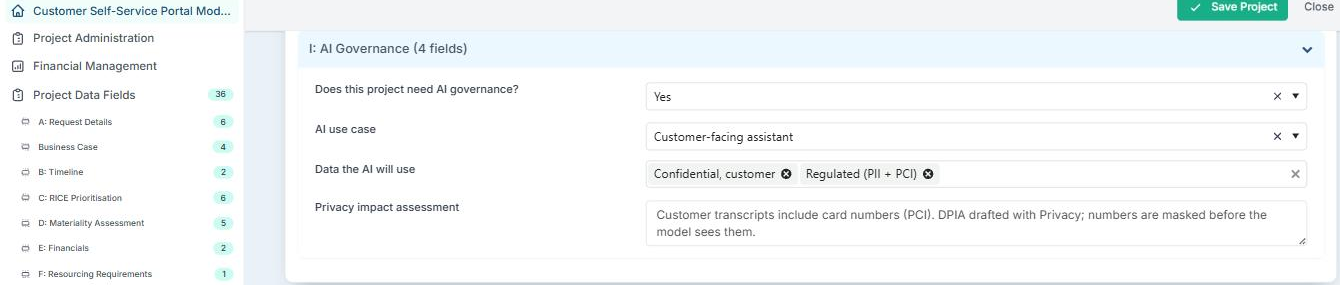
3. Changing an answer changes the tree. Change the use case to Internal productivity: Data the AI will use and Privacy impact assessment are hidden, and Which internal tool? appears instead. Change it back before saving and both return with your answers still in them.

4. Switching off the top hides the whole branch. Set level 1 to No, and every level beneath it is hidden.

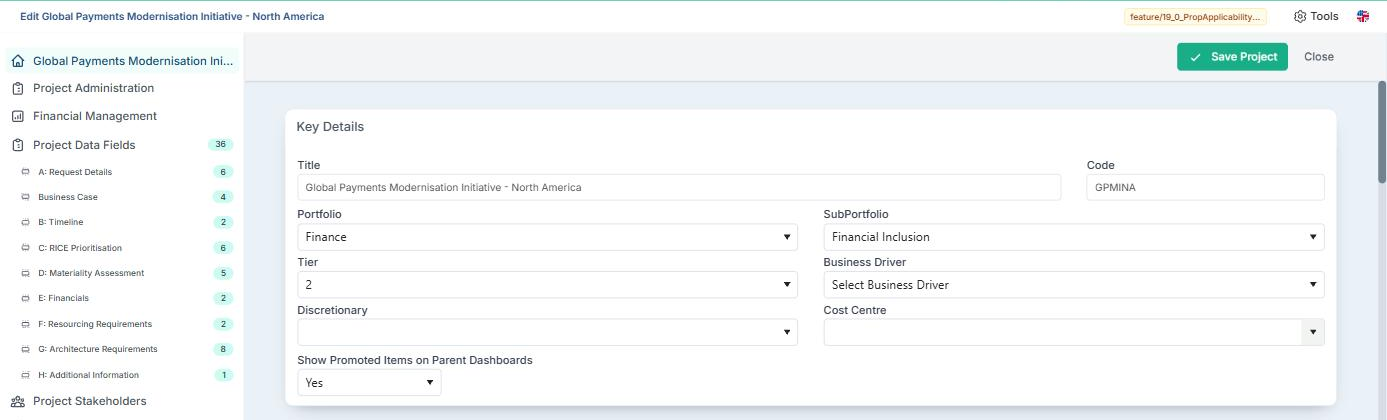
5. Projects the tree does not apply to never see it. On a project in another Sub-Portfolio, here Financial Inclusion, none of the questions apply, so the category does not appear at all.
Setting One Rule for a Whole Category
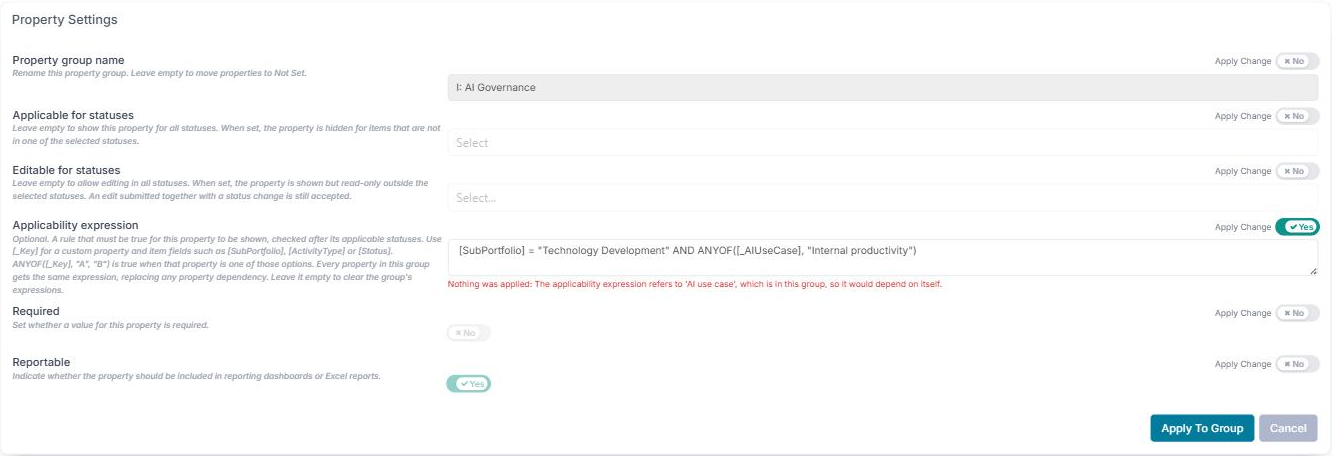
To give every property in a category the same rule, group the properties table by Category and select Bulk Set on the category. Switch on Apply Change for Applicability expression, type the rule and select Apply to Group. Every property in the category gets that expression, replacing any simple dependency it had. Leave the rule empty to clear the category’s expressions: simple dependencies are then left as they are.
Bulk Set is available where the items have statuses. The rule box there is plain text, without the editor’s tools, so it can help to write and test the rule on one property first.
Fluid checks the rule first and changes nothing if it is not valid, refers to a property that does not exist, would create a loop, or refers to a property in the same category, because that property would then depend on itself.
What Happens to Answers When a Property Is Hidden
While you edit, a hidden property keeps its answer. Bring it back and the answer is still there.
When you save, answers to properties that do not apply are removed, so only answers to questions that apply are stored, reported and exported.
Keeping Dependencies Working
Reading the properties table
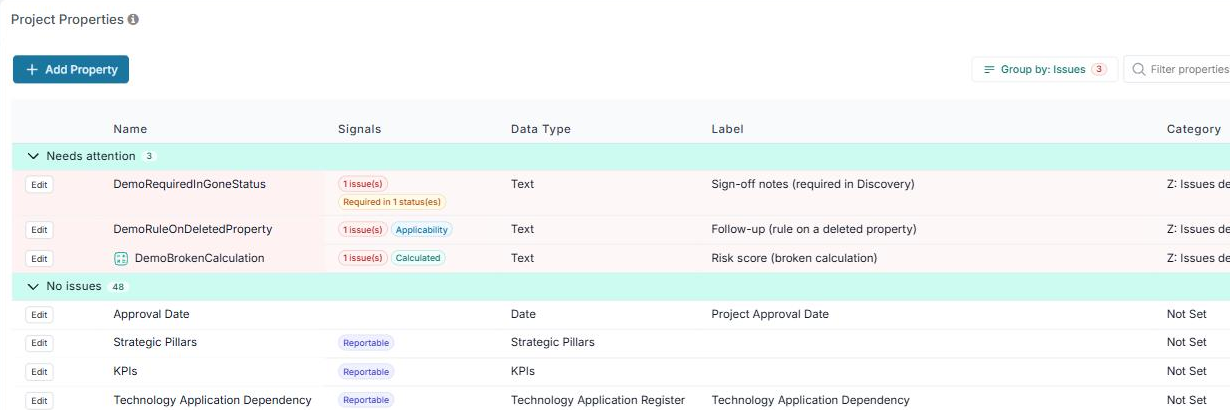
The Custom Properties list shows small pills on each row, so you can see how every property is set up without opening it.
Pill | Means |
|---|---|
Applicability | The property is only shown sometimes. Hover over it to see its statuses and its rule. |
Depends on a property key | It has a simple dependency on that property. Select it to highlight the parent. |
Dependents: n | n other properties depend on it. Hover over it to see which. |
Required or Required in n status(es) | It must be filled in, always or only in those statuses. |
Reportable | It is included in reporting dashboards and Excel reports. |
Calculated | Its value is worked out by an expression. |
Admin edit only, Read only or Admins only | Read-only for non-admins, read-only for everyone, or hidden from non-admins. |
n issue(s) | Something about its setup no longer works. Hover over it for the details. |
Properties that need attention
A property is highlighted in red, with an issue pill, when:
it uses a status that the board or project no longer has, for example a board column that was renamed or removed
its rule cannot be understood, refers to a property that no longer exists or to itself, or creates a loop
it depends on an option that its parent property no longer has
its calculated expression cannot be understood
The Group by button shows how many properties need attention. Group by Issues to gather them at the top. You can also group the table by Category, Type, Applicable status, Required, Reportable, Visibility mode or Dependency tree, or choose No grouping. Properties can only be dragged into a new order when grouped by Category.
When you change or delete a property others depend on
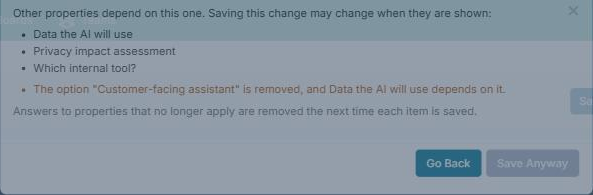
Changing it: if the change could affect when its dependents are shown, for example removing an option they rely on, changing its type, or changing its own rule or statuses, Fluid lists every property below it, with what changed, before saving. Select Go back to review, or Save anyway.
Deleting it: a simple dependency on it is removed, so the dependent is then always shown. An expression that refers to it is not rewritten: it reads the deleted property as blank, so its property stays hidden until you change the expression.
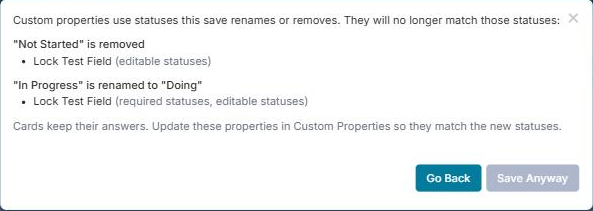
Renaming or removing a board status: if properties use that status in their applicable, required or editable statuses, or compare [Status] to it in a rule, Fluid lists them before saving the board. Cards keep their answers; update those properties to match the new statuses.
Good to Know
A mistake never hides data. If a saved rule cannot be understood or worked out, the property stays visible and keeps its answer.
Fluid will not save a rule that cannot work, whether from the property editor, the Bulk Set dialog or the API: an invalid rule, one that refers to a property that does not exist or to itself, or one that creates a loop.
Integrations are safe. When an integration or the Fluid API updates only some properties, the ones it did not send are still taken into account, so a dependent answer is not removed just because its parent was not part of the update.
Existing simple dependencies keep working, including chains of them. They now also match regardless of upper and lower case, can depend on a multi-select property, and are hidden on save when their parent is hidden by its status.
Keep trees shallow. Fluid handles any depth, but three or four levels are easiest for people to follow.
Troubleshooting
A property never appears. Open it and read the Dependency Tree: is each level above it shown, with one of the expected answers? Check the item’s status against the property’s applicable statuses.
A property appears when you expected it hidden. Its rule may no longer be valid, and invalid rules leave properties visible on purpose. Open the property: the editor says what is wrong.
Answers disappeared after saving. The property did not apply when the item was saved, so its answer was removed. Make the property apply again and re-enter the answer.
Test with real items. Open one item that should see the whole tree and one that should see none of it, as in steps 2 and 5 of the example.