User roles: ✔ MCP access ✔ Application Administrator ✔ Integration Administrator You may already use an AI app such as Claude, Microsoft 365 Copilot or GitHub Copilot for your everyday work. Without a connection, getting it to help with your projects means copying information out of Fluid and pasting answers back in by hand.
Fluid can be connected to these apps through MCP, so you can ask an assistant about your work in Fluid and, where you allow it, have the assistant make updates for you. The app signs in to Fluid as you, so it only sees and changes what you can, and you choose what it may do.
In this article you will learn what MCP is, how to connect an app, how to approve what it may do, how to disconnect it, and what your administrator needs to do first.
Before You Start
Your administrator has switched on MCP and given you access. You need the MCP access role, unless you are an Application or Integration Administrator. See What your administrator needs to do first below.
You have an AI app that supports MCP connectors with sign-in, such as Claude, Claude Code, GitHub Copilot or Microsoft 365 Copilot.
You know your site's MCP address. It is
https://<your site>/mcp, and Fluid shows it to you with a Copy button.
Important: read this first
AI agents are not always correct. An agent can misread your data, misunderstand an instruction, or make a change you did not intend.
Changes an agent makes in Fluid are made as you, and they are your responsibility. When you connect an AI app and approve what it may do, you are authorising it to act on your behalf. Review what an agent proposes before you accept it, start with read-only access if you are unsure, and check the result afterwards. Changes are recorded against your name, just like changes you make yourself.
FluidAI and MCP: what is the difference?
FluidAI is the set of AI features built into Fluid, such as assistants, guidance checks and project summaries. Administrators turn these on and off in Administration Console → FluidAI → FluidAI Features & Assessments.
MCP works the other way round. Instead of Fluid providing the AI, it lets an AI app you already use connect to Fluid and work with your data.
The two are independent. You can use either, both, or neither.
What is MCP?
MCP (Model Context Protocol) is an open standard that lets AI apps connect to other systems. Think of it as a connector: once an app is connected, it can look things up in Fluid, and if you allow it, make changes, without you copying information back and forth.
Examples of what a connected app can do, depending on what you allow:
Read boards and cards, and find work that is overdue or blocked.
Create, update, move or archive cards.
Post a project status report.
Log or update a risk or an issue.
Shift schedule dates.
Every tool an app can use is listed in Fluid MCP (Connectors) Tools Definition.
Connect an app
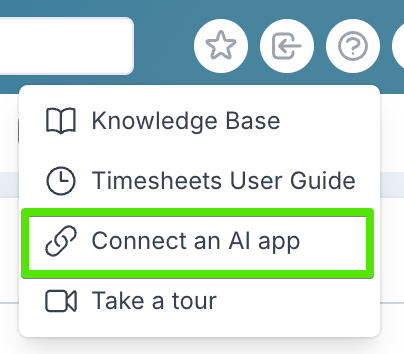
In Fluid, open the Help menu and choose Connect an AI app. This opens Connected AI apps.
Copy your Fluid MCP address,
https://<your site>/mcp, with the Copy button.In your AI app, add Fluid as a custom connector or MCP server, using that address. The panel shows the steps for Claude and Claude Code. For GitHub Copilot, Microsoft 365 Copilot and other apps, see Managing Fluid AI Connectors (MCP) for Administrators.
When the app opens Fluid, sign in as you normally do, and approve what the app may do (see below).
Approve what the app may do
Each connection is approved with OAuth. It is the same kind of sign-in you see when you use a Google or Microsoft account to log in somewhere else.
Fluid shows a consent page with where it will send the access first. Only continue if you started the connection yourself, from that site or from an app on your own computer.
The page lists what the app is asking for. Reading, and asking FluidAI, are ticked for you. Anything that changes or deletes data is off unless you tick it. Select all ticks or clears every box.
Choose Allow or Deny.
The app never sees your password. It acts as you, with your permissions, so it can only see and change what you can.
See and disconnect your apps
Open your user menu and choose Connected AI apps (or Personal Access Token, where your site uses Personal Access Tokens). You can also get there from Help → Connect an AI app.
The panel lists the apps you have connected. To stop an app, choose Disconnect. It stops working straight away, and you would need to connect it again to use it.
What your administrator needs to do first
MCP is off by default on every site. Before you can connect an app:
Fluid makes MCP available on your site.
An Application Administrator switches on Enable MCP Access.
An Application Administrator gives you the MCP access role and turns off Administrators only (evaluation), which is on at first so administrators can try MCP before anyone else.
Administrators also choose which tools apps can use, and can see and revoke every connection. All of this is covered in Managing Fluid AI Connectors (MCP) for Administrators.
Staying safe with AI agents
Treat an agent's answers as a draft. Check figures, dates and names before you rely on them or share them.
Be specific about what you want changed, and review the change before you confirm it.
Be extra careful with anything labelled Changes data or Permanent.
Only connect apps you trust, and only from a link you started yourself.
If something changed that should not have, tell your administrator. Changes are recorded against your name.
Good to Know
Agent calls are marked. Fluid's usage logging marks calls that come through an AI app, so they can be told apart from you using Fluid directly. The changes themselves are still recorded as you.
Connections expire. A connection lasts up to 90 days, or ends sooner if the app doesn't use it for 30 days. You then sign in again.
Your administrator can switch tools off. A tool switched off for your site isn't available to any app, whatever you allowed.
Information goes to the AI provider. What an app reads from Fluid is passed to that app's AI provider, under your own agreement with that provider.
Frequently asked questions
Can an AI app see everything in Fluid?
No. It acts as you, so it can only see and change what you can, and only what you allowed on the consent page and your administrator has left switched on.
Does the app store my password?
No. It never receives it.
I do not see Connect an AI app in my Help menu.
MCP is not turned on for your site, you have not been given the MCP access role, or MCP is still limited to administrators. Ask your administrator.
Who is responsible if an agent makes a mistake?
The person who authorised the connection. Please review changes before and after.