By default, a card on a process board can be moved from any column to any other column. For many boards that's exactly right. For others — an intake board, an approvals process, anything with a defined path — you'll want to stop cards jumping straight from Draft to Approved, or being dragged back out of a closed column.
Column move restrictions let a board admin say, for each column, which columns a card in it can be moved to. Everyone working on the board then sees the allowed moves as they work — and the moves that aren't allowed simply can't be made.
Who can set these up
Board owners (board admins). You'll find the setting on each column under Board → Edit → Define board columns.
How it works
-
Each column has a Can Move To list.
-
Leave the list empty and cards in that column can move to any column — this is the default, so nothing changes on your board until you set a rule.
-
Add columns to the list and cards in that column can only move to the columns you've listed.
-
A column you add to the board later is not included in an existing list until you add it. Rules never open up a new route without you choosing it.
-
The rule belongs to the column the card is leaving. Restricting where Draft cards can go says nothing about which cards can arrive in Draft.
-
Rules are stored against the column itself, so renaming a column doesn't break them.
Set up a move restriction
-
Open the board and click Edit.
-
Scroll to Define board columns. Each column is shown as a single row, with its current settings as small coloured pills.
-
Click Edit on the column you want to restrict. Its full settings open underneath the row.
-
In Can Move To, pick the columns a card in this column should be allowed to move to.
-
Repeat for any other columns, then click Save Board.
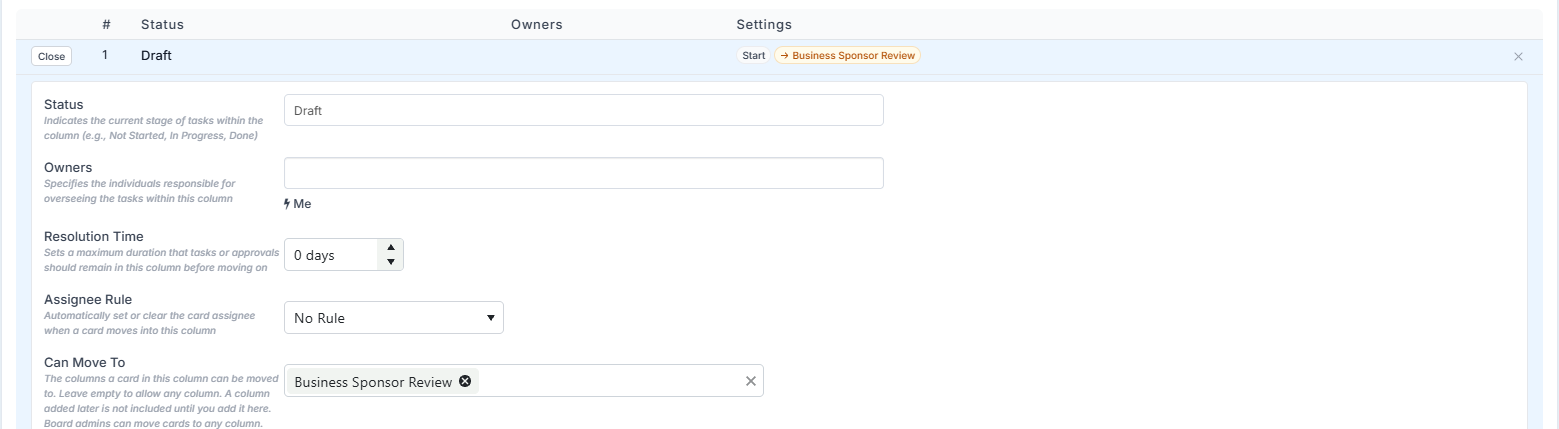
Once saved, the column's row shows an amber pill listing where its cards can go — for example → Business Sponsor Review. Hover the pill to see the full list.
Tip: start with the columns that matter most — usually the first column (so cards can only be submitted forward) and your closing columns (so finished cards aren't dragged back by mistake).
What people on the board see
You don't need to tell your team about the rules — the board shows them.
On the board
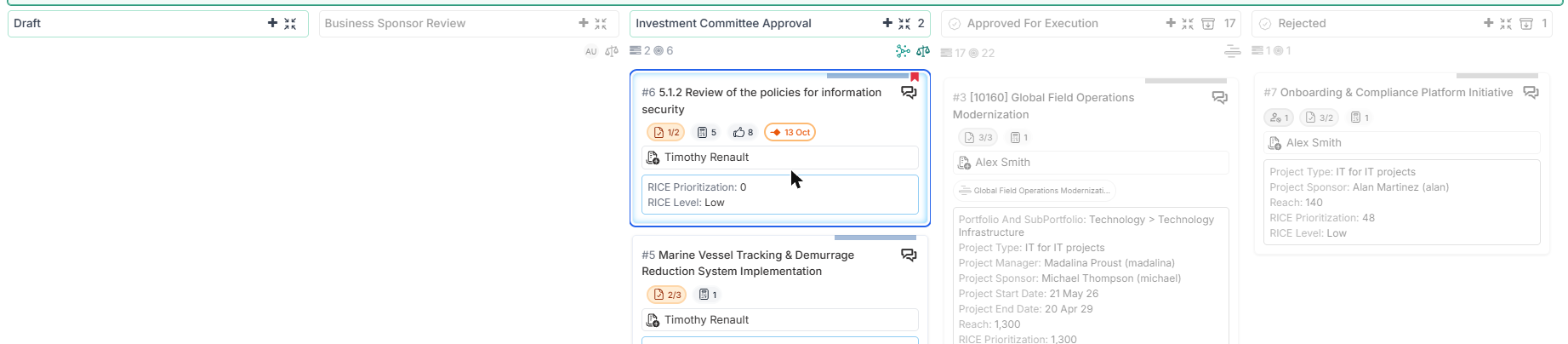
When someone starts dragging a card, every column it can't go to is greyed out straight away, so they can see where it can go before they let go. If a card is dropped somewhere it isn't allowed, Fluid shows a message explaining why — for example "A card in 'Draft' can't be moved to 'Approved For Execution' on this board." — and puts the card back.
In the card
On the card's Process Status pills, columns the card can't move to are faded and can't be clicked; hovering one explains why. The status button next to Save (it shows the card's current status, e.g. Draft ▾) lists the same columns greyed out and marked Not allowed from the current status.
The rule is judged from the column the card is saved in. Picking a different pill in the card doesn't change which columns are allowed — the move only happens when the card is saved.

Board admins can still move cards anywhere
Board owners aren't held to the rules — sometimes a card genuinely needs to go somewhere unusual, and the person who set the rules should be able to fix it.
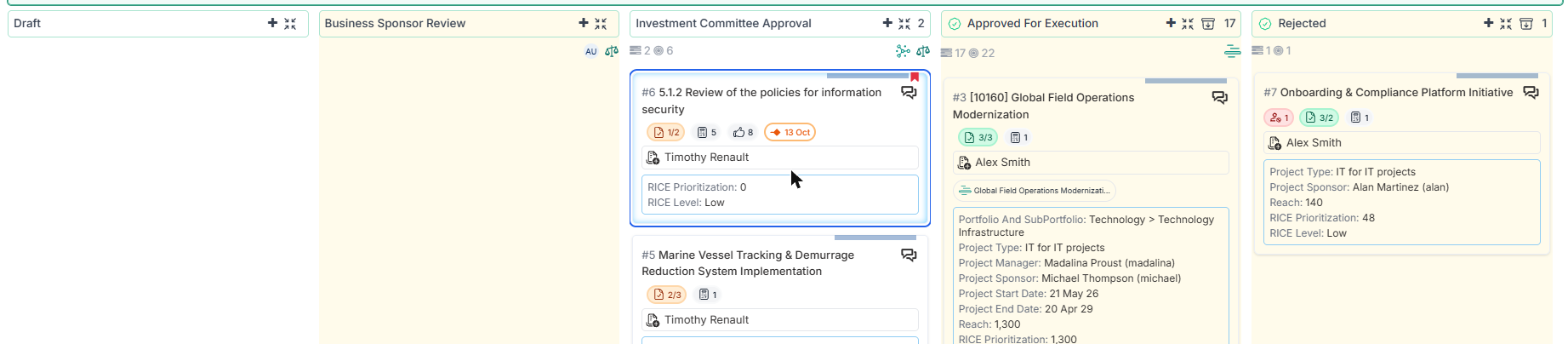
For board owners, columns a card wouldn't normally be allowed into aren't blocked — they're just shown with a soft yellow tint, on the board while dragging and on the card's status pills, so it's clear the move is an exception.
Approvals and integrations aren't affected
Move restrictions only apply to moves people make — dragging on the board, changing the status in a card, and the board's API.
Moves Fluid makes for you are never blocked:
-
Workflow approvals — when an approver approves or rejects a card and the column is set to move the card, it moves to the configured column whatever the rules say.
-
Integrations such as Jira and Azure DevOps keep cards in step as usual.
-
Imports and other system updates.
This means you can safely restrict a review column so people can't push cards forward by hand — the approval decision moves them on.
Example: a project intake board
A typical intake board might be set up like this:
|
Column |
Can Move To |
Why |
|---|---|---|
|
Draft |
Business Sponsor Review |
Requests can only be submitted. |
|
Business Sponsor Review |
Draft |
The requester can withdraw it. Approval moves it forward. |
|
Investment Committee Approval |
Draft |
Can be withdrawn. Approval decides Approved or Rejected. |
|
Rejected |
Draft |
Rework and resubmit. |
|
Approved For Execution |
(empty — any column) |
|
With these rules, nobody can drag a request straight from Draft to Approved For Execution, and cards only reach the approval outcomes through the approvals themselves.

Good to know
-
Backlog and archive aren't columns, so they're never restricted. Sending a card to the backlog or archiving it works as it always has.
-
Saving a card without changing its status is always allowed, whatever the rules.
-
"Submit to …" on a work request goes to the first column to the right that the card is allowed to move to.
-
Closed cards: the Reset to a status list on a closed card only offers the columns it's allowed to move to.
-
An empty list always means any column. There isn't currently a way to say "cards can't be moved out of this column at all" — the closest is to list only the column cards should be able to return to.
Frequently asked questions
I set a rule but someone still moved a card there. Check whether they're a board owner — owners can make any move. Also check whether the card was moved by an approval or an integration, which aren't restricted.
Why can I see the column but not move the card into it? The column the card is currently in doesn't list it under Can Move To. Ask a board owner to add it, or move the card through a column that is allowed.
Will setting a rule move any existing cards? No. Rules only affect future moves. Cards stay exactly where they are.
Can I make rules depend on a card's properties? Not yet — rules are a simple per-column list for now.