Overview
Fluid's home page has three independently configurable content areas, set from Administration Console → General Settings → Home Page Setup: Home Page Header Content, Home Page Carousel, and Home Page Secondary Content.
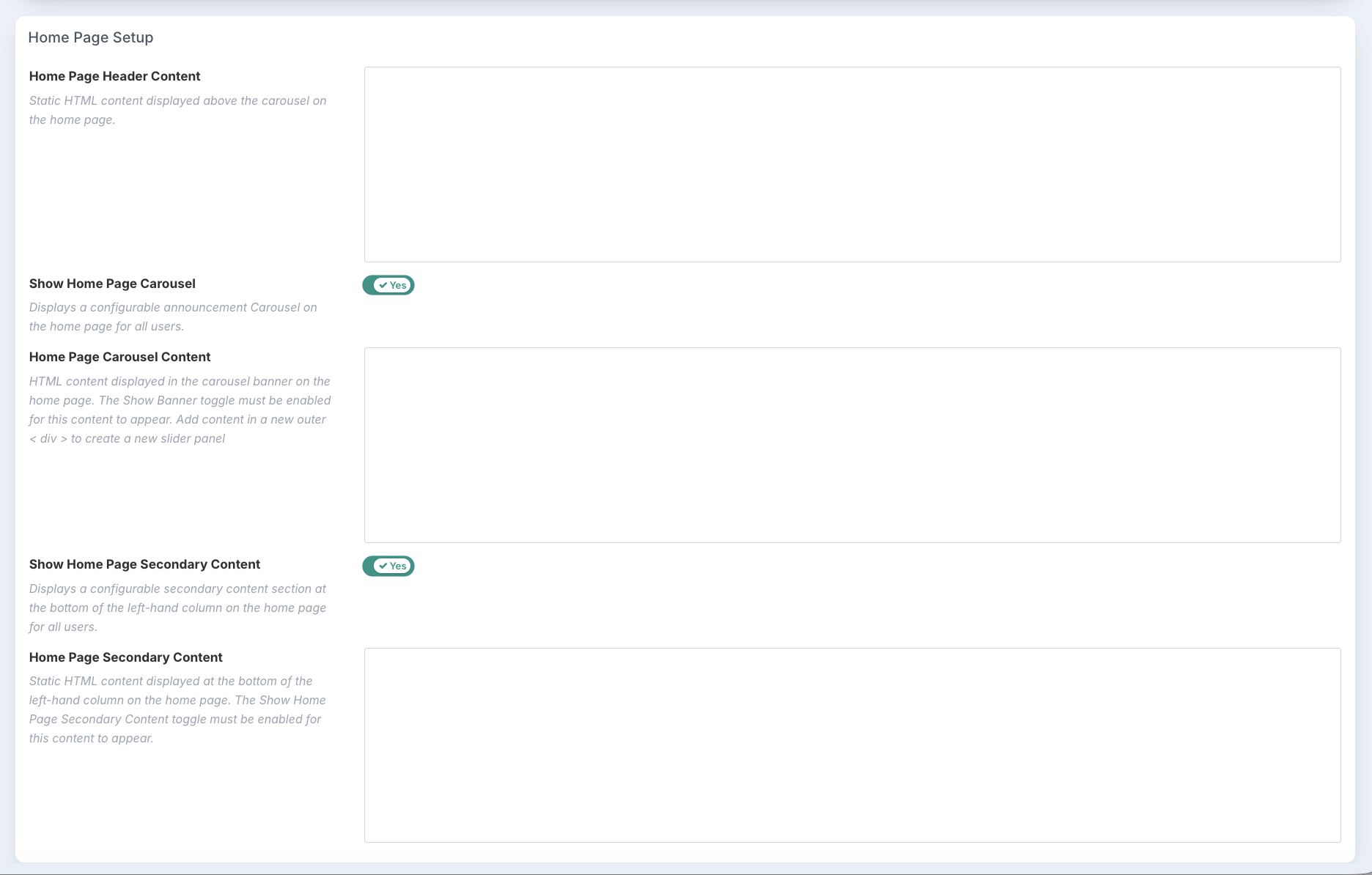
Home Page Header Content — static image, Rich Text Format, or HTML content displayed below the carousel on the home page.
Home Page Carousel Content — a configurable announcement carousel, shown to all users. Add more than one rotating slide by wrapping each slide's content in its own outer
<div>.The 'Show Home Page Carousel Content' toggle must be enabled for this content to appear on the home page.
Home Page Secondary Content — static image, Rich Text Format, or HTML content displayed at the bottom of the left-hand column on the home page.
The 'Show Home Page Secondary Content' toggle must be enabled for this content to appear on the home page.
Methods for Creating Content
Using the Rich Text Editor
The simplest method of adding content to the customisable content areas, is to use the rich text editor on the page. You can add content directly to the text editor for each of the content areas. When you click into the box, a floating toolbar will appear with options for formatting text based content.

Clicking on the 3 ellipses on the right side of the toolbar opens up a menu with a list of formatting tools you can use. You can use the tools to add and format text, create tables and even paste images.
Create a Table
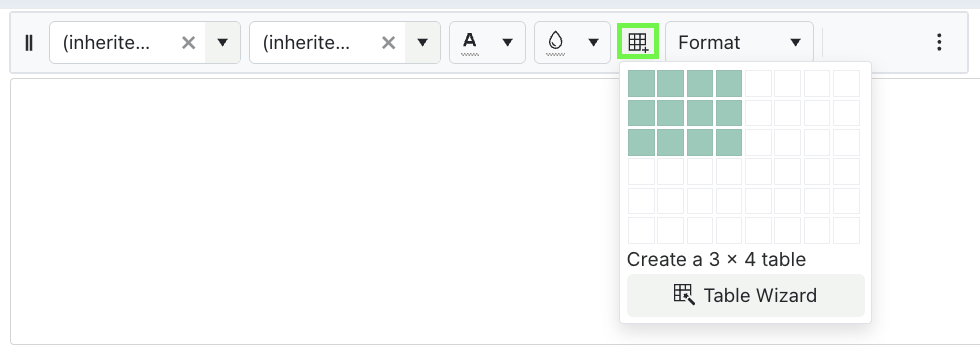
To add a table, click the table icon as pictured below and select the table size to create.
Example of a basic table used in the Home Page Secondary Content area:

Here's how it renders on the home page:

Design Content in PowerPoint
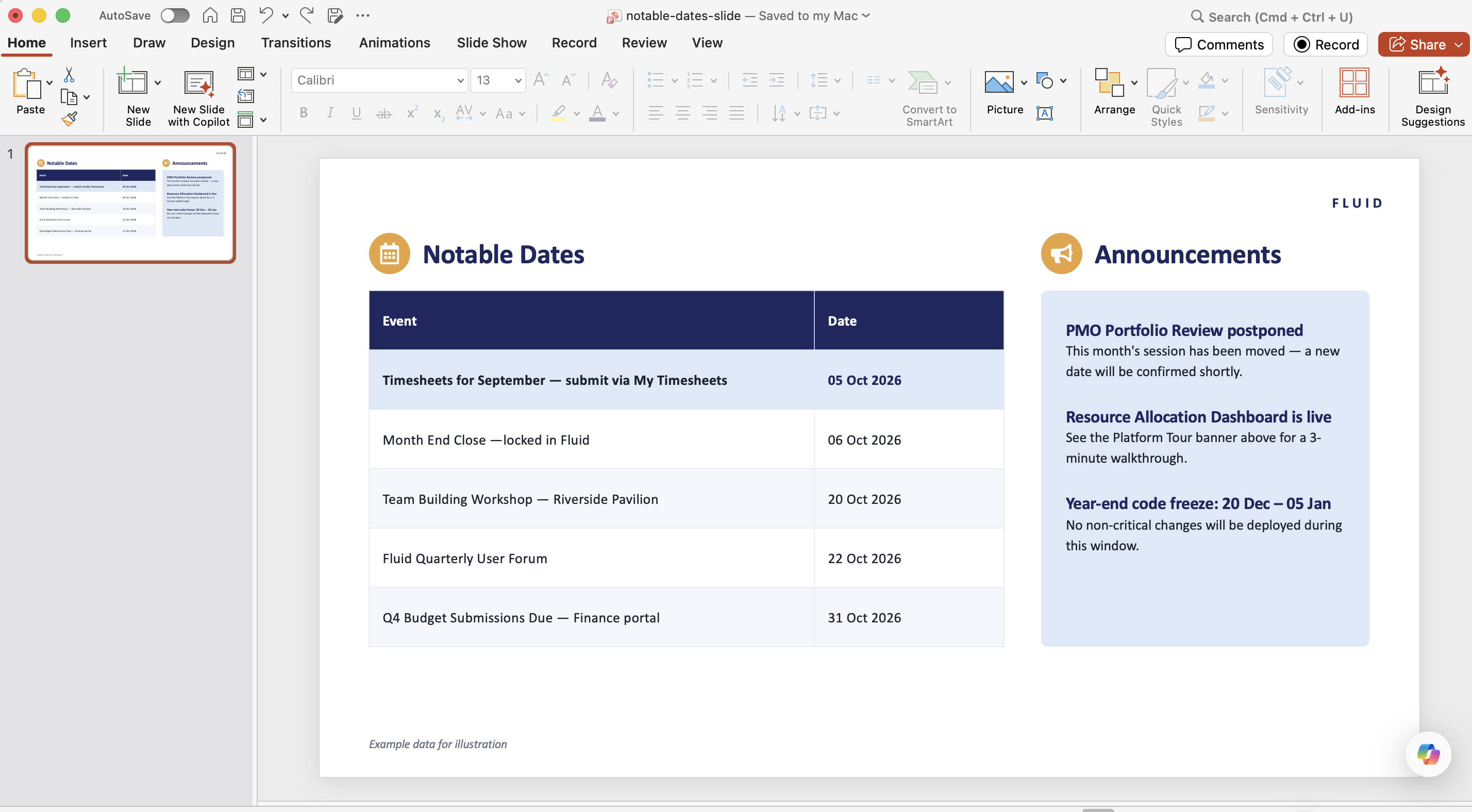
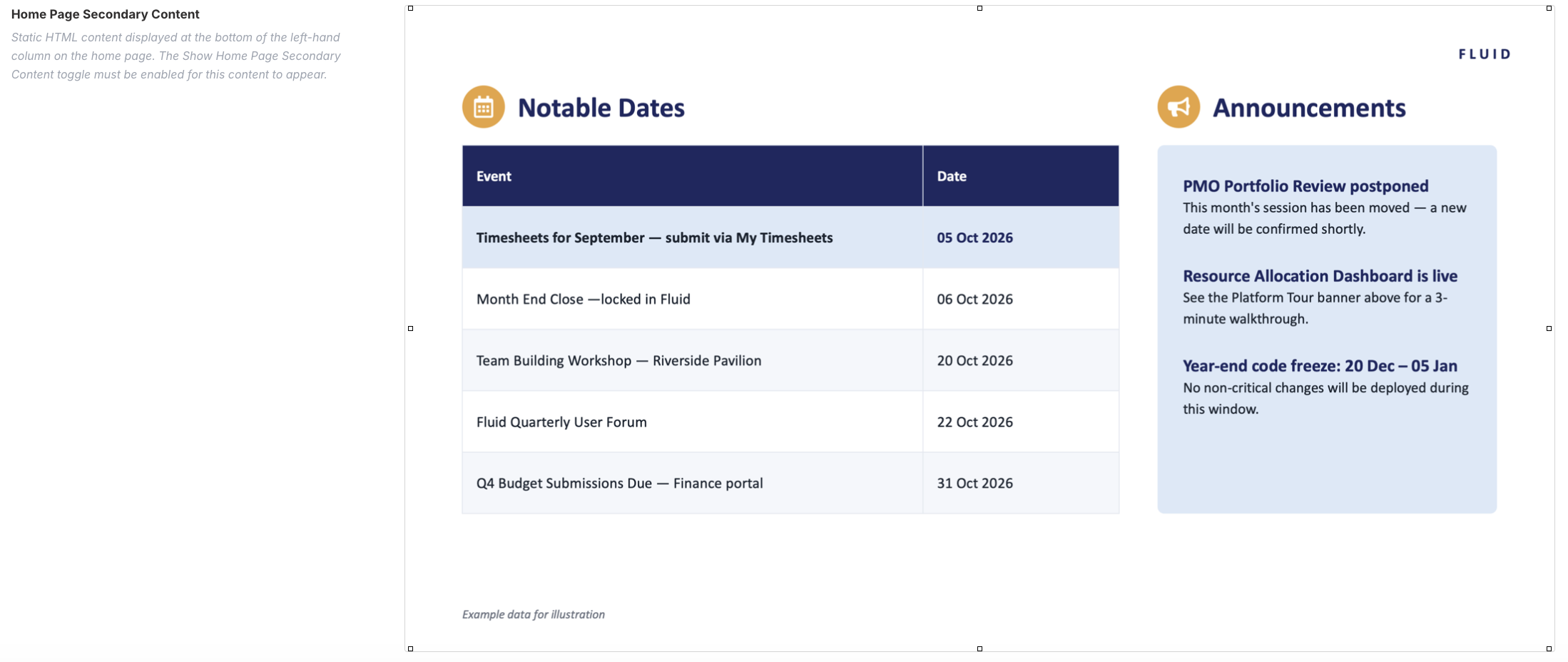
You can design content for these home page content sections in PowerPoint as a presentation slide and paste the slide directly into the editor. Note that, when you paste the slide, it will render as a static image, any animations & links will not be rendered.
This method works well to create Home Page Header Content and Home Page Secondary Content - the Carousel area has a shorter max height making it unsuitable for a PowerPoint slide.
To do this:
Design your slide
Click on the slide in the slide thumbnail pane on the left hand side of the application and copy it
Paste the copied slide directly into the sections content editor in the general settings page - you'll see the content previewed in the editor
Ensure that the content area is enabled if using the carousel or secondary content area
Click Save
This content will be displayed on your home page.
 ➜
➜ 
Design Content Using HTML
The content sections on these pages can be created using HTML code. This method is the most advanced of method for creating custom homepage content, but is also the most flexible and allows for interactive content, for example creating buttons that link to external sources or other pages within your Fluid site.
To add HTML content:
Click on the content editor for the home page area you want to add
A floating toolbar will appear above the content editing area
Click the 3 ellipses on the far right of the toolbar and select 'View HTML' from the menu
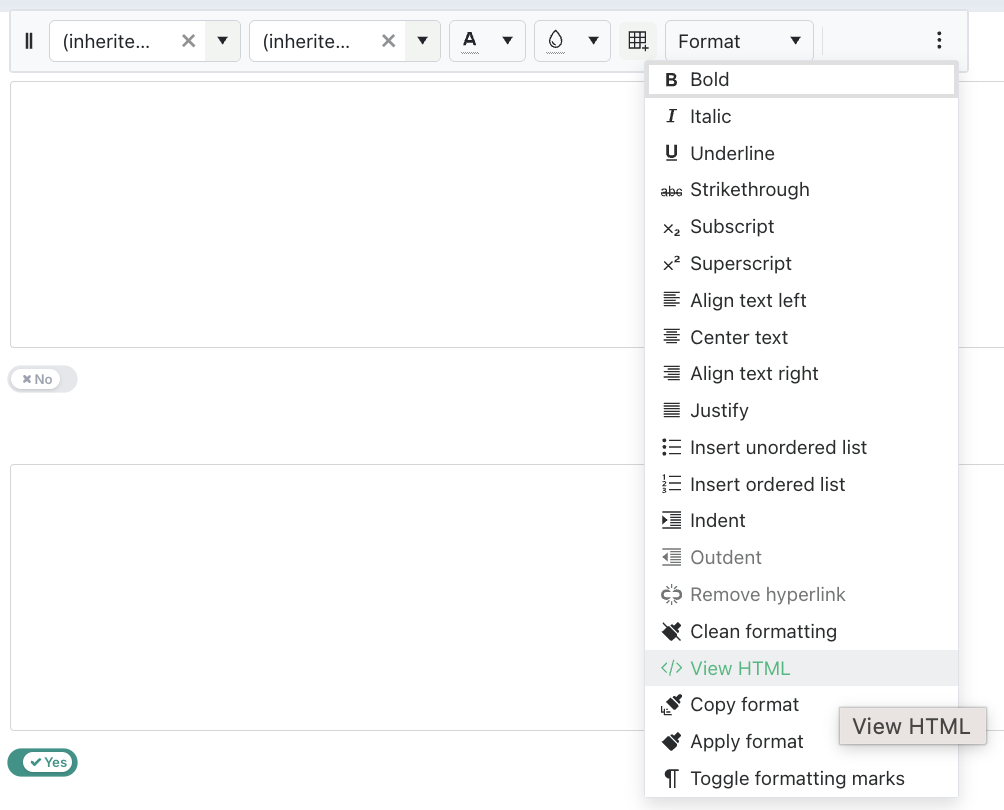
In the dialogue that pops up, you can type or paste in HTML code
When done, click 'Update' and the dialogue will close; a preview of your content will be displayed in the editor
Make sure you click the 'Save' button at the top of the general settings page to apply the changes
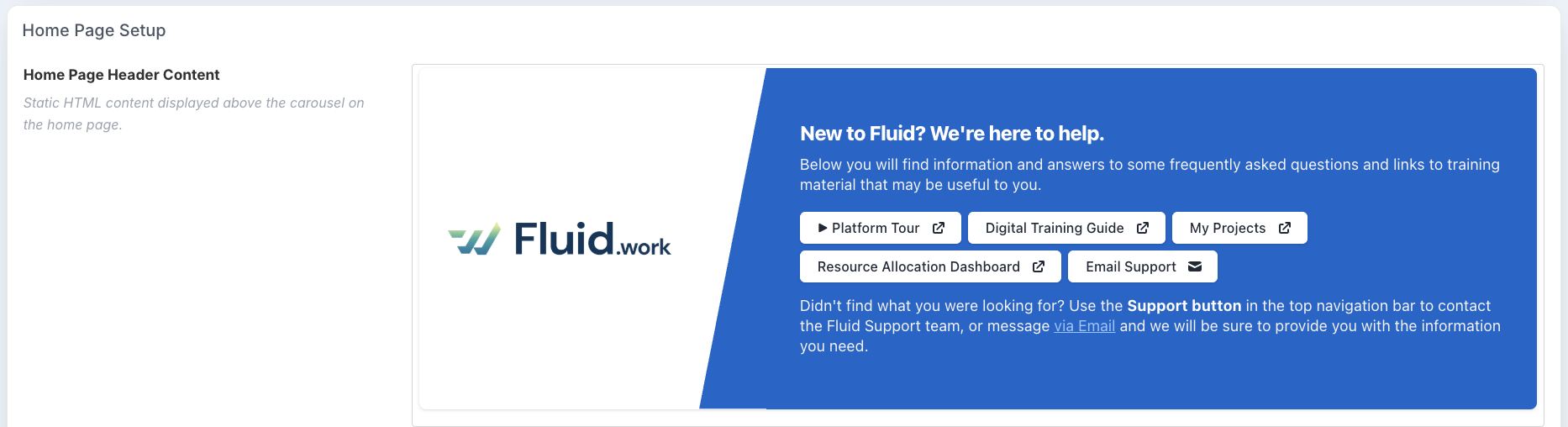
HTML Banner Builder
This tool is to create a custom Header Content area with button links or an announcement Carousel. These are examples that you can use and tailor to your needs. You can create your own custom content if you choose to.
Fill out the settings to customise your content and then take a look at the preview below. Once satisfied, copy the HTML and place it into the relevant content area on the General Settings page in the HTML dialogue. See the previous section ' Design Content Using HTML' above for the steps to apply.