Fluid sends emails to remind resources to submit their timesheets, to remind approvers about timesheets waiting for approval, and to tell resources when a timesheet has been returned for amendment. Some are sent automatically each week, some are sent by an administrator or manager when they choose, and one is sent when a timesheet is returned.
This article explains each timesheet notification: who receives it, when it is sent and which setting controls it. It also lists the timesheet actions that do not send a notification, so you can tell your users what to expect.
Note: All timesheet notifications are sent by email. Timesheet settings are configured by a user with the Timesheet Administrator role and apply to all timesheet users and approvers. Send times use your Fluid site's time zone.
Summary
Notification | Sent to | When it is sent | Switched on by |
Current week timesheet reminder | Resources who have not submitted this week's timesheet | Every week on the current week deadline day (Friday by default), at 10:30 | Current week Timesheet Reminder Enabled |
Previous week timesheet reminder | Resources who have not submitted last week's timesheet | Every week on the previous week deadline day (Friday by default), at 10:30 | Previous week Timesheet Reminder Enabled |
Approvals reminder | Approvers with timesheets waiting for approval | Every week on the approval deadline day (Friday by default), at 12:30 | Approval Reminder Enabled |
Late timesheet reminder | Managers whose resources have not submitted last week's timesheet | Every week on the approval deadline day, at 12:30. A Timesheet Administrator can also send it at any time. | Current week Timesheet Reminder Enabled |
Timesheet reminder sent manually | Resources who have not submitted the selected week | When a Timesheet Administrator or manager sends it | Current week Timesheet Reminder Enabled |
Timesheet returned for amendment | The resource who owns the timesheet | When a manager or Timesheet Administrator returns the timesheet, or recalls an approved one | Current week Timesheet Reminder Enabled |
Important: Current week Timesheet Reminder Enabled controls more than the current week reminder. If it is switched off, Fluid also stops sending the late timesheet reminders, the reminders sent manually and the "returned for amendment" emails. The buttons for sending reminders stay visible, but no email is sent.
When no notification is sent
These timesheet actions do not send an email to anyone.
Action | What happens instead |
A resource submits their timesheet | The approver is not emailed straight away. The timesheet is added to the approver's approvals list in My Items > Approvals and My Team > Approvals, and it is included in the next weekly approvals reminder if that is switched on. |
An approver approves a timesheet | The resource is not emailed. The timesheet status changes to Approved. This also applies to bulk approval. |
A resource returns their own submitted timesheet (using Return for Amendment) | Nobody is emailed. The timesheet is removed from the approver's approvals list, and the resource gets an item in My Items saying their timesheet has been returned for amendment. |
A comment is added to a timesheet | The comment is saved in the timesheet's chat. No email is sent. |
Setting up the scheduled reminders
Go to Administration Console > Timesheet Administration.
Click Configure Settings.
Open the Instructions & Reminders section.
Each deadline field appears once you switch on the reminder above it.
Setting | What it does | Default |
Current week Timesheet Reminder Enabled | Sends the weekly reminder for the current week. Also switches on the late timesheet reminders, the reminders sent manually and the "returned for amendment" emails. | Off |
Current week Timesheet submission deadline | Sets the day the current week reminder is sent. | 5 (Friday) |
Previous week Timesheet Reminder Enabled | Sends the weekly reminder for the previous week. | Off |
Previous week Timesheet submission deadline | Sets the day the previous week reminder is sent. | 5 (Friday) |
Approval Reminder Enabled | Sends the weekly approvals reminder to approvers. | Off |
Timesheet approval deadline | Sets the day the approvals reminder and the scheduled late timesheet reminder are sent. | 5 (Friday) |
Which day the emails are sent
Each deadline number sets the day of the week the email is sent:
Number in field | Day the email is sent |
1 | Monday |
2 | Tuesday |
3 | Wednesday |
4 | Thursday |
5 or -2 | Friday |
6 or -1 | Saturday |
0 or 7 | Sunday |
The current week reminder is about the week in which it is sent. To remind resources before their week closes, use a day at the end of the week, such as -2 (Friday) or 0 (Sunday).
The previous week reminder is about the week before the one in which it is sent.
The late timesheet reminder always uses the approval deadline day. If Approval Reminder Enabled is off, that field is hidden, but the day last saved there (Friday by default) still applies.
Note: Switching a reminder on or off takes effect from its next scheduled send. A change to a deadline day is picked up the next time Fluid refreshes its scheduled jobs. If you need a new day to apply straight away, contact Fluid support.
Scheduled reminder emails
Who receives a timesheet reminder
The current week reminder, the previous week reminder and the reminders sent manually all go to resources whose timesheet for that week has not been submitted. A resource is included when all of these apply:
They are active, have a Fluid user account and have an allocation in that week.
Their timesheet for the week is Not Started, Open or Returned. Resources whose timesheet is Submitted, Resubmitted or Approved are not reminded.
They do not have the Timesheet Exempt role and are not on a Community licence.
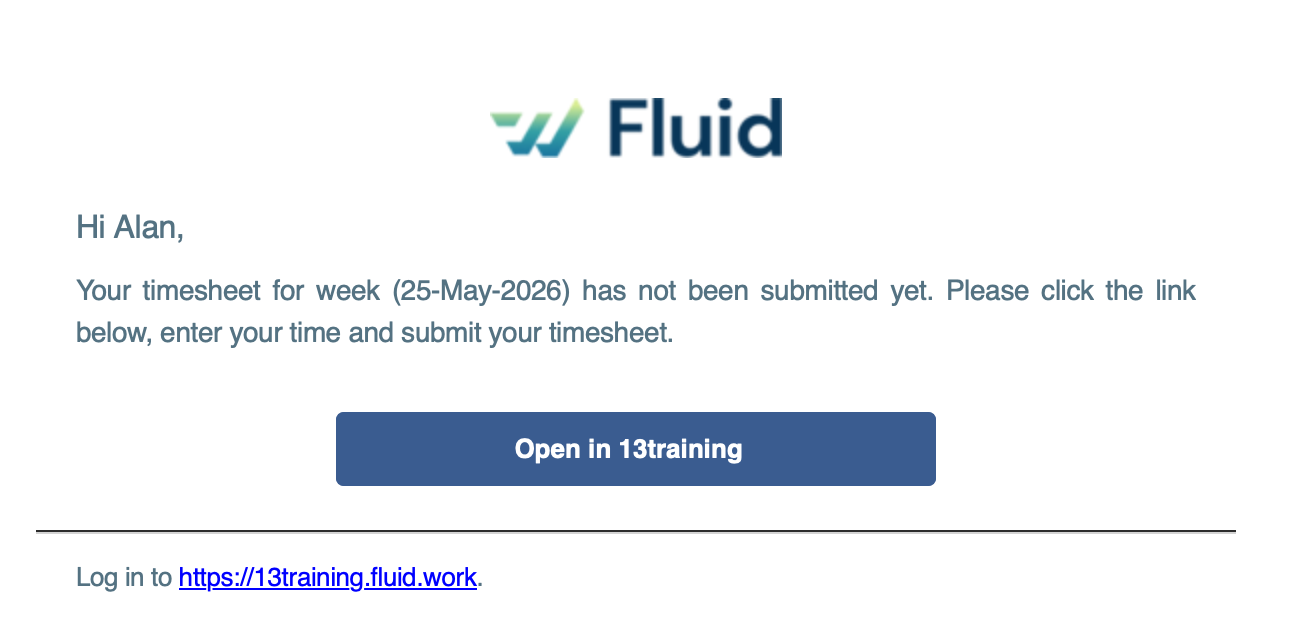
Current week timesheet reminder
When it is sent: every week on the day set in Current week Timesheet submission deadline, at 10:30.
Subject: Timesheet Reminder :: this week (date)
The email asks the resource to enter and submit their time, with a button that opens their timesheet.
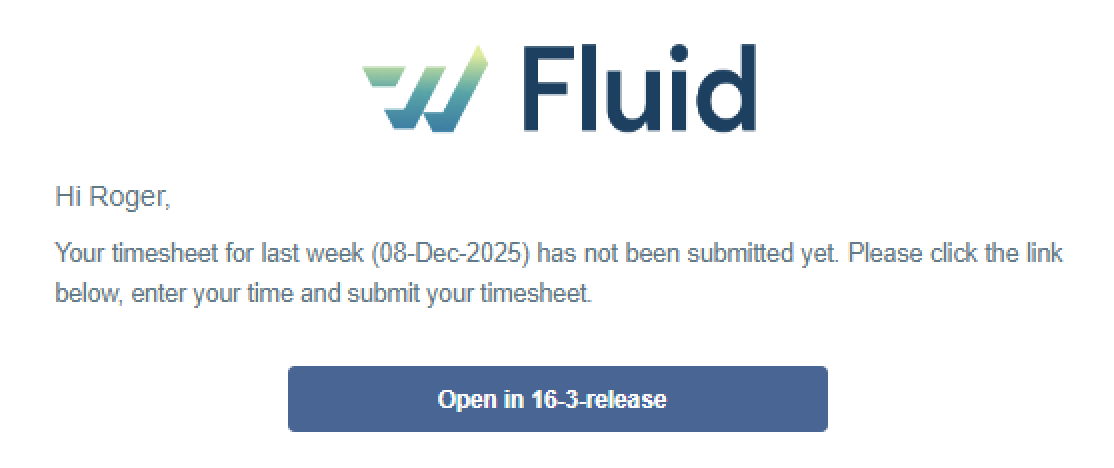
Previous week timesheet reminder
When it is sent: every week on the day set in Previous week Timesheet submission deadline, at 10:30.
Subject: Timesheet Reminder :: last week (date)
Approvals reminder
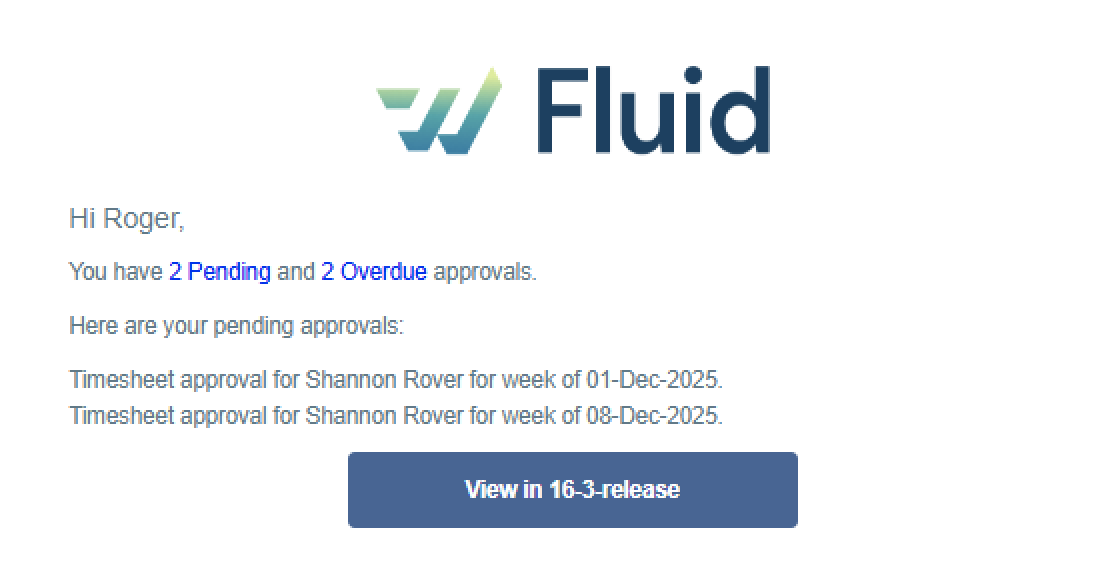
Sent to: every approver with at least one timesheet waiting for approval (Submitted or Resubmitted), whichever week it is for.
When it is sent: every week on the day set in Timesheet approval deadline, at 12:30.
Subject: Approvals Reminder
The email shows how many approvals are pending and how many are overdue, lists them (for example Timesheet approval for Jane Smith for week of 05 Oct 2026), and links to the approver's approvals list. Because it lists every timesheet still waiting, it can include weeks before last week.
Who the approver is:
Normally, the resource's timesheet approver.
If the resource has no approver, or their approver has no current resource plan, the timesheet goes to the central timesheet administrator set up for your Fluid site. Those approvals appear in Timesheet Administration > Approvals.
If your site uses project-level time approval, time booked to a project goes to that project's primary project managers, and other time goes to the resource's approver.
Late timesheet reminder
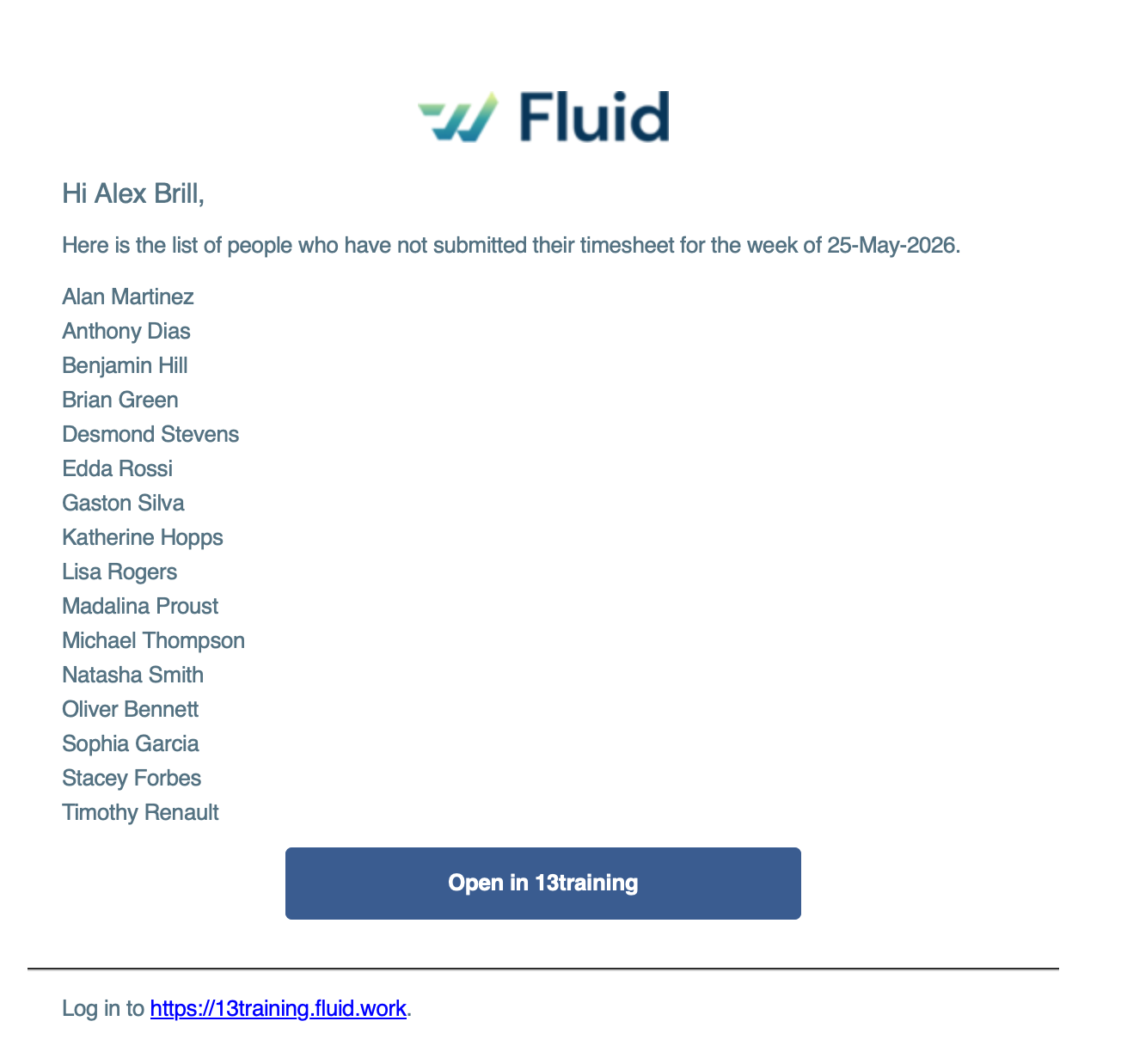
Sent to: each manager (timesheet approver) with resources who have not submitted last week's timesheet. Resources with no timesheet approver are not included.
When it is sent: every week on the day set in Timesheet approval deadline, at 12:30. A Timesheet Administrator can also send it for any week (see Sending reminders manually below).
Subject: Late timesheet reminder :: this week (date). The date is the start of the week the email is about.
The email lists the manager's people who have not submitted their timesheet for that week and links to Fluid.
Note: This email is controlled by Current week Timesheet Reminder Enabled, not by Approval Reminder Enabled.
Sending reminders manually
Timesheet Administrators and managers can send a reminder for a particular week at any time. It is the same reminder email as the scheduled one, with the subject Timesheet Reminder for the week of (date), and the same rules decide who receives it. Fluid asks you to confirm before anything is sent.
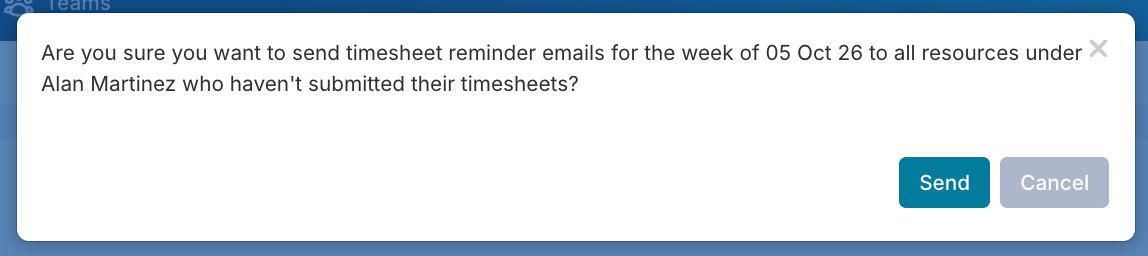
From Timesheet Administration
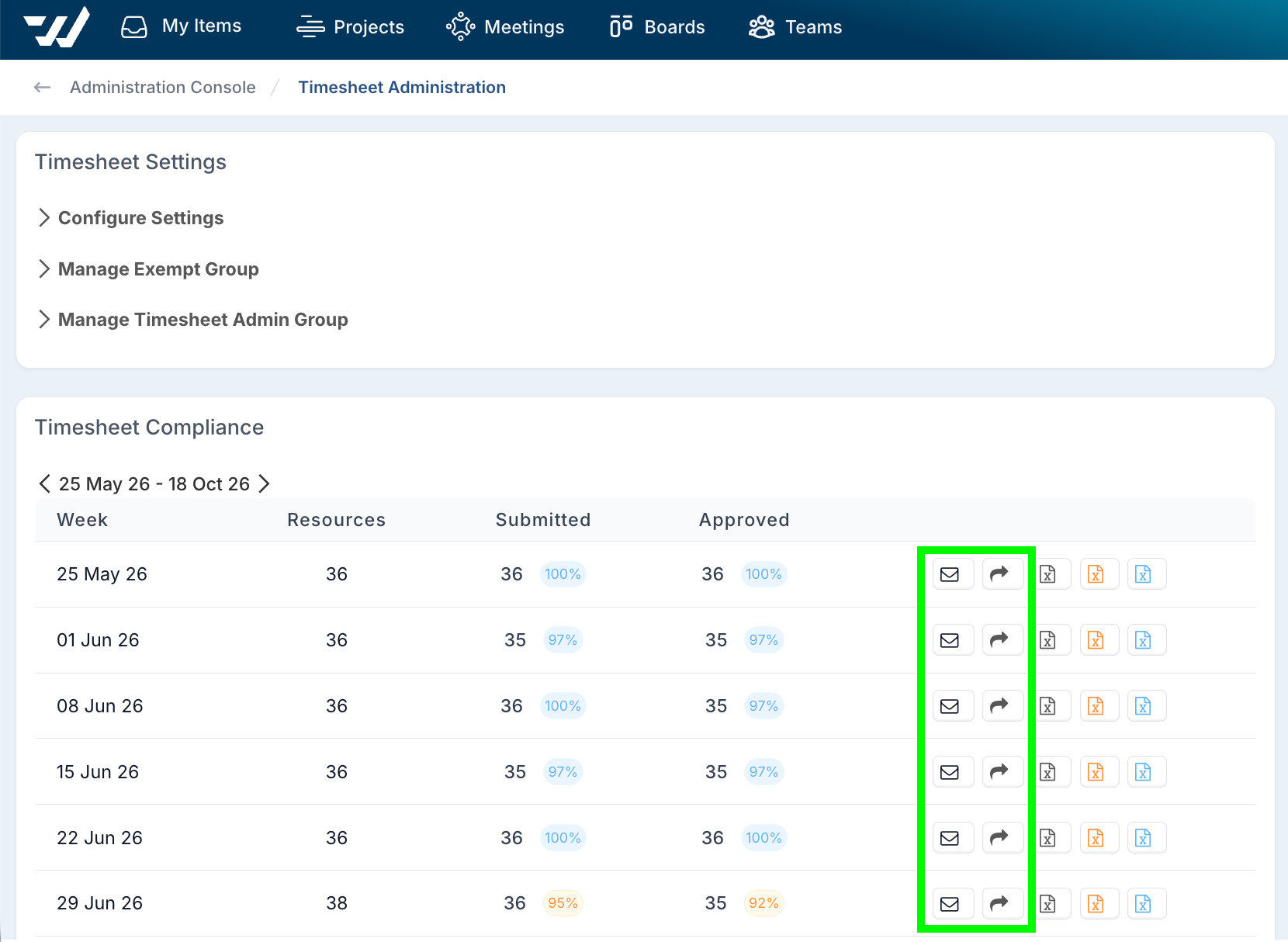
These options are available to Timesheet Administrators on the Timesheet Administration page.
In the Timesheet Compliance section, each week has two buttons:
Send timesheet reminder email (envelope icon) emails every resource who has not submitted that week.
Send late timesheets to managers (arrow icon) sends each manager the late timesheet reminder, listing their people who have not submitted that week.
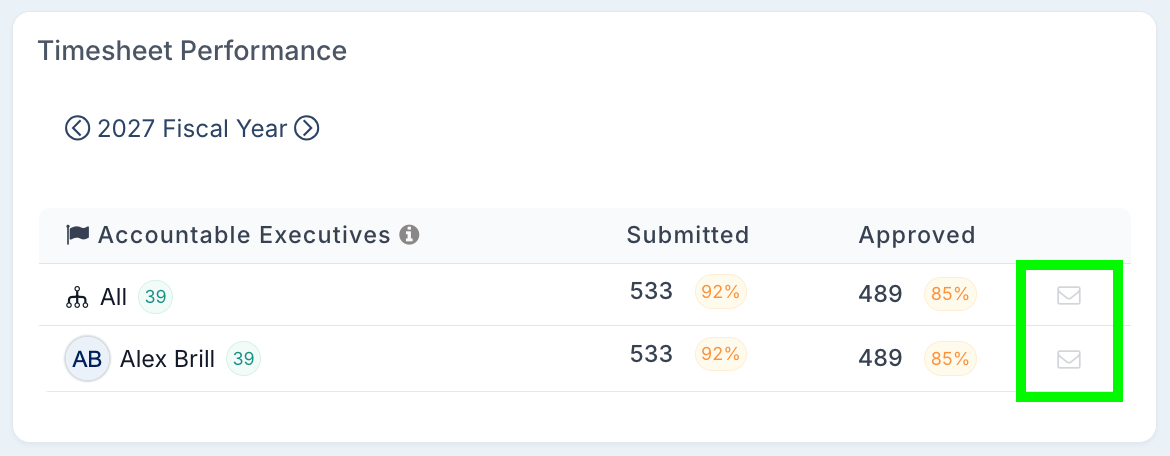
In the Timesheet Performance section, each Accountable Executive row has an envelope icon that sends the reminder to the resources under that person who have not submitted.
From My Team Page
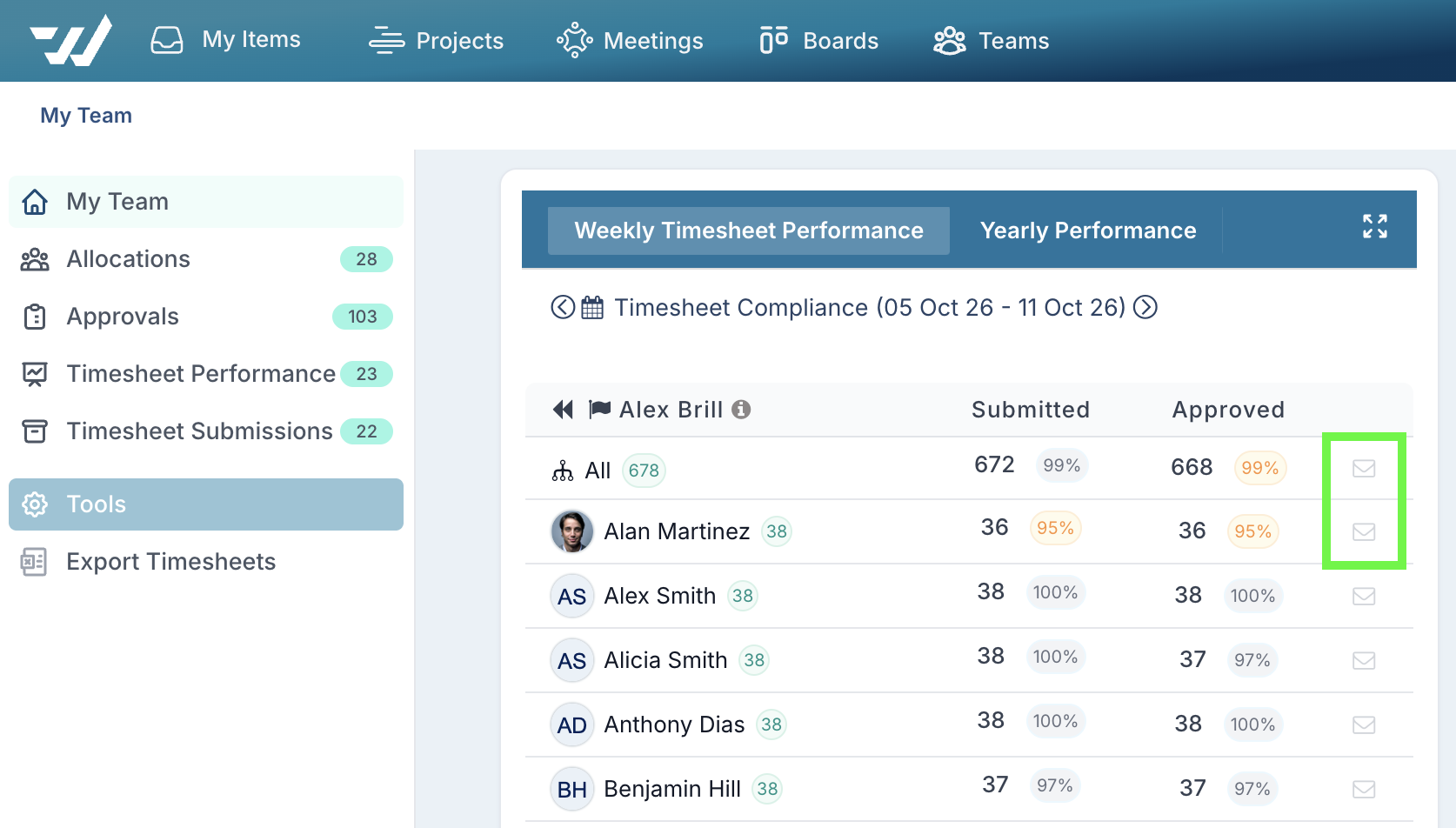
Managers can send reminders to their own people from the My Team page.
In Timesheet Performance (on the Weekly Timesheet Performance or Yearly Performance tab), each row has an envelope icon that sends the reminder to the resources under that person who have not submitted.
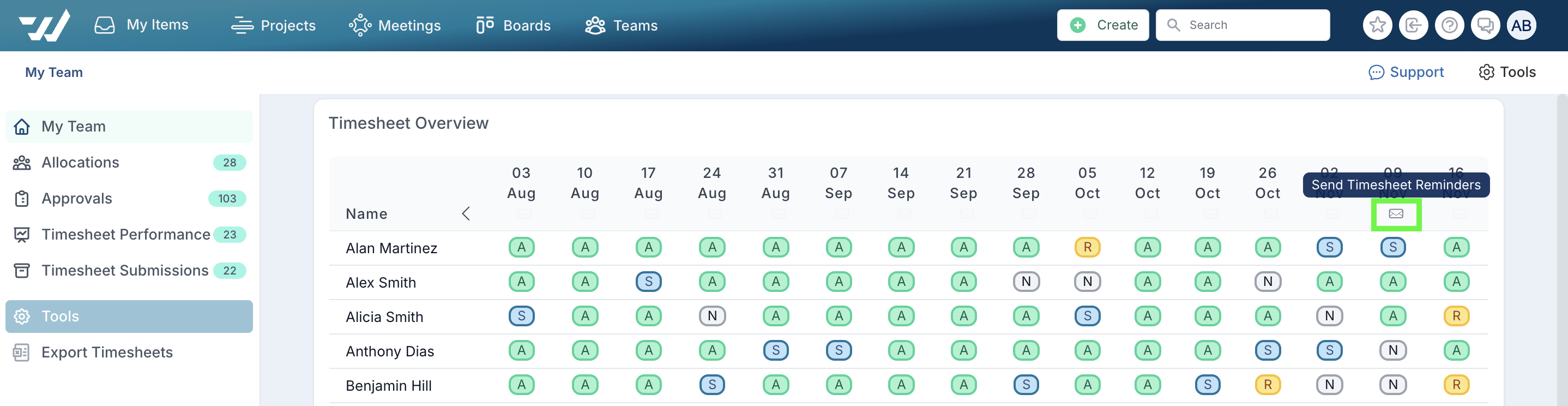
In Timesheet Overview, hover over a week and click the envelope icon (Send Timesheet Reminders). The reminder goes to everyone in your team who has not submitted that week, including people who report to your direct reports.
Timesheet returned for amendment
Sent to: the resource who owns the timesheet.
Sent when a manager, Timesheet Administrator or project manager does one of the following on someone else's timesheet:
Clicks Return for Amendment on a Submitted or Resubmitted timesheet.
Clicks Recall from Approved on an Approved timesheet.
Returns individual rows of the timesheet for amendment.
Subject: Timesheet amendment required for week of (date)
The email tells the resource their timesheet has been returned, asks them to amend and resubmit it, and links to the timesheet. The resource also gets an item in My Items with an Open Timesheet button, and the timesheet status changes to Returned.
The email does not include comments. If the approver has added a comment, the resource can read it by opening the timesheet and clicking the chat icon.
Note: No email is sent when resources return their own timesheet. This email also needs Current week Timesheet Reminder Enabled to be switched on.
Frequently asked questions
Can a user turn off timesheet emails?
No. Timesheet emails are sent even if the user has switched off Opt In for Email Notifications in their own settings. Only the Timesheet Administrator settings above control them. Inactive users do not receive them.
Why did a resource not receive a reminder?
Check that:
the reminder is switched on;
the resource had an allocation that week;
their timesheet was not already Submitted, Resubmitted or Approved;
they do not have the Timesheet Exempt role.
Why did a manager not receive a late timesheet reminder?
The late timesheet reminder only goes to managers who are set as their resources' timesheet approver, and only while Current week Timesheet Reminder Enabled is on.
Why did an approver get an approvals reminder for an old week?
The approvals reminder includes every timesheet still waiting for that approver, not only last week's.
Can timesheet approvals appear in other reminder emails?
Yes. If your site sends the general open actions reminder, pending timesheet approvals and returned timesheets are listed in it with the user's other open items. That email follows each user's own email notification settings.