In this article, we cover off how to set the general settings for your instancel like the default time zone and required branding for automated emails and meeting minutes.
You need to be an Application Administrator to be able to access the System Settings. For more on account permissions, click here.
Navigating to the General Settings Page
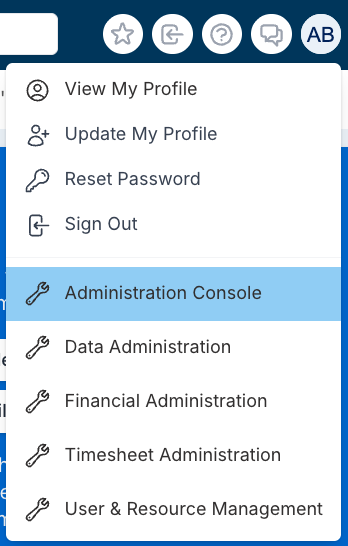
From the drop down menu under your avatar select Administration Console.
Navigate to the System Settings section of the page and select General Settings.
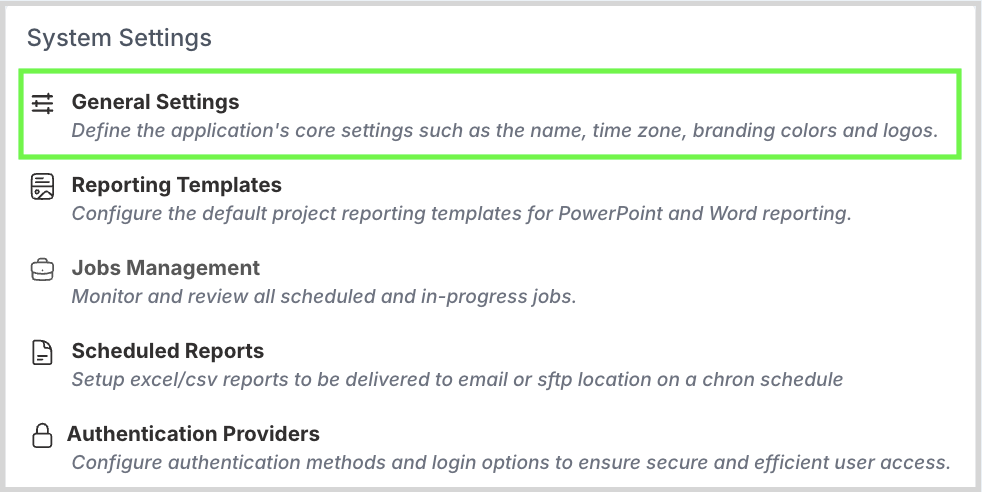
General Settings
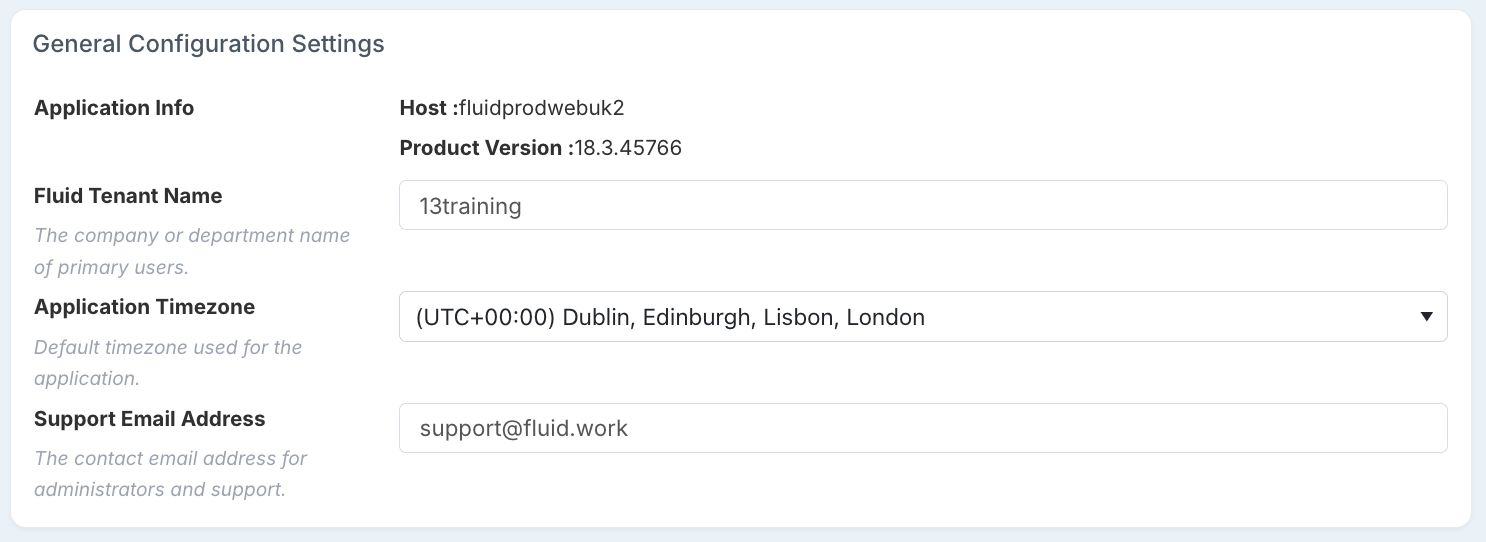
General Configuration Settings
Fluid Tenant Name
The name of the instance to appear on the login screen and all automated emails.Application Timezone
The DEFAULT timezone for the instance. Time zones for individuals can be set on their individual account profiles so that they will see Meetings and receive meetingSupport Email Address
By default, the support email address will be the Fluid Support team email support@fluid.work. If you would prefer to direct your Fluid user base to an internal support email within your organisation, you can update this to an email address of you choice.
Some organisations choose to route initial questions to their own application administrators first and the application admins escalate questions they cannot answer to the Fluid team via our own support chat or email address.
Branding
Branding Primary Color
Your primary branding color (hex). We suggest selecting a darker color as a highlight, often used with white text.You will see this reflected in the:
Left side navigation bar at the top of each Fluid page, forming a gradient, blended with your secondary branding color.
Used for Section Headers throughout Fluid as an accent.
Secondary Branding Color
A secondary branding color (hex). We suggest using a lighter color to soften the UI.You will see this reflected in the:
Right side navigation bar at the top of each Fluid page, forming a gradient, blended with your secondary branding color.
In the background of your Fluid pages, but as a softer, less saturated backdrop.
Email Branding Colour
Your corporate colour to be included on automated emails and pdf minutes.Company Logo
Your company's logo. This will be displayed on the login page, meeting minutes and can be used to build custom templates.Application Home Logo
This will be displayed on the top left of the site navigation bar. This image should be in a .png file format, with a transparent background and have a 1x4 aspect ratio e.g. 100px high by 400px wide.Customise the home page image
This should be rectangular (approx. h200px x w900px) and will be shown on the home page.You can extract information out of Fluid into Word and Powerpoint templates. The instance comes configured with some default templates - although you can create and upload your own under Export Templates (outlined below).
Email Logo
This will be displayed on email notifications sent out from Fluid, replacing the Fluid logo.
The logo should ideally have a transparent background. In order to be proportionate within the email it is recommended that the height does not exceed 180px and width does not exceed 220px. It will be shown at the top of all emails.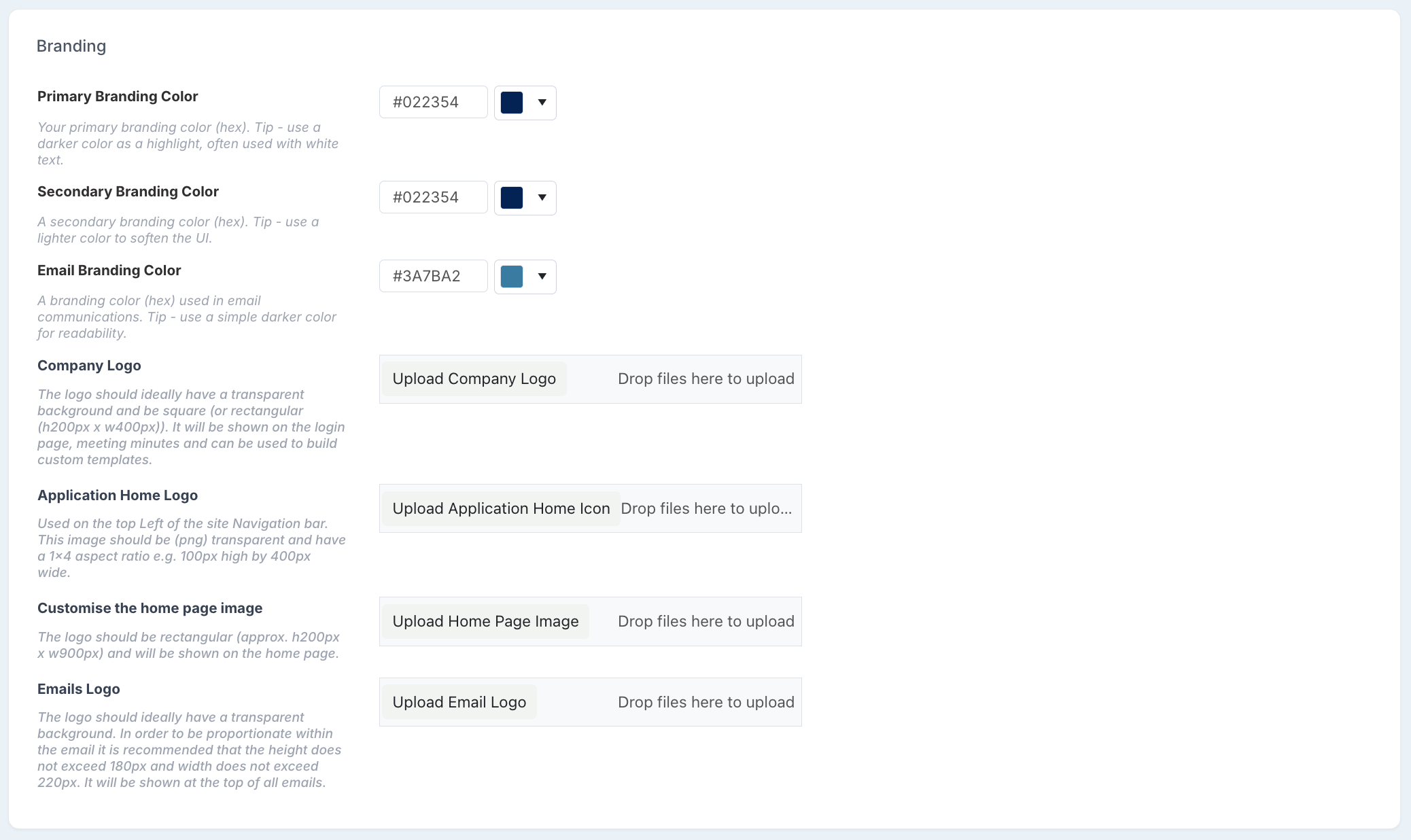
Branding
Home Page Setup
Home Page Header Content
This is an area where you can display custom, static content on the home page. You can paste images here, use Fluid's rich text editor formatting tools, or for a high level of customisation and flexibility in your design, you can apply static HTML content.Show Home Page Carousel
This toggle enables and disables the home page carousel feature. When enabled, the home page displays a configurable announcement carousel for all users.Home Page Carousel Content
This is an area where you can display custom carousel banner on the home page. The 'Show Home Page Carousel Content' toggle must be enabled for this content to appear. To create a set of individual content slides, each carousel slide's content should be placed into a new outer < div > to create a new slider panel.Show Home Page Secondary Content
This toggle enables and disables the home page secondary content feature. When enabled, the home page displays a configurable content area, displayed at the bottom of the left-hand column on the home page.Home Page Secondary Content
This is an area where you can display custom content area, displayed at the bottom of the left-hand column on the home page. The 'Show Home Page Secondary Content' toggle must be enabled for this content to appear. You can paste images here, use Fluid's rich text editor formatting tools, or for a high level of customisation and flexibility in your design, you can apply static HTML content.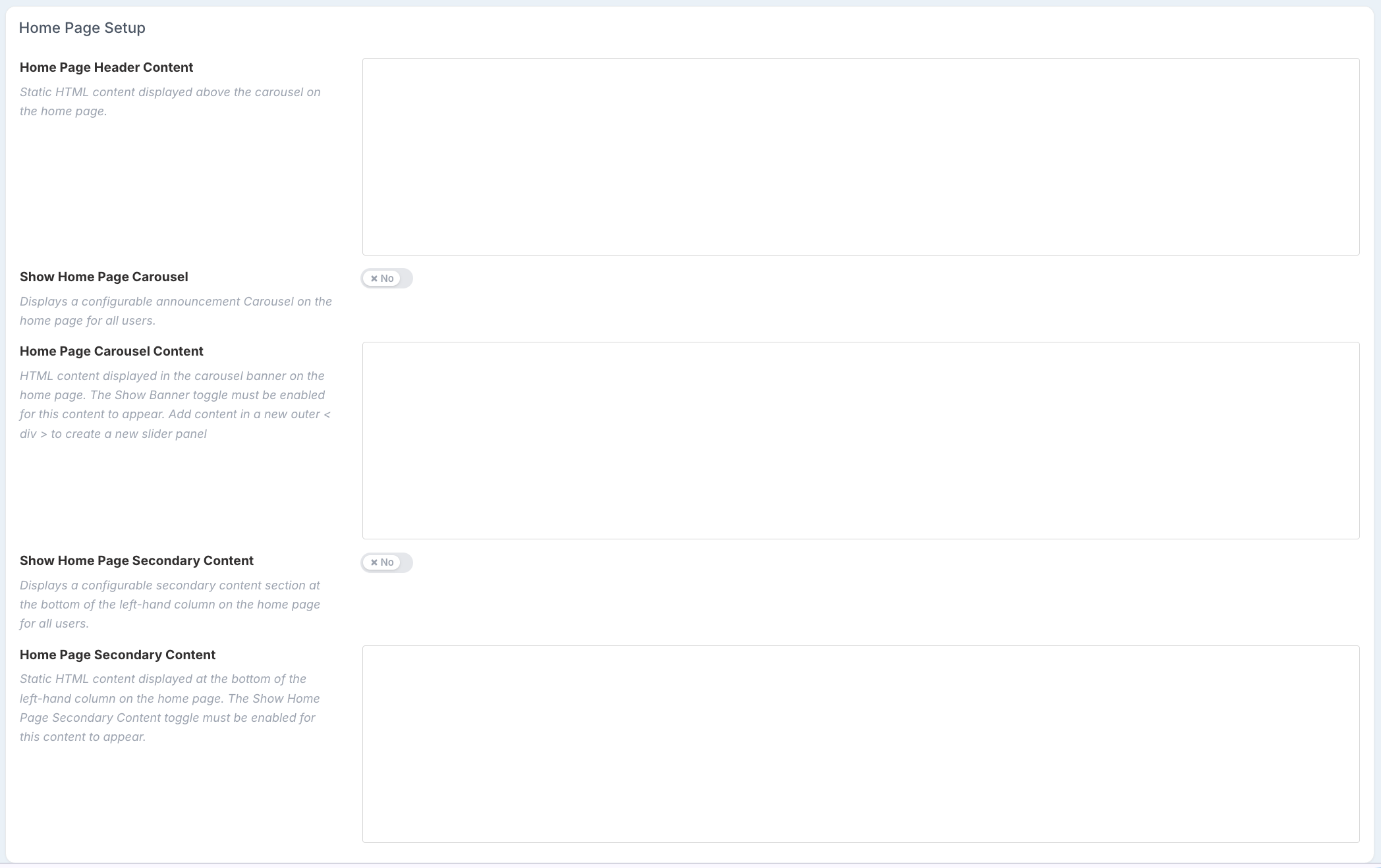
Home Page Setup